IsNumeric
By Richard Rost

 2 years ago
Using IsNumeric to Validate Data Entry in MS Access
In this Microsoft Access tutorial, I will show you how to use the IsNumeric function to validate data entry, ensuring users input proper numeric values. Learn about VBA basics, input boxes, error handling, variable casting, and loop structures to improve your database functionality and avoid common data entry errors.
Zachary from Germantown, Maryland (a Gold Member) asks: I often need to print multiple copies of invoices. I have an InputBox that opens and asks the user how many copies they want. If they enter gibberish, like "1j4fjf" I get an error message. I know I can use On Error to bypass the error, but is there a better way?
Members
There is no extended cut, but here is the database download:
Silver Members and up get access to view Extended Cut videos, when available. Gold Members can download the files from class plus get access to the Code Vault. If you're not a member, Join Today!
Prerequisites
Links
Recommended Courses
Keywords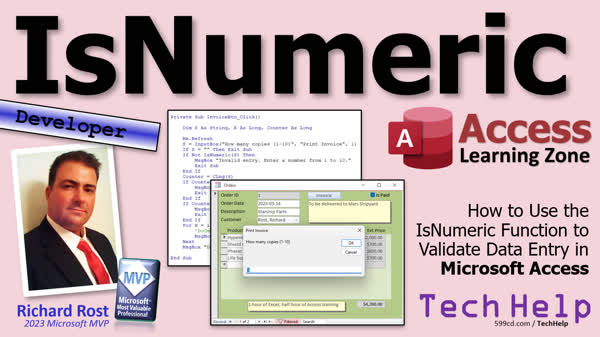
TechHelp Access, IsNumeric function, data validation, validate data entry, VBA, input box validation, error handling VBA, user input verification, numeric input check, If-Then statements, prevent input errors, validate numeric value, message box VBA, Access forms validation
 Subscribe to IsNumeric
Get notifications when this page is updated
More InformationTranscript Today we're going to talk about the IsNumeric function in VBA and how to use it to validate data entry to make sure your users aren't just typing in garbage. Today's question comes from Zachary in Germantown, Maryland, one of my gold members.
Zachary says, "I often need to print multiple copies of invoices. I have an input box that opens and asks the user how many copies they want. If they enter gibberish, like 'whatever,' I get an error message. I know I can use OnError to bypass the error, but is there a better way?"
Yeah, of course, there is. There are a couple of things you can do. First, check to make sure they entered something. Then we'll check to see if they entered a numeric value using the IsNumeric function. Then we'll do some other checks like making sure they didn't enter a negative number or a number that's stupid high like 5,000 copies.
So let's take a look at how to set this up. First off, this is a developer-level video which means you're going to need some VBA and if you don't know how to program in VBA, go watch my intro to VBA video. It'll teach you everything you need to know in about 20 minutes.
And you can use IsNumeric without VBA. You can use it in a query or in a form field, but the example we're going to use today is going to be with a little bit of VBA. We're also going to be using some variables to store the values that the user enters and some other stuff. We're going to use a couple of If-Then statements to make sure the users typed in some valid information like if it's an empty string, then exit out, that kind of stuff. We're going to use an input box to get the value from a user. So you can pop up a little window that says, "Hey, type in a value." That's an input box.
And we're going to use a For-Next loop to loop through the actual printing of the invoices. And I'm not going to print invoices. I'm not going to waste paper, but we'll simulate it. Now, these are all free videos. They're on my website. They're on my YouTube channel. If you don't know how to do any of these things, go watch those videos first and then come on back.
Okay, so here I am in my TechHelp free template. This is a free database. You can grab a copy off my website if you want to. And in here, we've got customers and customers can have orders and orders can be printed as invoices. And there it is. Now if you want to print this directly to the printer, you can do that. I use the print preview as my default option.
So if we come in here and take a look at the button, Design View, right-click, Build Event, it brings up your code builder. There we are. We refresh the record first. That makes sure that we save whatever's in here because if you just open up the report and this form is dirty, then you're not going to get accurate information. I cover that in my invoicing video. I'll put a link to that down below as well. That's the video where I show you how I build this database. Then I do Command Open Report, which opens up the invoice in Preview mode. If you want to print it, then you'll use acViewNormal, but I use Preview. If you want to print it, you'll do normal. I'm going to put normal on there just to remind all you guys, but I'm going to actually run that out because I'm not going to be doing any printing today. Not wasting my paper for you guys. No, I'm just kidding.
Alright, so in here is where we're going to ask the user, "Hey, how many copies would you like of this?" And then we'll just loop through, you know, one, two, whatever they type in. So we'll need some variables first. Let's come up here. We're going to Dim s As String. Always get the input box value that they type in as a string. If you want to convert it to a number after that, you can convert it to a number, but the input box returns a string, so that's what you want to use.
Then we'll need two other variables, x As Long and counter As Long. Counter is going to be what we turn s into if it's valid. That'll be our counter variable, so if they want 10 copies, counter will be 10. And x will be our loop counter. 1, 2, 3, 4, 5, and so on.
Alright, so we'll refresh the form and then we'll ask the user how many copies they want. So s is going to be equal to InputBox, "How many copies," and you can put a limit on it, right, like 1 to 10. If they want 500 copies, you know, they'll just have to do this 50 times. Title for the box, I don't know, Print Invoice, and you can set a default. I put a default of 1 on this maybe, okay?
Now the first thing I like to do after every input box is I always say if s is an empty string, then exit sub. That means they either clicked cancel or they deleted what's in the box and then hit OK. Either way, you're going to get an empty string, which means they didn't give you a value, just exit out.
Alright, now at this point, we have something. There was something in the input box, so I'm going to say if Not IsNumeric(s) Then End If. They entered in something that's not numeric, right? If Not IsNumeric. I know it seems kind of weird English-wise, but there isn't a not numeric so it's IsNumeric. So IsNumeric will return true if they type in a valid number. Okay, and this can be any kind of number. It could even be a double like 4.6. Okay, so we're going to convert it to a long in just a minute.
Alright, we're basically saying if it's not a numeric value, then we're going to say, "Hey, message box, invalid entry, enter a number from 1 to 10," like that. And then exit sub. What they typed in was garbage, bye.
So now at this point, we've got a number. Okay, now we're going to take that s, that string, and convert it to a long and store it in our counter variable. So counter equals CLng(s). I should have put this in the prerequisites. Convert to long. There's a convert. It's called type variable casting. You're going to convert from one variable type to another. Take a string, make it a long integer, that kind of stuff. You see double, you see currency, you see boolean, all those different things.
Yeah, I knew I got a video on it somewhere. Here you go. I got videos for everything. And if you find a topic I don't have a video on, you let me know. If you try to search for something Access related on Google or YouTube and one of my videos doesn't come up, you let me know, I'll make one. That's my goal.
Alright, so now at this point, the value the users enter has been converted to a long and now we can check the value itself. So if counter is less than one, then MessageBox, "Minimum one required," exits sub. Alright, if counter is greater than 10, then right max 10, pull out, exit sub.
Alright, now we're ready to actually do our printing. So here's what we'll say for x equals 1 to counter and then our print command will go here where we print it. But I'll just message box for now a message box like printing copy x. You could status bar that too. Or if you use my StatusBox function, that would be a good use for that too. And then when you're all done, MessageBox, "Done."
There you go. Let me see if I can get you the whole thing in one window. There it is. Alright, Debug Compile. Save it. Close it. Close it. Open it. Let's print them. How many copies? Let's put in x or whatever. Invalid entry because they didn't enter something good. Alright, hit OK. How about if they hit cancel? Nope, it just exits out. How about if I put in negative 5? Nope, minimum one required. How about if I put in four? Printing copy one. Printing copy two. Printing copy three. Printing copy... It's like at the fair, right? Ball number one, ball number two. I never win that game. I never win that game. The little kid next to me always wins that game. But that's it. That's pretty straightforward, right? Not that bad, just getting the value, check to make sure they entered something, now see if it's numeric. And then you can check your bounds, the upper, lower bounds.
Okay, if you want to learn more about IsNumeric, I cover it in great detail in my Access Expert Level 25 class. Expert means we're not into developer stuff. You can use a lot of these functions, not in VBA. And I cover them in the Access Expert series because you can use these in queries and in form fields. You can make a query that says, you know, if it's, you know, take s and see if it's numeric or not before you convert it to something else. Right, and there's IsNull, we know that, IsDate, IsError, right, IsNumeric. There's logical functions. I do a comprehensive guide to functions. There's several of my classes, we just go through all the functions. Right, string functions, the logical functions, the math functions, yes, we go over the trig functions too. Believe it or not, I've had people use trig. In the example I give in the class, we use trig to calculate the height of a building. Pretty cool. You take the angle of it and the distance you are, all that use tangents and all that cool stuff. Daytime functions. I got functions, people. I cover all the functions.
These are my Access Expert classes. I'll put links to this down below. And that is going to be your TechHelp video for today. I hope you learned something. Live long and prosper, my friends. I'll see you next time.
TOPICS:
IsNumeric function in VBA
Validating numeric input in VBA
Using IsNumeric in queries and form fields
Variables for storing user input
Using If-Then statements for validation
Implementing an InputBox for user data entry
Checking for empty strings
Using Not IsNumeric for invalid entries
Converting strings to long integers with CLng
Setting boundaries for numeric input
Using For-Next loops for iteration
Simulating print operations in VBA
Displaying message boxes for user feedback
COMMERCIAL:
In today's video from Access Learning Zone, I'm going to show you how to use the IsNumeric function in VBA to validate data entry. You'll learn how to check if a user's input is numeric, ensure it's within a valid range, and handle errors gracefully. We'll walk through setting up an input box, using variables, and looping through printing invoices without wasting paper. Beginners, watch my intro to VBA first. This tutorial is straightforward and user-friendly. You'll find the complete video on my YouTube channel and on my website at the link shown. Live long and prosper my friends. Intro In this video, we will talk about the IsNumeric function in Microsoft Access VBA and how to use it to validate numeric input from users. You'll see how to check whether data entered in an input box is numeric, handle empty strings, convert string input to a long integer, and set limits on acceptable values. We will also use If-Then statements for validation, store values in variables, and use a For-Next loop to simulate printing invoices based on user input, all while providing clear feedback with message boxes. Quiz Q1. What is the primary purpose of the IsNumeric function in VBA?
A. To ensure the user enters data that is a numeric value
B. To display input boxes for user data entry
C. To bypass errors when non-numeric data is entered
D. To print multiple copies of invoices
Q2. When using an input box to receive user input, what variable type does the input box return?
A. Integer
B. Long
C. String
D. Boolean
Q3. Which of the following correctly represents the syntax to declare a string variable in VBA?
A. Declaration s As Text
B. Dim s As String
C. Declare s As String
D. String s
Q4. If a user enters an empty string in the input box, what should the program do next?
A. Continue executing the next line of code
B. Convert the empty string to a long integer
C. Use a message box to prompt for re-entry
D. Exit the subroutine
Q5. How does the code validate that the user's input is a numeric value?
A. By using the IsEmpty function
B. By using the IsNumeric function
C. By converting the input to a date
D. By printing a message box
Q6. Why is it important to convert the input string to a long integer after validation?
A. Long integers occupy more memory space
B. Users prefer their input to be shown in long format
C. It allows the code to perform arithmetic operations on the input
D. String values cannot be printed in invoices
Q7. What does the code do if the counter variable is less than 1?
A. Continues with the For-Next loop
B. Prints "Minimum one required" message and exits
C. Prompts the user to enter another number
D. Converts the counter to 1
Q8. What is the correct syntax to display a message box in VBA?
A. DisplayBox("Message here")
B. MsgBox "Message here"
C. ShowBox("Message here")
D. PrintBox "Message here"
Q9. How does the code use a For-Next loop in this example?
A. To convert strings into integers
B. To print multiple copies of invoices
C. To store user inputs
D. To refresh the form data
Q10. The example includes bounds checking for user input. What should the upper limit be according to the presented code?
A. 1
B. 5
C. 10
D. 5000
Q11. What action should the program take if the user enters a value greater than the upper limit?
A. Print the number of copies requested
B. Display a message and exit the subroutine
C. Reduce the value to the upper limit
D. Ignore the user input and continue
Q12. What is the role of the “Debug Compile” option in the context of the presented code?
A. To automatically correct syntax errors
B. To check for compilation errors in the code
C. To run the code for printing
D. To find typographical mistakes
Answers: 1-A; 2-C; 3-B; 4-D; 5-B; 6-C; 7-B; 8-B; 9-B; 10-C; 11-B; 12-B
DISCLAIMER: Quiz questions are AI generated. If you find any that are wrong, don't make sense, or aren't related to the video topic at hand, then please post a comment and let me know. Thanks. Summary Today's TechHelp tutorial from Access Learning Zone focuses on using the IsNumeric function in VBA to validate user input, ensuring your database handles number entry properly and avoids errors from non-numeric data.
The question I'm answering today involves needing to print multiple copies of invoices from Access. Many users rely on an InputBox to ask how many copies to print, but sometimes users enter text or other invalid input. This can lead to error messages, which are never good. While you could simply use OnError to deal with this, there is a much cleaner way to approach the problem.
It is always a good idea to validate user input before you try to use it. For this specific case, you want to check several things. First, confirm that the user actually entered something. Next, use the IsNumeric function to determine whether their entry is a valid number. Finally, you should check that the number falls within a sensible range so you avoid requests like negative numbers or printing thousands of copies.
For those unfamiliar with VBA, this is a developer-level lesson and you'll need basic programming knowledge in Access. If you are just getting started, I recommend watching my introductory VBA video, which covers the essentials in about 20 minutes.
While you can use IsNumeric directly in queries or in form fields, our focus today is on how to use it in a VBA module with an input box. We'll also discuss how to use a few variables to process and store values, and how to run some basic validation checks. When you use an input box, always treat the result as a string at first, since the input box always returns a string. You can then check and convert that value if appropriate. In this example, I declare a string variable to store the user's input and a couple of Long variables to use for counting and looping.
Once you receive the value from the InputBox, the first thing you should do is check whether the user left it blank or cancelled out of the dialog. If they did, just exit the subroutine. Then, if the user did enter something, use the IsNumeric function to see if it is actually a number. If it is not numeric, show a message telling the user to enter a valid number, and then exit.
If the value passes that numeric check, only then should you convert it from a string to a long integer using the CLng function. This conversion is called type casting, and it is a core VBA technique, letting you move between variable types as needed. Once you have the value as a Long, check whether it falls within your chosen boundaries. For example, enforce a minimum of one copy and a reasonable maximum like ten. If the number is below or above your limits, inform the user and exit.
Assuming the input value is valid, you can use a For-Next loop to proceed with the print (or simulated print) process. Each iteration represents printing one copy, and you can display messages for each step to keep the user informed. When the job is complete, you can let the user know with a final message.
If you use print preview as your preferred default, you can adjust your code as needed to actually send output to the printer, but here I prefer to demonstrate using previews and simulated messages so that you are not wasting paper during your tests.
If you are interested in learning more about the IsNumeric function, it also works wonderfully outside VBA. You can use IsNumeric in queries and calculated fields, which can come in handy for all sorts of validation techniques. In fact, there are other similar functions you might find useful, like IsNull, IsDate, and IsError. These are covered in detail in my Access Expert Level 25 class, which provides an in-depth look at different types of functions available in Access. I break down logical, string, mathematical, and even trigonometric functions, so if you have a specialized calculation in mind, I likely have a video covering it.
That wraps up our TechHelp lesson for today. If you want to watch a complete video tutorial with step-by-step instructions on everything discussed here, you can find it on my website at the link below. Live long and prosper, my friends. Topic List IsNumeric function in VBA
Validating numeric input from user
Using InputBox to collect user data
Storing user input in variables
Checking for empty string input
Using If-Then statements for validation
Handling non-numeric input with Not IsNumeric
Converting string input to long with CLng
Setting upper and lower numeric bounds
Displaying message boxes for feedback
Iterating with For-Next loop for multiple actions
Simulating print operations in VBA Primary Topics VBA IsNumeric function, input validation, user input via InputBox, data type conversion, error handling, numeric range checks, invoice printing logic, use of variables, For-Next loops
Secondary Topics using IsNumeric in queries/forms, message boxes for feedback, refreshing records, CLng function, function overview
|




