You Need Another Query
By Richard Rost

 2 years ago
Use a 2nd Query for Complex Calculations or Criteria
In this Microsoft Access tutorial, I will show you how to use a secondary query for criteria and complex calculations. You'll learn about string concatenation, using the Left function, creating customer codes, and handling query criteria. Perfect for beginners but useful for all skill levels!
Prerequisites
Links
Recommended Courses
Keywords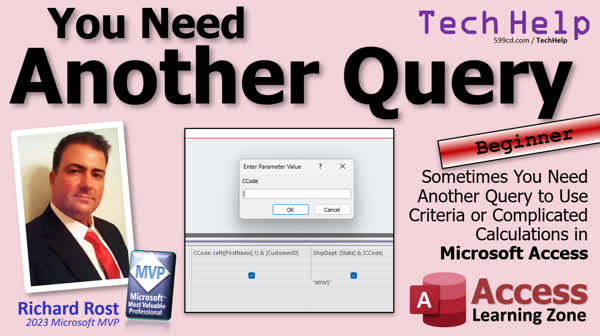
TechHelp Access, query criteria, complicated calculations, string concatenation, calculated field, parameter query, query design, customer code, shipping code, query-calculated field, Access functions, left function, concatenate values, creating queries, second query, query troubleshooting, data type mismatch, lookup query
More InformationTranscript We've got one for the beginners today, but no matter what your skill level is, you can benefit from watching this video because I get asked this all the time from people of all skill levels and it has to do with queries.
Sometimes, you need another query, a second query, to use criteria or complicated calculations in Microsoft Access. I see this all the time where people start putting all kinds of crazy calculations in the query, and then they wonder why it won't work. So, we're going to talk about that today.
All right, first some prerequisites before we get into it. Even though this is a beginner video, I got some prerequisites for you, some things I'm going to use in the samples. For example, string concatenation, that's putting two or more strings together or two values together to make a single value. When we do that in a query, we create a query-calculated field. You can also do it in a form field.
So, go watch these two videos if you're not sure about how to do either of these things. You should know how to use the string function. Specifically, we're just going to use the left function to take the left character off of the string value. We're going to use query criteria; that's where we can specify certain records to look up. We're going to use a parameter query. Yes, these are all beginner topics. I cover all these in my beginner lessons.
All right, so here I am in my TechHelp free template. This is a free database you can grab off my website if you want to. But the examples we're going to be doing are pretty simple. I've got a customer table. Let's say that I want to assign each customer a customer code, which is going to be based on their first name and their customer ID.
We're going to go to a query, create, query design. We're going to bring in the customer table. Close this now. Let's say I just need their customer ID and their first name to generate this customer code. We're going to put that right here as a calculated field. All right, I'm going to zoom in so you can see this better. Shift F2.
We're going to say the customer code (C-C-O-D-E) customer code is going to be equal to the left of the first name, comma one. It's going to be the left first character of their first name field. I'm going to concatenate onto them and add to that their customer ID. Yes, you can add numeric values and strings together like that.
Hit OK, and now when I run this, I get a nice little customer code for each of my customers. It should be unique because the customer ID is unique. So we shouldn't have to worry about that. All right. So this looks good. Now let's say for my shipping department, I want to add to this customer code what their state is as well. That helps them to know shipping costs or whatever, what sales rep it goes to. I don't care. A lot of people do this. They make these weird calculated codes.
Let's say that the shipping code is going to be their customer code and their state. OK. Why? I don't know. Some businesses have weird things that they put together like this. You wouldn't believe the stories I can tell you. Now, when I run this, everything's working fine. All right.
So each customer now has a unique shipping code, and the last two digits of that tell them where to ship it, of course, assuming they have a state. All right. So now let's say I've got this. Let me save this as my ship queue or whatever you want to call it. Now let's say I want to put criteria on this.
I only want to find this particular guy, this R9WA. OK, so come into here, and now I'm going to find in here inside of quotes R9WA. I'm looking for that specific shipping code. OK, so I put criteria on it, and now I run it, and I get a parameter value. It forgot what the C code is.
It doesn't know what C code is. Why is that? Because it evaluates all these calculations when the query is done running. So it can't apply the criteria because it doesn't know what this is yet. It's got to run through all the records before it can do that.
So the solution to this problem is this now becomes too complicated to use criteria on. So I'm going to cancel it. All right. Take that criteria off of there. But now what we can do is we can save the ship queue. We can make a second query, another query.
So create query design. Bring in the first query, which is ship queue. Bring in all these if you want to. Now this gets evaluated first. So now Access knows what all of these values are. You can now say for the ship code, I want what was it, R2? I forget what it was. Let me take R9WA. Right, that's the one we're looking for.
So I can put that down here as a criteria now. When it runs, bam, there it is. And yeah, you get it twice. So what we can do is we can hide one, but I only see it once. See, it didn't know what the C code and the ship code were until it ran through the whole thing.
Now, sometimes with calculations in here, you can do it in one query, especially if it's straight numerics. Sometimes it works. But if it doesn't, this is what you have to do. You have to just run it through a second query. Now we just shave this, shave this. We're going to shave this. We're going to save this as ship to queue. OK, and now we'll just use this. Or you can make this the kind of lookup query, a parameter query.
Enter ship code like that, right. A parameter query. And now when the user runs this, you could type in R. I forget already R2. What was it? I suck. All right. That one didn't show up. What was it? No. See, it is. Let's look for M6TX. All right. When we run this one, run it, M6TX. Bam, there it is. OK, so the key here is just to make a second query.
So if you've got a query and you've got a bunch of calculations in it and you're either getting an enter parameter value pop up or you're getting any other kind of error, data type mismatch, all that stuff. Try making another query, feed the results of that query into the new query, and then use your criteria there.
I go over this in many different examples in my courses. Of course, I've got lots of free beginner lessons on my website. All my TechHelp videos are free. So check those out as well.
Now, in tomorrow's video, we're going to do a little more advanced example of this, where I'm going to show you that a second query doesn't always fix the problem. It's kind of weird. We'll talk about it tomorrow.
But that's going to be your TechHelp video for today. I hope you learned something, my friends. Live long and prosper. I'll see you next time.
TOPICS:
String Concatenation in Queries
Using Query Calculated Fields
Using LEFT Function for String Manipulation
Setting Query Criteria
Creating Parameter Queries
Assigning Customer Codes Based on Criteria
Combining Text and Numeric Values in Queries
Creating a Shipping Code Using State
Handling Complex Criteria in Queries
Using a Secondary Query for Criteria Evaluation
Saving and Naming Queries in Access
Implementing Lookup Queries
COMMERCIAL:
In today's video from Access Learning Zone, I'm breaking down an essential topic for all skill levels - queries in Microsoft Access. We'll start with string concatenation and move on to creating customer codes from first names and IDs. Then, we'll add states to our codes for a unique shipping identifier. But, there's a catch - the criteria malfunctions! No worries, I'll show you how a second query solves it, ensuring smooth results. This tutorial will make your data management easier. You'll find the complete video on my YouTube channel and on my website at the link shown. Live long and prosper my friends. Intro In this video, we will talk about working with queries in Microsoft Access, focusing on situations where you need a second query to handle complex calculations and criteria. You'll see how to use string concatenation, create calculated fields, apply the LEFT function, set query criteria, and build parameter queries. We'll create customer and shipping codes using text and numeric values, and discuss how using a secondary query can resolve common issues like parameter prompts or errors when applying criteria to calculated fields. Quiz Q1. What is string concatenation in Microsoft Access?
A. Removing part of a string
B. Adding two or more strings or values together to make a single value
C. Sorting strings in alphabetical order
D. Extracting a subset of a string
Q2. Which function is used to take the left character off of a string value?
A. Right function
B. Mid function
C. Left function
D. Len function
Q3. What is the purpose of a calculated field in a query?
A. To change the datatype of a field
B. To perform calculations based on existing fields and add the result as a new field
C. To sort the data within the field
D. To import data from another table
Q4. Which of the following is NOT mentioned as a prerequisite skill for the video?
A. Understanding string concatenation
B. Using the Left function
C. Creating forms
D. Using query criteria
Q5. What error might occur if you try to apply criteria directly to calculated fields in a single query?
A. It will join tables automatically
B. The query might return incorrect records
C. A parameter value prompt may appear because the query does not recognize the calculated field yet
D. It will automatically correct the criteria
Q6. What solution is suggested if a query with criteria on calculated fields does not work properly?
A. Use a different database
B. Rewrite the entire query from scratch
C. Create a second query to apply the criteria
D. Increase the database memory allocation
Q7. What should you do if you are getting data type mismatch errors or other issues with complex queries?
A. Simplify the query by removing calculations
B. Use a different database program
C. Run the query without any criteria
D. Create a second query to handle the calculations and then apply the criteria in the second query
Q8. How can you make a parameter query to prompt users for a specific value?
A. Through modifying table structure
B. By using the "SUM" function
C. By adding a prompt in the criteria field
D. By using a hidden field in the query
Q9. Why is it stated that you don't have to worry about uniqueness when generating a customer code based on the first name and customer ID?
A. Because first names are always unique
B. Because customer IDs are unique
C. Because the query automatically ensures uniqueness
D. Because the customer code field auto-increments
Q10. What additional information does the example shipping code include, as illustrated in the video?
A. The customer's last name
B. The customer's zip code
C. The customer's state
D. The customer's phone number
Q11. How does Access evaluate queries with multiple calculations?
A. By running all queries simultaneously
B. By evaluating calculations after applying criteria
C. By evaluating calculations before applying criteria
D. By evaluating criteria and calculations at the same time
Answers:
1-B; 2-C; 3-B; 4-C; 5-C; 6-C; 7-D; 8-C; 9-B; 10-C; 11-C
DISCLAIMER: Quiz questions are AI generated. If you find any that are wrong, don't make sense, or aren't related to the video topic at hand, then please post a comment and let me know. Thanks. Summary Today's TechHelp tutorial from Access Learning Zone is geared toward beginners, but no matter your experience with Microsoft Access, the concepts here are foundational and useful for users at any level. I often get asked about handling queries that involve more advanced criteria or complex calculations, and today, I'm going to walk you through how to manage these situations effectively.
Before we get into the main topic, I want to touch on a few basic concepts that you'll need to be comfortable with. These include string concatenation, which is the process of joining two or more strings or values together to form one value. In Access, this usually means creating a calculated field within a query or a form. I also expect you to be familiar with the Left function, which allows you to extract a specific number of characters from the beginning of a text value. Finally, you should know how to set criteria in a query and how to create a parameter query, which prompts the user to enter a value each time the query runs. If any of these areas are new to you, I recommend reviewing some of my beginner lessons for a solid foundation.
Let's work through an example using the free TechHelp template database, which you can download from my website if you'd like to follow along. In this scenario, we'll use a customer table to generate a unique customer code for each customer. The idea is to build a code using the first letter of their first name and their customer ID. This is done directly in a query by creating a calculated field. By using the Left function to pull the first character from the first name and then joining that with the customer's unique ID, we get a simple code that should be unique because the customer ID itself is unique.
Once you've created this customer code, you may want to include additional information. For example, for shipping purposes, some businesses like to append the customer's state to the code. This makes the code a bit longer and potentially more useful for sorting or routing orders. Again, this is managed by extending the calculated field in the query.
So far, building the code in your query is straightforward. The problem arises when you try to filter the results by using criteria on your new calculated code. For instance, let's say you only want to see the shipping code "R9WA." If you add this as a criteria in the same query, Access may prompt you for a parameter value it cannot resolve—because it does not yet know what your calculated field is when it's trying to apply the criteria. Access evaluates calculated fields only after processing the data from all records, which means criteria applied directly to these new fields can cause errors or unexpected results.
The solution to this is not to keep piling complexity into a single query. Once your initial query becomes too complicated for criteria to work directly on calculated fields, it's time to use a second, or "stacked," query. Save your first query with all the calculations completed. Then create a new query that uses the saved query as its data source. Now, Access can see all the calculated fields as if they were regular table fields, and you can safely apply your criteria. For example, if you want to filter for the shipping code "R9WA," you now set that as a criteria in the second query, and the results will display as expected.
You can also turn this second query into a parameter query, so users can enter any shipping code they wish to find. This technique is particularly helpful if you encounter errors like "Enter Parameter Value" or "Data Type Mismatch" when trying to filter or perform complex calculations in a single query.
To sum up, when you attempt complicated calculations or criteria in a Microsoft Access query and run into issues, don't try to force everything into one query. Use a second query to build on your first one. This method will make your database queries more reliable and much easier to manage.
If you're interested in seeing all of these steps carried out in detail, you can find a complete video tutorial with step-by-step instructions on my website at the link below. Live long and prosper, my friends. Topic List String concatenation in Access queries
Creating calculated fields in queries
Using the LEFT function for first character extraction
Combining text and numeric values in queries
Generating customer codes from names and IDs
Building a shipping code by adding state information
Applying criteria to calculated query fields
Understanding why criteria may fail on calculated fields
Using a second query to evaluate complex criteria
Setting up a parameter query for user input
Filtering query results by shipping code
Saving and naming queries in Access Primary Topics Access queries, calculated fields, string concatenation, using LEFT function, query criteria, parameter queries, customer codes, compound identifiers, handling complex criteria, secondary queries
Secondary Topics naming/saving queries, basic lookup queries, error troubleshooting
|





