Same Product Twice
By Richard Rost

 2 years ago
Detect Duplicate Product Purchases in Microsoft Access In this Microsoft Access tutorial, I will show you how to detect duplicate product purchases by a customer, specifically focusing on memberships. Learn to create a query that identifies customers who may have enrolled in the same membership multiple times, preventing double billing and ensuring accurate records. Phoebe from Roswell, Georgia (a Platinum Member) asks: My products include memberships. How can I verify if a customer has purchased the same membership twice? Most of our purchases are unique one-offs, but sometimes a customer enrolls in the same membership more than once and then gets billed twice. I would like to be able to run a weekly query to see if any customers have duplicated their purchases. If they purchased another membership for a different person, it would go on a new customer record. MembersThere is no extended cut, but here is the database download: Silver Members and up get access to view Extended Cut videos, when available. Gold Members can download the files from class plus get access to the Code Vault. If you're not a member, Join Today!
PrerequisitesLinksRecommended Courses
Keywords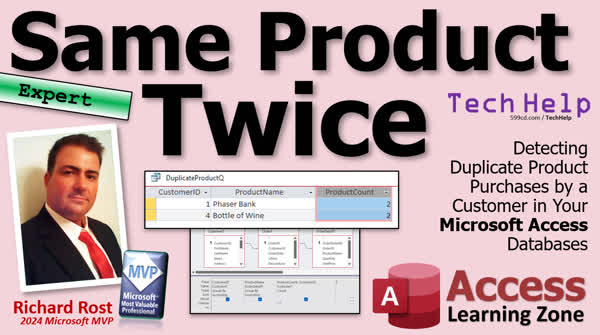 TechHelp Access, Duplicate product purchases, Microsoft Access, detecting duplicate purchases, customer membership duplication, weekly query duplicate check, Access aggregate query, detecting duplicate memberships, prevent double billing Access, Access summary query, Access query criteria, Access composite key, Access duplicate detection, Access expert-level tutorial, Access data entry rules, find duplicate orders Access, Access order management, Access product ID queries.
More InformationTranscript Today we're going to talk about how to detect if your customer has purchased the same product twice. Obviously, some of you want your customers to purchase the same product millions of times. But sometimes, especially if you're selling memberships, you might want to make sure they don't sign up for the same membership place. We'll talk about that in today's video.
Today's question comes from Phoebe in Roswell, Georgia, one of my platinum members. Phoebe says, "My products include memberships. How can I verify if a customer has purchased the same membership twice? Most of our purchases are unique one-offs, but sometimes a customer enrolls in the same membership more than once and then gets billed twice. I would like to be able to run a weekly query to see if any customers have duplicated their purchases. If they purchased another membership for a different person, it would go on a new customer record."
I get this all the time, even with my database. I have, obviously, my different memberships: Silver, Gold, Platinum. Sometimes, someone will come in on a Tuesday and sign up for a Silver Membership, forget about it, and then come back on Thursday and sign up for another one. I have yet to program my website to yell at people when they do this. But my database does check for it. It runs nightly and just goes through all the orders and all the memberships. If it sees any duplicates, then it at least flags me, and I can fix it before the customer gets billed another time for the second month.
So let's take a look at how we can do this. There's lots of different ways you can do this.
Before we get into it, though, this is going to be an expert-level course. What does expert mean? Well, it's my level between beginner and developer. So it's a little bit beyond the basics, but it's not quite programming. We don't need any VBA for this. You will need to know how to use aggregate queries. So if you've never used one of those before, a summary query basically, go watch this video. And this is a beginner topic. You should know how to use Access query criteria. These are both free videos. They're on my website. They're on my YouTube channel. Go watch those first and then come back.
Now I do have another video called Prevent Duplicates. This one is to prevent a user from putting the same product on the same order twice. Like you can see here, if they try to add a phaser a second time to the same order, it yells at them. I do this by creating something called a composite key. This is another method you could use. You could just set up the composite key between the customer and the product versus the order and the product, which is what we do here.
But in this video today, I'm going to show you a different method for doing it. Like I said, there's lots of different ways to do stuff. I'm just giving you different tools for your box. Right? I'm giving you several different Legos, and you can put them together however you want.
So in today's video, we'll use an aggregate query to do basically the same thing. Sometimes you want to allow the user to add a second membership. There might be an exception, for example. And if you do a composite key, you're really limited. The system will not let you add the duplicate. With this method, it just generates a report for you. You can run it daily, weekly, or monthly. And it will at least point out who's got the same service twice. You might want to put a note on the customer saying that this is okay. They got a service for themselves and their grandma. And they don't want a second customer record. I don't know. I like to leave room for exceptions, and sometimes things that you hard code into a database don't give you that opportunity.
So what are we going to do? Let's start off first by putting in some data into this database. By the way, this is the TechHelp free template. You can get a copy of this off my website if you want to. It's a free database. We've got customers, and each customer has orders, and each order has products on it.
Let's say that I ordered the phaser bank twice. Now, this is just a text field. This same thing will work fine if you're using product IDs. Whatever you want to do, I'm just going to use the text of the description. So I'm going to copy that. Let's go down here to order two, and I'm going to add a phaser bank for this one.
Okay. So now I have purchased phaser bank twice. Pretend it's a silver membership. I don't care. Let's do someone else too. Let's pick a different customer. Let's go to Jean-Luc and his orders, and he's got a bottle of wine right there. Let's create a second order for him. I'll put today's date in there. That's Control-Semicolon. It pops today's date in there. The description, if you want to. I'll put in there that bottle of wine, and he paid 120 for this one. Oops, what happened? Oh, I got my NumLock here. NumLock, 120. Okay. And of course, you can add all kinds of criteria checking to see if the order's paid, all that stuff. I'm just going to keep it simple for now.
Okay? All right. Everybody with me so far? If not, raise your hand. No. It goes back to my days of teaching in the classroom.
All right. First thing we need to do, well, actually, the second thing now, is we need to create a query to bring together the customer, the order, and the order detail. That's how we're going to get the information that we need.
So create query design. I'm going to bring in from my tables. We want the customer table. Double click. The order table and the order detail table. And you see the relationships are made for us because we have our fields named the same thing. Okay? Do you have to worry about the join type here? No, not really. This is fine because we're looking for a customer and a related detail item. And if you're missing something, that's okay. Not a big deal.
Let's bring in the customer and let's bring in the product name. So it's going to show you a list of each customer and all of the products they have. So you can have one record for each match of those two things. Right? It's going to be customer and then product name. And if you run it now, there you go. This is every product for every customer and all of the products they purchased. And if you put a sort on, let's put a sort on so we can see here. Let's sort this by ascending there and ascending there. That'll make it easier for us to read.
Okay, there we go. There's all of customer one's purchases. You can see there's two phaser banks right there. We don't care about the order ID. Yeah, you can add other kinds of criteria if you want to say, you know, within the previous year, because maybe it's a renewing membership. I don't know. You can put whatever criteria you want in here.
Okay? All right. Now, the next thing to do is we're going to group these. If you group it by customer and by product, it will group all the like items together. So instead of having two items for phaser bank, you should only see one if we add the grouping right. Right? So let's go over here and turn on totals. This creates an aggregate query. And now it's both grouped by customer ID and grouped by product name.
Okay? Run it. And now I only see one phaser bank because it's grouped together.
Okay? Now, I don't just want to see that it's grouped together. I want a count of how many of these there are. So then we're going to use the count. But where do we put the count? Well, you could put the count here or here, either one, but then you're going to lose some data. And this doesn't even, yeah, it doesn't even come out right there. So it's just all, it just scrambles everything. I still want this information. I still need the customer ID and the product name. So how do we put our count on it? Well, let's just add the customer ID or any of these fields again.
And we're going to count this guy. Okay? Count the number of times a customer ID appears for this group. And there you go. See that? You got a bunch of ones and you got two twos in there. Two phaser banks for customer one. Right? Two bottles of wine for customer four. And again, you could use product IDs or whatever other data you want in here.
Now, if you only want to see the ones where the person has purchased more than one of them, just put your criterion here greater than one. And now if I run it, boom, there you go. And maybe change it from count of customer ID. Let's add an alias to that. We can alias that here. I'll zoom in, Shift-F2, alias this. We'll call this product count or whatever.
All right? This is called an alias. I've got another video on that. If you don't know what an alias is, I'll put a link to that down below as well. It's just basically giving a calculated field a different name. So you can see it like that instead of count of customer ID, which is kind of meaningless.
Okay? And there you go. That's basically it.
All right? Save the query as, you know, duplicate product queue, whatever you want to call it. And now you just run this daily, weekly, or monthly, whenever you want to see it. And then you've got the customer ID. You know what they purchased and how many they got.
If you like this kind of stuff, if you like learning with me, come check out my website. I got lots of beginner, expert, advanced, and developer lessons. Lots of stuff. My expert levels lessons cover all the stuff that's beyond the basics. Like, you know, in the basics, we cover form design and building simple queries and stuff like that. In the expert series is when we start tearing that stuff apart and really getting under the hood. I got 32 different levels of expert series covering everything from relationships and referential integrity to action queries. You name it. It's in there. And the short of programming is covered in my expert lessons.
But there you go, folks. That's going to do it. That's your TechHelp video for today. I hope you learned something. Live long and prosper, my friends. I'll see you next time.
A special thank you and shout out to our diamond sponsors. First, we have Juan Soto with Access Experts Software Solutions, manufacturing experts, specializing in Access and SQL Server. Juan is a 13-time Microsoft Access MVP. You can check them out at accessexperts.com.
Another shout out to Sam Shama from Shama Consultancy. Sam is a certified Microsoft Office Specialist, and he not only offers Access application development, but he also provides one-on-one tutoring services. So if you need someone to hold your hand and help you with your Access project, Sam is your guy. Check them out at shamaconsultancy.com.
TOPICS:
Detecting duplicate product purchases
Handling duplicate memberships
Creating a summary query in Access
Using aggregate queries in Access
Adding sort criteria to queries
Grouping data in Access queries
Adding count function in queries
Creating an alias for calculated fields
Using query criteria to filter results
Running queries on a schedule
COMMERCIAL:
In today's video, I will show you how to detect if a customer has purchased the same membership twice. This tutorial is based on a question from Phoebe in Roswell, Georgia. We'll start by showing you how to use aggregate queries without any VBA to identify duplicate memberships in your database. I will guide you step-by-step through creating the necessary queries in Microsoft Access, ensuring you can flag repeated purchases. We'll also discuss how to group data, use counts, and apply criteria to generate useful reports. You'll find the complete video on my YouTube channel and on my website at the link shown. Live long and prosper my friends. Intro In this video, I will show you how to detect when a customer has purchased the same product or membership more than once using Microsoft Access. We will cover how to create and set up aggregate (summary) queries, how to group your data by customer and product, count duplicate purchases, and filter your results to only show repeated items. You'll also learn how to add sort criteria and create an alias for calculated fields to make your reports easier to read. This video is ideal if you need to monitor and report on duplicate memberships or products in your Access database. Quiz Q1. Why might you want to detect if a customer has purchased the same product twice?
A. To increase sales through repeat purchases
B. To prevent customers from being billed twice for the same membership
C. To discourage customers from buying multiple products
D. To track customer purchasing habits
Q2. What level of expertise is required to follow the tutorial in the video?
A. Beginner
B. Expert
C. Developer
D. Intermediate
Q3. What is the primary tool used in the tutorial to detect duplicate purchases?
A. Data Macros
B. Composite Keys
C. Aggregate Queries
D. VBA Code
Q4. In the example discussed, what is one of the products used to demonstrate duplicate detection?
A. Phaser Bank
B. Laser Sword
C. Hyperdrive
D. Force Field
Q5. Why might using a composite key not be suitable for all situations?
A. It requires advanced programming skills
B. It is too time-consuming to set up
C. It does not allow for exceptions
D. It increases database size significantly
Q6. What tables are brought into the query design in the tutorial?
A. Customer, Product, Order
B. Order, Order Detail, Shipping
C. Customer, Order, Order Detail
D. Product, Payment, Order
Q7. What operation is applied to group the data by customer ID and product name?
A. Filtering
B. Sorting
C. Aggregating
D. Joining
Q8. How is a count of the number of times a customer ID appears in the group created?
A. By using a composite key
B. By adding the customer ID field and using the 'Count' function
C. By using VBA code
D. By using data macros
Q9. Which criterion is applied to only show records where customers purchased more than one of the same product?
A. Less than one
B. Equal to two
C. Greater than one
D. Between one and two
Q10. What is the alias function used for in the context of the tutorial?
A. To change the structure of the database
B. To rename a counted field to something meaningful
C. To duplicate a record
D. To create a new table
Q11. What does the video highlight as an important aspect of database design in relation to handling duplicates?
A. Ensuring all customer data is completely unique
B. Allowing room for exceptions
C. Automating all queries to run constantly
D. Using only one method for duplicate detection
Answers: 1-B; 2-B; 3-C; 4-A; 5-C; 6-C; 7-C; 8-B; 9-C; 10-B; 11-B
DISCLAIMER: Quiz questions are AI generated. If you find any that are wrong, don't make sense, or aren't related to the video topic at hand, then please post a comment and let me know. Thanks. Summary Today's TechHelp tutorial from Access Learning Zone is all about how to detect if a customer has purchased the same product more than once. This is particularly important if you are selling memberships or services that are intended to be unique for each customer. While selling multiple copies of the same product is a good thing in many cases, there are situations where you want to prevent or at least identify duplicate purchases, like with recurring memberships.
I often hear from students who encounter this scenario in their own databases. For example, I run my own set of memberships such as Silver, Gold, and Platinum. Sometimes a customer will sign up for one, then forget they did and sign up again a few days later. While my website is not set up to prevent this, my database will check for duplicate memberships on a regular basis and notify me if it finds them. That way, I can fix the issue before the customer gets double-billed.
There are several ways to tackle this problem, but the method I'll show you today does not require any VBA programming. This tutorial is intended for users who are familiar with Microsoft Access at the expert level, which is just above beginner but not quite at the developer stage. You'll need to be comfortable with using aggregate (summary) queries and applying criteria to your queries. If you are not familiar with these concepts, I recommend you review my videos on both topics, which are available for free on my website and YouTube channel.
It's also worth mentioning that in another lesson, I cover how to prevent duplicate products from being added to the same order using a composite key. That method works by combining the customer and product information, or the order and product, to prevent duplicates at the data entry stage. However, this approach is very strict and allows little room for exceptions.
In this lesson, I'll show a different technique using aggregate queries. This method is a little more flexible, generating a report that simply points out any duplicate purchases. You can review this report on a regular schedule, such as weekly, and decide whether any action needs to be taken. It also allows you to make exceptions – for example, if a customer bought an extra membership for a family member but wants it under their own account, you can simply note that in their record.
To get started, I'll demonstrate using my TechHelp free template database, which you can download from my website if you'd like to follow along. The database has tables for customers, orders, and order details (the products in each order).
First, I entered some sample data to represent duplicate purchases. For example, I ordered the same product, "phaser bank," twice under my customer record. I also demonstrated entering a second order for another customer with the same product as before.
The next step is to create a query that joins the customer, order, and order detail tables. The goal is to see, for each customer, a list of all the products they have purchased. After adding these tables to your query, select the customer and the product name fields so you can view purchases across all customers.
Sorting the results by customer and product will make it easier to spot duplicate purchases visually, but we want a more systematic approach. By turning on the totals in the query, you can group the information by both customer and product name. Now, instead of seeing each order separately, you will see a single line for each unique customer and product combination.
To identify duplicates, you need to know how many times each customer purchased a particular product. You can add a count to your query by inserting the customer ID field again and setting its total to "Count." This will tell you how many times each customer bought each product. At this stage, you will see many entries with a count of one, but also some with higher counts. These are your duplicates.
To focus only on the potential problem cases, add a criterion to the count field so the query only returns results where the count is greater than one. For clarity, you can add an alias to the count column so it has a more meaningful name, like "ProductCount." This makes the report easier to interpret.
Once your query is complete, save it with a descriptive name, such as "Duplicate Product Query," and run it whenever you want to check for duplicate purchases. By reviewing this report regularly, you can identify and address any issues with duplicate memberships or products before they cause billing problems.
If you enjoy this style of learning and want to improve your Access skills, I encourage you to visit my website. There you can find a wide range of lessons from beginner through advanced and developer level. My expert series dives deeper into topics like query design, relationships, action queries, and more.
You can find a complete video tutorial with step-by-step instructions on everything discussed here on my website at the link below. Live long and prosper, my friends. Topic List Detecting duplicate product purchases
Handling duplicate memberships
Entering sample membership and product data
Linking customer, order, and order detail tables
Building a query to list purchases by customer
Sorting query results for readability
Grouping by customer and product in queries
Using aggregate queries to find duplicates
Adding a count field to grouped queries
Filtering results to show counts greater than one
Creating an alias for calculated fields
Saving and reusing a duplicate detection query Primary Topics detecting duplicate purchases, Microsoft Access queries, aggregate/summary queries, grouping data, counting grouped records, filtering query results, duplicate memberships, data reporting Secondary Topics composite keys, query aliases, sorting query results, handling exceptions |






