Bill To Ship To 3
By Richard Rost

 2 years ago
Copy Bill To to Ship To in MS Access Order Part 3 In this Microsoft Access tutorial, I will show you how to copy a bill to address to a ship to address using VBA code. You'll learn how to replace embedded macros with VBA for efficient database management and how to generate packing slips with updated shipping information. This is part 3. MembersThere is no extended cut, but here is the database download: Silver Members and up get access to view Extended Cut videos, when available. Gold Members can download the files from class plus get access to the Code Vault. If you're not a member, Join Today!
PrerequisitesLinksRecommended Courses
Keywords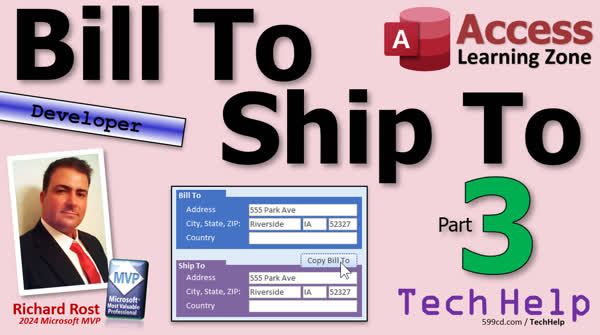 TechHelp Access, Microsoft Access, VBA tutorial, automate address copy, order form VBA, Access event procedures, VBA button click event, Access invoice design, ship to address VBA, Microsoft Access debugging, Access VBA programming, packing slip creation, concatenation in VBA, VBA developer tutorial.
More InformationTranscript This is part three of me teaching you how to copy a bill to address to a ship to address with a little button. In part two, we did it with a macro, so today we're gonna do it with VBA code. Let me get, we can get rid of this thing now. Hold on, there we go. Now it's just a developer lesson. Now, we're gonna be doing it with VBA. What does that mean? If you haven't done any VBA programming before in your life, go watch this video. It's about 20 minutes long. It'll teach you everything you need to know to get started. Go watch that, then come on back. I'll wait for you.
Okay, macros are all nice and fine and dandy and stuff like that, but I really prefer VBA myself. Now, I'm gonna go turn that setting back off again: File, Options, Object Designers, and then Always Use Event Procedures. I like event procedures. I don't ever use macros. Very seldom do I use macros. There's a couple of things I like. Auto exec macros sometimes I'll use because you can use this to, for example, tell if the database is in a trusted location or not. That's one thing you can do. You can only do it with a macro. There's a couple of other things too, but now that we're going to do it with VBA, let's open up this button's properties. Where it says embedded macro right here, just hit delete. That will actually delete the macro.
Now you can click back on there and go dot, dot, dot, and since we turned on that setting again, it's gonna bring up the code builder, which is the way life should be. So now we are in the copy copy to ship to button click. This is the click event, what happens when you click on that button. All right, very simple. We're gonna do the same things we did in the macro, just in VBA code. So we're gonna say ship to address equals address. Yes, folks, it's that simple. In fact, I'm gonna copy "ship to" to my clipboard, Control-C. Ship to city equals city, enter. In fact, I'm gonna type it in all lowercase. Watch. Ship to. I'm gonna put that on my clipboard. All right, ship to state equals state. Now notice, it's all lowercase. Watch what happens when I hit enter. Look at that. See, it capitalized the "to" and the "state" right in the state. That's called camel casing, right up and down like the hump is on a camel.
And yes, I know, before I get a ton of comments, I know that proper camel casing starts with a lowercase letter and then humps the other letters, and I know this. But I prefer to think that the camel has his head up instead of down. Yeah, I know it's called Pascal case, I get it. For me, this has always been camel case, and it always will be, and I don't care if you don't like it. Too bad. Go away. All right, anyways, where were we? Ship to zip equals zip and ship to country equals country. Okay, counter, where did that come from? I type in "counter" so much: country. Okay, that's it. That's all I gotta do. Save it. It's always good to throw in a debug compile once in a while. Debug compile once in a while, right? All right, save it, close it, close it, close it, click it.
Yeah, we're gonna go somewhere else. We got some here, we got all right. Click and there we go. It works. Same thing, much easier. VBA is not scary, folks. Get to learn some VBA. It's not that hard. Now, talking about our orders, because the whole point of this was to put the ship to address on the order in the right spot, right? Let's go to someone who's got an order like me. All right, go to orders. If you print the invoice, all right, here's the invoice. Now, the invoice is what you usually use for billing, right? You're gonna mail a copy of this invoice to their billing address, but you want to have something so you know where to ship the thing to. Now, you can make mailing labels, or you can print a mailing label out, or you can print a packing slip. Let's do a packing slip.
Okay, now the packing slip is gonna be very similar to the invoice. It's just going to have the ship to address on it. Now, the order invoice, if you design this guy, this guy gets his data from the order invoice Q. Let's go take a look at the order invoice Q design view. Get ready for it, and this has everything we need in it, except we have to add to it those ship to address fields. Is it gonna hurt adding extra fields? No, we'll be fine. We can use the same query. So, I'm just gonna take the ship to information here, click, shift-click on the last one, and then click and drag and drop it down there. Okay, save it, close it. Now we can use the same basic template to make the next report. So take the order invoice, copy, paste. Let's call this the order packing slip. And now we'll just modify this guy. Design view. All right, this will be the, we'll call it packing slip.
Slip. I can't type today. Probably don't need to see that. Probably don't need to see any pricing in here. We'll get rid of the pricing. All you need is the item and the quantity that you're expecting to get, right? You can get rid of all these totals and stuff. Okay. And now we just got to change this to where it's being shipped to. So address is gonna change to ship to address. Come here. Ship to address, copy, paste. We'll do it this way here. Actually, let's do this. Let's do a little concatenation to do this. We're all VB developer people here. Let's get rid of this city and state, or the state and zip. Let's make this bigger, like so. Open up your thing here, and you can keep this city if you want to, but I'm gonna go into the control source. I'm gonna go Shift F2, and I'm gonna say this equals ship to city and space and ship to state and space and ship to zip. If you don't know what this is, go watch my concatenation video, and I'll hit okay. And then the country can just be shipped to country. Copy paste. Actually, I feel bad about leaving this one just city. Let's call this because you never know when you might add billing information later, then you get a conflict. So ship to city, us to go. Let's call it CSZ, city, state, zip. Yes, I know if you're in a different country you don't have a zip code. That's a US thing, it's postal code or whatever. Whatever you've got over there. All right, save it. Close it. Now, this is my packing slip. Looks pretty much the same. Preview, there's a packing slip. All right, so now we can do the same thing with the first name. Put that together. You get the point, right? Okay, I'm gonna add to that. Now let's make a button to open up the packing slip. Design view. I'm just gonna copy my invoice button, copy, paste. We're gonna slide this over here, make it a little bit smaller, probably make this one a bit smaller too, so they fit. Like so. Pack slip. Probably fit packing in there. Sometimes I always think that I have less room than I do. All right, now this guy, build event, is that. Remember, we have to refresh first, so it saves the information in the form. So nothing is dirty, right? It has to save the information to table, otherwise, the report might not get the information. So we're gonna just copy that, and then we're gonna right-click build event here, and we're gonna go paste. And we're just gonna open up the other report, which is packing slip R. Save it, debug compile once in a while. Close it, close it, and let's go back in. Open it up, open it up, give me a packing slip. Boom. And now we're cooking on with gas. Or in my case, electric, because I live in Florida and we don't have gas here. Actually, I do have a thousand gallons of propane buried in my front lawn for my generator, but we don't cook with it. I have a gas grill out back that I got little tiny propane for. Anyway, okay, all right.
If you like learning with me, if you like my silly teaching style, and you want to learn more, I got tons and tons of developer classes on my website. Check them out. There's a link. I'll put a link down below you can click on. I do spend a lot of time with stuff like this in my full course. An order entry system, invoicing, inventory, shipping, all that stuff. I cover it in my developer class. That's the example that I use in my full course because everyone can kind of relate to a typical order entry system because everyone's at least purchased something in a store, right? So you kind of get it. All right. That's what I teach in my course.
But that's gonna do it, folks. That is part three of bill-to-ship-to for now. That's the last part unless I get crazy and make another one later. That's gonna be your TechHelp video for today. Hope you learned something. Live long and prosper, my friends. I'll see you next time. It's currently Friday, October 11th, and unless hurricane Milton blows me away, I'll see you guys on Monday. I know Monday's a holiday too. It's Indigenous People's Day here in the United States. So the next video will be out Tuesday the 15th. All right, have a great weekend. We'll see you then. Bye-bye.
TOPICS:
Copying billing address to shipping address using VBA
Deleting embedded macro in button properties
Utilizing VBA code for button click event
Executing VBA code to copy address fields
Understanding camel casing in VBA
Creating a packing slip report based on order invoice
Adding ship-to address fields to query design
Using concatenation in VBA for addresses
Changing report fields to ship-to information
Creating a button to open a packing slip
Refreshing form data before generating report
COMMERCIAL:
In today's video, we're tackling part three of creating a button in Microsoft Access that copies the bill-to address to the ship-to address. We've moved on from using a macro to now coding it in VBA, and I'll guide you through each step of the process. Learn how to replace macros with event procedures, capitalize on the power of camel casing, and create mailing labels or packing slips effortlessly. Whether you are a novice or experienced with VBA, I'll simplify it for you. Discover how to streamline your order processing with ease. You'll find the complete video on my YouTube channel and on my website at the link shown. Live long and prosper my friends. Intro In this video, you'll learn how to use VBA code in Microsoft Access to copy a billing address to a shipping address with a button, replacing the macro approach from the previous lesson. I'll show you how to delete an embedded macro, set up an event procedure, and write simple VBA to handle address fields. We'll also talk about camel casing in VBA, modify a query to include ship-to address fields, create a packing slip report, use concatenation for addresses, and add a button to open the new packing slip. This is part 3. Quiz Q1. What is the main topic covered in this video tutorial?
A. Comparing VBA with other programming languages
B. Creating macros in Excel
C. Copying a bill-to address to a ship-to address using VBA
D. Learning basic VBA syntax
Q2. What setting needs to be turned on to use the VBA code builder instead of embedded macros?
A. Always Use Auto Macros
B. Always Enable Debugging
C. Always Use Event Procedures
D. Always Compile on Save
Q3. In the VBA example given, what is being equated to "ship to address"?
A. Billing address
B. User address
C. Address
D. Email address
Q4. What is the purpose of the 'Debug Compile' command in VBA?
A. To automatically fix errors in the code
B. To compress the code for performance
C. To check the code for any errors
D. To finalize the code before saving
Q5. What type of case is illustrated in the video when the system automatically changes the capitalization of the code?
A. Pascal case
B. Snake case
C. Camel case
D. Sentence case
Q6. Why is it important to refresh the form before generating a report in VBA?
A. To ensure that macros are disabled
B. To delete unnecessary form data
C. To save the information to the table so the report gets the updated information
D. To check for syntax errors in the form
Q7. What is the designer's purpose for using concatenation in the context of the video?
A. To combine VBA scripts into one
B. To link different databases together
C. To save space in the user interface by combining city, state, and zip on the report
D. To create a summary of multiple reports
Q8. According to the video, what type of document is suggested for knowing where to ship an item?
A. Invoice
B. Shipping label
C. Packing slip
D. Purchase order
Q9. What type of address fields were added to the order invoice query to prepare for the packing slip report?
A. Billing address fields
B. Vendor address fields
C. Personal address fields
D. Ship-to address fields
Q10. What is mentioned as a potential issue when generating a report if the form data is not refreshed first?
A. The report will not generate at all
B. The data may not be saved, leading to incorrect information on the report
C. The report will not print
D. The form will crash
Answers: 1-C; 2-C; 3-C; 4-C; 5-A; 6-C; 7-C; 8-C; 9-D; 10-B
DISCLAIMER: Quiz questions are AI generated. If you find any that are wrong, don't make sense, or aren't related to the video topic at hand, then please post a comment and let me know. Thanks. Summary Today's TechHelp tutorial from Access Learning Zone is the third part of our series on copying a billing address to a shipping address using a button. Previously, in part two, we used a macro to achieve this. Today, I'll guide you through doing it with VBA code. If you're new to VBA programming, I recommend watching a 20-minute introductory video that covers the basics. It's essential to have a foundational understanding before proceeding.
In the previous lesson, we utilized a macro which is fine for some applications, but I have a preference for VBA. To begin, I'm going to adjust a setting: in File, go to Options, then Object Designers, and select Always Use Event Procedures. I generally steer away from using macros, although I might use an AutoExec macro occasionally to check if the database is in a trusted location. Now, let's access the button's properties and remove the embedded macro to replace it with VBA code.
Once the embedded macro is deleted, selecting the button will now prompt the code builder. We will focus on the Click event for this button. The process is quite simple, replicating what we previously did with the macro using VBA. You'll be assigning the shipping address fields the same values as the billing address fields. For instance, the 'ship to address' field will equal the 'address' field. You'll notice VBA automatically applies camel casing - turning lowercase input into a more readable format with uppercase letters for major words.
Let's continue. Assign the 'ship to city', 'ship to state', 'ship to zip', and 'ship to country' fields their corresponding values. Once done, save your work. It's good practice to run a debug compile periodically to ensure everything is functioning correctly. After saving and closing everything, you can test the button. Clicking it should copy the address details as intended.
Moving on, we're now focusing on arranging our order layouts. The goal here is to ensure the shipping address appears correctly on our documents. Your invoice, usually used for billing purposes, should still reflect where the item needs to be shipped. To achieve this in your report design, include the 'ship to address' fields in the query that sources your invoice. This inclusion will not disrupt the query and can be directly added.
Once complete, I'll guide you through creating a new report for a packing slip. It will resemble the invoice but will feature the destination address prominently. Copy your order invoice, rename it as an order packing slip, and make necessary adjustments in the design view. Remove unnecessary pricing details and ensure only essential shipment information, like item and quantity, remains. Update your address fields to display the 'ship to' information using string concatenation if necessary.
After finalizing the packing slip, add a button on your form to open it. You can duplicate an existing button, modify its settings, and ensure its event procedure correctly opens the new report. Don't forget to refresh the form, ensuring all data is saved and accessible before generating the packing slip. Test everything to confirm it functions as expected.
For those who appreciate my approach and are eager to explore further, I offer an array of in-depth developer courses on my website. These courses include content on creating order entry systems, managing invoices, inventory, and shipping. Everyone can relate to the process of purchasing and shipping items, making these examples relatable and practical.
This concludes part three of our TechHelp series on billing and shipping addresses. Barring unforeseen circumstances, I plan to continue providing educational content regularly. You can find a complete video tutorial with step-by-step instructions on everything discussed here on my website at the link below. Live long and prosper, my friends. Topic List Copying billing address to shipping address using VBA
Deleting embedded macro in button properties
Utilizing VBA code for button click event
Executing VBA code to copy address fields
Understanding camel casing in VBA
Creating a packing slip report based on order invoice
Adding ship-to address fields to query design
Using concatenation in VBA for addresses
Changing report fields to ship-to information
Creating a button to open a packing slip
Refreshing form data before generating report Primary Topics VBA button click events, copying address fields, removing macros, event procedures, query design for reports, concatenation in VBA, report modification, packing slip creation
Secondary Topics camel casing vs Pascal casing in naming, refreshing form data before report, developer workflow preferences
|






