Employee Training 2
By Richard Rost

 2 years ago
Employee Training Tracking in Microsoft Access Part 2
In this Microsoft Access tutorial, we will learn how to create employee training and certification tables, repurpose existing database templates, manage forms, and handle dependencies while setting up a schema for tracking employee roles and courses. This is part 2.
Members
There is no extended cut, but here is the database download:
Silver Members and up get access to view Extended Cut videos, when available. Gold Members can download the files from class plus get access to the Code Vault. If you're not a member, Join Today!
Prerequisites
Links
Recommended Courses
Up Next
Keywords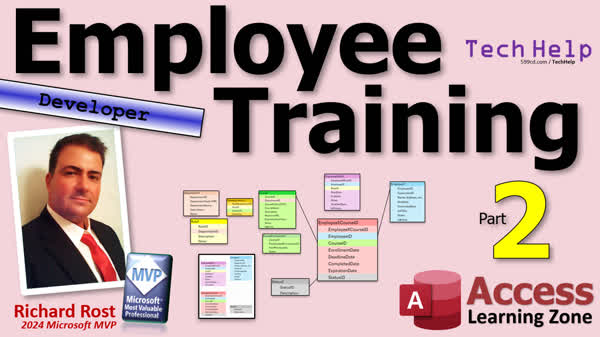
TechHelp Access, employee training in Access, certification tracking, Access database schema, employee role management, course management, Access table creation, repurposing database templates, managing database dependencies, self-join relationships, Access update query, Access tables design, Access forms management
More InformationTranscript Today is part two of my employee training database where we track employee training and certifications. If you haven't watched part one yet, go watch part one. In part one, we set up the database schema so we know what tables, fields, and relationships we're going to have in our database. Today, we're going to start actually putting the tables together.
If you've watched any of my previous TechHelp videos, you're probably familiar with my TechHelp free template. This is a free database sheet you can grab off my website if you want to. I'm going to start with this as my basic template because it already has a lot of the stuff in it that we're going to need. Now, we're not dealing with customers, but we do have employees, so we can very easily switch our customer table to an employee table. Same thing with the customer form.
I'm not going to go over the basics of how to build a lot of this stuff, but we are going to go and change some things so you can see some of the things that happen. I know if you're a developer, like I used to be a full-time developer, you reuse a lot of stuff, and sometimes there are quirks that happen when you try to repurpose a form or repurpose a report. Some things we might not need, like, for example, our orders, but we might need a form of the subformant. This is already built, so we can repurpose a lot of this stuff.
Contacts are examples of things that we didn't plan on having, but they could definitely be a helpful tool for the HR department. Anytime that they come in, you put a note in their record so you know exactly what was talked about and when, or even with the IT department. You've got your follow-ups here. Someone complained their computer wasn't booting, so you document, follow up with them tomorrow, that kind of stuff. There are bits and pieces in here that we might use, and a lot of it we might not.
Now, I'm not going to sit here and make you watch me type in all the different fields, tables, and stuff. I'm just going to build the tables, and I'll review them with you after I finish typing it all in. It'd be boring to sit here and watch me do all that. If you need more help with building basic tables, go watch my free Access Beginner One class.
One thing I do want to do real quick with you, though, is repurpose this customer table and make it the employee table. When you rename objects in Access, most of the time, the basic dependencies like the tables, queries, and forms that are based on it, will automatically rename, but not always. You've got to be careful, especially not if you're dealing with VBA code. For example, if I rename the customer table, let's rename this guy to the employee table.
If I click on the customer form now, it still opens because it's still called the customer form, but notice it's still getting its data. Why is that? Access was smart enough to know that this form was based on customer T, and if I check now, it renamed it to employee T, so it did get that change. But if I come down here and rename the customer F to employee F, if I open it up, it still works, but if I try to get it from here, it says the form customer is misspelled because the button has code in it, and it no longer knows what customer F is. So now we've got to go in here and change this. We've got to change this to open up employee F. Same thing with customer list F. There are little changes like that we're going to have to do.
Here's the customer list, and this guy here, if I double-click, again, it doesn't know what I'm talking about. Customer F is misspelled. We'll make these changes as we come to them. I'm not too worried about the VBA code just yet, but I want to address that and bring it to your attention. So there might be little changes we've got to make throughout, but let's take a look at our employee.
We'll start with this guy. We're going to first rename this to employee ID. First name, last name, email, this stuff is all fine. Phone, notes, we're going to get rid of some of this stuff we don't need. Family size, customer since, and credit limit, these are all fields that I put in there for teaching the different types of data. Goodbye.
We do need a supervisor ID, that's a number, that's going to be a link back to another employee. We'll see how that works in a bit. It's called a self-join. We've got our hire date, that'll be a date/time, our terminate date, date/time, our job title, short text, and is active is already there. I like to keep all the IDs up top, so I want to put that right there. That's just a style thing that I like to do. Let's save that and close it.
Now, if we go to the customer form, which is now the employee form, you'll notice also that this got renamed to employee ID. But if you open it up, take a look at this, go to the Alt-AB, the text box name is still customer ID. You've got to make sure you change that as well. That'd be a great addition to the notes for the Access team, right? If, when that rename happens, Access sees these are the same, rename the name as well. Now, that could affect other things, but it might not.
Let's get rid of these fields here. We don't need these anymore. And then we can add in those new fields that we just added. We've got the Supervisor ID, we've got the hire date, terminate date, and job title. We'll bring those right down here, and we'll spend some time later on prettying this stuff up. We're going to turn that into a combo box. With that combo box, we'll do some cool stuff. We're going to make a list of employees that's not equal to this guy because you wouldn't want to make an endless loop of this guy being his own Supervisor.
So we'll take care of that in a future video. I also want to make it so I can double-click on it, and it will jump right to that person. If Joe's Supervisor is Bob, we can double-click here, and it will take you right to Bob. Maybe, if a person has underlings, we can make a little list box over here to show you who this person has under him. Just like Peter Griffin, you might have as many as four people working directly underneath you. I love Office Space, if you can't tell. In addition to Star Trek and Lord of the Rings and all that, Office Space is one of my favorite movies.
Let's get the rest of the tables built. Now again, I'm not going to make you watch me do all this. Let's just go over them quickly. I'll start the first one, create table design. This will be our department table. We'll start off with department ID, that's a key auto number. Department code is the short code, like HR for human resources. Whereas this will be human resources. The description can be whatever you want to put in for human resources. In things like this, I usually have a description and then notes as a long notes field. Let's put some basic data in here.
And there's our data. And yes, I'll be honest, I asked Chat GPT to make me that list. Now let's set up our roles table. Create table design. We've got our role ID, that's our auto number, and our department ID, which is a number that links it back to the department. Description and notes. Save this as the role T. Now we're going to fill this in with data. And of course, I'll ask Chat GPT to do this for me.
And there we go. There's our HL level one, two, and three with the matching department ID, sales level one, two, three, and so on. Text support is a pretty good IT. Yeah, I like this, it's good, Chat GPT. Thanks. This is one thing GPT is fantastic for, coming up with lists of sample data.
Next up is the course table. We've got the course ID, auto number points back to a department, HR or whatever. The course code HR 101, this is mostly just for printing on brochures or whatever. The course name, a more in-depth description if you want. Here's that resource URL. It's a URL. Am I using the hyperlink type? Hyperlink data type? No. Why? Because I don't like hyperlinks. I like to do short text. I got a whole separate video on hyperlinks and why I don't use them.
Here's that expiration number of years and I used a double. If it's a six-month certification, you go 0.5. Remember, there's only two types of numbers we ever use: long integers for integer-type numbers and doubles. Don't use any of the rest of them unless you know what you're doing and you need it. People always try to use decimal and don't understand how it works properly. It's either double or long integer. I've got is active and notes. Let's fill some data in on this guy and bang.
Again, GPT to the rescue. Check all these out. Sales, closing a sale, negotiation skills. I couldn't have come up with all these on my own. I made some silly Star Trek stuff. Yeah, looks great. Now, one thing I did notice that I put in here was all the expiration numbers of years are zero because I left the default value zero. That's up to you. I'm going to assume that zero means once you've taken it, you're good. You don't need to re-up. But for some of these, I'm going to change them obviously. One of the things we're going to do is make a list of who has training coming up to. I'm going to just throw some random ones, twos, and maybe a couple of point fives in here.
There we go. And of course, is active is all defaulted to no. I want to make that default to yes. We're going to first come in here and change the design. This should be defaulting to yes. Also, in our employee T, that's also set to no. We're going to set that to yes as well. Now, I don't want to go through and have to redo all of this and set these all to yes manually. So we're going to do a little update query real quick. Create query design. Get handy. Get familiar with update queries. The course T, I'm just going to take is active. We're going to update that to yes. Just run it. Boom. Now we're done. Now everything in that table should be set to yes.
A lot of times you just want to run it just once. We'll go to course T now. You can see they're all yes. We'll make a couple inactive. Let's say CS103 product knowledge basics is gone. We're going to have one that's not active. So that's courses.
Looking at our overall database schema, we've got the tables built that are going to have the actual data in them. The rest of the tables are just relationships between those four tables. Roll requirement is what courses you need for a role. Employee x role is what roles an employee belongs in. Employee x courses is what courses the employee has taken. So we've got all the basic data tables finished and we've got data in them. In the next lesson, part three, we will start filling in the relationship data.
So that's going to do it for today, folks. That's your TechHelp video for today, part two. Hope you learned something. Live long and prosper, my friends. I'll see you tomorrow for part three.
Oh, yeah, I forgot. Tune into my role saying the same bat time, same bat channel. Or if you're a member, you can watch it right now because that's one of the benefits of being a member. Wait for them to be released. As long as it's recorded and finished, you can watch it. See you tomorrow, folks.
TOPICS:
- Setting up employee tables from template
- Repurposing customer table to employee table
- Renaming objects and handling dependencies
- Adding and removing fields in employee table
- Configuring supervisor ID with self-join
- Creating department table and adding data
- Setting up roles table with department ID link
- Designing and populating course table
- Managing is active field and setting defaults
- Running update queries to change field values
- Overall database schema and table relationships
COMMERCIAL:
In today's video, we're continuing with part two of building our employee training database. We start by organizing the tables using my TechHelp template, converting the customer table into an employee table, and reprioritizing fields like supervisor ID and hire date. You'll see practical tips for dealing with renaming objects in Access and the importance of keeping track of VBA dependencies. We then create additional tables like departments, roles, and courses, showing you how to set defaults and use update queries for quick changes. The next lesson will focus on relationships, so stay tuned. You'll find the complete video on my YouTube channel and on my website at the link shown. Live long and prosper, my friends. Intro In this video, we continue building the Microsoft Access employee training database in part two of the series. I will show you how to repurpose the customer table from my TechHelp template into an employee table, adjust fields such as supervisor ID, and handle issues that come with renaming objects and managing dependencies. We also create and populate department, role, and course tables, set up default values like the is active flag, and use update queries to quickly change field data. Finally, we review the updated database schema and get ready for adding relationship data in the next lesson. This is part 2. Quiz Q1. What was the primary focus of part two of the employee training database tutorial?
A. Setting up the database schema
B. Building the tables in the database
C. Writing VBA code
D. Creating reports for the database
Q2. What did the instructor repurpose from the TechHelp free template for the employee training database?
A. The orders table
B. The contacts form
C. The customer table
D. The sales report
Q3. What must be manually checked when renaming objects in Access like tables and forms?
A. Automatic updating of VBA code
B. Changing the database schema
C. Adjusting the field types
D. Correct linking of queries
Q4. What is a self-join as mentioned in the tutorial?
A. A join between different databases
B. A join between two unrelated tables
C. A join within the same table
D. A join that uses SQL scripting
Q5. What was suggested as a method to prevent an employee from being their own supervisor?
A. Use a validation rule
B. Create a combo box excluding the employee
C. Manually check all entries
D. Lock the supervisor ID field
Q6. How did the instructor suggest filling in sample data for the tables?
A. Typing all entries manually
B. Using Excel for data input
C. Using AI like Chat GPT
D. Copying data from another database
Q7. Why does the instructor prefer not to use hyperlinks in Access?
A. Hyperlinks are only available in Premium Access
B. They require more complex VBA code
C. He has a personal preference for short text
D. Hyperlinks cannot store URLs longer than a specific length
Q8. Which two types of number data fields does the instructor recommend using in Access?
A. Integer and String
B. Double and Long Integer
C. Decimal and Single
D. Single and Currency
Q9. What type of query was used to update the 'is active' field to 'yes' for all records?
A. Append query
B. Crosstab query
C. Update query
D. Delete query
Answers: 1-B; 2-C; 3-A; 4-C; 5-B; 6-C; 7-C; 8-B; 9-C
DISCLAIMER: Quiz questions are AI generated. If you find any that are wrong, don't make sense, or aren't related to the video topic at hand, then please post a comment and let me know. Thanks. Summary Today's TechHelp tutorial from Access Learning Zone continues with part two of our employee training database project, where the focus is on tracking employee training and certifications. Previously, in part one, we established the database schema, which included determining the necessary tables, fields, and relationships. Today, we will move forward by assembling the tables.
For those familiar with my TechHelp videos, you might recognize the TechHelp free template, a database sheet you can download from my website. I'll be using this template as our foundation because it contains many of the elements we'll need. Although this template is initially set up for customers, the transition to employees is simple: just convert the customer table to an employee table, as well as the customer form.
I'm not going to cover the basics of constructing the components, but I will highlight certain changes to showcase how adjustments are made. As developers often do, we will reuse existing materials, though this can sometimes lead to peculiarities when forms or reports are repurposed. Certain elements, like order forms, may be unnecessary, but subform structures might still be useful. Contacts are another example of components not initially planned yet potentially beneficial for the HR department, providing a way to record interactions or follow-ups on issues.
Rather than having you watch me enter every detail, I'll create the tables and then review them with you afterward. Watching the typing process would be quite tedious. If you need help with building tables from scratch, I recommend checking out my free Access Beginner One class for guidance.
One key task we'll tackle is renaming the customer table to an employee table. While Access usually updates dependent objects like tables, queries, and forms automatically when renaming occurs, this isn't always the case, especially when VBA code is involved. For instance, after renaming the customer table to the employee table, opening the customer form still works because Access intelligently updates the form's data source. However, changing the name of forms or lists involves additional manual updating in the code.
Now, let's focus on our employee setup. We'll start by modifying the employee ID field and removing unneeded fields like family size and customer-related entries, which were left in there for educational purposes. Fields such as supervisor ID will remain, as they relate to a self-join for linking employees to supervisors, while pertinent fields like hire date and job title will be included. My personal preference is to position the ID fields at the top for organizational purposes.
In the employee form, previously the customer form, ensure all relevant fields, like employee ID, are correctly renamed. Some fields may need to be added or reformatted, such as turning supervisor ID into a combo box that lists employees other than the current one, preventing a recursive supervisor loop. Future lessons will cover more advanced functionalities, but for now, our aim is to lay the groundwork.
Next, let's consider additional tables like the department table. Start with department ID as an auto number, then add identifiers like department code and descriptions with potential notes fields. Similarly, the roles table will include relevant fields like role ID, linked back to departments, with descriptions and notes.
For courses, the table features fields like course ID, department linkage, course codes, and descriptions, among others. Preference is given to using short text for URLs instead of the hyperlink data type. Expiration numbers use doubles for decimal values, allowing for varied certification periods, and activation status defaults to yes.
Sometimes, tasks such as activating multiple entries involve using update queries for efficiency. By updating is active status for the courses table, we streamline the process of defaulting values to yes across the board.
With our main data tables addressed, the remaining tables concern relationships among the core entities: roles, employees, and courses. In part three, we will focus on populating these relationship tables.
That wraps up today's TechHelp session for part two. I hope you found the information useful. You can find a complete video tutorial with step-by-step instructions on everything discussed here on my website at the link below. Live long and prosper, my friends. Topic List - Setting up employee tables from template
- Repurposing customer table to employee table
- Renaming objects and handling dependencies
- Adding and removing fields in employee table
- Configuring supervisor ID with self-join
- Creating department table and adding data
- Setting up roles table with department ID link
- Designing and populating course table
- Managing is active field and setting defaults
- Running update queries to change field values
- Overall database schema and table relationships Primary Topics Access database table design, repurposing templates, employee table creation, department table setup, role table structure, course table structure, handling object renaming, default values, update queries Secondary Topics self-join relationships, HR tracking, form adaptation, VBA dependency warnings, sample data generation |






