Push a Value
By Richard Rost

 2 years ago
Push, Pull, or Populate Values Between Access Forms
In this Microsoft Access tutorial, I will show you how to push, pull, or populate a value between forms. Learn the differences between these methods, when to use the default property or VBA coding, and how to seamlessly transfer data such as customer IDs between forms for enhanced database management.
Members
There is no extended cut, but here is the database download:
Silver Members and up get access to view Extended Cut videos, when available. Gold Members can download the files from class plus get access to the Code Vault. If you're not a member, Join Today!
Prerequisites
Links
Recommended Courses
Keywords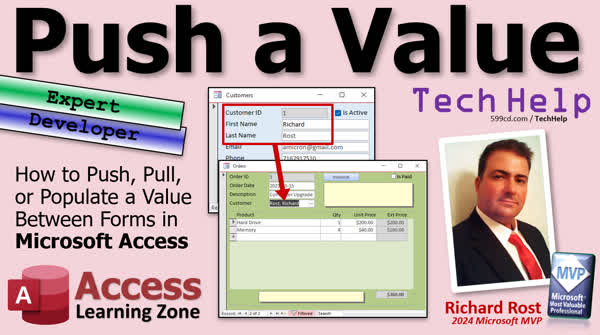
TechHelp Access, push value between forms, pull value between forms, populate forms, default value property, VBA event programming, macro programming, customer form, order form, customer ID, open existing form, add new record, set values, parent record error, Access developer course
 Subscribe to Push a Value
Get notifications when this page is updated
More InformationTranscript Today we're talking about pushing a value from one form to another. I get this question in all kinds of varieties. How do I push a value? How do I pull a value? How do I populate it? All kinds of people. In fact, I get it asked so much. We're just going to leave a generic. I get how do I either push, pull, or populate? Those are the three things people ask a value from one form to another. Perfect examples right here on the title slide. You got the customer form, customer ID. I want to automatically push that to the order form. Now people always say push, but in this particular case, this is a pull. I'm going to explain the differences between these two.
Pulling a value involves opening up a new form and that new form will pull the value from an existing form. For example, my customers and orders. The customer form has a button on it to open up the order form. The order form can then get the customer ID from the open customer form. We'll use the default property. This does not necessarily create a new record, but if you continue to add other things like a description or whatever, it will create a new record using that default value. This requires no programming.
On the other hand, you can also push a value. That means that the old form, the form that's already open, pushes the value to another form. It can be a form that's already open or you can open a form and then set the value in it. This does require some VBA or some other event programming. You can use a macro if you really want to. This can either update an existing record on that form or even create a new one. I'm going to show you both techniques. I'm going to show you the expert level one and the developer level one. I consider the pull method to be expert level. It's a little bit beyond the basics. It might be a little bit tougher for beginners, but as long as you understand relationships and things between two tables and such, you should be able to get that no problem.
In fact, I've already showed you how to do this in my invoicing video. I'll put a link to that down below. Then after that, I'll show you the developer method, how you can push that value. Depending on what you want to do, either method could work fine for you. Pulling is definitely easier, but it's got some limitations too.
First, let's talk about some prerequisites. You should definitely know what default values are and how to set them both in tables and in forms. Watch this video on how to get a value from a form that's already open. If you want to continue to the push method, watch my intro to VBA video. First, it'll teach you all you need to know to get started with VBA in about 20 minutes. And I do cover how to get value from one form to another in my invoicing video. These are all free. They're on my YouTube channel. They're on my website. Go watch those then come on back.
All right, so first up, let's talk about the pull method. Now, this is what I use in my TechHelp free template. If you watched that video on invoicing that I told you earlier, you got the customer form. When you open up the order form or the contact form, either one, the order form has the customer combo right here. Now, this customer combo is a customer ID. It's the same thing as right there. And if I go to create a new record, you can see it's already sitting there. Because I'm using the default value field in this combo box, default value property, excuse me, in this combo box to get that ID.
And how do we do that? Well, we go into here, design view. Go to the properties for that box, go to data. And right here is the default value property. Let me make that bigger. And there it is. I'll zoom in for you. Right? It's equals forms, bang. Excellent. Point is a bang. Forms, bang, customer, f, bang, customer ID. So when you create a new record, the default value is automatically set in that field. In fact, not necessarily when you create a new record, when you open up the form and go to a blank new record. There actually is no record here yet. You see the new up here. Right? It hasn't been assigned.
And this value doesn't get assigned unless you put something else in one of these other fields first. Right? You got to put something in here like, hi, or whatever. Now that record is created and then that value is now set. Okay? So that's how you pull a value, same thing in the contacts field. Okay? In the contacts form, I get the customer ID for the record. And I put it down here in a hidden field. See that? That's a hidden customer ID that also uses the default value. Okay? That's pulling. Pulling is very easy to do.
Now you can also push these values. In other words, you want to open up the form and then set the values. The benefit is it actually creates the record for you. That I mean, that could be a benefit or a drawback because if the user clicks the button and pushes the value, it's going to create a record. If they then exit, you know, have a blank record and all it's got in it is the customer ID. Okay? But let's see how this works. Let's do this with the order form.
Okay? So I'm going to come in here. Actually, what we could do is we can leave this default value there because we can make a separate button here. Right? This opens up this customer's orders. What if we want to make another button that just says add new order and it and we'll have it open up the order form, set the combo box and we'll also set today's date. You could do both of these with the pull method, but let's do with the push method. In fact, yeah, let's let's go in here and get rid of that default value.
Okay? Let's come in here. We'll get rid of the default value so we know what's working. Delete. All right. Remember the name of the field is customer combo. Okay? So save it, close it, close it. Now if I open it up and go to a new record, there's nothing in there. Okay? So we're going to open that up now from a button. We're going to set the date and the customer combo box. And this is how we do it. We come in here, design view. I'm just going to copy one of these buttons, copy paste. We'll call this add new order. Okay? Whoops. Got me. All right. Let's give the button a good name. Add order button, BTN. All right. And then we can either right click on the button and go to build event or we can go to events to go to on click. We'll use the build event.
So here's what we're going to do. We're going to open the form in data entry mode, which means we're adding a new record. So do command not open form. What order? What form is the order form? Comma. View is fine filter that data mode is going to be AC form add. We're adding a new record. Because if not, if you just open it, it's going to go to the first record and you're going to be changing that one. So you don't want to do that. All right. So now the form is open and we're sitting on a blank new record. Now we can set the values so we can save forms order f. And then it's customer combo equals the customer ID on the current form. You can just say customer ID by default. It'll grab whatever form you're on, which is the customer f and put that in there.
You don't have to put I see all kinds of people putting me in there. You don't need a me or a me. Dot. All right. Don't worry about me. That's for properties. Not fields. I mean, technically you can use it, but you don't need to. Okay. And we're going to set the date to I believe it's order date. Right. So forms order f order date. Let me do this order date equals. Let's do today's date. The date function and there order date did capitalize. That's probably it. I'm not sure. Okay. And then when you're done with that, we're going to do a me or not a me. We're going to do forms order f dot refresh. That'll save that record. Right.
So we're going to open up the form, set the customer ID, set the date, refresh the form. So those values are saved and the records no longer dirty. This of course is optional. You don't have to do this. If you don't want that, then don't put it in there. The record will be sitting there dirty waiting for more input. Okay. And at that point, you can still hit escape to cancel out of it. So that's up to you. All right. In fact, I'm going to leave it remdout. I'm only that remdout. All right. So save it debug compile once in a while.
All right. Let's come back over here. Let's close this guy down. Customer form. Add new order. Boom. There we go. We're on a blank new record. It put today's date in there. It filled in the customer combo. And now I'm ready. I can come down here and just put new items in, right. To a phaser or whatever. Okay. That's it. So and there's benefits to doing it this way too. Because like I said, without having to pull it as a default value, you get a record in the parent. I know one of the problems that people have all the time with the other one is they see that that's there. They just start entering information without putting in the order date or the description. And it gives them an error message because you got to put something in the parent record.
Okay. So that's how you open a form and send the values into it. And there's lots of other stuff you could do here too. You can, you know, open up an existing record with a where condition. You name it. There's I cover lots and lots and lots of stuff like this in my access developer course. All right. I'm up to developer 46. I just started. So we got lots and lots of developer lessons to teach you VBA to teach you how to do this kind of stuff to build awesome databases. And it's fun because it's it's with me and I like to make it fun. All right.
All right. So now you know the difference between pushing a value to a form or pulling a value. So when you say to me when you post the forums, I am trying to push the customer ID to this that it. Okay. That's how you do it. If you want to pull a value, you know, you open up a new form and you just get a default value from somewhere else that's pulling the value. Push and pull. Either one whichever one you want. Populate. We mean by populate. Which why do you want to do it? Which way do you want to handle it? Right. So that's it. And a lot of times if you're asking for help like in the forums, it'd be as specific as you can. What exactly are you trying to do? And that will help us help you.
But there you go. That's going to do it. That's your TechHelp video for today. Hope you learned something. Live long and prosper my friends. I'll see you next time.
TOPICS:
- Differences between pushing and pulling values
- Pulling a value from an existing form
- Using default properties to pull values
- Pushing values to another form with VBA
- Creating records using pulled default values
- Expert level and developer level techniques
- Prerequisites for using default values in forms
- Using design view to set default properties
- VBA event programming for pushing values
- Setting values in forms via a button click
- Opening forms in data entry mode with VBA
- Saving records by refreshing forms
- Adjusting default values in combo boxes
- Benefits and drawbacks of pushing methods
COMMERCIAL:
In today's video, we explore how to push and pull values between forms in Access. You'll understand the difference between these two methods and how to apply them. First, we cover the pull method, which involves opening a form and pulling data like customer IDs from an existing form, using default values to automatically populate fields. Then, we'll tackle the push method, where a form actively sets values in another form, which may involve some VBA programming. This method can create or update records directly. We'll walk you through both techniques step-by-step, with practical examples to ensure clarity. Whether you're a beginner or an expert, you'll learn valuable skills to manage data effectively in your Access applications. You'll find the complete video on my YouTube channel and on my website at the link shown. Live long and prosper my friends. Intro In this video, we talk about how to push and pull values between forms in Microsoft Access. You will learn the difference between pulling a value into a new form using default properties and pushing a value into another form with VBA. We'll cover how to set default values, use design view to adjust properties, and trigger actions with button clicks and event programming. You'll see step-by-step examples for both expert-level pull techniques and developer-level push methods, along with tips for when to use each approach. Quiz Q1. What is the primary difference between pushing and pulling a value in forms?
A. Pulling involves writing code, while pushing does not.
B. Pulling involves setting a default value from an open form, while pushing requires event programming.
C. Pushing is simpler and requires no programming, while pulling requires VBA.
D. Pulling creates new records automatically, while pushing updates existing records only.
Q2. Which method requires knowledge of VBA or event programming?
A. Pulling a value
B. Pushing a value
C. Both pushing and pulling
D. Neither method
Q3. Why might pulling a value be considered an "expert level" technique?
A. It requires knowledge of visual design.
B. It requires understanding of form relationships and default value properties.
C. It is only useful for advanced form functionalities.
D. It involves complex data manipulation.
Q4. In the context of forms, what is meant by "default value"?
A. A value that is set when a record is finalized.
B. A value that is stored in the database but not visible in the form.
C. A value automatically set in a new record when the form opens.
D. A value manually entered by the user into the form.
Q5. What potential issue might arise when using the push method to create a new record?
A. The user must manually update every field.
B. It is impossible to set today's date automatically.
C. Creating a record may result in empty fields if not completed.
D. It can only push values for existing records.
Q6. In the video, which form is used as an example to demonstrate pulling a value?
A. Customer form
B. Invoice form
C. Order form
D. Contacts form
Q7. How can pushing a value add benefit despite potentially creating empty records?
A. It allows automatic updates without additional input.
B. It prevents user interaction with the form.
C. It simplifies user process by initiating interaction in a blank state.
D. It helps to edit existing records more efficiently.
Q8. What is one of the main prerequisites for understanding the pull method?
A. Knowledge of Advanced SQL queries
B. Familiarity with table relationships and default values
C. Experience in graphic design
D. Understanding of macro creation
Q9. How does one generally initiate the pull method?
A. By setting up an extensive VBA script.
B. By using a macro to automate pulling data.
C. By assigning a default value in the form's properties.
D. By using a wizard tool to set default properties.
Answers: 1-B; 2-B; 3-B; 4-C; 5-C; 6-C; 7-C; 8-B; 9-C
DISCLAIMER: Quiz questions are AI generated. If you find any that are wrong, don't make sense, or aren't related to the video topic at hand, then please post a comment and let me know. Thanks. Summary Today's TechHelp tutorial from Access Learning Zone addresses a frequent inquiry: how to transfer a value from one form to another in Microsoft Access. Whether it's about pushing, pulling, or populating a value, people often wonder how to transfer data between forms. A typical scenario is when you want the customer ID from a customer form to automatically appear on an order form. While many say "push," this example actually involves pulling the value.
Pulling a value entails opening a new form, which retrieves the value from an already open form. Imagine a customer form with a button that opens an order form; the order form then accesses the customer ID from the open customer form. This can be done by using the default value property on a form and doesn't require programming. Adding additional details can prompt the creation of a new record utilizing that default value.
Alternatively, pushing a value involves sending data from one form to another. This can be done with the form already open or by opening it in a new state. This approach does necessitate VBA or another type of programming, like macros. It can either update an existing record or initiate a new one.
I'll cover both techniques, showcasing the expert level pull method, slightly advanced, but manageable if you're familiar with relationships between tables. The push method, suited for developers, involves using VBA. Depending on your requirements, either approach might suit your needs, though pulling is generally simpler with certain limitations.
Before proceeding, it's important to understand how to set default values in both tables and forms. Check out the video on my channel on pulling values from a form that is already open, and for pushing values, the Intro to VBA video is a good start. These resources are freely available on my YouTube channel and website.
Let's first discuss the pull method, which is used in the TechHelp free template. If you've watched my invoicing video, you know the customer form pushes values to new records in the order form using the default value property in the combo box. In design view, go to the properties, locate the data tab, and the default value field will specify where the data is pulled from. This technique, albeit easy, only sets values once an additional entry is made.
Now, looking at the push method, let's modify the order form to demonstrate this. By opening the order form from a button on the customer form, you can directly set the customer ID and the date. This requires going into design view to adjust button properties, enabling VBA code to set values in the order form immediately upon opening and refreshing it to save the record.
The benefits of pushing are that the record is created along with setting values, which can be either advantageous or not depending on whether the user needs to commit to the value immediately. If preferred, the VBA code can be modified to not refresh automatically, allowing cancellation if necessary.
In summary, pushing or pulling values depends on your needs both methods facilitate form data transfer effectively. Understanding these options will assist you greatly in working efficiently with Access.
For a full video tutorial with detailed step-by-step instructions, visit the link below on my website. Live long and prosper, my friends. Topic List - Differences between pushing and pulling values
- Pulling a value from an existing form
- Using default properties to pull values
- Pushing values to another form with VBA
- Creating records using pulled default values
- Expert level and developer level techniques
- Prerequisites for using default values in forms
- Using design view to set default properties
- VBA event programming for pushing values
- Setting values in forms via a button click
- Opening forms in data entry mode with VBA
- Saving records by refreshing forms
- Adjusting default values in combo boxes
- Benefits and drawbacks of pushing methods Primary Topics pushing values to forms, pulling values from forms, Access form default properties, VBA event programming, creating records via forms, combo box default values Secondary Topics design view for form properties, data entry mode, Access relationships, saving/refreshing records, error prevention when populating forms |




