CMD in Any Folder
By Richard Rost

 2 years ago
Open CMD from Any Folder with This Explorer Trick
In this tutorial, I will show you how to instantly open a CMD command prompt in any folder using a simple Windows File Explorer trick.
Forget typing CD commands repeatedly; this quick tip allows you to navigate directly to your desired directory with ease.
Perfect for old-school command prompt enthusiasts, like me!
Keywords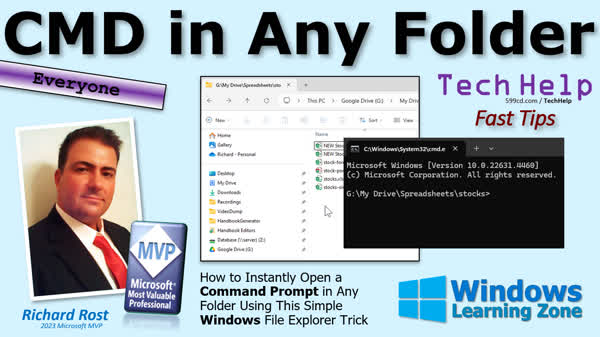
TechHelp Windows, CMD in any folder, instant command prompt, Windows File Explorer trick, open command prompt folder, File Explorer CMD, command prompt shortcut, CMD address bar trick, Windows CMD navigation, command prompt folder access, Windows File Explorer CMD tip, taskbar CMD pin
More InformationTranscript Today's tip is for the old-school developers, programmers, computer users, and people who still use the command prompt like me. I'm going to show you how to instantly open a command prompt in any folder using a simple Windows File Explorer trick. I just learned this one myself recently, and I was like, what? So check this out.
Alright, so if you're an old-school user like me, you use the command prompt a lot. I keep a copy of the command prompt right here on my taskbar for easy access. There it is right there. It always starts in your user folder. For those of you who don't know how to make this shortcut, just go to your start button, type in CMD, and that will open up a command prompt. Once it's open, just come down here, right-click, and go pin to taskbar. Mine's already pinned, so it says unpin, but there it is.
Now, here's the problem. If you want to go to some other directory, like let's say I want to go to this folder here, which is my G drive, scripting Python. I have to come in here and go G, and then CD my drive. Where am I going now? I'm going to go to, and so on. You've got to keep typing in CD this, CD that, or type in this whole thing correctly. It's a pain moving around with the command prompt.
So what I'm going to do instead is I'm going to open up File Explorer, and I'm going to browse exactly where I want to be. So I'm in my scripting Python speech to text, which is another program I'm working on. Now, here's how you get the command prompt in this folder. Are you ready? Watch this. Click in this address bar and type in CMD enter. Boom, there it is. It opens right up into that folder. When I first discovered this, I was like, what? What just happened? No more moving around through the folders using the command prompt itself.
Alright, want to go somewhere else? Go to my drive. Go to your, I don't know, spreadsheets folder. Where is it? Spreadsheets. Want to go here? CMD. Boom, it opens right up. That's off the screen. But there it is. See? And now you're in that folder.
And that's it. It's super simple, super cute, and super easy to do. So that's it. That's your TechHelp fast tip video for today. Hope you learned something. Live long and prosper, my friends. I'll see you next time.
Thanks for watching. If you want me to post more videos about Microsoft Windows, then be sure to like this video, subscribe to my channel, and post a comment down below. Let me know that you want more Windows videos. About 90% of what I teach is Microsoft Access database design. But I love teaching Windows, Word, Excel, PowerPoint, and all those other topics too. But of course, the squeaky wheel gets the grease. So if you want more Windows training, make some noise.
You can watch my entire Microsoft Windows beginner level one course absolutely free on my website and on my YouTube channel. It's over an hour long and covers all the basics. If you like level one and want to learn more about Windows, visit my website at the link shown, and you can get level two, which is another complete hour-long course for just one dollar. Level two goes into a lot more depth and teaches you how to get the most out of Windows. Visit my website today for more information.
Thanks for watching. To learn more about Windows or any of the other topics I teach like Microsoft Access, Word, Excel, and more, visit my website at windowslearningzone.com.
TOPICS:
Open Command Prompt in any folder
Pin Command Prompt to taskbar
Use CMD in File Explorer address bar
COMMERCIAL:
In today's video, we're going to learn a handy trick to instantly open a command prompt in any folder using Windows File Explorer. If you're an old-school user who finds navigating the command prompt tedious, I'll show you a simple method that will save you time. Just open File Explorer, go to your desired folder, type 'CMD' in the address bar, and hit enter. Boom! You're there. It's super simple and makes your workflow much more efficient. You'll find the complete video on my YouTube channel and on my website at the link shown. Live long and prosper my friends. Intro In this video, we'll talk about a quick and easy way to open the command prompt in any folder using Microsoft Windows File Explorer. You'll see how to use the address bar trick to instantly launch CMD in your desired directory, as well as how to pin the command prompt to your taskbar for easy access. If you're tired of using 'CD' commands to navigate around, this tip will help speed up your workflow. Quiz Q1. What is the main tip provided in the video to make using the command prompt easier in Windows File Explorer?
A. Use a third-party software to navigate command prompt directories easily
B. Type CMD in the address bar of File Explorer to open command prompt in that folder
C. Always start command prompt with administrator privileges
D. Use keyboard shortcuts to quickly switch between directories
Q2. How do you pin the command prompt to the taskbar for easy access according to the video?
A. Drag the command prompt icon from the Start menu to the taskbar
B. Right-click on an open command prompt and select "Pin to taskbar"
C. Use a specific command in the command prompt settings
D. Use Windows settings to add command prompt to quick launch
Q3. What is the purpose of typing "CMD" in the address bar of Windows File Explorer?
A. It automatically copies the folder path to the clipboard
B. It opens the folder in a new File Explorer window
C. It opens the command prompt directly in that folder
D. It creates a shortcut to the command prompt in that folder
Q4. What problem with using the command prompt does the video address?
A. Difficulty in running commands
B. Slow execution of scripts
C. Navigating between directories using CD commands
D. Limited access to system files
Answers: 1-B; 2-B; 3-C; 4-C
DISCLAIMER: Quiz questions are AI generated. If you find any that are wrong, don't make sense, or aren't related to the video topic at hand, then please post a comment and let me know. Thanks. Summary Today's TechHelp tutorial from Access Learning Zone is for enthusiasts of older tech methodologies—those of us who still favor using the command prompt. I'm excited to share a handy trick for quickly launching a command prompt within any folder via Windows File Explorer. It's a tip I recently stumbled upon, and it's quite the revelation!
For those who commonly use the command prompt, like myself, you might already have it pinned to your taskbar for convenience. By default, it opens in your user folder. If you're unsure how to add this shortcut, simply press the start button, type 'CMD' to launch the command prompt. Once it's open, right-click the icon on your taskbar and select 'Pin to taskbar'.
A common annoyance is navigating to different directories manually. Say I want to access a folder on my G drive, named 'scripting Python'. Typically, I'd have to type numerous commands like 'G:', 'CD', and so forth—simply cumbersome.
Here's a more efficient method. Open File Explorer and browse to your desired folder. For instance, I'm in my 'scripting Python speech to text' directory. To open a command prompt here, type 'CMD' in the address bar and press enter. Instantly, the command prompt appears in that folder. This trick eliminates the hassle of navigating directories using only the command line.
Want to switch to another folder, say your spreadsheets directory? Simply navigate via File Explorer, type 'CMD' in the address bar, and open the prompt directly in the folder. It's straightforward, quick, and intuitive.
That wraps up today's TechHelp tutorial. I trust you've gained a new insight. Remember, if you're interested in seeing more Microsoft Windows content, let me know by liking, subscribing, and commenting on the platform. While my primary teachings focus on Microsoft Access, I also enjoy sharing knowledge on Windows, Word, Excel, PowerPoint, and related areas. For more detailed Windows training, including a free beginner course and an in-depth level two course for just a dollar, visit my site.
For more tutorials on Windows or other Microsoft products, check out my resources at windowslearningzone.com. Live long and prosper, my friends. Topic List Open Command Prompt in any folder
Pin Command Prompt to taskbar
Use CMD in File Explorer address bar Primary Topics command prompt, Windows File Explorer, folder navigation, quick access to CMD Secondary Topics pinning applications to taskbar, workflow efficiency |