Me.NewRecord
By Richard Rost

 2 years ago
Move Focus to Different Field on New Record in Access
In this Microsoft Access tutorial, I will show you how to move the focus to a different field when navigating to a new record. Learn to enhance user experience by setting default focus fields using VBA code and the On Current event, ensuring seamless data entry without accidental overwrites.
Members
There is no extended cut, but here is the file download:
Silver Members and up get access to view Extended Cut videos, when available. Gold Members can download the files from class plus get access to the Code Vault. If you're not a member, Join Today!
Prerequisites
Links
Recommended Courses
Keywords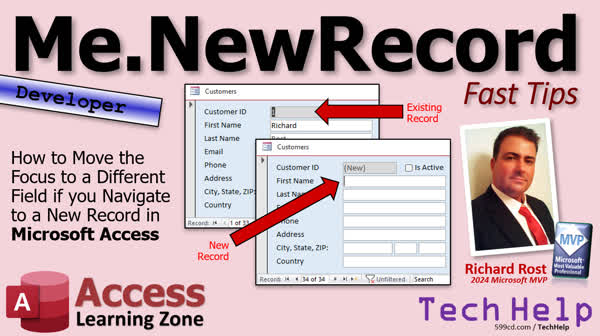
TechHelp Access, MicrosoftAccessVBA, FocusFieldChange, NavigateNewRecord, OnCurrentEvent, Me.NewRecord, SetFocus, IDFieldNullCheck, TabOrderManagement, FieldFocusShift, NavigationCustomization, ControlFocusProgramming
 Subscribe to Me.NewRecord
Get notifications when this page is updated
More InformationTranscript Today I'm going to show you how to move the focus to a different field if you navigate to a new record in Microsoft Access. For example, if you're on an existing record like this one here, you'd want the focus to go on maybe the customer ID so that, you know, if the user accidentally hits something, they're not overwriting the first name field. But if you go to a new record, you want to put the focus right there in the first name field so they don't have to go tab, tab, tab to get down there. Right? So it's about the user experience. I'll show you how this works.
Before we get started though, this is a developer-level video. What does that mean? Well, that means if you don't know how to program in VBA, go watch this video first. It's about 20 minutes long and it'll teach you everything you need to know to get started. Go watch my set focus video that shows you how to move the focus to a different control. Also, watch my video on the On Current event that will allow an event to run when you move from record to record or when you open up a form. These are all free videos. They're on my YouTube channel and on my website. Go watch those and then come on back.
Credit for this video goes to Kevin Robertson, one of my moderators on the website. He posted this as a comment on my set focus video, in fact, and he uses it when you go to a new record to change the form's caption and change the focus of where the cursor goes. Right, what field you're on? I forgot all about this command, which is Me.NewRecord. We're going to see this in just a second. I personally just check for nulls in the ID field, but you might not have a visible ID field. That could cause a problem too. So I'm going to show you both methods.
Here I am in my TechHelp free template. This is a free database you can grab off my website if you want. In here, I've got a customer form. As you can see, when I open up the customer form, the first thing that happens is the focus is on the first name because I took the customer ID, and I think is active, out of the tab stops. I've got a whole separate videos on tab stops and the tab order. You can change the tab order. I'll put a link to those videos down below. But if the user opens the form and isn't thinking or is careless, they might do one of these and if they don't catch it and they don't hit undo right away or escape, it could cause a problem. So it'd be nice maybe when this opens up, you put the focus here. Right, and they could still tab down if they want to.
So how do we do this? Let's go into design view. I am going to open up the form's properties and under Events, I'm going to find the On Current event. Remember, the On Current event fires when you move from record to record, including the first record when the form opens up. So we're going to go into here. This will bring up your VB editor. I'm going to shrink this down a little bit. There we go.
Now in here, in the Form Current event, usually what I used to do is I used to say 'If IsNull(CustomerID) Then'. This is where you could do, if it's null, you could say 'FirstName.SetFocus'. That means you're on a new record. Right? Otherwise, you could say 'CustomerID.SetFocus'. So if it's a blank record, right, I can't type today, then you want to put the focus on the first name so the person can just start typing. Otherwise, if it's an existing record, put the focus on the customer ID or some other place. Kevin uses a button when he does it, right. He puts it on the button close. That's fine too, just somewhere so that the user isn't trampling over an existing record. Right? Save it. Give it a debug compile once in a while. Then, if I come in here and close this, there you go. Now, if I go to a new record, it jumps to the first name field.
What Kevin is saying is that he likes to use 'Me.NewRecord', and I agree; this is actually better. Sometimes I do things out of habit. But if you don't have an ID field, right, you can't check to see if something's null. If nothing might be null, and you've got all default values in your form, then you can just use this to check for 'Me.NewRecord' and it does the same thing. Close it. There we go. All right, go to a new record. There you are. Perfect. And that's it. Nice, short, and sweet. That's why it's a fast tip video. Shout out to Kevin. Thank you very much for the idea for the video.
If you enjoyed this and you want to learn more about VBA, check out my developer lessons on my website. I've got hundreds of hours of lessons for you to watch. I've got tons and tons of goodies. But that is going to do it for your TechHelp fast tip for today. I hope you learned something. Live long and prosper, my friends. I'll see you next time.
TOPICS:
- Setting focus on new record in Access
- Using On Current event in VBA
- Checking for null in ID field
- Utilizing Me.NewRecord property
- Changing form's caption on new record
- Adjusting tab stops and tab order
- Using VBA to set focus programmatically
COMMERCIAL:
In today's video, we are exploring how to enhance your Microsoft Access user experience by automatically setting the focus to specific fields when navigating records. Whether it is an existing record or a new one, I'll show you how to efficiently redirect the focus, minimizing user error and improving workflow. This is a developer-level tutorial, so be sure you are up to speed with VBA programming, the set focus function, and the On Current event. You'll learn two approaches: checking for null values or using the 'Me.NewRecord' command to redirect focus seamlessly. A big thanks to Kevin Robertson for inspiring this quick tip. If you're ready to master Access, head to my website for more developer lessons. You'll find the complete video on my YouTube channel and on my website at the link shown. Live long and prosper my friends. Intro In this video, I will show you how to automatically move the focus to a specific field when you navigate to a new record in Microsoft Access. You will learn how to use the On Current event in VBA, check for nulls in the ID field, and utilize the Me.NewRecord property to determine if the user is on a new record. I will also cover tips for adjusting tab stops and tab order to improve the user experience and help prevent accidental data entry errors. Quiz Q1. What is the purpose of changing the focus to the first name field when navigating to a new record in Microsoft Access?
A. To prevent accidentally overwriting the customer ID field
B. To make it easier for users to start entering new data immediately
C. To ensure the user can skip the customer ID when tabbing
D. To allow the form to automatically save previous records
Q2. What is the On Current event used for in Microsoft Access?
A. It triggers a macro when a form is closed
B. It runs an event when you move between different forms
C. It fires when you move from record to record in a form
D. It activates before the database is opened
Q3. What command does Kevin Robertson suggest using to check if a new record is being accessed?
A. Me.NewRecord
B. IsNull(CustomerID)
C. SetFocus.New
D. CheckNewRecord
Q4. Why might you prefer to use Me.NewRecord over checking for null values in an ID field?
A. It automatically saves data before moving to a new record
B. It adjusts the tab order in the form
C. It avoids issues when there is no visible ID field
D. It improves database performance
Q5. What is the advantage of placing the focus on a non-essential field like a button or a customer ID in an existing record?
A. To save changes immediately
B. To reduce the chances of accidentally modifying existing data
C. To automatically fill the fields with default values
D. To lock the record to avoid further edits
Q6. What should you do after modifying code in the VB editor according to the video?
A. Run a debug compile
B. Insert comments for future reference
C. Save the form
D. Check for syntax errors via a separate tool
Q7. Which event occurs when you open a form for the first time, according to the tutorial?
A. Before Update
B. On Current
C. On Open
D. On Load
Q8. Which resource was recommended to view before attempting to apply the techniques taught in the video?
A. Advanced macros in Microsoft Access
B. Beginner VBA tutorial
C. SQL queries for beginners
D. Intermediate form design techniques
Answers: 1-B; 2-C; 3-A; 4-C; 5-B; 6-A; 7-B; 8-B.
DISCLAIMER: Quiz questions are AI generated. If you find any that are wrong, don't make sense, or aren't related to the video topic at hand, then please post a comment and let me know. Thanks. Summary Today's TechHelp tutorial from Access Learning Zone is about improving user experience in Microsoft Access by strategically placing focus on different fields when navigating to a new record. For instance, while on an existing record, it might be best to set the focus on the customer ID field to avoid unintended changes to the first name. Conversely, when moving to a new record, directing focus to the first name field can help users start entering data without needing multiple tabs. The goal here is to enhance the user experience efficiently.
This tutorial is aimed at those who have a developer-level understanding, particularly in VBA programming. If you're unfamiliar with VBA, I suggest watching my introductory video that covers the basics in about 20 minutes. Additionally, I recommend viewing my videos on setting focus in a form and handling the On Current event. These tutorials, available on my YouTube channel and website, will provide the foundational knowledge needed for this lesson.
The inspiration for this video comes from Kevin Robertson, a moderator on my website, who suggested using this method to alter a form's caption and adjust the focus as needed when navigating to a new record. This approach utilizes the Me.NewRecord command, which is particularly useful if you do not have a visible ID field. I will demonstrate both methods to show you how they work in different scenarios.
Let me walk you through an example using my TechHelp free template, available for download on my website. In this database, there's a customer form set to focus on the first name field when opened, because I removed the customer ID from the tab stops. You can still customize the tab order as needed; I've covered this in other videos available through links below.
To implement this, switch to design view and access the form's properties to locate the On Current event under Events. The On Current event triggers when shifting from record to record, including the initial record when the form opens. By scripting within the Visual Basic editor, you can specify conditions to set focus based on whether a record is new or existing. I previously used IsNull to determine focus placement, but Kevin's suggestion of using the Me.NewRecord command offers a more straightforward solution if the ID field is not present.
This efficient technique aligns well with forms that may have default values, allowing you to reliably identify new records using Me.NewRecord. This approach redirects focus to the desired field seamlessly, thus enhancing the data entry experience on new records. It's a concise and practical solution that Kevin brought to my attention—special thanks to him for the valuable contribution.
I encourage you to explore more of my VBA developer tutorials available on my website. These resources provide extensive lessons on various topics. This concludes today's TechHelp tip. I hope you found it insightful. You can find a complete video tutorial with step-by-step instructions on everything discussed here on my website at the link below. Live long and prosper, my friends. Topic List - Setting focus on new record in Access
- Using On Current event in VBA
- Checking for null in ID field
- Utilizing Me.NewRecord property
- Changing form's caption on new record
- Adjusting tab stops and tab order
- Using VBA to set focus programmatically Primary Topics Access forms, VBA programming, setting focus, On Current event, Me.NewRecord property, form navigation, user experience Secondary Topics tab stops, tab order, null checking, form caption changes, error prevention |




