Global Status Fn
By Richard Rost

 21 months ago
Make Status Function Global in Microsoft Access In this Microsoft Access tutorial, I will show you how to make the status function global so it works from anywhere in your database. You'll learn to create a public subroutine that updates status messages across forms and modules using VBA. Perfect for tracking events without interruptive message boxes. MembersThere is no extended cut, but here is the file download: Silver Members and up get access to view Extended Cut videos, when available. Gold Members can download the files from class plus get access to the Code Vault. If you're not a member, Join Today!
PrerequisitesLinksRecommended Courses
Keywords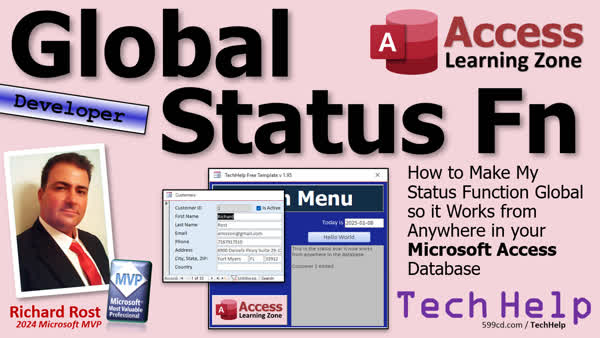 TechHelp Access, global status function Access, status box Access, replace message box Access, runtime Debug.Print Access, move subroutine global module Access, global variable Access, Access VBA Scope Visibility, Access database messaging, TechHelp free template
More InformationTranscript Welcome to another TechHelp video brought to you by AccessLearningZone.com. I'm your instructor, Richard Rost. Today, we're going to cover something that I get asked all the time. For those of you familiar with my videos, I have this thing called a status box. It's built into my TechHelp free template, which is a free database that I use in most of my TechHelp videos. It's simply a big box where you can send messages to it. I have just a button here that says "Hello World." You can use it for displaying variables or giving the user messages. It's basically a replacement for a message box that pops up in your face and you have to hit OK. This will allow execution to keep going yet give you a track record of what's going on. It's kind of like a Debug.Print, but it works in runtime.
A lot of people ask me if they can use this from other places, like if they open up the customer form. Can they have this thing send messages there? Sure, and that's what we're going to cover in today's video. I'm going to show you how to make the status function global, so it will work from anywhere in your database. Any form can use it, and any bit of VBA code can use it. Of course, you'll still need to be able to see it. Don't cover it up. Make sure that this form opens up where it can be seen. Then you can use it from anywhere in the database.
First, some prerequisites. This is a developer-level video, but I'm going to take it nice and slow. So this is kind of like a beginner developer video. First off, if you haven't watched my Intro to VBA video, go watch it first. It'll teach you everything you need to know to get started in about 20 minutes. Watch my initial Status Box video. It teaches you how to set up the status box. In this one, I show you how to put a status box on multiple forms. You can put a unique status box on every form if you want to, but today we're going to make it so they all use the same box. Also, watch my Variable Scope and Visibility video. This explains what a global variable is. It's a variable you can use from anywhere in the database, not just the form that you're on. This is important. Go watch this video too. These are all free videos. They're on my YouTube channel and on my website. Then come on back.
The first thing we have to do is go into Design View here. Let's go into the code for our button and right-click Build Event. That'll bring up our Code Builder. Now in here, this is the form module. This is the module that's built into the form main menu F. Here is my Private Sub Status. This means that only this form can call this subroutine because it's private. So we're going to move this to a global module. I'm going to just cut that out. Get rid of the extra spaces there. Then I'm going to come over here and I'm going to go down to my Global Module. If you don't have a global module, there's one built into the TechHelp free template called Global Module. If you don't have one, you can create your own. Go to Create and then Module, and that'll do the same thing. Don't use a class module. Use a regular module. I have a whole separate video on that. In the Global Module, I have a sleep subroutine that allows you to make the system wait for a second or two. We're going to just put this right on top of that.
Right here, we're saying Private Sub Status. Now we don't want it to be private because if it's private, only this module will be able to use it. So we're going to change this to Public. Now everybody in the database, every form, every report, every other module can see this Status subroutine. So now it has scope and visibility. The entire database can use it. The first thing we do is we send in S as a string. That's the message we want to put in the box. That's fine. Here's a problem though. Do a debug compile and it says "Variable not defined." It has no idea what Status Box is.
Status Box is a text box on this form, but in order to use it here, not on that form, we have to call it by its full name, which is Forms!MainMenuF!StatusBox. We had to do it here, and we also have to do it there. It's going to say Forms!MainMenuF!StatusBox equals S, whatever we send into it and a new line. Then the rest of the Status Box, so it just adds this on top. Now if we Debug Compile, we get away with it. It seems to work.
If you're not familiar with that naming convention, go watch this video. This is what I call an expert-level video. It's not quite up to the developer yet. I assume you already know this. If you don't, go watch this video.
At this point, if I come back over here and I hit my button, let's say this stuff, I hit my button, it still works. This button is calling Status, but Status is now in here. Status knows to use this box. Now, if I go to a different form, let's say I want to put a button on this form to do the same thing. I just copy one of these buttons, copy-paste. I'll right-click Build Event. Yes, I know you should give your button a good name, but this is just a test, so Command 30 is fine. Here I'm going to say Status "Hello from the Customer form." Same thing. Once in a while, File Save All. Back out here, let's close it, open it, and hit the Hello button. There it goes. You can see it in the background.
You could force this menu form to come to the foreground if you want to, but I personally find that kind of annoying. I'll show you how to do it though. In the Status function itself, right-click Go to Definition. That'll bring you right to it.
You could open the form by saying DoCmd.OpenForm "MainMenuF". Then what that'll do is it'll open the form, which if it's not open, will open it for you, which could be a problem and won't generate an error message. It also has the secondary effect of putting it in the foreground. If you are going to issue messages or bring it to the foreground, you might want the users to see it.
That's it. Pretty straightforward today. Lots of people ask me this, so I figured I'd make a video about it. That's what I make videos on, the things people ask me the most. That's going to be your TechHelp video for today. I hope you learned something. Live long and prosper, my friends. I'll see you next time.
TOPICS:
Creating a global status function in VBA
Changing module scope from Private to Public
Handling undefined variables in global functions
Using fully qualified name for form controls
Copying buttons and assigning events in forms
Bringing a form to the foreground with DoCmd
Debugging and compiling in VBA
Using Global Module for shared functions
COMMERCIAL:
In today's video, you will learn how to make your status box function global within an Access database. We will show you how to transform it from a simple form-specific message display to a universal feature accessible by any form or module. You will see how to move the status subroutine from a private module to a global one to enhance visibility and scope across your database. We will guide you through adjusting the naming conventions to ensure seamless functionality. Whether you want messages displayed from different forms or need the main menu to pop into the foreground, you'll get all the insights here. You'll find the complete video on my YouTube channel and on my website at the link shown. Live long and prosper my friends. Intro In this video, you'll learn how to create a global status function in Microsoft Access using VBA so any form or module in your database can send messages to a centralized status box. We'll go over changing your code from Private to Public scope, handling variable visibility, using the fully qualified naming convention for form controls, and making sure your status box works across multiple forms. You'll also see how to bring the main menu form to the front when needed and pick up some basic debugging tips in the process. Quiz Q1. What is the main function of the status box in the TechHelp template?
A. To replace the message box that requires user interaction
B. To display error codes and debugging information
C. To permanently store logs and history
D. To automatically update database records
Q2. What is the benefit of making the status function global in the database?
A. It can generate reports automatically
B. It allows the status box messages to be used anywhere in the database
C. It optimizes database performance
D. It automatically fixes compilation errors
Q3. What must be done to the Status subroutine to make it accessible to all forms in the database?
A. Keep it private within the form module
B. Change its name in the form module
C. Change it from Private to Public and move it to a global module
D. Add more user permissions
Q4. Before using the status function globally, which video does Richard recommend watching to understand the prerequisites?
A. User Permissions and Security
B. Advanced Message Box Usage
C. Intro to SQL Queries
D. Intro to VBA
Q5. What needs to be altered in the code if the Status Box is originally private to a form and you want to use it in other parts of the database?
A. The button's name needs to be changed
B. Use the full naming convention of the text box with Forms![FormName]![ControlName]
C. Add more error-checking routines
D. Convert text boxes to combo boxes
Q6. Why might a developer want to force the main menu form to the foreground after sending a message to the status box?
A. To ensure users focus on the main menu form exclusively
B. To comply with database user interface design standards
C. To guarantee the users notice the message
D. To improve the database's loading time
Answers: 1-A; 2-B; 3-C; 4-D; 5-B; 6-C.
DISCLAIMER: Quiz questions are AI generated. If you find any that are wrong, don't make sense, or aren't related to the video topic at hand, then please post a comment and let me know. Thanks. Summary Today's TechHelp tutorial from Access Learning Zone focuses on creating a global status function in Microsoft Access. I'm your guide, Richard Rost, and we will address a common question I receive about the status box. This status box is a built-in component of my TechHelp free template, a free database that I use frequently in my tutorials. The status box functions as a large display area for messages and variables, offering an alternative to the intrusive pop-up message boxes that require immediate acknowledgment. Unlike those, the status box allows the program to continue running while maintaining a visible record of messages, similar to the Debug.Print command, but usable at runtime.
Many users inquire about utilizing the status box from various parts of the database, such as the customer form. Today, I'll demonstrate how to make the status function accessible from any location within the database. This means that any form or piece of VBA code can use it, as long as the status box remains visible on a form that's open.
Let's make sure we're all on the same page. This lesson is tailored for developers, but I'll maintain a beginner-friendly approach. Start by watching my introductory videos on VBA and the initial Status Box setup if you haven't yet. These resources will provide the foundational knowledge required. Also, check out my video on Variable Scope and Visibility to understand global variables, which are accessible throughout the database. All these videos are free and available on my YouTube channel and website.
To begin, we'll modify the code from our button within the Design View. Access the form's code by right-clicking and selecting Build Event. The current setup allows only the specific form to call the private subroutine. We'll transfer this to a global module, making it public to ensure universal access across the database.
If your setup doesn't include a global module, the TechHelp free template offers one, or you could create your own standard module. In this module, we'll convert the subroutine from private to public. This alteration enables the entire database to interact with the Status subroutine, expanding its scope and visibility. You'll need to pass a message string into the subroutine, but there's an essential modification required. When conducting a debug compile, define the Status Box by its full path, using Forms!MainMenuF!StatusBox, to avoid any undefined variable errors. With these changes, the system should compile without issues, and the function can be used across different forms.
Familiarizing yourself with this naming convention is crucial for developers. If it's new to you, consider watching my expert-level video that covers this topic. Once everything is set up, test your button to ensure it still works. The status box should now be interactive from any form.
For those wishing to make the form more visible, you can utilize the DoCmd.OpenForm command to bring it to the foreground. Although I find this feature somewhat obtrusive, it's available should you need the status box to capture users' attention.
That wraps up today's straightforward tutorial. Many users were curious about this capability, so I've created this guide to address those queries. I hope you found it informative. For a complete video tutorial with step-by-step instructions on everything discussed here, visit my website at the link below. Live long and prosper, my friends. Topic List Creating a global status function in VBA
Changing module scope from Private to Public
Handling undefined variables in global functions
Using fully qualified name for form controls
Copying buttons and assigning events in forms
Bringing a form to the foreground with DoCmd
Debugging and compiling in VBA
Using Global Module for shared functions Primary Topics Access VBA, status box, global module, public subroutine, scope and visibility, form controls, messaging Secondary Topics bringing forms to foreground, debugging, code organization |






