ActiveForm
By Richard Rost

 20 months ago
Use ActiveForm to Find Previous Form in MS Access In this Microsoft Access tutorial, I will show you how to use ActiveForm to identify the form that opened another form. You'll learn how to make a pop-up form recognize its caller using Screen.ActiveForm and change the background color of the calling form with a simple button click. MembersThere is no extended cut, but here is the file download: Silver Members and up get access to view Extended Cut videos, when available. Gold Members can download the files from class plus get access to the Code Vault. If you're not a member, Join Today!
PrerequisitesLinksRecommended Courses
Keywords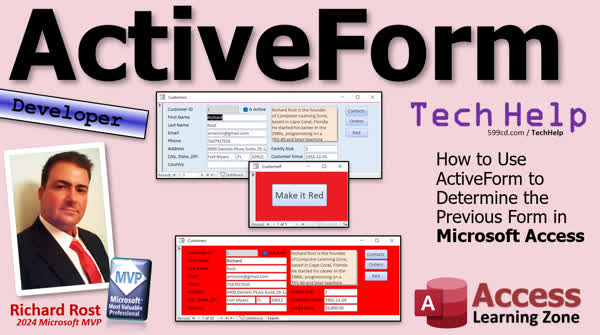 TechHelp Access, ActiveForm, previous form determination, Screen.ActiveForm, tempvars, OpenForm, form events, on load event, form load sequence, VBA message box, Access timing, Access developer tutorial, ActiveControl preview, form interaction, Access form automation
 Subscribe to ActiveForm
Get notifications when this page is updated
More InformationTranscript Today we're going to learn how to use ActiveForm, Screen.ActiveForm to determine the previous form, the form that opened a form, in Microsoft Access. This is admittedly a very simple and kind of silly example because this is a stepping stone to the next lesson where I'm going to teach you ActiveControl, where we can basically pop up a form, set a value, and then return it to the form that called it. But before I teach you ActiveControl, you need to learn ActiveForm first; there's a proper order you should learn these things in.
So today we're going to make a little pop-up form that's going to know what form called it using ActiveForm. Then we're going to click a button that makes it red, and it's going to make the background red for whatever form opened it. That's all we're going to do today, but this will be a stepping stone to learning how to return a value to this form.
First up, some prerequisites: this is a developer level class. If you don't know VBA and you want to learn, go watch this first about 20 minutes long video that teaches you everything you need to know to get started. It's free. You should know how to open a form to a specific record using OpenForm. You should know what tempvars are, temporary variables, and how to use them. Of course, you should know our good old friend message box. If you haven't watched any of these videos, go watch them first and then come back. They're all free, they're on my YouTube channel, they're on my website, and you know what to do, go watch them, get out of here.
Here I am in the Metacelp free template, this is a free database. You can grab a copy on my website if you want to. Let's make a simple form that is going to have one function. You can click, click a button, and then whatever form was opened before this one, basically the form that opened it, is going to turn red. Very simple, I know, just bear with me. I'm going to take my single form here, the single and continuous, these are just blank little templates that I got. I'm going to copy and paste that (Control-C Control-V), and I'm going to call this red F, my red form.
Okay, there it is, red form, and we're going to go in here and we're going to design it. We're going to get rid of the fields that are on it and we're going to make the background an obnoxious looking red. We'll make it smaller. Let's get a button, drop it right here, cancel this, we'll say make it red. We'll make that bigger, let's do like 16-point and bold.
Now, let's call this the red button, red button, right-click, build event. Now in this button, I want to just see what the active form's name is, so message box, it's going to be screen.activeform, whatever form is currently active, .name, those are all the properties of that form - name, caption, and so on. Let's just see who the active form is, save it, come back out here, close it, open it up, and click. Red F is the active form, duh, right, it's the form that we're currently on.
That's fantastic, what good does that do us? Well, in this particular case not much. We know we're on this form, but here's the trick: if you read that value before this form is completely finished loading, it will tell you the previous form that was open. If you have a button that opens this one, it'll be that form. So watch this, let's go back into that code, well, let's go back into here, right-click, design view. Let's find the events for this form, let's find the on load event, on load happens when the form loads, when it's starting to load up, but it's not completely open yet. You can still figure out who called it because the active form is not yet red F. It's all about timing with Microsoft Access. There are all these different events in here, and they all fire in a different sequence, and learning that sequence is important because you can do cool different things. On load fires before this form has all its stuff set up yet, so if we go to on load, and we're going to move this up into here, message box, what the screen.activeform.name is before red F is done loading. Save that, close it, close it, close it.
I'm going to open up my main menu, then I'm going to open up red F, look at that, it says main menu F. Look, red F isn't fully loaded yet. If I hit it now, there it is. If the customer form is open and I open up red F, look at that, it sees the customer form as the currently active form. Keep that in mind, you got to determine what the active form is before this form fully loads, so put it in the form load event. There is no screen.previous form property, there's a screen.previous control, but that doesn't help us here, but this is how you determine what the previous form was. It's all about timing.
In fact, what we could do to make this easier to see, watch this, we'll go into here, and instead of saying message box, I'm going to say me.caption equals screen.activeform.name, so you could set the caption property of the form, even though it's not fully loaded to that value. Come back out here, close this. Customers is open, and look at that, it says customer F. If I come here and open it up, look at that, it says main menu F. So now red F knows, at least not necessarily who opened it, but what form was open when this guy loaded, and we can use that. In here, we can save that in a variable, we can use a tempvar.
Let's say tempvars!previous form equals screen.activeform.name, so now we've saved that. When this form loaded, we've now saved who called it, or at least who was open before, right, in a variable, so now we can hang on to that and do something with it. What are we going to do? When the user clicks that button, we're going to set that previous form to red.
Now bear with me, this is a weird syntax. Normally you would say, let's say forms!customer F. Now you can't say .backcolor = vbRed, you can't say that because forms don't have a backcolor property, but the different sections on the form do, so you could say .Section(0).BackColor, section zero is the detail section, one is the form header, two is the form footer, and I believe three and four are the page header and footer, but we don't use those anyways. But I don't want to say forms!customer F, I want to use this guy, but if you want to refer to it by name, you can't use the bang, you have to refer to it like this, get to put it inside a parenthesis and inside quotes. So that would be forms!customer F, sections 0 to that, but I don't want customer F, I want whatever is in this, so we're going to take that and put that in there. That's the proper syntax, you just got to learn how to, my Access is like dealing with people, you just have to learn how to talk to them right.
Forms!formName.Section(0).BackColor = vbRed, got it. Save it, let's debug compile once in a while. Okay, everything's compiling fine. Close everybody up, I'm going to open the main menu, and then I'm going to open the red form, I'll watch this, make it red, look at it. Close that, in fact, let's make our red form close too, let me close this, let's make our red form close, right after we're done with it, DoCmd.Close, it'll close the form you're on.
Try to get close that, I'm going to open up just the customer form, and then I'll open up the red form, and then I'll hit make it red, see it knows what form was open before it. So you can, if you want to now, you could drop a button on each of these forms to open up the red form, and then it knows who called it, watch, so design view, I'll just use my hello world button here, right, open red form, and in here, I'll just go where I click build event, this was my hello world button, I'm going to say DoCmd.OpenForm, "Red", that's all you got to say, just open the red form, and the red form is going to know what to do. This is the power of this, is that you don't have to have complex coding in every button on every other form, just open that form, that's it.
Close this down, open it up, open the red form, it knows who called it, make that form red. Do the same thing, let's copy this button, let's go to the customer form, let's design view, let's drop that button in here, here's open the red form, we'll splat that over there, let's do the same thing on the order form, or the order form, order form, design view, we'll slap that button up here, doesn't matter, and then in these buttons, all you have to put is DoCmd.OpenForm, "RedF", put that in there, and then next class, and the active control class, I'm going to show you how to make it even simpler than that, you want to drop code in each form.
Right-click, build event, put that in here, I am all about tabs and indenting. Now each one of those forms has a button that opens up the red form, so if I go to the customer form, open the red form, it knows who called it. If I go to the order form, it opens the red form, it knows who called it.
That's how ActiveForm works, you can read what the active form is in the open event of a form, and it'll know who called it. That's important, keep that in mind because once you mix that with ActiveControl, you can do something like this: Here's a box that says today is a date field, double click on it, it opens up a form with a date box in it, this could be anything, this could be a customer list that you pick from, it could be a product list, it could be a form of the whole bunch of filters, stuff some cascading combo boxes, calendar, you name it. You put a value in here, you hit okay, and it knows where to return it to because it knows the previous form and the control that opened as well. Go to the customer form, look at this, I made this one blue, watch, double click on it, it opens up the same form, it knows who called it, see, I'm doing the same trick here, I put it in the caption, it knows it's customer F and customer sense, hit okay, and it puts the value there. I did it in the order form, double click, hit okay, puts it right back there, see, and all that coding is in the form, not in each one of these fields, it makes it super easy to put it throughout your entire database.
We're going to learn how to do this in the next class, which will be the ActiveControl class. Today is Friday, the 10th of January 2025, so we'll do the ActiveControl class on Monday, the 13th. If you're watching this far in the future, you can watch it right now, as I'll put a link to it down below.
Have a good weekend, that is going to be your TechHelp video for today. I'm off to have some oral surgery folks, I have to have a tooth pulled and an implant put in and all that, so I'm going to be out of it this weekend. I should be back by Monday, but who knows, we'll see. But I'm going to post the video now, so it'll be available Monday, even if I'm not. I'll probably be off in La La Land with some good medication.
That's going to be your TechHelp video for today, hope you learned something. Live long and prosper my friends, I'll see you on Monday for the ActiveControl video.
If you enjoyed this video please give me a thumbs up and post any comments you may have below, I do try to read and answer all of them as soon as I can. Make sure you subscribe to my channel which is completely free, click the bell icon and select all to receive notifications when new videos are posted.
Want to learn more? Click the show more link below the video to find additional resources and links, YouTube does a pretty good job of hiding it, it's right down there, see this part of the description here, the name, the video's up here, there's a little show more down there right down the bottom. It's kind of hard to find, but once you click on that you'll see a list of other videos, additional information related to the current topic, free lessons, and lots more.
YouTube no longer sends out email notifications when new videos are posted like they used to do, but if you'd like to get an email every time I post a new video, click on the link to join my mailing list, and you can pick how frequently to get emails from me either as they happen daily, weekly, or monthly.
Now if you'd like to become a paid member of my channel and receive all kinds of awesome perks, click on the join button, you'll see a list of all the different membership levels that are available, each with its own special perks, including my extended cut videos, access to my code vault, lots of VBA source code in there, template downloads, and lots more. I'll talk more about these perks at the end of the video.
Even if you don't want to commit to becoming a paid member, and you'd like to help support my work, please feel free to click on the tip jar link, your patronage is greatly appreciated and will help keep these free videos coming. I got some puppies to feed, but don't worry no matter what these free TechHelp videos are going to keep coming, as long as you keep watching them, I'll keep making more, and they'll always be free.Now, if you really want to learn Access and you haven't tried my free Access Level One course, check it out now. It covers all the basics of Microsoft Access, including building forms, queries, reports, and more. It's over four hours long. You can find it on my website or on my YouTube channel. I'll put a link down below. Did I mention it's completely free? The whole thing is free, four hours. Go watch it.
A lot of you have told me that you don't have time to sit through a four-hour course, so I now have a quicker Microsoft Access for Beginners video that covers all the basics faster in about 30 minutes. No, I didn't just put the video on fast forward. I'll put a link to this down below as well.
If you like Level One, Level Two is just a dollar. That's it, one dollar, and that's another whole 90-minute course. Level Two is also free for paid members of any level, including supporters. If you're a member, go watch Level Two; it's free.
Want to get your question answered in a video just like this one? Visit my TechHelp page and send me your question there. Members get priority, of course. While I do try to read and respond to all the comments posted below in the comments section, I only have time to go through them briefly a couple of times a month, and sometimes I get thousands of them. Send me your question on the TechHelp page, and you'll have a better chance of getting it answered.
While you're on my website, be sure to stop by my Access forum. We've got lots of lively conversations about Microsoft Access and other topics. I have a fantastic group of moderators who help me answer questions. Shout out to Alex, Kevin, Scott, Adam, John, Dan, Juan, and everybody else who helps on the site. I appreciate everything you do; I couldn't do it without you.
Be sure to follow my blog, find me on Twitter, and, of course, on YouTube. Yes, I'm on Facebook too, but I don't like Facebook, don't get me started.
Now, let's talk more about those member perks if you do decide to join as a paid member. There are different levels: silver, gold, platinum, and diamond. Silver members get access to all of my extended cut TechHelp videos, one free beginner class every month, and some other perks. Gold members get all the previous perks plus access to download the sample databases that I build in my TechHelp videos, plus access to my code vault where I keep tons of different functions that I use, and the code that I build in most of the videos. You'll also get higher priority if you submit any TechHelp questions. Answers are never guaranteed, but you do go higher in the list to meet a rhythm. If I like your question, you've got a good chance of it being answered.
You'll also get one free expert level class each month after you've finished the beginner series. Platinum members get all the previous perks plus even higher priority for TechHelp questions. You get access to all of my full beginner level courses for every subject, and I cover lots of different subjects like Word, Excel, VBA, ASP, and lots of different stuff, not just Access. These are the full-length courses found on my website. You get all the beginner ones. In addition, once you finish the expert classes, you get one free developer class per month, so lots of training.
That's it. Once again, my name is Richard Rost. Thank you for watching this video brought to you by AccessLearningZone.com. I hope you enjoyed it. I hope you learned something today. Live long and prosper, my friends. I'll see you again soon.
TOPICS:
- Using ActiveForm in Microsoft Access
- Determining the calling form
- Creating a pop-up form with ActiveForm
- Button to change form's background color
- Using the OnLoad event in Access
- Saving form information in TempVars
- Setting form section properties
- Using parenthesis for form names in code
- Automating form processes with VBA
COMMERCIAL:
In today's video, we're learning about the ActiveForm in Microsoft Access. You'll discover how to identify the previous form that opened another form using ActiveForm. We'll create a simple pop-up form that changes the background of the form that called it to red. While a seemingly basic example, understanding ActiveForm is a crucial step before learning about ActiveControl, where you'll be able to set and return values to the source form. Ensure you know VBA, OpenForm, and tempvars before following along. This is just the beginning, setting the stage for next week's in-depth ActiveControl lesson. You'll find the complete video on my YouTube channel and on my website at the link shown. Live long and prosper my friends. Intro In this video, we will learn how to use the ActiveForm property in Microsoft Access to identify which form opened another form. I will show you how to create a basic pop-up form that determines its calling form, saves that information using TempVars, and uses a button to change the background color of the source form. We will also talk about using the OnLoad event, writing code to reference forms by name, and setting form section properties in VBA. This simple example provides foundational knowledge for working with multiple forms and leads into the next lesson on ActiveControl. Quiz Q1. What is the main purpose of using Screen.ActiveForm in a Microsoft Access form?
A. To obtain the form's layout
B. To determine which form is currently active or was last active before a new form opened
C. To check for form permissions
D. To synchronize data between forms
Q2. What event should you use to determine the previous form that was active before the current form loaded?
A. On Close
B. On Click
C. On Load
D. On Error
Q3. When a form is opened, what happens if you read the ActiveForm before it has fully loaded?
A. It returns an error
B. It displays the name of a default form
C. It shows the active form as the form itself
D. It shows the previous form that was active
Q4. Which VBA property is used to change the background color of a form's detail section?
A. FormColor
B. DetailColor
C. Section(0).BackColor
D. Form.BackColor
Q5. Why is it important to use the correct syntax when referring to a form's property by name using VBA?
A. To optimize the database size
B. To avoid errors and ensure the code works correctly
C. To enhance the form's visual appearance
D. To improve query performance
Q6. What is the purpose of using TempVars in this lesson?
A. To create permanent variables in VBA
B. To dynamically generate form controls
C. To store the name of the active form for later use
D. To manage form permissions
Q7. Why does the instructor recommend using ActiveForm as a stepping stone before learning ActiveControl?
A. ActiveForm is easier to understand than ActiveControl
B. ActiveForm allows for immediate application without needing further learning
C. ActiveForm provides foundational understanding necessary for using ActiveControl effectively
D. ActiveForm has more robust features than ActiveControl
Q8. What is the benefit of having a separate form (like the red form) knowing which form opened it?
A. It facilitates database normalization
B. It helps in debugging the application
C. It simplifies form-related logic by centralizing code for common actions
D. It ensures data integrity between forms
Answers: 1-B; 2-C; 3-D; 4-C; 5-B; 6-C; 7-C; 8-C.
DISCLAIMER: Quiz questions are AI generated. If you find any that are wrong, don't make sense, or aren't related to the video topic at hand, then please post a comment and let me know. Thanks. Summary Today's TechHelp tutorial from the Microsoft Access Learning Zone will guide you on how to use ActiveForm, specifically Screen.ActiveForm, to determine which form previously opened a new form in Microsoft Access. Although this is a basic example, understanding ActiveForm is essential before moving on to the more advanced concept of ActiveControl, where you can set and return values to the calling form.
Our task today is to create a simple pop-up form that identifies the form which called it using ActiveForm. When you click a button, it will change the background color of the calling form to red. This foundational step prepares us for later learning how to return values to the initiating form.
Before diving in, let me note that this tutorial requires a developer-level understanding. If you're not familiar with VBA, or need a refresher on opening forms to specific records using OpenForm, using tempvars (temporary variables), or message boxes, I'd recommend watching a 20-minute introductory video available on my website.
We'll start by utilizing the Metacelp free template, a database freely available on my site. Our goal is to create a form where a button click will turn the background color of the previously active form red. We'll take a template form, copy it, and name it "Red F". This form will be designed with a red background and a button labeled "Make It Red", which will initiate the color change.
In the code for the button, we will first display the name of the active form using a message box that shows Screen.ActiveForm.Name. However, to truly understand what form was previously open, you'll need to read this value before the new form fully loads. This is accomplished through the form's On Load event. By capturing Screen.ActiveForm.Name in this event, we'll identify the form that was open beforehand.
To provide a clearer demonstration, we can set the form's caption to display the name of the active form during loading. Using tempvars, we'll store this name and react when the button is clicked. A particular syntax is needed to change the background color of the calling form's detail section, and once mastered, this allows a seamless transition in color.
We can also automate closing the red form after performing the main task by using a simple command to close it. This example also demonstrates how to set up buttons on multiple forms to open the red form, ensuring it correctly identifies and reacts to the calling form every time.
This lesson on ActiveForm serves as an important mechanism in Access, facilitating more complex operations when combined with ActiveControl. In the next tutorial, we'll explore ActiveControl and examine practical applications for refining these processes, such as updating fields based on user selections across different forms, like cascading combo boxes or date selections.
For a complete video tutorial, with step-by-step instructions on everything discussed, visit my website using the link below. I hope this tutorial proved helpful. Live long and prosper, my friends! Topic List - Using ActiveForm in Microsoft Access
- Determining the calling form
- Creating a pop-up form with ActiveForm
- Button to change form's background color
- Using the OnLoad event in Access
- Saving form information in TempVars
- Setting form section properties
- Using parenthesis for form names in code
- Automating form processes with VBA Primary Topics ActiveForm, Screen.ActiveForm, Access OnLoad event, determining calling form, VBA form automation, form section properties, TempVars, opening forms in Access
Secondary Topics parenthesis syntax for forms, button events, Access UI feedback, developer prerequisites
|




