Date Problems
By Richard Rost

 20 months ago
Fix Date Format Issues in Access with Proper Functions In this Microsoft Access tutorial we will learn how to properly handle date formats in queries and VBA code after switching to an ISO date standard. Discover common mistakes beginners make with date formatting, the correct ways to utilize year, month, and day functions instead of string manipulation, and ensure accurate results in your database operations. Landon from Sandy Springs, Georgia (a Platinum Member) asks: Hi, I recently switched my database to use ISO date formatting, as you instructed in one of your videos, and now some of my queries and VBA code aren't functioning as they used to. I'm uncertain about what's causing the issue, but it seems that my methods of handling dates are no longer yielding the correct results. For example query criteria no longer work. Could you help me identify the problem and find a solution? MembersThere is no extended cut, but here is the file download: Silver Members and up get access to view Extended Cut videos, when available. Gold Members can download the files from class plus get access to the Code Vault. If you're not a member, Join Today!
PrerequisitesLinksRecommended Courses
Keywords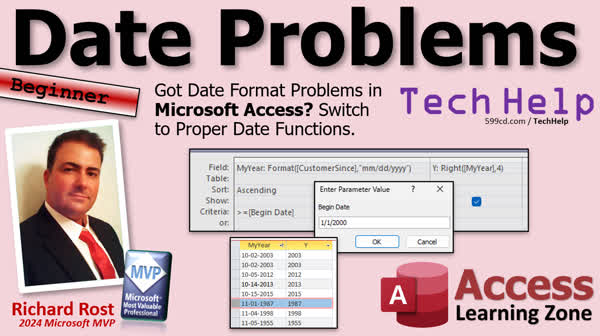 TechHelp Access, Date Functions, ISO Date Formatting, VBA Date Handling, Date Format Conversion, Year Function, Query Criteria Issue, Format Function Misuse, Numeric Date Values, Date Data Types, Microsoft Access Database, TechHelp Tutorial, Date Troubleshooting, Date Calculation
 Subscribe to Date Problems
Get notifications when this page is updated
More InformationTranscript Got date problems. Kind of like Got Milk. If you got date problems after a recent switch, maybe to the ISO date standards, well, I'm going to show you what one of the most common problems I see with people working with dates, especially beginners. This one's for you beginners. And I'll be honest, I made this exact same mistake for years when I first started using Access databases. For years, I did this. I'm still finding spots in my database from years ago where I did this. And I'm going to show you how to fix it.
Today's question comes from Landon in Sandy Springs, Georgia, one of my platinum members. Let's see what Landon has to say. We're going to try this voice synthesis one more time. We'll see if we can get Sammy to warm up to it.
Hi. I recently switched my database to use ISO date formatting as you instructed in one of your videos, and now some of my queries and VBA code aren't functioning as they used to. I am uncertain about what's causing the issue, but it seems that my methods of handling dates are no longer yielding the correct results. For example, query criteria no longer work. Could you help me identify the problem and find a solution?
I don't know. What do you think? I'm still on the fence myself as far as using this voice synthesis thing goes. I might as well give them a plug while I'm at it. It's a site called SpeechMade. It's basically copy and paste in here. You can pick any kind of voice you want, what language you want, what country you want, and then it gives you samples down here. It's pretty cool. I like it. I don't know if I'm going to keep using it or not. What do you guys think?
Anyways, Landon's problem is a problem that I had myself like I said, and I've seen it coming from a lot of people. The problem is the way he's handling the dates in his system. Now one of my missions in life is to get everyone in the world using the ISO date format. It's year, month, day, just like this. It's universal. Everybody can understand what it means. Computers work great with this because this is the best way to sort dates. Year first, then month and day. Month, day, year, silly. If anything, I like the European style day, month, year. That makes more sense. But this makes the most sense. So one of my missions is to get everyone to switch this. I switched this myself a couple of years ago. It's 2025. I think I switched back in 2022.
The problem is, if you have an Access database or even Excel spreadsheets and that stuff, where you've been relying on a specific format to work in your database, then you might have to retool those formats and change things around the way you're working with the database.
Here I am in my TechHelp free template. This is a free database you can grab on my website if you want to. In here, I've got a customer table and in my customer table, I've got a field called customer since. As you can see, I've switched my system over to ISO dates. It's something that you change at the Windows level and then anywhere you have a short date, which is the default date setting in Access or even in other programs, it should appear like this unless that program specifically overrides it.
Now let's make a query and I am going to, for the purposes of class, reformat that date and make it look like a USA formatted date. I'm just going to bring in the customer ID. I'm going to bring in customer since and then I'm going to make a new field over here. I'm going to call it USA date: I'm going to use format, which a lot of people do. I'm going to format that customer since field as MM/DD/yyyy. I will zoom in so you can get a better look at that. That's what I'm formatting the customer since as using format. People do this all the time. There's nothing wrong with this as long as it's the final step in your procedure. Only use the format function to display that date the way you want to display it. Don't use it in your queries. Don't use it in your calculations. If the boss wants to see this format or any other specific format, that's fine. Display it that way on whatever form he works with or on whatever report you have to generate. But don't rely on this format for stuff inside your database.
I'm going to save this as, let's just say this is Q1, whatever. Doesn't matter. The first thing you can see here is there's my date in that format. Notice how the date here lines up on the left side of the column. Over here, the date is lining up on the right. Remember, numeric values, which include auto numbers, date values are numeric values. Numbers, currency values, those all line up on the right side unless you specifically change their format. Text values line up on the left. This should be the first thing right here telling you that that's not 100% right. Something's up with this. It's formatted as a date, but it's actually a text string.
Access can still kind of work with this. There's still stuff you can do, but here's the thing. Here's the next step that people take. Let's say you need to get the year off of that. And again, I'm guilty of this myself. I'll call it Y, and I'm going to get the right characters from USA date. It's a field I just made, comma, four. I'll zoom in so you can see that better. Y is the right characters from USA date, comma, four. Give me the four right-most characters from that. Run it and there you go. That looks normal. That looks perfectly fine, but look, it's on the left-hand side. It's a text string. It's not an actual year. It's not a number.
Access is actually pretty good at dealing with this. If you do treat it like a number, like if I come in here, if I say Z is going to be Y plus one, that should actually work. And it does work, and it actually converts it to a number because Access can do something called on-the-fly type conversion. It looks at this and says, well, you're trying to take a string value and a number to it. Is this string actually a number? Yeah, okay, we can do it. We'll let you do it this time, but it doesn't always work. So don't rely on it. The problem is, people now have this year thing here, and they think that that's a number they can work with as a number, and it's not. It's text, and it won't always work like a number.
This becomes evident if you've got this formatted year, and let's say we try to put some criteria on it, like greater than or equal to begin date. This is called a parameter query. I'm going to give you some links to some videos to explain some of this stuff. This normally says, the user can type in the begin date, and it will then give me all the dates after that. If I run that, it's going to ask for begin date. Let's go 1/1/2000 and no, it's not working. It's giving me 1955's, 1987's, but it's also missing a bunch of dates. It's missing everything from January through October. What's going on? The problem is it's treating it like text.
Usually, this happens like in an earlier query. Let's say you've got Q1. This is query 1. Let's get rid of that. Save this. Now I'm making another query based on that query. I'll bring in Q1, and then I bring in my formatted date. Then I run it. There's all my dates. Looks good. They look like dates. Now in here, I put in greater than or equal to begin date. I run it. This is the exact problem that they had, by the way. I had Landon send screenshots, and yep, this is exactly what's going on. They type in 1/1/2000, and it does a text-based comparison to those two things. That's not the way that you do it.
Like I said, I'm guilty of this myself. In my first couple of databases, I used to always use, give me the right four characters to represent the year, and that is not good. You don't do that. So what do you do? Like I said earlier, only format the date in a different way like this where you're displaying it. But that's it. Don't rely on this for any other kind of numerical data. If you need to get the year, don't use the right function, use the year function. Y is the year of customer since. There's a year function. There's a month function. There's a day function. That's an actual year. And look at that. It's lined up on the right side of the field.
If you want to put your criteria here, put it on an actual date field, greater than or equal to begin date like that. Do you have to always type in your date in the right format? No. 1/1/2000. It should still work. Access is pretty good about knowing what type of data you're typing in. It got all the right dates. You can still type it in the normal ISO format. That should get that. There you go.
That is regional, I believe, though. If you're in Europe and your regional settings are set to European, UK, whatever, it's going to go day, month, year. It matters because if you type in 1/2/2000, is that January 2nd, or is that February 1st? See, that's why this format is dumb. The best format is 2000-01-02. Now, you know exactly that that's the year 2000, the month is January, and the day is the second, and you run it, and you get the right balance. That's why I'm a big proponent of the ISO date format.
That is why you only use the format function at the last step. Either in your reports or in the form of the user, you have to see it, and they want it a specific way everywhere else, you use these functions and you don't use format, you don't use left and right. Don't treat it like a string.
Here are some other videos for you to watch. Here's the format property and function. Here are those string functions, left, right, mid. Learn these. These are definitely good, but don't use them for dates. Here's my video on query criteria. That's this thing down here, that's a criteria. Specifically, having it where the user can type in their own criteria, that's called a parameter query. Learn more about this. I cover all this stuff in my beginner classes, by the way, this is all beginner stuff.
If you want to take a piece of that date, there are separate functions for year, month, and day use those. You can separate a date into any of its components. There's a ton of different date functions. You can see I cover lots of them in Beginner 5, Expert 27, Expert 28. I spend lots and lots of time on date stuff. In fact, I have an entire seminar called the Date Time Seminar, where I cover pretty much everything there is to know about working with dates. I calculate workdays between two, if it's like January 1st and January 7th, how many workdays are between there, all kinds of stuff. Holiday is a recurring appointment. You name it. If it has to do with dates, it's in this seminar. I'll put a link to it down below, check it out.
But there you go. That's your TechHelp video for today. I hope you learned something. I wish I would have had this video back in like 1994 when I was starting working with Access. I'll have saved myself some time and some headache. But that's going to do it, folks. Live long and prosper my friends. I'll see you next time.
TOPICS:
Common date handling problems in Access
Switching to ISO date format
ISO date standard (yyyy-mm-dd)
Impact of date formats on Access queries
Format function for date display
Issues with using format in queries
Access date fields vs text fields
On-the-fly type conversion in Access
Using Year, Month, Day functions in Access
Parameter queries in Access
Defining query criteria in Access
Importance of proper date formats in Access
Consequences of incorrect date handling
COMMERCIAL:
In today's video, we're discussing a common issue beginners face when switching to the ISO date format in Access databases. If you've been struggling with queries and VBA code not functioning correctly, this video is for you. You'll learn why you should only use the format function for display purposes, and instead use specific functions like year, month, and day for precise date calculations. We'll correct these mistakes and make sure dates are treated properly as numbers, not strings, which is crucial for accurate querying. You'll find the complete video on my YouTube channel and on my website at the link shown. Live long and prosper my friends. Intro In this video, we'll talk about a common date handling problem in Microsoft Access that often affects beginners, especially after switching to the ISO date format. You'll see why using the format function for anything other than display can cause issues with queries and criteria, and we'll look at the differences between working with true date fields versus text strings. We'll also cover how to use functions like Year, Month, and Day for proper date calculations, and explain why correct date formats are important for accurate results in your Access databases. Quiz Q1. What is the ISO date format recommended in the video?
A. Year-Month-Day
B. Month-Day-Year
C. Day-Month-Year
D. Month-Year-Day
Q2. Why should you avoid using the format function when handling dates in Access databases?
A. It causes dates to be interpreted as numbers
B. It converts dates into string format, which can lead to errors in queries and calculations
C. It slows down the database
D. It changes the date format permanently in the system
Q3. Which function should you use to extract the year from a date field in Access?
A. Year function
B. Format function
C. Right function
D. Left function
Q4. What problem might occur if you use the right function to extract the year from a text-formatted date?
A. It extracts the wrong characters of the date
B. It converts the date into a completely different year
C. It treats the year as a text string, leading to issues with numerical comparisons
D. It misplaces the year in the date field
Q5. What indicates that a date value might be stored as text in Access?
A. The date values line up on the right side of the column
B. The date values line up on the left side of the column
C. The date values show an error message
D. The date field shows the wrong year
Q6. In Access, what does the parameter query allow a user to do?
A. Automatically format all dates to system preference
B. Input their own criteria for date calculations
C. Change the regional settings of date formats
D. Merge multiple date fields into one
Q7. What is the main advantage of using the ISO date format according to the video?
A. It is the easiest for users to understand
B. It sorts dates more efficiently for computational purposes
C. It is the shortest way to write a date
D. It is the most widely used format in the United States
Q8. How does Access handle a situation when a text string is added to a number in a calculation?
A. It throws an error message immediately
B. It deletes the text string and uses the number only
C. It converts the string to a number if possible and performs the calculation
D. It prompts the user for correction
Q9. Why is it important to ensure regional date settings match the data input style?
A. To reduce storage space in the database
B. To avoid ambiguity such as confusing day/month ordering and incorrect data entry
C. To prevent the database from closing unexpectedly
D. To ensure that data is backed up automatically
Answers: 1-A; 2-B; 3-A; 4-C; 5-B; 6-B; 7-B; 8-C; 9-B
DISCLAIMER: Quiz questions are AI generated. If you find any that are wrong, don't make sense, or aren't related to the video topic at hand, then please post a comment and let me know. Thanks. Summary Today's TechHelp tutorial from Access Learning Zone is about addressing common date problems when working with databases, particularly when transitioning to the ISO date format. Many beginners, and even some experienced users, face issues with how dates are handled in their systems. I remember making similar mistakes early in my career with Access databases, and I'm still finding remnants of that in old databases. Today, I'll guide you on how to resolve these issues effectively.
One of the frequent queries I get is from users who have switched to the ISO date format and find that their queries and VBA code are not functioning correctly anymore. This was precisely the case for a user named Landon. After transitioning his database to ISO date formatting, he found that his methods for handling dates no longer gave accurate results, particularly with query criteria.
A problem often arises when a database system or spreadsheet relies on a specific date format which then gets altered. For example, in my own TechHelp free template, we have a field called 'customer since' in the customer table that uses ISO dates. This change can be made at the Windows level, affecting all programs using short date formats, unless overridden.
When dealing with such changes, one might be tempted to format dates to appear US-style or any other specific layout. Many use the Format function for this purpose. The key point here is to use the Format function solely for displaying the date in the desired format as the last step. It shouldn't be used for performing operations or calculations within the database.
An example of the format misuse is trying to extract a year from the reformatted date using functions like Right to pull the last four characters. Access can temporarily handle such conversions, but it's not reliable. This is because, while it looks right, it's still a text string rather than a numeric value. Text strings and numeric values are treated differently in Access, potentially leading to errors.
To prevent such pitfalls, use Access's specific functions for handling date parts. Instead of using string functions like Left or Right, use the Year, Month, or Day functions to extract the respective parts of the date. These are more reliable and ensure that the data is treated as dates and numbers rather than text.
With parameter queries commonly used to prompt users for input, it's crucial to ensure the query operates on actual date fields to perform correctly. You can input dates in your regional format, and Access is generally quite good at interpreting them correctly.
The takeaway here is to adopt the ISO date format where possible, as it reduces ambiguity by clearly denoting year, month, and day. And always remember, reserve the use of string functions for non-date-related tasks.
For more detailed learning, including various date functions and working with dates, you can refer to my tutorials and seminars which cover everything from basic operations to complex calculations involving dates. You can explore these on my website through the provided link.
That's your Access tutorial for today. I hope you found it enlightening and that it saves you from making the same missteps I did in the past. Live long and prosper, my friends! Topic List Common date handling problems in Access
Switching to ISO date format
ISO date standard (yyyy-mm-dd)
Impact of date formats on Access queries
Format function for date display
Issues with using format in queries
Access date fields vs text fields
On-the-fly type conversion in Access
Using Year, Month, Day functions in Access
Parameter queries in Access
Defining query criteria in Access
Importance of proper date formats in Access
Consequences of incorrect date handling Primary Topics Access date fields, ISO date format, Format function misuse, date display vs calculation, Year Month Day functions, parameter queries, type conversion, query criteria, beginner mistakes
Secondary Topics Windows regional settings, string functions, numeric vs text fields
|




