Remove Extra Spaces
By Richard Rost

 19 months ago
Remove Spaces, Tabs & Breaks in Access Text Fields
In this Microsoft Access tutorial, I will show you how to clean up messy text fields by removing extra spaces, tabs, and line breaks. We will use VBA programming to create a "fix it" button that automates text formatting, ensuring your database entries are tidy and easy to read.
Lila from Cerritos, California (a Platinum Member) asks: I have a lot of text fields in my Access database where I copy stuff from Word documents and emails, and the text is always messy. People type two spaces after periods, use a bunch of spaces instead of tabs, and sometimes there are way too many line breaks between paragraphs. Is there an easy way to clean all this up in Access so it looks better and is easier to read?
Members
In the extended cut, we will learn how to automate the process of importing multiple text files into the Access database using a custom function. I will show you how to loop through text files in a folder, import them as contacts, fix them using our previously created "fix it" function, and then delete them by sending them to the recycle bin.
Silver Members and up get access to view Extended Cut videos, when available. Gold Members can download the files from class plus get access to the Code Vault. If you're not a member, Join Today!
Prerequisites
Recommended Courses
Keywords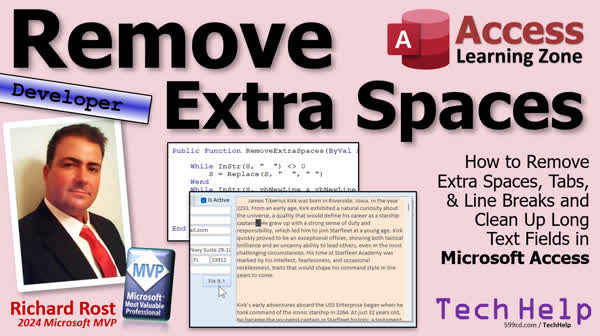
TechHelp Access, remove extra spaces Access, clean long text fields Access, clean tabs Access, line breaks Access, fix text fields Access, VBA loop clean text, Access VBA function clean text, import text files Access, Access VBA replace, Access text cleanup function, trim spaces Access, remove tabs Access
More InformationTranscript In today's video, we tackle the problem of messy text fields in an Access database with a simple solution that automates the cleanup process. You'll learn to create a helpful "fix it" button that uses VBA to replace double spaces with single ones and remove unnecessary line breaks.
Today's question comes from Lila in Cerritos, California, one of my platinum members. Lila says, "I have a lot of text fields in my Access database where I copy stuff from Word documents and emails, and the text is always messy. People type two spaces after periods, use a bunch of spaces instead of tabs, and sometimes there are way too many line breaks between paragraphs. Is there an easy way to clean all this up in Access so it looks better and is easier to read?"
Yes, for years and years and years, they taught people in typing class to put two spaces after a period and that's no longer the case. But a lot of the times even I run across documents that are like that and you want to convert it easily. So let's see how we can do that with just a single click of a button.
Before we get into it however, this is a developer level class. What does that mean? Well, if you've never done any VBA programming before, go watch this video, it's about 20 minutes long and it'll teach you everything you need to know when you get started.
We're going to use a while loop so make sure that you understand how to use while loops. Watch this video. Go watch my string functions video. We're gonna use the in string to determine if a string exists inside another string and we're gonna use the replace function. If that string does exist, we're gonna replace it with something else. So go watch all these videos first. They're all free, they're on my website, they're on my YouTube channel. They're all free. Go watch them and then come on back. Go on, get outta here, go.
Okay, here I am in my TechHelp free template. This is a free database. You can download it from my website if you want to and in here I've got a customer form and I've got a big notes field with a bunch of stuff in it. For the purposes of class, I'm gonna come in here and let's move these buttons out of the way. I'm gonna delete these fields here, we don't need them. And let's make this nice and big like that so we can see everything that's in there.
Okay. All right, save it, close it, open it back up again. Looks good. And I'm gonna go, in fact, over to James Kirk. Because James Kirk's got a lot more stuff in here. Now I went over to Word and I changed some things. I added some indenting here with some tabs. I added a bunch of extra lines between these paragraphs. I added two spaces after all of the paragraphs. I just did a basic find and replace in Word. So I'm gonna copy this and I'm gonna drop it right in here. We're gonna get rid of all this text out of here. So control and control shift home delete. That's how you delete all the text in there easily. Yeah, that's a lot to remember. And then we'll paste that in.
All right. So now I got this. Now notice the tabs actually didn't come in right. So that's fine, that's not a big deal. But sometimes you really get tabs that come through. But these didn't come through. But that's okay, we've got our two spaces problem to fix here, we've got extra lines in here. So let's adjust these.
First thing I'm gonna do is, I'm gonna copy one of these buttons, copy paste. Let's move it over here. And we'll just call this guy 'fix it'. All right. And I'm gonna change the name of this button so Alex doesn't yell at me. This is the fix it button, BTN.
All right. Now the name of this field is notes. So I'm gonna right click build event. VB editor pops up. We're gonna come in here. And we're gonna say, "while there are two spaces inside the notes field, I want to replace two spaces with one space." So if you get a situation where you got, let me show you. You get a situation where you've got, I'm gonna delete me since we're working with Jim. I don't have to keep going back. Okay, there we go. You got a situation in here where there's like eight spaces in a row, you want to first remove all of the two spaces. Okay, now there's six there. And that's why you have a while loop. Now remove six. Now remove four. Now remove now there's two. Now it's gonna come down to one. See what I'm talking about. So we're just gonna loop until it doesn't find two spaces in a row anywhere in this document. That's why we're using a while loop.
So we're gonna say while in string notes quote, space, space quote, look for two spaces. Now in string will return a zero if it doesn't find it. So while this is not zero, greater than and less than zero, not zero, then notes equals replace notes, whatever you're replacing, two spaces with one space. Okay, and then when. And I like to throw a little beep at the end. Beep. You know you're done, even though this should just take a millisecond.
All right, save it. Debug compile once in a while. Go back out here and hit the button. Boop and look at that. All the instances where it found two spaces have been fixed throughout the whole thing. Beautiful, we're done. Not quite. How about those extra line breaks right here. So this is where the users hit enter. One, two, three times. Now I like it to look like that. So I want two line breaks. They're called new line characters or VBCRLF, whichever one you prefer, this is the same for access. So I want the same thing. I want to find any instance where there's three line breaks and change it to two line breaks. Because this would normally be enter, enter. I want it to line breaks there, but it came in with three. So any place you find three, we're gonna change it to two, just like if they hit it enter five times. It's gonna change five down to that, down to that, down to that, and that's gonna stop.
Okay, so again, back out here, let's move off of that and back on it, so it saves it, so it refreshes it. In fact, that's not a bad idea to put that in here. Me.refresh. So it saves the data to the table before it starts messing with stuff. We're gonna do another loop just like this one. In fact, we're gonna copy this loop. Let's put some comments in here. Replace two spaces, and next, we're gonna replace two extra line breaks. Okay, paste that in there.
Now what are we doing? We're replacing three instances of a line break, which is VB new line with two of them. So this is gonna look like this. While in string notes, VB new line, and VB new line, and VB new line. If you see three of them in a row, we're gonna replace those three with just two of them. We'll get rid of that extra one. I'm also gonna put in here, I'm gonna put in here, you can, or you can also use VB, CRLF. Some documents, if you import them, you might get a VB CRLF, which in access, is almost nearly identical to a VB new line. I've never had a problem where it doesn't read. No, I shouldn't say never, maybe 1% of the time. But I almost always use VB new line.
All right, ready? All right, save it, debug compile, come back out here, and fix it. Look at that, there we go. All those extra line breaks.
Two more things I like to do real quick. I like to trim it. So some notes equal trim notes. That'll just remove any leading or trailing spaces. And then we're gonna remove tabs. If you do get tab characters, and sometimes if you copy and paste data, or if you import it, you'll get tab characters in there. So we'll just do notes equals replace notes, VB tab is the constant you want, and we'll just replace it with a space. And that way if they go tab, tab, tab, tab, tab, tab, those will become space, space, space, space, space. And then down here, it'll get replaced. And it'll just be one space.
Okay, save it, debug compile, back out here, hit the button again. All right, let's put a problem in here. We'll just do this, we'll just do this, and I'll hit the button, and it's fixed. There you go. This is the kind of stuff, see, I used to do this all the time, and this is the kind of stuff where you have to go through here every time you have to import something, and fix it here, fix it there, fix it here. It may only take you 30 seconds. But if you have to do this 10 times a day, every day, that button that just took you two minutes to write is gonna save you hours over the course of a year.
This is the kind of stuff that Access is fantastic for, for automating stuff like this. This is why you want to learn VB.
All right, now coming up in the extended cut, what we just did was only half, actually less than half, of what Lilo wanted to do with her database. Not only does she have to copy and paste stuff from emails and whatever people send her, but sometimes she gets sent a whole bunch of text files, sometimes a zip file with like 20 text files in it.
For the extended cut, what we're going to do is make a function out of this, what we just did, so we can call it from anywhere in the database, call it from a contact form, call it from the customer form, whatever. Fix any field you want. Then we're gonna loop through all of the text files in a particular folder. So if Lilo gets a zip file with 15, 20 text files and it just unzips them, they're all in your folder now, we're gonna write a routine that's gonna loop through all of the files, import each one of them into the database.
We're gonna read the text files in. As it reads each one, it's gonna fix it with our fix it function that we just wrote, save it to a contact, and then delete those files by sending them to the recycle bin.
All right, so that's a lot of stuff. About a half an hour long, it's all covered in the extended cut for the members. Silver members and up get access to all of my extended cut videos, not just this one, all of them, there's lots of them, hundreds of them. Gold members, of course, can download these databases and you get access to the code vault where all these source code is saved. All kinds of stuff and everybody gets free training. So check it out, that's in the extended cut for the members.
But that is gonna be your TechHelp video for today. Hope you learned something, live long and prosper my friends. I'll see you next time.
TOPICS:
Creating a "fix it" function in Access
Using while loops in Access VBA
Using InStr function in Access VBA
Using Replace function in Access VBA
Removing double spaces in text
Removing extra line breaks in text
Using VBCRLF and VBNewLine constants
Trimming leading/trailing spaces in text
Replacing tab characters in text
COMMERCIAL:
In today's video, we tackle the problem of messy text fields in an Access database with a simple solution that automates the cleanup process. You'll learn to create a helpful "fix it" button that uses VBA to replace double spaces with single ones and remove unnecessary line breaks. We also cover how to handle multiple text files at once, importing them into the database and cleaning them up seamlessly. This is a developer-level session, so familiarity with VBA is helpful! You can find the complete video on my YouTube channel and on my website at the link shown. Live long and prosper my friends. Intro In this video, we will address how to clean up messy text fields in Microsoft Access by building a "fix it" button with VBA. I will show you how to automate the removal of extra spaces, eliminate unnecessary line breaks, trim the text, and replace tab characters in your database fields. Along the way, you'll learn how to use while loops, the InStr and Replace functions, and important constants like VBCRLF and VBNewLine to make your data cleaner and easier to read. Quiz Q1. What is the goal of the function that is created for processing text files in Lilo's database?
A. To manually update contacts with new data
B. To batch import and clean text files automatically
C. To format data for excel compatibility
D. To create new database entries manually
Q2. Which programming language is primarily used in the video for writing the function to process data?
A. Python
B. Java
C. VBA (Visual Basic for Applications)
D. C++
Q3. What loop construct is utilized to address the issue of multiple spaces within a document?
A. For loop
B. Do-While loop
C. Until loop
D. While loop
Q4. What does the 'replace' function do in the context of fixing text formatting issues in the database?
A. It removes all instances of a specified character
B. It highlights a specified character
C. It changes all instances of a specified text pattern to another
D. It duplicates all instances of a specified text pattern
Q5. What should the function replace multiple spaces with to fix formatting?
A. Nothing; it deletes the spaces
B. A tab character
C. A single space
D. A newline character
Q6. How does the video suggest handling extra line breaks in paragraphs?
A. Replace three line breaks with two line breaks
B. Replace three line breaks with no line breaks
C. Ignore all line breaks
D. Highlight line breaks for manual removal
Q7. What constant is recommended for checking line breaks in Access VBA?
A. VBLine
B. VBNewLine
C. VBReturn
D. VBLF
Q8. What precaution does the presenter suggest before implementing text changes in VBA?
A. Putting the database in read-only mode
B. Refreshing the data with 'Me.refresh'
C. Backing up data manually
D. Enabling auto-save in Access
Q9. What other text element, besides spaces and line breaks, does the presenter address in the tutorial?
A. Highlighting of bold text
B. Removing extra periods
C. Trimming leading and trailing spaces
D. Converting uppercase letters to lowercase
Q10. What benefit does automating the text replacement process provide, according to the video?
A. It saves manual editing time for large amounts of data
B. It completely eliminates errors in data processing
C. It allows for complex mathematical calculations
D. It provides instantaneous data synchronization
Answers: 1-B; 2-C; 3-D; 4-C; 5-C; 6-A; 7-B; 8-B; 9-C; 10-A.
DISCLAIMER: Quiz questions are AI generated. If you find any that are wrong, don't make sense, or aren't related to the video topic at hand, then please post a comment and let me know. Thanks. Summary Today's TechHelp tutorial from Access Learning Zone dives into a practical solution for cleaning up messy text fields in your Access database. I'll be walking you through a method to address those pesky formatting issues when you copy text from Word documents, emails, or other sources into your Access forms.
Lila, a dedicated platinum member, reached out with a common concern. She's been dealing with text discrepancies in her Access database caused by inconsistent formatting in original documents. Issues like double spaces after periods, excessive spaces replacing tabs, and unwarranted line breaks are frequent. The question was straightforward: Is there a streamlined way to tidy up text in Access, making it more readable?
Indeed, there is. This lesson focuses on using a VBA approach within Access to rectify these formatting problems swiftly. As a precursor, this session is ideal for those familiar with VBA programming. If you're new to it, I recommend checking out some foundational videos first. You should be comfortable using while loops, the InStr function for locating strings within strings, and the Replace function for substitutions.
Let's illustrate how this works within the Access environment. We'll demonstrate on a sample database, specifically focusing on a customer form with a substantial notes field. The first step is setting up a user-friendly interface. We'll modify and organize form elements for easy visualization.
The core of this tutorial is constructing a button - aptly named 'Fix It'. This button will invoke a VBA script to cleanse the text by eliminating redundant spaces and aligning line breaks appropriately. We start by examining the notes field in our database. Next, we'll build an event-imbued function using the VB editor. This function will operate while there are two consecutive spaces in the text, systematically replacing every pair of spaces with a single space until no more pairs remain.
Following that, the same logic applies to line breaks: excessive breaks, if present, are trimmed down to a reasonable two-line break format. This ensures readability and consistency across all document imports. Additionally, we'll incorporate basic text trimming to eliminate any extra spaces at the text's beginning or end and replace any tabs with single spaces, maintaining clarity and uniformity.
This simple automation frees you from repeatedly manual adjustments, saving valuable time in the long run. Constructing this button and function takes mere minutes but can spare hours annually if you deal with repetitive formatting issues frequently.
Remember, this kind of enhancement highlights Access's capability to automate mundane tasks through VBA. It's why learning VB can be so beneficial.
For those interested in more advanced integrations, like looping through multiple text files in a folder and importing them into Access, these extended techniques can be found in further video tutorials available to members. Silver members have access to numerous extended cut videos, and gold members enjoy additional benefits like database downloads and access to the code vault.
You can find a complete video tutorial with step-by-step instructions on these topics on my website at the link below. Live long and prosper, my friends. Topic List Creating a "fix it" function in Access
Using while loops in Access VBA
Using InStr function in Access VBA
Using Replace function in Access VBA
Removing double spaces in text
Removing extra line breaks in text
Using VBCRLF and VBNewLine constants
Trimming leading/trailing spaces in text
Replacing tab characters in text Primary Topics Access VBA programming, cleaning text fields, Replace function, While loops, InStr function, automating data cleanup Secondary Topics text import, forms, trimming text, VB constants, workflow automation |







