Fitness 20
By Richard Rost

 14 months ago
Handling Nulls With Referential Integrity, Add New In this Microsoft Access tutorial I will show you how to prevent users from adding food items to a meal without creating a parent meal record, enforce referential integrity settings to avoid null values, provide user-friendly error messages, synchronize meal totals with subform updates, and add an "Add New" button for easier data entry in your fitness database. This is part 20. MembersIn the extended cut, we will replace the current method of adding food items to meals by creating a new interface where you can pick a food from a list and add it to the meal with a button, removing the old cascading combo boxes and associated code. I will show you how to set up the new design, repurpose the Add New button, and streamline the process for adding foods to meals. Silver Members and up get access to view Extended Cut videos, when available. Gold Members can download the files from class plus get access to the Code Vault. If you're not a member, Join Today!
PrerequisitesRecommended CoursesUp Next
Keywords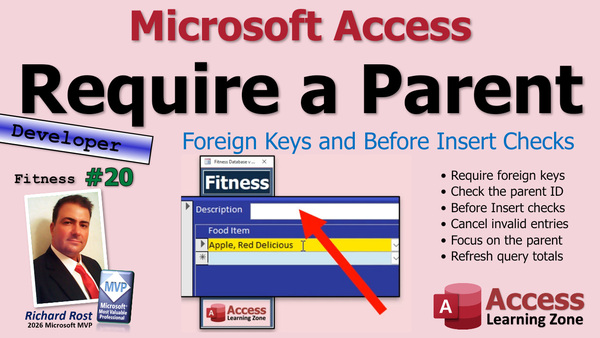 TechHelp Access, fitness database series, referential integrity, null values, required fields, meal table, meal detail table, Before Insert event, message box, parent child records, After Update event, form requery, Add New button, subform, filter on form, VBA programming, cascading combo boxes
 Subscribe to Fitness 20
Get notifications when this page is updated
More InformationTranscript Today is part 20 of my fitness database series. If you have not watched parts 1 through 19 yet, go watch those first.
As a reminder, if you do not care about fitness, that is fine. These techniques, tips, tricks, and all that stuff will work in every database you can build: customers, orders, inventory, you name it.
Alright, let's get back to it. What are we doing today? I have been promising it for a couple of lessons now, but I have not reached that and found other stuff to do. We are going to tackle that problem where you can add a food item without putting an actual meal up there. So let's talk about that.
In previous videos, I showed you how you can go to a blank meal and then come down here without putting a record in up here. There is no record in here. And drop this down and put a food item in and then no problem. It just saves. You should not be able to do that.
We have referential integrity in these tables, do we not? Let's double check and make sure. Database tools, relationships. Yeah. MealDetailT. I got referential integrity. Let's make sure. Yeah, it's enforced. So why am I allowed to do that? I should not be able to do that. I should have to have a parent for this child record down here.
Here is a meal table. Okay. Let me close the form. We will deal with this in the table. Here is a meal detail table. And where are we? Okay. Oh, look at that. Look right there. Look, it is null. There is not an ID there. Why is that allowed? Well, this is one of the other reasons why referential integrity is not something that I always use. I use it very sparingly.
The problem is this is something that a lot of people do not catch. Let's delete this record for now. Referential integrity says for every one of these guys, you have to have a matching record up here. But it does not catch null values. That is one of the downsides of it.
For example, because it is like null math. Null plus anything is null. If you concatenate something with a null value, the response is null. Null treats referential integrity the same way. Oh, you care about referential integrity? I do not care. I am a null. I do not care about your rules.
So, for example, you cannot get away with having a zero in there because there is no zero record up here. If I try putting something in here and then changing to a different record, it yells at me. Just like I cannot put a 6 in there because there is no record 6 up there. But null does not care.
Look. Sometimes, if you do it right here, it lets you get away with it. If you do it at the form level, like we just did, you can get away with it. See? It does not care about the fact that it is a null value.
The way we could take care of that and fix that and get rid of that record is to come in here. We have a default value set already as zero. But if the form sends a null value, then it is still going to save it.
So what we can do is, and the fix is really easy, but you just have to remember to do it, set Required to Yes. Same thing with FoodID, set Required to Yes. That will make sure that does not happen. You could do it with your food group, and you have your food table. If you want to make sure you have a food group in here, again, FoodGroupID Required Yes.
Check the rules. We are good with that one. Now, you cannot get away with the same problem again. Did it take the rules of change? Yep, we are good. Now, if I come in here and go to a new one, if I try doing the same trick, you must enter a value in that field.
At least now it is checking it before it lets you save that value. It is not a very nice error message. We will give our own in a second, but I will just hit escape. You just have to remember with referential integrity, it does not check for null values if it comes in from a form, usually. Keep that in mind in the future.
Now let's talk about that error message.
I want to tell the user, before you put a food item in here, you have to give the meal a description. In fact, let's change this so it says "Meal Name." So it matches what is up top. I like that.
Let's go into design view, just change the label. You can still leave this description, but I want this to match "Meal Name." Now, how do we put a more friendly meal name in there? I do not like how that is not centered. Let me fix it. Hold on. Let's move this up. There we go. That looks better.
Whenever you have a label where the font size is not the same as the text box, it drives me nuts. How does that look? That looks better. Maybe go a little bit to the left. Okay, good. I am done. It is those little things. I do not have OCD, but it just drives me nuts.
What we can do now is, if you go to a new record, we can check before the user actually saves the value to the table. We want to check to see if this guy has a meal ID. No meal ID up here, then no save down here. We can do that in the Before Insert event of the subform. That way they can make their selection, but before it gets saved to the table, we can check it and cancel if need be.
Let's go into design view. Save all these objects if you had. I was messing around off camera. Come in here, click on it once to get the subform, click on it a second time to get the form properties, double-click right there. Let's go to Events and find the Before Insert event. It runs with the first character typed to a new record. Before it gets saved to the table, you have the option to cancel it if you want to.
So, I am going to check to make sure there is a parent at this point. If there is no parent, then the parent record's MealID will be zero or null. It should be zero theoretically, but you never know when that null sneaks in, so I always check for it. Then do some stuff.
What is the stuff? You could use the status box or a message box. For something like this, I want to put it in their face. I am going to use a message box. Message box: "You must try the hostage special." What is that from, anybody? "You must enter a meal name first." And then maybe Critical.
Now, at this point, I do not want to let them continue because there is no parent, so I want to cancel. Cancel equals True. In addition to just canceling and leaving them sitting around in that box, let's undo their edit. Me.Undo. That gets rid of what they just did.
Let's put them where they need to be. Let's be helpful and friendly and put them up in that meal name box. Parent.Description.SetFocus.
Save it. Debug, compile once in a while. Come back over here. Let's close it, close it, open it. Let's give it a try. Ready? Come down here first and add "apple." "You must enter a meal name first." Oh, and look at that, I am sitting right there.
Let's make a new meal. Happy Popcorn. Now I can add an apple to my Happy Popcorn meal. Why is an apple in the Happy Popcorn meal? I do not know. Maybe it is popcorn with apples. Looks pretty good.
One thing I am noticing is, we are adding items down here, but we are not updating our total up there. So in the After Update event for this guy. Actually, we could probably do it in the After Update event for the form, because it could be either this or this and we do not have to put it in both places. Sometimes the form works. Sometimes it does not. Sometimes you have to use the individual fields.
Now, since we are already in the code window for the subform, let's just see. We have the food combo, we are going to stay in the food. No, we are going to go to the form property.
So, go to the form. Remember, this is the form meal detail where we want to be. We want to go to its After Update event. Where is After Update? There it is.
We are in the form After Update event of the subform. When you make a change in here, we want to refresh this guy. So what is that going to look like? Well, we need to get the name of that guy. I think it is "MealListF." This thing here is MealListF. We want to refresh that thing. So it is going to be Parent because we have to go up to the parent form, since we are in the subform now.
We are saying Parent.MealListF. That is that subform up top with the aggregate query. It is a form, so .Form.Requery it in place, in other words.
Save it. Debug, compile, take a peek. Ready? Let's go to our Happy Popcorn. Let's make this two. Now watch up top, that 504 should change. Yep, 599. Got that in it.
Let's add something new. Let's add M. Ritebar. As soon as you leave the record, 49 in both places. We are cooking with gas.
Now, one more thing we need to do today. I want to add an Add button down here. Now, remember, we are going to get rid of this stuff. I know we spent a whole extended cut building it, and I really love it, but we are going to get rid of it in the extended cut and do something better. But I really like it. I have been playing with this. I have been using it on my own. I think this is a little clunky.
The better solution that we are going to do in today's extended cut is we are going to open up this guy. Let me resize this so we can see it. We are going to open up that guy. We are going to add stuff over here. We are going to say, I want to add fruits, I want to add this banana. I am going to hit a little button here. Boom, add it over here into the meal. Pick something else, hit the add button. Boom, bring it over here.
We do not need to have this in addition to being able to use this. I think it is just redundant. This takes up too much room that we can use for other things. So let's delete these. We will nuke the code in the extended cut.
I am going to repurpose this button, and we are going to call this "Add New" and we are going to make it look like the other button over here, the Add New button. I want these to kind of mimic each other so that it behaves like this does. This behaves over here like that, too.
In fact, let's rename it. What do we call it over here? Design view. This is the Add New button. Let's rename it. This guy is now going to be the Add New button. Trying to keep it the same.
So what do we have to do to add a new meal down here? Right-click, build event. We're going to turn the filter off if they have it filtered. So Me.FilterOn equals False.
Let's go to a new record. DoCmd.GoToRecord, , acNewRec. And then let's Description.SetFocus.
That's really all you have to do to add a record on this form. Because it's a lot nicer, especially for noobs. And I say noobs. I don't use noob as a disparaging comment. Everyone started somewhere sometime. Not everybody is as savvy with computers as we are. If you're following my videos, you're definitely a little computer savvy, programming in VBA. But you might have your family members using this database, and they might not realize that this is where you go to add a new record.
"Oh, Add New. Oh, that's nice and easy. See?" It puts them right there. I'm going to add "Happy Popcorn Part Two."
All right, we need to also add Delete and a Query buttons, just like this guy has. We'll do that in the next video or coming up very soon. I should stop saying "in the next video." It's on my list to do next, but sometimes between now and when I sit down tomorrow to record, I do my best thinking.
Sometimes I just randomly have these thoughts pop into my head, or if I record a video before bed, like I'm doing now - it's after midnight - I love doing my recording at night. I'll think about it. First thing when I wake up, I'll think about the last video that I recorded and now wonder, "Well, what if we did this? What if we did that?" I have to immediately grab my phone and take notes or I'll forget it.
Sometimes I come up with some really great ideas, and then I just ignore what I had in my notes from today. So that's why I jump around a little bit.
But yeah, so we're going to add Delete and Recreate buttons. They're really easy. We'll get to those soon.
Members, we're going to do that.We're going to make a little button right there to add whatever the current food item is to the meal that's open. That's going to be really cool. I think you're going to like it a lot more than having the little cascading combo boxes down there, but I don't regret building those cascading combo boxes. Especially if you've never done them before, because that was a great learning experience.
Now that I've been using the database, this has been the whole theme so far of this series: you start off with one thing in mind, but as you get to using it and working with it and other people work with it, and I get feedback and you give me feedback, and I work my own feedback, I change stuff.
Databases are living, breathing, evolving things - without the breathing part. I guess you could make it breathe. Hmm. Anyway, so you're going to make changes. This, I think, is a great change. We're going to do it in the extended cut. Everybody else, click that Join button now if you want to see how we do it.
But that's going to do it for today. That's your part 20. Hope you learned something. Hit that Like, Subscribe, post a comment, all that good stuff.
Live long and prosper, my friends. I'll see you tomorrow for part 21.
TOPICS:
Identifying issues with referential integrity and nulls
Enforcing required fields in Access tables
Setting Required property to Yes for key fields
Making field labels consistent with table fields
Editing form labels and layout in design view
Using the Before Insert event in a subform
Adding custom error messages with VBA MsgBox
Validating parent record existence before saving child records
Canceling and undoing edits in VBA form events
Setting focus to a specific control with VBA
Refreshing a parent form from a subform After Update event
Requerying a subform or parent form to reflect data changes
Creating and configuring an Add New button on a form
Navigating to a new record using DoCmd.GoToRecord
Setting focus to a field when adding a new record
Repurposing and renaming form buttons in Access
COMMERCIAL:
In today's video, we're continuing with part 20 of the fitness database series. We'll go over how to stop users from adding food items to a meal without entering a meal name first, why referential integrity does not always prevent null values, and how making fields required fixes the problem. You'll learn how to use the Before Insert event in your subforms to display a friendly message and prevent saving when information is missing, and how to automatically update aggregates when you add or change meal details. We will also set up a new "Add New" button to make starting a new meal easier for users. In today's Extended Cut, I will show you a better way to add foods to meals and clean up some old features. You'll find the complete video on my YouTube channel and on my website at the link shown. Live long and prosper my friends. Intro In this video, we continue building the Microsoft Access fitness database in part 20 of the series. I will show you how to prevent users from adding food items to a meal without first entering a meal name, and explain why referential integrity does not always catch null values. We will make key fields required to enforce data integrity, use VBA in the Before Insert event to provide user-friendly error messages, and ensure the parent form updates automatically when changes are made. You will also learn how to add and configure a more intuitive "Add New" button for creating new meal records. This is part 20. Quiz Q1. What is the main problem addressed in this video about the fitness database?
A. Users can add a food item without first specifying a meal
B. Users can delete meals by accident
C. Meals do not have calorie totals
D. Foods cannot be sorted alphabetically
Q2. Which concept prevents saving a record with a child reference that does not exist in the parent table?
A. Composite primary keys
B. Referential integrity
C. Cascading deletes
D. Default values
Q3. When referential integrity is enforced, which of the following is NOT allowed?
A. Adding a child record with a non-existent parent key
B. Deleting a parent record that still has child records
C. Adding a child record with a NULL value for the foreign key (under default rules)
D. Updating a parent key not referenced by any child
Q4. Why does referential integrity enforcement NOT stop the insertion of a child record with a NULL foreign key when data is entered through a form?
A. The form automatically assigns a fake ID
B. NULL values are excepted from referential integrity checks
C. The referential integrity is set to ignore all values
D. You cannot enter NULLs through forms at all
Q5. How can you prevent saving a record with a NULL value for a critical foreign key?
A. By setting a default value
B. By creating another table
C. By setting the Required property to Yes
D. By hiding the field on the form
Q6. What event is recommended to intercept an attempt to save a meal detail without a corresponding meal, in order to give the user a friendly error?
A. After Update event of the parent form
B. Before Insert event of the subform
C. On Load event of the main form
D. After Delete event of the parent table
Q7. What is the purpose of using Me.Undo in the event code?
A. To save the current edits before continuing
B. To reset the form to its original state upon opening
C. To cancel the last edit and remove unsaved changes
D. To undo all records in the table
Q8. After preventing the user from entering a detail without a meal, what further improvement does the video suggest for usability?
A. Automatically create a dummy meal record
B. Display a custom message and set focus to the meal name box
C. Save the food item anyway and warn the user later
D. Hide the subform until a meal is entered
Q9. When updating food entries, what must be refreshed to ensure totals and aggregates are current on the parent form?
A. The parent subform source object
B. The meal list subform using Parent.MealListF.Form.Requery
C. The food combo box selection
D. The entire Access application
Q10. What design principle does the video emphasize when changing UI labels like "Description" to "Meal Name"?
A. Consistency between label text and actual field purpose
B. Using technical database field names for clarity
C. Using different terminology for each part of the application
D. Making labels as abstract as possible
Q11. What advantage does adding a dedicated "Add New" button provide, especially for new users?
A. It prevents any user from adding records
B. It provides a clear, guided way to add a new record directly
C. It increases the complexity of the UI
D. It hides all existing data before creating a new item
Q12. Which of the following was described as a reason for changing the meal detail entry system to use buttons and lists rather than cascading combo boxes?
A. Combo boxes use too much computer memory
B. Buttons and lists are always more secure
C. The new method uses less screen space and is easier for users
D. Cascading combo boxes cannot support more than 3 options
Q13. What general philosophy about database design is expressed at the end of the video?
A. Database designs should never change once built
B. Feedback and use should drive ongoing adjustments to improve usability
C. Only database admins should ever provide feedback
D. Designing everything at once is always most effective
Answers: 1-A; 2-B; 3-C; 4-B; 5-C; 6-B; 7-C; 8-B; 9-B; 10-A; 11-B; 12-C; 13-B
DISCLAIMER: Quiz questions are AI generated. If you find any that are wrong, don't make sense, or aren't related to the video topic at hand, then please post a comment and let me know. Thanks. Summary Today's TechHelp tutorial from Access Learning Zone focuses on an important issue in the ongoing fitness database series. If you have not yet worked through parts 1 to 19 of this series, I recommend reviewing those lessons first to get the full context.
Remember, even if health and fitness are not your primary interest, the methods and techniques I cover here are fully applicable to any type of Access database you might be building, whether it deals with customers, orders, inventory, or anything else.
Let me explain what we are handling in part 20. For the past couple of lessons, I have mentioned the issue where you can add a food item to a meal detail table even when there is no corresponding parent meal record. Essentially, you can have a child record without a parent. This is not good database design and is something we need to prevent.
Previously, I demonstrated how you could enter a food item in the details section without creating a parent record in the meal table. Despite having referential integrity enforced in the table relationships, this problem still occurs. If we look at the relationships in the database tools, referential integrity does exist between the meal and meal detail tables, and it is enforced, so that leaves us questioning why this situation is allowed.
Examining the records directly in the tables reveals that the problem occurs because the referential integrity rules in Access do not check for null values. When a new detail record is created without a parent meal, its foreign key field can be null. Referential integrity only checks for existing values, not nulls.
For example, if you try to enter a value such as zero or a number that does not exist in the parent table, Access will complain and prevent the record from being saved. However, if the value is null, the rules are ignored. This is a common mistake that many users overlook, so be mindful of it.
To resolve this, the fix is pretty straightforward. In the table design for the meal detail table, set the Required property for both the MealID and FoodID fields to Yes. This forces users to enter those values and ensures that the foreign keys cannot be saved as null. Apply the same logic to the FoodGroupID in the food table if you want to enforce that as well.
Once these Required properties are set, Access will prevent the user from saving a record that does not have an associated value. Admittedly, the default system error message is not very user-friendly, so let's address that as well.
Our goal is to ensure that before a user adds a food item, they must provide a name for the meal. To make the interface clearer, change the label from "Description" to "Meal Name" so it matches what users see elsewhere in the database. Take a moment to make sure the label is properly aligned and visually matches the rest of the form design.
To provide a better experience for users, we want to intercept their actions before a blank detail record is saved. One effective way is to use the Before Insert event of the subform associated with meal details. In this event, check if a parent meal record exists. If it does not, display a custom message box letting the user know that they must enter a meal name first. Cancel the process and use the Undo method to remove any attempted changes. For additional friendliness, set the focus back to the meal name control at the top to guide users to the correct spot.
Testing this, when you attempt to add a food item without a meal name, the message box will appear, and the user will be automatically placed in the meal name field. Once a meal is named, adding food items to it works properly.
Another area to improve concerns updating the totals. When items are added or adjusted in the meal detail subform, the totals displayed in the parent form should automatically refresh. To accomplish this, use the After Update event of the meal detail subform to trigger a requery in the parent form, ensuring the new totals are reflected immediately.
As another enhancement, it's beneficial to provide an Add New button in the meal area, similar to what exists elsewhere in the database. A user-friendly button makes it clear how to add a record, especially for those less familiar with Access. This button clears any filters, moves to a new record, and sets the focus to the meal name field.
It's important to remember that not every user is as comfortable with Access as those of us who build these databases, so making the interface more intuitive can go a long way. Features like the Add New button are particularly helpful for family members or less technical users who may be navigating your database.
Looking ahead, we will also be adding Delete and Query buttons to complete the process. I try not to lock myself into promising what will appear in the next lesson, since sometimes as I work with the database, I get new ideas for improvements based on real usage and feedback. Databases often evolve as your needs and workflows become clearer.
As a heads up, in today's Extended Cut, we will be improving the food item selection process. Instead of using the cascading combo boxes we built earlier, the new design will allow users to select a food item from a list and easily add it to a meal with a button click. This will streamline the interface, reduce redundancy, and free up space for other features. I understand the value in building those cascading combos as a learning exercise, but based on continued usage and practical feedback, sometimes it makes sense to iterate and improve your database design.
You can find a complete video tutorial with step-by-step instructions on everything discussed here on my website at the link below. Live long and prosper, my friends. Topic List Identifying issues with referential integrity and nulls
Enforcing required fields in Access tables
Setting Required property to Yes for key fields
Making field labels consistent with table fields
Editing form labels and layout in design view
Using the Before Insert event in a subform
Adding custom error messages with VBA MsgBox
Validating parent record existence before saving child records
Canceling and undoing edits in VBA form events
Setting focus to a specific control with VBA
Refreshing a parent form from a subform After Update event
Requerying a subform or parent form to reflect data changes
Creating and configuring an Add New button on a form
Navigating to a new record using DoCmd.GoToRecord
Setting focus to a field when adding a new record
Repurposing and renaming form buttons in Access Primary Topics referential integrity, null values, required fields, Access form events, VBA validation, subform-parent relationships, user interface improvements, refreshing data, button creation
Secondary Topics form design cleanup, future button features, aggregate recalculation, user experience considerations
|




