Fitness 21
By Richard Rost

 14 months ago
Synchronizing Meal Parent and Subform Records In this Microsoft Access tutorial I will show you how to fix issues with form and subform synchronization, demonstrate the order in which nested forms load, and cover methods for keeping parent and subform records in sync, including handling null values and improving navigation between records. This is part 21. MembersIn the extended cut, we will learn how to make it so that when you add a new record using the Add New function, it appears properly formatted and positioned on the form, so it does not just show up as a single blank line. I will show you how to improve the user experience when adding new records with this advanced recordset approach. Silver Members and up get access to view Extended Cut videos, when available. Gold Members can download the files from class plus get access to the Code Vault. If you're not a member, Join Today!
PrerequisitesRecommended CoursesUp Next
Keywords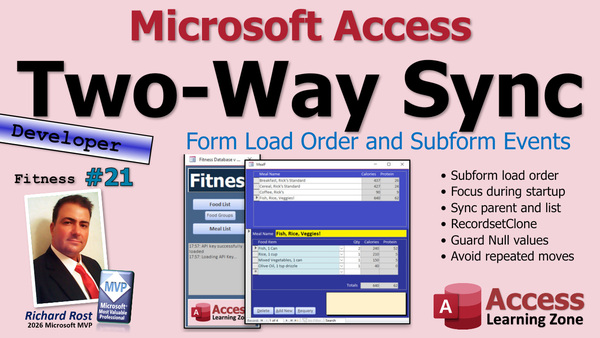 TechHelp Access, fitness database, subform sync, load event, recordsetclone, parent child forms, bookmarking records, oncurrent event, null value handling, addnew recordset, delete button, refresh button, food list form, meal list form, silver member extended cut
 Subscribe to Fitness 21
Get notifications when this page is updated
More InformationTranscript Welcome to another TechHelp video brought to you by AccessLearningZone.com. I am your instructor, Richard Rost.
This is part 21 of my fitness database series. Yes, folks, that means the fitness database is now old enough to legally drink in most states - all states now.
Whether or not you're building a database about fitness doesn't matter. All of these tips, tricks, and techniques are usable in all databases. I can't talk today, so follow along and enjoy.
First up today, we're going to tackle a problem that a couple of you have emailed me about. When you open up the meal list, notice the tops as breakfasts are extended, right? The bottom is sitting on fish, veggies, fish, fish, rice, and veggies, and it's on record 4 of 6. What's going on here?
This is one of those weird times when the form doesn't properly load everything because we're doing some syncing in there with some code, but the recordsets haven't loaded yet. Even if I do anything - if I press any key right now, even if I just hit the escape key - look at that, the sync runs. It's weird.
It's partially because when you load a form, if you've got a form that has subforms in it, those subforms load first. The subforms can't really get a hold of the parent data because the records haven't even loaded yet for the parent when the subform loads. If you've got multiple nested subforms, that inside subform goes first.
If you want to test that, here's a copy of my TechHelp free template. You've got the customer form. If we put the order form inside this one here - watch this, I'll just demonstrate real fast - we'll take the order form (which has a subform in it, the order detail form), take this and drag it into here.
Get rid of that label. Now we've got the order form with its order detail form inside the customer form. Save that and close it.
Here are the customers and here's the customer's orders. Go to the next customer's orders, and so on.
Now, if we were to put code in here to show us which form loads first, watch what happens. Let's go to the form properties for the customer form and go to the Load event. I'll just message box "customer" in here.
Now do the same thing in the order form. By the way, this is the View - Project Explorer. If you don't use this, I don't use this a lot, but once in a while I do want to bounce around between the different objects in code.
Again, in here we'll go to the form Load event: message box "order". Then, one more time, we'll go to the detail section, order detail F. We'll go to the form - that's Before Insert - we'll go to the Form Load event. It'll default to the Load event unless you've already got another event (we already had a Before Insert in here).
Let's put "detail" in there. Now I've got a Load event in each of those three forms so we can see which one loads first. Save it.
I haven't done this in a while. I'm hoping it still works this way. Some of the things I learned by trial and error 10 years ago, they change. Let's just see.
Ready? Customer - okay, see, detail loaded first. Then order loaded, then customer loaded. Not any of them have displayed yet, and all three of them are. So the inner form gets its recordset first, obviously. The IDs perpetrate through because you've got to know the customer ID to load the orders and you've got to know the order ID to load the details, but as far as the actual form and the entire recordset loading, those go in reverse.
What does that mean for our fitness database? When this opens up, you sometimes get a discrepancy because you've got a subform here, a subform there. This is technically the parent form and, just with the way the timing works, they don't always see each other's records properly.
It's a surprisingly simple fix. You can obviously click in here and then it starts working, but here's all you've got to do. In the Open event or the Load event (we already have an Open event for the parent form; you can use the Open event), all you have to do is, right after that line that checks to see if the food list is open, just literally put the focus on one field like the description field, and that's enough to trigger that event running and it syncs everything up nicely.
Watch. Ready? Boom, and now it works.
See, it's these little quirks that you pick up over doing this for 10 or 20 years now. I just wanted to show that because a lot of you email me that, like when we open up the forms, they're not working.
Another thing you guys have noticed is that when we click on the parent form (this is technically the subform), when you click on the meal list, this synchronizes, but it doesn't go the other way. If I move between these, it's not synchronizing which one's highlighted up here. That's an easy fix. We're just going to reverse what we did up here.
If you take a look at the OnCurrent event up here, this is that whole change the bookmark thing. We can just copy this and flip it around. Copy that.
Let's go to the OnCurrent event for the parent form, right here. Paste that in.
Now, instead of looking at Parent.RecordsetClone, we're going to look inside that subform - this guy. What's its name? Its name is MealListF. We're going to say:
Set rs = MealListF.Form.RecordsetClone
Then the same thing is going to go down here. You're just going to say set the bookmark of that to whatever's in the recordset. Same thing, just in reverse.
Now it should work just fine. If you click up here, it syncs on the bottom. If you move on the bottom, it syncs up top. Notice the little handle move. As you move between these records, it moves to the right one up top so you know where you're at.
One problem you've got though is when you go to a new record. So we have to take that into consideration too.
Over here, we're going to check for a null value. So, if IsNull(MealID) then Exit Sub. Don't do it up top. You can't really go to a new record up top.
Also, I'm going to throw this line in: if MealListF.MealID = MealID then Exit Sub. There's no reason to run the code if they're identical. They really technically shouldn't be identical because if you change one up top, it changes the other one, but that's just a safeguard, just to make sure.
Let's do the same thing in the other one, so the MealListF right here. Now, this technically shouldn't ever be able to be null. Let me think. No, it shouldn't be - that's an aggregate query. You don't want to have any null values in it, but you know what? I'm going to add this in here just in case, because you never know what down the line you might change to. You could possibly add a blank record up here to make it easier for the users to see that you could add one.
So, I'm going to put the code in here while I'm thinking about it, even though right now it technically can't work. It's kind of like future-proofing it. If IsNull(MealID) then Exit Sub. Or you could have it go to a blank new record if you want to. Down the line, if we decide to do that, we will.
If Parent.MealID = MealID then Exit Sub, and that's again just checking to say hey, if they're already equal, you don't have to do this.
Save it. Debug, compile once in a while, and now it should be able to handle all that. Move around... go go go. Go to the end, looks good. Go to this one, go to that one. If I hit my Add New button, works good, although see, this is just sitting there. But I mean, at this point there's not really anything we can do because there are no null records up here. Test, boom - then it appears. So we're good with that.
Let's get rid of that. Oh wait - can't delete with this form. We have to delete with this one down here. Delete, there we go.
We're going to make our own Delete button soon, because as you can see, when you delete sub manually it causes issues. We'll get there. Let me refresh that - there we go. I have to make the Delete and Refresh buttons for this.
There's one more thing I wanted to tackle today though. If we double-click here, it opens up the food list. I have to make this wider so you can see everything. Double-click shows you over there. We can get rid of these, we don't need these.
What happens if I double-click on this guy? No, that's a problem. See, because we've got:
FindFirst FoodID = null
We always watch for those null values. You'd always be thinking about null values. Even if it's something simple, like building a prompt, you've got first name and last name and whatever. If whatever anywhere in that string is null, the whole thing is null. So you always have to be thinking about that. You've got to always be using NZ's to convert them to blanks.
An easy solution here is just to check to see if FoodCombo is null. Then we're going to do something else. Then we're going to do that.
So if it's not null, we can do the FindFirst. If it is null, we want to add a new record. Now, I don't want to use AddNew DoCmd.GoToRecord - that's fine for beginners, but we're a little more advanced than that. We're using recordsets, so let's stick with the recordset motif.
Forms!FoodListF.Recordset.AddNew
Yeah, it's that simple. Ready? Save it, close it, close it. Ready? Double-click, boom, you're on a new one - isn't that cute?
Remember we did a little something in your extended cut - one of those times where we hit Add New and it doesn't make it look like it's...like that. If you hit Add New, it doesn't show up on the bottom. We have it so that it looks nicer and it puts you here. In the extended cut, we're going to do that with this, so it doesn't look like this with just one line there.
That will be in the extended cut for the members. Silver members and up get access to all the extended cut videos.
That's going to do it for your TechHelp for part 21. Tomorrow, in part 22, we're going to work on the delete and the requery buttons, and then very soon, hopefully we'll get into actually making the meal log, so you can actually log the stuff you're eating instead of just looking at a screen as a list of meals.
We'll get there, I know. I'm itching to get there myself. It's coming.
That's the TechHelp video for today. Hope you learned something. Live long and prosper, my friends. I'll see you tomorrow.
TOPICS:
Understanding form and subform load order in Access
Demonstrating nested subforms and their load sequence
Using the Load event to troubleshoot form loading
Fixing synchronization issues between parent and subform
Using SetFocus to trigger form sync on load
Syncing selections between main form and subform
Implementing bookmark synchronization for subforms
Handling new records during synchronization
Adding error checking for null values in synchronization code
Future-proofing with null checks in subform code
Using recordsets for adding new records in a form
Checking for null before FindFirst operations
Using Forms!FormName.Recordset.AddNew for new entries
COMMERCIAL:
In today's video, we are continuing with Part 21 of the fitness database series. You'll learn about fixing sync issues that can happen when loading forms with nested subforms in Access, how to use the OnCurrent and Load events to keep parent and subform records matched up, and ways to avoid problems with null values when adding or double-clicking to create new records. We'll also discuss some best practices for future-proofing your VBA code and talk about plans for adding custom delete and refresh buttons. You'll find the complete video on my YouTube channel and on my website at the link shown. Live long and prosper my friends. Intro In this video, we continue with part 21 of the fitness database series in Microsoft Access. I'll show you how to troubleshoot and fix synchronization issues between parent forms and subforms, demonstrate how form and subform load order can affect record display, and use events like OnCurrent and Load to keep everything in sync. We'll also talk about handling new records, avoiding null value problems in your code, and share tips for future-proofing your VBA as your database grows. This is part 21. Quiz Q1. What is a common issue when opening a parent form with nested subforms in Access?
A. Subforms may not display the latest data from the parent form.
B. The parent form always loads before the subforms.
C. Access will not allow nested subforms.
D. Subforms cannot access any recordsets at all.
Q2. In the load sequence of forms with nested subforms, which loads first?
A. The outermost parent form
B. The innermost subform
C. All forms load simultaneously
D. The parent and first subform load together
Q3. What is a simple fix for the issue where the form and subform are not properly synchronized on load?
A. Add a timer to reload the parent form
B. Set focus to a field in the parent form after checking if the list is open
C. Delete and recreate the form's recordset
D. Only use one level of subforms
Q4. What advantage does placing a focus on a control in the parent form's Open or Load event provide?
A. It triggers the syncing between form and subform
B. It allows the subforms to load first
C. It hides the subform data
D. It locks the current record for editing
Q5. To synchronize selection between parent and subform in both directions, what is the main technique discussed?
A. Use a timer to refresh both forms every few seconds
B. Flip the bookmark syncing code to the opposite OnCurrent event
C. Delete and re-add all records when moving between records
D. Restrict navigation to only the parent form
Q6. What precaution should you take in your bookmark syncing code to prevent errors when moving to a new (blank) record?
A. Always refresh the subform before moving records
B. Check if the key field (e.g., MealID) is null and exit the sub if it is
C. Only allow navigation if the forms are synchronized
D. Never allow null values in any table
Q7. Why does the instructor suggest also adding a null check in the subform's code, even if it currently cannot be null?
A. To purposely cause an error
B. To future-proof the code for possible design changes
C. To make the form load slower
D. To prevent users from adding records
Q8. What is the recommended way to add a new record with recordsets when a combobox is null, rather than using DoCmd.GoToRecord?
A. Use Forms!FoodListF.Recordset.AddNew
B. Use Me.AddRecord
C. Use DoCmd.DeleteRecord
D. Use Parent.Form.OpenNew
Q9. Why should you be careful with null values when building fields or prompts that combine multiple fields?
A. Any null in the string can cause the entire value to be null
B. Nulls will automatically display as blank strings
C. Nulls are always ignored in queries
D. Nulls slow down the database performance
Q10. When deleting records manually in a subform, what potential problem is discussed?
A. Records may not update or sync in all related forms
B. The parent form will always be deleted too
C. Access will automatically close the database
D. You can never add new records again
Q11. What method is suggested to prevent unnecessary code execution when synchronizing selections between forms?
A. Check if the MealID values are already equal before running the sync code
B. Always force a refresh, regardless of values
C. Only sync when a timer event occurs
D. Never allow user navigation between records
Answers: 1-A; 2-B; 3-B; 4-A; 5-B; 6-B; 7-B; 8-A; 9-A; 10-A; 11-A
DISCLAIMER: Quiz questions are AI generated. If you find any that are wrong, don't make sense, or aren't related to the video topic at hand, then please post a comment and let me know. Thanks. Summary Today's TechHelp tutorial from Access Learning Zone focuses on part 21 of my fitness database series. Even though the example database here is related to fitness, the tips and techniques you'll learn today are applicable to any Access database project.
I want to start by addressing an issue that several students have asked about. When you open the meal list form in our database, you might notice some odd behavior. For example, the form may display incomplete or mismatched data, such as not showing all records as expected, or the display might only update if you press a key, even something as simple as Escape. This happens because of the way forms and subforms load in Access. Specifically, the subforms load before their parent form has finished loading the full set of records. If there are multiple levels of nested subforms, the innermost subform loads first.
To help illustrate this, I used the free TechHelp template with a customer form containing an order form as a subform, which itself contains an order detail subform. By adding message boxes to the Load event of each form, you can see the actual order in which forms load. The detail subform loads first, followed by the order subform, and finally the parent customer form. This sequence means that sometimes the subforms do not properly get the data they need from their parent forms right away, which can cause synchronization issues.
In the context of our fitness database, this explains why sometimes the meal list form does not display everything correctly on load. The good news is that this is easy to remedy. By adding a line of code to the Open or Load event of the parent form that simply sets focus to a field (for example, the description field), you can force the necessary events to fire and ensure everything is synchronized correctly when the form first opens. This small step is often all it takes to work around the loading order quirk that Access has with forms and subforms.
Another issue that came up is that while the subform can synchronize with the parent form, it doesn't work in reverse. If you select a different record in the parent form, the subform updates, but moving around in the subform does not update the selection in the parent. To solve this, I showed how you can replicate the synchronization by using the OnCurrent event in both the parent and subform. This involves copying the recordset bookmark synchronization code and flipping the logic so that it works in both directions. Now, no matter which form you navigate in, the selection stays synchronized.
However, there are a couple of details to address. You need to account for new records and null values. In each OnCurrent event handler, you should check if the key field (MealID) is null, and exit the event handler if so. Also, to prevent unnecessary code from running, add a test to see if the current MealID matches between forms — if they are already the same, there is nothing to do. This approach not only fixes immediate issues but also helps future-proof your forms if you make changes later that could introduce null records.
Once those synchronization problems are addressed, I pointed out another area for improvement related to creating new records. When double-clicking to add a new food item from the meal list, you need to check whether the current FoodCombo control is null. If it is, you should initiate the process of adding a new record, not by using simpler macros like GoToRecord, but instead by using your existing recordset-based approach for consistency and reliability. This method keeps the user experience smooth by allowing immediate data entry in a new record when appropriate.
As a side note, always remember to guard your code against null values. If any field involved in your logic is null, unintended behavior can happen. Using functions like NZ to handle nulls is a good habit.
Looking ahead, we will soon be adding features to handle deleting records and refreshing the form — these are coming up in the next lesson. Ultimately, the larger goal is to move from just looking at lists of meals to actually logging meals, which will bring us closer to having a fully functional fitness tracking application.
For those interested, in the Extended Cut for members, I go further into refining these user interface improvements, such as handling the display when new records are created and better managing the layout so it is always clear and user friendly.
You can find a complete video tutorial with step-by-step instructions on everything discussed here on my website at the link below. Live long and prosper, my friends. Topic List Understanding form and subform load order in Access
Demonstrating nested subforms and their load sequence
Using the Load event to troubleshoot form loading
Fixing synchronization issues between parent and subform
Using SetFocus to trigger form sync on load
Syncing selections between main form and subform
Implementing bookmark synchronization for subforms
Handling new records during synchronization
Adding error checking for null values in synchronization code
Future-proofing with null checks in subform code
Using recordsets for adding new records in a form
Checking for null before FindFirst operations
Using Forms!FormName.Recordset.AddNew for new entries Primary Topics Access form load order, subform synchronization, OnCurrent event, Load event, SetFocus, handling nulls, VBA recordsets, adding records programmatically Secondary Topics future-proofing code, error trapping, form UX improvements |




