Fitness 24
By Richard Rost

 14 months ago
Building a Food Log Form and Supporting Query In this Microsoft Access tutorial, I will show you how to start building a food log form for a fitness database, including designing and formatting the form, creating a query to calculate total calories and protein based on quantity, organizing the layout for easy daily logging, and setting up relevant fields like meal description, food description, and time. You'll see how to structure the form for manual entry and sort your records by date and time. This is part 24. MembersThere is no extended cut, but here is the file download: Silver Members and up get access to view Extended Cut videos, when available. Gold Members can download the files from class plus get access to the Code Vault. If you're not a member, Join Today!
PrerequisitesLinksRecommended CoursesUp Next
Keywords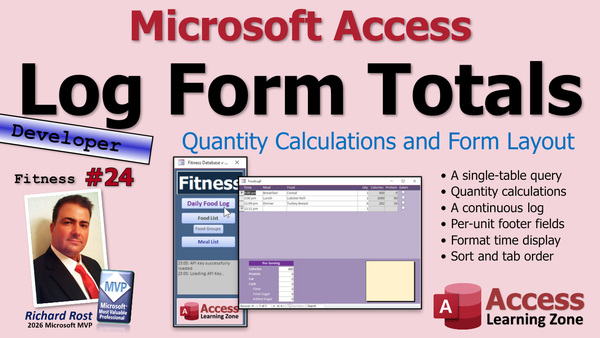 TechHelp Access, fitness database, food log forms, food log query, calories per unit, protein per unit, quantity calculation, editable query, continuous form, meal description, food description, date time format, combo box, sort by date time, add to meal button
 Subscribe to Fitness 24
Get notifications when this page is updated
More InformationTranscript Welcome to another TechHelp video brought to you by AccessLearningZone.com. I'm your instructor, Richard Rost.
Today is part 24 of my fitness database series. Today we're going to start building our food log forms. We're going to log all of the stuff that we're actually eating every day.
Of course, if you haven't watched parts one through 23 yet, go watch all of those first. Don't skip any, and then come on back.
Like I've said at the beginning of most every video, whether or not you're building a fitness database is irrelevant. This is a database tutorial, so enjoy it. Here we go.
We're ready to start building the form, but first, before we get to the form, we're going to make a real quick query. Quick queries, get it? Very design.
We're just going to make a query because I want to show all of the food items in the form, obviously, but for the summary up top, we're going to do it kind of the same way we had the food list form before.
Here, I'll just show you this thing. Okay, it's going to look similar to this, but as a log it's going to show the meal, the food description, the calories, the protein, and then you can also have the quantity in here. The calories and protein that I show up top are going to be the totals. But then down here on the bottom we're going to label it and say per serving.
So if they make changes down here, it'll change appropriately up top. But we've got to calculate those values in the query with the quantity. What's the quantity, that's what I'm looking for. I can't find words today.
So we're going to bring in the food log. Now I don't think I need to bring in anything special, just that.
What I want to see up top - I personally only care about calories and protein. All the fields are in here for you guys, I'm not leaving anything out, but just for the summary up top, I want to see the total calories and the total protein. So I'm going to call this total calories, and that's going to be equal to quantity times calories per unit (per serving, but per unit for database terms). Then total protein is going to be quantity times protein per unit.
Save this; this will be our food log query.
We don't have any data in here, but this is a great time to put a couple of test things in here just to make sure the calculations are working and to make sure you can, because you want to make sure your queries generally are editable.
The beautiful thing about this style, also, this hybrid style, is we can just leave food ID zero and just type in stuff. That's the whole point of doing it like this as well. Because you might order Chinese food, or like tonight, my wife and I, we ordered lobster rolls and some clam chowder from a local New England restaurant that we like. You can't get good lobster rolls down here in Florida. Nowhere near as good as up in Maine to get them. But this restaurant we found is as good as it gets. If you're in Cape Coral, Florida, check out Twisted Lobster on the Pkwy; they're very good, the best I found around here.
No, they're not paying me. No, I don't know the owners. They're just my favorite New England-style restaurant down here. End of endorsements; I'm just kidding, there's no paid endorsement.
Just to test our math: quantity, let's put in quantity two. I'll put in a food description of lobster roll.
This is on the top. The calories per unit: I had to go to ChatGPT to figure this out; I mean, I could have googled it, but GPT is just so much easier. So, five to six hundred calorie range. Buttered toast is full of--yeah, three to four ounces of meat, sounds about right, some mayonnaise, a little seasoning. It wasn't super big. I've had some big ones up in Maine; they've got the foot-long, but I'll go with the lower end of the scale. I'm going to say 500 calories.
So, 500. And no, I did not eat two of them. I'm just putting two in there to test the math. I don't care about this stuff, but I do care about protein per unit. Let's see what that is.
GPT says about 40 grams, so I'll put 40 grams in there.
So there's my total calories, total protein, and that looks about right. My calculations are working just fine. Good.
Shut that down, save changes, yes.
Now, I'm tempted to use this form, but there's a lot of baggage in this form that I'm not carrying over. I'm not going to bring the sorting stuff in because we're just going to have it listed in chronological order, the order that you ate it in. I'm not going to bring in the search stuff because you really don't need that for your log just yet. We might add this stuff later, but I'm going to show it on a day-to-day basis, so I don't really think we're going to have that many items that we need to be able to search and filter and all that stuff.
I think I'm going to start a new form and just copy over the pieces that I need. Sometimes it's easier to work from this; sometimes it's easier to start over.
Let's go back to our continuous form. Copy, paste. Let's call this the Food Log F.
Like I said, I have not prebuilt this, folks. Normally, with my TechHelp videos, I run through it fast before I do it with you guys, but this is all fresh as I'm doing it. I mean, I've got some rough notes on what I want to cover, but I haven't prebuilt this.
Design view. I'm going to save the greens and blues for food. I was going to use reds and oranges or something like that for the workout portion of the database. So let's color this so we've got blue for meals and green for food. I guess we could keep purple for the log; that's pretty good. We'll say that it's a cool color.
We don't need an ID field, so we'll get rid of that. I'm going to go back to the single label across the top. Probably going to be about yay wide, I'm guessing.
Let's bind this to the food log, so data record source: food log query.
Now, what do I want to see across this? Well, the first thing on the left is going to be the meal description. Now, there might not be anything in here, but it might be, you know, what the description of the meal that you ate was.
I'm going to delete this and bring them all in off the field list.
Existing field, all right, so we're not going to bring these in. We're going to copy those into the table. We're not going to bring them on the form. We don't need to see those there.
We do need the food date time; bring that in. Has eaten, yep, that's got to go up here. Quantity, yep. The food log notes go down below. The meal description and the food description are going up here.
Now, all this, calories per unit, all this stuff down here, is going to go in the bottom. I'll make some more room, and we do need the totals for these two things up here.
So that's all of our fields except the IDs. I'm not worried about the user ID; that'll be in the background. We could add it later in the header, maybe if you want to be able to switch between the users. I'm not worried about that at this point. I'm just picturing it: when you log on, get put in, you are here, and all the forms will open up for that user. We'll get to that eventually, the multi-user stuff, that's last. But I want to put the table and the field in for now.
The food ID, we're going to copy again. We'll do some stuff with that later. It doesn't need to be on the form.
Now we've got some cleanup and some copying and pasting and stuff.
First off, delete the labels. Okay.
Date time on the left. Now, I'm going to display on the very top here; it's going to have the full date, so I think for this it's just going to be the time. Now, we just have to decide what format we want this time in. I'm going to go with HH:NN with AM/PM, or do you want 24-hour time? I'm going to do AM/PM.
We're building this for the average people. I personally prefer 24-hour time, but that's just me. Guess how big that has to be.
Next up is going to be the meal description. You don't have to see the whole thing because you'll kind of get the idea based on what the meal, like 'breakfast.' So, you'll have a bunch of those together.
Food description will be next. This long form can be wider because these, I made narrow because I knew we'd want to see them side by side, but that's not going to be the case with this. This can be wider, so the food description, you want to be able to see the whole food item there.
If we've got quantity, that can be really short like that, unless you're eating a thousand eggs.
Total calories: now I'm going to separate these just a little bit, actually we'll just make them a different color.
Total calories, about yay big. If you're eating more than that in a unit, that's a problem. Total protein; that could be even shorter.
And then this is the 'has eaten,' so about like that.
These guys will be a different color; let's make those gray so the user knows they can't modify them.
While I'm thinking about it, tab order for this section - I'm going to take these out of the tab order. Do I want to take that? No, I'm going to leave that in the tab order. You know what, let's put this on the left. Yeah, that makes more sense. We'll figure this out later. These are the decisions that I take more time on, 'what goes on the left or right.' It's not just you, I do it too, and usually I pause the video for about 30 minutes to figure out which side I want that on. I'm going to keep it on the right.
Slide this up. Set our label: Time, Meal, Food, Want to See, Calories, Eaten.
Let's say to my dogs in the morning, ready to eat, when I eat, they go all crazy.
This guy and these guys, I want these to look kind of like these do here. I was thinking between videos, do we want all of that stuff in the footer, or do we want to have it as a pop-up? Because I don't think this is stuff that you're going to be modifying all the time. Really, you're going to type something in there, put this in, but if you want to put in something that's a lot off you might come down here and type something in.
Let's try it here; if it looks too complicated, then we'll switch it. I am going to copy over the labels at least. Let me see here. Yeah, let's copy over these labels so at least it'll kind of look the same.
Copy these guys, copy. See, you can't do it. See? Irritates me. All right, let's copy over the controls, then paste them because they're bound labels. That's fine.
So, we'll just do this, we'll just make these guys look like those guys. We've got calories; I've got to rearrange these. Protein, that is there, curb, we've got fibers here, little sugar.
We're going to highlight everybody, right click, size to grid, and then shrink them all up.
Let's keep it all standard; let's right align those.
Now I don't think we'll be able to select all of these. Let's try it: cut, and then click over here, and then paste. Yeah, they won't come in. All right, undo. We'll have to do them individually, but that's okay because they're bound labels; they're weird.
So we're going to just slide these over here. We'll just have to do one at a time; watch this: cut, click, paste. That's how I move a label to a different control. Now it's bound to this one. All right, cut, paste. It's not that bad. Cut, paste, paste. Oh, come on, it's quirky.
Cut, paste. See, sometimes it doesn't work. Cut, paste. Why did the first two work and now these ones aren't working?Access, I love you and I hate you at the same time. Cut, paste. See? Cut, paste, and now it's not working. Sometimes it decides it wants to, sometimes it does, sometimes it doesn't.
All right, copy, paste. Yep, see? Let's try it across forms. Let's see if that works any better. Sometimes it does. I don't know why, but it does. Copy, paste. I swear it just worked for me. Carbs, paste. See? Fat, paste. All right, now we're cooking with gas. Sugar, paste. Oh.
All right, all right, we're just going to do that. Copy the names. Full sugar, added sugar. All right, and then we just slide these over. It looks close enough, now we can delete these. Slide you guys over this way. Maybe we'll do a little bit of this. What do you think? Now I don't like that, let's put it back where it was.
I'm going to copy over this notes box just so I can format paint it. Close that. Now, save changes to that? No. Because you got the format that I want and I want to give it to you. See how that works? You have to copy the control over because you can't format paint across forms. In a future version of Access, someone is going to be like, wait, you can format paint across forms now. I have had that happen to me.
I've had that happen, where in a 2013 version or 2016 or whatever you couldn't do something, and then the Access team (the 18, we call them) added that feature. Then someone's like, in your video you said you couldn't do this, but you can! Yeah, well, they added it. Don't listen to me from 10 years ago.
So if you're watching this in 10 years, great. I want to emphasize this stuff here should be per serving. In fact, let's bring this stuff together a little closer. I might do this on the other form too. I haven't decided yet. It's a little tiny formatting thing. I haven't really picked this too hard yet, but I'm going to do this.
I'm going to copy and paste and make a label here that says "per serving," center that, and make it dark purple. Put in here "per serving" like that. That label trick. All right, like that. Maybe put a really light border around it. That looks good. Let's bring this stuff down one bridge. There we go. That looks good.
We do need some room in here though for some other stuff. We're going to put some stuff in here. Save it, close it, open it. It's looking good. I hate that too, this guy. We don't need that for this. We're not going to need to pick a calendar date. It's just times. My pop-up for picking times: shameless plug, I built my own little pop-ups for this. Here's a calendar one, here's a clock one, looks like an analog clock, or you can go digital clock if you prefer digital clock.
I haven't hit you guys with a shameless advertisement in like 20 videos now, so I'm allowed one. I'll put a link to this down below. I might incorporate this later on. I'm not sure. I don't think we'll need it, but maybe. But we definitely don't have to put a date in here, so I'm going to turn that off.
So, data, on what's on the format: show date picker, right here. Never. Save it. Keep in mind, even though this shows the time (which we're going to left align here), I always say justify when it's align. Left align that. Let's actually left align everybody.
What do we do for the meal? We left them right and it looks weird. Let's fix this to design. Let's right align these guys. It's these little nitpicks that I come across as I start using the database. So since that's the case, do we need to fix these ones too? Why didn't you guys tell me? Raise your hands! Posting a comment is like raising your hand.
So we might as well right align these. Keep it all the same. Which means we have to slide quantity over, but bring calories and protein back, like there. I don't think we're going to have room; we might have to make it bigger. Yeah, let's make these bigger. We're going to abbreviate.
What do we do over here? Let's see, meal? No, we got calories and protein spelled out. We just need to make more room. Okay, we'll make more room. This form, like I said, can be wider. So, this will be "eaten" since we got room now and it's off the end of the label there. And we'll put a little bit of spacing in here like that. Okay, so "eaten" can be there. Protein can come out there. I think calories. Now, let's see what it looks like.
And while we're at it, let's throw it on here. The stats box keeps getting smaller and smaller. I'm going to put the food log up top because it's going to be the one you're probably going to use the most on a day-to-day basis. Daily food log. And let's go purple with it. Oh, not the background, not the background. Undo, undo the foreground.
And what are we doing, the food list is green, right? So let's start doing these buttons with the colors. I don't want to use the theme color. I hate theme colors. Let's go drop or... yeah. List. It's barely noticeable, but I know it's there. And then blue. Okay. We could go a little bit bigger with this one. Yeah.
All right, let's put a name in it so Alex doesn't yell at us. Food log button. Right click, build event. DoCommand.OpenForm "FoodLog". We'll put some more stuff in here later on too, like go to today's date and that kind of stuff. But for now we're keeping it simple.
Okay, food log. There we go. Beautiful. Save it, and we're on a roll so far. Ha ha, get it, we're on a roll? Ha ha.
Look into this. I don't mind this down here. That's not too bad. If we click on an item you can see what its stuff is.
If you want to type stuff in by hand, you could come in here and go, you know, breakfast, which was, let's say, cereal. Right, and see now you can't type in over there, so you have to come down here if you want to put something in by hand. That's okay. I don't mind that because most of what I figure I'm going to be entering into here is going to be from the food list. We're going to do that too. We're going to make the combo boxes so we can pick stuff off the food list.
But yeah, let's say cereal, 400 calories. We fixed my tab order down here; while I'm doing it, let's fix it. So down here, tab order: I'm going to auto order it first, and then we're going to move the notes to the bottom and make sure these are all the same - calories, protein, fat, carb, fiber.
All right, save it, close it, open it. I also want to sort this form by date/time. We're going to filter it later for the dates, but we're going to put an order on in here - order by food date/time. And our requery button will reorder it, but when you open it at least it's going to do this. So now you can change it, see? If you want to make changes and get the full date showing up, we might do something with that. I haven't decided yet. Or it might be an extended cut.
I want to be able to just type in the time here and have it save that based on what the form's date is. We'll figure that one out later. But anyway, if we want to come in here, I'm going to use Zoom (Shift+F2). That's really big. Let's say you had breakfast at 9 a.m. All right. When this closes and reopens, or when you requery, it'll put it in the right order.
Let's say lunch was your lobster roll and that was at 6 p.m. or 2 p.m., normal lunch times. And you got your dinner, which was turkey, mashed stuff. Your food items are going to go turkey, so it'll look like turkey breast, right? Let's say you had six ounces. We could have the tab order jump down here when you're in manual enter mode - that's another thing we could do.
But for now, let's say calories, and what per ounce is, what, 40? And then protein is, I forget, four per ounce? That seems like chicken. Is food chicken? All right, so it's 47 calories, 9 grams of protein, that's pretty good. All right, so we'll do the same as chicken - 47 and 9, there we go.
So that's just manual enter mode.
Next time, we're going to get into making some combo boxes here so you can pick what you want to add up to the food log. This is kind of what we did in one of the extended cuts, and then I ended up getting rid of it. Because initially, in one of the extended cuts, when you were building the meals, I had the combo boxes down here to add items, and then I decided I don't like that. I'd rather have it like this where you got the add to meal button here.
So we're probably going to do combo boxes here to select stuff, and then for the members we'll do add to log buttons like that. I'm not sure about all this yet. I'm still throwing it around in my head.
But I think that's a good spot to stop today. Yeah, spot to stop. We're at 25 minutes. Okay, that's your TechHelp video for today. Hope you learned something.
Live long and prosper, my friends. I'll see you tomorrow for part 25.
TOPICS:
Creating a food log query to calculate totals
Testing query calculations with sample data
Building a continuous form for food logging
Selecting fields to display on the food log form
Formatting and arranging form controls
Applying color schemes for meal and food sections
Binding the form to the food log query
Removing unnecessary fields like ID and user
Customizing date time display and alignment
Setting total calories and protein as calculated fields
Copying and reusing field labels and controls
Formatting the form footer for per serving values
Disabling the date picker for time-only fields
Editing tab order for efficient data entry
Sorting the food log form by date time
Entering and saving manual food log entries
Adding a food log button to the main menu
Using the food list for food log data entry
Saving and testing the new food log form
COMMERCIAL:
In today's video, we're continuing with part 24 of building our fitness database by creating the food log forms. You'll learn how to set up a query for your daily food log, calculate totals for calories and protein based on quantity, design a user-friendly form to log meals, and arrange form elements for quick data entry. We'll talk about handling manual entries, organizing fields, and formatting for easy reading, plus some tips for working with Access quirks. You'll also see how to customize tab order, control formatting, and sort records by time. You'll find the complete video on my YouTube channel and on my website at the link shown. Live long and prosper my friends. Intro In this video, we'll continue building our fitness database in Microsoft Access by setting up the daily food log system. I'll show you how to create a query that calculates total calories and protein from your food entries, build and format a continuous form for logging meals, and arrange controls for efficient data entry. We'll cover customizing the layout, applying color schemes, managing field selection, editing tab order, and sorting your log by date and time. You'll also see how to handle manual entries, display per-serving info, and add your food log to the main menu. This is part 24. Quiz Q1. What is the primary purpose of the Food Log form being created in this video?
A. To record daily workouts and exercises performed
B. To log all food items consumed each day, including calories and protein
C. To manage user account and authentication features in the database
D. To display historical weight loss progress over time
Q2. Why does Richard create a query before building the Food Log form?
A. To generate random food data for testing purposes
B. To easily calculate and summarize total calories and protein per log entry
C. To handle database user permissions and security
D. To merge workout data with food data in a single table
Q3. How are total calories and total protein calculated for each log entry?
A. By dividing calories and protein by quantity
B. By multiplying quantity by the calories and protein per unit
C. By subtracting fat content from calories
D. By multiplying calories by protein and then dividing by quantity
Q4. What is the advantage of being able to enter a food description manually instead of always using a lookup or preset item?
A. It allows logging of unique or custom food items not in the database
B. It ensures stricter data validation for food items
C. It prevents duplicate food entries
D. It makes searching for foods faster
Q5. Which fields are displayed in the main section of the Food Log form?
A. User ID, Date of Birth, Food Category
B. Meal description, food description, quantity, time, calories, protein, has eaten
C. Exercise name, duration, workout intensity
D. All fields from every table in the database
Q6. Where are the "per serving" nutrition details such as calories and protein shown on the Food Log form?
A. In the report footer only
B. In a section at the bottom of each log entry, with a clear "per serving" label
C. In a pop-up window only
D. In the table design view
Q7. Why are some fields, like Total Calories and Total Protein, colored gray in the form design?
A. Gray indicates required fields for data entry
B. Gray shows those are calculated fields and not directly editable by the user
C. Gray fields are hidden from all users
D. Gray means the data comes from another database
Q8. What is the reason for adjusting the tab order in the Food Log form?
A. To ensure users navigate efficiently through fields when entering data
B. To prevent users from accessing confidential information
C. To automatically sort records by calories
D. To lock the form for read-only access
Q9. What is the recommended format for displaying time in the Food Log form for general users?
A. 24-hour time format only
B. HH:NN with AM PM (standard 12-hour time with meridian)
C. Decimal format (e.g., 13.5)
D. Date and time together in a long text field
Q10. How does Richard suggest handling users in a multi-user scenario at this point in the tutorial?
A. By adding User ID as a required visible field now
B. By planning to handle multi-user features later and focusing on core food log features first
C. By requiring all users to share the same login
D. By storing usernames in the meal description field
Q11. What is the initial approach for sorting food log entries in the form?
A. Alphabetically by food description
B. Randomly on each form open
C. By food date time, so items appear in chronological order
D. Based on total calories from highest to lowest
Q12. Why does Richard mention the combination of copying and pasting labels and controls between forms?
A. Because Access sometimes behaves inconsistently with bound labels during copying
B. To demonstrate keyboard shortcuts
C. To ensure unique field names in every form
D. To reduce the database file size
Q13. What future enhancements does Richard mention for the Food Log form?
A. Implementing strict calorie limits that cannot be exceeded
B. Adding combo boxes for selecting food items from the food list
C. Enforcing only pre-defined meal names
D. Removing the protein information from the form
Q14. Why is it important to ensure queries such as the Food Log query are editable?
A. Editable queries allow users to interactively enter and adjust data via the form
B. Non-editable queries run faster in Access
C. Editable queries hide confidential user data from other users
D. Non-editable queries help with data security
Answers: 1-B; 2-B; 3-B; 4-A; 5-B; 6-B; 7-B; 8-A; 9-B; 10-B; 11-C; 12-A; 13-B; 14-A
DISCLAIMER: Quiz questions are AI generated. If you find any that are wrong, don't make sense, or aren't related to the video topic at hand, then please post a comment and let me know. Thanks. Summary Today's TechHelp tutorial from Access Learning Zone focuses on building the food log form for our ongoing fitness database project. This is part 24 in the series, and now we are going to develop a system that lets you track everything you eat each day.
If you have not already watched parts one through 23, I recommend starting with those and following them in sequence. Each builds on the last, so make sure you are caught up before continuing here.
Whether or not you are designing a fitness database, the information in these lessons applies broadly to Access database development. You might be tracking food, but you will pick up skills you can use in any database project.
To begin, before we jump right into creating a form, we need to set up a preliminary query. The goal is to display all food items on the form, but also to show summarized totals for calories and protein at the top. This will work similarly to the food list form we built earlier, but as a log, it also tracks the meal, description, calories, protein, and quantity. While the summary at the top will show totals, each entry at the bottom lists values per serving. Any changes made to quantities in each record will update the corresponding totals above. So, the calculations in our query must multiply per-unit values by the entered quantity.
To set this up, I link the food log table in the query and create calculated fields for total calories and total protein, each multiplying the quantity by its per-unit value. Other nutritional fields, like carbs or fat, are there for completeness, but for the summary bar up top, I am only displaying calories and protein.
It is important to ensure the query is editable, so before going further, I enter some test data. For example, I record an entry for two lobster rolls. Since I wanted approximate nutrition data, I used ChatGPT to check the average calories and protein. A lobster roll comes in around 500 calories and 40 grams of protein per sandwich, so with two recorded, the totals come out as expected. This confirms the calculations in the query are correct and the form will display what we need.
Now, while I could just reuse our previous food list form, it turns out that form brings in a lot of features we do not want in the log version, such as sorting, searching, and so on. For a day-to-day food log, those features are mostly unnecessary, at least for now. Instead, I find it easier to start a new continuous form and copy over only the pieces I actually need, keeping the design both simple and functional.
For this new food log form, I use colors to differentiate areas of the database: greens and blues for food, red or orange for workouts, and purple to represent log activities. Consistency in visual cues helps keep the user interface organized and intuitive.
I remove the ID field from the new form to keep things tidy. Then, I bind the form to the food log query as its record source.
Laying out the controls, I decide what needs to be seen on the form. On the left, I want the time, followed by the meal description (like "breakfast"), food description (such as "cereal" or "lobster roll"), quantity, total calories, total protein, and a field indicating whether the item has been eaten. Additional notes and detailed nutritional fields like carbs and fiber appear near the bottom.
The totals for calories and protein should be clearly marked as per serving, so I group and label them appropriately, giving them a distinct color and making these fields read-only so the user cannot alter the calculated results directly. Colors and tab order are adjusted for a smoother data entry process, and labels are refined for clarity.
I am careful to keep the form easy to read and to use. For data entry, most everyday use involves simply recording what was eaten, the amount, and when. Advanced features, like searching or multi-user switching, can be added later if necessary.
For the time input, I avoid using the date picker, since most entries will revolve around time of day rather than the exact date. I mention that I have my own popup clock controls for time entry and refer to that resource for those interested. For now, I ensure the time field aligns to the left and other alignment details are taken care of for readability.
As for form navigation and layout, I consider the best arrangement as I work. Small usability tweaks, such as moving fields left or right to fit the user's workflow and right-aligning numeric values, make the form more professional and more comfortable for daily use.
When entering items by hand, you can type in the meal (say "breakfast") and food (such as "cereal," with a calorie count like 400), and enter protein or other macro values as needed. Adjusting the tab order ensures data entry flows logically from field to field without backtracking or confusion.
I also sort the records by the time field, so the log is always in chronological order, making it easier to track a sequence of meals through the day. A requery button will let you refresh the display, but for now, the ordering is handled automatically when the form opens.
To test, I add a variety of meals for a hypothetical day, entering breakfast at 9 a.m., lunch at 2 p.m., and dinner in the evening, filling in details like calories and protein per serving. This verifies that, in practice, the form supports straightforward manual data entry and calculation.
Looking ahead, our next step will be adding combo boxes to the form for quickly selecting foods from the master food list, making data entry faster and more accurate. In earlier extended cut videos, I discussed alternate methods—like using combo boxes within the meal builder—but I found those approaches less effective in practice and decided to revise the workflow to what you see here.
That wraps up today's lesson. You now have the foundation for a functional food log form within your Access fitness database. Moving forward, I will expand the form with more streamlined data entry tools and connect other features as we continue.
You can find a complete video tutorial with step-by-step instructions on everything covered here on my website at the link below.
Live long and prosper, my friends. Topic List Creating a food log query to calculate totals
Testing query calculations with sample data
Building a continuous form for food logging
Selecting fields to display on the food log form
Formatting and arranging form controls
Applying color schemes for meal and food sections
Binding the form to the food log query
Removing unnecessary fields like ID and user
Customizing date time display and alignment
Setting total calories and protein as calculated fields
Copying and reusing field labels and controls
Formatting the form footer for per serving values
Disabling the date picker for time-only fields
Editing tab order for efficient data entry
Sorting the food log form by date time
Entering and saving manual food log entries
Adding a food log button to the main menu
Using the food list for food log data entry
Saving and testing the new food log form Primary Topics Access food log form design, calculated query fields, form layout and formatting, form field selection, data entry flow, totals calculation, query testing, tab order, sorting by date time Secondary Topics color schemes for UI, field label reuse, disabling date picker, meal/food section separation, future combo box planning |




