Fitness 39
By Richard Rost

 13 months ago
Use KeyDown Event to Control User Tab Keystrokes
In this Microsoft Access tutorial, I will show you how to use the Key Down event to control tab key behavior on your forms, allowing you to move focus between fields across different form sections and improve navigation. We will also cover ways to fix the tab order, use hidden labels for keyboard shortcuts, and write VBA code to jump between specific fields or records based on user input. This is part 39.
Members
In this extended cut, we're going to fix a problem with the window positioning code that crept in from Fitness 38. Some of you were complaining that the database wouldn't open properly. We're going to address that in this video.
Silver Members and up get access to view Extended Cut videos, when available. Gold Members can download the files from class plus get access to the Code Vault. If you're not a member, Join Today!
Prerequisites
Links
Recommended Courses
Up Next
Keywords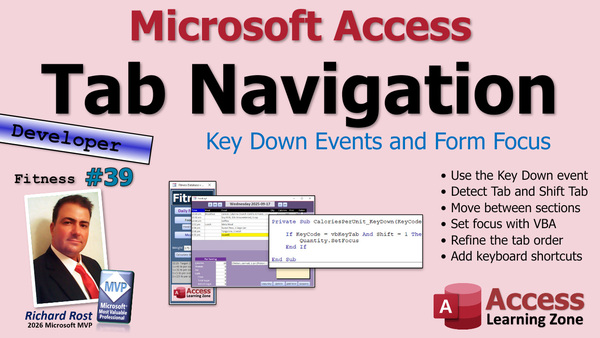
TechHelp Access, key down event, tab key navigation, setfocus vba, tab order, label association, shortcut keys, form field focus, shift tab, gotorecord, me.newrecord, vba code, hidden label, keyboard shortcuts, access annoyances, combo box navigation, calories per unit, added sugar field
 Subscribe to Fitness 39
Get notifications when this page is updated
More InformationTranscript Today is part 39 of my fitness database series. Like I say at the top of each video, this is not just about fitness. This is about building a cool database. Today, I am going to show you how to use the key down event to directly control what happens when the user hits the tab key. You can control what field they go to even if it is in a different section on the form.
That is today. I have a couple more little things I want to do before we get into meals, which we are going to do soon. I know I keep saying it, but every day I keep coming up with a couple little things that just annoy me.
First of all, I do a lot of typing in stuff by hand, even though I pick a lot of items down here. We are going to do some work with this in a few minutes too. But I have found that I like to type in, like here, I got my met... I subscribe to this thing called Metabolic Meals. It is like a meal delivery service, and they are high in protein. It is all healthy foods. I love them. So you will see Metameals sometimes, and this is not something I am going to store every one of them because they are all different. So I just type in Metameals and then I just type in the calories and protein.
What I find annoying is having to put something in here. Do this and then it tabs to... and I want it to go to here and then down to here. Now, there is no easy way. There is no keystroke method or whatever to go from top to bottom. You can attach an app thingy to that label down here. For example, for calories, we can attach an Alt-C to that, and that is one way we can get around this. So if I am up here now and I type in this, I can go Alt-C. That is one way to do it. But then there is no way to get back up top. You cannot go Alt-F and attach this to food because watch what happens.
If you try, see, this is a detached label by itself. If you try saying that is the label for this one, which you can do under, is it other? Yeah, label name right here. See, if you look at this guy, its label name is Label6. I do not usually bother naming the labels unless I am going to do something with them, like change the color or something like that. But this guy is the food description label.
Okay, let us copy that. Click on this guy and put that in there as the label name and watch what happens when I hit tab. It disappeared. Why did it disappear? Well, Access attached it to this and it dropped it into here. It has to be in the same section. That is another one of my Access pet peeves. Sammy, if you are still keeping the list, put it on the list. I am going to undo that.
You could make a little hidden label. You could take, let us take this guy. We do not need this one anymore. We are going to do something else. Let us take this guy. Let us cut this out, put it up here. Now you get this warning here that says unassociated label with keyboard shortcut. That means the label is not going to take you anywhere because the label shortcut takes you to the text box it is associated with.
So let us just make this "Food" because we are going to hide it, watch this. Then we are going to say, okay, your name is FoodItemLabel. Let us change this to just FoodLabel. We are going to associate that with this text box. So here, the label name will be FoodLabel like that. Now they are associated.
Then I am going to take this guy now and I am going to go Format - Visible and set that to not visible. Then we are going to slide it up behind that guy. Then we will do this. Then we will save it. Close it. Close it. Open it. Now if I hit Alt-F, it pops right there. You see? I could be down here and I can go Alt-F, and it puts you up top. So it is the hidden label trick. But it is not great because you cannot put the little underscore under the "Food" to indicate to the user that that trick exists. There are pros and cons either way.
In any case, I am not going to rely on that. What I want to do is manually change the tabbing with a little bit of VBA code. So when I tab past the quantity, oh, why is it going back? I have to fix my tab order. When I tab past quantity, it then comes down here. Then when I tab past the end of that, it comes back up here to the next new item. That would be pretty cool.
In fact, I do not like leaving things I am not going to use in the database. So let us get rid of that. In fact, let us put you back down here where we had you initially. See how that cut and paste? Oh, it is not working. Cut paste. Then we will take you and we will cut it and paste it on it. See, it is not... I am annoyed with this cut and paste. There it goes. It takes three attempts. I do not know what is going on with it. Later on, I was going to move this up here and then do something like this. Take this bigger.
Anyway, let us just change this to "Add to Log" like that. So what we want to do is, first let us fix our tab order that I noticed needs to be fixed here. Form design, tab order, auto order, that is good. Yeah, those two were reversed. I am going to take this, this, and this, out of being tab stops. I think two of them already are. Tab stops for all three of those is No because for the eaten thing, I usually just go down and check, check, check, which we have not even gotten to putting the calculations in here.
My goal is to put in here what your goal is. You are going to do a goal calories for the day or goal protein, and then as you check it off, it will calculate what you have actually eaten versus what you have got scheduled.
The tab orders are fixed. I was going to say we take this stuff off. Let us leave all this stuff alone for now.
How are we going to do this? When the user is here and they hit tab, it goes here. Normally when the user hits tab, it is going to skip these and come back to here on the next record, which is normally fine. But what I want to do is say, if you are on this field and you hit tab, I am going to intercept that command and bring you down here to Calories. Then it is going to behave normally, tab, tab, tab, all the way down. When they are here and they hit tab, it is going to go back up to food description on the next item.
So we are going to use the key down event. Here is the key down event. Want to go learn more about it? This one teaches you all about it. Go watch this.
On the quantity field, bring up its properties. Go to events. On key down, not mouse down, key down, right there. In the key down event, you get two things: you get a key code and a shift. Key code is the ASCII number equivalent of whatever key was pressed. Some of them have specials, like the tab key is vbKeyTab, but they all have numbers too. We will talk about that a little bit more in a minute. Shift is whether or not the control, alt, or shift keys were pressed - zero if none of them were pressed.
So if the key code equals vbKeyTab and shift equals zero, in other words, they are not hitting shift-tab, then we will move down to that CaloriesPerUnit field. So CaloriesPerUnit.SetFocus. And it is that simple.
Save it. Come back over here. Let us test it. If I am right here and I typed in something, squash, whatever, tab, tab... now I am ready to type in the calories for that item.
Now, if I am here and I go tab, tab, tab, tab, tab, tab, tab, it jumped over to here. No, I do not want that to happen. I want from here, the AddedSugar field, I want to go back up to the description.
This is easiest to get to from here. So CaloriesPerUnit, or the AddedSugar, AddedSugar on KeyDown, right here. If KeyCode equals vbKeyTab and Shift equals zero, then it is FoodDescription.SetFocus.
Back over here. Close it, close it. Open it. Right here, tab, tab, tab, tab, tab, tab, tab, tab, tab, perfect.
Now, I would like it to also go to the next record if I am tabbing past this so we do not get stuck in a loop. If we are here, we are stuck in a loop now. Let us go to the next record. That is easy to do. Right here, just say DoCmd.GoToRecord ,, acNext.
There are sometimes when I like to use GoToRecord, and there are sometimes when I like to use the bookmark trick we found and that I taught you earlier. This is fine if you just want to do one quick little thing, move to a different spot. The bookmark thing works better if you are dealing between different forms, especially.
I want to debug compile once in a while. Now let us try it, ready? Tab, tab, tab, tab, tab, tab, tab, tab, tab. Oh, that is beautiful. That is exactly what I want.
Tab, tab, tab, tab, tab, tab, tab, tab, tab. Oh, man, cannot go to a new record. Why is that? Debug. Cannot go to the next record if you are on a new record.
If you are here already and you go tab, tab, tab, it is going to error out. So all we have to do is say, if I am already on a new blank record, do not do that. So if Me.NewRecord then do not do that. So we are going to say, if not Me.NewRecord then go to the next record.
Me.NewRecord means you are on a blank new record. It has not been assigned an ID yet. You can also check to see if the autonumber is null, but Me.NewRecord is a little more reliable because you might not have an autonumber on the form, like we do not right now.
Now let us try it. Here we go, tab, tab, tab, tab, tab, tab, tab, tab, tab, and it went right back to the same spot. That is pretty cool.
Now what about going backwards? If you are here and you tab down to here and you want to go back up now, everybody knows Shift-tab. I do not like it when you have those weird keystroke combinations, like if you press Ctrl, Shift, Alt, 4. I am not going to remember all that. But most people know tab and Shift-tab. Shift-tab goes backwards. Shift-tab, Shift-tab, Shift-tab, Shift-tab. Now it went over here somewhere because it is down in here.
So we are also going to make it so if you are on Calories and you Shift-tab, it will put you back up here. Let us try that one now. So on Calories, on Key Down, if KeyCode equals vbKeyTab... and by the way, if you Google that vbKeyTab, there is a whole long list on the Microsoft site. Lots of the keys have their own keystroke. I am going to show you in the next lesson how you can just find out what the number value of it is really easily.
But if the KeyCode equals vbKeyTab and Shift equals 1, that is important. Shift equals 1 means they are holding down the Shift key. I think 2 is control and 4 is alt if memory serves. You can look those up too.
Then, so they pressed, they are on CaloriesPerUnit, they pressed Shift-tab now. We are going to go back up to Quantity. Quantity.SetFocus.
Debug, file, come back up.
Close it. Close it. Open it. I am here. Tab, tab, tab, tab. Now let us Shift-tab, Shift-tab, Shift-tab, Shift-tab. Right where I want you to be. You can tab down here and you can Shift-tab back out of there.Now, I kind of like it at this point. If I hit Shift Tab, I want to go back up these. I like that. I'm not going to do it the other way. I'm not going to say, if you are on time and you hit Shift Tab, it brings you back to adding sugar. I do not like that. But I like tabbing forward into that. That is kind of cool, and then you can back up this way.
Now, that is just my preference. You can change it. You can make it however you want. That is the benefit of making your own database. If you do not like it, post a comment down below and we'll argue about it.
While we are on this topic, in the next video, I'm going to show you something that is bothering me that has to do with the Key Down event too. If you are in here and you are typing in something like "chicken," at this point, I see the chicken I want. It is below this one; it is this guy. Let me move the mouse out of it so it does not interfere.
If I type in "chick" and I am sitting out there, if I hit the down arrow right now, that happens. I cannot, it changes everything and it locks it up. So we are going to use the Key Down event in the next video to fix that problem too. It is a little more advanced, but we will get it working.
Again, these are just the little things that, as I am using the database every day myself, I am discovering these annoyances and we are going to take these out before we add more new features. Get rid of all the annoyances first. That is kind of how I like to roll. Because if we get this working well, then when we get to the workout section, part two, we will have all this stuff ironed out. We will know how to fix it. We do not have to reinvent the wheel every time.
Rather than building all 20 forms and then discovering we have to make this change, and now we have to go back to all these forms and fix it.
So there you go, that is going to do it for part 39. Tomorrow, we will fix the rest of that with the combo box thingy that I told you about. Then we are going to get into meals. We are going to get into meals very soon. I have already got a lot of notes and ideas and you are going to like it, it is going to be cool.
But that is going to do it for your TechHelp video for today. Hope you learned something. Live long and prosper, my friends. I will see you next time.
Oh, and let me know what you think about the new slide. I rearranged it because some people were saying, put on here what the video is about. Let's give it a try. Let me know what you think.
If you enjoyed this video, hit that thumbs up button right now and give me a like. Also, be sure to subscribe to my channel, which is completely free, and make sure you click that bell icon and select all to receive notifications whenever I post a new video.
Do you need help with your Microsoft Access project? Whether you need a tutor, a consultant, or a developer to build something for you, check out my Access Developer Network. It is a directory I put together personally of Access Experts who can help with your project. Visit my website to learn more.
Any links or other resources that I mentioned in the video can be found in the description text below the video. Just click on that Show More link right there. YouTube is pretty good about hiding that, but it is there, just look for it.
Now, if you have not yet tried my free Access Level 1 course, check it out. It covers all the basics of Microsoft Access, including building forms, queries, reports, tables, and all that stuff. It is over four hours long. You can find it on my website or my YouTube channel. I'll include a link below you can click on, and did I mention it is completely free?
If you like Level 1, Level 2 is just one dollar. That is it. And it is free for members of my YouTube channel at any level.
Speaking of memberships, if you are interested in joining my channel, you get all kinds of awesome perks. Silver members get access to all of my extended cut TechHelp videos, and there are hundreds of them by now. They also get one free beginner class each month. Yes, those are from my full courses.
Gold members get the previous perks plus access to download all of the sample databases that I build in my TechHelp videos. Plus, you get access to my Code Vault, where I keep tons of different functions and all kinds of source code that I use. Gold members get one free expert class every month after completing the beginner series.
Platinum members get all of the previous perks plus they get all of my beginner courses, all of them from every subject. You get one free advanced or developer class every month after finishing the expert series.
You can become a Diamond Sponsor and have your name listed on the sponsor page on my website.
So that is it. Once again, my name is Richard Rost. Thank you for watching this video brought to you by accesslearningzone.com. I hope you enjoyed it. I hope you learned something today.
Live long and prosper, my friends. I will see you next time.
TOPICS:
Controlling tab behavior using the Key Down event
Manually changing focus between fields with VBA
Using the Key Down event to detect the Tab key
Programming navigation between fields across form sections
Associating hidden labels with fields for keyboard shortcuts
Setting up and troubleshooting Access label associations
Fixing and customizing the tab order of form controls
Disabling tab stops for specific controls
Using Shift and key codes in the Key Down event
Handling Shift-Tab to move focus backward
Ensuring navigation works for new records using Me.NewRecord
Moving to the next record programmatically with VBA
Setting focus between specific fields with SetFocus
Practical examples of intercepting Tab and Shift-Tab with VBA
COMMERCIAL:
In today's video, we are continuing with part 39 of the fitness database series. You will learn how to use the key down event in Access VBA to control exactly what happens when users press the tab key, allowing you to move focus to different fields, even across different sections of a form. You'll see how to assign keyboard shortcuts using labels, fix common tab order issues, and use VBA code to customize where the user lands after entering data. We will also cover handling Shift-Tab to move backwards, and how to prevent errors when tabbing on a new record. If you want your Access forms to be more user-friendly and efficient, this lesson will show you the tricks you need. You'll find the complete video on my YouTube channel and on my website at the link shown. Live long and prosper my friends. Intro In this video, we'll work with Microsoft Access to control how the tab key moves between form fields using the Key Down event and VBA code. You'll see how to manually adjust focus between fields, navigate across different form sections with Tab and Shift-Tab, assign keyboard shortcuts with hidden labels, and fix issues with tab order and label associations. We'll also cover handling new records, customizing tab stops, and making your form navigation more efficient. This is part 39 of the fitness database series. Quiz Q1. What is the primary purpose of customizing the Key Down event for the Tab key in the fitness database form?
A. To change the appearance of buttons on the form
B. To control navigation flow between fields, even across sections
C. To automatically fill in field values
D. To export data to an external file
Q2. Why is using keyboard shortcuts (like Alt and specific letters) sometimes not sufficient for navigating between fields?
A. Because Access does not support keyboard shortcuts
B. Because shortcuts cannot cross different form sections
C. Because it deletes the fields from the form
D. Because it slows down the form performance
Q3. What is the hidden label trick described in the video used for?
A. Hiding form fields permanently
B. Creating a keyboard shortcut that jumps to a related field
C. Hiding form data from the user
D. Preventing users from editing a field
Q4. What is a drawback of the hidden label trick for keyboard shortcuts mentioned in the video?
A. It does not work in datasheet view
B. It removes all shortcuts from the form
C. It cannot visually display the underscore under the shortcut letter
D. It disables the Tab key entirely
Q5. Which VBA event is used to intercept the Tab key press and programmatically move focus in the form?
A. OnClick
B. AfterUpdate
C. KeyDown
D. OnChange
Q6. In the KeyDown event, what does the KeyCode parameter represent?
A. The number of times a key is pressed
B. The ASCII or virtual key value of the key pressed
C. The name of the control
D. The current value of the form
Q7. What is the purpose of checking 'Shift = 0' when testing for a Tab key press in VBA?
A. To only intercept the Shift key
B. To ensure plain Tab (not Shift-Tab) is pressed
C. To ignore all keystrokes except letters
D. To allow only navigation with the arrow keys
Q8. What VBA method is used to move the focus to a different control on the form?
A. SetProperty
B. SetField
C. SetFocus
D. GoToControl
Q9. Why is it necessary to use Me.NewRecord when using GoToRecord to go to the next record?
A. To avoid skipping records accidentally
B. To ensure the record has a unique key
C. To prevent errors when already at a new (blank) record
D. To update the autonumber field first
Q10. Which of the following describes the correct logic to move to the next record only when not already on a new blank record?
A. If Me.NewRecord Then GoTo Next
B. If Not Me.NewRecord Then DoCmd.GoToRecord , , acNext
C. If Me.NewRecord Is Null Then GoTo Next
D. If Me.Recordset IsNew Then DoCmd.GoToRecord , , acNext
Q11. What does pressing Shift-Tab typically do in a form?
A. Jumps to the very last field
B. Moves focus backward through the tab stops
C. Deletes the data in the current field
D. Moves to the next record automatically
Q12. In VBA, what does the 'Shift' parameter value of 1 indicate in the KeyDown event?
A. The Alt key is pressed
B. The Control key is pressed
C. The Shift key is pressed
D. No key is pressed
Q13. What benefit does customizing Tab/Shift-Tab navigation with KeyDown events provide to database users?
A. Prevents accidental data deletion
B. Allows for a tailored workflow and removes annoyances in navigation
C. Locks users into a preset sequence without options
D. Increases database security
Q14. When would it be better to use the bookmark trick instead of DoCmd.GoToRecord?
A. When exporting data between different applications
B. When moving between different forms or needing more precise record control
C. When changing the font size on a form
D. When updating multiple fields at once
Q15. Why might it be preferable to address navigation annoyances early instead of after many forms are created?
A. To avoid having to make widespread changes later
B. To get more practice with Access VBA
C. To slow down project completion
D. To make the forms all identical
Answers: 1-B; 2-B; 3-B; 4-C; 5-C; 6-B; 7-B; 8-C; 9-C; 10-B; 11-B; 12-C; 13-B; 14-B; 15-A
DISCLAIMER: Quiz questions are AI generated. If you find any that are wrong, don't make sense, or aren't related to the video topic at hand, then please post a comment and let me know. Thanks. Summary Today's TechHelp tutorial from Access Learning Zone focuses on Part 39 of the fitness database series. As I always remind everyone at the start of each session, this is about much more than fitness – it's about building a robust Microsoft Access database with some really interesting features.
Today, I'm going to demonstrate how to use the Key Down event in VBA to take control over exactly what happens when a user presses the Tab key. This approach lets you move users between fields, even if those fields reside in different sections of your form.
Before we launch into working with meals, which is coming up soon, I want to take care of a few annoying details that I encounter myself while using the database daily. These little usability tweaks are important, since they make the application smoother for everyday use.
A situation I run into is entering new items by hand, rather than using pre-made selections from a list. For example, I subscribe to Metabolic Meals, which delivers different high-protein, healthy meals every time. Rather than storing each specific meal, I just type in "Metameals" and then key in the calories and protein. The inconvenience comes when I navigate between fields with the Tab key; I want to be able to move from the food name to calories, and then to protein, in a specific order – especially since the fields might not be arranged top-to-bottom on the form.
Microsoft Access does not natively support jumping to another unrelated field by tabbing, mainly because labels and their associated textboxes have to stay within the same section. You can work around this by assigning shortcut keys (like Alt+C for calories), but this only gets you part of the way there. You can't easily move back to the original field with a similar shortcut, primarily because Access restricts label associations across sections. Attempts to re-label controls from different sections will make labels disappear, as Access locks them into their new "home" section.
One trick is to create hidden labels to serve as shortcuts, associating them with the target fields but making them invisible so they don't clutter the interface. This lets you use a shortcut key (like Alt+F for food) from anywhere on the form. However, you lose the visible underscore cue for users, so this approach also has its drawbacks.
To improve upon this, I decided to implement some VBA that intercepts the Tab key using the Key Down event. For instance, when the user is in the quantity field and presses Tab, rather than following the standard tab order, the code sends the focus directly to the Calories field. Tabbing again then moves through the rest of the fields as usual. When finished, tabbing from the last field jumps back up to start a new log entry.
To put this logic in place, you use the Key Down event for each relevant field. The event provides two variables: KeyCode and Shift. KeyCode tells you which key was pressed, using an ASCII value (for example, vbKeyTab for the Tab key), and Shift tells you whether Ctrl, Alt, or Shift was held down (with a value of 0 if not). If the user is on the quantity field and presses Tab without holding any modifiers, the code sets the focus to CaloriesPerUnit. Similarly, on the last field (such as AddedSugar), pressing Tab can send the focus back up to FoodDescription on the next record.
Sometimes I use DoCmd.GoToRecord to move to the next record, but for more complex navigation requirements (especially when working across multiple forms), the bookmark trick can be a better option. For this workflow, DoCmd.GoToRecord is sufficient.
It's important to handle situations like trying to go to the next record when already on a new blank record, as this triggers errors. That's easily handled with a check for Me.NewRecord, which indicates whether you are currently on a brand new record without data yet.
For Shift-Tab navigation in reverse, a similar technique works. If you're in Calories and hit Shift-Tab, the code can jump focus back to the Quantity field. These Key Down event handlers leverage the Shift value: 1 for Shift, 2 for Ctrl, and 4 for Alt. This makes backward navigation intuitive for users who are familiar with typical Tab and Shift-Tab behavior.
This provides a much better workflow for entering food items quickly, without having to jump around or rely on awkward keyboard shortcuts. Of course, if you prefer a different navigation sequence, you can tailor the code however you like, which is one of the key benefits to building your own Access database.
Looking ahead, the next video will address another small usability annoyance relating to Key Down and handling navigation with the down arrow in combo boxes. When searching for an item and typing in a partial name, Access does not always handle the arrow key navigation as one would expect. We'll explore a solution for that using the Key Down event as well.
Addressing these minor annoyances now is important. It prevents having to retrofit multiple forms at a later stage, and ensures the foundation is smooth before adding new features like meals or more advanced workout tracking in future parts.
That wraps up Part 39. In the next lesson, we'll tackle the issue I mentioned with combo boxes, and then finally move on to building out meal tracking. I'm keeping a running list of new ideas and improvements, and I welcome your suggestions and comments.
If you want a full step-by-step video walk-through of everything I discussed here, including all the VBA covered, you can find the complete tutorial on my website at the link below.
Live long and prosper, my friends. Topic List Controlling tab behavior using the Key Down event
Manually changing focus between fields with VBA
Using the Key Down event to detect the Tab key
Programming navigation between fields across form sections
Associating hidden labels with fields for keyboard shortcuts
Setting up and troubleshooting Access label associations
Fixing and customizing the tab order of form controls
Disabling tab stops for specific controls
Using Shift and key codes in the Key Down event
Handling Shift-Tab to move focus backward
Ensuring navigation works for new records using Me.NewRecord
Moving to the next record programmatically with VBA
Setting focus between specific fields with SetFocus
Practical examples of intercepting Tab and Shift-Tab with VBA Article When designing a Microsoft Access database form, controlling how users navigate from one field to another can make a big difference in both usability and efficiency. By default, Access follows a set tab order, moving focus from one control to the next. However, sometimes you want to override this behavior, especially if your form layout groups related fields in different sections or when natural data entry does not follow a simple left-to-right, top-to-bottom pattern. In this article, I will teach you how to use the Key Down event in VBA to take control of what happens when the user presses the Tab key, so you can direct Access to move the focus exactly where you want, even to fields in different sections of the form. I will also show how to handle backward navigation with Shift-Tab, how to fix label associations for keyboard shortcuts, and how to avoid errors when moving through new records.
Let's consider a practical example. Imagine you have a food logging form where you frequently enter foods that might not always be in your item list, such as meals from a delivery service. You might type the food description in one field, enter the quantity, then want to jump directly to the Calories field, bypassing other intermediate fields. Access does not make it straightforward to jump to controls in different sections, and using keyboard shortcuts like Alt-C for the Calories label only works if the label is associated properly with the field and is visible to the user. Moreover, creating shortcuts with labels has its limitations, such as not being able to easily display the underscore indicating the shortcut or not being able to navigate backwards easily.
To address these challenges, you can intercept the Tab key using VBA's Key Down event on the relevant controls. For instance, if you want pressing Tab on the Quantity field to move directly to the Calories field, open the property sheet for the Quantity control, then go to the Events tab and select the Key Down event. In the code editor, insert the following code:
Private Sub Quantity_KeyDown(KeyCode As Integer, Shift As Integer)
If KeyCode = vbKeyTab And Shift = 0 Then
CaloriesPerUnit.SetFocus
End If
End Sub
This checks whether the key pressed was Tab (vbKeyTab) without any Shift, Ctrl, or Alt key (Shift = 0). If so, it sends the focus directly to your CaloriesPerUnit control. You can use this same technique for any control and can direct the focus to any other control you prefer, allowing you complete flexibility in form navigation.
If you want to create a cycle so that after entering the detail fields, pressing Tab on the last field returns the focus to the description box for the next record, use similar code on your last field's Key Down event. For instance, for a field called AddedSugar, add this:
Private Sub AddedSugar_KeyDown(KeyCode As Integer, Shift As Integer)
If KeyCode = vbKeyTab And Shift = 0 Then
If Not Me.NewRecord Then
DoCmd.GoToRecord , , acNext
End If
FoodDescription.SetFocus
End If
End Sub
Here, before sending the focus back to FoodDescription, the code checks if you are not already on a new record (Me.NewRecord). If you are, it skips moving to the next record to avoid errors, because attempting to go to a new record from an already new record will cause an error.
Backward navigation with Shift-Tab is just as easy to implement. For instance, if you would like pressing Shift-Tab in the Calories field to send the focus back up to the Quantity field, use:
Private Sub CaloriesPerUnit_KeyDown(KeyCode As Integer, Shift As Integer)
If KeyCode = vbKeyTab And Shift = 1 Then
Quantity.SetFocus
End If
End Sub
In this case, Shift = 1 means the Shift key is held along with Tab.
You might also want to fix the tab order and tab stops in your form so that by default, only the fields you want users to land on accept the Tab key. In Design View, select each control and set the Tab Stop property as needed (Yes or No). Then set the overall tab order via the Form Design tab to ensure natural top-to-bottom navigation.
For keyboard shortcuts, you can associate a label with a field so pressing, for example, Alt-F jumps to the food description. If a label is not naturally associated, or if you want to use a hidden label for navigation, you can create a label, set its visible property to No, and attach it to the desired control by specifying its name as the control's label name. This way, the shortcut works, though users won't see an underscore indicating the keystroke. This method can be useful for power users who know the shortcuts, but generally, using the Key Down event with Tab is more user-friendly and flexible.
When you are moving focus programmatically, using SetFocus is perfect for jumping among controls on the same form. When working across records, the command DoCmd.GoToRecord , , acNext helps advance to the next record.
You can also handle more advanced navigation scenarios, like jumping into or out of continuous forms, dealing with subforms, or customizing navigation for different roles or user input patterns, all with the Key Down event as your entry point. You may wish to further expand your navigation control by investigating the KeyUp and KeyPress events for more granular input handling.
In summary, controlling navigation with the Key Down event and VBA lets you tailor your Access forms to fit the workflow you want, not the one Access assumes. By intercepting Tab and Shift-Tab, you can guide users through data entry efficiently, even across sections and records, and make your forms feel more professional and responsive. Carefully planning your tab order, using label associations where needed, and testing your navigation logic ensures a smooth experience. This approach saves development time later, especially as your database grows and you add more forms with similar navigation needs. By refining these details early, you will build a robust foundation for your application moving forward. Primary Topics Access forms, Key Down event, VBA SetFocus, custom tab order, keyboard shortcuts, label associations, user navigation, tab stops, handling new records
Secondary Topics bookmark vs GoToRecord, usability improvements, form design tweaks
|




