Fitness 44
By Richard Rost

 12 months ago
Fix Random Food Item Order w Seconds Offset Trick
In this Microsoft Access tutorial I will show you how to ensure food items added to your meal log appear in the correct order by using a seconds offset trick to adjust time stamps, and how to properly sort items with your SQL statement. This is part 44.
Members
There is no extended cut, but here is the file download:
Silver Members and up get access to view Extended Cut videos, when available. Gold Members can download the files from class plus get access to the Code Vault. If you're not a member, Join Today!
Prerequisites
Recommended Courses
Up Next
Keywords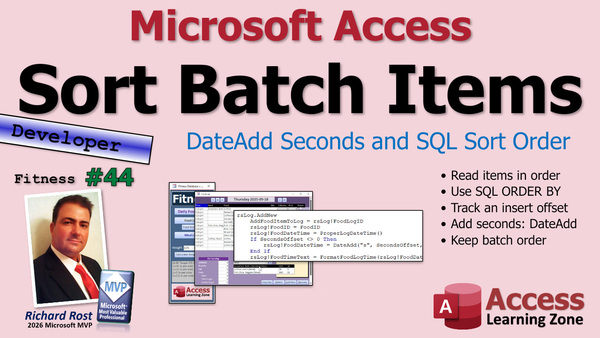
TechHelp Access, seconds offset trick, food log sorting, meal detail table, order by mealDetailID, datetime offset, custom sort field, counter variable, loop through meal items, SQL select order, business database accuracy, increment counter, copy item function
 Subscribe to Fitness 44
Get notifications when this page is updated
More InformationTranscript Welcome to another TechHelp video brought to you by AccessLearningZone.com. I am your instructor, Richard Rost.
In the last video, we got our food items up into the food log when we pick them from a meal. We loop through all the items in the meal and put them up in the log, but they are coming up in a random order. So, we are going to fix that today with a seconds offset trick. I was pretty proud of myself for that. So, here we go.
In the last video, we got it so we can add a meal, but if we add the meal, it comes in kind of a random order. That is because all the time indexes are the same. This is sorting by time index, so you cannot exactly be guaranteed what is going to be where.
Like I mentioned last time, we are not doing Mars lander level precision. We do not have to worry about being accurate to the millisecond. I do not care if my lunch was at five o'clock or five fifteen. So, we are just going to add a second to each one of these as they come in so they come in in the right order. The item with the meal name is the first one.
Is this the best solution? No, but it works perfectly fine. Sometimes you have to balance the needs of the database with how precise you want to be and how much work you want to put into it.
I said in the last video, the best solution would be to have a custom sort field in here, but I think this works just fine for what we have. We are just going to add a small time offset. That is all.
All right, so let us delete this stuff. Let us go back to our code and see where in the food log we have to be. We have to be right here. So, in the loop here, we are going to declare a counter as a long and then we will start the counter at zero. When we add the food item to the log, we are going to send the counter to it.
Now, you are probably thinking, well, wait a minute, we do not have that in it. Well, we have to add that.
So now, let us go in here. We are going to add one more optional variable. Optional. We will call this the seconds offset. It is as long equals zero. I always have to give a default value. That is how many seconds we are going to offset this item by.
Makes sense. Even when I am adding items manually, I almost never add more than one item per second. It is going to be like click and then, OK, what is the next thing? Then click, even if I am typing it is going to be at least two or three seconds. I think this method is going to work just fine.
So, we deal with that while the time happens right here. The food date time in the log is the proper log date time, which we figured out. We did a whole other lesson on that one. Right here, we are going to say if the seconds offset is not zero. I am making it not zero because in the future, we might have an offset that goes negative. This is future proofing. Say that 10 times fast. Future proofing.
If the seconds offset is not zero, then do some stuff. What is that stuff? We are going to add that many seconds to the food date time.
So, rsLogFoodDateTime equals DateAdd("s", secondsOffset, rsLogFoodDateTime). That will format it properly.
That is it. That is just adding a second to each successive item as the counter comes in.
If we are going to do this, we also want to make sure that the items come in from the SQL statement in the right order because we are pulling out a food table. That is the other loop. Where is it? Right here. The meal detail table. There is the meal that is going to have these items in this meal. We want to make sure they come in the same order.
Again, you could set a custom sort order field in here, which would be the perfect world solution if you are dealing with Mars Landers. But again, I am just going to base it on the ID. Is it perfect? No, but it is good enough. We can just base it on the detail ID. So, when we do this here, we are just going to sort it by mealDetailID. We will put in here ORDER BY mealDetailID.
Actually, we have to put a space in front of it. Do not forget the space because we have mealID equals a number, and then we need to make sure we have a space ORDER BY mealDetailID to make sure they come in in the right order. Without an ORDER BY, that SELECT statement could pull the records in any order. Technically, it almost always pulls them in the table order, but it might not.
Compile everything. Everything compiles. Let us save it. Close it. Open it. Let us add that meal item again. Let us add Rick's standard breakfast and go.
Look at that. Wait a minute. Still backwards. Let us see what happened here. Let us see where we messed up.
Let us go to the food log. Make sure they came in with the right timers, the last couple of items. Yeah, they still all have the exact same time in there. So, something in the code is not right. Let us go find it. Let us go hunting.
Oh, I found it. I knew it right away. What happened? Well, the data in the table should give you the clue as to what I did wrong. Pause the video, figure it out. This is a teaching moment. It has to do with my jelly filling. Get it? We incremented the counter. We sent the counter to the food function. Guess what we did not do? We did not write counter = counter + 1.
That is a common mistake and I make it all the time.
Let us get rid of some of this empty space in here. I usually leave my blocks like that with spaces between them, and then when I am all done, I tidy up. This really could be one line, but I like to keep it short like this so it fits on the screen for you.
Okay, one more time. Debug, compile. Let us close it. Let us delete the stuff in here that we do not need. Let us try it one more time.
It should work this time. Let us bring in fish, rice, and veggies. Go.
There we go. You see your fish, rice, and veggies. Let us check the log, and you can see right there: 49, 50, 51, 52. Over the course of three seconds, you are not going to add a second meal over the course of three seconds. If you do, just wait another second longer.
Again, I think for the purposes of this database, that is fine. I do not think it is a problem. If anybody thinks it is a problem and you really want to see me tackle it a better way, like if you are building a database where you need your calculations accurate to the second, let me know. Maybe we will do a different video on it. I think for this particular database and most real-world business databases, second-level accuracy is something you generally do not need. Usually, it is minute-level accuracy for business purposes.
I do not know anybody who bills by the second except maybe my lawyer. No, I am just kidding. My lawyer is a great guy. But we are not doing NASA-level stuff here. If you are, let me know. For most business databases, I think this is a good enough solution.
Now we are all set with meals. Let me get rid of this off here. I think we need to delete all the stuff from the one day. That was just easy enough to do.
Now, you can add your breakfast. You come in here. If you are like me with your meals, you have breakfasts as breakfast. Which breakfast am I having? This one, add it. For lunches, do I have lunches and stuff? No, I do not. My other thing I do have, I am listed that way in my Excel spreadsheet.
Let us say for lunch I am doing my tuna. No, not tuna. Fish, is it under? Yeah. My fish, rice, and veggies. Add, same. These came in, it is not a whole minute longer, but you will have the right times in here.
For dinner, what are we doing for dinner? Let us say, I will do a brick's coffee for dinner. You can see the meals are working now. They are coming in properly. You can come in here and say, OK, I had two and a half cups of rice with this meal. I had three veggies with this one, and so on.
It is working.
Next up, let me close this database, save changes. Yes, next up, we are going to add in the stuff that I put in my own database which does not have the other thing in it, which is this copy item guy that I teased you with a few videos ago. We are going to do this next.
You could say, OK, I want to just add this Atlas bar and chicken fajita, so you can go copy item, copy item. It adds those two right to today. There they go, right there. Same.
We will do that in the next video.
Now we are good with adding the meals to the log. That was the big thing. It took about three or four videos to do that, but I think it is good. I think it is worth it.
Give me some comments down below. Tell me how I am doing. Tell me if you are enjoying this stuff. Are you using it for other projects? Share with the class.
If you are using these techniques in your databases, if you are a member on my website, which hopefully you will be, you can post screenshots and show us your work. Show us what you are doing. I love seeing that kind of stuff.
That is going to do it for part 44 folks, at your TechHelp video for today. Hope you learned something. Live long and prosper my friends. I will see you next time.
TOPICS:
Adding meal items to the food log in correct order
Using a seconds offset to ensure proper sorting
Modifying code to include a secondsOffset parameter
Applying DateAdd with secondsOffset to log date/time
Ordering meal detail records by mealDetailID in SQL
Using a counter variable in the item addition loop
Incrementing the counter correctly in the loop
Troubleshooting ordering issues in the food log
Demonstrating the effects of time offsets in the log
COMMERCIAL:
In today's video, we're learning about how to keep your meal items in the correct order when adding them to your food log in Microsoft Access. I'll show you a simple trick for adding a seconds offset to each item so they sort correctly by time, even if they're all added at once. We will walk through fixing the code, using a counter, properly ordering your items with SQL, and making sure everything saves to your log in the right sequence. This method is easy and works well for most real-world databases. You'll find the complete video on my YouTube channel and on my website at the link shown. Live long and prosper my friends. Intro In this video, we'll talk about how to keep your meal items in the right order when adding them to your food log in Microsoft Access. You'll see how to use a seconds offset to ensure items are sorted properly by time, even when they're added at once. I'll show you how to update your code to include a secondsOffset parameter, use DateAdd to adjust the time, sort your meal details in SQL with ORDER BY, and use a counter in your loop to make everything save in the correct sequence. This approach is straightforward and works well for most Access databases. This is part 44. Quiz Q1. Why were the food items appearing in a random order in the food log when a meal was added?
A. Because the time indexes for the items were all the same
B. Because the items were sorted alphabetically
C. Because the items were manually sorted by the user
D. Because the items had unique IDs that were always sequential
Q2. What solution was demonstrated in the video to ensure meal items appear in the correct order in the food log?
A. Adding a millisecond offset to each item
B. Assigning a random unique identifier to each item
C. Adding a seconds offset to each item as they are entered
D. Using alphabetical order of the item names
Q3. According to the video, what is a more robust but more complex solution to ensure correct item order when adding a meal?
A. Adding a seconds offset to each item
B. Using alphabetical sorting of item names
C. Creating a custom sort field for each meal item
D. Sorting items by color
Q4. Why did the initial seconds offset solution not work correctly the first time?
A. The seconds offset was set to a negative value
B. The counter was not being incremented after each item
C. The function did not have enough parameters
D. The items were being added too quickly
Q5. Why is minute-level accuracy typically sufficient for business databases, according to the video?
A. Businesses almost always need sub-second accuracy
B. Databases cannot store seconds in time fields
C. Second-level accuracy is rarely needed outside of specialized applications
D. Business processes usually update once per hour
Q6. Why is using an ORDER BY clause with mealDetailID important in the SQL SELECT statement?
A. It ensures the records are always inserted in the table order
B. Without ORDER BY, the SELECT statement could return records in any order
C. It filters out duplicate items from the query
D. It groups the meal items by type
Q7. What is the default value set for the secondsOffset parameter when adding an item to the log?
A. 10
B. 1
C. NULL
D. 0
Q8. What programming concept did the instructor point out as a common error during the demonstration?
A. Forgetting to declare variables before use
B. Not incrementing the counter inside the loop
C. Placing the ORDER BY clause at the wrong spot in the SQL statement
D. Using the wrong data type for mealDetailID
Q9. What is the main benefit of the seconds offset trick discussed in the video?
A. It gives millisecond precision for scientific applications
B. It allows food log entries to appear in a logical, expected order
C. It reduces the number of records in the database
D. It eliminates the need for SQL queries
Q10. What was the upcoming feature mentioned at the end of the video that will be covered in the next tutorial?
A. Advanced reporting techniques
B. Copying meal items directly to the log with a copy item feature
C. Deleting all items from the log at once
D. Exporting the food log to Excel
Answers: 1-A; 2-C; 3-C; 4-B; 5-C; 6-B; 7-D; 8-B; 9-B; 10-B
DISCLAIMER: Quiz questions are AI generated. If you find any that are wrong, don't make sense, or aren't related to the video topic at hand, then please post a comment and let me know. Thanks. Summary Today's TechHelp tutorial from Access Learning Zone focuses on fixing the order in which food items are entered into the food log when you select them from a meal in Microsoft Access. In previous lessons, when you picked a meal and the system added all the item entries to the log, those items sometimes appeared in what seemed like a random order. This was happening because all of their date and time values were identical, giving Access no consistent basis to sort them.
Today, I want to show you how to solve this by adding a simple seconds offset for each item. I came up with this seconds offset trick, and it does the job nicely for our needs. The main challenge is that when you add a group of items quickly—such as by choosing a saved meal—all those entries get identical timestamps. We want them to appear in the sequence you see them in, but without microsecond-level precision. I am not worried whether my lunch is listed at exactly five o'clock or five fifteen. I just want the items from the meal to show up in the right order.
The ideal answer would be to add a custom sort field in the table specifically for this, but sometimes it is better to implement a simpler solution that meets the requirements without going overboard. In many business databases, there is no need to be hyper-precise with time to the millisecond.
The approach I take is to add an extra second to each item as it gets logged. The meal name itself appears first, and each item after that has a slightly later timestamp. This is not the most elegant solution possible, but for the vast majority of needs, it works just fine.
To implement this, I deleted the test records, looked back over the relevant section of the food log processing code, and placed the logic in the appropriate loop. The code declares a counter variable, starting at zero, and as each food item is added to the log, it includes the current value of this counter as a seconds offset. With each iteration of the loop, the counter increases by one.
You might be wondering what happens if no offset is specified, such as when manually adding items. I set up the function to treat the seconds offset as optional, defaulting to zero if nothing is provided. This makes sense because when adding items manually, there is always a few seconds between clicks. In day-to-day use, this method will line up just fine.
To support this, whenever the function processes an item, it checks if the seconds offset is not zero, and if so, it adds the specified number of seconds to the timestamp. This future-proofs the approach if there is ever a need for different or even negative offset values.
Another detail to consider is the order in which items are pulled from the meal detail table during the loop. In a perfect world, you would include a custom sort field in that detail table, but for now, I am simply sorting based on the meal detail ID. By specifying ORDER BY mealDetailID in the SQL statement, we ensure they are pulled in the order they were added.
Once these changes are made and everything is compiled and saved, it is time to test the results. If you run into a problem where all items still receive identical timestamps, double-check that your counter is actually being incremented in each loop cycle. That is a common mistake—it is easy to forget to add the line that actually bumps the counter up by one for each item—and even veteran developers can overlook this from time to time.
After tidying up the code, recompile and save, then add a test meal to see if it works. With the seconds offset in place, you should now see each item from the meal listed in order with timestamps only one second apart. For practical purposes, this is accurate enough, since it is highly unlikely anyone would add two whole meals within a few seconds of each other. Minute-level accuracy is usually sufficient for real-world applications.
If you do run across a scenario where second-by-second accuracy truly is critical—such as in very specialized fields—let me know, and I can address that in a future video. However, for the vast majority of business databases, this solution is more than adequate.
Now that this is working, you can remove temporary testing records or any stray log entries, and your database should function as intended. You can add your breakfasts, lunches, and dinners, trying out different meal options, and everything will appear in the log with the correct ordering and time values.
Looking ahead, in the next lesson, I will show you how to add an individual item from a previous entry directly to today's log—a feature called copy item, which I introduced in a previous video. This lets you quickly pull in favorites like Atlas bars or chicken fajitas with just a click or two.
If you have any feedback or want to share how you are using these techniques in your own databases, leave a comment. If you are a member of my website, feel free to share screenshots of your progress. I always enjoy seeing what the community is working on.
You can find a complete video tutorial with step-by-step instructions on everything discussed here on my website at the link below. Live long and prosper, my friends. Topic List Adding meal items to the food log in correct order
Using a seconds offset to ensure proper sorting
Modifying code to include a secondsOffset parameter
Applying DateAdd with secondsOffset to log date/time
Ordering meal detail records by mealDetailID in SQL
Using a counter variable in the item addition loop
Incrementing the counter correctly in the loop
Troubleshooting ordering issues in the food log
Demonstrating the effects of time offsets in the log Article When working with food logging databases in Microsoft Access, you may run into issues when adding multiple food items from a preset meal into your daily food log. After selecting a meal, you might notice that all the associated items end up in your log in a random order. This happens because they all share the same timestamp, and without a unique ordering, Access cannot guarantee the sequence in which these records are displayed.
In most cases, absolute precision down to the second or millisecond is unnecessary for business or personal food logs. You probably do not need to know whether you ate your lunch at exactly 5:00:00 or 5:00:01. Instead, what matters is that your selected meal items appear together in the log in the order you expect.
To address this, you can add a small seconds offset to each item as it is inserted into the log. The first item (typically the name of the meal itself) will use the base timestamp. The next item will be offset by one second, the next by two seconds, and so on. This simple technique ensures that, when sorting your log by datetime, the items show up in the same sequence as they do in the meal detail.
To implement this in VBA, you will first want to declare a counter variable before looping through your meal items. You will start this counter at zero. Then, each time you add a food item to the log, you will pass the counter value, which serves as the number of seconds to offset from the base log time. Remember to increment your counter within the loop as you process each item.
Suppose your function to add a food item to the log is called AddFoodToLog. You will add an extra optional parameter to this function, called secondsOffset, like so:
Sub AddFoodToLog(..., Optional secondsOffset As Long = 0)
Inside your function, you will handle the datetime field that gets written for each log entry. Set the log time as normal, then add code like this:
If secondsOffset <> 0 Then
rsLogFoodDateTime = DateAdd("s", secondsOffset, rsLogFoodDateTime)
End If
Here, DateAdd with the "s" parameter adds the specified number of seconds to your base datetime, effectively and safely offsetting each record by one second for every item in your meal.
In the loop where you add each meal item, be sure to increment your counter after each call to AddFoodToLog:
Dim foodCounter As Long
foodCounter = 0
For Each Item in MealDetails
AddFoodToLog(Item, ..., foodCounter)
foodCounter = foodCounter + 1
Next Item
If you forget to increment the counter, all your items will still receive the same offset (typically zero) and the order problem will remain. So double-check your code to make sure this step is present.
There is an additional consideration when pulling the meal items themselves from your meal detail table. You want to ensure that the order in which these items are read from the table matches the intended meal order. The best solution is to have a dedicated sort field in your meal detail table, but a simpler alternative is to sort by the mealDetailID, assuming IDs were created in the correct sequence.
When you construct your SQL statement to pull meal items, include an ORDER BY clause like this:
SELECT * FROM MealDetails WHERE MealID = X ORDER BY mealDetailID
Make sure you have a space before "ORDER BY" if you are dynamically building your SQL strings.
After making these changes, your meal item entries will be timestamped one second apart, ensuring reliable sorting in your log. This approach is accurate enough for most food tracking applications. If even higher precision or a more formal sort order is required, consider adding a dedicated sort index field to your detail record and sort by that.
Now, when you use your database to add a meal, you should see the meal and its associated food items all appear in the log in the correct order, each with a timestamp separated by one second. For example, if you log a breakfast meal consisting of eggs, toast, and coffee, your log entries will show them listed with times like 8:00:00, 8:00:01, and 8:00:02.
This method is practical for most business and personal databases where second-level timestamping is sufficient, and you avoid the complexity of designing custom sort controls unless absolutely necessary. It solves the problem of meal items appearing out of order with minimal changes to your existing VBA code and database design.
If your application ever demands even higher accuracy or deals with scenarios where log entries may be added at subsecond precision, you would need a different solution—perhaps introducing a specific sort order field in your database schema. For almost all food tracking or simple log applications, the seconds offset trick will serve you well. Primary Topics Access food log, meal item ordering, seconds offset, VBA coding, SQL ORDER BY, counter variable, DateAdd function, troubleshooting Secondary Topics user experience considerations, data accuracy, real-world business usage |




