Fitness 45
By Richard Rost

 12 months ago
Create a Button to Copy an Item Using a Recordset In this Microsoft Access tutorial I will show you how to add a Copy Item button to your database that lets you quickly duplicate a record from a previous day into today using a recordset and VBA. You will learn how to build the button, set up the event procedure, copy field values to a new record for today's date, and manage record navigation to streamline your food log or similar applications. MembersIn the extended cut, we will look at how to loop through all the fields in the table and automatically copy them with the CopyItem function, so you do not have to manually update your code anytime you add new fields. I will show you how to make this process easier and future-proof your database. Silver Members and up get access to view Extended Cut videos, when available. Gold Members can download the files from class plus get access to the Code Vault. If you're not a member, Join Today!
PrerequisitesLinksRecommended CoursesUp Next
Keywords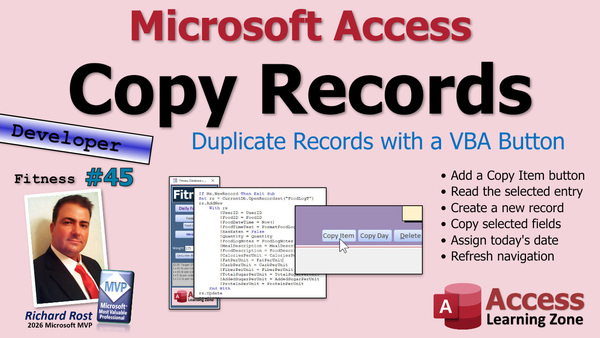 TechHelp Access, Copy Item button, recordset, VBA code, Duplicate record, Food Log, GoToRecord, AddNew, Requery, FoodDescription control, Copy current item, ControlTipText, MealDescription, FormatFoodLogTime, FoodLogNotes, cursor navigation
 Subscribe to Fitness 45
Get notifications when this page is updated
More InformationTranscript Today we're going to create a button to copy an item using a recordset in Microsoft Access.
Basically, we're going to add my Copy Item button because I like to go to previous days on my food log and click the button to just copy a few things, like my lunch items, to today. You go back to a previous day, you find what you like, and you click the button. Then it moves to today. It's nice and simple.
As I say with almost every one of these videos, this isn't necessarily just a database about fitness. This is a database about building databases. So that's the cool stuff.
All right, are you ready? Here we go.
Today we're going to add a feature that I put in my own database because I've been running two separate databases: one that's got all the stuff we've been putting in it and one with my data in it. I added a feature a while ago that I mentioned to you where I can copy an item. So we're going to add this Copy Item button today.
So, go to Design View, and we'll copy this guy—copy, paste, copy, paste. Someone's got to fix that copy-paste bug. All right—copy just the item, Copy Item. This will be the Copy Item button. We'll get that, right-click, build event. Bring my thingy over here. There it is. Resize. Okay, Copy Item button.
So we'll use a little recordset action to just copy the current item over to today. That's the whole point of that. You can go back to a previous one and just copy that item to today.
In fact, so there's no confusion, what I'll do here is put a control tip text on this one: Copy current item to today. And this one is: Copy entire day to another day. All right, then we can hover over it and it'll tell you which one is which.
Now, you could do this with a single insert query, but whenever I'm dealing with text, I always like using recordsets. It's just my preference.
So, we'll need RS as a recordset. We've done a bunch of these already. First thing: if they're on a blank new record, don't do anything. So:
if me.NewRecord then
Exit Sub
or you could put a message there, a warning of some kind, whatever.
Then we're going to basically add a new record to the table with the current record's details. So it's going to be:
Set RS = CurrentDB.OpenRecordset("LogT")
RS.AddNew
RS.Update
RS.Close
Set RS = Nothing
And then maybe at the end when you're done, give me a beep.
Then we'll decide where to go here because I got a couple of options that I put in my database that we'll talk about. So, in here is where we add the record.
Now, this is one of those instances where I will use a With RS, simply because it saves you a few characters of typing. So:
With RS
UserID = UserID
FoodID = FoodID
...
End With
Basically, all of the fields from the Food Log table. FoodDateTime = Now. We're going to add it to the new record for now, because the whole point of this button is to add it to today's date. FoodTimeText equals our function FormatFoodLogTime for right now. See? So handy we made that function. That's why you make functions like that, so you don't have to repeat the same code throughout your database. You don't want to do that. Let a function return your properly formatted time.
HasEaten = False.
I'm just going down the list of fields, by the way. I have them over on my notepad, but you can quickly go into here, look at your Food Log, and just go down the list. That's basically all I'm doing. But I got my handy-dandy notepad as well.
Quantity = Quantity.
FoodLogNotes = FoodLogNotes.
MealDescription = MealDescription, and so on. I'm not going to make you sit here watching me type all the rest of them. Okay, and I didn't want to type them all. Again, I had them in my notepad, so there's all the fields.
Let's give it a quick test. Save it. Debug, compile, come back here. Let's close it. Open it. I'm going to go to a previous record. Let's go to here. Meta meal. I'll hit Copy Item. Okay, it has copied it. So let's go take a look at today. And there it is. That's on today's record. That's all I want because I do that a lot. I go back to a previous day and just copy two or three items.
Now, if I'm on a different day, I want to just go down the food items because if I want to copy the whole lunch, I want to go copy, copy, copy, copy. So I'm going to have the cursor move to the next record, so I can just go click, click, click, click, four times in a row.
But sometimes I do it on today. Sometimes I want to copy this two or three times. Like if I had a tangerine with lunch, and now I have another tangerine at night, I want to just copy tangerine; it's on the same one. So, if we're on a different day, then we'll just go to the last record because that's where it's going to be.
All right, so let's go back here. Here we're going to say if the date value of the LogDate (that's the date up top) is different from the date value of today, then it's on a different day, so move down one record. So we'll say:
DoCmd.GoToRecord , , acNext
Like I said before, this is fine to use DoCmd.GoToRecord. It's a single click; you're just moving down one record, not a problem. That's what it's for. You don't want to use that for heavy automation or trying to decide what record it goes to on a different form. For that, we use our bookmark trick. But here, DoCmd.GoToRecord works just fine.
Otherwise, if it's on today, just move to the last record.
So let's requery first so it shows up:
Me.Requery
And then:
DoCmd.GoToRecord , , acLast
And then let's move the focus to the FoodDescription:
DoCmd.GoToControl "FoodDescription"
All right, so I'm good. Let's put the beep down here instead of up here. I think that's going to do it. Let's save it, debug, compile.
Always close your form and reopen it whenever you put VBA code behind it or make any changes. Let me get rid of you.
All right, let's copy this lunch: three items ready. Copy, copy, copy. Go to today. Look at that. See how nice and easy it is? I do that a lot. Let's copy the tangerine. Let's say I had another tangerine later in the day, copy the item. Oh, that's so cool.
Now, I'm always interested in future-proofing my databases. This will have to be updated anytime you add another field to the table. If you want to add sodium or whatever, it would be nice if you could just loop through all the fields and just add whatever is in the table. Well, you can, and we'll do that in the extended cut for the members.
Silver members and up get access to all the extended cut videos. Gold members can download these databases and get the Code Vault, which this function is actually in the Code Vault, and it's really cool because then you don't have to worry in the future: "OK, I have to add one more field now, I have to put it in the table, I have to add it to all the forms," or "Now I have to go through all the code." You get to search for one of the old fields and then add it wherever you see it. I still find myself doing that from time to time in my database that I built over the past 20 years or so.
But I'm going to show you with one easy call if we could just copy it all. It'll ignore the autonumber and just copy all the rest of the fields in the table. And that's what's in today's extended cut.
So, that's going to do it for your TechHelp video for today. Hope you learned something. Live long and prosper, my friends. See you next time.
TOPICS:
Adding a Copy Item button to a form
Using Recordset to duplicate a record
Checking for new record before copying
Setting up control tip text for buttons
Creating an event procedure for the button click
Copying specific fields from a record to a new record
Assigning FoodDateTime as today's date in new record
Using a formatting function for time fields
Setting HasEaten and other field values in new record
Testing the Copy Item button
Moving to the next record after copying from a previous day
Using DoCmd.GoToRecord to navigate records after copy
Requerying the form to refresh data
Moving focus to a specific control after copying
COMMERCIAL:
In today's video, we're learning about how to add a Copy Item button to your Microsoft Access database using a recordset. I will show you how to set up a button that lets you easily copy a single food log item from a previous day to today, perfect for repetitive entries like lunch items. You will see how the code handles checking for new records, copies details from one record to another, and even updates your screen so everything shows up right away. We will also look at moving the cursor automatically for quick multiple copies and making sure the right field gets the focus. Plus, in today's Extended Cut, we will cover how to future-proof this feature, so if you add more fields later, the code can handle it with just one call. You will find the complete video on my YouTube channel and on my website at the link shown. Live long and prosper my friends. Intro In this video, I will show you how to add a Copy Item button to your Microsoft Access database using a recordset. You will learn how to copy a single food log item from a previous day to today, check for new records before copying, set up helpful control tip text, create an event procedure for the button, and update specific fields like FoodDateTime and HasEaten in the new record. I'll also cover testing the feature, refreshing the form, moving to the next or last record as needed, and setting the focus to the right field afterward. Quiz Q1. What is the main purpose of adding the Copy Item button in the Microsoft Access food log database?
A. To copy an entire day of food entries to a new table
B. To copy a single food item from a previous day to today
C. To permanently delete an item from the food log
D. To schedule automatic food log entries for future dates
Q2. When designing the Copy Item button, what is used to handle copying the record's fields to a new entry?
A. An append query in SQL
B. A recordset in VBA
C. A report builder tool
D. A union query
Q3. Why does the script check for Me.NewRecord before proceeding with the copy action?
A. To ensure it always copies the current record, even if blank
B. To prevent copying when a new, blank record is selected
C. To sort all records by date automatically
D. To delete the last record if it is incomplete
Q4. What should happen if the user tries to copy while on a new, blank record?
A. The script continues and makes a new empty copy
B. The script displays an error message and stops
C. The script adds a pre-defined default item
D. The script schedules the copy for later
Q5. How does the script set the FoodDateTime field when copying an item to today?
A. By leaving it blank for manual entry
B. By duplicating the original item's FoodDateTime
C. By setting it to now, the current date and time
D. By using a random date in the past week
Q6. Why is the FormatFoodLogTime function used when copying the FoodTimeText field?
A. To convert the time to Greenwich Mean Time
B. To ensure the time is always set to midnight
C. To provide consistent, properly formatted time values
D. To delete any existing time value in the field
Q7. After copying an item, how does the script decide what record to move to next?
A. It always moves to the first record in the table
B. It checks if the copied record's day is today or not, then moves accordingly
C. It moves to a random record each time
D. It moves to the record with the lowest FoodID
Q8. What does DoCmd.GoToRecord with the acNext argument achieve in this context?
A. Moves to the previous record
B. Deletes the current record
C. Moves to the next record in the form's recordset
D. Moves to the last record in the table
Q9. Why is Me.Requery called before moving to the last record when copying to today?
A. To refresh the recordset and include the new added record
B. To undo any changes made in current record
C. To delete temporary records
D. To save the database and close the form
Q10. What is mentioned as a best practice after making or changing VBA code behind a form?
A. Immediately export all records to Excel
B. Close and reopen the form before testing
C. Delete any unused queries
D. Run a compact and repair on the database
Q11. What is a noted downside of manually listing every field when copying data with a recordset?
A. It increases the file size significantly
B. It could cause VBA errors if fields are missing
C. Any change in table structure requires manual code updates
D. It prevents copying text fields correctly
Q12. In the extended approach discussed for members, what is improved about copying records?
A. The entire database is backed up first
B. A loop is used to copy all fields except the autonumber automatically
C. Only the primary key is copied
D. No code is required at all
Answers: 1-B; 2-B; 3-B; 4-B; 5-C; 6-C; 7-B; 8-C; 9-A; 10-B; 11-C; 12-B
DISCLAIMER: Quiz questions are AI generated. If you find any that are wrong, don't make sense, or aren't related to the video topic at hand, then please post a comment and let me know. Thanks. Summary Today's TechHelp tutorial from Access Learning Zone will show you how to create a button that lets you quickly copy a single item from your food log to today's date using a recordset in Microsoft Access.
I designed this feature for my own use, as I often find myself looking back at previous days in my food log and wanting to copy certain items, such as lunch, over to today without having to re-enter all the information. The idea is simple: find the item you want from a prior day and, with a click, move it into today's log. It streamlines data entry, especially for repetitive meals.
As with many of my lessons, the core focus is not just about fitness tracking but about learning how databases work and how to build useful features within them.
To get started, we'll be adding a new button to the form. I prefer to call it "Copy Item," and its purpose is to copy the details of the current record to today's date. In Access, I like to make it clear what each button does, so I also set control tip text to inform users: one button copies the selected item to today, and another copies an entire day's items to a different date. This way, users can hover over each one and know exactly what its function is.
While you could achieve this with a plain append query, my preference for handling text data is to use recordsets. It offers a bit more control and flexibility. The basic process involves creating a recordset for your Food Log table, adding a new record, and copying the fields from the current record over. One key point: if the user happens to be on a new, unsaved record, the code will simply exit and do nothing. This prevents errors from trying to copy something that does not exist yet.
When copying the record, I fill in each field by referencing its value from the currently selected record. For instance, the UserID, FoodID, and similar fields are all copied over directly. For the date, I assign the current date and time to ensure the new record appears under today. For time formatting, I use a previously created function so that the time is consistently formatted throughout the database. Any notes or descriptions are copied over too, and I set the HasEaten field to False by default, since this is being recorded as a fresh entry for today.
To keep things organized, I usually refer to a notepad with all my field names or glance over the Food Log table to ensure I'm transferring every required field. This keeps the copy action accurate and complete.
It's a good practice to test your work after saving and compiling the code. I close and reopen the form, navigate to a previous record, and try out the Copy Item button. If everything is working, I check today's log to confirm that the item appears.
Another helpful touch is making the form user-friendly for repeated actions. For example, if you are working from a different day and want to copy multiple items, I have the focus automatically move down to the next record after each copy, making it easy to copy several items in sequence. If you are already on today's date and want to make multiple copies of the same item (perhaps for something eaten at different times), the focus will move to the last record after the copy.
I also make sure to requery the form so that the new record appears immediately and set the focus to the main field for quick editing. As always, after writing new VBA code, it's essential to close and reopen the form before further testing to make sure the changes are loaded properly.
This kind of feature is a real time saver. I use it frequently and it makes repeating common meals a breeze. However, any time you add new fields to your Food Log table, you will need to update this code to make sure those fields are included when copying records. This can become tedious as your table grows.
A more advanced technique would be to automate the process and loop through all the fields in the table, copying values without having to specify each field by name. I cover how to do this in more detail in the Extended Cut video available to members. That way, when you add something new, such as sodium, you'll only need to update the table, not the code, as it will automatically be included the next time you copy an item.
That wraps up today's TechHelp tutorial. If you would like to see a complete video with step-by-step instructions on everything discussed here, visit my website at the link below.
Live long and prosper, my friends. Topic List Adding a Copy Item button to a form
Using Recordset to duplicate a record
Checking for new record before copying
Setting up control tip text for buttons
Creating an event procedure for the button click
Copying specific fields from a record to a new record
Assigning FoodDateTime as today's date in new record
Using a formatting function for time fields
Setting HasEaten and other field values in new record
Testing the Copy Item button
Moving to the next record after copying from a previous day
Using DoCmd.GoToRecord to navigate records after copy
Requerying the form to refresh data
Moving focus to a specific control after copying Article In Microsoft Access, it can be very useful to create a button that allows you to quickly copy a record from a previous entry and insert it as a new record with today's date. This is especially handy in applications like a food log, where you often eat similar meals on multiple days. With a single click, you can easily copy items from a previous date to today, saving yourself a lot of manual retyping.
Let me walk you through how you can add this feature using a VBA Recordset in Access, and I will also explain the logic behind the process.
First, you want to design your form by adding a new button that will serve as the Copy Item button. In Design View, create a button and label it appropriately, such as "Copy Item". You might also want to provide a tooltip, like "Copy current item to today", to clarify its purpose to users. If you have multiple copy functions, such as one to copy an entire day, add separate buttons and tooltips to prevent confusion.
Next, go into the button's click event. This is where the VBA code will go. The basic idea is to take the current item record and insert a new record into your log table, with most of the fields copied over from the original, changing only those that need to reflect the copy as a new entry. The important one is the date field, which for the purpose of the copy, will be set to today's date.
You can achieve this with a variety of methods, including an append query, but using a Recordset is a solid choice especially when dealing with text fields and flexible logic. Here is the basic VBA structure:
First, make sure the user is not on a new blank record where there is nothing to copy. Place this at the top of your click event code:
if Me.NewRecord then
Exit Sub
end if
After that, declare a Recordset object and open it for your table, which for this example, is called "LogT". You are going to add a new record, so the sequence starts like this:
Dim RS as DAO.Recordset
Set RS = CurrentDb.OpenRecordset("LogT")
RS.AddNew
Within this AddNew block, you now want to assign the field values. You can use the With statement for shorter code. For each field you want to copy, set the new record's field equal to the current record's field, except for fields that should change, like the date:
With RS
!UserID = Me.UserID
!FoodID = Me.FoodID
!FoodDateTime = Now ' sets to current date and time
!FoodTimeText = FormatFoodLogTime(Now) ' assuming you have a function for this
!HasEaten = False
!Quantity = Me.Quantity
!FoodLogNotes = Me.FoodLogNotes
!MealDescription = Me.MealDescription
'...add other fields as needed in your table, skipping any autonumber ID fields
End With
After populating the fields, save the new record:
RS.Update
RS.Close
Set RS = Nothing
At this point, you have a new record identical to the one you copied, but with today's date and any other desired changes.
For user experience, you may want your form to jump to the new record. The logic here is, if the original record is not dated today, move to the next record after copying, so you can continue copying other items easily. If you're already on today's date, you can go to the last record, which will now be the new one you've just added. Requery the form first to refresh the data. Use this code:
If DateValue(Me.LogDate) <> Date Then
DoCmd.GoToRecord , , acNext
Else
Me.Requery
DoCmd.GoToRecord , , acLast
End If
After moving to the new record, you might want to set focus to a particular control, such as FoodDescription, so the user can immediately edit or view the item:
DoCmd.GoToControl "FoodDescription"
You can also give a little audio feedback by adding a beep at the end of the process:
Beep
That wraps up the main functionality you need. Remember, whenever you add a new field to your table, you will need to update your VBA code to include that field in the copy operation. This is necessary to keep your database flexible as your data structure evolves.
Here is the complete sample code for the button's click event:
if Me.NewRecord then
Exit Sub
end if
Dim RS as DAO.Recordset
Set RS = CurrentDb.OpenRecordset("LogT")
RS.AddNew
With RS
!UserID = Me.UserID
!FoodID = Me.FoodID
!FoodDateTime = Now
!FoodTimeText = FormatFoodLogTime(Now)
!HasEaten = False
!Quantity = Me.Quantity
!FoodLogNotes = Me.FoodLogNotes
!MealDescription = Me.MealDescription
' add remaining fields as needed
End With
RS.Update
RS.Close
Set RS = Nothing
If DateValue(Me.LogDate) <> Date Then
DoCmd.GoToRecord , , acNext
Else
Me.Requery
DoCmd.GoToRecord , , acLast
End If
DoCmd.GoToControl "FoodDescription"
Beep
Once implemented, this button gives you the convenience to copy food items or any other records you log repeatedly, saving you lots of time. Just remember to save and compile your code, and close and reopen your form when making VBA changes to ensure everything loads correctly. This approach is an efficient way to add modern, user-friendly record duplication to any Access tracking database. Primary Topics Access form customization, VBA recordset manipulation, button event handling, record duplication, data entry automation Secondary Topics control tips, field value assignment, navigation after copy, testing features, function utilization, future-proofing code |




