Fitness 47
By Richard Rost

 12 months ago
Copy Log Records to Today but Keep the Same Time
In this Microsoft Access tutorial I will show you how to copy records from a previous day in your log table to today while keeping their original time, fix a bug related to incorrect time parsing, and sort your food group list automatically when loading the form. This is part 47.
Members
There is no extended cut, but here is the file download:
Silver Members and up get access to view Extended Cut videos, when available. Gold Members can download the files from class plus get access to the Code Vault. If you're not a member, Join Today!
Prerequisites
Links
Recommended Courses
Up Next
Keywords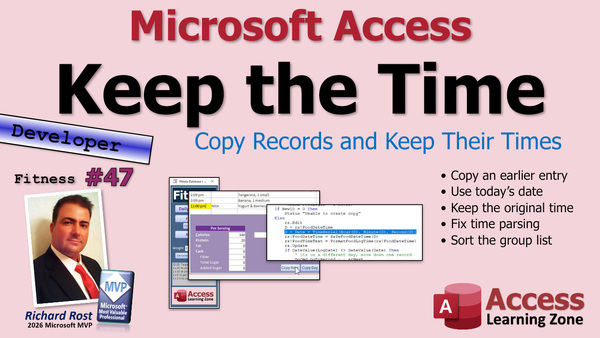
TechHelp Access, copy records from another day, fitness database, food log, keep original time, copy item button, meal options list width, column widths, bug in time entry, DateSerial function, TimeSerial function, temp variable for datetime, order by on load, food date time field, safe food date time function, update list sorting
 Subscribe to Fitness 47
Get notifications when this page is updated
More InformationTranscript Welcome to another TechHelp video brought to you by AccessLearningZone.com. I'm your instructor, Richard Rost. Today I'm going to show you how to copy records from another day in your log table. Copy them to today, but keep their original time. So if it was last Wednesday at 3 pm, you can copy it to today, but keep the 3 pm.
This is part of my fitness database series, Part 47, which it doesn't matter if you care about fitness or not. This is a database about building cool database stuff. I find in my food log, most of the time I eat the same foods at roughly the same time a day. So if my nighttime snack is usually at 11 pm, I want to copy it from yesterday or the day before to today, but I don't want to copy it to right now. I want to copy it to 11 pm.
First off, today I like to note whenever I make even minor changes for you. So if someone doesn't look at it and go like, what? I made this box a little bit bigger so I could see because some of these meal options are getting a little long. Even this is a little short. And for those of you who skipped the beginner lessons, just open up the properties, change the list width to five. That's how wide the list is when it's open and then you're going to change the column widths here. Zero is your hidden ID field, then four inches for the main description, then half an inch, half an inch. Put it up to that, ideally.
Then we have a bug. One astute user caught it already. I in fact discovered this myself just after I finished recording and posting yesterday's video. And I thought, am I going to go back and fix it? No, I'll let them find that bug on their own because this is a teaching series of videos. I'm not making an instruction manual or how-to manual. This is a teaching series. I want you to discover any bugs that I might make. Sometimes I leave them in there intentionally. This one was not. This was a careless bug and I'll show it to you in a second.
But I leave them in there either way so that it's a teaching moment because if I make mistakes like this, you are going to make the same mistakes. I discovered this mistake because I was putting in my lunch, well, I was putting in all my food yesterday too. I think I discovered it. But last night, right here. Just today, all my times end in 09, 09. The reason for that is very simple.
If you go into the code and just look for where we chop off those milliseconds in yesterday's, I'm just going to search for millisecond in the current project. That will bring me right to it. Nope, not that one. Next. Here we are. Anybody see the mistake? I'll give you a hint. It's in this line. I call that one line because it's a continued line. See it? DateSerial, Year, Month, Day, and then TimeSerial Hour, Minute. That's why all of my times are 11:09, 3:09, because the month that's currently September, minute. That was driving me nuts.
I discovered it almost immediately too. And I'm like, oh, I just posted the video. So that becomes a teaching moment. Shout out to Donald Blackwell for catching this one first. He raised his hand when he saw it, but I didn't see him at the back of the room. There are just so many people in here.
Next up on to new business. The next thing I want to do is when we copy an item from one day to, let's say, today with a copy item button, I want to keep the same time as it was on this date because most of the time, not always, but most of the time, if I have dinner usually around six o'clock, I don't want to copy it over and have it be at that time, like my nighttime snack is usually around between 10 and 11 o'clock. It's about when I go to bed. So if this is always like 6 pm and this is always like 11 pm. If I copy my yogurt and berries over to today and go back to today, it puts the current time in there, which is 9:15. But I want this to be 11.
So let's do that. We're going to go into the copy item button, this guy. And we're going to say, where are you? Right here is where we edit. So we add the record here. Copy records copies the record and then we open it up and edit it and change the time. But we're changing the time to just now. So instead, let's set it to today's date because we're copying it to today and then just give it the time of the original record.
Make sense? So this is going to be date instead. And then we're going to need to get the time of the original guy. So let's put this value in a temporary variable first. Makes it easier. So D as a date, we'll declare it just a D as a date. Then down here, we're going to say, D equals whatever it was originally set to because we copied the whole record. So RS food date time.
So we got that. Now, let's leave the time portion alone and change the date part to today's date. So D now equals the date, which is today's date, plus the time of D. Get it? So it's going to be TimeSerial, like we used last time, hour D, minute D, not month D, second D. See how that works? So we're saying, D equals the original food date time. Now I want to change D equal to today's date plus the time of D, the time of the original date time.
Now we can say RS food date time equals our safe food date time function. Take D, that thing we just built today at whatever the custom time is, set the field in the table now equal to the safe food date time. Remember that function? That's the one we just made that says, if there's already something at exactly 11 o'clock, make it 11 o'clock and one second. Now we can update the food time text, which we already have down here. But we're not going to use Now now. We're going to use food date time in there instead.
So set the food date time text equal to Format food date, long time equal that. That should do it. Let's give it a D. Save it. Close it. Close it. Open it. Let me go back to yesterday and find my, let's do my 6 o'clock.
See this was before we put the fix on there, the safe food date time where it fixes up by the second because this should be up top. Tangerine was last. I don't feel like messing with it though. Let's just grab yogurt and berries. Now, if I did my job right, I should copy it to today and keep the 11 o'clock. Ready? Go to today and there it is. And I kept it and everybody's happy.
One more little minor thing for today, this food group list here. This should be sorted, I think. Design view. Open it up. We're going to just do this the easy way. Right here, it's already set sort, sort, order by description, but order by on load is set to no. So this means the last time you sorted it, you sorted it by description and it saved that. But order by on load is set to no, just change that to yes.
I got a whole separate video, which is order by on load. It's this guy right here. It talks about order by and filter on load. Pretty cool stuff. And then when you close this and open it up, now every time you load it, it'll apply here.
I just have a huge list of little things that are bothering me. So when I do a main lesson like we just did and I've got a few minutes left, we'll kill those little things right there. That's about it. That's going to do it for today's class.
Are you enjoying this stuff? Picking up any tips and tricks for your own database? Post a comment down below. I love hearing from you.
Don't forget to like, share, and all that good stuff. See you tomorrow. See you in another fitness video tomorrow, because I'm in the groove tonight. I'm going to record a bunch of them probably.
That's going to do it for part 47, folks. We'll see you tomorrow for part 48 at your TechHelp video for today. Hope you learned something. Live long and prosper, my friends.
I'll see you next time.
TOPICS:
How to copy records from a previous day to today
Preserving the original time when copying records
Adjusting list box width and column widths in Access
Fixing the time bug when copying records
Using DateSerial and TimeSerial functions correctly
Storing and manipulating Date and Time in variables
Updating the record with today's date and copied time
Using a safe save date time function to avoid duplicates
Setting the text box to display custom time after copy
Sorting a combo box by description in Access
Setting Order By On Load property for list boxes
COMMERCIAL:
In today's video, we're continuing with Part 47 of the fitness database series. You'll learn how to copy records from a previous day in your log table to today while keeping their original time, so those late-night snacks stay at 11 pm even when copied. I'll walk you through fixing a bug related to time handling, show you how to tidy up your combo box widths, and make sure your food groups always load sorted. As always, I share a few little Access tips you can use in your own projects. You'll find the complete video on my YouTube channel and on my website at the link shown. Live long and prosper my friends. Intro In this video, we'll work with Microsoft Access to copy records from a previous day in your fitness log table to today while keeping the original time for each entry. I'll show you how to fix a time handling bug, adjust your list box and combo box widths, store and update date/time values correctly using variables, and make sure your food group list always loads in sorted order. Along the way, we'll talk about using functions like DateSerial and TimeSerial, and I'll share some practical Access tips you can use in your own databases. This is part 47. Quiz Q1. What is the primary goal of the tutorial described in the video?
A. To sort lists in database tables
B. To copy records from a previous day to today while preserving their original time
C. To delete old log entries from the table
D. To change the table structure of the database
Q2. Why does the instructor want to preserve the original time when copying food log records from previous days?
A. To ensure the calories are added up correctly
B. To reflect the usual times foods are eaten each day
C. Because the database only stores time, not date
D. To automatically generate a daily meal plan
Q3. In the discussion about formatting the combo box list width, what is the main reason given for making the box wider?
A. To display more records at once
B. Because longer meal descriptions were getting cut off
C. To allow for editing directly in the list
D. To hide the ID field more effectively
Q4. According to the video, what should the column width for the hidden ID field be set to?
A. Four inches
B. One inch
C. Zero
D. Two inches
Q5. The instructor mentions a repeated bug with times ending in 09 minutes. What was the cause of this bug?
A. Typing errors in the meal name
B. Confusing the month and minute arguments in the TimeSerial function
C. Copying from the wrong record
D. Forgetting to update the hidden ID field
Q6. When copying a record to today, how does the instructor recommend setting the new date and time value?
A. Set both the date and time to the current moment
B. Use today's date but keep the original time from the old record
C. Keep both the original date and time unchanged
D. Set both to the earliest record in the table
Q7. What purpose does the safe food date time function serve in the copying process?
A. It prevents the time from being set in the future
B. It ensures no two records have the exact same time
C. It converts text to date/time
D. It checks for missing meal descriptions
Q8. In the video, how does the instructor suggest updating the food time text display?
A. Always use the current time (Now)
B. Use the formatted food date time value from the record
C. Leave it unchanged when copying
D. Manually enter the time
Q9. When setting the order by property for the food group list, what should the order by on load property be set to in order to always apply the desired sort?
A. No
B. By ID
C. Yes
D. By date only
Q10. Why does the instructor sometimes leave bugs in the teaching series videos?
A. To create content for future videos
B. To provide learning opportunities when viewers find and fix mistakes
C. To meet a required video length
D. Because the database is not finished
Answers: 1-B; 2-B; 3-B; 4-C; 5-B; 6-B; 7-B; 8-B; 9-C; 10-B
DISCLAIMER: Quiz questions are AI generated. If you find any that are wrong, don't make sense, or aren't related to the video topic at hand, then please post a comment and let me know. Thanks. Summary Today's TechHelp tutorial from Access Learning Zone covers how to copy records from a previous day in your log table to today, while keeping their original time values intact. This lesson is part of the fitness database series, but you do not have to be interested in fitness to benefit from these techniques. The database serves as a framework for building useful tools in Access, and the concepts here apply to a variety of applications.
In my own food log, I often find myself eating the same foods at similar times each day. For instance, my nighttime snack is usually around 11 pm. Rather than copying that entry to today and stamping it with the current time, I would much rather retain the original time of 11 pm. This approach ensures the continuity and accuracy of the data in your logs.
Before diving into the core topic, I want to mention a minor interface adjustment I made for usability. Recently, I noticed the meal description options were getting lengthy, causing the combo box to appear cramped. To address this, I widened the box and adjusted its properties. Setting the list width to five allowed longer descriptions to display properly, and I modified column widths so the hidden ID field remains out of view, with ample space allocated for meal descriptions and related details.
Now, turning to a bug that a sharp-eyed viewer pointed out and that I also discovered after posting the previous video: all my log times were ending with :09, such as 11:09 or 3:09. After reviewing the code, I found the issue stemmed from confusing the month and minute fields in the TimeSerial function. I had mistakenly used the month value where the minute value should have gone, which resulted in every time stamp inheriting the current month instead of the intended minute component. This is a common error, and by showing it rather than editing it out, I hope it provides a learning opportunity for you. Debugging these mistakes as a group helps reinforce best practices for everyone.
Moving on, let's address how to copy a record from one day to today using a copy button, while preserving the original time. Typically, when you copy an item, the time defaults to the current moment rather than the original scheduled time, which is not what we want when logging meals or events that occur at set times. For example, if my dinner entry is always at 6 pm and I want to copy it, the system should maintain that 6 pm timestamp for today rather than using the present time.
To accomplish this, the logic behind the button is adjusted so that when a record is copied, a temporary variable is declared to capture the original date and time. Then, while keeping the time component unchanged, the date portion is updated to today's date. The system uses the components from the original record to rebuild the correct combined value. An important part of this process is using a safety function that ensures if a record already exists at that time (such as 11 pm), the system will slightly modify the value by, for example, adding one second to prevent duplicate record conflicts. The display text for the time is then updated appropriately to reflect the preserved time.
After implementing and testing these changes, the new behavior allows copied records to appear on today's log with the original time maintained, which meets the goal for typical usage patterns like recurring meals or scheduled activities.
Finally, I made a small refinement to increase usability in the food group list by enabling 'order by on load.' Sorting the lists in a predictable manner each time the form loads makes it easier to find the entry you are looking for.
I often wrap up lessons by tackling a handful of small annoyances or enhancements, in addition to the main topic. Addressing these details can make using your database much more pleasant.
You can find a complete video tutorial with step-by-step instructions for everything discussed here on my website at the link below.
Live long and prosper, my friends. Topic List How to copy records from a previous day to today
Preserving the original time when copying records
Adjusting list box width and column widths in Access
Fixing the time bug when copying records
Using DateSerial and TimeSerial functions correctly
Storing and manipulating Date and Time in variables
Updating the record with today's date and copied time
Using a safe save date time function to avoid duplicates
Setting the text box to display custom time after copy
Sorting a combo box by description in Access
Setting Order By On Load property for list boxes Article In this tutorial, I will show you how to copy records from one day to another in your Access log table while preserving the original time. This technique is especially helpful for scenarios in which you often repeat activities around the same time every day, such as tracking meals, workouts, or any recurring events. For example, if you have a food log where you typically eat yogurt and berries as your nighttime snack at 11 pm, and you want to copy that log entry from a previous day to today but keep the time set at 11 pm, this tutorial will help you do just that.
To begin, you should have a form with a list or log of entries that each have a date-time field. When you use a button to copy a record to the current day, the typical behavior in Access is to set the time to the current moment. However, what we want is to set the date to today, but keep the original time from the copied entry, whether that's 11 pm, 6 pm, or any other specific time.
Let's take a look at how to achieve this in VBA. Assume you already have a command button to copy an item, and you are working with a recordset for the food log table, which includes a date-time field called FoodDateTime.
Here's the possible bug that sometimes appears: when constructing a new date-time using `DateSerial` and `TimeSerial`, it is easy to mistakenly use the wrong variable for the time. For example, you might write `TimeSerial(Hour(D), Month(D), Second(D))` instead of `TimeSerial(Hour(D), Minute(D), Second(D))`. This would result in odd times, like all your entries being at 09 minutes past the hour if the current month is September. The correct function should use the correct components of the time.
Now, to implement the solution, you'll need to grab the original time part from the copied record and then combine it with today's date. Here's how you can do it:
Declare a temporary variable for the date:
Dim D As Date
Now set D to the value of the original record's FoodDateTime field:
D = RS!FoodDateTime
Next, you want to reset the date portion to today, but preserve the original time. You can accomplish this by reconstructing a new Date value, combining today's date with the hour, minute, and second from D. Here's the line that does this:
D = Date + TimeSerial(Hour(D), Minute(D), Second(D))
Now assign this value to your new record's FoodDateTime field. If you have a wrapper function like SafeFoodDateTime (which checks for duplicates at the same time and bumps the second forward if needed), use it:
RS!FoodDateTime = SafeFoodDateTime(D)
If you want to display this time in a text box on your form, you can format it like so:
Me.FoodTimeText = Format(RS!FoodDateTime, "Long Time")
With these changes, whenever you copy a record from a previous day to today, it will keep the original time. When you look at today's log, the new entry will show up at the same time it had before, rather than the current system time.
As a little bonus, if you have a combo box, such as a Food Group list, and you'd like it to always be sorted by description when the form loads, be sure to set its Order By On Load property to Yes. You can do this in design view. Open the form properties, set the Order By property to the field you want, such as Description, and set Order By On Load to Yes. This ensures the list appears sorted every time you use the form.
This technique makes repetitive data entry much faster and more accurate, especially for daily logs or schedules where the timing of an event is more important than the specific date. Be sure to watch for small mistakes when working with date and time in VBA, such as mixing up Month and Minute, as these can introduce subtle bugs into your application. With this approach, you can quickly populate today's log with previously entered records and maintain consistency in your tracked times. Primary Topics copying records in Access, preserving time on copy, VBA date and time manipulation, fixing date/time bugs, adjusting listbox properties, sorting combo boxes, Order By On Load property Secondary Topics user interface tweaks, bug discovery, Access form design |




