Fitness 49
By Richard Rost

 11 months ago
Enter Excel-Style Equations in Any Access Text Box
In this Microsoft Access tutorial, I will show you how to let users type Excel-style equations directly into text boxes on your forms and have those equations evaluated automatically, just like in Excel. You will learn how to implement the "select all" function for numeric fields, use the Eval function for on-the-fly calculations, and set up keyboard shortcuts to make data entry faster and more intuitive. This is part 49.
Members
In the extended cut, we will make a global calculator function called DoCalculator so it will work with any field on any form. I will show you how to set this up with a few tweaks so you do not have to copy the code into each field's event, making it easier to maintain and use throughout your database.
Silver Members and up get access to view Extended Cut videos, when available. Gold Members can download the files from class plus get access to the Code Vault. If you're not a member, Join Today!
Prerequisites
Links
Recommended Courses
Up Next
Keywords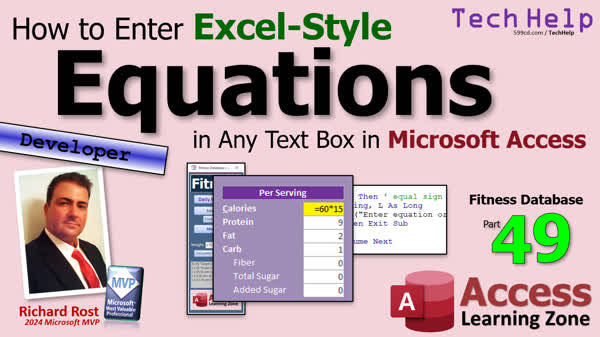
TechHelp Access, Excel-style equations in text box, evaluate equation in field, select all function, key down event equal sign, input box calculator, eval function VBA, store numeric value from equation, auto-select text in field, hidden field for equation, pop-up calculator input, error handling VBA, CaloriesPerUnit formula
 Subscribe to Fitness 49
Get notifications when this page is updated
More InformationTranscript In today's video, I'm going to teach you how to allow your users to type Excel-style equations in any text box in your Microsoft Access forms. With this trick, you can literally have them just hit the equal sign on any text box, just like you do in Excel, and then type in an equation, and then it's going to evaluate that equation, 60 times five or whatever it is, and put the numeric value in that field.
This is part 49 of my fitness database series, but if you don't care about fitness, that's fine. This is a series about making databases with lots of cool tips and tricks. So even if you don't care about tracking calories and all that stuff, watch the series anyway. I'm trying to make them all so you can jump in without having to watch all the previous ones, but it's helpful.
All right, let's get started.
And we are back, folks. What we're going to start off with today is I want to make it so that when we click on one of these fields or like these fields here, I want to select the text because it's a pain to have to click here. If I want to change this, let's say to 11 o'clock, I have to click here, and then, oh, wait a minute, now I have to click and select the whole thing. I like that with text fields. I might want to click here and modify that, but with the time, usually, I'm just going to click here, have it selected automatically, and then type in 11 a.m. or something like that.
So, for the numeric fields, I'm going to use my select all function. Now, this is nothing new; I've done a video on it before. Here it is. I'll put a link down below. And members, this code is in the code vault; it's right here. So, I'm just going to copy that. If you're not a member, there it is. Let me zoom in for you. There it is. Get it.
And I'm going to go here and go to my global module, and, oh, let me resize this, and let's just paste that in down here at the bottom. Now I've got a function called selAll, which I can now use in any of the controls that I want. So, I'm going to go here in design view, and I want to put that in all of these numeric fields, as well as this guy here and maybe quantity too. We're going to click on this. I'm going to shift and select all of those and then shift and select that guy too. The on click event is going to be =selAll(). And that's it.
The select all function handles everything else. It knows what the active screen control is, so it automatically can take whatever you click on and select all the text in there. Look at that. That's nice behavior. That's what I want. So, when I click here, see, I can just type in 10 a.m. like that.
Now, that's important because what I'm going to do next is I want to make it so that all of these numeric fields can function like a calculator. For those of you who are real fans, you probably remember a couple of years ago I did a seven-part series called "Let's Build a Calculator." We're not going to get this crazy, although we could. We could integrate this into this database, but I don't need to go quite that hardcore just yet.
Now, I also have another video where I teach you how to do math directly inside of fields. What this involves is a dummy hidden field. You make this a text field, so you could type an equation in here. Then, when you're done, it gets evaluated because you can't store plus signs, multiplication, and parentheses and that in a numeric field. But if this is a text field, when the user updates that, you can evaluate the equation and then store the numeric value in a hidden field, and then you can put whatever you want to see here.
Again, we're not going to get this complicated either. I've got an even better trick I'm going to show you. I came up with this one the other night. Basically, all I want to do is if I click on this field, now I've got to select it. That's why I want to do the select all stuff first. If the first thing that I hit is equals, just like in Excel, if it sees equals as the first character, I want it to pop up an input box, and then I can type in the equation.
This happens a lot, especially when I'm dealing with serving sizes. They give you the serving size as two thirds of a cup, and it's a hundred calories that I remember. You're not going to eat two thirds of a cup. You're going to eat a cup. So now I've got to take that two thirds of a cup and figure out what it is for a whole cup and divide it by two and then multiply it by three or whatever.
So, that's what we're going to do. We're going to say, if the user clicks on one of these fields, but probably not with a time field or the numeric field, and if I type in =3*4, I want that to get evaluated. The hidden field trick works great and it looks nice and all that, but then you have to do one for each of these fields. That other trick works fine if you've got one field to do it with. I did it in my account balances template just for the pending option because usually you get your account balance, the total amount pending, then you get a bunch of other charges you might want to add up. So, that's why I did that with that one field.
Before we get to that, there's one more little thing I want to do. If you double-click on this guy, I want it to set the current time, this guy here. So, just open that up real quick, go to events, go to on double-click, right there. We're going to say, whoops, we're going to say the default. I can't type today. Default, I just did my workout for the day, so my arms are still a little shaky.
DefaultFoodTimeText = Now. And then we want to run what happens when that guy updates. It's right here. It's this guy. Remember when you type the after update, it figures out what the time is, picks the time portion out, and formats it for you. Now, if you're going to call this stuff in a bunch of different places, I usually would make this its own sub, but since I'm really only going to do this once here, that is perfectly legal. Once in a while I get away with this because this is actually the name of that sub, and you can call that sub from other places.
Some programmers don't consider it proper to actually call the event sub. I don't have any problem with it. If this was something I was going to reuse in a bunch of places, I'd make this its own subroutine, but to do it once in a while like that, that's just fine.
Save it, give it a quick debug compile. Let's just test it, make sure it works. I like to test everything in small steps. So, if I double-click now, well, it is 6:59. So, let's change this to 5 p.m., and now, if I double-click on it, it should go to 6:59. Good. That's exactly what I want.
That's just a little pet peeve of mine because sometimes I leave this form open after lunch and then I come back two hours later and I start putting stuff in and I'm like, oh crap, I didn't update this. So now, it's easy just to double-click on it.
Now, let's get to the pop-up calculator. So, when I click on one of these fields here, if the first thing that I press is enter, then I want to pop up that input box.
So, I have to know what that enter key code is. Remember we talked about key codes before. Let's just work on calories for now. We're going to look at the key down event. We already have one in here for this field. We're already checking it for the tab key and the shift tab key, so that's not going to affect this at all. But I need to know what the key code is if I press the equal sign.
So, just down here, just go status. This is how you find what it is. Status, key, and then key code. We'll get that just by having access tell us what it is. There's a code for it. It's vb, oh, what is it, vbEqual, I think. vbKeyEqual, I think it is. But you know what? I never use those. You can Google them. That's a pain.
So, just come over here now and just press the equal sign. That's key 187. See it? It just told me what the key is. That's all you need. We want to use vbKeyEqual. That's fine.
So, if the key code equals 187, then, and I always put in the comments what it is. This is an equal sign for the calculator.
And what am I going to do? Well, I'm going to get an equation or some values or whatever from the user. We have to put it in a string. So, Dim s As String. Then, eventually, I've got to store that and evaluate it into a long integer. We're using long integers here because all the calories and protein and all that are longs. I don't care about fractions of a calorie or fractions of a gram of protein. We already have that discussion.
But sometimes I'm throwing stuff in for the new people who are coming in midstream. I've noticed a lot of people are coming in the middle of this series. So, now we need to put that actual value in a long integer as well.
So, let's get it. s = InputBox("Enter Equation or Values", "Calculator"). So, I'm going to type some stuff in. If they hit cancel or don't type anything in, we want to exit sub and not do anything. So, If s = "" Then Exit Sub.
If you want, you could set the field back to nothing or whatever it was before or do an undo. There are a million options here; I just want to exit the sub.
Now, let's start l = 0 or whatever default value you want. We're going to say l = Eval(s). Eval is a function that evaluates a string of characters and tries to form a number out of it, basically. You can have an equation in there or whatever you want, as long as it evaluates to a number. In fact, I cover Eval in that math in fields video I showed you earlier.
Now, the problem is if they type in something that can't be evaluated to a number. Let's say they type the word Joe in here. It'll throw an error. We don't want an error. That's why I started this off at 0.
Right above this, we're going to go On Error Resume Next. So, if this throws an error, we're going to ignore it, in which case l will end up as 0. And then we're going to say On Error GoTo 0. That turns error handling back on. You don't want to leave error handling off because then, if you get an unexpected error, then you have no idea what's going on. Your code just won't work. I talk about this a lot in my debugging videos.
I've got lots of videos on error handling and debugging. I have a whole separate advanced debugging course in my developer series, so lots of good debugging stuff. And, of course, there's my old favorite song: how's it go? 99 bugs in the code, 99 bugs in the code, take one down, patch it around, 107 bugs in the code.
At this point, we've either got some numeric value or 0. Now we can say CaloriesPerUnit, which is the field we're on, equals l.
Now, we've got to swallow that key code. Swallowing the key code means the user hit equals to get here, but I don't want to put that equals in the field, so we've got to swallow it. How do we swallow it? KeyCode = 0. Really easy. And that's it.Now, if you're going to have more stuff after this point and you might run into some conflicts, put an Exit Sub in here, put an Exit Sub in there. But these shouldn't conflict with each other.
Save it. Debug, compile. Close it. Close it. Open it. I forgot to say debug, compile once in a while.
All right. Ready? Click here. And now we're going to go equals. Oh, look at that. It popped up 30 times 2. Enter. There's your 60.
Let's go to a new one. This is actually my food for the data when I mess things up. So I'm going to come over here. New stuff. OK. Equals 100 times 4. Enter. Look at that.
Equals 12 times parentheses 2 plus 6. That should be what? 8 times 12? Oh, 96. OK? You can put any kind of equation that you want in there. And it'll calculate it. Isn't that cool?
And if you can remember Excel, you'll remember what triggers it. Just hit equals. I think that's a whole lot easier than the other methods that I showed you with the hidden text.
I mean, this, you get the input box. You could make your own custom dialog for this input box. Or you could throw in my calculator that I had before if you want from the calculator class. Whatever works for you.
All right. Let me get rid of this now here.
Now, here's the thing. What I showed you works great for this one field. Now you have a couple of options. You can copy this and put it in the Key Down event for every field that you want to have this functionality. Or you could make this a global function just like we did with the CellAll and have it look at the field that it's in.
And we will do that in the Extended Cut for the members. We're going to make a global calculator function. Call it DoCalculator. And it'll work with any field on any form. Just got to do a couple of little tweaks and it'll work. And that's going to be in the Extended Cut for the members.
Silver members and up get access to all of my Extended Cut videos. Gold members can download these databases that I build in the TechHelp videos. And you get the Code Vault. We've all seen how valuable that Code Vault is. There's all kinds of stuff in there. Most of my classes, if I got code, it goes in the Code Vault. So check it out.
So that is going to do it for your TechHelp video for today. I hope you learned something.
Live long and prosper, my friends. I'll see you next time.
TOPICS:
Allowing Excel-style equations in Access text boxes
Using the select all function for numeric fields
Adding a select all function to on click events
Selecting all text in a control automatically
Setting a field value to the current time on double click
Using the Eval function to calculate equations from strings
Triggering a calculation with the equal sign key
Displaying an input box for equation entry
Error handling to prevent invalid equation crashes
Assigning calculated results to form fields
Suppressing unwanted key input in text boxes (swallowing the equal sign)
Implementing equation evaluation in the Key Down event
COMMERCIAL:
In today's video, I will show you how to let your users type Excel-style equations directly into any text box on your Microsoft Access forms. We will learn how to set up the Select All feature so clicking a field automatically selects all the text, then we will make a pop-up calculator appear when you start an entry with the equal sign. Everything you type will get evaluated just like in Excel, and the result will be saved in the field. Plus, I will show you a quick trick for entering the current time with a double-click. In the Extended Cut, we will make a global calculator function you can use for any field on any form. You will find the complete video on my YouTube channel and on my website at the link shown. Live long and prosper my friends. Intro In this video, I will show you how to let users type Excel-style equations directly into any text box in your Microsoft Access forms and have them instantly evaluated and saved. I will demonstrate how to use a Select All function to make editing numeric fields easier, how to trigger a pop-up calculator with the equal sign key, and how to set up quick time entry with a double-click. You'll also see how to handle errors, suppress unwanted key input, and assign calculated results to your form fields. This is part 49 of my Fitness database series. Quiz Q1. What is the main functionality discussed in the video tutorial for Microsoft Access?
A. Allowing users to format text fields with rich text
B. Allowing users to type Excel-style equations in text boxes
C. Restricting input to only numeric values
D. Creating relationships between tables in Access
Q2. Why is the Select All function useful for numeric fields in Access forms?
A. It prevents users from editing the field
B. It automatically calculates totals
C. It makes it easier to overwrite the current value
D. It changes the format of the field to currency
Q3. What event is configured to use the Select All function in the video?
A. On Key Down
B. On Double-Click
C. On Click
D. On Lost Focus
Q4. What is the purpose of using a text field instead of a numeric field for equations in Access?
A. Text fields automatically calculate expressions
B. Numeric fields support storing equations directly
C. Text fields allow entry of equations with symbols like + and *
D. Numeric fields do not support storing negative numbers
Q5. How does the video suggest evaluating an equation entered by the user?
A. Using the Sum function
B. Using DLookup
C. Using the Eval function
D. Using the Len function
Q6. What happens when a user presses the equal sign in a configured text box?
A. The value is set to zero
B. The cursor moves to the next field
C. An input box pops up for entering an equation
D. The field is locked
Q7. Which key code corresponds to the equal sign (=) used in the tutorial for triggering the calculator pop-up?
A. 65
B. 123
C. 187
D. 255
Q8. What is the purpose of using "On Error Resume Next" before calling Eval on the user's equation?
A. To stop the program if an error occurs
B. To automatically correct invalid equations
C. To prevent the program from crashing if the equation is invalid
D. To log all errors to a file
Q9. Why is KeyCode set to 0 after processing the equal sign?
A. To allow further key presses
B. To avoid inserting the equal sign into the field
C. To reset the form
D. To clear all input fields
Q10. According to the video, how can you apply the calculator functionality to multiple fields?
A. Only one field can use this feature at once
B. You must make each field a primary key
C. Copy the event code to each field or create a global function
D. Set the default value of each field to zero
Q11. What does the function Eval do in VBA as used in this tutorial?
A. Looks up data from tables
B. Evaluates a string as a mathematical expression
C. Checks the format of the field
D. Converts text to uppercase
Q12. What is the benefit of handling errors only locally around the Eval function, as shown with "On Error Resume Next" and "On Error GoTo 0"?
A. It makes the program run faster
B. It leaves error handling off for the rest of the application
C. It keeps error handling limited to a specific section of code
D. It is required by VBA syntax for all functions
Q13. What does the video recommend for setting the current time in a text box via Access events?
A. Entering the time manually in design view
B. Using the On Double-Click event to set the value to Now
C. Using a macro on form load
D. Formatting the field as date/time
Q14. What limitation does the numeric field have regarding input of equations, as discussed in the video?
A. Numeric fields do not accept numbers above 1,000
B. Numeric fields cannot directly store equations with symbols
C. Numeric fields always round up decimal numbers
D. Numeric fields cannot be used in queries
Q15. What is the suggested approach in the video for expanding the calculator pop-up capability beyond a single field?
A. Add a macro for each field separately
B. Make a global function to handle any field and call it from multiple fields
C. Only apply it to the first field on the form
D. Export the form to Excel and use Excel formulas
Answers: 1-B; 2-C; 3-C; 4-C; 5-C; 6-C; 7-C; 8-C; 9-B; 10-C; 11-B; 12-C; 13-B; 14-B; 15-B
DISCLAIMER: Quiz questions are AI generated. If you find any that are wrong, don't make sense, or aren't related to the video topic at hand, then please post a comment and let me know. Thanks. Summary Today's TechHelp tutorial from Access Learning Zone will walk you through how to allow your Microsoft Access users to enter Excel-style equations into any text box on your forms. With this method, users can simply press the equal sign in a text box, just like in Excel, and enter an equation such as 60 times five. Access will then evaluate the equation and place the resulting value directly into the field.
This is part of my fitness database series, but even if you are not interested in fitness-specific topics, the series includes a range of useful database techniques that you can apply elsewhere. Feel free to jump in at any point. Each video is designed to stand on its own, but watching previous installments may help give you some extra context.
First, I want to improve the usability of numeric fields by having the text automatically selected when the user clicks into them. This saves the user from having to manually select the text every time they want to change a value. For example, if you need to update a time value, you can just click the field and immediately type the new time, such as 11 a.m., without extra steps.
To accomplish this, I use a select all function that I have covered in a previous lesson. This function, when assigned to the On Click event for the relevant controls, takes care of automatically selecting all the text in the active control. This targeted functionality helps streamline data entry, especially for fields like time and quantity.
Next, I want to allow users to perform calculations directly in these numeric fields, making them function like a simple calculator. A while ago, I created a seven-part video series on building a calculator in Access. While it is possible to integrate a fully operational calculator into your database, my goal here is a lighter and more accessible solution.
In other previous lessons, I demonstrated how you could use a hidden text field to let users type an equation, which Access could then evaluate and use to store the result in a separate hidden numeric field. However, that technique becomes cumbersome if you want every field on your form to support this feature. My new approach streamlines the process significantly.
Here is the core idea: When the user clicks into a field and starts by pressing the equals sign, just like in Excel, an input box will pop up, allowing them to enter any equation. For example, if the nutritional information on a food label provides calories for two-thirds of a cup, but you have consumed a whole cup, you can enter an equation to adjust for the difference. This method handles all such scenarios elegantly.
Before implementing the pop-up calculator feature, I also added a convenience: double-clicking a time field sets it to the current time. This is helpful when you forget to update the time after stepping away from your database, making for smoother tracking. You can set this up by assigning the current time to the field in the On Double Click event, and rerunning any code that formats or updates that value as needed. While some programmers debate whether it is appropriate to call an event subroutine directly from other code, I find it acceptable when the code is only used in one or two places.
Now let us focus on building the pop-up calculator. When the user presses the equals key in a field, I want to trigger an input box. To detect when the equals key is pressed, I look at the Key Down event for the control. By examining the key code corresponding to the equals key (which is 187), I can tell when the user wants to enter an equation. In the Key Down event, if the equal sign is detected, an input box is displayed, allowing the user to enter a mathematical expression. I prompt the user with a message such as "Enter Equation or Values." If they cancel or leave the box empty, the code simply exits and does nothing further.
The user's input is then evaluated using the Eval function, which interprets the string as a mathematical expression and returns the result. Since we are dealing with whole numbers for things like calories and protein, I use long integers. If the user types something invalid that cannot be evaluated, I have error handling in place so the process does not break. Specifically, if an invalid input is provided, Error Resume Next allows the code to continue without crashing, and the value defaults to zero.
After calculating the result, it is simply placed into the field, and the equals sign is "swallowed" (not added to the field) by setting KeyCode to zero. This ensures that the equals character does not actually appear in the field.
Users can now enter complex expressions using parentheses and all kinds of mathematical operations directly in any field where this functionality is enabled. The method is much cleaner and more intuitive than having separate fields or hidden controls for calculations.
If you want to enable this calculator feature for multiple fields, you can either copy the code to the Key Down event of each relevant field, or you can generalize it into a global function, much like the select all function described earlier. In today's Extended Cut for members, I will show you how to create this as a global calculator function that you can use in any field across any form, with just a few simple modifications.
Silver members and above get access to all Extended Cut videos, and Gold members can download the databases built in these lessons as well as access the full Code Vault, which contains a wealth of reusable code from my classes.
That wraps up today's TechHelp tutorial. If you would like a full, step-by-step walkthrough with more detail, you will find the complete video on my website at the link below.
Live long and prosper, my friends. Topic List Allowing Excel-style equations in Access text boxes
Using the select all function for numeric fields
Adding a select all function to on click events
Selecting all text in a control automatically
Setting a field value to the current time on double click
Using the Eval function to calculate equations from strings
Triggering a calculation with the equal sign key
Displaying an input box for equation entry
Error handling to prevent invalid equation crashes
Assigning calculated results to form fields
Suppressing unwanted key input in text boxes (swallowing the equal sign)
Implementing equation evaluation in the Key Down event Article If you have ever wished you could type Excel-style equations directly into an Access form field and have them immediately calculated, you are in luck. You can make any text box in your Microsoft Access forms behave like an instant calculator. This allows users to simply type the equal sign, followed by a formula (like =60*5), and have that equation evaluated and the result placed in the field. This approach speeds up data entry, especially for numeric fields where quick calculations are often useful.
To make this work smoothly, it is helpful to set your form's numeric text boxes so that when you click on them, the entire contents are instantly selected. That way, if you want to change the value, you do not have to manually select the old value first. The following VBA function, which you can store in a global module, will do just that:
Function SelAll()
On Error Resume Next
Screen.ActiveControl.SelStart = 0
Screen.ActiveControl.SelLength = Len(Screen.ActiveControl.Text)
End Function
To enable this for your desired text boxes, open your form in Design View, select the relevant numeric fields, and for the On Click event, enter =SelAll(). This ensures the whole field is selected when clicked, making it quick to type in a new value or your equation.
The main feature here is allowing users to enter a formula starting with the equal sign. Once the user types =, you want to pop up an input box where they can enter an equation. After submission, the equation is evaluated, and the result is entered into the field. This is handy for instance if you have a serving size given as "two thirds of a cup" at 100 calories, but you actually ate a whole cup. You could just type =100/2*3, and Access would calculate the result for you.
The code that brings up this calculator is added to the Key Down event of the text box. First, you need to capture the key code when the user presses the equal sign (=). In Access, the key code for the equal sign is 187, but you can also use the built-in constant vbKeyEqual if you prefer.
Here is the code you add to your text box's Key Down event:
Private Sub CaloriesPerUnit_KeyDown(KeyCode As Integer, Shift As Integer)
If KeyCode = vbKeyEqual Then ' equal sign for calculator
Dim s As String
Dim l As Long
s = InputBox("Enter Equation or Values", "Calculator")
If s = "" Then Exit Sub
l = 0
On Error Resume Next
l = Eval(s)
On Error GoTo 0
Me.CaloriesPerUnit = l
KeyCode = 0 ' suppress inserting the equal sign in the box
End If
End Sub
Let's walk through how this works. When the user presses the equal sign, the code pops up an InputBox titled "Calculator". Whatever is entered in the box (such as "3*4" or "(100/2)*3") is saved as a string. The code then tries to evaluate this string as a formula using the Eval function. If the formula is valid, the result becomes the value for the field (in this case, CaloriesPerUnit). If the formula cannot be evaluated (for example, if the user enters text rather than a numeric expression), an error is ignored and the value defaults to 0.
Afterward, KeyCode is set to 0. This is important because you do not want Access to insert the equal sign into the field itself; you want it only to trigger the calculator behavior.
You can use this same method for other numeric fields by repeating the code in their Key Down events and changing Me.CaloriesPerUnit to match the field's actual name.
To make this calculator available in multiple fields without repeating code, you can place the logic in a common function in a global module and have each field's event call that function, passing the text box reference.
For those looking to further streamline other data entry tasks, you might also want to automate setting the current time by double-clicking a field. For instance, suppose you have a food time field called DefaultFoodTimeText. You could add this line to the field's On Double Click event:
DefaultFoodTimeText = Now
If your form logic already handles formatting after update, you can call that same subroutine following the assignment. If not, you may choose to add your formatting as needed.
To test your calculator setup, open the form, click in a numeric field, press =, and try entering formulas such as 30*2 or 12*(2+6). You'll see the result appear in the field as soon as you hit Enter.
This approach gives your Access forms much of the quick math power that Excel users expect, without requiring extra hidden fields or complicated wiring. You are also free to replace the generic input box with a custom dialog or a built-in calculator form if desired.
That's all there is to enabling Excel-style equation entry in Access text boxes. It is a practical upgrade for any application that requires frequent number crunching directly in data entry forms. Primary Topics Access text box customization, Excel-style equation input, pop-up calculator implementation, key event handling, select all function, Eval function for string evaluation, error handling in VBA.
Secondary Topics setting fields to current time, user interface usability tips, member content promotion.
|




