Fitness 56
By Richard Rost

 11 months ago
Add Color-Coded Goal Indicators to MS Access Forms
In this Microsoft Access tutorial, I will show you how to add color-coded goal indicators to your forms to visually track whether you are over or under your daily targets, such as calories and protein. We'll cover how to display goals from a settings table on your form, calculate the difference between what you've logged and your goal, and apply conditional formatting to highlight these values with different colors based on your results. I'll also discuss a common conditional formatting mistake that trips up many users and show you how to fix it. This is part 56.
Members
There is no extended cut, but here is the file download:
Silver Members and up get access to view Extended Cut videos, when available. Gold Members can download the files from class plus get access to the Code Vault. If you're not a member, Join Today!
Prerequisites
Recommended Courses
Up Next
Keywords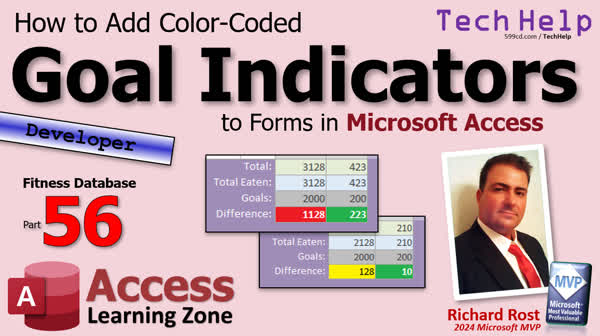
TechHelp Access, add color-coded goal indicators, conditional formatting forms, color coding, settings table, save system values, calorie goal, protein goal, daily goals, read-only form controls, OnLoad event, type casting CLNG, data validation, sumTotalCaloriesEaten, sumTotalProteinEaten, difference calculation, advanced conditional formatting, fitness database series
 Subscribe to Fitness 56
Get notifications when this page is updated
More InformationTranscript Today, I'm going to show you how to add color-coded goal indicators to your forms in Microsoft Access.
Yesterday, I showed you how to save system values. You could save things in your database in a system settings table, like your protein goal, your calorie goal for the day, that kind of stuff. It could be for any kind of settings. These get saved in a settings table.
Today, we're going to put those on the form, on our log form. We're going to show what the difference is, whether you're over or under your goal for the day. We're going to throw in some conditional formatting, color coding to highlight these if you're over your calories, if you're under your protein, that kind of thing.
And I'm going to throw in a twist. There is a conditional formatting trick that a lot of people, even my advanced developer students, sometimes miss. I get questions about this all the time. I teach it in my beginner classes, but I might stump you. So let's see what that's about.
And yes, this is part 56 of my fitness database series. But even if you don't care about tracking fitness, calories, and protein and all that stuff, that doesn't matter. This is a cool database that I'm building for myself to use, so I'm using it as a way to show you guys all kinds of cool tips and tricks.
Here we go.
In yesterday's video, we set up our settings table. We got our calories and protein goals in here. We have the code to load and save those settings.
Now I want to put those values right down here. Let's go to design view, and let's reshape this stuff. I barely use this. In fact, I don't think I've used it yet. Let's move this stuff down. We'll give ourselves some room here.
Let's copy and paste this. It works. Copy, paste. See, half the time, it doesn't work. Copy, paste. I was working off camera. I think maybe my screen recording camera is interfering with it too. Copy, paste. Copy first. I have to individually copy, paste. Copy, paste. Copy, paste. I don't know if it's a bug or whatever is going on. I've complained about it in a million videos, but it doesn't seem to want to work when I'm recording a video if I have multiple items selected.
All right. Goals. Let's make these gray to signal to the users that they can't change it. Which, remember, one thing we might do, and I'll add it to a list for a future extended cut, we're not going to do it today, but I might make it so we can double-click on these to change them or just change them in place, and it'll update the table. But for everybody else, for right now, we just go to the settings table. This is something that you change maybe once a month. It's not something you change all the time. This just tells the user, hey, you can't change these.
All right, so open this up. We're going to make the name of this the same as the setting. So, Daily Calorie Goal. Here we can put equals GetSetting because we've got the function now. GetSetting "Daily Calorie Goal." It's a read-only value. It's going to get it right into here. Save it. Close it. Close it. Open it.
And notice now, boom, there it goes. This one's still bound to that. We haven't changed that one yet, but there's your 2000. You could also leave this completely unbound and just put it in the OnLoad event. Say DailyCalorieGoal equals whatever. That's up to you.
In fact, you know what, I think I'd rather do that. You know why? Because right now this is returning a string value. So I think what I'm going to do, let's leave it out of here. Because this is originally what I had in my outline. I was going to do it like this.
Let me move this over so we got some more space. Because we can type cast it as a long to make sure it's a number instead of having this come in here as text. This one is going to be Daily Protein Goal, and delete that.
Now let's go to the form's OnLoad event, which is what I wanted to do initially. Right here before the timer interval kicks in, we're going to say, "Load the goals here." LodLoadGoals.
And it's literally just DailyCalorieGoal equals, I'd like to put the CLNG, that's type casting, that's converting whatever it is to a long, then GetSetting "Daily Calorie Goal" like that. And that way we're certain at this point it's a number, and if it's not a number, you'll get a nice error message saying we can't convert it to a long.
You could do more checks here. This is where I said in the last class, you can verify the data when you read it. You could say in here, you know, if you're really worried about it, if you're really worried about the user putting some junk in the table, you should check that when you save the value in the first place, but we haven't gotten to that point yet. In here, you could say read it into a string value, and then say if it's not numeric, throw an error message, but we're not getting that high-speed with this just yet. This is just to get this working.
And then DailyProteinGoal is the same thing. All right. And this will just load them once when the form loads up. And that's really all I care about. All right. And there you go.
Now we need a difference down here because I know in my head that I need 2000 calories a day, but I could see, okay, I've already put 1128 on there. I want to know what I got left. I want the database to do the math for me. That's the point, because if this goal number is 2325, that's weird math to do in your head.
So once again, copy, paste. See, copy, paste. Oh, now it's even working there. Copy, paste. Copy, paste. Copy, paste. I can't explain it. Maybe I need to upgrade my version of that. I have not upgraded my version of Office for months because there was a big problem. There were all kinds of issues. And I know there's some bugs that have crept in and I just - it's working except for that. It's working fine.
This will be our difference, and this, let's call it CalorieDifference. And this control source is going to be the sum of the calories eaten. That's based on eating, not on total, because sometimes I put stuff on here to plan, but I don't actually care about it until I actually eat it. Sometimes I'll plan out a dinner and then I won't eat all the things in the dinner, so I want it to be based on eating.
So it's sumTotalCaloriesEaten, and then we're going to subtract DailyCalorieGoal. So if I've eaten 2200 and my goal is 2000, I want to know I'm 200 over. All right, so here it's going to be Control Source, it's going to be equal sumTotalCaloriesEaten, right there, tab, minus DailyCalorieGoal, tab. There we go. That one.
And this guy, same thing. This is going to be the ProteinDifference, and this is going to be equal sumTotalProteinEaten minus DailyProteinGoal.
Okay, save it. Close it. Open it. There we go. I can see I am 872 under for my calories, which is about right, and 110 under for my protein goal.
Now to make these numbers really pop, let's throw in some conditional formatting. Now they're going to be different, because for calories, I want to be under my calorie goal. For protein, I want to be over my goal.
Let's do calories first. Format, Conditional Formatting. Add a new rule. Now, if the value is less than or equal to zero, I'm good. I want that number to be lower than my protein goal. Let's come in here and say if the value is less than or equal to zero, then we're in the green. So let's make it green. Let's go bold and white foreground like that.
Okay, and then let's add a new rule. We'll say if the value is greater than zero, we'll make it yellow. It's like warning territory. See, oh, you're getting over zero there; you're eating a little bit too much.
And then we'll say, new rule, if the value is greater than 200. That means I've eaten 200 more calories than I should have. We'll make that the warning zone. Obviously, you're going to tweak these for your needs, and we could set this stuff up in the table too. You could set it up where it's like, okay, if it's 20 over your goal or 50 over, whatever. There's lots you can do with this. Again, we're just doing the basics today. We might tweak this more in the future. We might add these values to the table. Let's just get it working and keep it simple for now.
That's how I like to build my database. I like to get it working, get it functional, keep it simple, and then we can add extra bells and whistles later.
Now, if you're looking at these and you've seen the problem already, you're ahead of the class. I teach this in my beginner lessons, and there's a problem here. Pause the video and see if you can figure out what the problem is. Did you figure it out? Do you see what it is?
If you figured it out, if you know what the problem is, post a comment down below. Let me know that you figured it out.
I'm going to hit OK. Let's save this, close it, open it back up again.
As of right now, I'm 872 calories underneath my goal. That's fine because I haven't finished the day yet. Let's put a test item in here and let's make this guy 5,000 calories. OK. And as soon as I eat it, that should change that value.
Look at that. It's 4,000, which is well over my goal, but it's only yellow. It didn't go to red. Why didn't it go to red? Take a look, and let's go back to the conditional formatting and see if you know what the problem is. I teach this in my beginner lessons. Do you see it?
The way these work is as soon as it hits a rule that matches the condition, it stops. So as soon as it hits this one - is the value over 0? - yup, it stops and then it exits out. It's not like in Excel, where there's a "stop if condition met" where it'll keep going. So all you have to do here is just move this rule above that one. See? If it's less than 0, great. If it's over 0, now you've got to check the highest one first, then check this one. OK. See how that works? And that's something that trips beginners all the time.
And now it works fine. If I bring that down into a reasonable range, what are we, 2100 over? Let's bring this down to 1,000. I can't type in here; I can type down here. And now we're right.
OK.
Let's do protein. Click design view. Let's go to protein, same basic thing. Additional formatting, new rule. Field value is this time I want to be greater than or equal to 0 for this to be in the green. Bold, white. OK.
New rule: if the value is less than 0, then we're yellow. And if it's less than - let's see, for me, if I go less than negative 20, that's when I'm in the red. So if I only need 170, let's say, bold and white. And then, same problem, click this, move it up. So it's going to hit this over 0; you're good. If it is 0, that's not going to match. Wait, no, if it is 0, it's green. If it's, let's say, negative 1, this one won't match, this one will match, and then we're good.
OK.
Save it. Close it. Open it. Boom.
And if my test value happened to be 120 grams of protein, and we might want to put refreshes in here to update this, but we'll get to that later. And now we're good.
And that's that. So that's going to do it for today's TechHelp video. I hope you learned something. Live long and prosper, my friends. I'll see you next time.
TOPICS:
Displaying goal values from a settings table on a form
Making goal fields visually distinct as read-only
Retrieving settings using a custom GetSetting function
Loading goal values into unbound form controls on load
Type casting settings for numeric calculations
Calculating calorie difference from daily goal
Calculating protein difference from daily goal
Displaying calculated differences on the form
Creating conditional formatting for calorie difference
Setting color codes for calorie difference thresholds
Ordering conditional formatting rules for correct display
Creating conditional formatting for protein difference
Setting color codes for protein difference thresholds
Moving conditional formatting rules for correct logic
COMMERCIAL:
In today's video, we are learning about adding color-coded goal indicators to your Microsoft Access forms. I'll show you how to display your saved daily calorie and protein goals right on your log form, calculate whether you are over or under each goal, and use conditional formatting to make those numbers stand out in green, yellow, or red depending on your results. You'll also see a common conditional formatting mistake that even advanced developers sometimes miss and how to fix it. You'll find the complete video on my YouTube channel and on my website at the link shown. Live long and prosper my friends. Intro In this video, I will show you how to add color-coded goal indicators to your forms in Microsoft Access. We will cover how to display saved daily calorie and protein goals from a settings table, make these fields read-only, retrieve and load goal values into unbound controls, and use type casting for numeric calculations. I will also demonstrate how to calculate the difference from your goals and apply conditional formatting so the results are highlighted in green, yellow, or red based on thresholds. Plus, I'll point out a common mistake with conditional formatting rule order that trips up many users. This is part 56. Quiz Q1. What is the main goal of the tutorial presented in the video?
A. To teach how to calculate sum totals in Access reports
B. To show how to add color-coded goal indicators to forms in Microsoft Access
C. To demonstrate how to set up a relational database
D. To show how to import Excel data into Access
Q2. Where are the calorie and protein goals stored in the demonstrated database?
A. In a user-specific log
B. In an external text file
C. In a settings table within the database
D. In a lookup table connected to an API
Q3. On the form, how are the calorie and protein goal values initially displayed to the user?
A. As editable text boxes
B. As drop-down lists
C. As read-only controls, usually gray to signal they cannot be changed directly
D. As images
Q4. What VBA function is used to retrieve the setting value from the settings table?
A. GetGoal
B. LoadSetting
C. GetSetting
D. RetrieveGoal
Q5. Why is the calorie goal value type cast using CLNG (Convert to Long) when loading it into the form control?
A. To display it as a text value
B. To ensure it is handled as a numeric value
C. To convert it to a double-precision number
D. To change it to a string
Q6. When calculating the difference between consumed calories and the daily goal, which formula is used?
A. DailyCalorieGoal minus sumTotalCaloriesEaten
B. sumTotalCaloriesEaten minus DailyCalorieGoal
C. DailyCalorieGoal plus sumTotalCaloriesEaten
D. sumTotalCaloriesEaten divided by DailyCalorieGoal
Q7. For calorie tracking, why is conditional formatting applied to the difference control?
A. To make the form more colorful
B. To visually alert the user when they are over, close to, or under their calorie goal
C. To allow users to edit the field value
D. To create a printable form report
Q8. In conditional formatting for calories, which condition should be checked first to ensure correct coloring?
A. If value is less than or equal to zero
B. If value is greater than zero
C. If value is greater than 200
D. If value is equal to zero
Q9. What key behavior of Access conditional formatting rules often confuses beginners?
A. It only accepts numeric values
B. It evaluates all rules and applies the most strict one
C. It only applies the last rule in the list
D. It stops evaluating rules when the first condition is met
Q10. For the protein difference conditional formatting, what result should be shown as green?
A. When the value is less than -20
B. When the value is less than zero
C. When the value is greater than or equal to zero
D. When the value is exactly zero
Q11. What is one possible future improvement suggested for these goal displays?
A. Making the goal values editable directly from the form
B. Exporting data to Excel
C. Adding audio alerts for goal changes
D. Printing the goal values
Q12. What is a good data validation practice mentioned in the video for settings values?
A. Checking values for numeric validity when saving or reading them
B. Allowing only positive numbers for all settings
C. Disabling all user input for settings
D. Using only hardcoded values
Q13. What method is recommended for updating the difference controls when the form is loaded?
A. Place code in the OnLoad event to set the control values
B. Use a macro to refresh every second
C. Bind controls directly to a table field
D. Add timers for continuous updates
Q14. Why might the presenter consider storing formatting thresholds (like the warning zone level) in the table in the future?
A. To allow easy updates and customization of formatting thresholds from data, not code
B. To make the table larger
C. To speed up form loading
D. To reduce the total number of controls on the form
Q15. In the context of the video, what is the benefit of using conditional formatting for the difference fields?
A. It makes the calculations faster
B. It provides immediate visual feedback on goal status
C. It disables data entry in these fields
D. It allows exporting formatted data to Excel
Answers: 1-B; 2-C; 3-C; 4-C; 5-B; 6-B; 7-B; 8-C; 9-D; 10-C; 11-A; 12-A; 13-A; 14-A; 15-B
DISCLAIMER: Quiz questions are AI generated. If you find any that are wrong, don't make sense, or aren't related to the video topic at hand, then please post a comment and let me know. Thanks. Summary Today's TechHelp tutorial from Access Learning Zone focuses on adding color-coded goal indicators to your forms in Microsoft Access.
Yesterday, I walked through saving system values in your Access database, such as daily protein and calorie goals, using a settings table. These kinds of settings can be anything you want to track or customize for your database, and they are stored in that central table.
Today, I'm building on that by showing you how to display these goals on your log form, and more importantly, how to indicate whether you are above or below your targets for the day. I will also show how to add some simple color coding with conditional formatting, which visually highlights when you are over your calorie limit or under your protein goal.
There's a particular quirk in Access conditional formatting that even some of my advanced students overlook; today I'll point that out so you can avoid running into confusion with your own projects.
First, let's get the goals from our settings table to show up on the log form. Open the form in design view and make some space to place the new controls. I recommend copying and pasting existing controls for consistent formatting, but sometimes Access can be finicky with multiple selections—especially when doing screen recordings or working with certain versions.
For these goal indicators, I want to display them to the user but not allow the user to change them directly on the form. To help signal that to the user, I set the controls' appearance to a gray color. This makes it obvious they are read-only. If I ever want users to change their goals from the form, perhaps by double-clicking or editing directly, I'll add that in a future upgrade. For now, though, users can just update the system settings table. Since goals only change occasionally, this approach is practical for the majority of users.
To actually put the goal values into these controls, you can use the custom GetSetting function we set up previously. For example, set one text box to display the daily calorie goal by referencing the corresponding setting, and do the same for the protein goal. Initially, it's tempting to set these directly in the control source, but you have to remember that these values come in as strings by default. To prevent any type conversion problems later, I prefer to assign these settings in the form's On Load event using type casting. By converting the string to a numeric type right as the form loads, you ensure you are always working with numbers. If the setting doesn't contain a valid number, it will trigger a clear error at this point.
If you want, you can add more error checking to confirm that the data in your settings table is valid, but for today's purposes, we're keeping things straightforward.
Now that the goals are displayed, I'd like to see not just the totals, but how far I am from meeting those goals. This means adding a couple of difference fields: one for calories and another for protein. The calorie difference can be calculated by subtracting the daily goal from the total calories consumed. The same idea applies for protein. I find this kind of immediate feedback much more helpful than simply looking at totals.
You may run into hiccups copying and pasting controls in Access—sometimes you have to copy and paste each control individually, depending on your setup. It's a minor annoyance, but it's good to be prepared for it in your workflow.
Once you have your difference fields set up, you might notice that doing the math in your head can get complicated, especially if your daily goal is not a nice round number. Let Access do the calculation and display the difference for you.
At this point, it's time to add some conditional formatting to highlight important information. For calories, the aim is usually to stay under your daily goal. For protein, however, the goal is typically to meet or exceed it. With those rules in mind, set up your conditional formatting accordingly.
Take the calorie difference field for example. Use conditional formatting to make the field green if the value is below or equal to zero, indicating you are at or under your goal. If the value is above zero, make it yellow as a warning, and if it exceeds 200, switch to red to indicate a problem. You can customize these thresholds or even make them settings in your table later on, but for now, this is an effective demonstration of the feature.
With the protein field, you'd reverse the logic. If you are at or above your protein goal, the difference is zero or positive, and that's a good thing, so it gets a green indicator. If you are below, it gets yellow, and if you are significantly below (such as more than 20 grams under), it gets a red warning.
Here's a key point that can trip people up: in Access, conditional formatting checks the rules in the order they're listed and stops at the first one that matches. Unlike Excel, there's no "stop if condition met" feature. That means you should always list your most restrictive rule—the one for the most serious case—first. If you have a rule for "greater than 0" and another for "greater than 200," put the 200 threshold rule above the 0 rule. Otherwise, the more general rule will always match first and block the more specific warning from ever displaying. This is a common mistake, and catching it saves a lot of head-scratching.
After updating the rules, try out some test entries. You'll see the field colors shift immediately depending on your inputs, which makes your form much more informative and user friendly.
That wraps up today's lesson. If you want to see each step, including all the form and code changes as they happen, visit my website for the full video tutorial that walks through everything discussed here.
Live long and prosper, my friends. Topic List Displaying goal values from a settings table on a form
Making goal fields visually distinct as read-only
Retrieving settings using a custom GetSetting function
Loading goal values into unbound form controls on load
Type casting settings for numeric calculations
Calculating calorie difference from daily goal
Calculating protein difference from daily goal
Displaying calculated differences on the form
Creating conditional formatting for calorie difference
Setting color codes for calorie difference thresholds
Ordering conditional formatting rules for correct display
Creating conditional formatting for protein difference
Setting color codes for protein difference thresholds
Moving conditional formatting rules for correct logic Article If you want to add color-coded goal indicators to your forms in Microsoft Access, you can easily enhance your database with a more visual and helpful interface for tracking progress. Imagine you are tracking daily nutrition, and you want Access to show you whether you are under or over your calorie and protein goals for the day, with cells that change color to provide instant feedback. In this article, I will walk you through the process of reading saved goal values from a settings table, displaying them on a form, calculating the difference between your intake and your goals, and using conditional formatting to make important numbers stand out. We will also cover a common pitfall with conditional formatting in Access, so your formatting rules always work as expected.
Let's start with the foundational step: storing your daily goals. One common way is to have a table (let's call it "Settings") that holds key-value pairs, such as "Daily Calorie Goal" or "Daily Protein Goal". To read these values onto your form, you can make use of a custom function that looks up the value in this settings table by key and returns it. For example, if you have a function called GetSetting, you can retrieve your calorie goal using GetSetting("Daily Calorie Goal").
To display these values on your form, you can create unbound text boxes. Make them visually distinct—maybe with a gray background—to signal to users that these numbers are read-only and not directly editable from the form. For instance, you might place a text box named DailyCalorieGoal for calories, and another named DailyProteinGoal for protein.
Rather than setting the Control Source property of these text boxes to something like =GetSetting("Daily Calorie Goal"), a better practice is to explicitly assign them in VBA to ensure correct data types and allow for error checking. You can do this in the Form's OnLoad event. Here's an example:
Private Sub Form_Load()
Me.DailyCalorieGoal = CLng(GetSetting("Daily Calorie Goal"))
Me.DailyProteinGoal = CLng(GetSetting("Daily Protein Goal"))
End Sub
The CLng function makes sure the values are converted to long integers, guaranteeing you get numeric results and not text. If the function can't cast the value into a number, you will get an error, which lets you know immediately if your settings table contains a mistake.
Now, to help the user see how close they are to their goal, it's useful to add another field for the difference between the amount consumed and the goal. For example, suppose you have functions or text boxes that sum calories eaten so far (let's say sumTotalCaloriesEaten), you can create a new text box called CalorieDifference and set its Control Source to:
=sumTotalCaloriesEaten - DailyCalorieGoal
Similarly, for protein, you might have:
=sumTotalProteinEaten - DailyProteinGoal
This way, positive numbers mean you exceeded your goal, and negative numbers mean you are under, making it easy to glance at progress throughout the day.
To make these differences really catch the user's attention, you can use conditional formatting. For calories, you generally want to be under your daily goal. So, you might want the difference field to be green when you are at or below your goal, yellow if you are just slightly over, and red if you are over by a substantial amount. Here is how you can set that up:
In design view, select the CalorieDifference text box and open the Conditional Formatting dialog. The trick with conditional formatting in Access is that it processes rules in order and stops as soon as one is true, so most restrictive (or highest threshold) rules go first.
Add a new rule:
If the field value is greater than 200, set the background color red with bold white text. This signals a significant overage.
Then add a second rule:
If the field value is greater than 0, set the background color yellow with bold white text. This is a mild warning.
Finally, add a third rule:
If the field value is less than or equal to 0, set the background green with bold white text, indicating you are on track or under your goal.
Now, move the rule for "greater than 200" to the top of the list so the red warning appears for the most extreme cases. Access checks each rule in order, and as soon as a condition is met, it applies that formatting and stops. If you put the "greater than zero" rule first, it would catch all the over-goal cases (including those over 200) and never get to the red warning. This is a mistake many beginners make, so always order your rules from most-specific or most-restrictive to least.
For protein, you usually want to be at or above your goal. Set up conditional formatting for the ProteinDifference field in the same fashion, but with inverted logic:
First rule (top): If the value is less than -20, set it to red (bold, white text), which shows you are quite far below your goal.
Second rule: If the value is less than 0, set it to yellow.
Third rule: If the value is greater than or equal to 0, set it to green.
Again, make sure the red (most restrictive) rule is listed first. That way, if you enter, say, negative 30 (meaning you are 30 grams short of your protein goal), the field will go red, not yellow, because Access stops at the first matched condition.
Once these are set up, save and open the form. You will now see at a glance how far over or under your daily targets you are, with clear colored cues guiding you.
To sum up, by reading your goal values from a settings table and applying calculated fields and conditional formatting, you can create informative, dynamic goal indicators on your Access forms. Remember, when setting up conditional formatting, always order your rules from the most restrictive to the least, or you may not get the intended highlights. With this approach, you turn raw numbers into actionable feedback for users, making your Access database both more useful and more visually intuitive. Primary Topics Access forms, settings table, loading form controls, type casting, conditional formatting, calorie goal difference, protein goal difference, order of formatting rules Secondary Topics unbound controls, visual UI cues, developer mistakes |




