Fitness 57
By Richard Rost

 11 months ago
Global Event Handler to Instantly Save & Recalculate
In this Microsoft Access tutorial, I will show you a quick trick to instantly save and recalculate values on any form using a global event handler in your database. You will learn how to update calculations immediately after editing fields without manually refreshing the form or adding repetitive code to each field. We will also make design changes to track both planned and eaten calories and nutrients, and use conditional formatting to highlight when calorie values are too low. This is part 57 of my fitness database series.
Prerequisites
Recommended Courses
Up Next
Keywords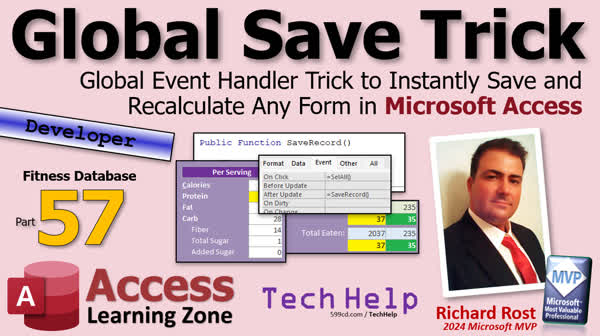
TechHelp Access, global event handler, save record, recalculate form, after update event, me.dirty equals false, screen.activeform.dirty, conditional formatting, calorie tracking, fitness database, planned vs eaten, public function, global module, form calculations, update fields, event handler function
 Subscribe to Fitness 57
Get notifications when this page is updated
More InformationTranscript Welcome to another TechHelp video brought to you by AccessLearningZone.com. I am your instructor, Richard Rost. In today's video, I am going to teach you a global event handler trick to instantly save and recalculate any form in your Microsoft Access database.
Now, what exactly does this mean? Well, if you have a form like I do here and you have different fields, and these calculations over here are based on the values in these fields, whenever you change any one of these items, you have to leave the record and come back to it, or manually hit a save button, or refresh the form, or whatever.
I am going to show you how you can just make one change so that all you have to do is if you change one of those values and hit tab, watch what happens to the calculations on the right - bam, they are updated immediately. Just by changing any one of those fields and you do not need a whole bunch of code behind every single one of those fields.
Let me put that back before I forget.
Now, this is part 57 of my fitness database series. I am building a fitness tracking database for my own use, but you do not have to care about fitness. The real value is the techniques that I am showing you. This is a database series where I can show you all kinds of cool tips, tricks, and techniques. The save record function is one of them. So let's get into it.
So almost immediately after I finished fitness 56, I said to myself, I put together my dinner and I thought, I want to see both. I want to see the difference between my total and between the actual amount eaten because I do a lot of prep. When I was prepping dinner, I wanted to know exactly how many calories I had left because I was making a salad with chicken. I did not know how much I could throw into the salad. I grilled up some chicken. I wanted to know, I put 12 ounces of chicken in there, which is great. I have beans, tomatoes, all that. I always have a treat in the fridge like dessert, or an egg. So I want to know exactly because I wanted to get it just right.
It would be nice to have both of those: how much you have actually eaten and what your plan is showing for the day. So we are going to do both. I immediately regretted not doing that, so we are going to make some changes in here.
First thing is I am going to move the goals out of the way. We are going to set them over here. We do not need them in the stack, and the stack is getting pretty tall. So this total here, we are going to call this plan. I do not think we need to have difference there. We are going to slide this down. We are going to put this up under that like so. This will be the calorie difference, and we are just going to get rid of the eaten here. Get rid of you and get rid of you. That will show us based on the plan.
Total protein, total calories. Save it. Come back in, and that is based on what is planned. If you take some stuff off here, it is still based on what is planned. But I still want to see for eating too. So we are just going to copy those boxes, copy these, copy paste, still not working. Copy paste. It worked when I was not recording. I think it has to do with my recording software.
So this guy, we are going to copy this and we are going to put it in here and call this eaten. I am going to add the eaten back in here. And then this guy is going to be this with just eaten. We are going to add eaten back in there. Save it. Close it. Open it. There we go.
Now you can see how it stacks up: the planned and actually eaten. So if you are planning your meals and if you do that, they should all match up. That should be identical.
You go to a previous day, for example. Maybe I had something marked not eaten in here. Oh, I did not mark any of this stuff eaten. There we go. That was big. I want to change that. The goals can sit over here, that is fine.
Another thing I was thinking, I want to have this warn me also if my calories are too low. It does not happen often, but I can see it being a thing. If I come over here and just do a test, it has that negative 2000 calories as green. It should not be that green. If I make this, if I am only eating 1400 calories, that should not be good. You do not want to eat too few calories. You do not want your body to go into starvation mode. So I am also going to adjust; now we can adjust both of these at the same time because these both have the same conditional formatting.
Go to format, conditional formatting, add a rule, new rule. If the value is less than, say, less than negative 500. So if I am 500 calories below where I should be for the day, that is not good. You do not want to do that too many days in a row. So I am going to make this, maybe a light yellow, almost yellow greenish. Right there. I do not want it to be dire.
Now, where would we have to put this so that it fires properly? You cannot put it where it is at the bottom because this will fire and stop. So this needs to be at the top. Check for that if it is below 500. Okay, it is below 500, but it is less than zero. You are green. If it is not less than zero, if we are over 200 the other way, now we are red. This will fall in for the things that are over zero, but not over 200. So that should do that.
Hit OK. Save it. Save it. Close it. Open it. Let's see where we are at. Go back to tomorrow. There we go. That is correct. Let's add another item. Put in a thousand more calories and see what happens. There we go. That looks about right. That is too much now. Go back down. Go back, so we are 400 over for the plan. Bring this down to 650. Let's see what happens. There we go. That looks good.
Now, another thing. I know I am just nitpicking in this video, but these are all the things that as I use it, I want to change. What we just did there, to change this to 1200 and hit tab. I am still in the same record. Normally if we did not remove them, you would see the little dirty pencil over there, but this stuff is not updating. I want this to update when I change this. I want to know if I put 1900 in there, I want to see that update immediately.
Now, there are all kinds of refreshes and queries and repaints. The easiest way to do that is just to save the record. The fastest way that we know how to save the record is just to set dirty equal to false.
You could come in here in the after update event. Let me bring this back so you can see it. You can come in here in the after update event. That will bring you into here. You can say me.dirty equals false. Save it. Now close it. Close it. Open it.
We know that if I come in here now and change this to 2000 or 20000, boom, it changes. You see the difference and the things over on the right updated. Now, I do not want to have to come in here and do that for all of these fields individually because I am going to have a million lines of code in here that I do not want.
So, let's make that a global function and we just call it on the form property, an event handler. I have showed you this many times so far. Let's get rid of what we just did. That is good.
So, we need a global function that we can use to save the record on the current form. This is the price of admission right here folks. Ready? We are going to go into the global module. We are going to make a public function, because for it to be an event handler, it has to be a function. We will call it save record. Save record. I cannot type today. It is late. It is after 10 o'clock and I am getting kind of tired.
Save record. It's not actually going to return anything, it is just going to do some stuff. What's it going to do? We are going to save the record on the current form. How do we get the current form? Screen.activeform.dirty equals false. That's all you have to do. Whatever the active form is, save the record.
Now, all we have to do is put save record as that function handler in any field that we want to trigger it. I am going to just put it in all of them.
We are already in design. I am going to select all of these and anybody up here that we want to do it. Let's do it to quantity. I do not think these guys affect that, so there is no reason to fire that for these. Just those fields, I want to trigger the save.
So now I will come in the after update and say =save record(). There it is. Open close parentheses. Whoops. Open close parentheses. Save it. Close it. Close it. Open it.
Now, if I go to that record here tomorrow, I come down here and put in 100, hit tab. Boom. It just works. Put 500 in here, 400, whatever. Tab. Boom. It works. Any one of these, now if I come up here and put in a 2, boom, everything is updated.
That's the easiest and quickest way that I know of to have all this stuff recalculate. It is faster than refresh too because refresh basically says reload the record from the table. This just says save it and update the calculations. Much, much faster than refresh.
I think I have talked about this before. I am getting old and I do not remember what we have covered and this is lesson 57.
I have a bunch more little nitpicks too. We will get to those in the next lesson.
That is going to do it for part 57 of your fitness database series. I hope you learned something in your TechHelp video for today. Live long and prosper, my friends. I will see you next time.
TOPICS:
Creating a global event handler in Access forms
Automatically saving records on field update
Using AfterUpdate event to trigger record save
Comparing planned vs. eaten values in a form
Displaying calorie difference between plan and actual
Copying and adjusting controls for new calculations
Using conditional formatting to highlight low calorie totals
Setting up rules in conditional formatting for warnings
Creating a public function in a global module
Assigning a global function as an event handler
Applying event handler across multiple form fields
Difference between save and refresh commands in Access
COMMERCIAL:
In today's video, we are continuing with part 57 of the fitness database series and I will show you how to set up a global event handler to instantly save and recalculate any form in your Microsoft Access database. You will learn how to update calculated fields right away by making a simple change, so when you edit any value and press tab, everything updates automatically without needing a ton of code for each field. I will also show you improvements for planning and tracking your meals, and how to set up a warning if your calorie totals are too low. You will find the complete video on my YouTube channel and on my website at the link shown. Live long and prosper my friends. Intro In this video, you will learn how to create a global event handler in Microsoft Access to instantly save records and automatically update form calculations whenever a field value changes. I will show you how to use the AfterUpdate event to trigger record saves, compare planned versus eaten values for meal tracking, set up conditional formatting to highlight low calorie totals, and adjust your forms to better display planned and actual data. We will also cover how to create and assign a public global save function across multiple form fields for faster, cleaner updates. This is part 57. Quiz Q1. What is the primary purpose of the global event handler trick shown in the video?
A. To instantly save and recalculate form values when a field is changed
B. To add new records to the database automatically
C. To create a backup of your database daily
D. To export form data to Excel
Q2. Without using the global event handler, what would users need to do for calculated fields to update after changing a value?
A. Switch to a different form
B. Manually click a save button or refresh the form
C. Run a database compact operation
D. Restart Microsoft Access
Q3. What feature is being tracked in the database shown in the video series?
A. Employee attendance
B. Fitness and meal planning
C. Inventory stock levels
D. Customer orders
Q4. Why did Richard decide to show both the planned and actually eaten values in the form?
A. To have a backup in case of data loss
B. To compare calories prepared versus calories consumed
C. Because Access requires all fields to be duplicated
D. For printing purposes only
Q5. Which method allows for recalculating and updating calculations immediately after a field is changed, according to the video?
A. Using a timer event on the form
B. Setting Me.Dirty = False in the AfterUpdate event
C. Adding a refresh button for users to click
D. Closing and reopening the form
Q6. Why is it more efficient to use a global function for saving records rather than coding the event for each individual field?
A. It ensures only new records are saved
B. It keeps the code centralized and avoids duplication
C. It encrypts the saved data automatically
D. It allows the form to work offline
Q7. What is the function of Screen.ActiveForm.Dirty = False in VBA?
A. Deletes the current record
B. Cancels all unsaved changes
C. Saves the current record on the active form
D. Locks the form from future edits
Q8. Where should the global save function be placed for reusability?
A. In each field's OnClick event
B. In an independent global module as a Public Function
C. In a table macro
D. In the report design view
Q9. Conditional formatting was adjusted in the video to warn if what condition is met?
A. The plan field is empty
B. Calories are more than 500 below the daily goal
C. Protein is too high
D. Fat grams are negative
Q10. When would you use the =save_record() syntax in a form control?
A. In the OnOpen event of the form
B. In the AfterUpdate event of any field that should trigger saving
C. In the Current event of the form
D. In the default value property of a field
Q11. According to the video, why is saving the record with Me.Dirty = False faster than using Refresh?
A. Me.Dirty = False only saves without reloading from the table
B. Refresh compresses the database each time
C. Refresh closes and reopens the entire form
D. Me.Dirty = False exports the data automatically
Q12. What is the main benefit of using an event handler function for saving records in multiple fields?
A. Reduces code redundancy and makes updates easier
B. Forces the user to always re-enter values
C. Prevents any calculation from updating
D. Disables all calculated fields
Answers: 1-A; 2-B; 3-B; 4-B; 5-B; 6-B; 7-C; 8-B; 9-B; 10-B; 11-A; 12-A
DISCLAIMER: Quiz questions are AI generated. If you find any that are wrong, don't make sense, or aren't related to the video topic at hand, then please post a comment and let me know. Thanks. Summary Today's TechHelp tutorial from Access Learning Zone covers a handy technique for quickly saving and recalculating forms in your Microsoft Access database using a global event handler. This lesson is especially useful if you have calculated fields on your forms that need to update instantly whenever you change any related data.
Let me first explain the common issue many Access users encounter. Suppose you have a form with several fields and calculations that rely on those fields. When you update a value, the calculations do not refresh right away. In many cases, you would have to move off the record, save it manually, or refresh the entire form, which is not ideal. My goal here is to show you how to make these calculations update immediately when you change any of the dependent fields, just by leaving the field with the Tab key. This way, you will not need to write code behind every single field or insert dozens of refresh commands throughout your form.
This video is part 57 in my fitness database series, which I created for my own meal and calorie tracking. However, you do not need to care about fitness at all—the real value is in the Microsoft Access techniques I demonstrate, all of which you can apply to your databases.
After making some improvements in my own database, I realized I wanted to see both the planned nutritional totals and the actual amounts I had eaten. When I prepare dinner, knowing the exact amount of ingredients like chicken or beans helps me stay on track with my goals, so I wanted my form to display both planned and eaten values clearly. I made some adjustments, moving my goals section and reorganizing the display to show the plan, the difference, and the actual amounts eaten. With these side-by-side on the form, you can instantly see how your actual numbers compare to your goals and make necessary changes as you go along.
While making these interface changes, I also decided to add another helpful feature. I wanted the form to notify me if my calories for the day dropped too low. Eating too few calories is just as problematic as eating too many, and I wanted a visual reminder if I fell below a certain threshold. To accomplish this, I used conditional formatting. I set up a rule so that if my calorie difference was more than 500 below my goal, the value would be highlighted in a light yellow-green color, signaling a warning without being too alarming. The rules are ordered appropriately so that the right color displays for each scenario, whether you are above, at, or below your calorie target. This visual feedback makes it much easier to evaluate your daily totals at a glance.
Once I started testing these features, I noticed another persistent issue. When you change a value, such as adjusting the calories for an item and pressing Tab, the calculations on the form did not update immediately. Normally, Access will not save changes to a record until you leave it, so any calculated controls depending on those values remain stale. I wanted the calculations to update immediately after data entry without having to manually save or refresh.
The quickest and most effective way to trigger a recalculation is to save the record as soon as you finish updating a field. Setting the form's Dirty property to False saves the record, which in turn forces calculated controls to update. While added code to every field's After Update event would work, this would quickly become repetitive and unmanageable. Instead, I made a global function to handle the save operation, which I could then call from any field.
To do this, I created a public function in a standard module that sets the Dirty property of the active form to False. This routine will save whichever form is currently active. With this simple function in place, I set the After Update event for each relevant field on my form to call this save function. Now, any update in these fields triggers an instant save, and the calculated controls update immediately, providing instant feedback. This method is considerably faster than using Refresh, which reloads the whole record from the table. By saving the record directly, we get immediate updates without any unnecessary performance overhead.
I have used this global event handler trick in other lessons as well, and it continues to be one of the best solutions for updating calculated fields in real time without a lot of messy, repetitive code.
That wraps up part 57 in my fitness database series. If you would like a full walkthrough with detailed, step-by-step instructions and demonstrations of everything I talked about today, you can find the complete video tutorial on my website at the link below. Live long and prosper, my friends. Topic List Creating a global event handler in Access forms
Automatically saving records on field update
Using AfterUpdate event to trigger record save
Comparing planned vs. eaten values in a form
Displaying calorie difference between plan and actual
Copying and adjusting controls for new calculations
Using conditional formatting to highlight low calorie totals
Setting up rules in conditional formatting for warnings
Creating a public function in a global module
Assigning a global function as an event handler
Applying event handler across multiple form fields
Difference between save and refresh commands in Access Article In Microsoft Access, when working with forms that contain calculated values based on different fields, you might notice that changes you make to a field are not immediately reflected in your calculations. Usually, updates only show up when you move to a different record or click a save button. While you can manually trigger a refresh or save the record, this can be tedious, especially if you have several fields and complex calculations.
The goal is to make the form update its calculations instantly whenever you change any relevant field, without having to write a lot of repetitive code behind every single field. I will show you how to do this using a simple global event handler that automates saving and recalculating the form with minimal setup.
Imagine you are tracking your daily meals, and you have a form where you input details about what you plan to eat and what you have actually eaten. Calculated totals on your form might show your planned calories, your eaten calories, and the difference from your goals. As you adjust inputs like the quantity of food or calories consumed, you want the totals and indicators to update immediately as you tab out of each field.
Normally, you might handle this by putting code in the After Update event of each field to save the record and recalculate. In Access, you can trigger a save with the line `Me.Dirty = False` in your field's After Update event. For example, suppose you have a textbox control called txtCalories. You could open its property sheet, go to the After Update event, and enter this code:
Private Sub txtCalories_AfterUpdate()
Me.Dirty = False
End Sub
This approach works, but if you have many fields, you would need to repeat this code everywhere, making your form harder to maintain.
Instead, a better way is to write a reusable global function and connect it to many fields at once using the property sheet. To do this, create a new standard module by opening the VBA editor (press Alt+F11), and then paste in the following function:
Public Function SaveRecord()
Screen.ActiveForm.Dirty = False
End Function
This function simply sets the Dirty property of the active form to False, which tells Access to save the current record. It is crucial to use a function, not a subroutine, because Access event handlers require a function when calling from a property sheet.
Once you have created the SaveRecord function, go back to your form in design view. Select all the controls where you want the changes to trigger a save and recalculate. In the property sheet for these controls, find the After Update event, and enter:
=SaveRecord()
Be sure to include the parentheses. Now, whenever you change one of these fields and tab out, Access will call your global SaveRecord function, which saves the record and triggers any calculations or conditional formatting that depend on the updated values. This will keep your totals, differences, and any warning indicators updated in real time, without requiring you to write the same code behind every control.
For example, if you are tracking your planned calories, actual calories eaten, and differences, and you have conditional formatting to highlight when your calories are too low or too high, all of these indicators will update right away each time you edit a field and leave it. You only need the global function and to set it in the After Update property of the relevant controls.
This method is much more efficient and responsive than using Me.Refresh or Me.Requery, which reload the entire record or form from the database. Saving the record is quicker and less disruptive to the user experience.
By using this global event handler trick, you make your Access forms significantly more interactive and immediate, keeping calculated values and warnings always current as you work. This is especially useful in databases with many calculated or derived fields, or where you want to have instant feedback on user input. Give this method a try, and you will find it greatly improves both the usability and maintainability of your Access forms. Primary Topics global event handler, Microsoft Access forms, record saving, recalculation, AfterUpdate event, conditional formatting, planned vs. eaten values, global modules Secondary Topics calorie tracking, form control adjustment, performance differences (save vs. refresh) |




