Placed in a State
By Richard Rost

 9 months ago
Database Has Been Placed In A State by User Admin
In this video, we will talk about the "Placed in a State" error in Microsoft Access, what causes it, and step-by-step instructions for how to resolve it. We will cover common scenarios that trigger this message, such as multiple users sharing the same front end file, lock files left behind after crashes, issues with network or permissions, and more. You will learn how to safely remove lock files, compact and repair your database, avoid common sharing mistakes, and follow best practices like splitting your database to prevent the problem in the future.
Miles from San Diego, California (a Platinum Member) asks: How do I fix this error that says my database has been placed in a state by user admin on another machine and now nobody can open it? I have a small Access database at work that three of us use during the day to track service calls. Yesterday afternoon I went to add a new field to a form, and everything seemed fine. This morning my coworker tried to open it and got that error message. Now I get the same thing on my computer too. We are a tiny office and only have two PCs and a laptop, so I am not sure where that error is coming from. We have a busy week and I really need this thing working again. Is there a simple way to unlock it or did I break something? I feel like I did something dumb without realizing it.
Links
Recommended Courses
Keywords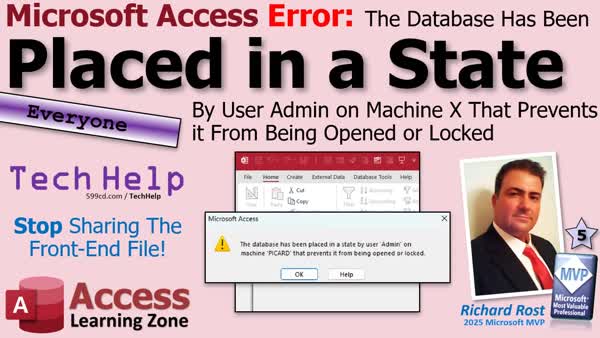
TechHelp Access, split database, lock file, LACCDB, exclusive mode, compact and repair, shared folder settings, file permissions, local drive, network stability, wired connection, antivirus, design changes, backup strategy, Access Updater, security seminar, SQL Server, VBA compile, trusted location
More InformationTranscript Today, we're going to talk about this error, what it really means, how to fix it, and why it happens in the first place. Here's a hint: it usually happens because you're sharing your front end file, which is a big no-no.
Alright, here we go.
Today's question comes from Miles in San Diego, California, one of my Platinum members. Miles asks, "How do I fix this error that says my database has been placed in a state by user admin on another machine and now nobody can open it? I have a small Access database that the three of us use during the Data Track Service calls. Yesterday afternoon, I went to add a new field to a form and everything seemed fine. This morning, my coworker tried to open it and got that error message. Now I get the same thing on my computer too. We are a tiny office and only have two PCs and a laptop, so I'm not sure where that error is coming from. We have a busy week and I really need to get this thing working again. Is there a simple way to unlock it or did I break something? I feel like I did something dumb without realizing it."
No, you didn't do anything dumb, but I'm hoping you've got good backups just in case. Your data is probably fine. We just have to fix that error message.
First, let's talk about the root of the problem and what's happening.
This problem is almost always caused when you've got multiple people sharing the same front end file. You should not do this. It's a big no-no. I've had people, even with two-person offices, say, "Well, we almost never use it at the same time." That's usually fine, but sometimes it isn't and it works until it doesn't. That one time you go to edit a form and the other person tries to get into the database, it doesn't work.
So the solution is to split your database, and we'll talk more about this in a few minutes. You want a separate front end and back end file, and every user on the network gets their own copy of the front end. It's possible to get this error even with split front ends, but it's much, much less likely.
So, what's happening here? Someone likely opened the database and started editing the front end, like making a design change to a form or editing a table, and the other person tried to open it. The person trying to open it will usually get that message because the database is locked. Whenever you try to edit the database front end, it locks the database and puts you in exclusive mode.
You can open the database for exclusive mode, even if you're not going to edit it. It's another option under File - Open. There's also another possibility: the database might have crashed, leaving behind a lock file. This can happen if, for example, you're working on the database and all of a sudden your computer reboots or the power goes out or something like that, and the database doesn't close properly. There's a lock file that stays behind, and I'll show you what that is in just a moment.
Interesting side note: it says user admin, but it's not usually a user named admin. This comes from the old Access workgroup, the legacy stuff back in like 2003, and it just means a default Access user account. It could be any Windows user on that machine. So if you're wondering who's "admin," it might not actually be someone named admin.
Here's a quick fix. Before you do any of this, make sure you have a good backup of your data. You should be running nightly backups. We'll talk more about this at the end of the video, but backup, backup, and backup again. If you can right now, go to Windows and make a backup copy of your database file, your ACCDB file. Back that thing up. That sounds like it should be a song: "Back That Thing Up." That's going to have to go on a t-shirt now.
Once you're sure everyone is out of the database, make sure everyone's out of Access completely. Shut their machines off if you have to. You might want to log everybody out of Windows or even shut their machines off just to make sure they don't have a hidden Access process running in the background somewhere. That can happen. Check your Task Manager; it might be running still.
So, get everybody out of the database, get everybody out of Windows, shut their machines off if you have to. Then delete the lock file. The lock file is named LACCDB. It's a lock file, not your ACCDB file. It's a very tiny file.
Here's one of my databases. If I open up this database, this is the front end. That's the back end. It's a split database. If I open up the front end (move this off to the side here), notice that file that was created there. It's a tiny little text file. Look at the size. It's teeny tiny, one kilobyte. This is your lock file. If this doesn't close down properly, I'm going to shut it down now. Watch, and that file disappears. That's how Access knows who's in that file.
Every Access file has it. Even in a split database, if I open up the front end, and then I go into something like open up a user record here, notice there's an LACCDB file now for the back end file, because I'm accessing table data. When I close this database down, those files go away.
So, if you have LACCDB files (lock files) sitting around in your folder after everyone's out of the database, delete them. It's safe. It's just a little tiny file that keeps track of who's in what.
Once you've done that, you're going to open up your front end and your back end files. Open up whatever files you've got and compact and repair them. If you don't know what that is, go watch this video. Don't put a link down below. It basically is going to clean up the database and make sure everything's okay with it.
Once you've done that, try opening the database and it should load and be just fine. If not, we'll have to continue troubleshooting.
If you're only getting this error message on one machine, try checking the shared folder settings. Make sure that the person has read and write access to the folder that the database is in. That's a Windows level thing. If that doesn't work, try opening up the database on the server machine. Whatever machine you've got that's hosting the actual database file (your quote unquote server, whether it's a real server or not, because I know a lot of you are just running small peer-to-peer networks), that's fine, especially for small two or three person setups. Whatever machine that file is physically on, try opening it there and see if it works.
If it works on that machine but not on another machine, then you have a networking issue or a Windows file permissions issue. It's not an Access problem.
Make sure you're not using a cloud-based storage folder such as Google Drive, Dropbox, or OneDrive. This should be in a regular local drive on your machine, preferably on your actual internal hard drive. You can use an external drive or a network attached storage device if you really want to. I do recommend that they're on a local C drive, though. Lots of people try getting away with not doing this. It's not good for Access. Trust me, I have a whole separate video on it.
Anti-virus programs can cause problems with Access. Disable them. You don't need anything aside from built-in Windows (Windows Defender, Windows Security; they've changed the name a few times). Whatever comes with Windows is fine. Everything else, your Nortons and whatever other stuff you wanted to download, get rid of it. You don't need it. It will mess with Access.
Check your network stability. There are plenty of free tools you can get online to analyze your network connection. If you have problems with machines talking to each other, that can cause problems with Access. The way Access works is if you have two people, even if your database is split and everything's working fine, if your network isn't stable, Access has to be able to read and write to that one big giant file. Sometimes it's got to pull lots of information across that network, so if your network is unstable, it's going to cause problems with Access.
Don't use Wi-Fi if you can avoid it. Use a wired network connection between your machines. Not only is it much faster, it's much more stable.
The number one reason, like I said earlier, that people get this message is because they're sharing the same database file. Normally, under regular circumstances, just using the database, you can get away with this for a while. Access is actually designed so that multiple people can read and write data. Trust the data, though, not the design of the database. So if you modify a form or a report or change the table structure, it's going to cause this problem if you have a shared file where everyone's using it.
I get why a lot of people do this. Word and Excel, for example, now you can share the same file if you want to and you can both make edits to it and it works like that. So does Access for working with the data, but not for designing the database.
So if you've got a situation set up where you've got a small database on your computer and you want to let your secretary use it (Joe, whatever), you connect Joe to your drive with a shared Windows drive and you guys can use the same database and it works and everybody's happy. Until you try to make a change or Joe tries to go into design mode, then this problem happens.
What you want to do is split your database. On your computer, you're going to have the back end, which has your tables in it. Then everybody who's using the database gets their own copy of the front end on their local machine, and it connects to that back end file. This will prevent the problem. 99 percent of the time it will prevent this error from occurring.
You'll have a front end, Joe will have a front end, you'll both be talking to the back end wherever it happens to be. Your computer could be on a server, could be anywhere, but that's the big deal - everyone has their own front end. So if Joe goes into design mode, he can make design changes to his copy of the database. If he wants to distribute those changes and give you a copy of the work he just did, like the new form he built or the query that he changed, he'll have to give you a copy of his front end. That's how you have to do it.
Now, you say you've done all this, you've got a split database, but you're still getting this error message. There are a number of things it could still be. This video talks about what will solve 99 percent of the problems. When in doubt, run down my troubleshooter; it's on my website. I've tried to list the solutions in the order that they're more likely to solve your problem.
Obviously, back up first, restart Access on all the machines, compact and repair, give the database a compile if you do any VBA work. Even if you don't, it's not a bad idea. Don't use online storage, run it on a local drive, check for known bugs, make sure you're running out of a trusted location. There are some simple things here too, like restart Office, reboot the computers (all of them), and reboot clean. Try a different machine if you can. Try an Office update. There's lots of stuff on here.
If you're still stuck after doing all that, stop by my website, visit the forums, and feel free to post a message in our forums. We've got lots of different, very active message groups and lots of people who love trying to help. Put a link to this down below.
Another thing that might be helpful: check out this video on backing up your database. A lot of people panic when they get errors like this, but if your database is backed up properly, then you're much less likely to panic. So, watch this video.
After you've split your database properly and you've got users on your network that you want to be able to push updates to, check out my Access Updater. With one click of a button, it will copy your new front end changes to all of the people on your network. So you don't have to go around and copy all the front ends to Joe's machine and everybody else's machine. You just click one button and the updater handles it for you. So, check this out.
While you're at it, check out my security seminar because I teach you how to properly set up security so that Joe can't break things in your database. It will let you control who's got access to what. Even if there's only two or three of you, proper security is a must. You don't want people going in and messing with stuff they're not supposed to mess with.
While we're talking about security, if you really want to protect your data (the back end tables) and make sure it's safe and secure and no one can mess with it, then you really want to talk about SQL Server. This is great, but it's not 100 percent secure as far as keeping your data safe. Now, I've got a seminar that covers how to set it up online. I've got a new course coming out to teach you how to set it up in your office too. Check my website for more information on that.
Before we wrap it up, remember the big takeaways. This error usually is not Access being broken. It almost always happens because people are sharing the same front end file. Someone went into design mode or a lock file got left behind. The real long-term fix is proper database design. Split your database, give each user their own local front end, keep your files off cloud storage, and make sure your network and your permissions are solid.
If this video helped you, post a comment down below and let me know how you like today's TechHelp or tell me if this fixed your problem.
So that's going to be your TechHelp video for today, brought to you by AccessLearningZone.com. I hope you learned something.
Live long and prosper, my friends. I'll see you next time. Intro In this video, we will talk about the "Placed in a State" error in Microsoft Access, what causes it, and step-by-step instructions for how to resolve it. We will cover common scenarios that trigger this message, such as multiple users sharing the same front end file, lock files left behind after crashes, issues with network or permissions, and more. You will learn how to safely remove lock files, compact and repair your database, avoid common sharing mistakes, and follow best practices like splitting your database to prevent the problem in the future. Quiz Q1. What is the most common cause of the "database has been placed in a state by user admin on another machine" error in Access?
A. Sharing the same front end file among multiple users
B. Using an old version of Microsoft Access
C. Having too many records in the database
D. Not having enough RAM on the computer
Q2. What is the recommended solution to avoid the error discussed in the video?
A. Increase the hard drive space
B. Split the database into a front end and back end, and give each user their own front end
C. Upgrade your antivirus software
D. Use cloud storage for the database files
Q3. What does the LACCDB file represent in an Access database environment?
A. The main data file containing all tables
B. A log of all queries run in the database
C. A lock file that tracks who is in the file
D. A backup of the database
Q4. What is the safest way to attempt fixing the error after ensuring all users are logged out of the database?
A. Open the database in read-only mode
B. Delete the database file and start over
C. Delete the LACCDB lock file
D. Run an antivirus scan
Q5. What should you do before making any changes or deleting files when troubleshooting this error?
A. Run a Windows update
B. Create a backup of your database file
C. Disable Wi-Fi
D. Move the database to a new folder
Q6. If you are only getting the error on one machine, what should you check first?
A. The color settings on your monitor
B. Folder sharing and file permissions for that machine
C. The version of Microsoft Paint installed
D. The user's email account settings
Q7. Why is it not recommended to use cloud-based folders (like Google Drive or Dropbox) for Access databases?
A. They increase database size too much
B. They prevent more than five users from connecting
C. They are not stable for Access's file locking and multi-user functionality
D. They require a subscription fee
Q8. Why should you avoid Wi-Fi connections when using a split Access database?
A. Wi-Fi signals are not compatible with Access databases
B. Wired connections are faster and more stable for database file access
C. Wi-Fi is too expensive to maintain
D. Access databases are designed only for dial-up connections
Q9. What does splitting an Access database accomplish?
A. Allows multiple users to work on design changes at the same time
B. Separates table data (back end) from queries, forms, and reports (front end) for better multi-user support
C. Automatically creates weekly backups
D. Restricts users from accessing the data
Q10. What tool does the speaker recommend for pushing front end updates to all users on the network?
A. Access Table Designer
B. Access Updater
C. Access Form Wizard
D. Windows Sync
Q11. What security advice does the video offer for small teams using Access?
A. Rely on default passwords
B. Give all users full access to all features
C. Implement proper security to control access and prevent unauthorized changes
D. Don't worry about security unless you have more than 10 users
Q12. What might indicate a networking or Windows permissions issue rather than an Access problem?
A. The error occurs only on one machine, but the database works fine on the server
B. The error appears simultaneously on all machines
C. No lock file can be found in the folder
D. The error vanishes after restarting Access
Q13. Which of the following is NOT a recommended troubleshooting step for this error?
A. Compact and repair the database files
B. Reboot all computers using the database
C. Disable additional antivirus programs except Windows Defender
D. Move the database to a cloud storage folder
Q14. Why is regular database backup emphasized in the video?
A. To avoid slow performance
B. To easily recover from errors or database corruption
C. For compliance with government regulations
D. To free up disk space
Answers: 1-A; 2-B; 3-C; 4-C; 5-B; 6-B; 7-C; 8-B; 9-B; 10-B; 11-C; 12-A; 13-D; 14-B
DISCLAIMER: Quiz questions are AI generated. If you find any that are wrong, don't make sense, or aren't related to the video topic at hand, then please post a comment and let me know. Thanks. Summary Today's video from Access Learning Zone focuses on a common error in Microsoft Access that tells you the database has been placed in a state by user 'admin' on another machine, preventing others from opening it. I will explain exactly what this error means, why it occurs, and how you can resolve it.
Let's talk about what leads to this problem. It typically happens when multiple users are sharing the same front end file of the database. This practice is strongly discouraged, even in a small office with just a few people. Sometimes it seems to work, as not everyone is in the database at the same time, but eventually this arrangement will cause a problem. As soon as one person tries to make a design change or modify a table while another user is accessing the database, it can cause a conflict and trigger this error.
To avoid this, you should always split your database into a front end and a back end. The back end contains your tables with the data, and each user should have their own copy of the front end file on their local machine. This setup greatly reduces the chances of running into this kind of error, though it does not completely eliminate every possible issue.
Here is what typically happens when you see this error message. Someone goes into design mode or tries to modify the database structure, which opens the database in exclusive mode and locks it. If anyone else then tries to access the same database, they will get the error because Access sees that the file is locked. Another situation that causes this issue is if the database crashes—perhaps the computer reboots unexpectedly or loses power—leaving a lock file behind.
You might notice that the error mentions user 'admin.' This does not always mean an actual user by that name. In older versions of Access, 'admin' is just the default user account from legacy workgroup security settings, so it's not necessarily pointing to an account on your system.
Before trying to fix this, always make sure you have a solid backup of your database. Backing up regularly is crucial, and before making any changes to fix database errors, create a copy of your ACCDB file.
Once you have a backup, ensure that all users are completely out of the database and Access program. It's a good idea to have users log off or even shut down their machines to be certain there are no hidden Access processes still running, which can occur from time to time. After everyone is out, look for and delete any lock file remaining in your folder. This file usually has the extension LACCDB and is very small, just a kilobyte in size. Deleting this file when the database is not in use is safe because it only keeps track of who is currently accessing the file.
After cleaning up lock files, open your front end and back end database files and perform a compact and repair operation. This is an important maintenance step that helps clean up and stabilize your database. Give it another try and see if the database now opens as expected.
If the error only appears on one user's computer, check the folder permissions for the location where the database is stored. Make sure the user has both read and write permissions. If possible, try to open the database directly on the machine that physically hosts the database file. If it works there but not on another machine, you are dealing with a networking or permissions issue at the Windows level, not an Access issue.
Avoid storing your Access database files in cloud-synced folders like Google Drive, Dropbox, or OneDrive. Access works best with files on local drives, preferably the C drive. External or network-attached storage can be used but should be set up with care. Also, disable third-party antivirus software and stick to what Windows provides, as additional antivirus programs are known to interfere with Access databases.
Make sure your network is stable. Unreliable network connections can corrupt your Access database or cause users to experience errors, even when using the recommended split database setup. Using a wired connection is always preferable to Wi-Fi, as it is not only faster but much more reliable.
It's important to remember that the number one reason for this error is multi-user sharing of the same front end file. While Access is designed for multiple users to share data, it does not support multiple users making design changes to the same copy of the database at the same time. If all users have their own front end connected to a shared back end, most of these issues will be prevented. When a design change is needed, make the changes to your local front end and then distribute it to other users.
If you've already split your database and are still encountering the error, work systematically through common troubleshooting steps: back up your data, restart Access, compact and repair the database, check for VBA compile errors, ensure you're running from a trusted location, reboot your computers, check your Office updates, and try opening the database on a different machine. If you continue to have trouble, you can visit my website where you'll find helpful forums and a troubleshooter listing solutions by the likelihood they will resolve your problem.
Backing up is one of the most effective ways to protect yourself from panic when errors occur. Watch my separate backup video for guidance on setting up a solid backup plan.
If you need a more efficient way to distribute updated front end files to your users after you've split the database, I recommend looking into the Access Updater tool, which allows you to push updates with a single click. Also, consider my security seminar to learn how to control who has access to what within your database. This is important even if your team is small, as strong security helps prevent accidental changes and unauthorized access.
For even greater security, especially regarding your data tables, consider migrating your data backend to SQL Server. I offer seminars covering how to set this up both online and on-premises for better data protection and control.
In summary, this error is rarely caused by Access itself being faulty. It almost always comes down to the way the database is being shared or to lock files that do not get deleted after unexpected shutdowns. The permanent fix is to split your database, provide each user their own front end, keep the database off cloud storage, and make sure your file and network permissions are set up correctly.
For a detailed, step-by-step video tutorial on everything discussed here, visit my website at the link below.
Live long and prosper, my friends. Topic List Understanding the "database has been placed in a state" error
Root causes of Access database locking
Dangers of sharing the same front end file
Difference between front end and back end in Access
Explaining exclusive mode and design changes
Identifying and deleting Access lock files (LACCDB)
How to ensure all users are out of the database
Checking for hidden Access processes in Task Manager
Steps to safely delete the Access lock file
How lock files work in split and unsplit databases
Running Compact and Repair to fix database issues
Troubleshooting folder permissions and networking
Avoiding cloud storage for Access databases
Impact of antivirus software on Access databases
Importance of using wired vs wireless connections
Why and how to split an Access database
Proper distribution of front end files to each user
Network stability requirements for Access databases
Checklist for resolving persistent Access errors
Key takeaways for long-term database stability Article If you are encountering an error message in Microsoft Access that says your database has been placed in a state by user "admin" on another machine and now nobody can open it, you are not alone. This issue is more common than you might think, especially in small offices where database files are shared between a few users. Understanding why this error happens and how to prevent it going forward is essential for keeping your Access database running smoothly.
First, let's clarify what is happening when you see this error. Typically, the root of the problem is multiple users sharing the same front end Access file. While Access was designed to allow multiple people to work with data at the same time, it does not support design changes (like editing forms or tables) by more than one person simultaneously. If someone opens the front end and makes a design change, Access locks the database file so that these changes do not conflict. If another user then tries to open the database, they will be blocked and see that error message stating that the database has been placed in a state by the "admin" user. The "admin" here is not your administrator or a particular user account, but a legacy default user left over from older versions of Access.
Sometimes this issue can be caused if the database crashes or is closed improperly, which leaves behind a lock file (with an .laccdb extension). This lock file tells Access that someone is still in the database, even if nobody really is.
So how do you fix this problem right now? Always start by making a backup of your database file. If at all possible, copy your .accdb file to a safe backup location. After backing up, ensure that every user is completely out of Access. Sometimes Access processes run in the background, so it's a good idea to check in Task Manager. If necessary, log users out or even turn their machines off. Once you can guarantee everyone is out, look in the folder where your database is stored for any .laccdb files (not .accdb). These are the lock files. If you see any, and you are certain that no one has the database open, delete these lock files. They are small and hold no actual data—just information about who is accessing what. Removing stale lock files often resolves the locked-out state.
Next, open your front end and back end database files and perform a Compact and Repair operation. This is a built-in feature in Access that scans and fixes various problems in the database. Even if you do not see any obvious corruption, compacting and repairing is a good habit and can clear up lingering issues. After this, try reopening the database. This should resolve the lock problem for most users.
If only one specific computer has the issue while others do not, check that user's permissions on the shared folder. They need both read and write permissions at the Windows level, or Access may not be able to create or delete the lock file as necessary. Also try opening the database on the computer that hosts the physical file (your "server" machine, even if it's just another PC). If the file opens locally on the server but not from other computers, you likely have a network or permission issue, not a database problem.
Avoid using cloud-synced storage like Google Drive, Dropbox, or OneDrive for hosting your Access database. Access databases do not work reliably this way and can become corrupted. Instead, store the file on a local drive or a true network drive, preferably on a physical internal hard drive. Network-attached storage or mapped drives can work, but for best performance and reliability, use a direct wired connection rather than Wi-Fi.
If you have antivirus software running beyond Microsoft's built-in Windows Defender, consider disabling extra tools. Third-party antivirus programs sometimes interfere with Access files, causing more problems than they solve.
If your database user group is very small, you might wonder why sharing a file is such an issue. The reason is that design changes—even something as simple as opening a form in design mode—force Access into exclusive/locked states so it can safely update design elements. Regular data entry is usually fine, but once you try to adjust objects or structure, trouble arises in a shared environment.
The best long-term solution is to split your database into two pieces: the back end and the front end. The back end holds only the tables with data and lives in a shared location on your network. Each user gets their own separate copy of the front end file, which contains all the forms, queries, reports, and points to the shared back end tables over the network. This means that users aren't fighting over the same front end file, reducing lockouts and corruption, and allowing smoother updates and changes. If a user wants to make design changes in the front end for everyone, they can edit their copy, then distribute the updated front end file to the rest of the group.
If you have split your database but are still getting lock errors, go through a checklist: backup everything, restart Access on all machines, compact and repair, compile any VBA code if you use it, confirm all machines are running a local copy of the front end, and ensure your network and permissions are in order. Also, make sure you are not running the files from untrusted locations, which can also cause Access to restrict operations.
Occasionally, even with all of these precautions, lockouts can happen due to unexpected crashes or lingering lock files. That is why regular backups are critical. With good backups, even a major file problem is not catastrophic.
To make managing updates easier, consider using an updater tool that distributes new front end versions to all users automatically, so you don't have to manually copy files between machines each time you make a change.
Lastly, consider security. Even if there are only a handful of users, it is worth implementing user-level security so that unauthorized users can't accidentally change objects or data they shouldn't. For even greater protection and scalability, look into moving your tables to SQL Server, which provides more robust security and reliability than plain Access back ends.
In summary, this error is almost always a result of shared design use or leftover Access lock files. The main takeaways are: never share the same front end among users, always split your database, store files on local or wired network drives, vigilantly backup your work, and manage permissions carefully. With these practices, you can eliminate nearly all Access lockout headaches and keep your work running smoothly. Primary Topics Access error troubleshooting, lock files, split databases, front end vs back end, file sharing, network configuration, database backups, compact and repair, file permissions Secondary Topics antivirus interference, cloud storage issues, security practices, SQL Server migration, Access Updater tool |





