|
||||||
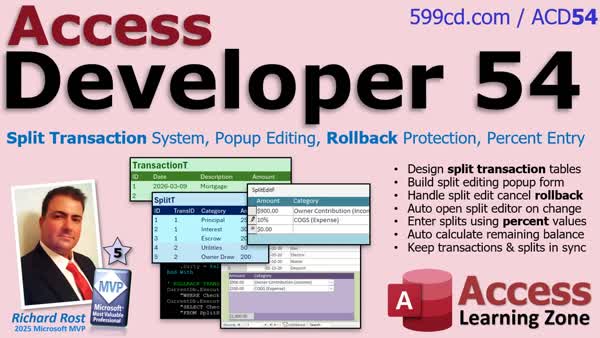
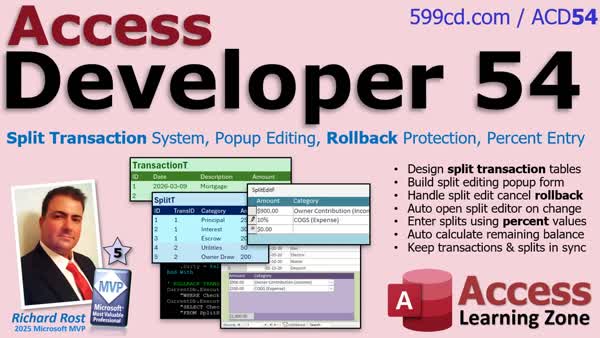
Access Developer 54Split Transactions with Rollback & Percent SplitsIn Access Developer 54, we will walk through building a split transaction system in Microsoft Access, similar to those used in accounting software, to allow a single transaction to be divided across multiple categories while maintaining balanced records. We will discuss why split transactions are used, how to design the data model with parent and child tables, create forms and a pop-up editor for managing splits, add rollback protection to keep data in sync, and include features like percentage entry and automatic balance calculation. This framework can be adapted for use in your own Access databases. Lessons
ResourcesNavigationLesson SummaryAccess Developer 54: Split Transactions, Rollbacks - In this class, we will build a split transaction system in Microsoft Access similar to what is used in accounting software, allowing one transaction to be divided among multiple categories. We will discuss why split transactions are useful, how to design the necessary parent and child tables, and walk through creating forms, including a pop-up editor for managing splits. We will also cover adding rollback protection so changes can be safely undone, and I will show you how to implement percent-based split entry and usability features. Each lesson will focus on a specific aspect of creating this framework.
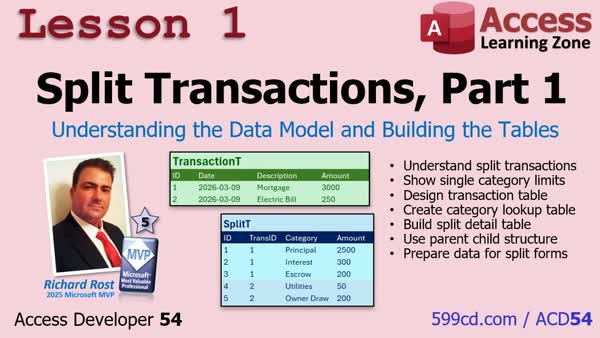
Lesson 1: Split Transactions: Data Model & Table Setup - In this lesson, we will talk about the need for split transactions and how to structure them from a data design perspective. I will explain the limitations of a single-category transaction model and show how to build the required tables to support splitting a transaction among multiple categories using a parent transaction record and child split records. We will look at creating category and split tables, discuss examples, and outline the rules for tying split amounts back to the main transaction. By the end, you will understand the data structure we will use for the rest of the series.
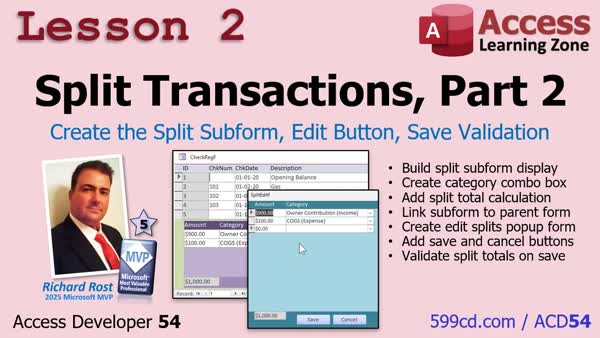
Lesson 2: Split Subform: Edit Button, Save Validation - In this lesson, we will walk through building the Split Subform and a pop-up editor in Access to manage split transaction records. We will create a display-only subform to show the split categories and amounts, and set up an Edit Splits button that opens a modal dialog allowing users to add, modify, or remove split lines. We will set up form properties to ensure data integrity, establish relationships between forms, and implement basic validation to make sure split totals match the main transaction amount. We will discuss the reasons for separating editing into a pop-up for better control and validation.
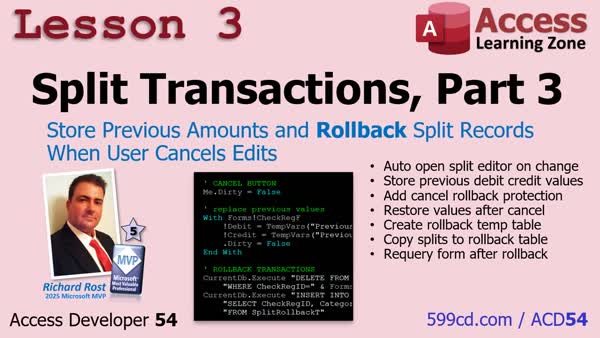
Lesson 3: Track Changes, Rollback Splits on Cancel - In this lesson, we add automatic split editing and rollback protection to the transaction form. I show how to automatically open the split editor when debit or credit amounts are changed, store previous values before edits, and restore those values if the user cancels. We set up a temporary table to save split transactions for rollback and implement code to ensure that canceled changes revert both the main transaction and associated splits to their original state. We'll discuss ways to identify records that need splits and preview a new feature on calculating split percentages to be covered in the next lesson.
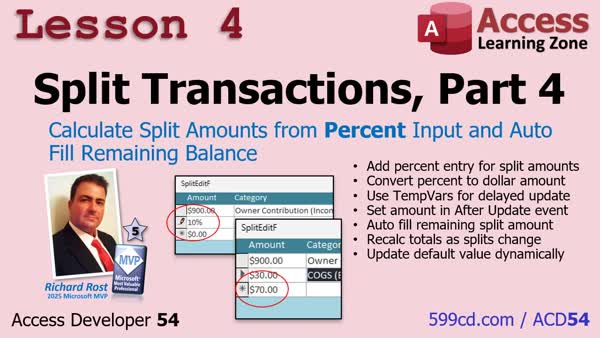
Lesson 4: Enter Split Percents & Calculate Remainder - In this lesson, we will implement percent-based split entry in Microsoft Access, allowing you to enter a percentage like 10% and have Access calculate the split amount automatically. I will show you how to set up the form so that the remaining unallocated transaction amount is calculated and displayed for the next record. We will discuss handling field events for validation and recalculation, setting default values dynamically, and updating totals as records are edited. Future enhancements like saved transactions are briefly mentioned but not demonstrated.
What's Next: Split Transaction Systems & Next Steps - In this video, I wrap up Developer 54 by summarizing how to build a full split transaction system in Microsoft Access. We review designing the appropriate data model, creating forms to manage transactions and splits, implementing rollback protection, and adding features like percentage-based entry and balance calculations. I discuss possible future topics and changes to the website format, and I invite your feedback on what you would like to see in upcoming lessons.
KeywordsAccess Developer, split transaction system, split transactions, parent transaction table, child split records, rollback protection, subform, pop-up editor, split entries, balance calculation, percentage split amounts, flexible framework, VBA techniques
More InformationTranscriptHi, this is Richard Rost with Access LearningZone.com. I just released Access Developer Level 54. In this course, we build a complete split transaction system in Microsoft Access, the kind of thing you see in accounting software, where a single transaction can be divided across multiple categories while still keeping everything balanced. First, we talk about why split transactions are needed and how to design the proper data model. You'll learn how to structure your tables using a parent transaction table and child split records, so one payment can be distributed across multiple categories. Next, we'll build the forms to actually work with those splits, including a subform to display them and a pop-up editor that lets users easily add, modify, or remove split entries. Then we add some rollback protection, so if a user changes the amount and decides to cancel, the system rolls everything back and restores the original values, so the transaction and the splits always stay in sync. Finally, we add some developer-level conveniences like entering percentages for the split amounts - no one likes to do math in their head - and automatically calculating whatever balance remains. By the end of this course, you'll have a flexible split transaction framework you can drop into your own databases, along with several powerful form and VBA techniques you can reuse in lots of other projects. For more information, visit my website or drop a comment down below if you have any questions. Live long and prosper, my friends. I'll see you in class. IntroIn Access <B>Developer 54</B>, we will walk through building a split transaction system in Microsoft Access, similar to those used in accounting software, to allow a single transaction to be divided across multiple categories while maintaining balanced records. We will discuss why split transactions are used, how to design the data model with parent and child tables, create forms and a pop-up editor for managing splits, add rollback protection to keep data in sync, and include features like percentage entry and automatic balance calculation. This framework can be adapted for use in your own Access databases. QuizQ1. What is the main project developed in Access Developer Level 54? A. A split transaction system in Microsoft Access B. A customer relationship management tool C. An inventory tracking system D. A payroll management database Q2. Why are split transactions important in accounting software? A. They let a single transaction be divided across multiple categories B. They reduce the number of records in a database C. They are only needed for audit purposes D. They stop duplicate data entry Q3. What kind of data model is taught for implementing split transactions? A. A single table model for all transaction data B. A parent transaction table with child split records C. Only a flat spreadsheet without relationships D. A model using only action queries Q4. What forms do you build to work with split transactions? A. A main form, a subform, and a pop-up editor B. Only a main form with no subforms C. A report and a query D. A navigation form without editing abilities Q5. What feature is added to ensure data consistency when a user cancels a change? A. Rollback protection to restore original values B. Automatic record deletion C. Fixed split values D. Data encryption Q6. What convenience is added for entering split amounts? A. Users can enter percentages instead of manual calculations B. Users can only enter fixed numbers C. Split values must be imported from Excel D. Percentages are not allowed Q7. What is automatically calculated to simplify the user's experience? A. The remaining balance after splits are entered B. Total transaction fee C. User login time D. Transaction tax Q8. According to the video, what type of techniques does the course offer besides split transaction logic? A. Reusable form and VBA programming techniques B. Advanced SQL Server indexing C. Web development techniques D. Image processing algorithms Answers: 1-A; 2-A; 3-B; 4-A; 5-A; 6-A; 7-A; 8-A DISCLAIMER: Quiz questions are AI generated. If you find any that are wrong, don't make sense, or aren't related to the video topic at hand, then please post a comment and let me know. Thanks. SummaryToday's video from Access Learning Zone introduces Access Developer Level 54. In this course, I show you how to create a complete split transaction system in Microsoft Access, similar to what you might find in accounting programs. This approach lets you take a single transaction and divide it among multiple categories, while always keeping everything balanced. We start by discussing the need for split transactions and the basics of designing a solid data model. I walk you through structuring the tables correctly using one parent transaction table and multiple child records for the splits. This way, one payment can be properly allocated across several categories. After setting up the tables, I guide you through building the user interface. Together, we create forms and subforms to manage and display the split entries. I also demonstrate setting up a pop-up editor so users can easily add, change, or remove the split details. Transaction integrity is critical, so we implement rollback protection. If a user changes the transaction amount but decides to cancel, the system will restore the original values. That way, your main transaction and all of its splits always match. For added convenience, I include developer-focused enhancements. You will be able to enter split amounts using percentages, so you won't have to do mental calculations. The system will also automatically compute any remaining balance for you. When you finish this course, you'll have a flexible framework for split transactions that you can incorporate into your own Access databases. You will also pick up practical form-building techniques and VBA tips that are useful in many other projects. You can find a complete video tutorial with step-by-step instructions on everything discussed here on my website at the link below. Live long and prosper, my friends. Topic ListPurpose and use cases for split transactions Designing a split transaction data model Creating parent transaction and child split tables Building forms for split transaction entry Adding and managing splits with subforms Implementing a pop-up split editor form Rollback protection for canceled changes Synchronizing transaction and split values Adding split entry by percentages Auto-calculating remaining split balances Primary Topics
split transactions, Access data modeling, parent-child tables, forms and subforms, rollback protection, percentage input, automatic calculation, VBA techniques Secondary Topics
accounting concepts, user interface design |
||||||||||||||||||||||
|
| |||
| Keywords: Access Developer, split transaction system, split transactions, parent transaction table, child split records, rollback protection, subform, pop-up editor, split entries, balance calculation, percentage split amounts, flexible framework, VBA techniques Page Tag: whatsnew PermaLink How To Build a Split Transaction System With Rollback and Percentage Splits in Microsoft Access |