Comments & Notes
By Richard Rost

 7 months ago
How to Use Comments & Notes in Microsoft Excel In this video, we discuss the differences between comments and notes in Excel, including their history, how to identify them, and when to use each feature. I show you how to add and manage both, highlight their visual indicators, and explain collaboration tools like threaded replies, resolution features, and where to find these options in the Review tab. We'll also discuss limitations such as not being able to use both in the same cell, print behavior, and converting notes to comments. Finally, I provide a summary of best practices for choosing between comments and notes in your spreadsheets. MembersIn the extended cut, we will cover how to export and import Excel notes fields, such as extracting thousands of notes from a spreadsheet and bringing them into an Access database. I will show you how to get note information out of Excel and import it into Access for easier management. Silver Members and up get access to view Extended Cut videos, when available. Gold Members can download the files from class plus get access to the Code Vault. If you're not a member, Join Today!
PrerequisitesLinksRecommended CoursesLearn More!
Questions?
Please feel free to post your questions or comments below. Thanks.
Keywords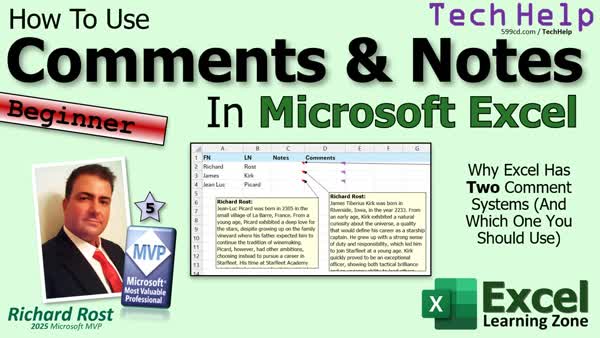 TechHelp Excel, comments vs notes, spreadsheet collaboration, threaded discussion, reference notes, cell indicators, red corner marker, purple corner marker, review tab, resolve comment, add note, context menu, convert to comments, export notes, import notes, @ mentions, OneDrive requirement, SharePoint requirement, conversation thread, show all notes
More InformationTranscript Have you ever opened up an Excel spreadsheet and seen a little colored triangle on the corner of a cell, hovered your mouse over it, and a message popped up? Then you thought, is that a comment or a note, or what's the difference here?
In today's video, we're going to talk about it.
Welcome to another TechHelp video brought to you by ExcelLearningZone.com. I'm your instructor, Richard Rost. In today's video, we're going to clear up the confusion. We're going to talk about what comments are, what notes are, how they're different, when you should use each one, and a couple of little tricks that make them much more useful when you're working with spreadsheets.
So, if you've ever looked at a cell in Excel and seen the little colored marker in the corner, you may have wondered what that is and why Microsoft has two different indicators. You're not alone. This confuses a lot of people, especially because Excel changed the terminology a few years ago and made it more confusing than it probably needs to be.
Let's clear it up.
Originally, Excel had what were called comments. These are little old-school style pop-up text boxes that you attach to a cell. You can type in some extra information, hover over the cell, see the message pop up, and they're basically just sticky notes attached to a spreadsheet cell. Very simple, very useful, great for reminders, little explanations, and "don't forget why I did this" kind of notes. I covered these in my Excel Beginner 5 class.
Then, as they always do, Microsoft decided to modernize things. What used to be called comments got renamed to notes. At the same time, they introduced a brand new feature called comments. So now the old comments are notes, and the new comments are comments, because apparently naming things clearly would have been too easy.
Here's the practical difference. A note is the old-style yellow pop-up box. It's just text attached to a cell. No conversation, no replies, no threaded discussion. It's there for reference information. Think of it like leaving yourself or someone else a sticky note on the spreadsheet. Maybe it came from a phone call. Maybe it's a formula that was adjusted for a special use case. Maybe you want to remind yourself that this serial number came from some handwritten form that looked like it was filled out during the Reagan administration. Whatever the case, that's what notes are good for.
A comment, on the other hand, is designed for collaboration. You can add a comment, someone else can reply, and you can have a little discussion attached to that cell. I don't have any other friends, so I don't have anybody else in the comment thread with me. It's just me. But if you have friends, you can even use @ mentions to tag somebody in your organization, which will then notify them. That's useful if you're sharing a workbook with coworkers and want to say, is this invoice duplicated? Can you verify this number? That discussion stays right in the cell with the data.
For @ replies to work, your file has to be saved in OneDrive or SharePoint, and you have to be signed into your MS 365 account. For the desktop app, you also have to be signed into Outlook on your PC. So, yes, there are lots of requirements to use those @ replies. As I mentioned, I don't ever collaborate with anybody, so I have just a sad face on mine. But the short version is this: notes are for reference, for leaving yourself notes, and comments are for conversation threads now.
Visually, Excel gives you little cues. The notes show up with a red marker in the corner of the cell. That little guy right there. The comments, the newer style, usually show up with a little purple marker in the corner of the cell. If you're looking at a worksheet and wondering which is which, that's usually the giveaway.
If you want to add a note, you just right-click and then go to New Note, which is located at the bottom of the context menu. New Note pops up, and it puts your name up top. You can erase that if you don't want it there. Just delete it and type in what you want. You can use bold, control+B, that kind of stuff. You can paste in some text, and there you go. There's your note. You can hover over it to see it.
If you want to add a comment, you click the cell, right-click, and select New Comment. Then you type in your comment, for example, "Best first officer." You can hit Enter and type more, like "Loves the trombone." Press Control+Enter to post it. Now you've committed that comment. If you're sharing this, you can go back and forth, posting more replies to the comment. Control+Enter adds your reply, and now you have replies on your comment.
One of the nice things about comments, even if you're not collaborating with other people, is you can mark these as resolved and resolve the thread. I'll show you in a minute how these are useful because you can keep a list of which ones are resolved and which are not. If you're using them as a little to-do list for yourself, you can see which ones you haven't gotten to yet.
One thing to note is you can't have both a note and a comment in the same cell. You have to pick one. If you're on a cell that already has a note in it and you right-click, you'll notice you can't add a comment. You can edit the note, delete the note, or show/hide the note. The same thing applies for comments: right-click and you can reply to the comment or delete the comment, but there's nothing in there about notes. It's one or the other.
Second, notes and comments do not usually behave exactly the same when it comes to printing. In most cases, they're not meant to be part of the worksheet data itself; they're like annotations. That's important because some people think they can store critical data in the notes, then forget that it's not really part of the visible sheet structure. You can do that, but be careful.
You can manage these things a little better from the Review tab. You can add a new comment here. You can go to the previous comment or next comment, which lets you step through them all. There's "Show Comments," which opens up the comments pane so you can see all open comments. That's why I mentioned earlier you can mark these as resolved. Watch: if I come in here and go Mark Resolved or Resolve Thread, it shows as resolved. It's still there, but it's marked as done and you don't have to worry about it anymore. You can of course undo that if needed.
There are also options to add a new note, go to the previous note, or go to the next note. You can also show all of the notes at once on the sheet. You can move them around to see them all together if you want. I used to have sheets with all kinds of notes before I finally got organized and built myself a Microsoft Access database to keep track of all my tasks.
Let's turn those back off.
Another thing to note (see what I did there) is that your notes can be converted over to comments. Be careful if you do that, because certain note-specific behaviors may not carry over exactly the way you expect. If you get an older workbook full of carefully maintained notes, don't start converting everything over until you've tested it first. That's one of those backup first situations.
You can go to Notes and then select Convert to Comments. I'm not going to do it here, but you can do it if you wish. Just be careful with that, test it first, and back up your file.
So, when should you use each one? Notes are good when you want a simple, non-intrusive reference attached to a cell. They're great for reminders, explanations, assumptions, little audit trail details, anything that's mostly there for context. Use comments when you're collaborating with other people and you want actual conversation tied to a cell. It's great for reviews, questions, clarifications, shared workbook discussion, or if you want to use it for yourself to keep track of what you have finished using the resolution features.
Personally, if I am just leaving myself information, I usually lean toward notes because that's what I'm used to for the past 20, 30 years, however long it's been. I don't collaborate with other people, so I stick with notes myself. I know a lot of you do collaborate, but I don't.
One important thing to note is that this information is not exactly easy to get out of Excel. In fact, that's what brought this video up today. One of my students said he has a spreadsheet with 10,000 rows of notes fields that he wants to be able to export and import into his Access database. That's what we are going to cover in today's extended cut video for the members.
As a reminder, Silver Members and up get access to all of my extended cut videos. There are lots of them, so click that blue Join button today to find out more information.
To wrap it up, the easiest way to remember it is: old comments are now called notes, and new comments are threaded discussions. Notes are for reference, comments are for collaboration, or for tracking what you've finished using the resolve feature. Yes, Microsoft could have picked less confusing names, but here we are.
That's going to do it for your TechHelp video for today. I hope you learned something. Live long and prosper, my friends. I'll see you next time, and members, I'll see you in the extended cut.
I'm excited to announce that I'm creating a brand new series of lessons focused on programming in Microsoft Excel VBA. If you've been looking to take your Excel skills to the next level and learn how to automate tasks, write custom macros, and unleash the full power of Excel VBA, these lessons are for you.
Sign up now on my website at the link shown. You will find a copy in the description down below the video window, and I'll send you more information on this exciting new series.
If you would like to see me make more Excel TechHelp videos, post a comment down below and say, "I want more Excel." The vast majority of my videos are for Microsoft Access, the database program, because that has been my forte for the past three decades or so. However, I love Excel, and I'm more than happy to make more videos for Excel, Word, PowerPoint, and all the other topics that I teach.
As you know, the squeaky wheel gets the grease, so make your voice heard and let me know you want more Excel videos. Intro In this video, we discuss the differences between comments and notes in Excel, including their history, how to identify them, and when to use each feature. I show you how to add and manage both, highlight their visual indicators, and explain collaboration tools like threaded replies, resolution features, and where to find these options in the Review tab. We'll also discuss limitations such as not being able to use both in the same cell, print behavior, and converting notes to comments. Finally, I provide a summary of best practices for choosing between comments and notes in your spreadsheets. Quiz Q1. What is the main difference between a note and a comment in modern versions of Excel?
A. Notes are for conversations, comments are for references
B. Notes are for reference information, comments are for collaboration and conversation threads
C. Notes allow for replies, comments do not
D. Notes use threaded discussions, comments do not
Q2. Which indicator color does Excel typically use for a "note" in a cell?
A. Yellow
B. Purple
C. Blue
D. Red
Q3. What feature do comments have that notes do not?
A. Ability to mark as resolved and tracked as done
B. Ability to use different colors for text
C. Show up in printouts by default
D. Can be attached to multiple cells at once
Q4. When using "@" mentions in a comment thread, what must be true?
A. You must save your file as a CSV
B. The file must be saved in OneDrive or SharePoint and you must be signed into your MS 365 account
C. The file must be sent as an email attachment
D. You must have administrator rights on your computer
Q5. What happens if you try to add both a note and a comment to the same cell?
A. Both will appear together
B. The newest one will replace the old
C. Only one can exist at a time; you must pick one
D. Excel will merge them automatically
Q6. How are notes typically accessed or created in Excel?
A. Insert menu only
B. Right-click the cell and select New Note
C. Using a keyboard shortcut only
D. By opening the Print Preview window
Q7. What is a recommended reason to use comments instead of notes?
A. When leaving yourself a reminder about cell formatting
B. When collaborating with others and needing discussion or clarification on data
C. When wanting sticky notes on every cell in the sheet
D. When needing color-coded highlights in your data
Q8. Why should you be cautious when converting notes to comments?
A. The cell values may be erased
B. Some note-specific behaviors may not carry over as expected
C. The worksheet will become read-only
D. Printing will be automatically enabled
Q9. Which Excel tab provides better management options for comments and notes?
A. Home tab
B. Review tab
C. Data tab
D. View tab
Q10. What is a common misunderstanding regarding data stored in notes or comments?
A. That they automatically become visible in charts
B. That they are part of the main worksheet data and easily exported
C. That they are always included in sheet calculations
D. That they affect cell formatting
Answers: 1-B; 2-D; 3-A; 4-B; 5-C; 6-B; 7-B; 8-B; 9-B; 10-B
DISCLAIMER: Quiz questions are AI generated. If you find any that are wrong, don't make sense, or aren't related to the video topic at hand, then please post a comment and let me know. Thanks. Summary Today's video from Excel Learning Zone focuses on clarifying the confusion between comments and notes in Microsoft Excel. Many users have noticed small colored triangles in the corners of cells that display messages when you hover over them, and it is not always clear if these are comments, notes, or something else entirely. This has caused a lot of confusion, especially after Excel updated its terminology and features a few years back.
Originally, Excel only had comments. These were basic pop-up boxes that you could attach to a cell - perfect for leaving a quick reminder, making a clarification, or jotting down why something was done a certain way. They worked much like traditional sticky notes and were straightforward to use.
Microsoft later updated Excel, renaming these traditional comments to "notes" and introducing a new, modern commenting system. So now, what used to be called a comment is a note, and the term "comment" refers to a new system intended for collaborative discussions. This naming change makes things a bit tricky, but I want to make sure you understand the practical differences.
A note in Excel is the classic yellow pop-up text box, which can only store reference information. There is no way to reply or hold a conversation in a note - it is essentially a simple annotation. Notes are great for personal reminders, explanations, or as an audit trail.
A comment, however, is designed for collaboration. Comments support replies and conversation threads, so you and your coworkers can discuss issues directly on the cell in question. You can even use @ mentions to tag people in your organization so they are notified about specific comments. This feature is especially helpful when working in shared workbooks where you need feedback or verification about data. To use @ mentions, the workbook must be stored on OneDrive or SharePoint and you must be signed into your Microsoft 365 account. On the desktop app, you also need to be signed into Outlook.
Excel helps you distinguish between these two annotation types by their visual markers. Notes have a small red triangle in the corner of the cell, while comments display as a small purple triangle. If you see these on a spreadsheet, this is a quick way to know which is which.
To add a note, right-click the cell and choose New Note from the context menu. The new note will have your name at the top, but you can delete that and replace it with any content you like. Basic formatting options, like bold text and pasting, are available.
To add a comment, right-click the cell and select New Comment. Type your comment, add more by pressing Enter, and commit your comment by pressing Control+Enter. You can then continue the conversation by adding replies. Comments also offer a resolution feature, which marks the thread as completed and helps you keep track of which items you have already addressed.
It's important to know that you cannot attach both a note and a comment to the same cell. Each cell can only have one or the other, and the options you see in the right-click menu depend on what is already present. For comments, you can reply to or delete them, but there is no option to add a note, and vice versa.
Another difference is how notes and comments behave when printing spreadsheets. They are not typically meant to be printed with the worksheet data and are more for behind-the-scenes documentation. Be careful not to store critical data solely in notes, as they might not always be visible or accessible in every context.
The Review tab provides additional tools for managing both comments and notes. You can step through each one in the sheet, show the comments pane to see all conversation threads, and mark threads as resolved. There are also options to show all of your notes at once, which is useful for reviewing multiple items.
If you have notes in an older workbook, you can convert them to comments, but proceed with caution - some note-specific features might not transfer exactly as expected. Always back up your files before performing conversions like this.
So, when should you pick a note over a comment? Use notes for simple, one-way information like reminders or explanations. Opt for comments if you need to collaborate, hold discussions, or track the status of an item using the resolution feature. Personally, since I rarely collaborate, I find notes are sufficient for most of my work.
One limitation worth mentioning is that extracting or exporting notes from a spreadsheet is not straightforward. This topic actually came up because a student wanted to move thousands of notes into an Access database. In today's extended cut for members, I will cover how to export notes from Excel and import them into Access.
To summarize: what used to be called comments are now notes, and new comments are for threaded, collaborative discussions. Notes are for reference and comments are for collaboration or progress tracking. Though the terminology can be confusing, knowing which is which and when to use them will help you manage your spreadsheets more effectively.
You can find a complete video tutorial with step-by-step instructions on everything discussed here on my website at the link below.
Live long and prosper, my friends. Topic List Differences between Excel notes and comments
Identifying notes and comments by cell markers
How to add a note to a cell
Editing and formatting notes
How to add a comment to a cell
Using threaded comment discussions
Tagging people with @ mentions in comments
Requirements for using comment collaboration features
Marking Excel comments as resolved
Navigating comments and notes with the Review tab
Converting notes to comments
When to use notes vs comments in Excel
Managing and displaying all notes and comments Article If you have ever opened an Excel spreadsheet and noticed a small colored triangle in the corner of a cell, you might have hovered your mouse over it and seen a message pop up. This usually leads to a common question: is that a comment or a note, and what is the difference between the two?
To understand this, it helps to know some Excel history. In earlier versions of Excel, the program offered only one kind of annotation, called a comment. These were simple, pop-up text boxes you could attach to any cell for providing extra information or reminders. When you hovered the mouse over the cell, the comment would appear. People used these to explain calculations, describe data sources, or leave reminders for themselves or collaborators.
However, over time Microsoft made changes to Excel's annotation system. The original comments were renamed as notes. At the same time, Microsoft introduced a new kind of comments, which are designed for threaded conversations. This change sometimes confuses people, but here is the distinction: notes are the old-style, pop-up yellow text boxes that offer simple, cell-specific reference information with no built-in way to reply or have a back-and-forth discussion. Comments, now, are designed for conversation. You can reply to a comment, create threads, mention coworkers, and keep track of ongoing discussions about a particular cell's contents.
So, when you see a colored marker in the corner of a cell, it helps to know what they mean. Generally, a red triangle in the top-right of a cell indicates a note. If you see a purple marker in the corner, that signals a newer-style comment thread.
Creating a note is straightforward. Right-click the cell you want, then select New Note (which you will find at the bottom of the context menu). The note box appears, usually with your user name at the top. You can type any information you want, format it with basic tools like bold (using control+B), and paste in text from elsewhere. To view the note, just hover over the cell.
To add a comment, right-click a cell and choose New Comment. You can type your comment, hit Enter for new lines, and press Control+Enter to post it. People with access to the workbook can see this comment and reply to it, creating a threaded discussion. If your workbook is stored on OneDrive or SharePoint and you are signed into your Microsoft 365 account, you can also mention specific people using @username, and they will get notified. The conversation remains attached to that cell, so your team can track questions, clarifications, or approvals directly in the data.
Even if you are the only person working on the spreadsheet, threaded comments can be helpful for keeping a checklist or to-do list. You can mark comments as resolved when you are done with them, which helps keep track of your progress on tasks directly within the workbook.
There is an important limitation: you cannot have both a note and a comment in the same cell. If a cell already has one type of annotation, you cannot add the other. You will have to choose which feature fits your scenario: notes for context and reminders, comments for collaboration and threaded discussion.
When it comes to printing your worksheet, notes and comments behave differently. By default, they are not printed with the sheet, as they are considered annotations for review more than regular worksheet content. If you need these exported or printed, there are options in Excel's settings to do so, but be aware that this is not their primary purpose.
For managing notes and comments, the Review tab at the top of the Excel window provides tools for both features. You can add new comments or notes, jump to the previous or next annotation, and show a summary pane of all open comments. This pane makes it easy to review, reply to, or resolve comments. You can also choose to show or hide all notes at once, which can be helpful if you have many notes and want to review or organize them.
It is technically possible to convert notes to comments if you want to start using the new collaborative features. However, be cautious with this, especially if you have an older workbook or rely on certain behaviors exclusive to notes. Always back up your file before performing a bulk conversion, and test to ensure your annotations appear as you expect.
To summarize: use notes when you want a simple, unobtrusive piece of reference information tied to a cell. They are perfect for reminders, calculations, assumptions, or explanations meant only for you or anyone reviewing the sheet later. Use comments when you need collaboration, threaded discussions, or when tracking resolutions on items in the sheet.
If you find yourself needing to extract or work with a large number of notes (for example, to use them in an Access database or another system), Excel does not provide an easy built-in way to export them. Advanced users often turn to VBA (Visual Basic for Applications) to programmatically extract notes or comments, but for most users, manual methods or third-party tools will be necessary.
The easiest way to keep the two straight is that old notes are now called notes (simple pop-up messages), and comments are for threaded collaboration. Notes are for context, comments are for conversation. Microsoft could have made the naming clearer, but with this understanding, you can confidently choose the right method for annotating your spreadsheets in Excel. Primary Topics
Excel comments, Excel notes, visual indicators in Excel, collaboration in Excel, resolving comments, usage scenarios, printing behavior, converting notes to comments
Secondary Topics
MS 365 requirements, OneDrive/SharePoint integration, exporting notes, Excel review tab features
|







