Fitness 79
By Richard Rost

 3 months ago
When You Can Reference Controls Across Subforms In this lesson, we will look at a common Microsoft Access issue involving subform load timing and how it affects referencing controls across multiple subforms. I will show you how to safely update captions and work around errors caused by forms or subforms not being fully loaded, using techniques like checking for null values, updating captions in on current and on load events, and using On Error Resume Next to handle timing unpredictability. We will walk through managing parent-child and sibling subform relationships and improving your user interface by automatically updating labels as you move through your data. MembersIn the extended cut, we will make it so you can add exercises from your list of exercises to the currently open routine with one click. I will show you how to add a button to the routine form to open the exercises form, and then add another button to quickly add selected exercises to the current routine, streamlining the process of building your workout routines. Silver Members and up get access to view Extended Cut videos, when available. Gold Members can download the files from class plus get access to the Code Vault. If you're not a member, Join Today!
PrerequisitesLinksRecommended CoursesUp NextNotesAdditional Note on Subform Load Order: In my experience, Access will usually load sibling subforms in the order they were added to the parent form in Design View. If you delete a subform and add it back later, it often becomes the last one to load. However, this behavior is not guaranteed, and you should never rely on it in production code. Nested subforms add another wrinkle, since the innermost forms typically load before their parent forms. That's why, in this lesson, I use On Error Resume Next and update the captions from both forms instead of assuming a particular load order. In the Extended Cut for members, I demonstrate this behavior, show how changing the order of the subform controls affects the load sequence, and discuss a few alternative techniques for handling more complex situations. If you want to learn more, watch the Extended Cut.
Keywords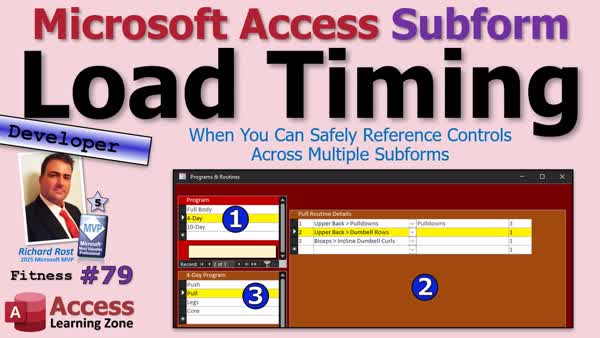 TechHelp Access, subform load timing, vba subform reference, access on current event, update subform caption, reference sibling subform, on error resume next, parent child forms, subform load order, cross subform controls, synchronize subforms
 Subscribe to Fitness 79
Get notifications when this page is updated
More InformationTranscript Have you ever written perfectly good VBA code to reference another subform, only to get an error because the form you wanted was not loaded yet? Today we are going to look at one of those little Microsoft Access quirks that catches a lot of developers: subform load timing.
Welcome to another TechHelp video brought to you by AccessLearningZone.com. I am your instructor Richard Rost. This is part 79 of my fitness database series, but remember, even if you are not building a fitness database, the techniques we are covering today apply to any Access application with multiple subforms, whether you are working with customers and orders, invoices and line items, projects or tasks, or any other parent-child relationship, or even multiple subforms that are technically siblings. There are lots of situations where this stuff is handy.
Last time, we polished up our user interface by highlighting the current record on each synchronized subform. Today we are going to continue improving the interface by making the captions automatically update as you move through the data, right, the little captions in here.
Along the way, you are going to learn how to safely reference controls across multiple subforms and why timing matters when the forms are loading. I will show you a simple technique I use in order to avoid load order headaches because they do not always load at the same time and you cannot always predict which one loaded first.
Alright, so let us get started.
Alrighty, and welcome back to Fitness 79. I know it has been about a week since I released Fitness 78, so let us get back into it. Today we are going to go back to the workout and then programs and routines menu. What I would like to do, this is a cosmetic UI thing, but this gets you to practice with something that a lot of people need practice with and that is knowing how to name stuff inside subforms. I see a lot of people have problems with this, so we are going to practice it a little bit today.
So what I want to do is when I click on, let us say, four day here, I want this guy down here to say four day routine and then you will know that that is the four day routine. Likewise, when I click on pull, you will put up here, pull routine details. So we are going to cascade that caption. We are going to cascade this value to the caption above this guy.
Now I know full body and full body are the same here. It will make more sense on something like four day or the 10 day one, but with four day you will see what I am talking about.
So in the on current event for this form, I am going to set this guy's caption. First, let us get the name of this guy so we can set its caption. The name of this label, it is label1. We are going to rename that first of all. I do not normally name labels until I am getting ready to do something with them. Let us call this routineLabel.
Now I am going to open up Notepad because when I do this, I like to have Notepad open to put all this stuff in. The name of the form is the routine form, I believe. Let us double check. Click on this right there. It is routineF. That is fine. It is going to be routineF, and then the label in there is called routineLabel. And we are dealing with its caption. So .Caption equals whatever we are going to set it to.
Now this routine form is inside the parent form. So if code from in this form, which is where we are using the on current event, has to get to this guy, you want to talk to the parent first, then go into this form. So what you really have to say here is Parent!routineF.Form!routineLabel.Caption. That is what it looks like if you are talking to this guy from inside this form. This guy has to go up to the parent, say, I need your controls. RoutineF, this guy is a control on that parent form. .Form says, go into the form now. And then it is just like you are in that form. Now it is going to be just routineLabel.Caption. I know it is confusing nomenclature, but that is how they did it with Access.
So now we should be able to go into, and let me make this smaller so we can see that on the screen. Oops, I moved my thing here. Hold on. I did a little resize, a little rearrange so we can see this while we are working in here.
So, in this guy's on current event, we already have something in there. Let us see what it is. We are just setting the currentProgramID equals programID. That is for our linkage. So leave that alone. Now right here, when this guy changes, we are going to say, update this label. So in the on current event, first, let us check to make sure it is not blank. Because if you click on a new record, or if there is no description, we do not want an error happening. So I am going to say: If NZ(Description, "") = "" Then Exit Sub.
Let us put some comments in here. Set caption on routine form label.
So, right here now, this is where we put that line. The Parent!routineF.Form!routineLabel.Caption = Description. And that should happen immediately. No refresh or anything required. Save it. Debug, compile once in a while.
Go back over to here. I am going to close it, close it, and then open it. Oh, hold on. You want an expression that is an invalid reference to the form property report? OK, debug.
Now, why is this happening? Here is what is happening. It all comes down to a matter of timing. Watch this. If I stop this, it continues to load. It still says routine here. Now watch what happens. Oh, look at that. It is working when I actually do a click, but it is not working the first time you load the form. This is a timing issue. Watch what happens. I will do it again. Ready? Invalid reference to a property form. Why is it an invalid reference? Because that form has not loaded yet. The one subform loaded, the parent loaded, usually, the order in which they load can't easily be determined all the time. But you cannot always assume that all of the subforms are loaded at the time the parent has loaded or the other sibling subforms.
So, that is basically the problem here. We are trying to set a caption on a form that has not fully loaded. Now, you can get around that with On Error Resume Next. That will get around it the first time the form loads. Watch. See, it loaded now, but it did not run. So what I usually do in a case like this, you could play all kinds of timer tricks. You could have something run in the on load event that sets the timer. There are all kinds of tricks you could play.
The easiest way to do it is to put it both in this guy's form current event and in the other guy's form current event because one of them will load first and one of them will set the caption and will just ignore the error in the other one.
So this guy right here is this, the routine caption description. And we are setting it in the on current event for this. When we change between these, we update that label. And we are going to leave the On Error Resume Next here. So if this is not loaded yet, it just ignores it.
This guy, in the on load event, will do the same thing. He'll look up here and say, hey, what's your name, big guy? Tell me your name. And one of the two of those will work. It's just a matter of timing. You could play timer games with the form timers and stuff, but this is just easier. There is what works in theory and how you know how you could possibly do it, and then there is just the easy way to make it work.
So now, let us figure out how to refer to that field up here. Let us go back to design view. So we need to get this description. So I am going to come down here. We are good with you. We need the description off of, what is the form name? This is programF. So it's going to be Parent!programF.Form!Description. That's all that is.
So now come down to this guy's load event. Where are you? On Open or On Load? Either one should work. Let's go with On Open. So here we are going to say, what is the routineLabel? routineLabel.Caption = Parent!programF.Form!Description. And just in case this form loads first, which it might, as I said, the timing is not always guaranteed, we are also going to put On Error Resume Next in here, just in case the other form is not loaded first. The two of them together, one should work.
Debug, compile once in a while. Close it, close it, and go full body, four day, ten day. One of the two of them gets the job done. The other one just errors out, but we do not care.
Now, you know where I am going with this. This guy is next.
First, let us make this say program here. So it says full body program. A real tiny cosmetic change. Let us find that. Where are you here? I am in the wrong place. We need to go into your on current event. There. Right here, we are just going to say program. So it will say full body program.
And we will do the same thing. I am going to copy this. We will do the same thing in your on load event, on open, on load. The only difference between the two is on open can be canceled, so it really does not matter for most things unless you need to have the ability to cancel that event. For example, if you are doing some validation and you are not allowed to open this form, cancel.
See, full body program, four day program.
Let us do the same thing with routine details. We are going to make this say pull routine over here.
First, we will do the, we will pull this there, and then we will push it there. Same concept we just did a second ago.
Now you have done it once, you will get the hang of it.
So first, let us take a look at what we are dealing with here. What is the name of this subform? In fact, let me copy the lines that we used before. Hold on.
There are the lines we used before, going from program to routine. Now we are going from routine to routine detail. What is the name of this subform? This is the routineDetailF. What is the name of this label? It is label1. Now we are going to change that. We are going to make this routineDetailLabel.
Copy that. This is going to be from this guy to this guy.
We will start with this one down here. So on the routine detail form, this guy over here, we are going to say routineDetailLabel.Caption = Parent!routineF.Form!Description & " routine".
Going the other way, on the routineF, this guy, the parent now, Parent!routineDetailF.Form!routineDetailLabel.Caption = Description & " routine".
So we are pushing it one way, we are pulling it the other.
We just need to put these lines in the right spots.
So, on this guy's on current event, right here. On Error Resume Next, and then that. In other words, when the routine changes, change the label on the routine detail form.
Then, on this guy in his on open event, which is on open down here, we want the other way. On Error Resume Next, and then give me the other one, which is this guy. Set my caption on this form to Parent!routineF.Form!Description & " routine".
So it is technically a sibling subform, but in this particular case, the way we are using it, our use case is it is a parent.
Save it. Debug, compile and pray.
We are good. Close it. Close it. Open it. And look at that.
OK, I thought it was wrong for a second, because it is full body routine. The name of the program and the routine is the same. Full body routine. I am going to put, then it will say full body routine. Let us make this say whole body, so it is not the same thing. It confused me there.
There we go. We got the whole body routine. Notice, if it is blank, it just says routine. It goes back to its default value.
OK. We should address that too. In that case, where it is blank, maybe set this equal to just nothing. That is not a bad idea. I like that better than it being wrong. But it is working. What we got here is working. Pull. This does not have an event on it. Legs, legs routine, full body routine, and then whole body routine.
Let us change it so that if it is blank, if we go here, if it is a new record, we still need to update this stuff. Let us start with this guy's push event, so let us go into here. That would be this guy's on current event.
We started looking at it with this first one, but we did not finish up with the rest of them. Let us do this then. I am going to put the On Error Resume Next right above this, and we are going to say if this is blank, then we are not going to just exit the sub. We are going to set the caption. So we are going to say this guy equals, and this would have to be Routines, so we know it is different. Otherwise, do this, End If.
So if the description is blank, it will just say Routines, or no routines or whatever. Or All, now, because then if we add routines, it will still say no routines. We will just leave it like that. That is fine. Save that. Let us see if this works. Debug, compile. I can get rid of this now. Close. Do not save it. Close it. Close it. Open it.
If I go to a blank one, it just says Routines. Then we will do the same thing pushing to this guy. Well, this should, yeah, this should say Routine details, then. We will do the same kind of thing. Go into your on current event. On current event, where are you? Right there.
We are going to say if nz(Description, "") = "" then this guy will say Routine details. Otherwise.
I kind of like having it say routine details in here too. Four-day routine details. I kind of like that. And if that is the case, we would not need this If Then.
Watch. We could do this. We could say this. Put that there.
Now we can get rid of this. Watch what we can do. We can make this one line again.
Now, what we are going to do here is see this. It is going to say blank routine. Let us make it say blank routine details. So this part of it right here. If Description is null or an empty string, then we are still going to have a space in front of routine details. We can get rid of that with the Trim function. Trim this whole thing. So now, if this is null, it will just say Routine details. If not, it will put that in front of it with a space there. Otherwise, that space gets chopped off. That is a lot more efficient.
See, now we get into the situation where the code is more efficiently written, but it is not as easy to look at it and understand. So you could put some comments in here. If you want to, I am not going to right now. Let us just make sure it works.
Do as I say, not as I do, children, except right now. Right now, do exactly as I say and take a second and click that like button. If you have not subscribed yet, do that too. It really does help the channel. It tells YouTube that people find these videos useful, which helps more people. It helps more Access developers discover them, and it helps me, and it helps everybody. The more people who do watch, the more videos I get to make.
Public service announcement over. Let us get back to building the database.
Open it up. Whole body routine. Well, because this guy pushed, it must be. Now if we go, if I click on four day, it outsets push routine details. Hold routine, we didn't push it yet. We have got to fix the push. Legs routine details. If I go to blank, it just says Routine details.
So that is working. What does it look like when it opened again? Whole body routine. That is just changing this guy here when it pulls it. Come into here. Go into your on open event. This should just say details. We could do the same trick here if you want to. NZ(Description, "") & " routine details". We Trim this whole thing. That makes sure in case you do have a record.
Now let us close that. Now we do the same thing with the other guys. So we covered this guy. Let us see: we have got his on open event. He does not have an on current event. So his on open event is done. This guy has an on current event, which is right there, that is good. Now here is his on open event. We will do the same thing here. Trim this NZ(Description, "") & " program". Trim this whole thing. Save that. Now back to the program. He has got an on current event, which is this big long thing. Now we can just do this: NZ(Description, "") & " program", and then trim this whole thing. Then we do not need all of this.
See, this is how code evolves, people. You look at it one way and you go, you know what, there is an easier way to do all that. And there is the easier way. Like I said, it is not as elegant, but it is not as easy to read. Here is where I put the caption. I put the comments just on here. If Description is null or this, then trim it and just say program. Same thing repeats on other subforms there. If you want to know how you can put on the other subforms, see the caption here or copy and paste that.
Debug, compile. I know I forgot something. Let us close it and see what happens. I always have a feeling like, which one did I forget? Let us see. Here we go. Program. We have full body program, whole body routine details. Beautiful. Four day, four day program, push routine details. Ten day, ten day program. Everybody is blank. This just says Routine details. Beautiful. If I come in here, I go to a blank one, I love it. I love it when a plan comes together. Who said that one?
Let us put in here, cabs. If I come back to cabs, it should say Cabs, routine details. Beautiful. I think we are good.
Now, could you do all three of them together here? Like if you are sitting here on a legs, could you say four day program, legs routine details? You could, but then you have to get all three of those timings down and that would be tough. I would not do it just with the technique that I am using now with the On Error Resume Next, because if you are talking about two subforms loading, one of the two of them will load first. If you need this, and this guy is not loaded, just have him figure it out because he is already loaded at that point. If not, it goes the other way. When you are talking about three subforms, you might have two of the three of them that have not loaded yet, and then you have a problem. You would have to use a different technique. Like I mentioned earlier, you would have to use a timer event, and then when each one of those subforms loaded, it would somehow mark in memory that they are loaded. Then your timer event would wait for all of them to finish loading. Then you could set them all. That is a lot more advanced. If you guys really want to see it, post a comment down below and I will do it. I have done it before. I built a calendar app once where there were 30 boxes, because there were 30 subforms for the calendar. Each one represented a day, and I had to wait for all of them to load before I could do anything with any of them. So, that is a technique that I had to use.
Going back to the move itself up and down, someone mentioned or posted a comment about, could you drag and drop? You can do drag and drop. It is not easy to code, but you can do it. I cover how to do drag and drop between list boxes in my Access Developer 58 course lesson 4, the Kanban board. Remember that? I did a Kanban board TechHelp video. That is pretty cool. Well, we did a lot more with it in the developer series, including drag and drop between the boxes. You can just grab one and click and drag and drop it somewhere else, and it is really cool. You could do the same thing here if you wanted. You get the register of the drag and drop, but it is possible. If you want to learn more, check out my Access Developer 58 course. I will put a link to that down below. No, I will not cover that in a TechHelp video, not even an extended cut. It is a lot of stuff.
In the extended cut for the members, what we are going to do is we are going to make it so you can add exercises from your list of exercises to the currently open routine with one click. We will make a button from the open exercises form or from the routine form to open the exercises form. Then from there you click the button to add that to the routine.
So it will work like this. You will have a button right here to add exercises that will pop up this guy. I am going to move these side by side so you can see them. Then we will have a button here to see if you find what you want. Let us say you are doing chest day. Find your chest exercises. Now you click on, I want to add chest press, add it, flies, add it, next one. Then it will add that to the currently open routine. So it makes it much easier to build your routines when you have all your stuff in here. You have your biceps exercises. OK, I want to do this. Come over here, go to your poll day. I have my biceps, I have my incline dumbbell curls. Great, I want to add this, add it, this, add it. I do not have it, I do not have it built yet. I did a little mockup earlier, but we are going to do that in the extended cut for the members.
Remember, Silver members and up get access to all of my extended cut videos. Not just this one, all of them. There are lots of them. Gold members can download these databases and you get my code vault, and everybody gets some free training. So come on down. You are the next contestant on whatever this is. I have had too much coffee today, people.
So today we learned how to safely reference controls across multiple subforms, and we worked around the subform load timing issues. We polished up our interface by making the captions automatically update as you navigate through your data.
Post a comment down below and let me know what you thought of today's lesson and what you would like to see coming up in future lessons.
That is going to do it for your TechHelp video for today, brought to you by Access Learning Zone. I hope you learned something. Live long and prosper, my friends. I will see you soon for part 80. And members, I will see you soon in the extended cut.
If you enjoyed this video, hit that thumbs-up button right now and give me a like. Also, be sure to subscribe to my channel, which is completely free. Make sure you click that bell icon and select all to receive notifications whenever I post a new video.
If you are new to Microsoft Access, check out my Access Beginner Level One course. It is over four hours long and it covers all the basics, like tables, queries, forms, and reports. It is a great place to start and it is also completely free.
Members of my channel get extended cut videos, sample databases, access to my code vault and full training classes every month. Click the Join button for details.
Thanks for watching. I am Richard Rost with AccessLearningZone.com. Live long and prosper, my friends. I will see you next time. Intro In this lesson, we will look at a common Microsoft Access issue involving subform load timing and how it affects referencing controls across multiple subforms. I will show you how to safely update captions and work around errors caused by forms or subforms not being fully loaded, using techniques like checking for null values, updating captions in on current and on load events, and using On Error Resume Next to handle timing unpredictability. We will walk through managing parent-child and sibling subform relationships and improving your user interface by automatically updating labels as you move through your data. Quiz Q1. What is the main issue discussed in this video regarding referencing controls across multiple subforms in Access?
A. Subform load timing can cause errors if the subform you want to reference is not loaded yet
B. Subforms cannot reference controls on other subforms at all
C. You always have to use macros rather than VBA for cross-subform references
D. Access automatically synchronizes all subform controls with no timing issues
Q2. What simple technique does Richard recommend to avoid errors due to load order of subforms?
A. Using On Error Resume Next and placing code in both subforms' events
B. Setting up a global variable to check the load state of each form
C. Using nested SELECT CASE statements to handle each case
D. Avoiding references between forms entirely
Q3. If you want to reference a control on another subform from within a subform, which keyword do you use to access the parent form?
A. Parent
B. ThisForm
C. Me
D. Main
Q4. When referring to a label control named routineLabel inside a subform called routineF, what is the correct syntax to set its caption from another subform?
A. Parent!routineF.Form!routineLabel.Caption
B. Me!routineF.Form!routineLabel.Caption
C. Forms!routineF!routineLabel.Caption
D. Subform!routineF!routineLabel.Caption
Q5. Why do we use the function NZ(Description, "") in the example given?
A. To safely handle null values and prevent errors when Description is blank
B. To force a number to become a string
C. To automatically translate the Description text
D. To capitalize the Description text
Q6. What is the benefit of using the Trim function when setting the label captions?
A. Removes any leading spaces if Description is null or blank
B. Converts all text to lowercase
C. Replaces null values with a dash
D. Adds double spacing to the label text
Q7. What could happen if you try to reference a control on a sibling subform before it has loaded?
A. You get an invalid reference error
B. Access automatically creates the control
C. The subform resets to the first record
D. The reference is ignored with no error
Q8. What event is commonly used to update captions as the data record changes in subforms?
A. On Current event
B. On Click event
C. On Delete event
D. On Close event
Q9. According to the video, when should you use the On Error Resume Next statement in your code?
A. When referencing controls on another form or subform that may not have loaded yet
B. Only when performing calculations
C. When compiling your VBA project
D. When deleting records
Q10. What is a limitation of using the On Error Resume Next technique with three or more interdependent subforms?
A. Two of the subforms may not have loaded, making the technique unreliable
B. It locks all forms into read-only mode
C. It causes Access to crash
D. Captions will always update correctly regardless of load order
Answers: 1-A; 2-A; 3-A; 4-A; 5-A; 6-A; 7-A; 8-A; 9-A; 10-A
DISCLAIMER: Quiz questions are AI generated. If you find any that are wrong, don't make sense, or aren't related to the video topic at hand, then please post a comment and let me know. Thanks. Summary Today's video from Access Learning Zone covers an important topic that often trips up Microsoft Access developers: handling subform load timing issues when referencing controls across multiple subforms. This topic is particularly relevant when working with Access applications that feature parent-child relationships, such as customers and orders or projects and tasks, and especially when those subforms interact with each other.
In this lesson, I focus on a scenario from my fitness database series, but the principles apply no matter what your database tracks. Last time, we enhanced the user interface by highlighting the current record in synchronized subforms. This time, the goal is to further improve usability by automatically updating the caption labels above subforms as users navigate through their data.
A common challenge arises when you try to reference a control on another subform using VBA in the OnCurrent event, only to get an error because that subform has not finished loading yet. The core issue is that Access does not guarantee the order in which subforms load, so there can be times when the code tries to access a control in a form that is still loading, leading to invalid reference errors.
To illustrate this, I wanted to make it so that when you select a program or routine, the labels above corresponding subforms update automatically to reflect the selection. For example, if you choose a "Four Day" program, the related routine subform would have a label displaying "Four Day Routine." Similarly, if you select a "Pull" routine, the detail subform shows "Pull Routine Details."
When setting this up, the approach involves referencing the label control by going from the current subform up to its parent form and then down into the sibling subform. This requires careful naming of both the subforms and their label controls. For clarity, I prefer to give descriptive names to labels only when I know I will need to refer to them in code.
The typical syntax for referencing a control in a sibling subform is to use the Parent property to access the main form, then drill down into the correct subform, before finally getting to the label you want to update. However, if you do this in just one subform's event, you might hit errors because Access cannot guarantee which subform loads first.
One effective solution is to add the same caption-update logic to both relevant subforms. That way, whichever form loads first, one of them will succeed in setting the label, while the other will simply ignore the error if its target is not yet loaded. This is often paired with a simple error handler to suppress those first-load errors.
As you set up these references, it's also important to ensure you handle cases where the description field might be blank. Instead of having the label display nothing or the wrong text, you can use a default caption like "Routine Details" if the field is empty. Using the Nz function and the Trim function helps keep the captions tidy, avoiding unnecessary spaces or incomplete captions.
Through this process, you see how the code evolves. Initially, it might involve multiple If statements to handle blank values, but with a little refinement, it can be simplified to a single line using functions like Nz and Trim. Although this condensed code can be a bit less readable at first glance, thoughtful comments can help clarify what's happening for anyone reviewing your work later.
Other techniques, such as using timer events or tracking form load status in memory, are available if you have more than two subforms that need to interact or if you need to guarantee all subforms are fully loaded before triggering certain actions. This is more advanced but sometimes necessary for complex interfaces, like one project I worked on that included a calendar with 30 subform controls.
For developers interested in adding even more interactivity, like enabling drag-and-drop reordering between list boxes or forms, I do cover those topics in my Developer courses, especially when building features like a Kanban board.
In the extended cut for members, I cover how to add exercises to a routine with just one click. This includes creating an interface that allows you to select exercises from a list and add them directly to the currently open routine form - streamlining the process of building workout routines. If you're a Silver member or higher, you'll have access to these extended cut lessons as well as sample databases and my code vault. Gold members can also download the databases we build in these lessons.
The key takeaways in today's lesson are understanding how to safely reference controls across multiple subforms, how to avoid or work around load timing issues, and how to polish your user interface with dynamic captions that update as users interact with the data. As always, be sure to comment if you have questions or want to see more advanced techniques in future lessons.
You can find a complete video tutorial with step-by-step instructions on everything discussed here on my website at the link below. Live long and prosper, my friends. Topic List Referencing controls across multiple subforms in Access
Understanding subform load timing issues
Using On Error Resume Next to handle load order errors
Updating subform label captions dynamically
Naming and referencing labels in subforms
Cascading captions between parent and child subforms
Setting captions in form On Current and On Load events
Handling null and blank values in label captions
Utilizing the NZ and Trim functions for captions
Efficiently updating UI captions as data changes
Resolving sibling subform references
Polishing Access form user interfaces with captions Article Have you ever found yourself writing correct VBA code to reference a control on another subform in Microsoft Access, only to run into an error because the form you want to work with is not loaded yet? This is a common issue related to subform load timing, and it can be frustrating when you are not aware how Access processes parent and subform relationships as forms are opening.
Let me walk you through how this happens and how you can deal with it efficiently, especially if you are working with Access forms that have multiple subforms or nested relationships. Whether your application works with customers and orders, invoices and items, or, say, programs, routines, and routine details in a fitness database, this principle applies.
Imagine you have a main form with two subforms. For example, your main form might be a "Programs" form, with a "Routines" subform and a "Routine Details" subform. These forms are all synchronized so when you navigate one, the data in the others updates too. Suppose you want to make your system a little friendlier to use by updating captions on these forms dynamically, so the title above each subform reflects the current record selected by the user.
Often you may want something like "Four Day Routine" above your routine subform or "Pull Routine Details" above your details subform, depending on what is active. This means writing code so that when you select a new record in one subform, a label caption in another form or subform updates to match.
The way you reference a control on a parent or sibling subform using VBA is important here. If you are in a subform and want to reach outside to another subform or the main form, you might use the Parent property. For example, you might want to set a label caption in your sibling subform from your current subform's code. The syntax typically looks like this:
Parent!SubformControlName.Form!ControlName.Property
So, if you are in the routine details subform and want to refer to a label called routineLabel on the routine subform (inside its parent form), you would write something like:
Parent!routineF.Form!routineLabel.Caption = Description
Here, routineF is the name of the subform control hosting the routine form, routineLabel is the label you want to change, and Description is the field value you want to display. The .Form part tells Access to dig inside the subform control to access the form object itself.
The trickiness comes in when you actually run your app and get an error like "invalid reference to the form property report." Usually, this means you are trying to access a form or a control before it is fully loaded into memory. Access does not guarantee the order in which subforms are loaded, so if you try to set a value on a form that is not ready, you will run into errors. The On Current or On Load events can fire before both sibling subforms are loaded, depending on how Access decides to open everything internally.
A simple and effective way to deal with this is to use "On Error Resume Next" before you attempt to reference a control on another form. This way, if the control or form is not ready, Access ignores the error and keeps going. Then, put the updating code both in the On Current event of the subform where your record navigation happens and in the On Load or On Open event of the target form. In other words, let each subform try to set the other's caption when it loads or when the user moves to a different record. Whichever one loads second will succeed, and the error in the other will be ignored.
Here is an example for updating the caption of a label called routineLabel when navigating routines:
Private Sub Form_Current()
On Error Resume Next
If Nz(Description, "") = "" Then
Parent!routineLabel.Caption = "Routines"
Else
Parent!routineLabel.Caption = Description & " routine"
End If
End Sub
In the On Load event, you would use similar logic to make sure the label gets set on load, in case this form happens to be the one loading after the sibling:
Private Sub Form_Load()
On Error Resume Next
routineLabel.Caption = Nz(Parent!programF.Form!Description, "") & " program"
End Sub
To handle cases where Description is empty, you can use the Nz function to avoid nulls, and the Trim function to clean up any unnecessary spaces:
routineLabel.Caption = Trim(Nz(Parent!programF.Form!Description, "") & " program")
This ensures that if there is no description, your label simply says "program" without an extra space.
The point is to write your updating code so that it can safely try to update the dependent control, and if the other form is not ready, Access will keep going without stopping your code with an error.
Now, say you want to update another label in your routine details subform with something like "Pull routine details" or just "Routine details" if nothing is selected. You would use similar patterns. In the routine details form's code:
Private Sub Form_Current()
On Error Resume Next
routineDetailLabel.Caption = Trim(Nz(Description, "") & " routine details")
End Sub
Set this logic both in the On Current event when records change, and in the On Load or On Open event so the label is correct when the form loads up for the first time.
If you want to reference from a parent or from another subform, just adjust the Parent property chain to go up to the parent, and then down to the sibling subform as needed. Always use the names of the subform container controls, not just the form itself.
A few other thoughts. If you want to coordinate the initialization of more than two subforms, things can get trickier, since sometimes two out of three may not be loaded yet, and simple error bypasses will not be enough. In those cases, you may need more advanced techniques, such as keeping flags in memory, or using Timer events to periodically check if all forms are loaded before updating captions.
If you ever want to implement drag-and-drop between your controls or subforms, that is also possible in Access, though it requires more advanced code - typically using list boxes and special event handlers.
In summary, working with multiple subforms in Access requires care with your event timing and control references. Handle any potential errors proactively with "On Error Resume Next" when referencing other forms you cannot guarantee are ready, and duplicate your update logic in relevant On Current and On Load events so users always see the correct captions as they move through your data. With these best practices, you will avoid frustrating errors and deliver a polished, dynamic user interface to your Access application. Primary Topics
Access subform timing, referencing sibling subforms, cross-form control updates, on current event, on load event, VBA error handling, UI caption updates, handling null/blank data
Secondary Topics
label naming conventions, user interface polish, error suppression, use of NZ and Trim functions
|




