Free Lessons
Courses
Seminars
TechHelp
Fast Tips
Templates
Topic Index
Forum
ABCD
 
Home   Courses   TechHelp   Forums   Help   Contact   Merch   Join   Order   Logon  
 
Back to Access Forum    Comments List
Upload Images   @Reply   Bookmark    Link   Email   Next Unseen 
Form Color Templates
Raymond Spornhauer 
          
11 months ago
When creating Forms in databases, I try to use color themes (when I have time) to make them visually appealing, but doing this for many forms over and over between databases takes quite a bit of time.

It occurred to me I should create a database for color themes which can be applied to any form, then I can apply this to any database.  I just haven't had time to work on this yet and figured I'd throw this out there to see if anyone else has done this, or maybe this could be a video series.

I know Rick has a Template where you can change a bunch of Form parameters and save them (colors, size, etc.), but I'd like to focus on the Colors and have a Palette Table that I can use to select color profiles for the Forms.

My first thoughts:
The Forms have 3 sections I care about... FormHeader, Detail, FormFooter.  In each of these sections, I could have a background color, then a contrasting color for text based on the theme.

I'm not sure how I'd want to handle other controls in each of these sections.

I'm thinking the form could have a ComboBox I could use to select the Form Color Theme based on the Palette Table.  Then maybe later hide this ComboBox or use other code to set it.

I'd also like to know if there are pre-existing color palette tables we could use.

Another option would be to have a Form I can use to set the colors for these controls, then have a save button to add it to the Palette Table.

I would very much like to hear other's ideas or see a series on how anyone else would do this.

Thanks,

-Raymond
Juan Rivera  @Reply  
            
11 months ago
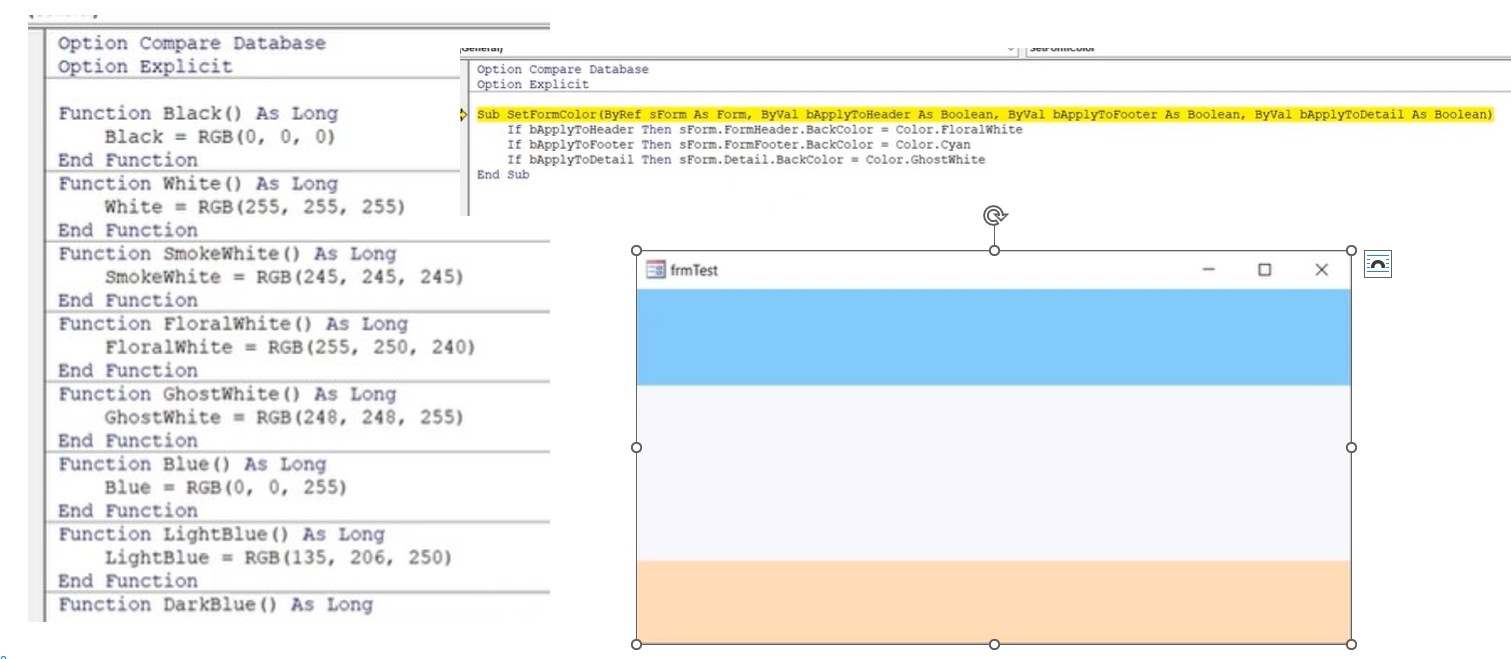
I did one like this I used modules and in VBA called out the color from the module after you have it set calling the color for each section you just vba on loa, I think you can also do Developer 40 this may give you some idea as to how you may like to get this done.
Donald Blackwell  @Reply  
        
11 months ago
I've been working on something like this in one of my pet projects working with the built-in Access Theme Manager. Still not far into it but have essentially just started laying the framework.

And let me say I am cognizant of the concerns Richard frequently raises in his videos about use of themes and someone switching the theme and messing up the colors, etc. For me, now that I've been learning the ins and outs of theme usage, it's not as much of a concern since I'm a solo developer so the only person who can mess me up is me... Backups are my friend, lol.

One downside to Theme Manager is that you can only set one theme per application but with 12 different color indexes within a given theme, for most projects, that is enough for creating a variety of color palettes that can be managed through a "settings" or other theme panel like Raymond had discussed. That way for any project, I can start with a base theme then create color palette management like in Richard's video. And the added VBA properties available with themes also are helpful for further customization, for example, if you want the theme to look different slightly depending on the time of day, etc., you can easily modify how dark or light a color looks without having to hardcode specific values
Juan Rivera  @Reply  
            
11 months ago

Juan Rivera  @Reply  
            
11 months ago
This is the method I use to set custom colors on my page using VBA. With VBA, we can go beyond the boundaries of standard themes - it's a meticulous process, but the best results often come from the finer details.
Donald Blackwell  @Reply  
        
11 months ago
I agree using standard themes can be limiting. But, it does make a good starting point since it gives you the ability to see the color selection for those 10-12 options pre-defined and then with VBA, you can easily adjust lighter or darker without having to open a color picker or adjust rgb or hex functions. Then, once I find colors/shades I like, I build functions similar to what you do to call them out by name if I want to be able to use a specific variant frequently.
Richard Rost  @Reply  
          
11 months ago
You know what would be cool? To set up a table where you've got the form name and then the color codes that you want selected for each of the sections in that form. And then you could open up another like a palette selector and set the colors that way. Maybe even save your own built-in themes so you don't have to worry about someone else messing up the system themes. You could even have that table store the colors per user and give each user their own way to change the colors. This might make an interesting video.
Sami Shamma  @Reply  
             
11 months ago
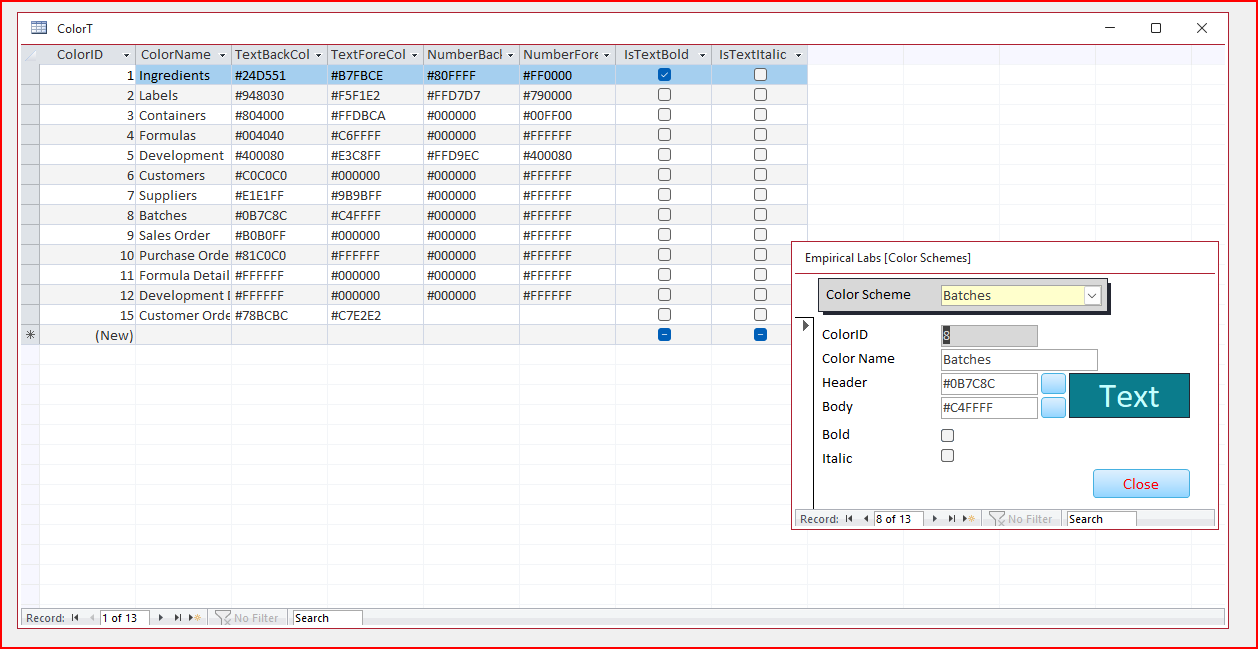
Three of our databases have something very similar to what you're talking about.
Sami Shamma  @Reply  
             
11 months ago

Raymond Spornhauer OP  @Reply  
          
11 months ago
Richard

What you're describing is exactly what I'm talking about.  

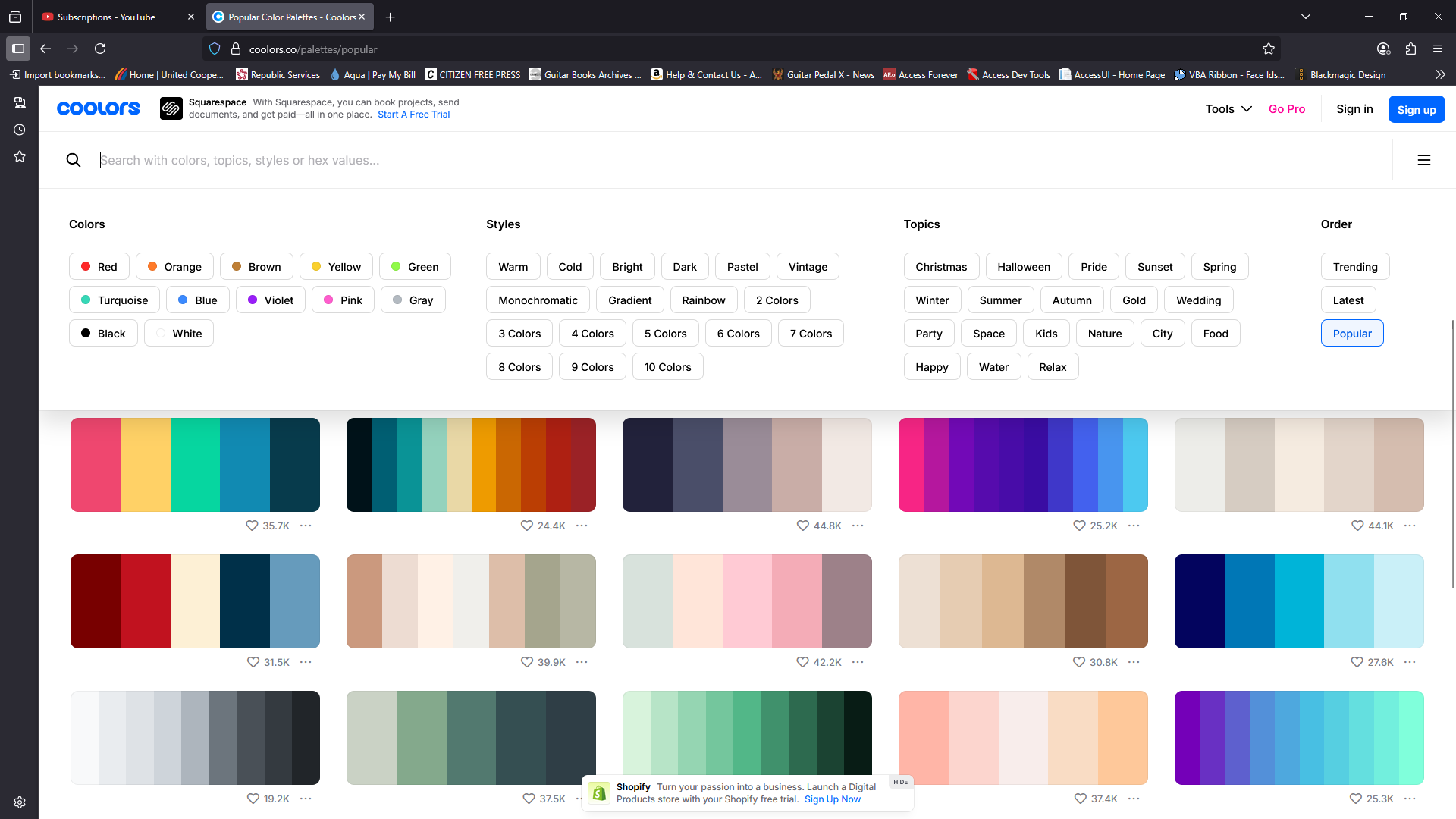
What I've seen from various Color Palette Websites is they'll have either Hex Color Codes or RGB.  Some will let you copy a string of codes.   (ie. "780000","c1121f","fdf0d5","003049","669bbc")

It would be good to see how to get this working on one form... so you can just choose from a combo box and have all the form colors change for the saved palette.  This could be used as a form template so you can implement this on any form.

Then the next step would be to create user profiles performing this same thing.

My challenge in doing this (besides having time) is having the other controls able to accomplish this same thing.  (ie. Buttons would need a color for the button, highlighted and pressed... also for each of the texts)  And if there is more than one control that you want various color options.  (Ie. A BLUE button and a RED Button, etc)  Also... making this work with Sub-Forms.

-Raymond
Raymond Spornhauer OP  @Reply  
          
11 months ago
Sami

This is exactly like what I'm talking about, but would also like to include other controls. (ie. buttons, list box, etc)

With saved Form Color Palettes, you can change just one field on a form to completely change all the color properties.

If this is setup as a Form Template, choosing your form colors (after inputting all your color palettes) would be as simple as picking a palette from a combo box.

Excellent post Sami.  I would like to develop this idea more and see if we can come up with some really cool development features for this. =D

-Raymond

Raymond Spornhauer OP  @Reply  
          
11 months ago

Raymond Spornhauer OP  @Reply  
          
11 months ago

Raymond Spornhauer OP  @Reply  
          
11 months ago

Raymond Spornhauer OP  @Reply  
          
11 months ago

Raymond Spornhauer OP  @Reply  
          
11 months ago
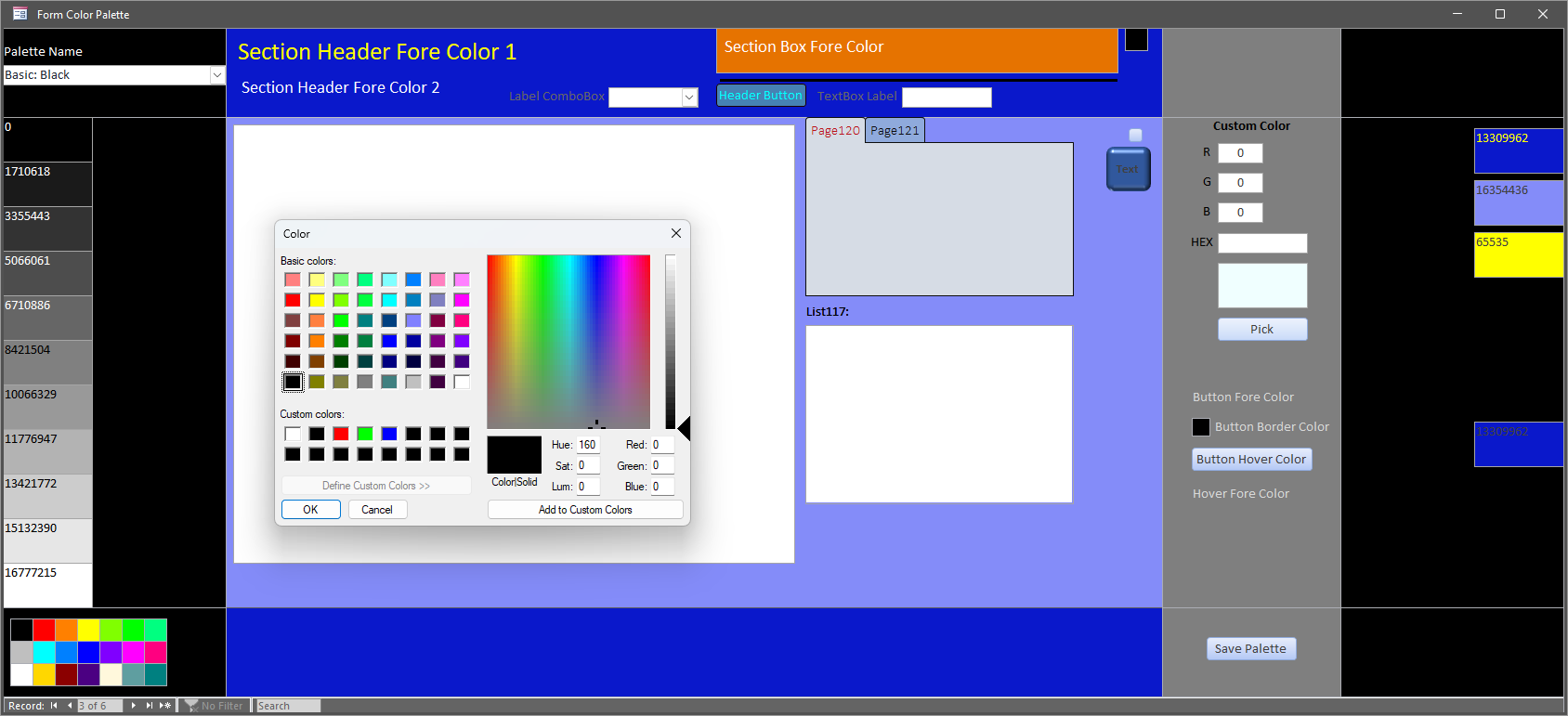
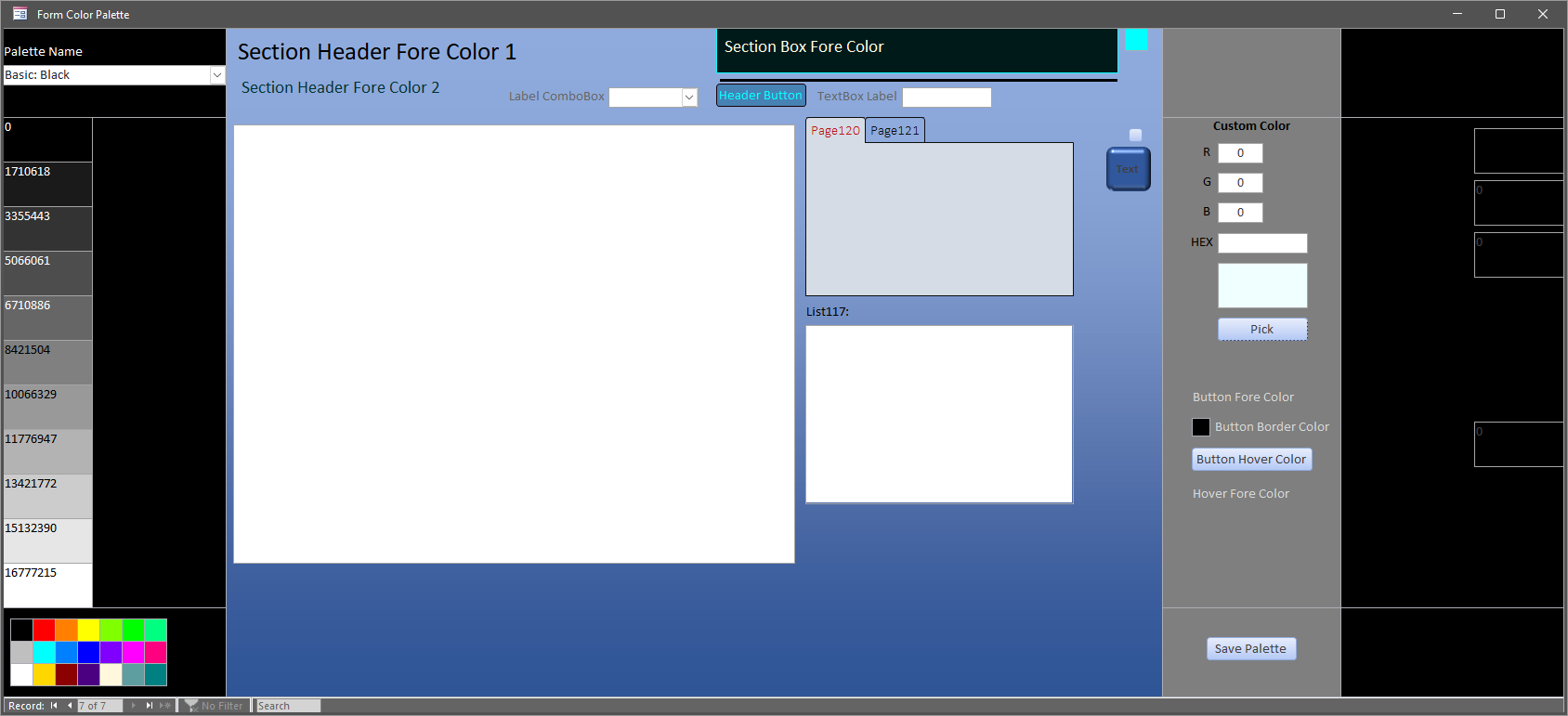
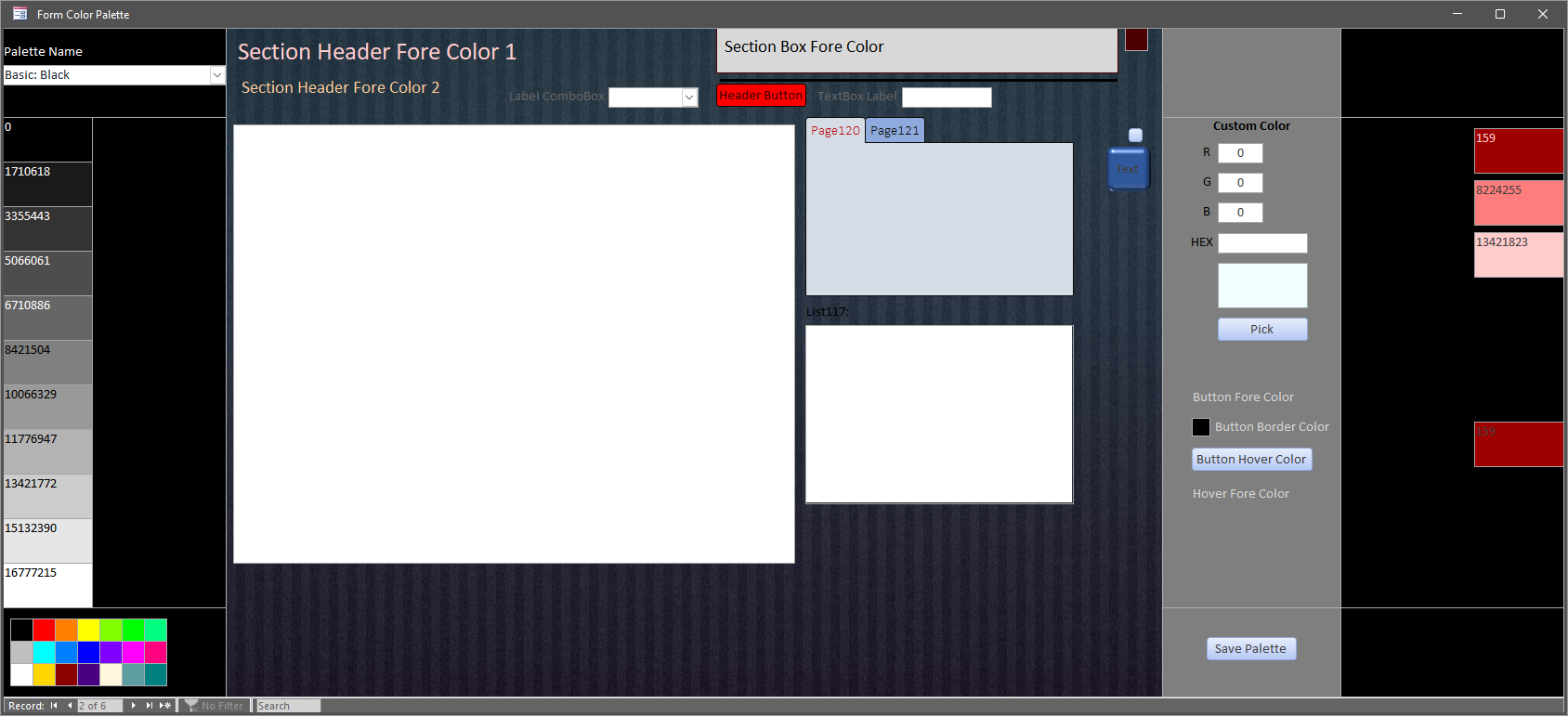
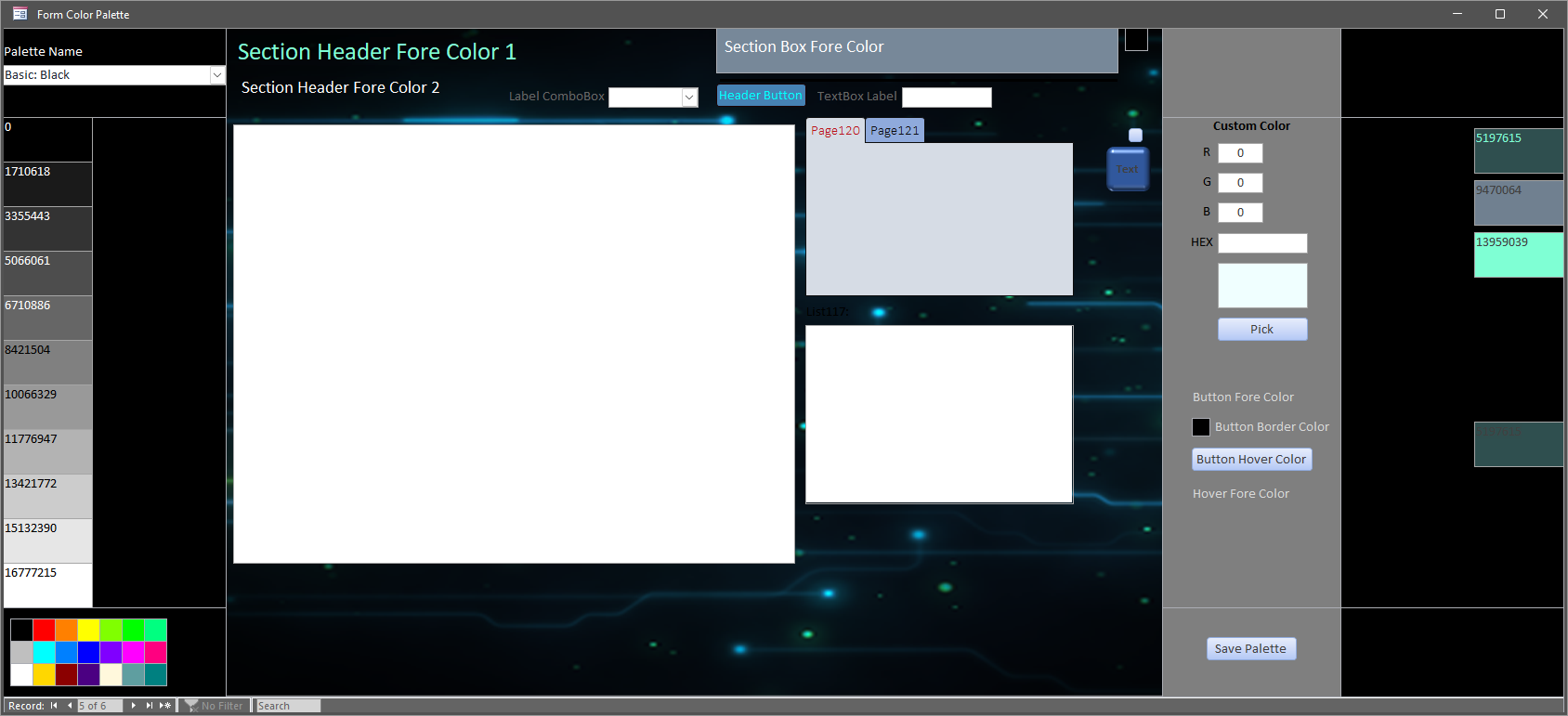
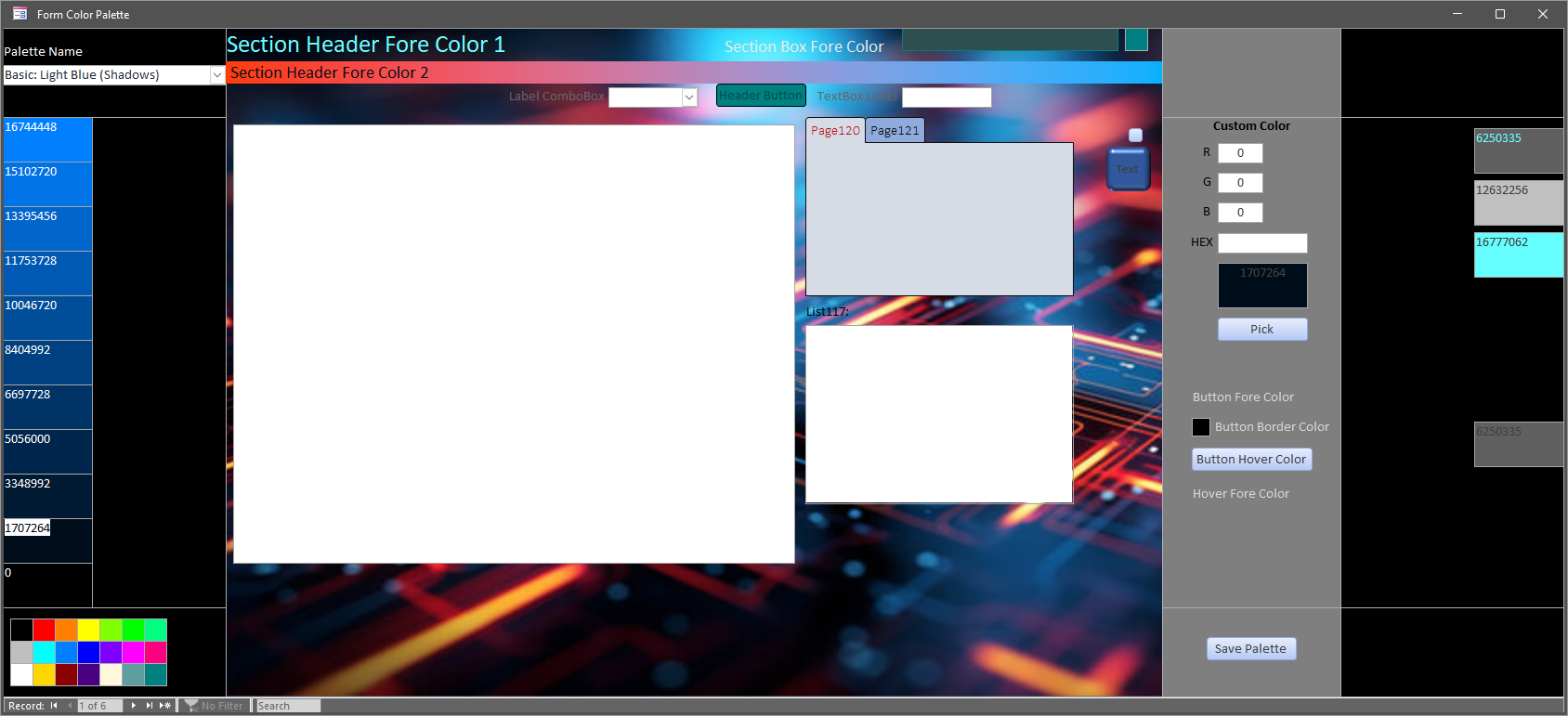
This is what I had started working on... forgive the "rough" nature of how it looks... it's not fully worked out.

-Raymond
Raymond Spornhauer OP  @Reply  
          
11 months ago
On the Form Color Palette:

I started tying to make it so I could pick a color, then click, or double click on the control or section I wanted to apply the color to.

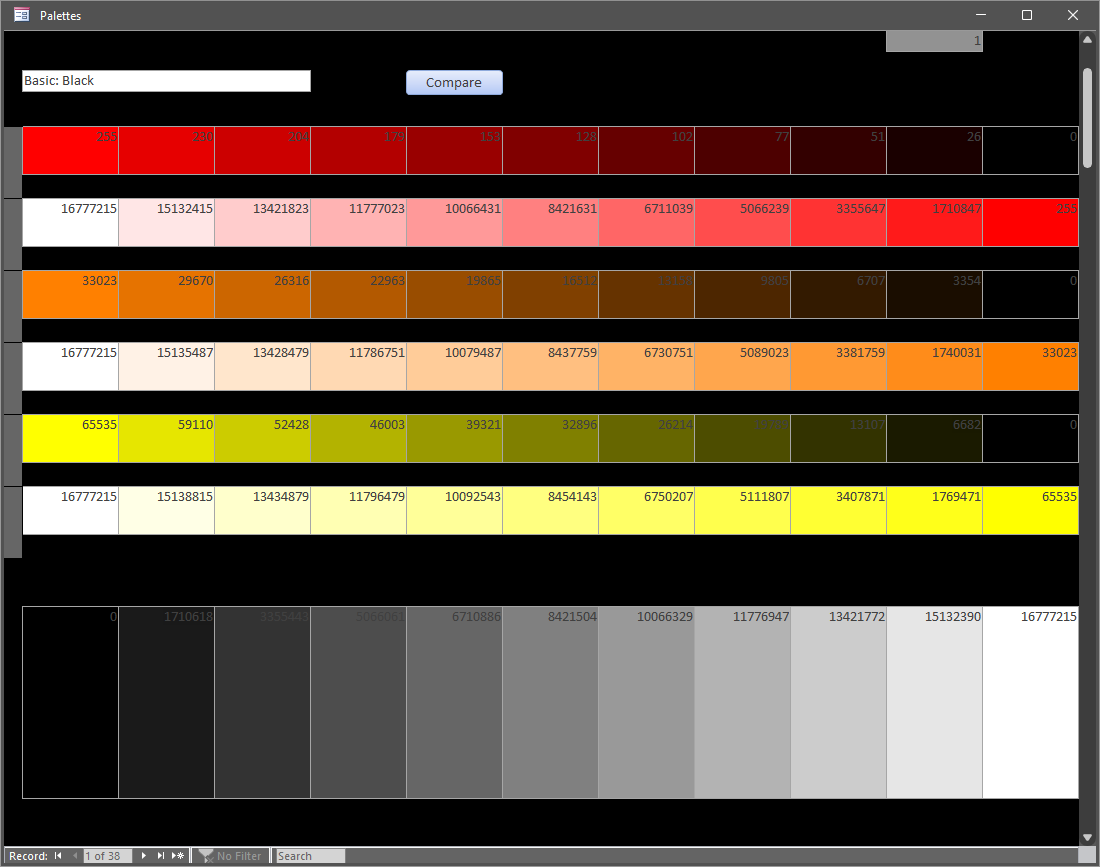
To make selecting colors easier, there's a combo box in the upper left that could be used to select a pre-made palette.  (the ones shown on my screenshots are basic, but any combination of colors could be chosen)  The combo box would change all the colors on the left and you can double click the color to set the Color in the box above the button "Pick".  Then the color box on the bottom left is another quick select for basic color palettes.

On the right side of the from, I could input RGB colors directly, or input in Hex Codes (these I would get from Color Palette websites), or I could click the "Pick" button and use the color picker shown in the Details section.

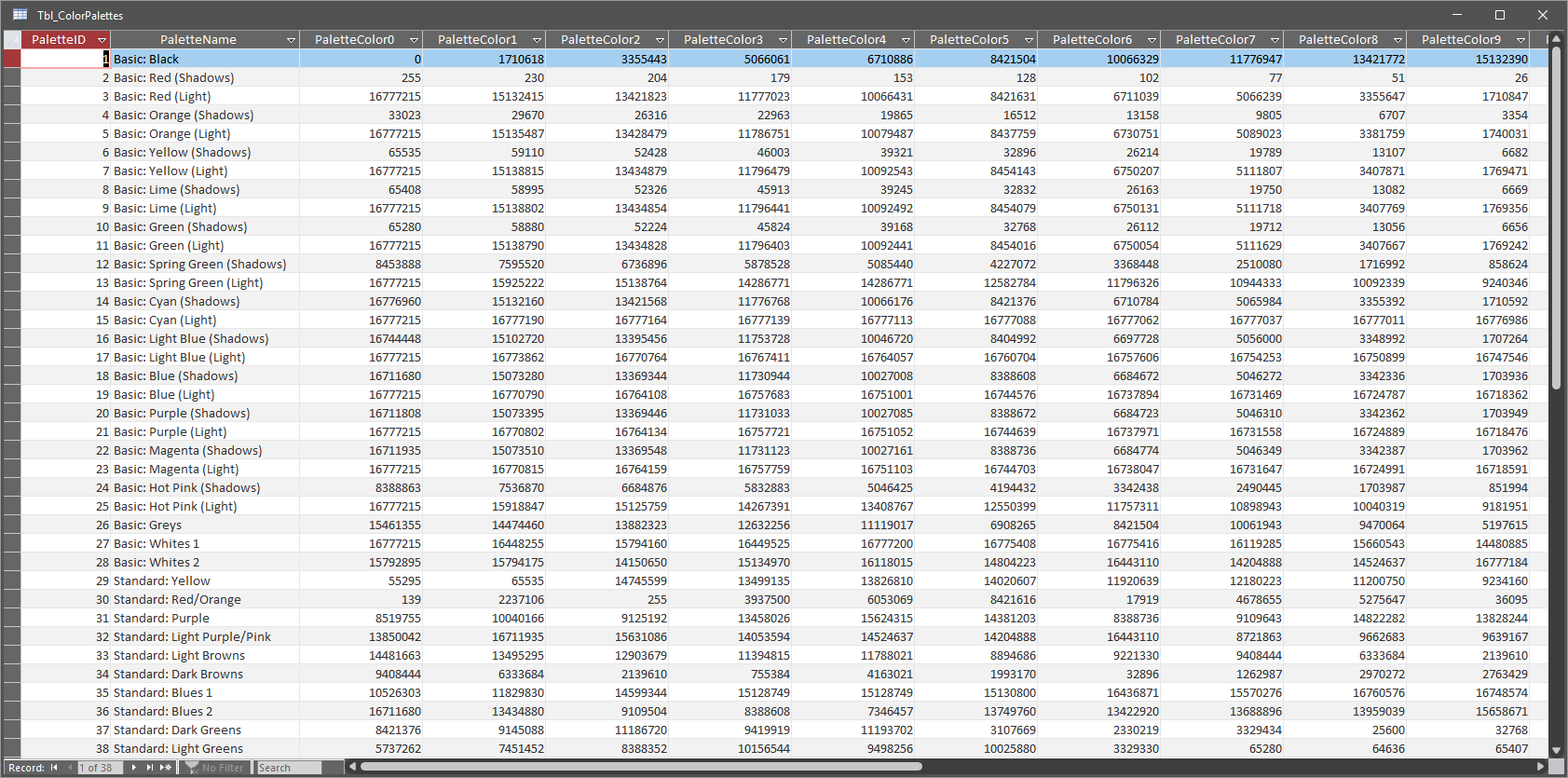
The Form Record Source is the Palette Table.  This is the code I was using to save the Palette.

DetailsPrivate Sub btnSavePalette_Click()

    HeaderBackColor = Me.Section("FormHeader").BackColor
    DetailBackColor = Me.Section("Detail").BackColor
    FooterBackColor = Me.Section("FormFooter").BackColor
    HeaderForeColor1 = Me.lblSectionHeaderForeColor1.ForeColor
    HeaderForeColor2 = Me.lblSectionHeaderForeColor2.ForeColor
    HeaderBoxBackColor = Me.boxSection.BackColor
    HeaderBoxBorderColor = Me.boxSection.BorderColor
    HeaderBoxForeColor = Me.lblSectionBoxForeColor.ForeColor
    HeaderButtonForeColor = Me.btnHeader.ForeColor
    HeaderButtonBackColor = Me.btnHeader.BackColor
    HeaderButtonBorderColor = Me.btnHeader.BorderColor
    HeaderButtonHoverColor = Me.btnHeader.HoverColor
    HeaderbuttonHoverForeColor = Me.btnHeader.HoverForeColor
    
    Me.Refresh

End Sub
Raymond Spornhauer OP  @Reply  
          
11 months ago
This is one code I was trying based of Rick's Template, but need more time.  I am posting it here for reference.

Details    Dim strSQL As String

    strSQL = "INSERT INTO Tbl_Palettes " & _
    "(PaletteName, PaletteColor0, PaletteColor1, PaletteColor2, PaletteColor3, PaletteColor4, PaletteColor5, PaletteColor6, PaletteColor7, PaletteColor8, PaletteColor9, PaletteColor10) VALUES " & _
    "(""" & PaletteName & """, " & txtColor0 & ", " & txtColor1 & ", " & txtColor2 & ", " & txtColor3 & ", " & txtColor4 & ", " & txtColor5 & ", " & txtColor6 & ", " & txtColor7 & ", " & txtColor8 & ", " & txtColor9 & ", " & txtColor10 & ");"

    Debug.Print strSQL

    CurrentDb.Execute strSQL
Raymond Spornhauer OP  @Reply  
          
11 months ago
This is another code I was trying, based off the Code in Rick's Form Template.  (Just trying to capture the colors)
Details
    Dim F As Form, C As control, P As Property, x As Integer, y As Integer, S As Section

    Set F = Me
    x = 1

    On Error Resume Next

    For Each C In F.Section(1).Controls
        Debug.Print x & "   " & C.ControlType&; "  "; C.Name & "   " & C.Parent.Name & "     " & C.Tag

        For Each P In C.Properties
            If InStr(P.Name, "BackColor") Or InStr(P.Name, "BorderColor") Or InStr(P.Name, "ForeColor") Then
            Debug.Print "            " & P.Name & "   " & P.Value
            End If
        Next
        x = x + 1
    Next
    
    
    For Each C In F.Section(1).Controls
        For Each P In C.Properties
            If InStr(P.Name, "BackColor") Or InStr(P.Name, "BorderColor") Or InStr(P.Name, "ForeColor") Then
                Debug.Print x & "   " & F.Section(1).Name & "   " & C.ControlType & "   " & "Control: " & C.Name & "     " & "Property: " & P.Name & "   " & P.Value & "   " & C.Parent.Name
                x = x + 1
            End If
        Next
    Next

    For Each C In F.Section(0).Controls
        For Each P In C.Properties
            If InStr(P.Name, "BackColor") Or InStr(P.Name, "BorderColor") Or InStr(P.Name, "ForeColor") Then
                Debug.Print x & "   " & C.ControlType & "   " & "Control: " & C.Name & "     " & "Property: " & P.Name & "   " & P.Value
                x = x + 1
            End If
        Next
    Next

    For Each C In F.Section(2).Controls
        For Each P In C.Properties
            If InStr(P.Name, "BackColor") Or InStr(P.Name, "BorderColor") Or InStr(P.Name, "ForeColor") Then
                Debug.Print x & "   " & C.ControlType & "   " & "Control: " & C.Name & "     " & "Property: " & P.Name & "   " & P.Value
                x = x + 1
            End If
        Next
    Next
    
    For Each C In F.Controls
        For Each P In C.Properties
            If InStr(P.Name, "BackColor") Or InStr(P.Name, "BorderColor") Or InStr(P.Name, "ForeColor") Then
                Debug.Print x & "   " & C.ControlType & "   " & "Control: " & C.Name & "   " & P.Name & "   " & P.Value
                x = x + 1
            End If
        Next
    Next
    
    
    For y = 0 To 2
        Set S = F.Section(y)
        For Each P In S.Properties
            If InStr(P.Name, "BackColor") Then
                Debug.Print x & "   " & "Section: " & S.Name & "   " & P.Name & "   " & P.Value
                x = x + 1
            End If
        Next
    Next
    
    
    For Each C In F

        For x = 0 To 200
            If InStr(C.Properties(x).Name, "Color") And InStr(C.Tag, "
Raymond Spornhauer OP  @Reply  
          
11 months ago

Raymond Spornhauer OP  @Reply  
          
11 months ago
This is an example of a Color Palette webpage where I could select color palettes and copy the RGB or HEX codes into my Color Palette Form.

I don't know if this helps anything other than trying to figure out how to design the form to accommodate other color palette website that have color codes.

-Raymond
Monica Jones  @Reply  
       
11 months ago
*mind blown* This makes my color theme loving heart explode with joy!! I had never even considered this, now I NEEEED it in my life lol!
Matt Hall  @Reply  
          
11 months ago
When I was playing with this, I found a bunch of good info HERE.  I was especially interested in the color schemes.
Raymond Spornhauer OP  @Reply  
          
11 months ago

Raymond Spornhauer OP  @Reply  
          
11 months ago

Raymond Spornhauer OP  @Reply  
          
11 months ago

Raymond Spornhauer OP  @Reply  
          
11 months ago

Raymond Spornhauer OP  @Reply  
          
11 months ago
Monica

I realized we could also use images on the Forms and capture these using the same technique.

I learned this from Rick, but if you open Power Point, delete all the boxes, then create gradient backgrounds... you can save these as JPG's then use them as background gradients in Access.

Additionally, this can be done using any back ground image as well as to create gradient banners.

AND THEN... we can do the same thing with images on buttons.  lol

-Raymond
Raymond Spornhauer OP  @Reply  
          
11 months ago
Matt

These sites are very good at getting the correct color.  I've noticed that some sites use HEX codes, some use RGB, or HSL, or CMYK.  

I will sometimes use good old Microsoft Paint color picker to get the color, then have to copy it into notepad and get it into Access.

-Raymond
Raymond Spornhauer OP  @Reply  
          
11 months ago
The parts I struggle with:

1. What's the best way to capture the form color data?  
Do I use VBA and capture each color on 1 record, where I would need to code every object I'm getting a color or image property from?  
Do I come up with a way to loop thru all the controls and save each property as a record, similar to Ricks Form Profile Template (https://599cd.com/blog/display-article.asp?ID=2427)?
Do I have a separate Table for each control?

2. How do I apply this to Forms that do not have all the controls on them?
On Error Resume Next?

3. What's the best way to apply this to my Forms?
Do I put an unbound combo box with a default value for the Color Palette to apply?
Do I have a different form to control all the Color Palettes for each form, then do a lookup for each form?

What other challenges would you see and what solutions would you offer?

Again... very interested in getting responses to this.

Thank you all,

-Raymond
Matt Hall  @Reply  
          
11 months ago
You might check out this For Each Loop video.
Raymond Spornhauer OP  @Reply  
          
11 months ago
Matt

I'm very familiar with For Each Loops... I posted a sample in an early post on this thread (it's collapsed in the details section)

I'm looking for ideas, or hoping Rick will take this on as a series for fun.  I will continue to work this out as I get time, just looking for ideas in the mean time.

-Raymond

This thread is now CLOSED. If you wish to comment, start a NEW discussion in Access Forum.
 

Next Unseen

 
New Feature: Comment Live View


The following is a paid advertisement
Computer Learning Zone is not responsible for any content shown or offers made by these ads.
 

Learn
 
Access - index
Excel - index
Word - index
Windows - index
PowerPoint - index
Photoshop - index
Visual Basic - index
ASP - index
Seminars
More...
Customers
 
Login
My Account
My Courses
Lost Password
Memberships
Student Databases
Change Email
Info
 
Latest News
New Releases
User Forums
Topic Glossary
Tips & Tricks
Search The Site
Code Vault
Collapse Menus
Help
 
Customer Support
Web Site Tour
FAQs
TechHelp
Consulting Services
About
 
Background
Testimonials
Jobs
Affiliate Program
Richard Rost
Free Lessons
Mailing List
PCResale.NET
Order
 
Video Tutorials
Handbooks
Memberships
Learning Connection
Idiot's Guide to Excel
Volume Discounts
Payment Info
Shipping
Terms of Sale
Contact
 
Contact Info
Support Policy
Mailing Address
Phone Number
Fax Number
Course Survey
Email Richard
[email protected]
Blog RSS Feed    YouTube Channel

LinkedIn
Copyright 2026 by Computer Learning Zone, Amicron, and Richard Rost. All Rights Reserved. Current Time: 6/21/2026 9:53:44 AM. PLT: 0s