Free Lessons
Courses
Seminars
TechHelp
Fast Tips
Templates
Topic Index
Forum
ABCD
 
Home   Courses   TechHelp   Forums   Help   Contact   Merch   Join   Order   Logon  
 
Back to Access Forum    Comments List
Upload Images   @Reply   Bookmark    Link   Email   Next Unseen 
Checkbox Toggle
Amir Ouranus 
      
7 months ago
Hello,
I just saw the "Large Check Box" Tech Help Video; and I was successful in creating a checkbox toggle. However, I am using a Continuous Form and the checkbox is checked in the next line that has does not have data yet.
How do I force the system to not check the box in the new line.
I hope I have conveyed my issue, if not please let me know.
Thank you,
Amir.
Raymond Spornhauer  @Reply  
          
7 months ago
Amir

Show the code you are using for your checkbox.

-Raymond
Donald Blackwell  @Reply  
       
7 months ago
Amir The problem with continuous forms is that if you change the property (caption) on one line, it changes it for all of them. Richard explains this in Show/Hide Buttons.

If you don't mind having a couple extra controls in your form, you can achieve the effect by placing a textbox with a transparent background and no border and a transparent regular button over top of your toggle button and one line of vba. by setting the textbox's format property in design view and then it will present your "caption" when checked and be blank when not if that is what you want. Or, you could have a check mark when checked and an X when not checked. Or, any other combination.
Amir Ouranus OP  @Reply  
      
7 months ago
Here's the Code:

Private Sub HomeState_AfterUpdate()

If HomeState Then
   HomeState.Caption = "Home State"
Else
   HomeState.Caption = ""

Thank you Donald,
I will try your suggestion and see if I can get is right.
I may come back if I encounter any issues.
Raymond Spornhauer  @Reply  
          
7 months ago
Amir

The new record is not affected by your AfterUpdate Event.

Have you tried setting the Default Value to 'False'?

-Raymond
Amir Ouranus OP  @Reply  
      
7 months ago
Thank you Raymond!!!
Raymond Spornhauer  @Reply  
          
7 months ago
Amir

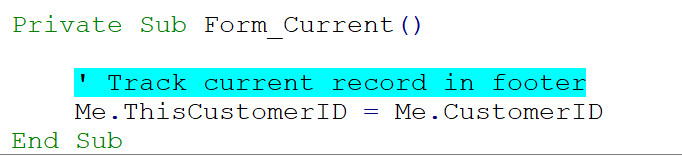
In your OnCurrent Event, put the following:

If Me.NewRecord OR IsActive = 0 Then
    IsActive.Caption = ""
Else
    IsActive = "X"
End If

Hope this helps,

-Raymond
Raymond Spornhauer  @Reply  
          
7 months ago
Amir

Also... the Extended Cut of that video covers more detail too.

-Raymond
John Davy  @Reply  
         
7 months ago
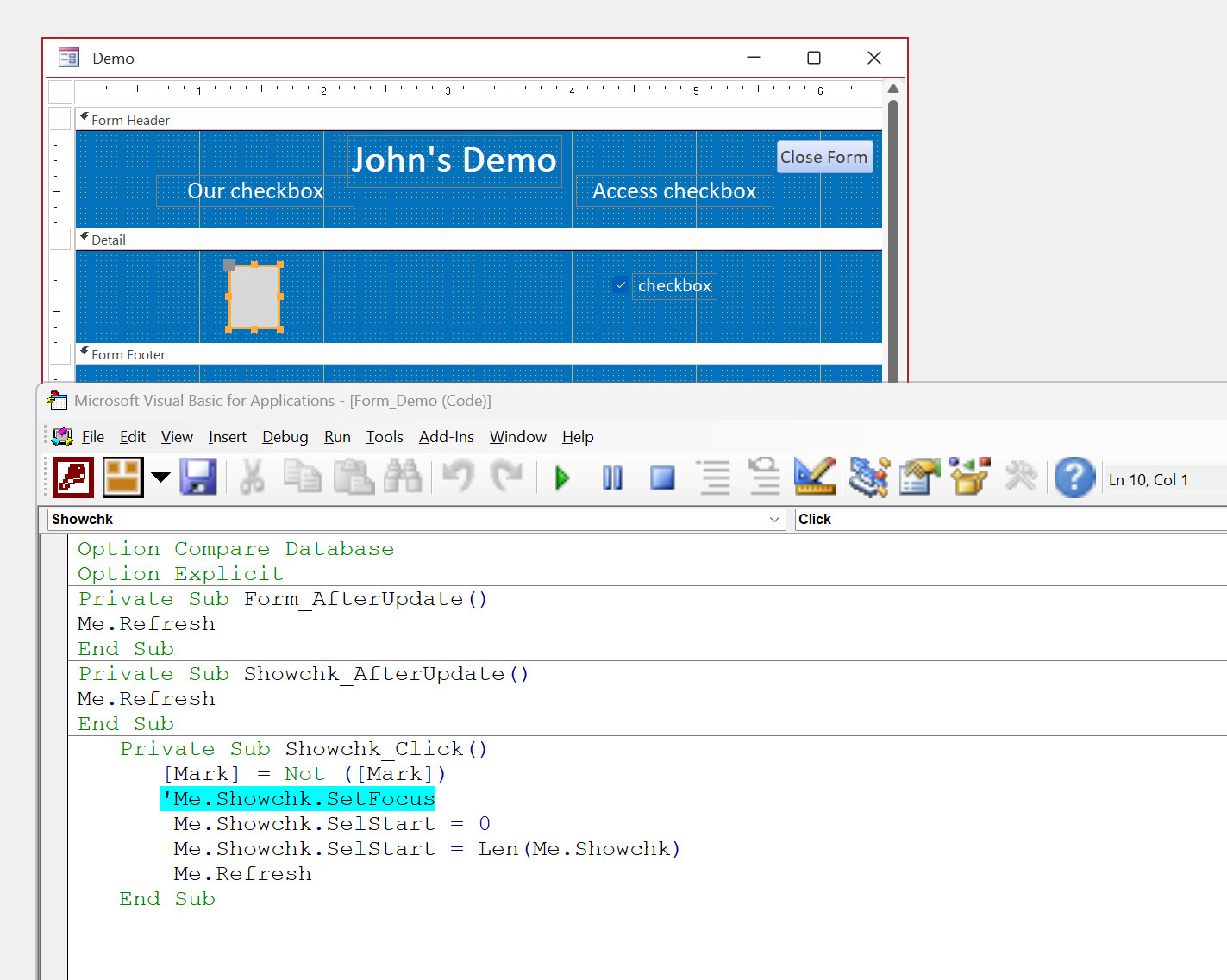
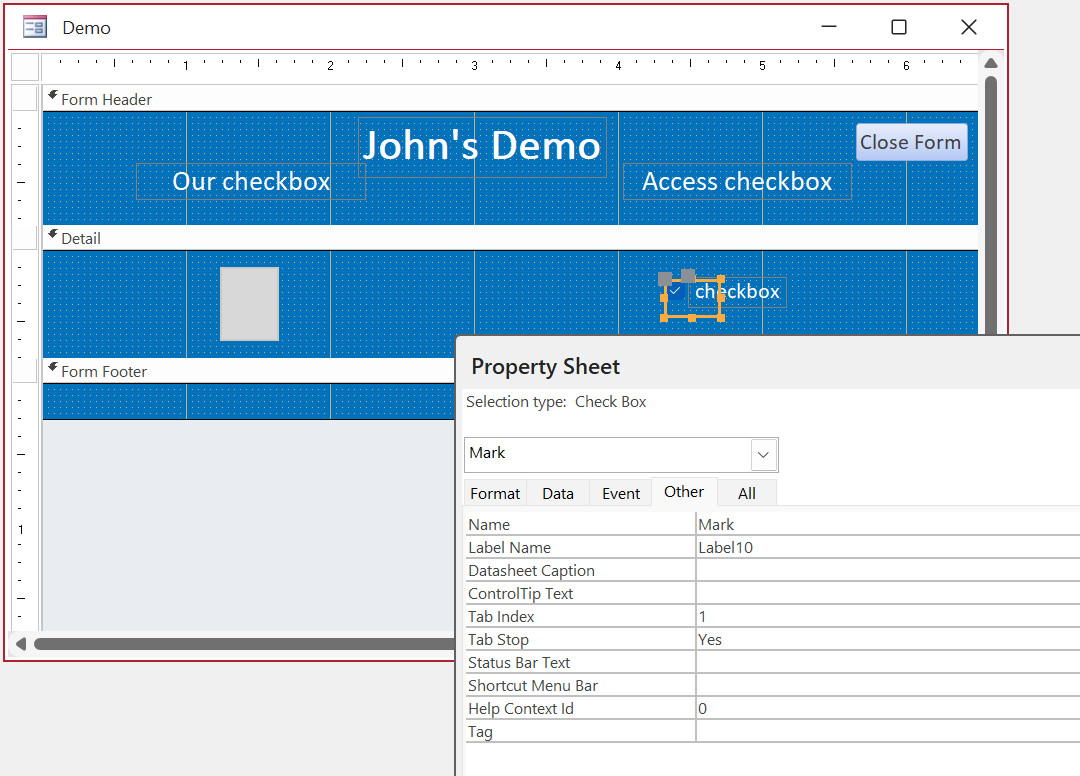
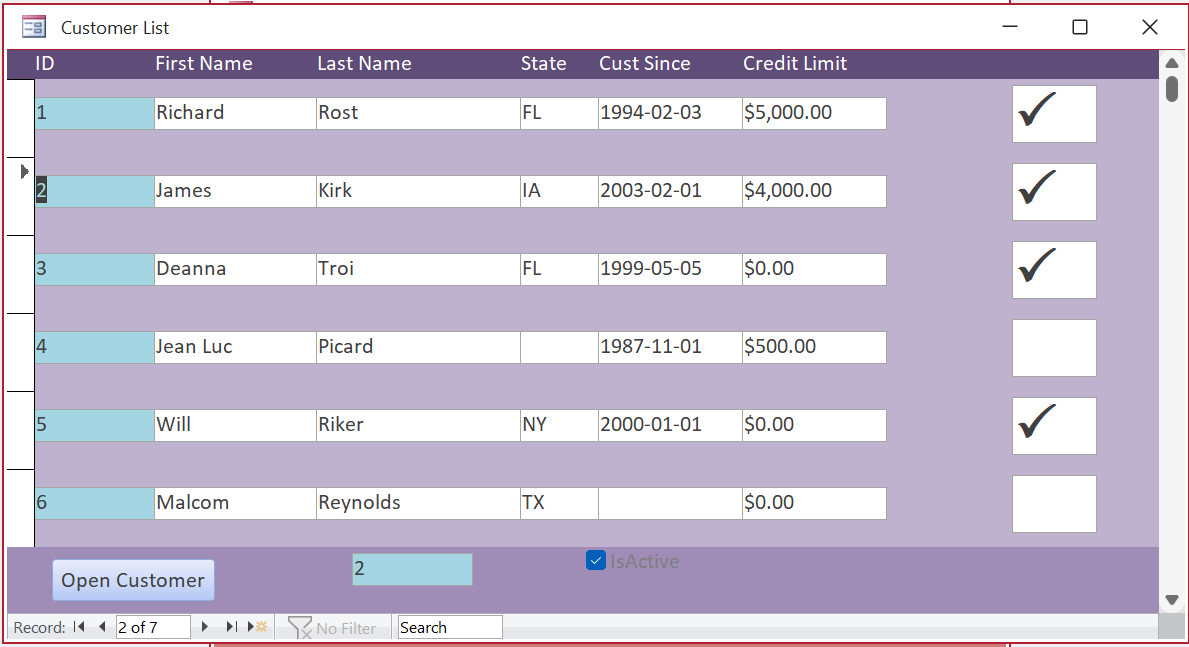
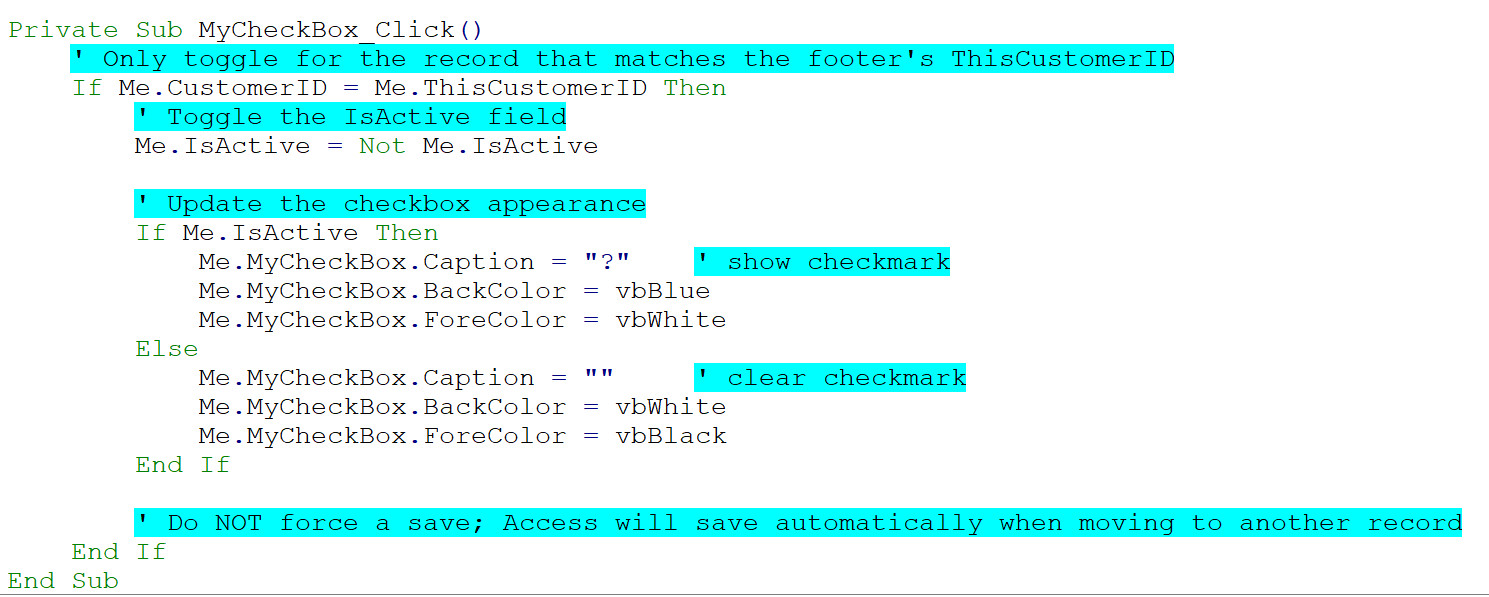
Hi Amir, I have loaded a screenshot for you. This is from a continuous form.  John
John Davy  @Reply  
         
7 months ago

John Davy  @Reply  
         
7 months ago

Amir Ouranus OP  @Reply  
      
7 months ago
Thank you John!!!
Amir Ouranus OP  @Reply  
      
7 months ago
Hi John,
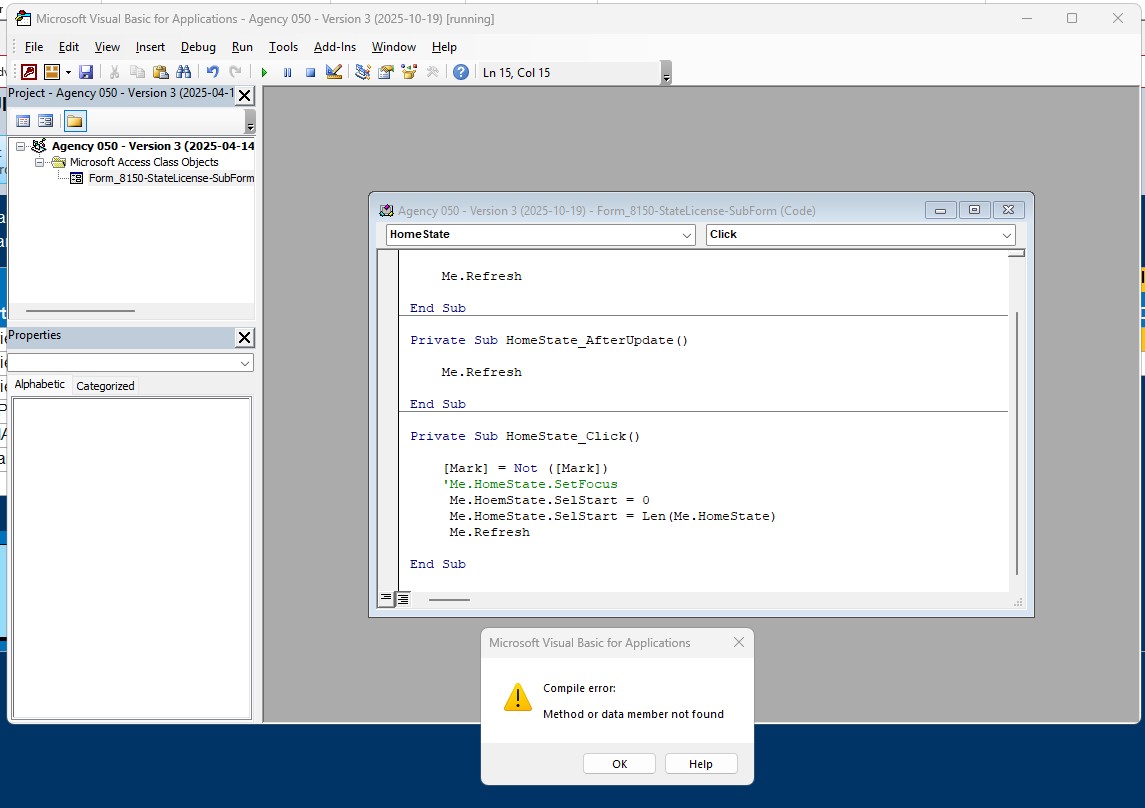
I'm getting a Compile Error.
Amir Ouranus OP  @Reply  
      
7 months ago

Amir Ouranus OP  @Reply  
      
7 months ago

Donald Blackwell  @Reply  
       
7 months ago
Your selstart line has homestate spelled hoemstate

Amir Ouranus OP  @Reply  
      
7 months ago
Oops!
Sorry!
Thank you Donald!!!
Amir Ouranus OP  @Reply  
      
7 months ago
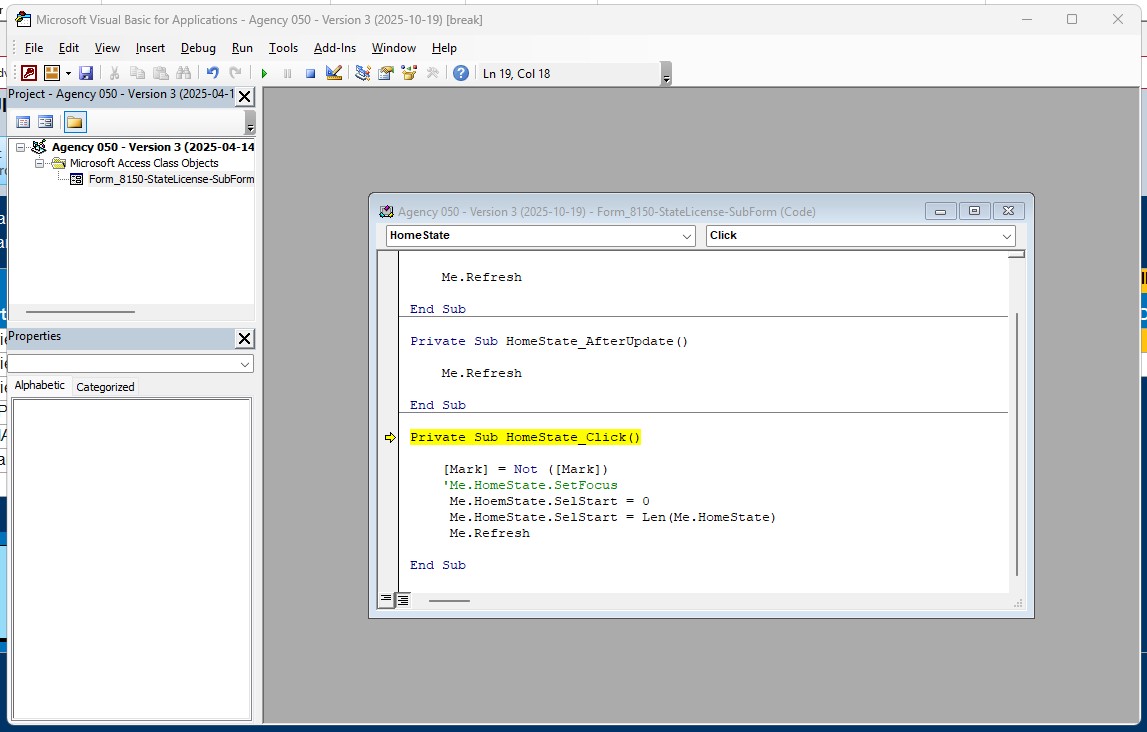
Ok, corrected that, but still getting the same error.
Donald Blackwell  @Reply  
       
7 months ago
OK, only other thing I can ask is if you have a field or control on your form named "Mark". I know John used that in his example because he had a checkbox with the name "Mark". If you don't have something similar, it doesn't know what "Mark" is.

If that's not it, I'm afraid you'll need to wait until John checks in again, as I've never seen the method he showed so I for some reason am not grasping what he was showing you. Or someone else who has seen/used that technique.
John Davy  @Reply  
         
7 months ago
Hi Amir, Can you show me a few screenshots. What is seen with the compile error?  John
John Davy  @Reply  
         
7 months ago
Hi Amir, If you send me your email, I will upload an Access file for you, so you can play with the code. John [email protected]
John Davy  @Reply  
         
7 months ago
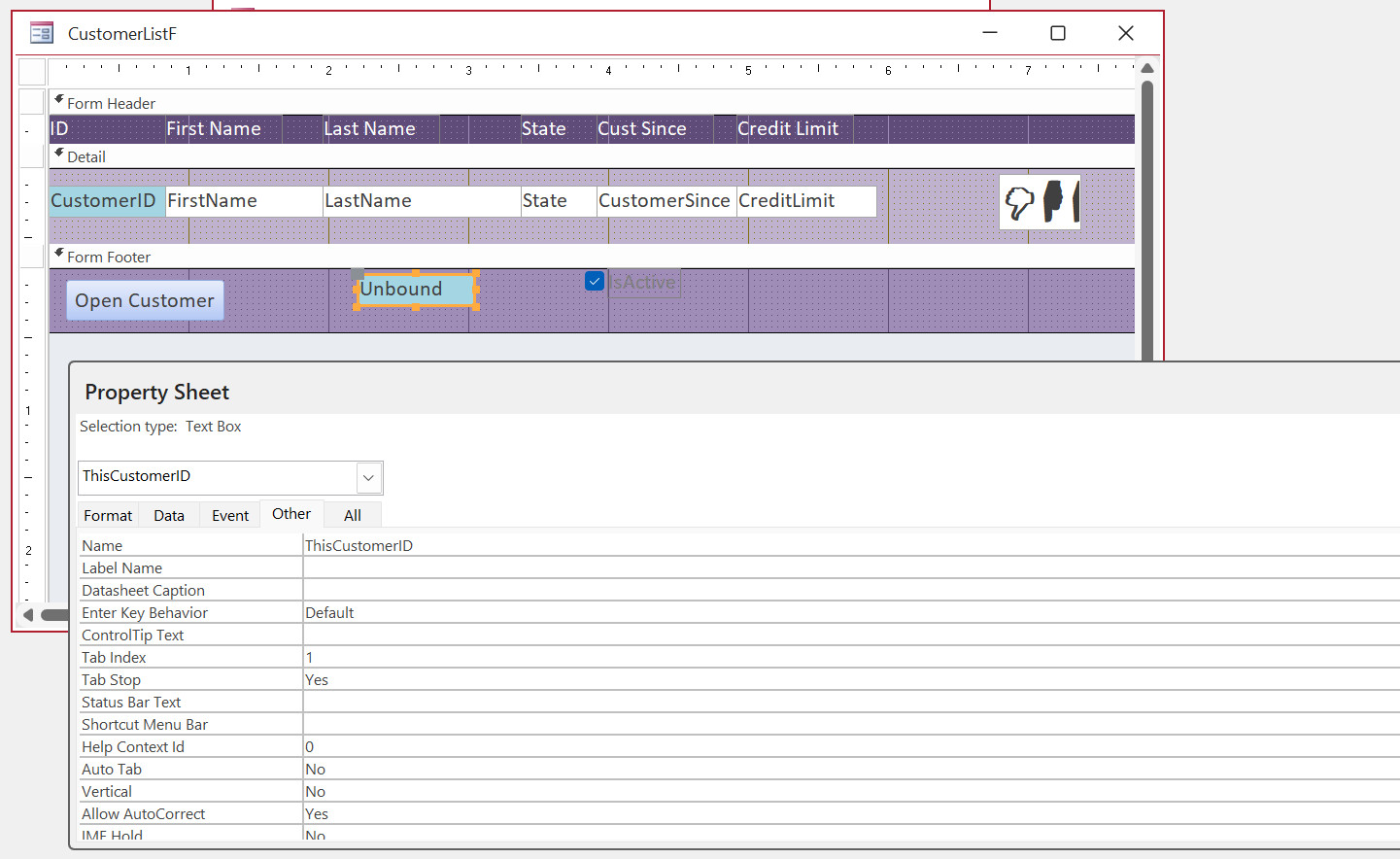
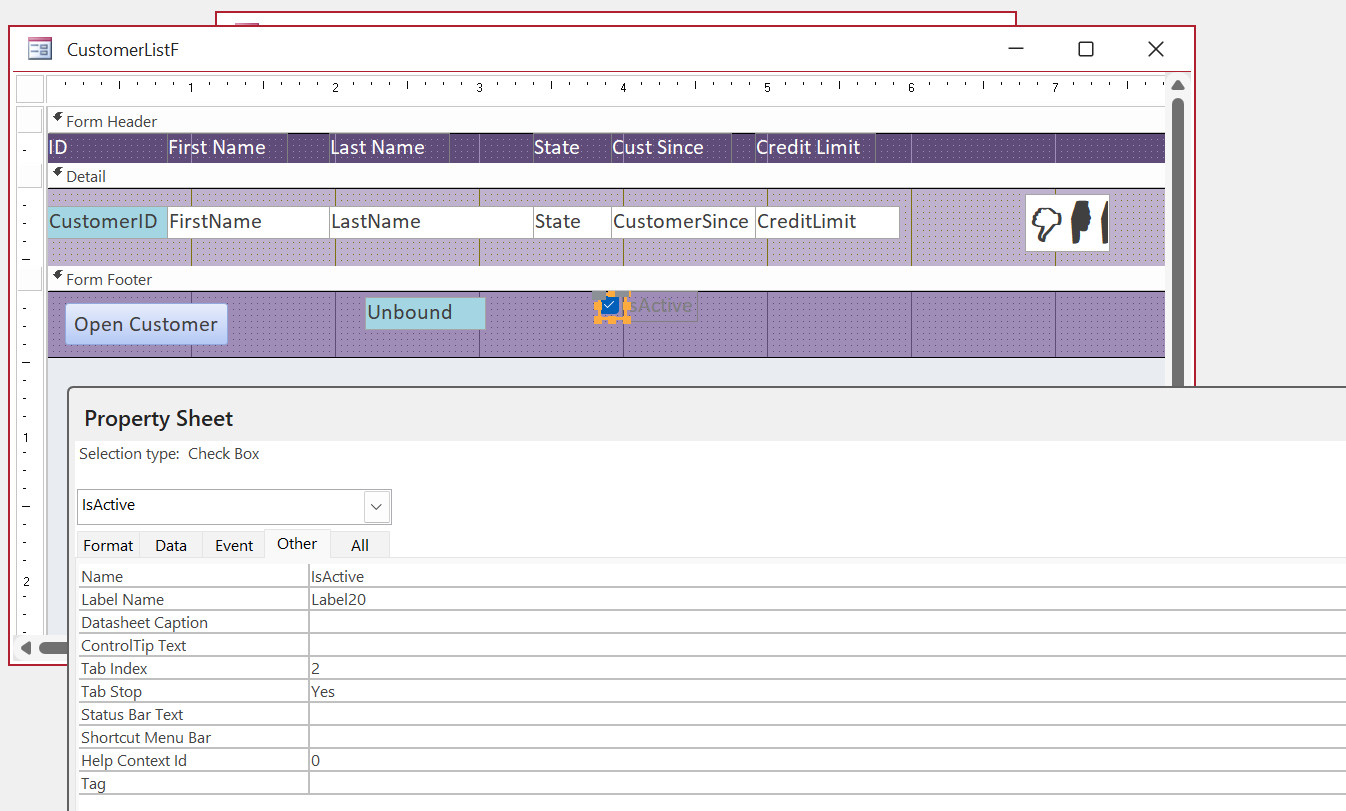
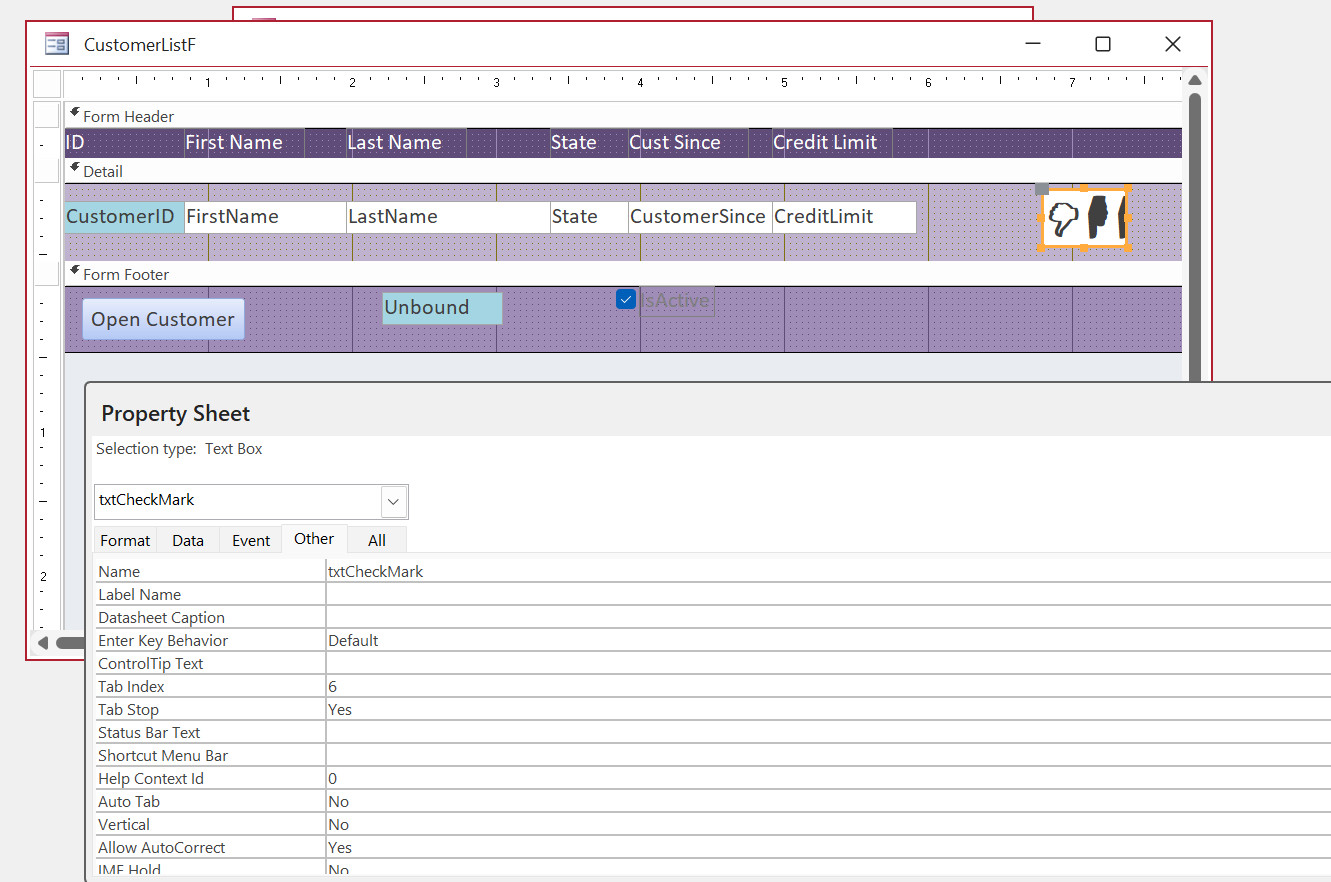
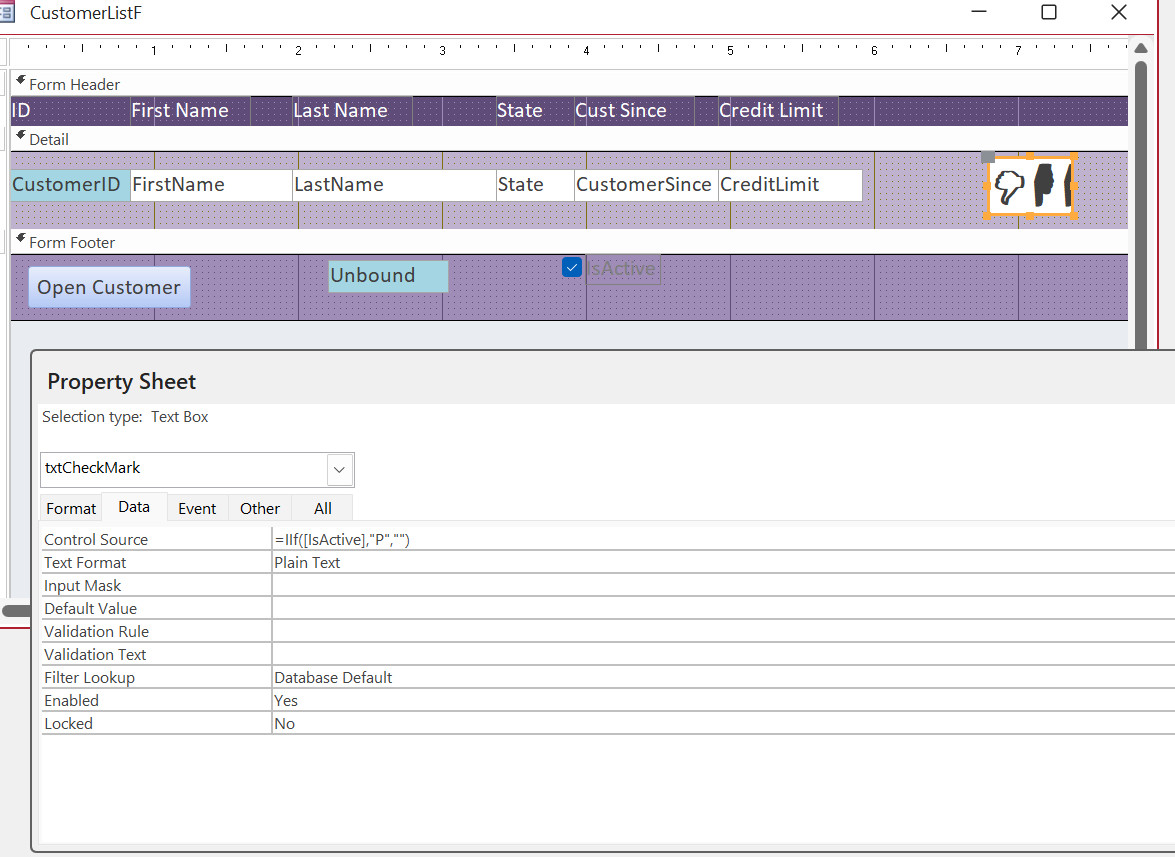
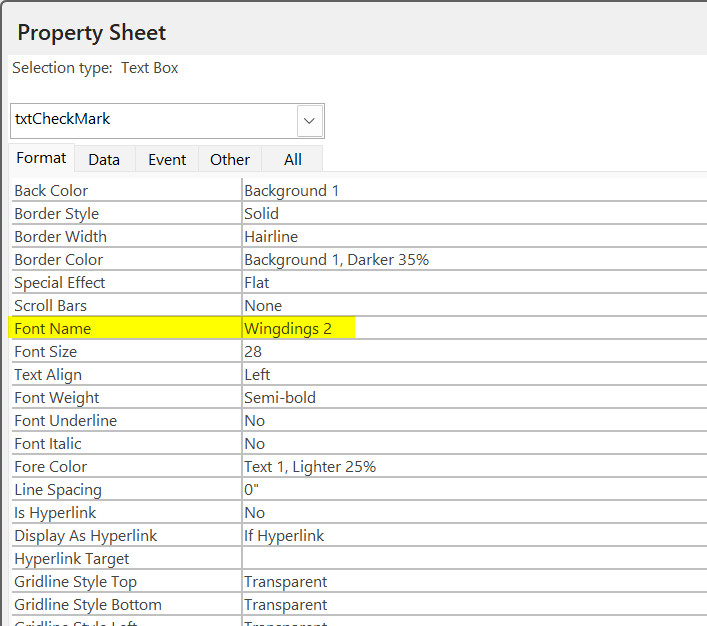
Hi Amir, I am going to upload 10 screen clips that will show you how to create the checkbox on a continuous form.  Let me know if you have a problem  John
John Davy  @Reply  
         
7 months ago

John Davy  @Reply  
         
7 months ago

John Davy  @Reply  
         
7 months ago

John Davy  @Reply  
         
7 months ago

John Davy  @Reply  
         
7 months ago

John Davy  @Reply  
         
7 months ago

John Davy  @Reply  
         
7 months ago

John Davy  @Reply  
         
7 months ago

John Davy  @Reply  
         
7 months ago

Amir Ouranus OP  @Reply  
      
7 months ago
Thank you John!!!
Donald Blackwell  @Reply  
       
7 months ago
John, thanks for showing what your method was.

Just so everyone sees what I was talking about above for doing it with one line of code:

1) Put the toggle button in the detail of the form, make it big enough for whatever text you want displayed. Following John's example using the "isActive" field from Richard's TechHelp Customer List, name the toggle button something like "isActiveTgl" and delete the caption; set "isActive" as the control source. On the other tab, set tab stop to "No" just so that tabbers don't accidentally get stuck. --- The only reason for the toggle button is just to get the toggle button effect, you can use conditional formatting in the following text box as well and not need it

2) Place a textbox over top of the button so that the checkmark or text is positioned how you want when shown. Select the font and size that you want for your text. Set the control source to "isActive". Set eanbled to "No", Locked to "Yes". Change the name of the textbox to "isActive" and set the tab stop to "No". Set the format property of the textbox to: ;"Active";"";""

3) Place a button over top of the toggle button and textbox. Make the name "isActiveBtn" - just to be consistent. In the onclick event, add "inActive = Not isActive". Make "isActiveBtn" transparent. Save the form.

You can use conditional formatting if you want to adjust colors in the textbox if needed. For example, if you want it to say "Active" when checked, and "Not Active" when not, use conditional formatting for field value is -1 and field value is 0. Adjust the format property of the text box to ;"Active";"Not Active";""
Donald Blackwell  @Reply  
       
7 months ago
The reason this works is because a yes/no field is a number (0 or -1) so we're using the format properties for number fields.

Anything placed before the first ";" in the format property will be ignored because yes/no fields will never be positive. If you do enter a positive number, Access converts it to -1.

Anything between the first semicolon ";" and the second semicolon will be displayed if the field has any negative value.

Anything between the second semicolon ";" and the third semicolon will be displayed if the field has zero for its value.

Anything after the third semicolon ";" will be displayed if the field value is Null, which only happens if there is not a default value in a new record. However, once a yes/no field is set, it will always be 0 or -1 unless you go to the table and delete the value.

This thread is now CLOSED. If you wish to comment, start a NEW discussion in Access Forum.
 

Next Unseen

 
New Feature: Comment Live View


The following is a paid advertisement
Computer Learning Zone is not responsible for any content shown or offers made by these ads.
 

Learn
 
Access - index
Excel - index
Word - index
Windows - index
PowerPoint - index
Photoshop - index
Visual Basic - index
ASP - index
Seminars
More...
Customers
 
Login
My Account
My Courses
Lost Password
Memberships
Student Databases
Change Email
Info
 
Latest News
New Releases
User Forums
Topic Glossary
Tips & Tricks
Search The Site
Code Vault
Collapse Menus
Help
 
Customer Support
Web Site Tour
FAQs
TechHelp
Consulting Services
About
 
Background
Testimonials
Jobs
Affiliate Program
Richard Rost
Free Lessons
Mailing List
PCResale.NET
Order
 
Video Tutorials
Handbooks
Memberships
Learning Connection
Idiot's Guide to Excel
Volume Discounts
Payment Info
Shipping
Terms of Sale
Contact
 
Contact Info
Support Policy
Mailing Address
Phone Number
Fax Number
Course Survey
Email Richard
[email protected]
Blog RSS Feed    YouTube Channel

LinkedIn
Copyright 2026 by Computer Learning Zone, Amicron, and Richard Rost. All Rights Reserved. Current Time: 6/20/2026 5:26:26 PM. PLT: 1s