Free Lessons
Courses
Seminars
TechHelp
Fast Tips
Templates
Topic Index
Forum
ABCD
 
Home   Courses   TechHelp   Forums   Help   Contact   Merch   Join   Order   Logon  
 
Back to Access Forum    Comments List
Upload Images   @Reply   Bookmark    Link   Email   Next Unseen 
Labels
Mitchell Layne 
     
4 days ago
Although I am able to print labels using the Avery format, I was wondering if you have a video that shows how to do this. I have a homeT that holds all the house information and then a peopleT that has all the people living in the home. I created a query that selects off the correct records from the home and people tables. The issue is that for each Owner (There are up to 2 for an address) each of those two people have separate labels. What I am trying to do is combine them into one label by address where the label looks like this

FirstName LastName (Owner 1)
FirstName LastName (Owner 2)
StreetNo StreetName
City, State Zip

I have not found a good way to do that. I also tried the option of taking the select query and turning it into a create table Query and then write code to try to merge both owners into one address and then run the labels from that, but have not yet been successful. Thanks mitch
Alex Hedley  @Reply  
           
4 days ago
Mitchell Layne OP  @Reply  
     
4 days ago
Thanks. This is an HOA Association, and they are not going to purchase a Dymo Label Machine. There are approx 350 labels to print and in certain cases over 1600. I also do not understand how you can merge two records in a table to obtain the information to go on one label. Does Dymo have a special feature. thanks mitch
Donald Blackwell  @Reply  
        
4 days ago
Union Query should help
Mitchell Layne OP  @Reply  
     
4 days ago
Thanks Donald, I reviewed union queries. Unless I am misunderstanding it, you can take two different tables and merge records into one, but you cannot take two records in one table that have firstname and last name both with the same account number and merge them into one record, so I do not get two labels for the same account.
Mitchell Layne OP  @Reply  
     
4 days ago
I may be confusing people the way I am explaining it. Let's see if this helps.
In the home table account number 1 is the primary key has the address of the home.
In the people table there are two people living at that address. The people table would then have two records, one for each person with their first and last name. Both of those records would have account number 1 as their foreign key to make them related.

when I run labels, I get for account number 1 a record that has the address which is the same for both records in the people table and two labels separate labels, one for each person for account number 1.

I'm trying to obtain one label that has both people table records name with the one address on one label rather than two labels. That is why I was asking if Richard has a video that explains that since it seems that it would be a common practice. mitch
Donald Blackwell  @Reply  
        
4 days ago
First, create a union query to join the two people that have the same address and you can create a calculates field with both names

Then create a query that joins the address table to that query.

I would try to put a demo together but on phone right now.

When I get back to PC I will try to put an example together
Mitchell Layne OP  @Reply  
     
3 days ago
Thanks. In the meantime, I will review the union query video again
Donald Blackwell  @Reply  
        
2 days ago
Mitchell Sorry for the delayed response... My graphics driver crapped out on my laptop and spent last night and today getting it working again :(

After sitting down and putting together a demo for you, I realized that a Union Query is actually much harder than what you need.

Instead, it's much simpler to create several queries that build upon one another.

My Table names are "AddressT" and "PersonT", but you should be able to convert it to yours easy enough.

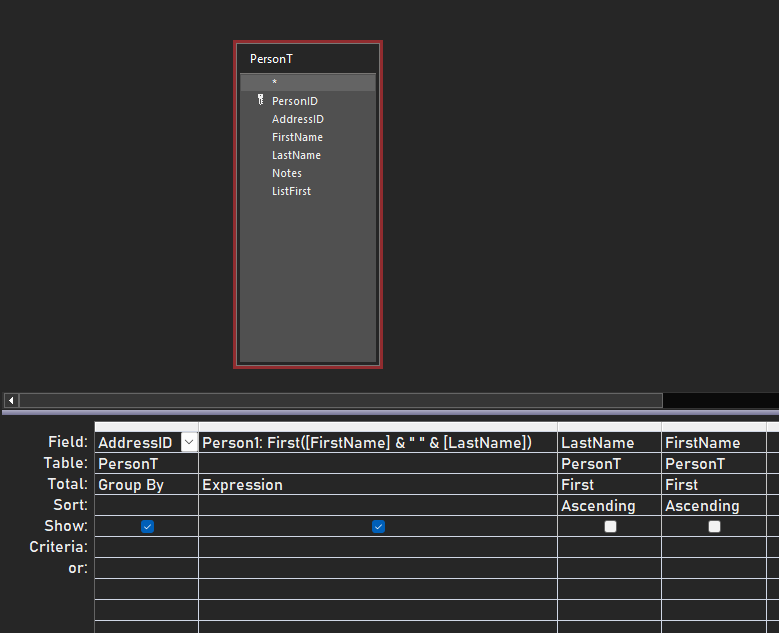
Person1Q
First Query is an Aggregate Query:
First Field:
     AddressID, Shown, Group By
Second Field: (Calculated)
     Person1: [FirstName] & " " & [LastName], Shown, First
Third Field:
     LastName, Not Shown, First, Sort Ascending
Fourth Field:
     FirstName, Not Show, First, Sort Ascending


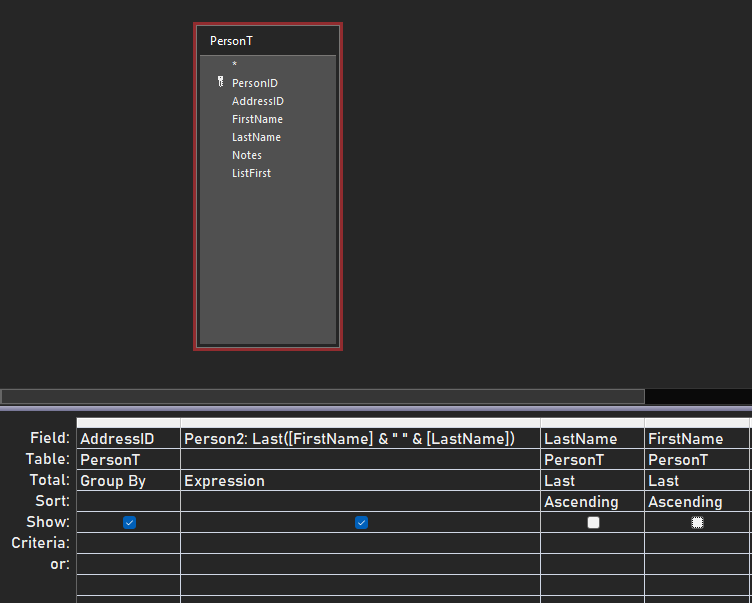
Person2Q
Second Query is an Aggregate Query also:
First Field:
     AddressID, Shown, Group By
Second Field: (Calculated)
     Person2: [FirstName] & " " & [LastName], Shown, Last
Third Field:
     LastName, Not Shown, Last, Sort Ascending
Fourth Field:
     FirstName, Not Show, Last, Sort Ascending


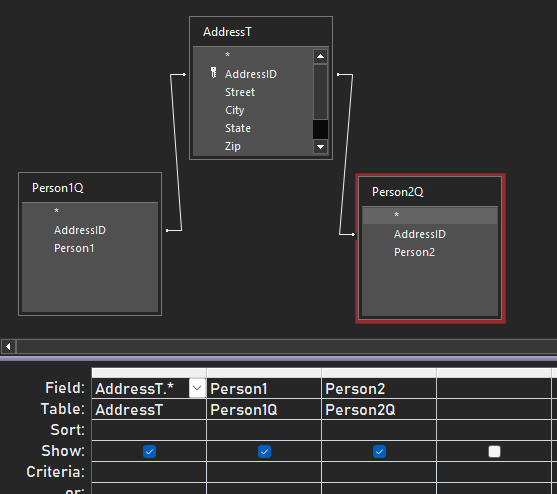
AddressQ
Third Query is a regular query that brings it all together:
First Field:
     AddressT.*, Shown

Second Field:
     Person1Q.Person1, Shown

Third Field:
     Person2Q.Person2, Shown


Then just use AddressQ as the Recordsource for your labels

Images to follow:
Donald Blackwell  @Reply  
        
2 days ago

Donald Blackwell  @Reply  
        
2 days ago

Donald Blackwell  @Reply  
        
2 days ago

Donald Blackwell  @Reply  
        
2 days ago

Donald Blackwell  @Reply  
        
2 days ago
In the two Aggregate Queries, I just added the first and last names in not shown for sorting to put them alphabetic however, if you have a field such as a yes/no field indicating owner 1, etc, you could just use that in place of those two fields.

You could also show them but I thought that it just made it more cluttered when you're looking at what fields you want to add to the label. Likewise, if you don't need all the fields in AddressT, you could just bring in the individual fields you need instead of bringing in the star (*) which may make the report run faster.
Mitchell Layne OP  @Reply  
     
2 days ago
Donald, thanks you very much. It is much appreciated. Later today I will add those queries.
Mitchell Layne OP  @Reply  
     
32 hours ago
Donald, I again want to thank you for your help. I never would have gotten that. The reason it took me awhile was not because of the queries you sent, because they worked perfectly. What I realized was that sometimes there is only one person and not two. Since it did first and last, the last would be the same as the first resulting with the same name in Person1 and Person2. It took me a while to figure out how to remove Person2 when it was the same as Person1.

Then I had to resolve having Person1, followed by a blank line Person2 and then the address lines. It now works perfectly. thanks again. I was a great learning experience for me. mitch
Donald Blackwell  @Reply  
        
32 hours ago
Always happy to help and glad I gave you enough to figure out the rest :)

Good Work
Add a Reply Upload an Image
Next Unseen

 
New Feature: Comment Live View


The following is a paid advertisement
Computer Learning Zone is not responsible for any content shown or offers made by these ads.
 

Learn
 
Access - index
Excel - index
Word - index
Windows - index
PowerPoint - index
Photoshop - index
Visual Basic - index
ASP - index
Seminars
More...
Customers
 
Login
My Account
My Courses
Lost Password
Memberships
Student Databases
Change Email
Info
 
Latest News
New Releases
User Forums
Topic Glossary
Tips & Tricks
Search The Site
Code Vault
Collapse Menus
Help
 
Customer Support
Web Site Tour
FAQs
TechHelp
Consulting Services
About
 
Background
Testimonials
Jobs
Affiliate Program
Richard Rost
Free Lessons
Mailing List
PCResale.NET
Order
 
Video Tutorials
Handbooks
Memberships
Learning Connection
Idiot's Guide to Excel
Volume Discounts
Payment Info
Shipping
Terms of Sale
Contact
 
Contact Info
Support Policy
Mailing Address
Phone Number
Fax Number
Course Survey
Email Richard
[email protected]
Blog RSS Feed    YouTube Channel

LinkedIn
Copyright 2026 by Computer Learning Zone, Amicron, and Richard Rost. All Rights Reserved. Current Time: 5/25/2026 7:24:30 PM. PLT: 1s