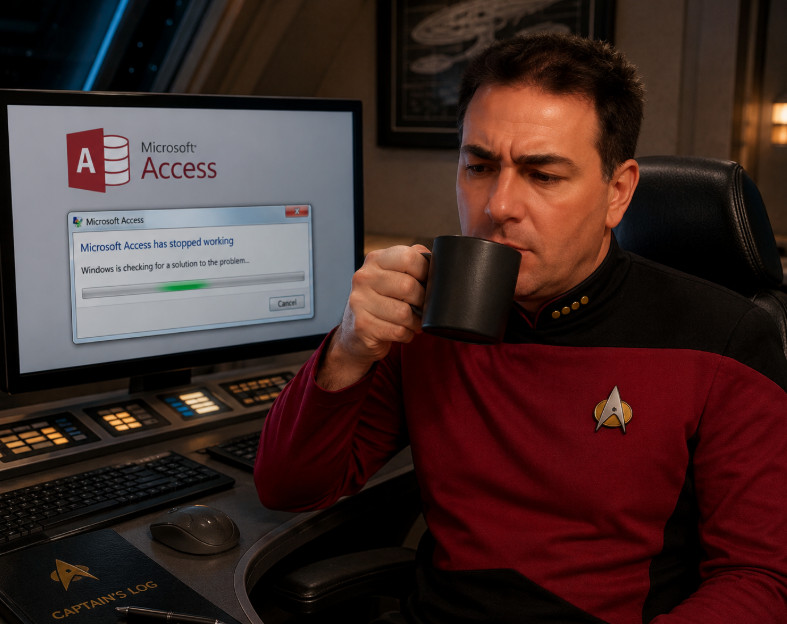
Well, this has been an interesting day in the world of Microsoft Access.
A couple of days ago, I updated my main workstation, Picard (of course), to the latest Current Channel build of Microsoft Access because I wanted to get the new form zooming feature that Microsoft released recently. Ironically, after all this, I still don't even have the feature yet. What I DID get, however, was a brand-new compatibility problem that cost me several hours of troubleshooting. Picard is the machine where I record all my videos, build my databases, edit code, and basically run most of my business operations.
Now, my "server" machine intentionally stays on an older build of Office for stability reasons. That's always been my policy. I usually let the main machine run with a new update for at least a month or two before I roll that update out to any other systems. That strategy has saved me more than once over the years because Windows and Office updates have a long history of introducing strange bugs, performance problems, and compatibility issues. In fact, I literally just finished recording a Windows TechHelp video about how a recent Windows update suddenly made my system sluggish and slow. You can watch that video on Thursday... assuming I survive this latest little adventure.
Earlier tonight, I made a few relatively minor changes to my main production database. Nothing major at all. I tweaked a couple of queries, adjusted a form slightly, and made a few small VBA edits. Then I used my Access Updater system to push the updated ACCDB file to the server machine, which handles a lot of my background operations like forum notifications, outgoing emails, automated tasks, and various website functions. The database started loading on the server... and then Microsoft Access simply vanished. No warning. No error message. No dramatic explosion animation. Just instant crash-to-desktop.
At first I assumed I had accidentally corrupted something. That happens occasionally in Access, especially with large databases that have been evolving for years. So I restored the previous night's backup, and everything worked perfectly again. That was actually a good sign because it meant the server itself was fine and the database wasn't completely destroyed. The problem had to be something I changed today. So began several hours of detective work trying to isolate exactly what had gone wrong.
I started testing changes one at a time. Query modifications worked fine. Table changes worked fine. Standard VBA modules worked fine. Small form layout adjustments also seemed perfectly okay. But the second I modified code behind a form module, even something as harmless as adding a comment line, then performed a Debug Compile and deployed the update, the older machine would crash while loading the database. It didn't matter which form I tested. I tried multiple completely unrelated forms, and they all produced the same result.
At that point I went through the usual collection of Access troubleshooting rituals that we all (should) know by heart. I tried Compact and Repair. I tried Safe Mode. I tried Decompile. I restored copies, rebuilt objects, compared file sizes, and generally sacrificed several hours of my evening to the Access gods. At one point I even noticed that one of the corrupted copies of the database had mysteriously shrunk from about 133 MB down to around 50 MB after a compact operation, which definitely raised an eyebrow. That kind of dramatic size change is usually a sign that something internal went very wrong. Turned out it was unrelated. But still - watch your compacts.
Eventually I narrowed the issue down pretty specifically. Standard VBA modules still work across both systems without any problem. Queries are fine. Tables are fine. But touching a form module on the newer build of Access appears to save or compile something in a way that the older build simply cannot handle. The database loads perfectly on the newer machine, but the older machine crashes during startup. Since the crash happens even with tiny harmless edits and across multiple unrelated forms, this doesn't appear to be one corrupted form. It really looks like some kind of compatibility issue involving embedded form class modules between the two Office builds.
So now I have a decision to make. I can either rollback Picard to the older version of Office, or I can upgrade the server to match the newer build. Neither option is something I particularly wanted to deal with tonight. Rolling systems backward is always risky, and upgrading a production server right before you need it stable is not exactly my favorite hobby either. Fortunately I do have backups, and fortunately they work. They're not just Schrodinger's Backups.
The bottom line here is the same advice I've been giving people for years: whenever you install major updates, whether it's Windows, Office, drivers, or anything else, always give yourself plenty of testing time before relying on that machine for production work. Never assume that "it's just an update." Sometimes the smallest little version mismatch can create the weirdest problems imaginable, especially when you're dealing with giant production databases that have evolved over decades.
I also fired off an email to the Access MVP group to see if anybody else has run into this or has any additional ideas. My suspicion at this point is that there has been some fairly significant change in the way newer versions of Access compile or store embedded form modules. The older stable machine is running build 17628, while the newer machine is running build 20026, and there are quite a few builds in between those two versions. I know there has been some chatter online over the past several months about various Access compatibility issues, form problems, and weird behavior involving newer Office builds, so this may just be another one of those situations where trying to leap across too many versions at once creates unexpected problems.
For now, I may spend a little more time digging into it when I get a chance and see if any of the other MVPs have additional suggestions or workarounds. In the meantime, I've restored the last known good version of the database on the server and I'm letting that continue running for now. Sometimes the best troubleshooting technique is simply knowing when to stop poking the warp core for the night.
Yup and that's why the most important reminders in most of your videos are about backing up your: Database, photos, music or video library, games, whatever. And not just making 1 local backup, or a thumb drive, or 1 cloud backup, etc.
I have two phrases I recently used when a friend of mine, who's not very computer savvy, ran into an issue with his computer and he thought he lost his entire photo/video/music library:
1. That's why you keep stuff backed up so you don't lose everything if something gets jacked up
and
2. Backups are like a certain brand of hot sauce, I back that Sh* up everywhere!
In my friend's case, he thought he lost 4 years of his library but he didn't know that when I created it for him, I made sure it routinely got copied to a 2nd hard drive on his machine (main is SSD, 2nd is HDD), also put copies in his one drive sync folder, and I also had set his FTP software to automatically sync it to his business' web site server which also has commercial backups as well.
If you are a Visitor, go ahead and post your reply as a
new comment, and we'll move it here for you
once it's approved. Be sure to use the same name and email address.
This thread is now CLOSED. If you wish to comment, start a NEW discussion in
Captain's Log.