Free Lessons
Courses
Seminars
TechHelp
Fast Tips
Templates
Topic Index
Forum
ABCD
 
Home   Courses   TechHelp   Forums   Help   Contact   Merch   Join   Order   Logon  
 
Back to Access Forum    Comments List
Upload Images   @Reply   Bookmark    Link   Email   Next Unseen 
Export as PDF Access
Agustin Simone 
    
3 years ago
Hi everyone.

I followed one of the reports tutorial and it was made with a query, i'm taking values from two tables. That's fantastic, but then I want to print ONLY the exact user report as it is on this Richard video (https://youtu.be/-glv57HSWkc), the tutorial covers that with a table in Record Source (minute 03:19) so the SELECT * FROM bla bla is not possible with a query. There are aproximately 1000 reports, but when putting the query in Record Source, it tries to print or export the entire number and that is not what I want.

I need a solution because I'm in an important project but also it is my first Access experience so I'm doing what i can with the knowledge I have.


So my question is, what if it's a Query and not a table on Record Source? What should i do? Because I want to do exactly as shown in Richard's video but with that difference.

Thank you very much and have a great weekend!

Agustin :)
Kevin Robertson  @Reply  
          
3 years ago
Do you have criteria in your Query to limit the number of records returned?
Agustin Simone OP  @Reply  
    
3 years ago
I do not know how to do that. I can show you my query, it is something simple. I am taking values from both tables in order to show them up in the report. But those tables are different users with different data.
Agustin Simone OP  @Reply  
    
3 years ago

Agustin Simone OP  @Reply  
    
3 years ago
It is working good. I just only need them to SEPARATELY print when needed as in Richard's video.
Agustin Simone OP  @Reply  
    
3 years ago
Any thoughts?
Kevin Yip  @Reply  
     
3 years ago
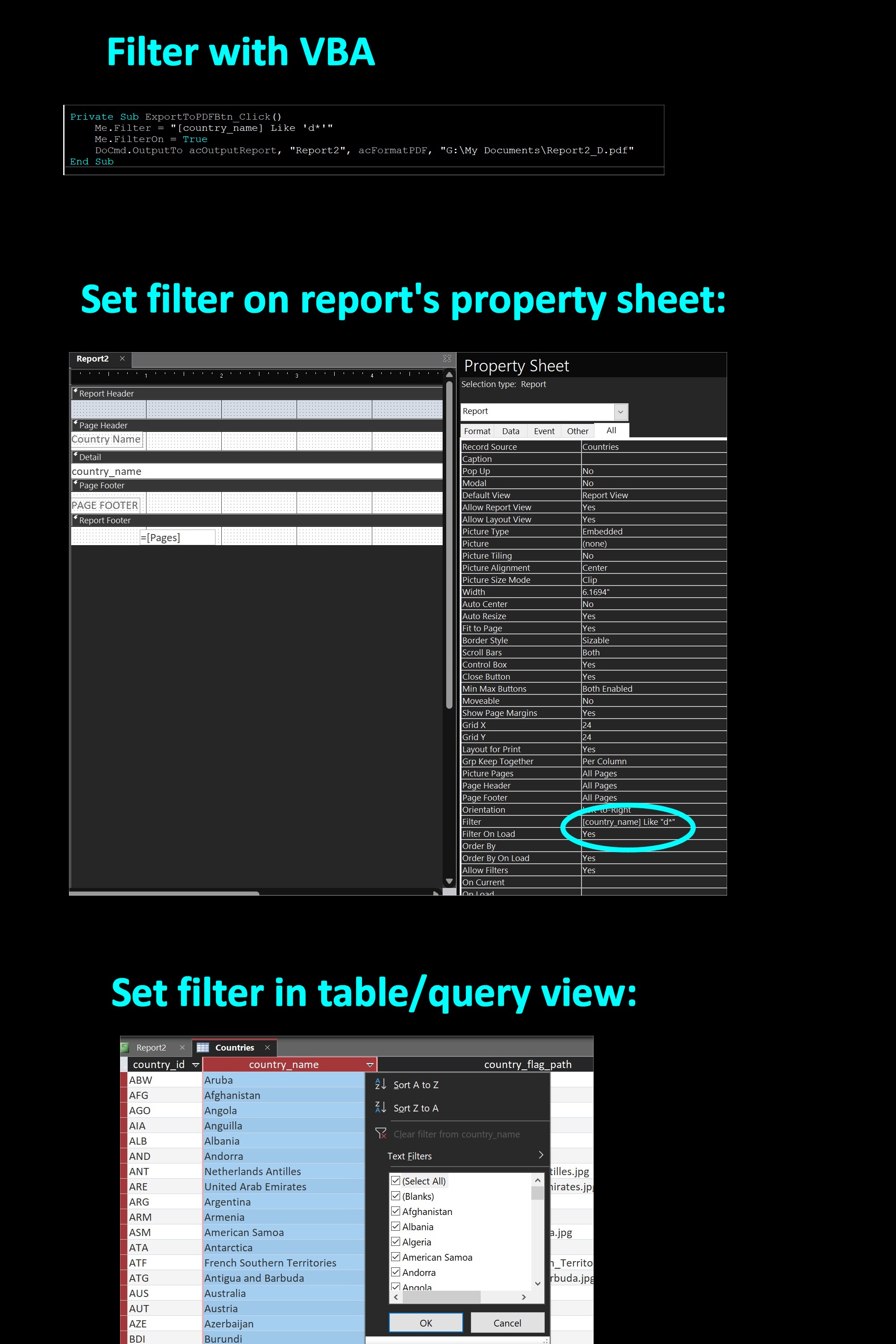
Hi Agustin, you can set a filter for your data.  You can do it without having to edit the recordsource.  Whatever the recordsource is, your filter can be applied on top of it, if it has the right syntax.  See the picture below the different ways to set filters.  You can do it in VBA by changing the report's Filter and FilterOn properties.  You can do it in report design's property sheet.  And you can also set filters in table or query view.  In my example below, I filter out only the country names that begin with D, and that's what the report will show.
Kevin Yip  @Reply  
     
3 years ago

Agustin Simone OP  @Reply  
    
3 years ago
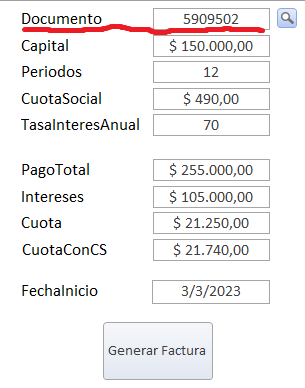
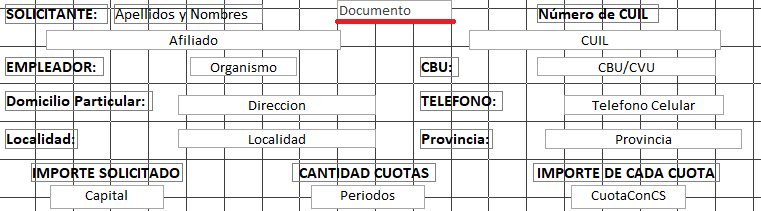
Thanks for your help guys. That guides me a little more. I tried a lot but I still don't know how the syntax could be. Imagine a Single Form with "Documento" value in thousands of records. I want that value to be the one that my Report gets to display, because I would like to filter by that specific value that it's also in the Report. All of that when clicking a button. I think it's pretty simple but as I don't know syntax, I'm getting crazy. Check the following pictures in order to understand:
Agustin Simone OP  @Reply  
    
3 years ago

Agustin Simone OP  @Reply  
    
3 years ago

Agustin Simone OP  @Reply  
    
3 years ago
1. Single Form
2. Report (made with a query. The first image I uploaded some days ago is how that query is conformed in case you want to check)
Kevin Yip  @Reply  
     
3 years ago
This needs to be done with VBA.  When you click that button your form, it should run (in the Click event) the OpenReport command.  This command opens up the report, and this is where you set the filter for Documento:

    DoCmd.OpenReport "My Report Name", acViewPreview, , "[Documento] = " & Me!Documento

The above opens the report in preview mode.  The above assumes Documento is numeric.  If it is text, you need to enclose it with quotes.

Then *right after the line above*, you run the OutputTo command to actually send the report to a PDF or a printer:

    DoCmd.OutputTo acOutputReport, "", acFormatPDF, "C:\My Documents\MyReport.pdf"

The above outputs the report to a PDF.  Note the empty string ("").  That is the name of the report to be sent.  If the report name is blank as shown here, the currently opened report (the one you just opened in preview mode) is sent.
Agustin Simone OP  @Reply  
    
3 years ago
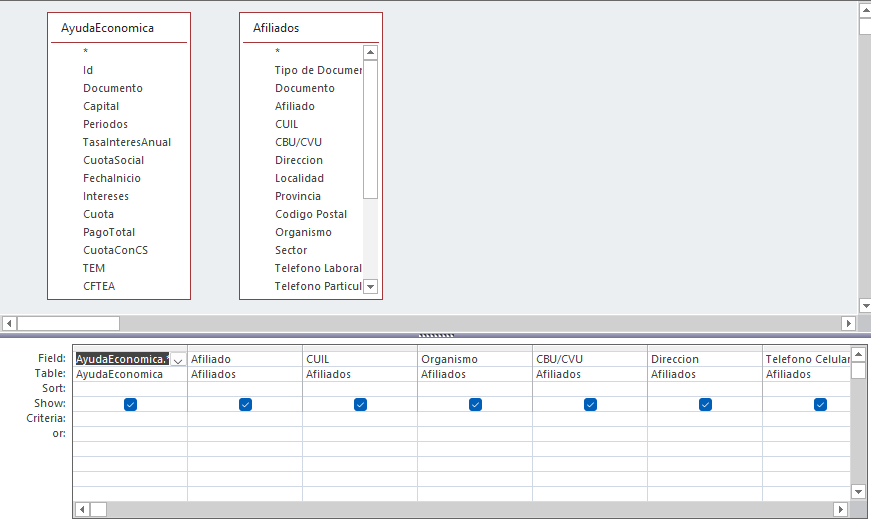
I think you are right with that VBA code, but I realized that the problem is on the Query conformation. When running, I can see that Me!Documento takes the correct value but not the previous Documento. I came to that conclusion because I made the Query from scratch, so it's highly probable that something is wrong. I uploaded an image about the Query i'm talking about but I can upload something else if it's required. Maybe a different connection is needed, or a specific relationship between both tables (there is not) as both "Documento" fields in the two tables are completely the same, except for the fact that in AyudaEconomica some of that values are duplicated (because a single person is allowed to have more than 1 loan active). Thank you so much for your help, Kevin.
Agustin Simone OP  @Reply  
    
3 years ago
I think I need to somehow allow the Query to recognize multiple Documento fields (AyudaEconomica - Loans) and then for all equal Documento's, show the same user data (Afiliado), because as I said in the previous message the user is allowed to have multiple loans.

To sum up, Afiliado shows personal information about X user (usually searched for Documento) and AyudaEconomica shows the loan information (could be multiple loans for only one user).

This thread is now CLOSED. If you wish to comment, start a NEW discussion in Access Forum.
 

Next Unseen

 
New Feature: Comment Live View


The following is a paid advertisement
Computer Learning Zone is not responsible for any content shown or offers made by these ads.
 

Learn
 
Access - index
Excel - index
Word - index
Windows - index
PowerPoint - index
Photoshop - index
Visual Basic - index
ASP - index
Seminars
More...
Customers
 
Login
My Account
My Courses
Lost Password
Memberships
Student Databases
Change Email
Info
 
Latest News
New Releases
User Forums
Topic Glossary
Tips & Tricks
Search The Site
Code Vault
Collapse Menus
Help
 
Customer Support
Web Site Tour
FAQs
TechHelp
Consulting Services
About
 
Background
Testimonials
Jobs
Affiliate Program
Richard Rost
Free Lessons
Mailing List
PCResale.NET
Order
 
Video Tutorials
Handbooks
Memberships
Learning Connection
Idiot's Guide to Excel
Volume Discounts
Payment Info
Shipping
Terms of Sale
Contact
 
Contact Info
Support Policy
Mailing Address
Phone Number
Fax Number
Course Survey
Email Richard
[email protected]
Blog RSS Feed    YouTube Channel

LinkedIn
Copyright 2026 by Computer Learning Zone, Amicron, and Richard Rost. All Rights Reserved. Current Time: 5/2/2026 3:16:00 AM. PLT: 1s