Free Lessons
Courses
Seminars
TechHelp
Fast Tips
Templates
Topic Index
Forum
ABCD
 
Home   Courses   TechHelp   Forums   Help   Contact   Merch   Join   Order   Logon  
 
Back to Access Forum    Comments List
Upload Images   @Reply   Bookmark    Link   Email   Next Unseen 
AutoImport From Excel to Acces
Howard Chapell 
    
2 years ago
Richard asked me to use this Code as a Reference[CLZ826372D]

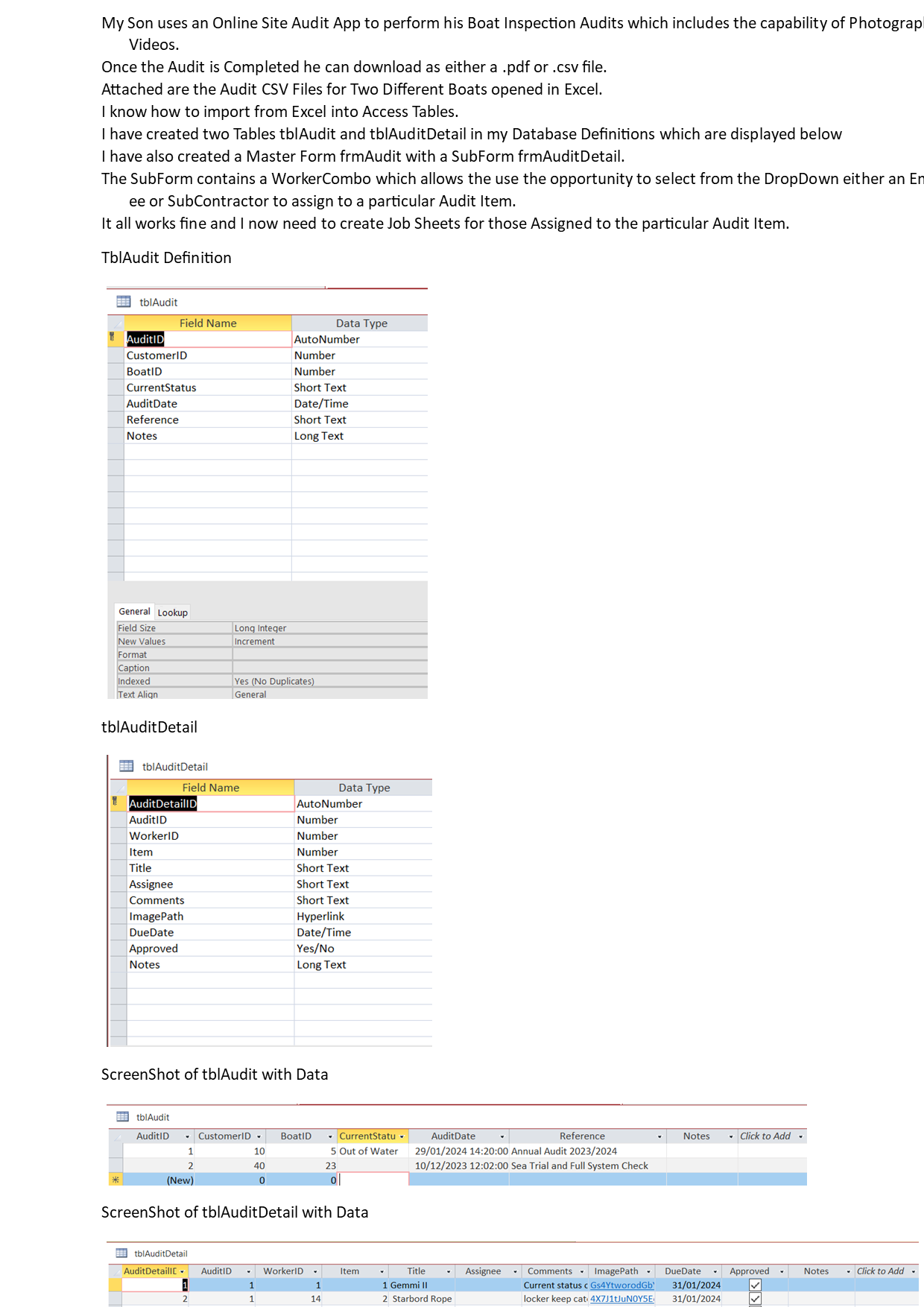
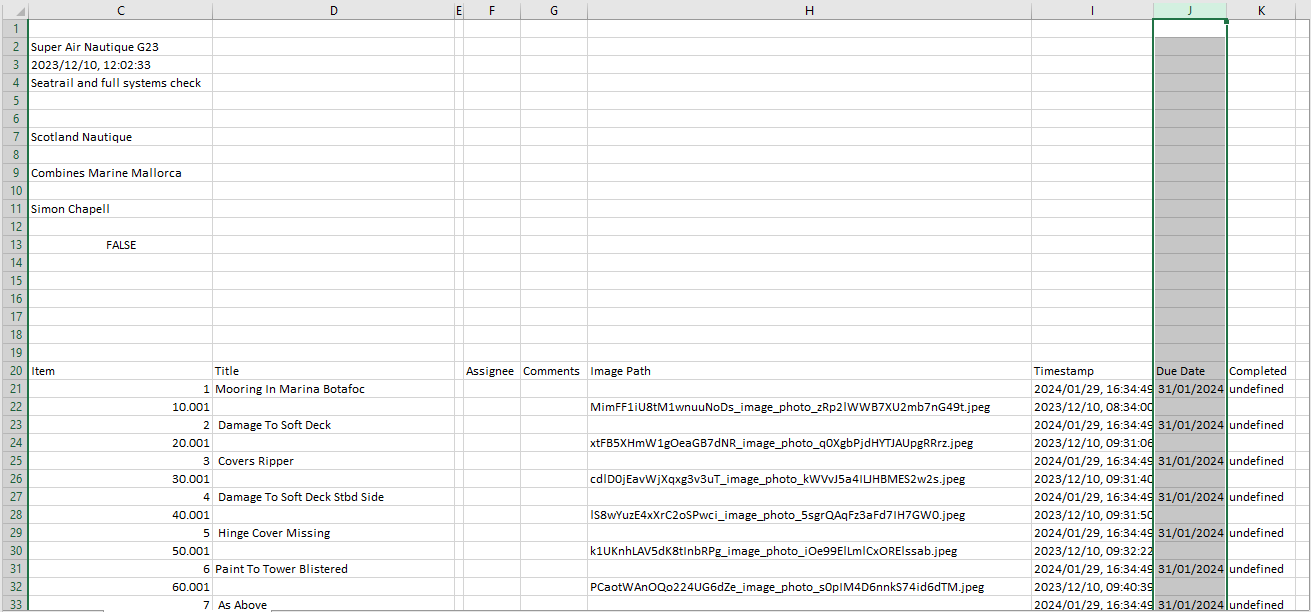
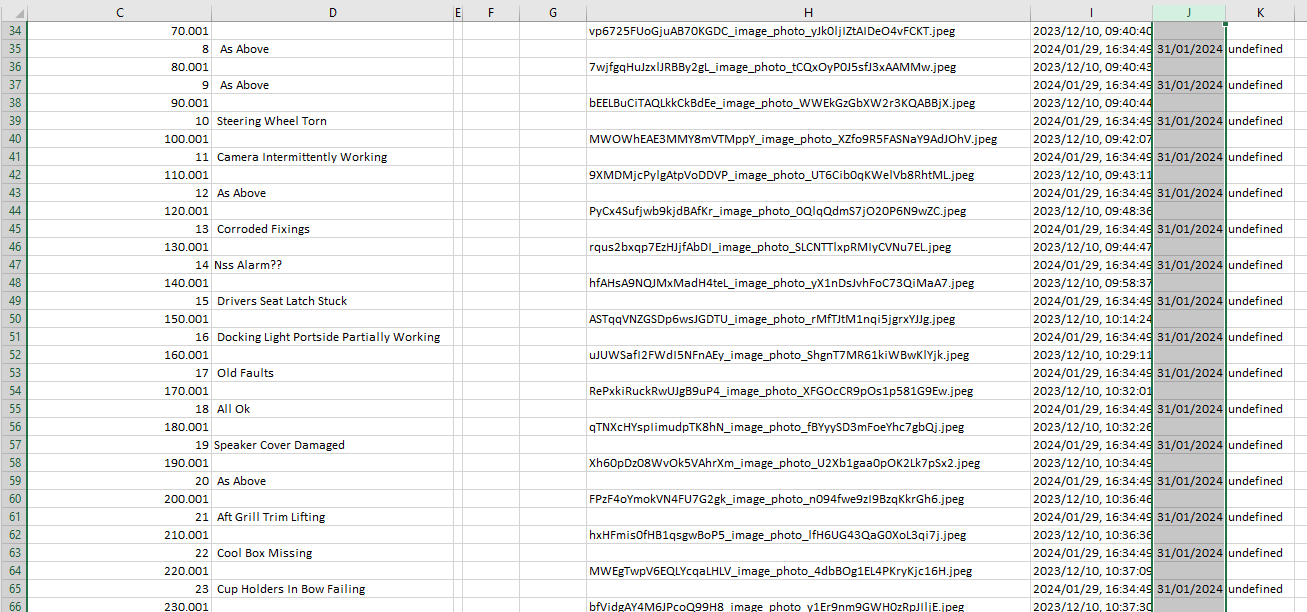
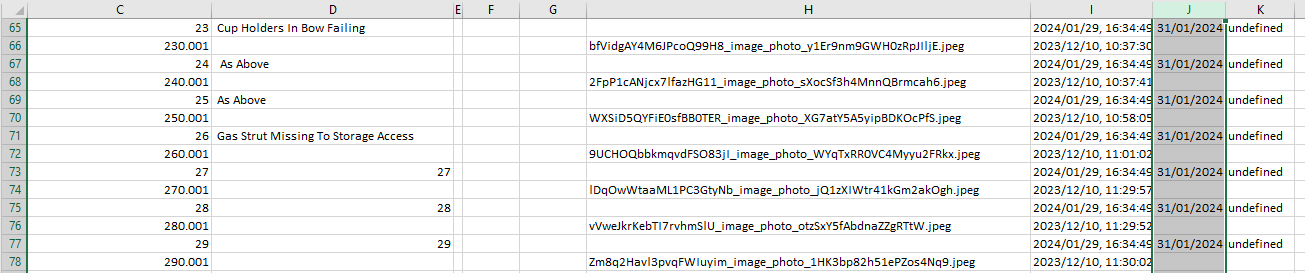
Find attached a Word Document showing and explaining the structure of Tables and Source Data downloaded from an  Audit Site after performing a Survey on Boats.

Also

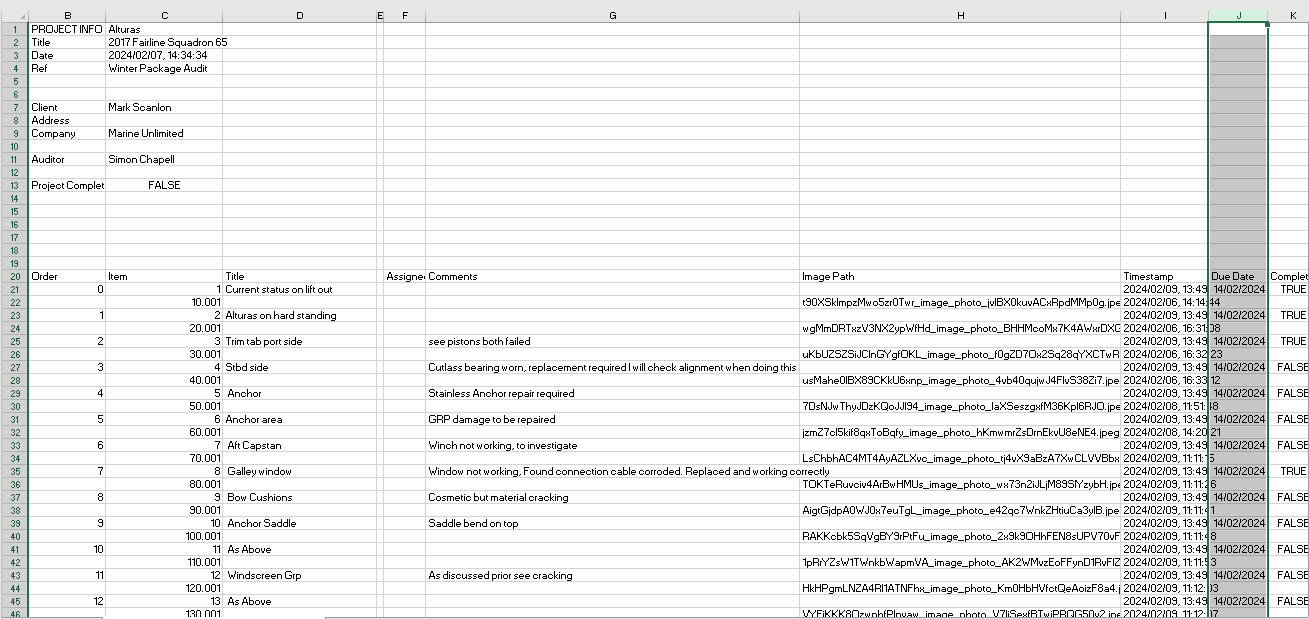
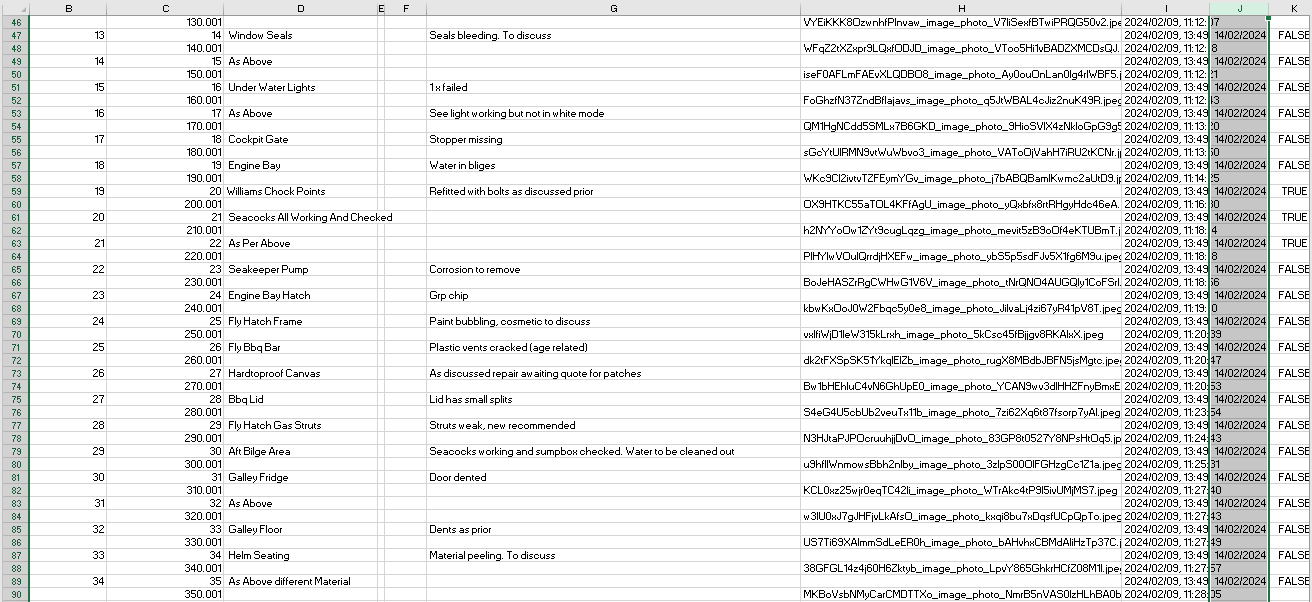
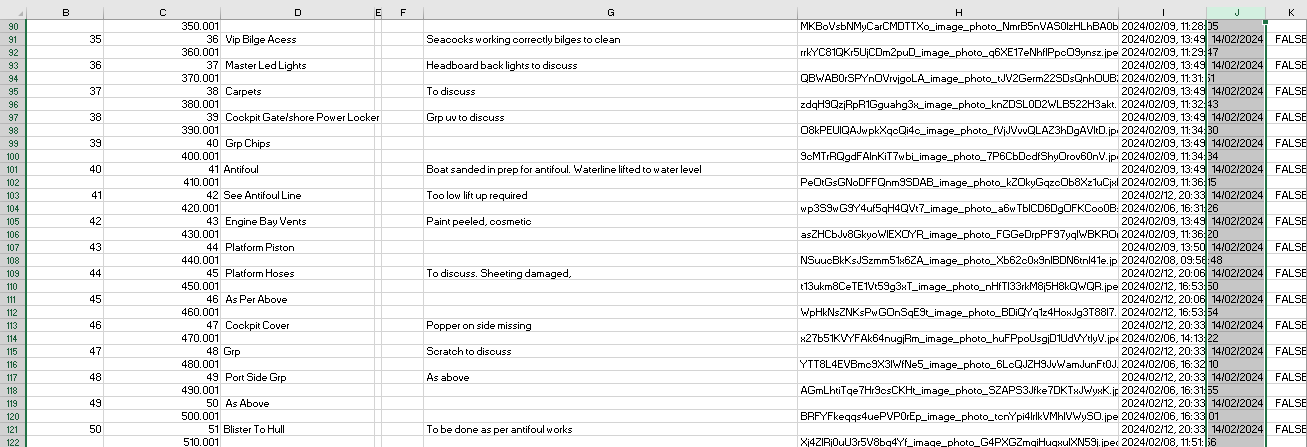
I have also attached copies of two Boat Audits downloaded initially as .csv Files which I then manipulate in Excel and Import into my Database.

I would like to be seamlessly Automate this process as much as possible because I have several Boats to Survey
Howard Chapell OP  @Reply  
    
2 years ago

Sami Shamma  @Reply  
             
2 years ago
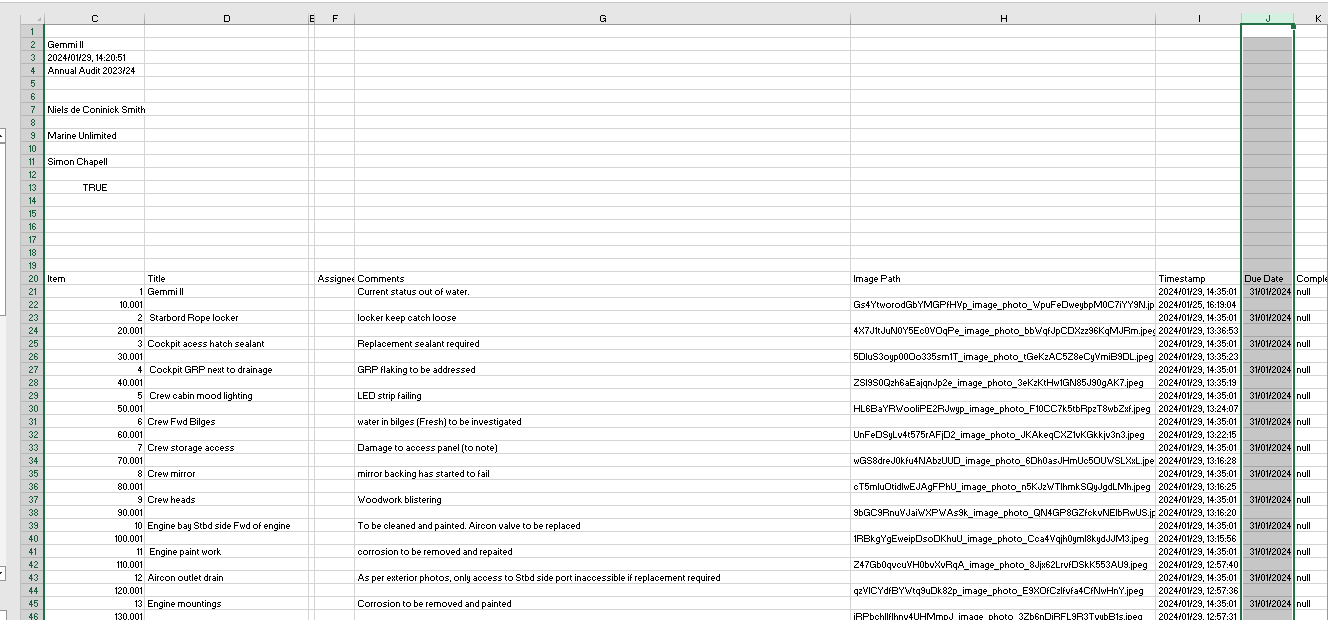
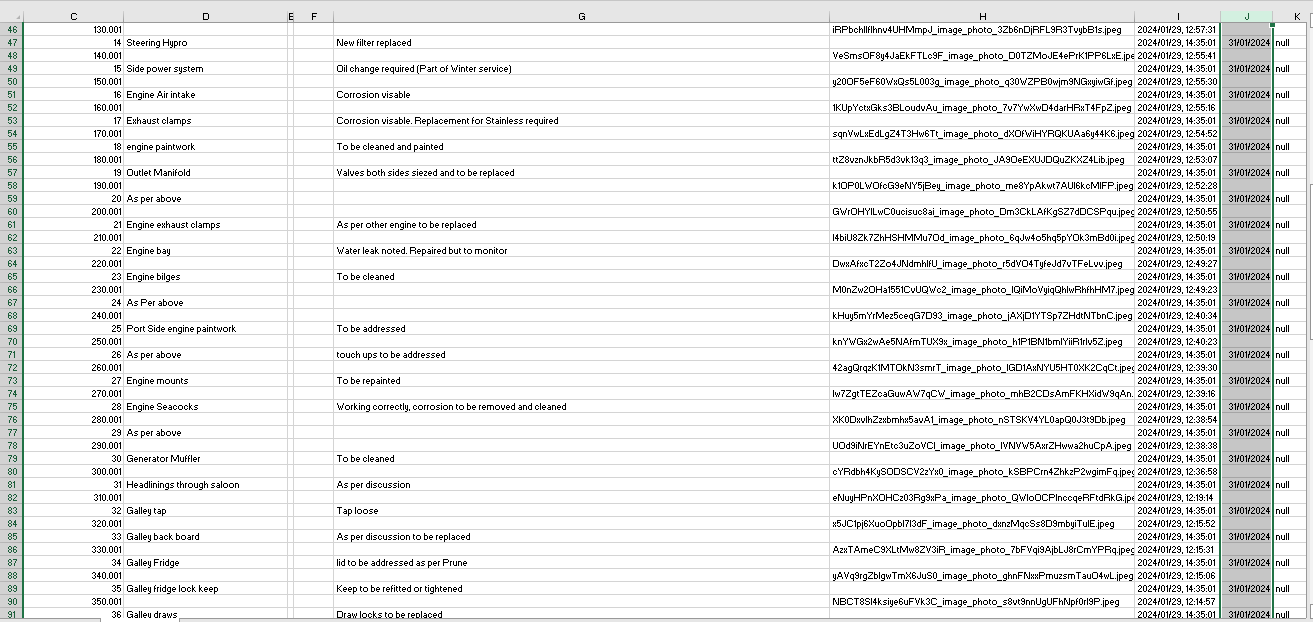
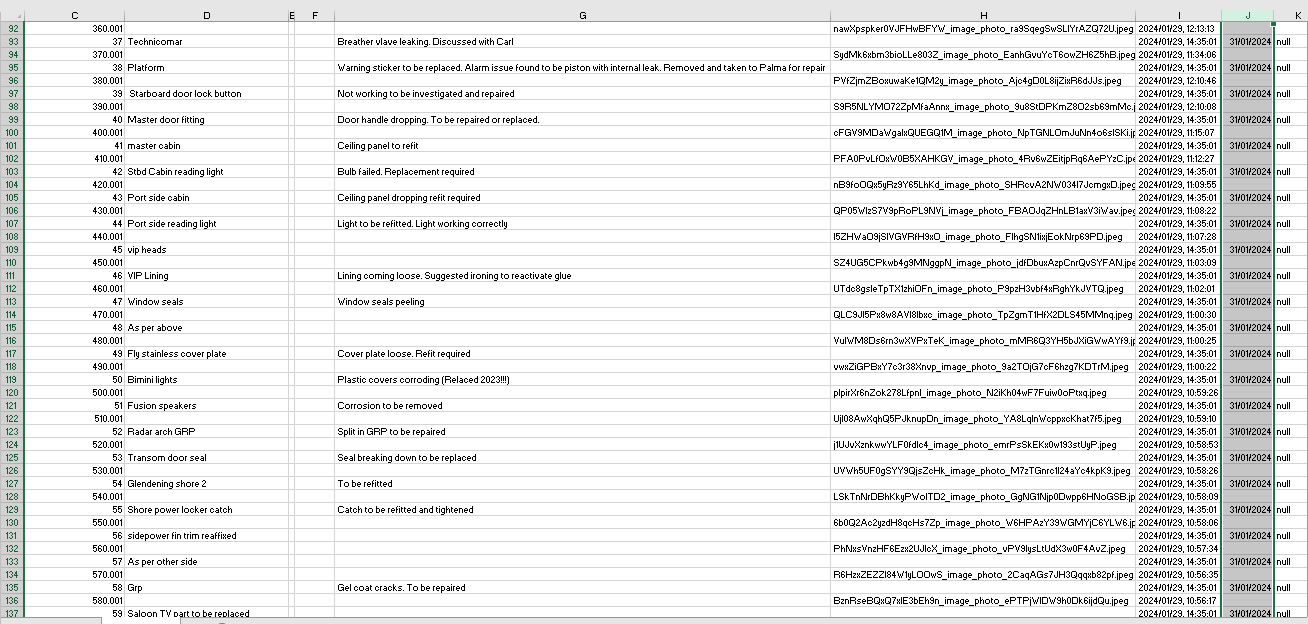
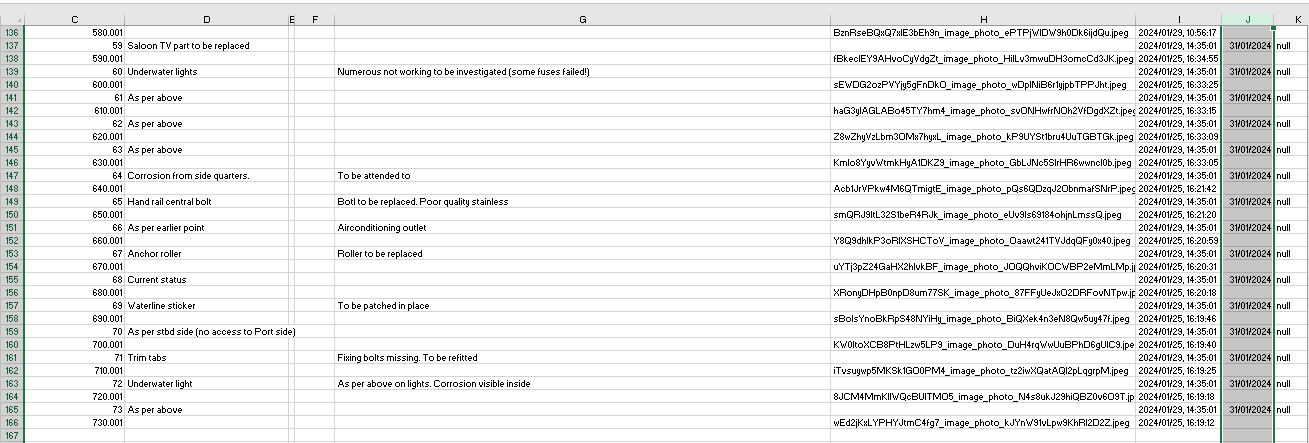
please show the csv file
Howard Chapell OP  @Reply  
    
2 years ago

Howard Chapell OP  @Reply  
    
2 years ago

Howard Chapell OP  @Reply  
    
2 years ago

Howard Chapell OP  @Reply  
    
2 years ago

Howard Chapell OP  @Reply  
    
2 years ago

Howard Chapell OP  @Reply  
    
2 years ago

Howard Chapell OP  @Reply  
    
2 years ago

Howard Chapell OP  @Reply  
    
2 years ago

Howard Chapell OP  @Reply  
    
2 years ago

Howard Chapell OP  @Reply  
    
2 years ago

Howard Chapell OP  @Reply  
    
2 years ago
Hi Sami Shamma

Were the .csv Screen Shots helpful or do you need alternatives
Kevin Yip  @Reply  
     
2 years ago
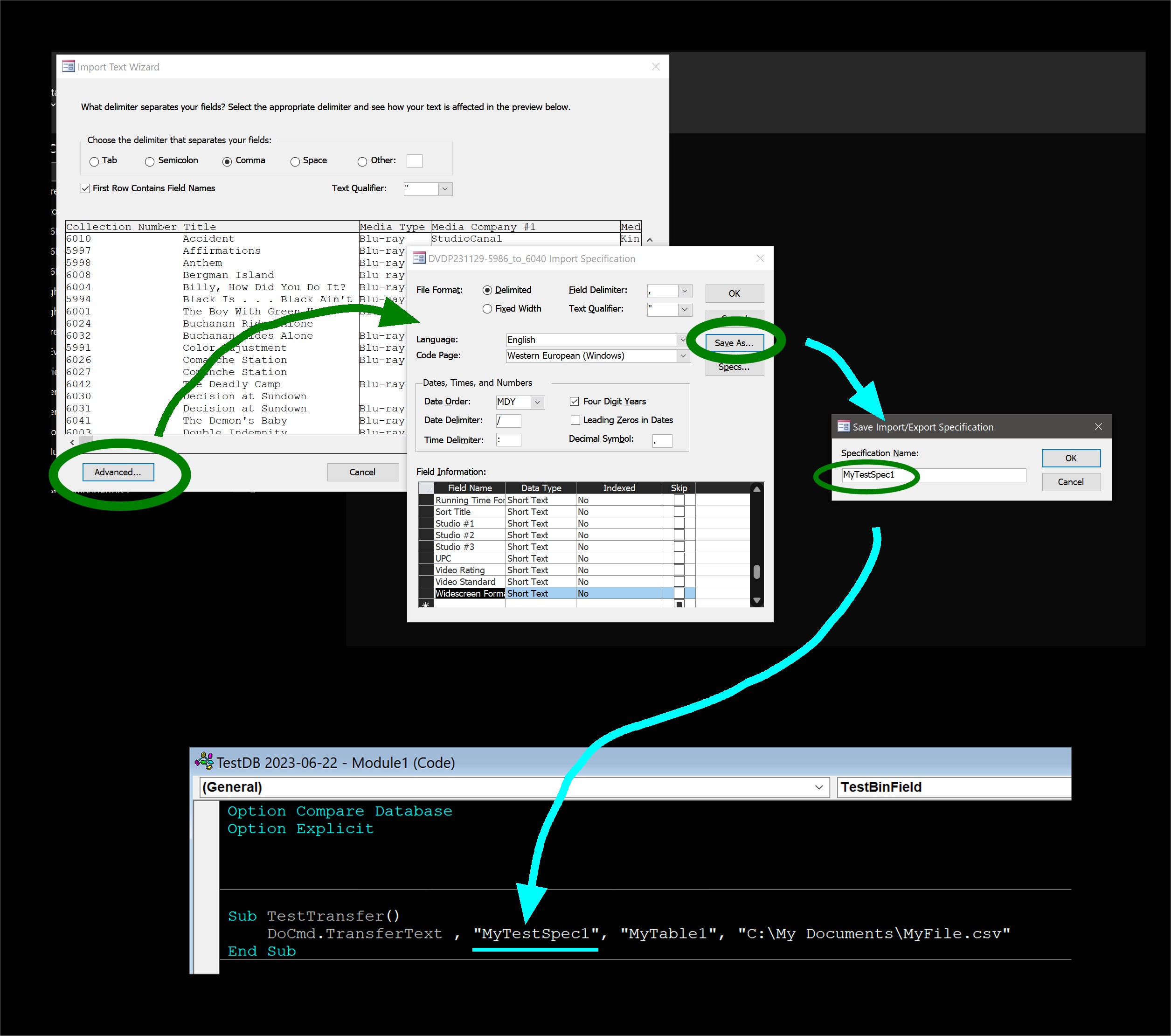
To import CSV automatically, you first need to import it once manually as pictured below.  Go to External Data -> New Data Source -> From File -> Text File.  Go through the steps on the import wizard until you see the screen with the "Advanced" button on the bottom left corner, as shown below.  Click Advanced.  Make sure all the import specs are correct.  Click "Save As".  Then type the name of the import spec, click OK.  You can continue the rest of the import wizard, or you can abort it.  The important thing is to save the import spec, which you just did -- and remember its name, because there is no easy way to look it up.  Then, you can write the VBA code that will automate this process, with the DoCmd.TransferText command as shown in the picture.  Specify the name of the import spec in the code, as shown.  Note that this will only work with this one specific import spec.  Every little change to the import process (different column count, type, name, etc.) would require a different import spec, and you would have to go through the import wizard again as mentioned above.

Your screenshots show that your data don't always start at cell A1, and that is a problem, because Access imports everything on the CSV file or Excel worksheet.  The data should ideally always start at A1 with no empty columns nor rows, or Access may not import correctly.
Kevin Yip  @Reply  
     
2 years ago

Howard Chapell OP  @Reply  
    
2 years ago
Thanks Kevin ever so much Ill try this

This thread is now CLOSED. If you wish to comment, start a NEW discussion in Access Forum.
 

Next Unseen

 
New Feature: Comment Live View


The following is a paid advertisement
Computer Learning Zone is not responsible for any content shown or offers made by these ads.
 

Learn
 
Access - index
Excel - index
Word - index
Windows - index
PowerPoint - index
Photoshop - index
Visual Basic - index
ASP - index
Seminars
More...
Customers
 
Login
My Account
My Courses
Lost Password
Memberships
Student Databases
Change Email
Info
 
Latest News
New Releases
User Forums
Topic Glossary
Tips & Tricks
Search The Site
Code Vault
Collapse Menus
Help
 
Customer Support
Web Site Tour
FAQs
TechHelp
Consulting Services
About
 
Background
Testimonials
Jobs
Affiliate Program
Richard Rost
Free Lessons
Mailing List
PCResale.NET
Order
 
Video Tutorials
Handbooks
Memberships
Learning Connection
Idiot's Guide to Excel
Volume Discounts
Payment Info
Shipping
Terms of Sale
Contact
 
Contact Info
Support Policy
Mailing Address
Phone Number
Fax Number
Course Survey
Email Richard
[email protected]
Blog RSS Feed    YouTube Channel

LinkedIn
Copyright 2026 by Computer Learning Zone, Amicron, and Richard Rost. All Rights Reserved. Current Time: 5/8/2026 9:30:47 PM. PLT: 0s