Free Lessons
Courses
Seminars
TechHelp
Fast Tips
Templates
Topic Index
Forum
ABCD
 
Home   Courses   TechHelp   Forums   Help   Contact   Merch   Join   Order   Logon  
 
Back to Access Forum    Comments List
Upload Images   @Reply   Bookmark    Link   Email   Next Unseen 
SQL And WHERE Unicode
Krzysztof Kaminski 

2 years ago
Hello
I have created simple search while typing combobox. It uses SQL query to get the results from contacts table. I am triggering change of recordsource with onchange event.
Access is just frontend, database is on sql server.

DetailsPrivate Sub combi_contacts_id_Change()
    Dim strSQL As String
    Dim strSearch As String
    strSearch = Me!combi_contacts_id.Text
        strSQL = "SELECT [contacts].[k_id], [contacts].[k_name] FROM [contacts] "
        If Len(strSearch & "") > 0 Then
            strSQL = strSQL & "WHERE [k_name] Like '*" & strSearch & "" & "*' "
        End If
        strSQL = strSQL & " ORDER BY [k_name];"
    combi_contacts_id.RowSource = strSQL
    combi_contacts_id.Dropdown
End Sub


Everything works fine except when unicode charaters are used in the search.
When unicode characters are used in search, access does not search for it.
So far what I found out is that when you use unicode characters in WHERE clause they are "not working" properly.
For example
SELECT k_name FROM contacts WHERE [k_name] Like "*" & 'ło' & "*" ORDER BY [k_name]
will give results which will include 'lo' in k_name, not 'ło'.
In sql server i can simply add "N" before strSearch and it works properly, but i can not find a way to force access to work.
Anyone experienced such issue? Am I missing something?
Richard Rost  @Reply  
          
2 years ago
I've never run into this problem myself. I'm very careful to AVOID Unicode characters in everything I do. LOL. However here's what GPT said about it:
Richard Rost  @Reply  
          
2 years ago
The issue you're encountering is related to how Microsoft Access handles Unicode characters in SQL queries. When you're working with a SQL Server backend, you can prefix strings with an `N` to indicate that the string is a Unicode string, but Access doesn't automatically treat strings as Unicode unless explicitly told to.

Solution

You need to ensure that the search string is treated as a Unicode string by modifying the SQL query string construction in VBA. You can achieve this by explicitly converting the search string to Unicode before appending it to the SQL statement.

Here's how you can modify your code:

DetailsPrivate Sub combi_contacts_id_Change()
    Dim strSQL As String
    Dim strSearch As String
    strSearch = Me!combi_contacts_id.Text

    ' Ensure the search string is treated as Unicode
    strSearch = "N'" & Replace(strSearch, "'", "''") & "'"
    
    strSQL = "SELECT [contacts].[k_id], [contacts].[k_name] FROM [contacts] "
    If Len(strSearch & "") > 0 Then
        strSQL = strSQL & "WHERE [k_name] Like '*' & " & strSearch & " & '*' "
    End If
    strSQL = strSQL & " ORDER BY [k_name];"
    
    combi_contacts_id.RowSource = strSQL
    combi_contacts_id.Dropdown
End Sub


Explanation

- N'UnicodeString': This tells SQL Server that the string is Unicode. By prefixing the search string with `N'` and wrapping it in single quotes, you ensure that SQL Server correctly interprets the string, including any Unicode characters.
  
- Replace Function: This replaces any single quotes in the search string with double single quotes, which is necessary to avoid SQL injection issues.

Additional Consideration

If this modification still doesn't resolve the issue, it could be due to differences in how the `Like` operator works with Unicode characters in Access vs. SQL Server. In that case, you might consider handling the filtering directly in SQL Server with a stored procedure or a pass-through query to ensure full Unicode support.

This approach should allow you to handle searches with Unicode characters correctly in Access with an SQL Server backend.
Kevin Yip  @Reply  
     
2 years ago
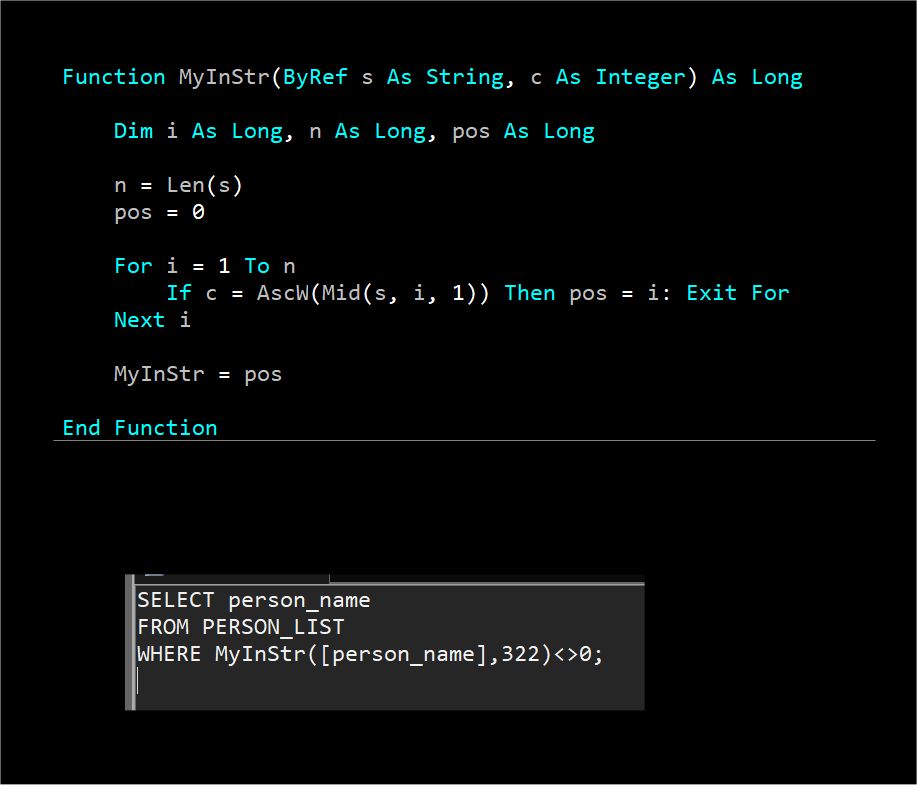
Hi Krzysztof, Access SQL statements (and VBA code) can only handle character codes from 0 to 255, which include English alphabets A to Z and also some European alphabets with markings like acute, grave, tilde, etc.  The Polish alphabet you mentioned (lower case l with a stroke) has an character code of 322, which is outside of 0 to 255 and can't be used literally in any Access coding screen, nor is it recognized by VBA string functions like InStr(), Chr(), or Asc().

You can, however, use ChrW() and AscW() for characters outside of 255.  These functions can then be used to create your own function to look for these characters.  For instance, pictured below is a query that uses a custom VBA function to find any field that has the lower case l with a stroke.
Kevin Yip  @Reply  
     
2 years ago

Kevin Yip  @Reply  
     
2 years ago
Hi Richard, unicode characters are not something you can avoid, because you can't control what data you receive, especially in a business.  Since you have a lot of international customers, if you have someone from Poland, Czech Republic, or any countries that use extended characters, you'll have to accommodate such characters in your database.  I have a movie database in Access that has movie titles, cast & crew names, etc. from all over the world, so I also have to accommodate all the unicode characters.
Kevin Yip  @Reply  
     
2 years ago
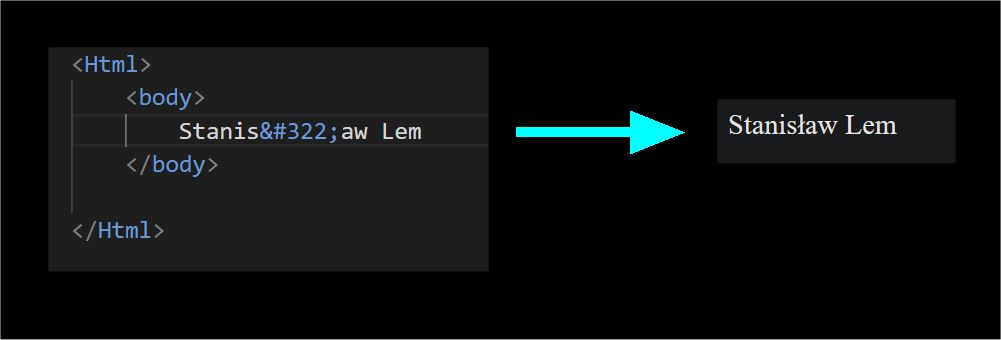
Putting these extended characters on a webpage is also quite cumbersome.  You have to type the character code explicitly as shown below.  This is what Richard would have to deal with if he allowed unicode on his site.
Kevin Yip  @Reply  
     
2 years ago

Krzysztof Kaminski OP  @Reply  

2 years ago
Thank You guys for the input.
Harsh issue to solve especially if you are just simple enthusiast :)
ChatGPT is a liar as we know, you can not add N before string in ms access sql query (not even in passthrough!). I hoped that hiding it in variable might be solution as Richard/GPT suggested but no... it doesn't work at least for me.
Temporarly I have changed collation of the database
ALTER DATABASE db_name COLLATE Polish_CI_AS;
and it started to work right away without any changes to code.
It works fine on local database btw. The longer i try to solve it the weirder it gets...

This thread is now CLOSED. If you wish to comment, start a NEW discussion in Access Forum.
 

Next Unseen

 
New Feature: Comment Live View


The following is a paid advertisement
Computer Learning Zone is not responsible for any content shown or offers made by these ads.
 

Learn
 
Access - index
Excel - index
Word - index
Windows - index
PowerPoint - index
Photoshop - index
Visual Basic - index
ASP - index
Seminars
More...
Customers
 
Login
My Account
My Courses
Lost Password
Memberships
Student Databases
Change Email
Info
 
Latest News
New Releases
User Forums
Topic Glossary
Tips & Tricks
Search The Site
Code Vault
Collapse Menus
Help
 
Customer Support
Web Site Tour
FAQs
TechHelp
Consulting Services
About
 
Background
Testimonials
Jobs
Affiliate Program
Richard Rost
Free Lessons
Mailing List
PCResale.NET
Order
 
Video Tutorials
Handbooks
Memberships
Learning Connection
Idiot's Guide to Excel
Volume Discounts
Payment Info
Shipping
Terms of Sale
Contact
 
Contact Info
Support Policy
Mailing Address
Phone Number
Fax Number
Course Survey
Email Richard
[email protected]
Blog RSS Feed    YouTube Channel

LinkedIn
Copyright 2026 by Computer Learning Zone, Amicron, and Richard Rost. All Rights Reserved. Current Time: 5/27/2026 8:07:51 PM. PLT: 0s