Free Lessons
Courses
Seminars
TechHelp
Fast Tips
Templates
Topic Index
Forum
ABCD
 
Home   Courses   TechHelp   Forums   Help   Contact   Merch   Join   Order   Logon  
 
Back to Access Forum    Comments List
Upload Images   @Reply   Bookmark    Link   Email   Next Unseen 
How do you trust Hyperlinks
Colin Eastaugh 
      
17 months ago
When going from Microsoft Access database to Microsoft Access database using hyperlinks I get the following error:

"A potential security concern has been identified

The location may be unsafe.

For example: C:\Users\Colin\OneDrive\Documents\Access\AccessYTD.accdb

Hyperlinks can be harmful to your computer and data.  To protect your computer, click only those hyperlinks from trusted sources.

Do you want to continue?"

In the Trust Center Settings, I have tried switching off everything in the Message Bar section, I've deleted and reinserted Trusted Locations, I've even gone back and installed earlier versions of Microsoft Access, nothing seems to work.  The warning message has been appearing since the middle of December.

Has anyone else had a similar problem?
Richard Rost  @Reply  
          
17 months ago
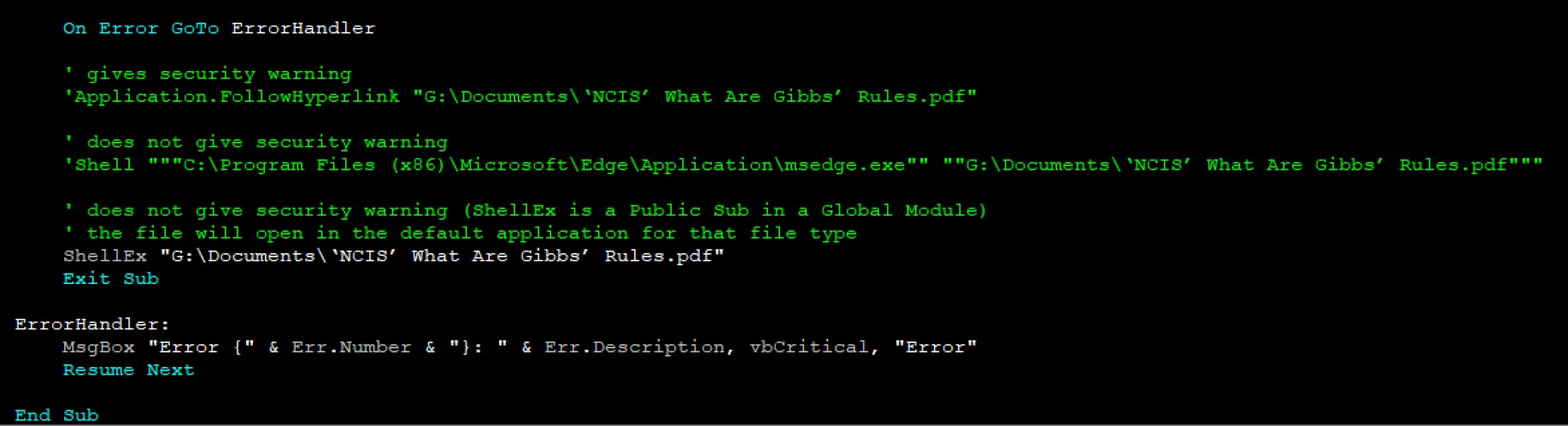
Are you clicking on a hyperlink field or are you using VBA FollowHyperlink?
Richard Rost  @Reply  
          
17 months ago
I posted your question to ChatGPT. Here's what it said:

The warning you are encountering is a built-in Microsoft Access security feature designed to alert users about potential risks when following hyperlinks to other databases. Since this issue persists despite adjustments in the Trust Center and reverting to earlier Access versions, Microsoft may have introduced stricter security measures through a recent update.

Here are some steps to address this issue:

1. Ensure Trusted Locations Are Properly Configured:
   - Open Access and go to File > Options > Trust Center > Trust Center Settings > Trusted Locations.
   - Confirm the database's directory (e.g., `C:\Users\Colin\OneDrive\Documents\Access`) is listed as a trusted location. Ensure the "Subfolders of this location are also trusted" option is checked.
   - If the database resides on a network drive, enable "Allow Trusted Locations on my network."

2. Enable VBA Bypass for Hyperlinks:
   - Instead of using hyperlinks, create a button or event in VBA to open the target database. Example code:
Code     Application.FollowHyperlink "C:\Users\Colin\OneDrive\Documents\Access\AccessYTD.accdb"

     This method often bypasses the hyperlink warning, as it uses a trusted VBA command.

3. Use Windows File Association:
   - If you prefer hyperlinks, ensure `.accdb` files are associated with Microsoft Access in your system settings:
     - Right-click any `.accdb` file, choose Properties, and check the Opens with section. Set it to Microsoft Access if it's not already.

4. Check the Recent Updates:
   - Verify if a recent Microsoft Office update introduced this stricter behavior. You can test by rolling back to a version before December:
     - Open Command Prompt as Administrator.
     - Run the following command (replace `VersionNumber` with the specific version):
Code       cd %programfiles%\Common Files\Microsoft Shared\ClickToRun
       officec2rclient.exe /update user updatetoversion=16.0.xxxxx.xxxx

       You can look up older version numbers on Microsoft's update history page.

5. Disable Protected View:
   - Open Access and navigate to File > Options > Trust Center > Trust Center Settings > Protected View.
   - Uncheck the options for Protected View if they are enabled. These settings sometimes interact with hyperlink security warnings.

6. Advanced Registry Edit:
   - As a last resort, you can disable the hyperlink warning through the Windows Registry. This is not recommended for production systems unless you're certain the database is safe:
     - Press `Win + R`, type `regedit`, and press Enter.
     - Navigate to:
Code       HKEY_CURRENT_USER\Software\Microsoft\Office\\Access\Security

     - Look for a key named `DisableHyperlinkWarning` (create it if it doesn't exist as a `DWORD`).
     - Set its value to `1` to disable the warning.

If the issue persists, Microsoft support may be able to confirm if this is part of a recent update. In that case, you can also check if your database has any other macros, VBA code, or linked files that might inadvertently trigger additional security measures.
Richard Rost  @Reply  
          
17 months ago
Be careful with the last one. I have NOT tried all of these myself. This is just what GPT said.
Kevin Robertson  @Reply  
           
17 months ago
Kevin Robertson  @Reply  
           
17 months ago

Colin Eastaugh OP  @Reply  
      
17 months ago
A massive thanks for Richard and Kevin.

Richard held my hand after Kevin gave me the clue on what to do, touch of the forelock to both of you.  

I used the extended cut video of the Database Launcher video to get around this tedious problem.  Hell of a hack, but it worked.  Many many thanks.
Sandra Truax  @Reply  
         
17 months ago
This is how I got rid of it on my computer.
How to turn off the "Unsafe" warning message when clicking a hyperlink.

You can simply turn off this feature from the registry....

Open the registry editor by typing "regedit" in the "run" command

Browse to the following location in the registry
HKEY_CURRENT_USER\Software\Microsoft\Office\12.0\Common

and search for a key called "Security"

If the Security key already exists under the Common key, then select it.
If it doesn't exist already then create it via:
Edit-> New-> Key
4. In the Security Key on the right side ,create a new DWORD Value via
Edit-> New-> DWORD Value

Value name: DisableHyperlinkWarning
Value Type: REG_DWORD
Value: 1

NB : When this key is set to 0 or is missing, the security warning will show again.
Close you registry and restart .....
Colin Eastaugh OP  @Reply  
      
17 months ago
Sandra
Many thanks for taking the time to set out how to change the registry to get around this annoying problem. Much appreciated.
Colin
Kevin Robertson  @Reply  
           
17 months ago
Word of warning: Please be EXTREMLY CAREFUL if editing the Registry manually.
Colin Eastaugh OP  @Reply  
      
17 months ago
Kevin - thanks for the heads up.

It was interesting to read how Sandra has overcome the problem by changing the Registry but I will stick with the method highlighted by you and described by Richard in the extended cut video of the Database Launcher video to avoid the warning message.

This thread is now CLOSED. If you wish to comment, start a NEW discussion in Access Forum.
 

Next Unseen

 
New Feature: Comment Live View


The following is a paid advertisement
Computer Learning Zone is not responsible for any content shown or offers made by these ads.
 

Learn
 
Access - index
Excel - index
Word - index
Windows - index
PowerPoint - index
Photoshop - index
Visual Basic - index
ASP - index
Seminars
More...
Customers
 
Login
My Account
My Courses
Lost Password
Memberships
Student Databases
Change Email
Info
 
Latest News
New Releases
User Forums
Topic Glossary
Tips & Tricks
Search The Site
Code Vault
Collapse Menus
Help
 
Customer Support
Web Site Tour
FAQs
TechHelp
Consulting Services
About
 
Background
Testimonials
Jobs
Affiliate Program
Richard Rost
Free Lessons
Mailing List
PCResale.NET
Order
 
Video Tutorials
Handbooks
Memberships
Learning Connection
Idiot's Guide to Excel
Volume Discounts
Payment Info
Shipping
Terms of Sale
Contact
 
Contact Info
Support Policy
Mailing Address
Phone Number
Fax Number
Course Survey
Email Richard
[email protected]
Blog RSS Feed    YouTube Channel

LinkedIn
Copyright 2026 by Computer Learning Zone, Amicron, and Richard Rost. All Rights Reserved. Current Time: 6/22/2026 2:53:32 PM. PLT: 1s