|
|||
|
|||
VB 107Status Bars, Progress Bars, Sliders, Tabs, Rich TextWelcome to Visual Basic Beginner 107. In this course you will learn how to work with a variety of Visual Basic controls, including the Status Bar, Progress Bar, AVI animation, Up Down, Slider, Date Time Picker, Month View, Tab Strip, and Rich Text controls. We will build a word processor together, covering core features like file saving and loading, text selection and formatting, and font customization. You will also receive an overview of course resources, recommended prerequisites, and practical tips to help you follow along as you develop your Visual Basic skills. Lessons
ResourcesLesson SummaryWelcome! Status, Slider, Tab, Rich Text - Welcome to Visual Basic 107. In this course we will talk about a variety of Visual Basic controls, including the Status Bar, Progress Bar, AVI, Up Down, Slider, Date Time Picker, Month View, Tab Strip, and Rich Text controls. We will build a word processor together, learning how to save and load files, select and format text, and customize fonts and colors. I will also discuss course resources and provide guidance on how to follow along, with recommendations on class prerequisites and tips for best learning practices.
Lesson 1: Add & Customize Status Bar - In Lesson 1, we will walk through how to add a status bar control to your forms by including the Windows Common Controls components in your project. I will show you how to add and configure a basic status bar, including inserting panels to display information such as text, the current time, or the date. We will also discuss modifying the status bar both in the design interface and through code, and explore the difference between using multiple panels and a simple status bar style, highlighting some of the customization options available.
Lesson 2: Progress Bars & Animation Tips - In Lesson 2, we will look at some controls you can display for the user while you wait for a process to complete. I will show you how to use the progress bar control to visually indicate the status of a task, and the animation control to play AVI files for added feedback during lengthy operations. We will walk through creating a progress bar that updates as a shape moves on the screen, and demonstrate how to load and control animations, as well as briefly discuss debugging and customizing these controls to improve the user experience while waiting.
Lesson 3: Up Down & Slider Controls for Forms - In this lesson we will explore how to change values on a form using the Up Down Control and the Slider Control. We will walk through adding an Up Down Control next to a text box, configuring its properties for alignment, orientation, and buddy control, and enabling auto sync to change values without programming. I will also show you how to adjust the increment rate and use the control to modify properties like width in addition to text. Finally, we will discuss the Slider Control, its value settings, tick marks, and how to synchronize its value with a text box using a simple code event.
Lesson 4: Date Picker & Calendar Controls - In this lesson, we will explore calendar controls by working with the Date Time Picker and Month View control in BB. I will show you how to add these controls to your form, set their properties, limit date ranges, change display formats, and utilize features like the checkbox and up-down options. We will walk through retrieving values from both controls, handling null values, and using multi-select in the Month View control. We will also discuss how to link selected dates to text boxes and cover a few useful tricks for managing user interaction with calendar controls.
Lesson 5: Using Tab Controls & Tabbed Dialogs - In this lesson we will explore tab controls in detail, focusing on the differences between the tab strip control and the Microsoft Tab Dialog Control. I will show you why the tab strip control is not ideal for placing objects within tabs and explain its limitations. We will then walk through how to add and use the Microsoft Tab Dialog Control, adjust its properties such as captions, tab count, orientation, and appearance, and demonstrate how to place and manage controls within individual tabs for building functional tabbed interfaces on your forms.
Lesson 6: Word Processor: Rich Text & Save - In this lesson, we will walk through how to build your own word processor using the Microsoft Rich Text Box Control in VB. I will show you how to add the control to your form, save and load RTF and text files, and use custom properties such as margins, scroll bars, and colors. We will discuss how to implement features like bold, underline, font name, and font size changes through simple button controls. I will also point out how formatting information is stored in RTF files and how to give your users additional formatting options.
Lesson 7: Rich Text: Bold, Indent, Color - In this lesson, we continue building our word processor and explore how to detect if selected text is bolded, updating the bold button's appearance accordingly. We walk through adding indent and reverse indent buttons using the RTF control properties, and discuss additional formatting options such as right margin, hanging indent, bullets, and tabs, though these are not demonstrated in detail. Finally, I show you how to use the common dialog control to add a color picker for changing font colors in your word processor.
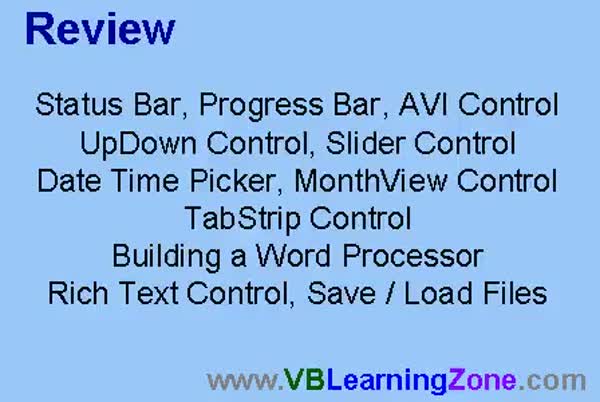
Lesson 8: Status Bars, Sliders & More - In this course we learned about several different controls including the status bar, progress bar, AVI control, up-down, slider control, date time picker, month view control, tab strip control, and how to build a word processor using the rich text control. We also discussed what is coming up next, such as working with text files, breaking up delimited strings, using string functions, managing the tab index property, and sending parameters to subroutines. Information was provided on how to get help, submit questions, offer feedback, and join the mailing list for updates on future topics.
NavigationKeywordsstatus bar, progress bar, slider control, up down control, tab strip, tabbed dialog control, date time picker, month view control, animation control, AVI control, rich text box, word processor, RTF formatting, color picker, bullets, indent
More InformationTranscriptWelcome to Visual Basic 107 brought to you by VBLearningZone.com. I am your instructor, Richard Rost. In this class, we are going to learn about a lot of different controls: the Status Bar Control, the Progress Bar Control, the AVI Control, the Up Down Control, the Slider Control, the Date Time Picker Control, the Month View Control, the Tab Strip Control, and the Rich Text Control. We will learn how to build our own Word Processor. I will show you how to save and load files, and how to do things like select text, figure out which text is selected, bold, italicize text, change the font, change the font color, and all that neat stuff. This class follows VB106. I strongly recommend you take 101 through 106 before taking this course. There is a special web page for this class located at VBLearningZone.com?GOVB107. On this page, you will find sample project files, the course outline, and the student discussion forum. If you have any questions about the material covered in today's class, post them here in the discussion forum. If you are watching this class in the Amocrine Video Player or the Online Theater, you will see this page load up to the right of the videos. In today's class, I will be using Microsoft Visual Basic 6.0. If you are using a different version of VB, such as VB.NET or VB2005, you will find that the interface is different. However, most of the Visual Basic programming code will work just fine. I strongly recommend you sit back, relax, and watch each video through once without doing anything. Then, replay the video again, and follow along with the examples, building each project as I do. Do not try to apply what you are learning immediately to other projects that you might be working on. Instead, build the sample project in class with me. IntroIn lesson 107, we will work with Microsoft Visual Basic 6.0 and explore a variety of controls including the Status Bar, Progress Bar, AVI, Up Down, Slider, Date Time Picker, Month View, Tab Strip, and Rich Text controls. I will show you how to build a simple word processor, save and load files, and perform actions like selecting and formatting text with bold, italics, different fonts, and colors. This class builds on previous lessons, so make sure you have completed 101 through 106 before starting this one. QuizQ1. Which of the following controls will NOT be covered in VB107 according to the video? A. Chart Control B. Status Bar Control C. Slider Control D. Progress Bar Control Q2. What application will you build as part of this class? A. Web Browser B. Word Processor C. Calculator D. Database Manager Q3. What key feature will you learn regarding text manipulation? A. How to compile code B. How to bold, italicize, and change font properties C. How to create animation D. How to design webpages Q4. What is recommended before taking VB107? A. Complete VB101 through VB106 B. Have experience in C++ C. Know VBA macros D. Finish an unrelated course Q5. Where can students find sample project files and course discussion? A. VBLearningZone.com?GOVB107 B. Microsoft Support C. YouTube comments section D. Local library website Q6. What version of Visual Basic is used in this class? A. Visual Basic 5.0 B. Visual Basic 6.0 C. VB.NET 2010 D. VBA 2013 Q7. What should you do first according to the instructor's recommendations? A. Try the exercises on your own before watching B. Watch the video all the way through once C. Skip to the discussion forum D. Start with your own project Q8. What advice does the instructor give regarding working on other projects? A. Apply what you learn immediately to your own projects B. Only focus on your current personal project C. Build the sample project in class first D. Ignore the sample project Answers: 1-A; 2-B; 3-B; 4-A; 5-A; 6-B; 7-B; 8-C DISCLAIMER: Quiz questions are AI generated. If you find any that are wrong, don't make sense, or aren't related to the video topic at hand, then please post a comment and let me know. Thanks. SummaryToday's video from the Visual Basic Learning Zone is Visual Basic 107. I am your instructor, Richard Rost. In this class, I am going to introduce you to a wide range of controls available in Visual Basic 6.0. Some of the controls we will work with include the Status Bar Control, Progress Bar Control, AVI Control, Up Down Control, Slider Control, Date Time Picker Control, Month View Control, Tab Strip Control, and the Rich Text Control. One of the key projects in this class will be building your own word processor. You will learn how to save and load files, select and determine which text is highlighted, apply bold and italic formatting, change the font and font color, and perform many other useful tasks within your application. This course picks up where VB106 left off, so I strongly suggest you have completed Visual Basic 101 through 106 before tackling this material. There is a special page on my website for this class where you will find all of the sample project files, the complete course outline, and access to a student discussion forum. If you have questions about anything covered in this class, that forum is where you should post them. For this class, I will be demonstrating everything in Microsoft Visual Basic 6.0. If you are working with a different version, like VB.NET or VB2005, keep in mind the interface may vary, though most of the actual programming code will still work. My advice is to first watch each lesson all the way through without trying to follow along or work on your own. Once you have a sense of what is happening, go back and watch a second time, following along and building the sample project with me step by step. Try not to jump ahead and apply new techniques to your own separate projects just yet. Build the sample projects with me during class to get the best results. You can find a complete video tutorial with step-by-step instructions on everything discussed here on my website at the link below. Live long and prosper, my friends. Topic ListStatus Bar Control usage Progress Bar Control usage AVI Control implementation Up Down Control usage Slider Control functionality Date Time Picker Control integration Month View Control application Tab Strip Control setup Rich Text Control usage Building a Word Processor in VB6 Saving and loading files in the Word Processor Selecting and identifying selected text Applying bold and italic formatting Changing font and font color in Rich Text box Primary TopicsStatus Bar Control, Progress Bar Control, AVI Control, Up Down Control, Slider Control, Date Time Picker Control, Month View Control, Tab Strip Control, Rich Text Control, word processor project, file save/load, text selection, text formatting Secondary Topicsusing sample projects, course structure, version compatibility |
||
|
| |||
| Keywords: status bar, progress bar, slider control, up down control, tab strip, tabbed dialog control, date time picker, month view control, animation control, AVI control, rich text box, word processor, RTF formatting, color picker, bullets, indent PermaLink How To Use Status Bars, Progress Bars, Tab Controls, and Build a Word Processor in Microsoft Visual Basic |