|
|||||
|
|||||
|
|||||
|
|||||
VB 104Multiple Forms, Timers, Text Boxes, ButtonsWelcome to Visual Basic Beginner 104. In this course you will learn how to work with multiple forms, share values between them, and manage form events such as Load, Unload, Show, and Hide. We'll discuss adjusting project properties like the startup form, using the timer control, and calculating ages based on birth dates with key functions such as Round, Date, Now, and IsDate. You will also see how to use multi-line text boxes, graphical command buttons, checkboxes, toggle buttons, and access course resources and the student forum. Lessons
ResourcesLesson SummaryWelcome! Forms, Timers & Text Boxes Basics - In this lesson, we will introduce Visual Basic 104 and discuss what you will learn in this course, including working with multiple forms, sharing values between them, handling form events like load, unload, show, and hide, and adjusting project properties such as the startup form. We will talk about the timer control, calculating ages based on birth dates, and cover some key functions like Round, Date, Now, and IsDate. You will also see how to use multi-line text boxes, graphical command buttons, checkboxes, and toggle buttons, as well as where to find course resources and participate in the student forum.
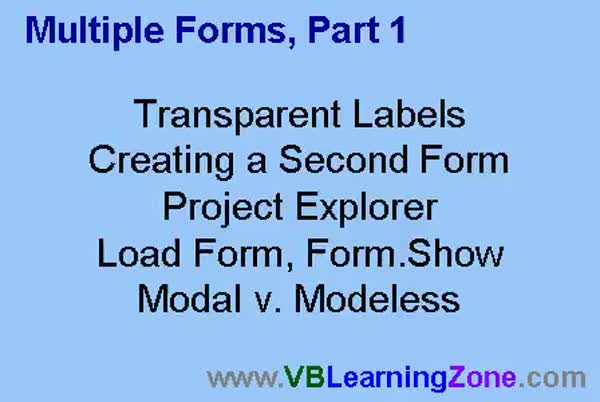
Lesson 1: Multiple Forms, Modal Windows, Transparent Labels - In Lesson 1, we will learn how to start working with multiple forms in your projects. We will walk through creating a second form, using transparent labels, and managing forms using the Project Explorer window. I will show you how to use the Load and Show methods to open additional forms, explain the difference between modal and modeless forms, and demonstrate how to set form positions and backgrounds for better organization and appearance.
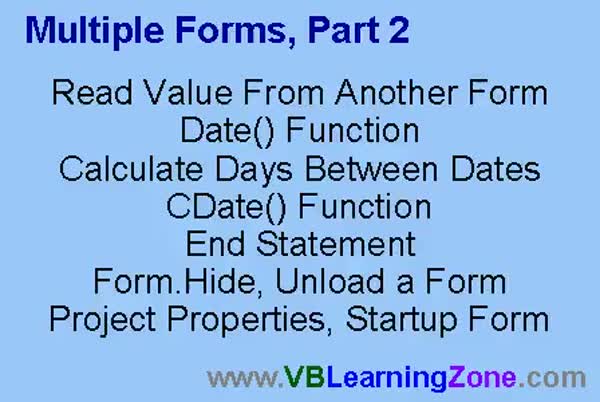
Lesson 2: Read Form Values & Calc Age - In Lesson 2, we continue working with multiple forms by learning how to read a value from another form, specifically retrieving a date of birth to calculate age. We will walk through using the Date and CDate functions, calculate the days and years between two dates, and discuss how the End statement works to stop your program. I will also show you how to hide or unload a form, and where to find and change the startup form in the project properties window.
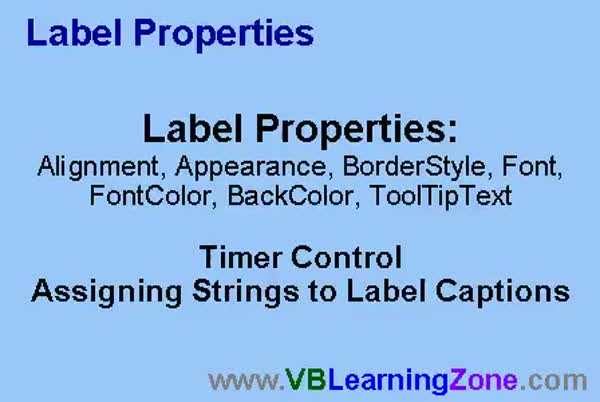
Lesson 3: Label Properties: AutoSize, Wrap, Timer - In this lesson we will discuss label properties, including how to change alignment, appearance, border style, font, AutoSize, and WordWrap for labels. We will walk through how to dynamically generate and assign strings to a label's caption, demonstrate how to display multi-line or wrapped text using label properties, and show how to use a timer control to automatically update label content at regular intervals. We will also talk about the ToolTipText property and briefly review error checking for user input. This lesson covers practical ways to use and customize label properties in your projects.
Lesson 4: TextBox Properties & Validation - In this lesson, we will explore various TextBox properties, including how to create multi-line text boxes, add vertical and horizontal scrollbars, and set the MaxLength property to limit input. We will discuss the Enabled property to control whether users can interact with a TextBox, and work with validation using the Validate event, IsDate, and IsNumeric functions. I will also show you how to programmatically select text using the SelStart and SelLength properties, and briefly mention the CausesValidation property and the LEN function for determining text length.
Lesson 5: Command Button: Props & Color - In this lesson, we will explore command buttons, including how to set up default and cancel buttons so users can trigger actions with the Enter or Escape keys. I will show you how to use an ampersand in button captions to create Alt key shortcuts, and discuss handling ampersands in captions. We will review command button properties, such as Default and Cancel, and I will demonstrate how to change the background color of command buttons by switching the Style property to Graphical. We will also discuss adding pictures to buttons, a topic that will be covered further in the next lesson about check boxes.
Lesson 6: Check Boxes, Toggles, Colors, Captions, Pics - In this lesson, we are going to work with check boxes in your forms. We will walk through creating checkboxes, adjusting their BackColor, and discuss why checkboxes do not have a transparent background option. I will show you how to get the value of a check box in code using vbChecked and vbUnchecked, and demonstrate how to turn checkboxes into graphical toggle buttons, including how to add pictures and adjust the caption and color dynamically. We will also discuss the Grayed state, as well as related properties like ToolTipText and options for displaying different pictures when the check box is pressed.
Lesson 7: Forms, Timers, Events & Controls - In this course we learned about working with multiple forms, sharing values between them, using Load, Unload, Show, and Hide events, and changing the startup form. We covered the Timer control, calculating ages, and functions like Round, Date, Now, IsDate, and IsNumeric. We also worked with multi-line text boxes, graphical command buttons, check boxes, and toggle buttons. We discussed what is coming up next, including option buttons, control arrays, list boxes, combo boxes, drop-down lists, and more advanced Timer features, and reviewed resources for further questions and feedback.
NavigationKeywordsVisual Basic multiple forms, form events, timer control, date functions, calculate age, text box properties, multi-line text box, command button properties, checkboxes, toggle buttons, ToolTipText, project properties, modal windows, control arrays
More InformationTranscriptWelcome to Visual Basic 104 brought to you by VBLearningZone.com. I am your instructor, Richard Rost. In today's class, we will be working with multiple forms. We'll learn how to share values between two forms. We'll learn about the load, unload, show, and hide events. We'll take a look at the project properties and how to change the startup form. We'll work with the timer control. I'll show you how to calculate people's ages knowing their birth dates. We'll learn some new functions including Round, Date, Now, IsDate, IsNewAmerican, and a bunch more. We'll work with multi-line text boxes and all their different properties. I'll show you graphical command buttons, checkboxes, and toggle buttons. The prerequisite for this class is VB103. I strongly recommend you take 101 through 103 before taking this course. In today's class, I'll be using Microsoft Visual Basic 6.0. If you are using a different version of VB, such as VB.net or VB2005, you will find that the interface is different. However, most of the Visual Basic programming code is the same. I strongly recommend you sit back, relax, and watch each video once through without doing anything. Then replay the video again and follow along with the examples, building each project as I do. Don't try to apply what you're learning immediately to any other projects you might be working on. Instead, build the sample project in class with me. There is a web page for this class located at vblearningzone.com, question mark, GOVB104. On this page, you will find sample project files, the course outline, and the student discussion form. If you have any questions about the material covered in today's class, post it here on the discussion form. If you are watching this class in the Amocrine Video Player or the Online Theater, you will see this page load up just to the right of the videos. Join in the discussion by posting your thoughts here. IntroIn lesson 104, we will learn how to work with multiple forms in Microsoft Visual Basic 6.0, including sharing values between forms and using load, unload, show, and hide events. We'll cover project properties, changing the startup form, using the timer control, and calculating ages based on birth dates. New functions like Round, Date, Now, and IsDate will be introduced, along with multi-line text boxes, graphical command buttons, checkboxes, and toggle buttons. This lesson builds on material from VB103 and earlier lessons. QuizQ1. What is one of the main topics covered in this Visual Basic 104 class? A. Working with multiple forms B. Database management C. Advanced networking protocols D. Web design basics Q2. Which event types are discussed in the class? A. Print and run B. Load, unload, show, and hide C. Connect and disconnect D. Begin and end Q3. What will you learn about sharing values in this class? A. How to share values between two forms B. How to share values between two databases C. How to share values over a network D. How to share values between two computers Q4. Which Visual Basic version is primarily used in the class? A. Visual Basic 2010 B. Visual Basic .NET C. Microsoft Visual Basic 6.0 D. Visual Basic for Applications (VBA) Q5. If you are using a different version of Visual Basic, what should you expect? A. The programming code will be entirely different B. The interface may be different but most code is the same C. It will not run at all D. The interface and code will be identical Q6. What is the recommended approach to following along with the course? A. Build your own project while watching B. Watch the video once then replay it and build the sample project with the instructor C. Skip directly to the end of the course D. Read the documentation only Q7. What can you find on the course web page mentioned in the class? A. Sample project files, course outline, and student discussion form B. Only practice quizzes C. Downloadable software installers D. Instructor's personal blog Q8. Which new functions will you learn about in this class? A. Sort, Filter, and Merge B. Round, Date, Now, IsDate, and others C. Encrypt and Decrypt D. Open and Close Q9. Which user interface controls are mentioned in the class? A. Graphical command buttons, checkboxes, and toggle buttons B. Data grid views and radio groups C. Toolbars and menus D. Picture boxes and labels only Q10. What is the prerequisite for this class? A. Having prior web programming knowledge B. Completing VB101 through VB103 C. Knowing C++ and Java D. Finishing VB2005 course Answers: 1-A; 2-B; 3-A; 4-C; 5-B; 6-B; 7-A; 8-B; 9-A; 10-B DISCLAIMER: Quiz questions are AI generated. If you find any that are wrong, don't make sense, or aren't related to the video topic at hand, then please post a comment and let me know. Thanks. SummaryToday's video from Visual Basic Learning Zone introduces the concepts you'll need to work with multiple forms in Visual Basic 6.0. In this lesson, I will explain how to share values between two forms, and we'll look closely at the various events tied to forms, such as load, unload, show, and hide. I will also show you where to find and how to change your project's properties, including the startup form. We'll be working with the timer control and I'll demonstrate how you can use it to calculate a person's age based on their birth date. You will be introduced to several new functions like Round, Date, Now, IsDate, IsNewAmerican, among others. We will explore the use of multi-line text boxes and cover their key properties so you understand how they differ from single-line boxes. In addition, I'll guide you through creating graphical command buttons, checkboxes, and toggle buttons. To get the most out of this lesson, you should have already completed Visual Basic 101 through 103. This class is taught using Microsoft Visual Basic 6.0. If you're working with a newer version like VB.net or VB2005, the interface may look different, but much of the programming logic will be familiar. I recommend that you first watch the lesson all the way through without pausing to work on your own projects. After that, play the lesson a second time and build the class sample project step by step with me. This method helps you follow along clearly and avoids confusion with any other projects you might be developing at the same time. Additional resources for this class are available on the course web page at vblearningzone.com with the course code GOVB104. There, you will find all the sample project files, a detailed course outline, and a student discussion forum. If you have any questions about today's material, I encourage you to participate in the forum and connect with other students. If you are watching this in the Amocrine Video Player or Online Theater, the web page will appear to the right of the videos. Feel free to join the discussion and share your thoughts or questions there. A complete video tutorial with step-by-step instructions on everything covered here is available on my website at the link below. Live long and prosper, my friends. Topic ListWorking with multiple forms in Visual Basic Sharing values between two forms Load, unload, show, and hide form events Changing the startup form in project properties Using the timer control Calculating age based on birth date Using Round, Date, and Now functions Using IsDate and IsNewAmerican functions Working with multi-line text boxes Graphical command buttons Checkboxes and toggle buttons Primary Topicsmultiple forms, sharing data between forms, form events (load/unload/show/hide), project properties, startup form, timer control, age calculation, new functions (Round, Date, Now, IsDate, IsNewAmerican), multi-line text box properties, graphical controls
Secondary TopicsVisual Basic version differences, course prerequisites |
||
|
| |||
| Keywords: Visual Basic multiple forms, form events, timer control, date functions, calculate age, text box properties, multi-line text box, command button properties, checkboxes, toggle buttons, ToolTipText, project properties, modal windows, control arrays PermaLink How To Work With Multiple Forms, Controls, Properties, and Events in Microsoft Visual Basic 6.0 |