Following to the two videos that were updated to the discussion. I watched both videos but they do not address the specific question. The original video that I found shows how to make a large check mark, the video was labeled for forms/reports but it never shows how to add it to a report.
Jeffrey Kraft
@Reply 9 months ago
I think I know which videos you are referrring to.
I'll say it here, I don't design many reports! Couldn't you basically use the same technique on the report or something real close to it.
Adam Schwanz
@Reply 9 months ago
What are you trying to accomplish? Are you trying to be able to click it in a report, or just make checkboxes that are visibly bigger on your report?
You should be able to use the same setup. If it's just for displaying then maybe you use something like IIF(MyField=True,"P","") kind of thing. But need to know what you're trying to do.
Patrick SnyderOP
@Reply
9 months ago
Responding to Jeffery- I cannot use the same technique that is shown on the video for a form on a report. This is why I keep trying to tell you guys that the video is incomplete because the video title says forms and reports but you only show how to with a form.
Responding to Adam- The default check mark is way too small to see on a report. The video shows how to use a toggle button in place of a check box so that you can change the picture to show a much larger check mark but the video doesn't show how to do it on a report. I am not trying to click on it to do anything, it's just a large check mark that shows on a report.
Donald Blackwell
@Reply 9 months ago
@0[Patrick-Snyder]
As long as you're not trying to change the value, you can use a text box on a report.
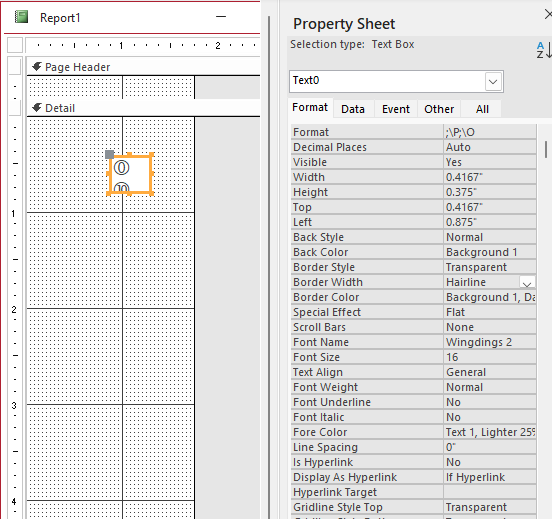
Set the Control Source to your field
Set the Font to "WingDings 2"
Set Border to transparent Or if you want a double-border leave it solid
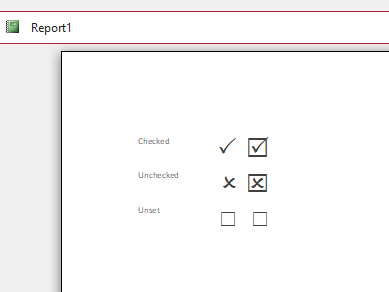
Set the Format property to ";\P;\O"
You can use conditional formatting for the font color and background as usual
This will create either a checkmark ("\P") if it's checked or an "X" ("\O") if it's not checked.
If you want the check to have it's own fitted border, change the "\P" to "\R"
If you want the x to have it's own fitted border, change the "\O" to "\Q"
If it's a triple-state field, you can add an additional formatting parameter to the end: ";\*". This will Add an empty check box.
Donald Blackwell
@Reply 9 months ago
Patrick SnyderOP
@Reply
9 months ago
Responding to Donald- Font is not available for a check box, it is grayed out in the menu bar and it is not available in the property sheet. This is why the video posted by your website recommends to use a toggle instead so that you can change the font.
Kevin Robertson
@Reply 9 months ago
@0[Patrick-Snyder] Read Donald's reply again. He said to use a Text Box, not a Check Box.
Patrick SnyderOP
@Reply
9 months ago
Kevin- I tried a text box, but all I see is the wingdings, no check mark or X.
Donald Blackwell
@Reply 9 months ago
Donald Blackwell
@Reply 9 months ago
Notice that you have to put the values I indicated in the Format Property of the text box, in this sample, I have it set to a yes/no type record source.
A yes/no is essentially a number field. If it's not checked, the number will be zero and if it's checked, the number will be -1. Although, in Access any number other than 0 will be changed to a -1 for a True value in a yes/no field.
The format property for a numeric text box accepts up to four parts:
1) What to show if the value is position
2) What to show if the value is negative
3) What to show if the value is zero
4) What to show if the value is null
When used for a yes/no field, the positive value will be ignored, hence why there is nothing before the 1st semi-colon. Then, the \P will show a checkmark for a negative value (-1 for yes/checked), followed by the semi-colon to separate it. Then the \O will show an x for zero which means the box is unchecked followed by a semi-colon.
If you want, you can add another semi-colon and put a format for null values, however, with a yes/no field, the only time you will see it is on a new record. However, as I showed above, for a triple-state box, you can use it.
Patrick SnyderOP
@Reply
9 months ago
Kevin- your first response showed the property with quotation marks. Your third response with the screen shot showed it without the quotation marks in the property field. Once I removed the quotation marks, it worked fine. I just need to do some formatting.
Thank you.
Donald Blackwell
@Reply 9 months ago
Sorry for the confusion
Sorry, only students may add comments.
Click here for more
information on how you can set up an account.
If you are a Visitor, go ahead and post your reply as a
new comment, and we'll move it here for you
once it's approved. Be sure to use the same name and email address.
This thread is now CLOSED. If you wish to comment, start a NEW discussion in
Visitor Forum.