ChatGPT Canvas
By Richard Rost

 2 years ago
Edit Docs and Code in Place with ChatGPT Canvas
In this tutorial, I will show you how to use the new ChatGPT Canvas for seamless document editing and code writing.
Learn to make in-place changes without reprocessing entire texts, whether you're crafting a letter, refining Microsoft Access VBA code, or handling other programming tasks.
Discover the potential and ease Canvas brings to your work.
Keywords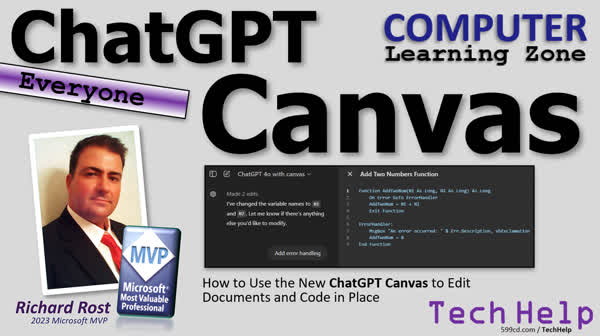
TechHelp Computer, ChatGPT Canvas, ChatGPT 4.0 Beta, Editing Documents with AI, AI Code Editing, ChatGPT for VBA, AI-driven Code Debugging, Paid ChatGPT Features, Real-time AI Editing, Document Editing with ChatGPT, GPT Code Assistance, AI Document Processing
 Subscribe to ChatGPT Canvas
Get notifications when this page is updated
More InformationTranscript Today we're going to talk about a game changer when it comes to Chat GPT and AI in general. They released a new feature called Canvas, and it's fantastic for editing documents, writing code, and all that stuff. So if you write a lot of code, and this goes out to my Microsoft Access fans as well, because I know we do a lot of VBA programming, you'll want to watch this video.
If you've used Chat GPT in the past, and I know I've done a bunch of videos on how to use it to do this, to help you write your code, one of the pains that I have, and I hate it, is when you get a nice long function going and you want to make a couple of changes, Chat GPT has to respawn all of the code again. Well, with Canvas, you can edit stuff in place and you can just say, okay, tweak this, tweak that.
I'm going to walk you through it and show you how it works. But it will make your life tremendously easier for writing code and for editing documents in general. I use Chat GPT a lot to help me rephrase letters if I want to make something sound more polite or a little more customer service-like or a little angrier if I'm writing a mean letter. So it helps with that too. We're going to go through two examples.
Now, I am going to say that this is only for the paid version of Chat GPT. So if you're not willing to pay the $20 a month for Chat GPT Plus or Pro or whatever they call it, then this isn't going to work for you. Right now, it's only available for paid members. I don't know if they're going to release it for the free users or not. And I'm not talking about my paid members.
This video that you're watching is free for everybody. But you have to have the paid version of Chat GPT for this to work as of today. They might change it in the future. I don't know. But let's take a look at a couple of examples.
Alright, so here I am in Chat GPT and you'll notice there's a new model here now. It's this Chat GPT 4.0 with Canvas, and it's currently in beta. But if you're a paid subscriber, you should have this right now.
Alright, so let's start off by writing a letter to my mom. It's her birthday soon, and I want to just write her a nice little birthday letter. So let's start off by saying it's my mom's birthday soon. Let's write her a happy birthday letter, make it warm and fuzzy. And it will write a letter for you. There you go.
Now, if you've used Chat GPT in the past for either documents or writing code, you know that if I want to make changes now, it's going to have to respawn all of that stuff. Okay, but the benefit of using Canvas is that it doesn't have to do that. You can just edit it in place.
So I'm going to say put that in a Canvas, please. And I'm always polite to the AI because one of these days they're going to be running things like the Terminator. Alright, so it'll put that in a Canvas. Look at that. It puts it in a new window and the interface changes.
Okay, now over here on the left, this is your dialogue with GPT and this is your Canvas. Okay, so let's make some changes. Let's say, let's start by saying, okay, change dear mom to dear mama. Dear, not dead. Dear mama. Right, and it'll go over there and make the change. See? And it just edits what you want to edit.
Another thing, I hate these en dashes. The AI loves to use en dashes. I never use them. So remove the en dashes and rewrite as complete sentences. No one uses those in regular correspondence. And it should go through now and rewrite. And look at that. It fixed it. It removed all the en dashes. I hate those. Or semicolons. Who uses semicolons in regular correspondence? Right? If you're writing a professional book or something, yeah, they're necessary. But no.
Let's remove a paragraph. Remove the paragraph. I can't spell today. Paragraph. That's a good thing about Chat GPT also is you don't have to be a great speller. It'll fix the spelling for you. That starts with, I hope today. Let's just remove that paragraph. And there it goes. And it got rid of it. And then we'll say put my name on the bottom. Richard. There we go. Right?
Now, you can also come over here and make edits manually yourself. If you want to come in here and change this to an exclamation point. Right? Or, you know, like that, you can, you know, come in here and make this a new paragraph like right here. And it's just like a, you know, regular word processor. And when you're done, hit copy. Bring it over to your email program or Word or wherever you want to do it. And there you go. See how much easier that is? Just tell it, okay, do this. Do that. Right?
I'll do another example with code. I'm going to close this one. Okay. And it brings you right back to the normal interface that you're probably used to.
Alright. Let's start a new one. I'll click on Chat GPT up here. I'm in Chat GPT 4 with Canvas. And now we're going to say I'm going to use my voice dictation for this. I'm writing a function for Microsoft Access VBA. Please help me write a function that takes two long integers and adds them together. Right, simple enough. Okay. And go.
Here's a simple function. Blah, blah, blah, blah. Yada. Yada, I'm still thinking.
Okay. All right. There we go. I'm going to use this function. All right. Perfect. Now let's put it in the Canvas. Put the function in a Canvas. Please. Okay. There we go.
Alright. Let's make some changes. Let's change the name of the function to add to NUM. There you go. Change the variables to N1 and N2. And this is just a simple example, but you can see it's rewriting the code as I'm asking it. Right?
Add error handling. This is pretty cool. Watch this. It puts error handling in your function for you. Isn't that cool? And this is just a simple little one. I've done it with some pretty long functions before and it makes, you know, it makes your job a whole lot easier. And you don't have to sit here and wait for it to churn through all that code and rewrite it and rewrite it and rewrite it and rewrite it.
Let's do another one. Let's do one more. Let's make a dice roll. I want to make a dice-rolling function for Microsoft Access VBA. I want the function to take in two variables. One will be the number of dice rolls. And the second variable will be what type of die you're rolling. It could be a four-sided, six-sided, 20-sided, hundred-sided die, whatever. And then I want it to message box the result of the random dice rolls.
Oh, look at that. It decided to automatically put it in a Canvas for you. Sometimes it'll do that too. Let's see if it makes sense. I don't see that it added randomize. See, this is the thing with Chat GPT. It's not perfect as far as code writing goes.
But it can definitely get you started or it can, it's really good at taking existing code and making manipulations to it. I use it for that all the time. You can paste your code in there and then say, hey, make these changes to it. Let's say I'm going to tell it that you forgot the randomize. That's important. And there you see the random number generated. There you go. I cover this in several of my lessons, by the way.
Alright, so that's it. Nice short and simple one today. I just, I, when they rolled this new feature out, I loved it immediately. And I just wanted to share it with everybody because if you use Chat GPT as much as I do for just simple tasks, I use it mostly for writing emails and things like that where I can just say, you know, here's the email I received from someone. So I want to respond to it and cover these three points. And it will just phrase it all nice and pretty for me.
It saves a lot of time. But it's great for writing code too. I hope you found this useful. If you like stuff like this, if you want to see me cover more Chat GPT and Open AI stuff post a comment down below. The squeaky wheel gets the grease, and the more people that are interested, the more I'll do it.
So, and if you have not yet paid for the $20 a month version, this alone is well worth the investment. And I'm not getting paid by them to say this. This is just my personal opinion. I use it all the time. But that's it. That's going to be your TechHelp video for today. Hope you learned something. Live long and prosper my friends. I'll see you next time.
Thanks for watching. I hope you enjoyed this video. If you're watching on YouTube, make sure you subscribe to my channel and click the little bell icon so you get notified anytime I release a new video. And make sure you like and share this video with your friends. And make sure you stop by my website for lots of free lessons on all kinds of different topics, including Microsoft Access, Excel, Word, Windows, and lots more. It's computerlearningzone.com. And I've also got a shorter URL. It's 599CD.com. That's a long story, but stop by anyway. Hope to see you soon.
TOPICS:
Introducing Chat GPT Canvas feature
Editing documents with Canvas
Writing and editing code with Canvas
Using Canvas for letter writing
Difference between free and paid Chat GPT
Chat GPT 4.0 with Canvas walkthrough
Creating a birthday letter using Canvas
Editing text in Canvas with commands
Manual edits in Canvas interface
Writing and editing VBA code with Canvas
Creating a simple VBA function in Canvas
Adding error handling to VBA code
Dice-rolling function in VBA with Canvas
Adding randomize function in VBA code
Benefits of using Chat GPT Canvas
COMMERCIAL:
In today's video, we're exploring Chat GPT's new Canvas feature, perfect for editing documents and writing code. Learn how to save time with in-place edits, tweak existing text, and simplify coding tasks such as creating functions in Microsoft Access VBA. I'll demonstrate practical examples like writing a heartfelt birthday letter and developing dice-rolling functions, showcasing Canvas's capability to streamline your workflow. Note, this feature is exclusive to paid Chat GPT subscribers. Don't miss out on this game-changer. You'll find the complete video on my YouTube channel and on my website at the link shown. Live long and prosper my friends. Intro In this video, we'll take a look at the new Canvas feature in Chat GPT, which lets you edit documents and write code more easily with in-place changes. I'll show you how Canvas can help with tasks like drafting and revising letters, as well as writing and editing VBA code for Microsoft Access. We'll cover using commands to adjust text, make manual edits directly in the interface, and go through examples including a birthday letter and a dice-rolling function. Please note, this feature is only available to paid Chat GPT subscribers. Quiz Q1. What is the newly released feature in Chat GPT that allows for in-place document editing?
A. Composer
B. Canvas
C. Draft
D. Edit Pro
Q2. Which version of Chat GPT currently has the Canvas feature?
A. Free version
B. Chat GPT 3.5
C. Chat GPT 4.0 with Canvas
D. All versions
Q3. What is a key benefit of using Chat GPT's Canvas for editing?
A. It automatically translates documents into different languages
B. It allows users to edit text in place without needing to respawn the entire document
C. It performs all edits without any user input
D. It changes font style automatically for emphasis
Q4. What is a primary use of Chat GPT, as mentioned in the video?
A. Creating 3D models
B. Organizing calendar events
C. Writing emails and letters
D. Developing website layouts
Q5. What does the Canvas feature allow users to do besides editing documents?
A. Create animations
B. Write Microsoft Access VBA code
C. Generate financial reports
D. Design video games
Q6. What is the cost of the Chat GPT Plus or Pro version needed to access the Canvas feature?
A. $10 per month
B. $20 per year
C. $20 per month
D. Free for educators
Q7. How does the Canvas feature handle document formatting changes requested by users?
A. It prompts the user to start over
B. It automatically rejects any formatting change requests
C. It makes the changes in place while maintaining the document structure
D. It provides suggestions, but does not execute changes
Q8. In the context of writing code with the Canvas feature, what is a specific function example given in the video?
A. Calculating tax returns based on income
B. Adding two long integers in Microsoft Access VBA
C. Generating a monthly expense report
D. Creating a web server application
Q9. What concern does the presenter express when instructing the AI?
A. The AI might get confused and crash
B. The AI might start controlling devices like the Terminator
C. The AI might refuse to make changes
D. The AI might cost extra if used extensively
Q10. For what kind of documents does the presenter prefer not to use en dashes?
A. Academic papers
B. Regular correspondence
C. Legal documents
D. Instruction manuals
Answers: 1-B; 2-C; 3-B; 4-C; 5-B; 6-C; 7-C; 8-B; 9-B; 10-B
DISCLAIMER: Quiz questions are AI generated. If you find any that are wrong, don't make sense, or aren't related to the video topic at hand, then please post a comment and let me know. Thanks. Summary Today's TechHelp tutorial from Access Learning Zone explores a significant advancement in Chat GPT and AI technology. The introduction of the Canvas feature is a breakthrough for tasks like document editing and code writing. If you're accustomed to creating code, especially VBA programming in Microsoft Access, this feature could significantly enhance your workflow.
In previous experiences with Chat GPT, a frequent frustration was when you wanted to tweak a lengthy function; Chat GPT would regenerate all the code, which was cumbersome. With Canvas, modifications can be done directly in place, simplifying the process considerably. This tutorial will guide you through using Canvas to streamline your code writing and document editing tasks. Chat GPT can also assist in rephrasing letters for various tones, from more polite to more assertive, depending on your need.
It's important to note that this feature is only available with the paid version of Chat GPT, requiring a subscription to their Plus or Pro version. Free users do not currently have access to Canvas. The video you are watching is accessible to all, but to utilize Canvas, a subscription is necessary as of now.
In this tutorial, we'll explore examples to illustrate how Canvas works. When using Chat GPT 4.0 with Canvas, you can start by writing something simple like a letter. For instance, I generated a warm birthday letter for my mom and then demonstrated how to make specific changes using the Canvas feature. This feature allows you to alter text, remove unnecessary punctuation like en dashes, and adjust paragraphs effortlessly.
You can manually edit text within the Canvas to polish your output before transferring it to your preferred platform, such as an email program or a word processor.
For demonstrating code writing, I showed how to create simple functions using Canvas. For example, I wrote a function in Microsoft Access VBA to add two long integers, highlighting how easy it is to adjust the function name, variable names, and even add error handling—all within the Canvas. Editing the code becomes streamlined without waiting for the entire code to regenerate.
We also explored creating a dice rolling function that accepts variables for the number and type of dice rolls. Canvas sometimes suggests changes automatically, but it's essential to review its suggestions since AI may not always get it right initially, as seen when it omitted randomize initially.
This new Canvas feature is beneficial for those who frequently use Chat GPT for tasks like responding to emails or writing code. It provides a more efficient approach, significantly saving time and effort.
If you're considering the Chat GPT paid version, this feature alone may justify the investment. I encourage you to share your thoughts or requests for more related content in the comments. Your feedback can influence future topics.
You can find a complete video tutorial with step-by-step instructions on everything discussed here on my website at the link below. Live long and prosper, my friends. Topic List Introducing Chat GPT Canvas feature
Editing documents with Canvas
Writing and editing code with Canvas
Using Canvas for letter writing
Difference between free and paid Chat GPT
Chat GPT 4.0 with Canvas walkthrough
Creating a birthday letter using Canvas
Editing text in Canvas with commands
Manual edits in Canvas interface
Writing and editing VBA code with Canvas
Creating a simple VBA function in Canvas
Adding error handling to VBA code
Dice-rolling function in VBA with Canvas
Adding randomize function in VBA code
Benefits of using Chat GPT Canvas Primary Topics Chat GPT Canvas, in-place text editing, code editing, document revision, VBA programming, paid features, user interface, workflow improvements Secondary Topics Microsoft Access, letter writing, AI limitations, random number generation |





