Free OCR
By Richard Rost

 4 years ago
Convert Images to Text with Free OCR Software
In today's video, I'm going to show you how to extract text from any image you can get in your web browser using a free OCR (optical character recognition) extension for Google Chrome (also works with Microsoft Edge) from Docsumo.
Links
More Free Videos
 Keywords Keywords
#help, #howto, #tutorial, #learn, #lesson, #training, #database, #fasttips, #ocr, Best Free OCR Software, Optical Character Recognition, chrome extension, edge extension, Extract Text from Images, convert image to text
 Subscribe to Free OCR
Get notifications when this page is updated
More InformationTranscript Welcome to another Fast Tips video brought to you by computerlearningzone.com. I am your instructor Richard Rost.
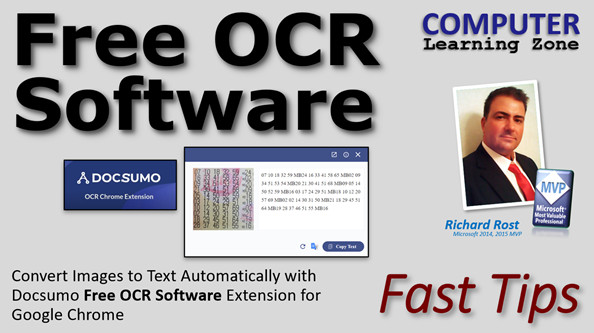
In today's video, I want to talk about some free OCR software to convert images to text automatically with Doc Sumo. It is a free OCR software extension for Google Chrome.
Now, if you have been following my channel for any length of time, you probably remember seeing my lottery numbers video. I had put two of them out just last week where I teach you how to take your lottery tickets, scan them in, and then upload them to a web page where they will do some OCR - optical character recognition - and convert that image into text. This way you can very easily put that into your Excel spreadsheet, so your spreadsheet can show you all the different winning numbers.
If you want to see how to do that, go watch that video. You will find a link down below you can click on.
In that video, I recommended an online OCR website called onlineocr.net, where you can select an image file, upload it, and then convert it to text online for you to copy and paste the text. But I actually found something that I like better.
This is an extension for Google Chrome, the web browser. It will also work in Microsoft Edge, but you have to allow Chrome extensions in Edge. If you want to see how to do that, that's a whole separate video. Let me know and I'll make one.
For now, we are going to go to Google Chrome.
Here I am in Google Chrome. The fastest way to get to the Chrome web store is just go to your address bar and type in Web Store.
There is the Chrome Web Store right there. Here is where you can find extensions. We are going to come right here and type in OCR and press enter.
That will show you the top couple of popular options, but I do not see mine on here. I spent about an hour today going through all the different ones to see which one is best. I'm going to click on more extensions and then scroll down. Where are you? Keep coming. Oh, you beautiful. You beautiful little doxomo. There it is right there.
It's got really good ratings and only 58 reviews. I left a review, of course, because I love the software. Click on this. There it is. Click Add to Chrome.
It is going to read and change the data. That's okay. Hit Add Extension.
It is going to pop up over here. Now close that, and it is going to hide itself.
I like to have the stuff that I use on a regular basis visible all the time. So click on the little puzzle piece again, find doxomo, and click the pin right there. It will pin that on your extensions bar.
Now you're ready to do some OCR, so let's go get something to scan.
Now, what I always do when I play the lottery, the Mega Millions or whatever, is I always take a picture of it with my phone and I email it to myself, so I've got the numbers. Then I can just OCR and drop into Excel like I showed you in that video.
This works for anything. Any image you can get in your browser, a PDF file, or a picture that's got text in it, whatever.
We're going to click on the little button here and go to Capture Selected Area, and then draw a box around what you want to capture. Go to right about there. Let's say I'll get four lines of it. Make sure you get your Mega Balls. If you get your Mega Balls, Mega Balls.
There we go. As soon as that happens, you see the picture sample there, and there's your text. Look at that - it's perfect.
Yeah, it gets a little mb in there, but I mean that's part of it. Now we can copy this text, open up Notepad, then paste it in and just put the line breaks in where they belong, like there.
Perfect. Delete the little mb from Mega Ball. There you go.
I tested a bunch of different ones. This was the best one as far as accuracy goes. A lot of them are good, but I think this is the best one. Full disclosure: I do not know the doxomo people. They are not paying me for this endorsement. I am not getting any kind of affiliate credit or whatever. I just tried a whole bunch of these today, and this was the one that I personally prefer and like.
There you go. There is your fast tip for today. I hope you enjoyed. I hope you learned something, and we'll see you next time. Thanks for watching.
I hope you enjoyed this video. If you are watching on YouTube, make sure you subscribe to my channel and click the little bell icon so you get notified anytime I release a new video. Make sure you like and share this video with your friends.
Stop by my website for lots of free lessons on all kinds of different topics: Microsoft Access, Excel, Word, Windows, and lots more. It's computerlearningzone.com and I've also got a short URL. It's 599cd.com. That's a long story, but stop by anyways. We hope to see you soon. Intro In this video, I will show you how to use Doc Sumo, a free OCR extension for Google Chrome, to automatically convert images and scanned documents into text. We'll talk about how to find and install the extension, pin it to your browser for easy access, and use it to extract text from images or PDF files directly in your browser. I'll demonstrate capturing part of a lottery ticket image, converting it to text, and copying the results for use in applications like Microsoft Excel. Quiz Q1. What is the primary function of the Doc Sumo Chrome extension discussed in the video?
A. Translating web pages into different languages
B. Converting images with text into editable text using OCR
C. Blocking advertisements on web pages
D. Managing passwords securely
Q2. What does OCR stand for?
A. Optical Character Reduction
B. Optical Code Recognition
C. Optical Character Recognition
D. Online Character Reader
Q3. Which web browsers can the Doc Sumo extension be used with, according to the video?
A. Only Google Chrome
B. Only Mozilla Firefox
C. Google Chrome and Microsoft Edge
D. Internet Explorer and Safari
Q4. How do you make the Doc Sumo extension always visible in your Chrome browser?
A. Reload the browser every time you need it
B. Click and drag it to the bookmarks bar
C. Pin the extension using the puzzle piece icon
D. Reinstall it whenever you need to use it
Q5. What is the process to capture text from an image using Doc Sumo as described in the video?
A. Highlighting text directly on a webpage
B. Clicking the extension, selecting Capture Selected Area, and drawing a box around the desired text
C. Printing the image and scanning it back into the computer
D. Typing out the text manually
Q6. According to the video, what is a recommended use case for the OCR extension?
A. Automatically calculating lottery winnings
B. Scanning lottery ticket numbers to input them into Excel
C. Generating lottery numbers automatically
D. Designing lottery tickets
Q7. What did the instructor like about the Doc Sumo extension compared to other OCR tools tested?
A. It allowed for bulk processing of images
B. It was the most accurate for recognizing text
C. It provided free cloud storage
D. It automatically linked to online spreadsheets
Q8. What does the instructor say about their relationship with the makers of Doc Sumo?
A. They are sponsored by Doc Sumo
B. They are official partners of Doc Sumo
C. They have no affiliation and are not being paid for the endorsement
D. They developed the extension themselves
Q9. After using the OCR tool, what editing step does the instructor demonstrate?
A. Exporting the text to a PDF
B. Adding the detected text directly to a database
C. Pasting the text into Notepad and manually adjusting formatting
D. Sending the text via email automatically
Q10. If users also want to use the extension in Microsoft Edge, what must they do?
A. Nothing, it works automatically in Edge
B. Allow Chrome extensions in Edge settings
C. Download a separate version of the extension
D. Use Internet Explorer instead
Answers: 1-B; 2-C; 3-C; 4-C; 5-B; 6-B; 7-B; 8-C; 9-C; 10-B
DISCLAIMER: Quiz questions are AI generated. If you find any that are wrong, don't make sense, or aren't related to the video topic at hand, then please post a comment and let me know. Thanks. Summary Today's video from Computer Learning Zone focuses on a free OCR software tool called Doc Sumo, which is available as a Google Chrome extension. OCR, or optical character recognition, allows you to convert text from images into editable text, which can be incredibly useful for tasks like entering lottery numbers into Excel or extracting information from photos and PDFs.
If you have seen my previous videos, you may remember the tutorial where I showed you how to scan lottery tickets, upload them, and use OCR to convert those images into text. This makes it very easy to track your numbers in Excel and see which tickets are winners. If you want to learn how to do that specifically, I recommend checking out that earlier video—there is a link to it on my website.
In that previous video, I recommended using the onlineocr.net website, where you upload an image and it converts it to text that you can copy and paste. However, I have since discovered an option that I like even more.
Doc Sumo is an extension for Google Chrome and it can also run in Microsoft Edge if you enable support for Chrome extensions in that browser. If you are interested in learning how to enable extensions in Edge, let me know and I can make a tutorial about that as well.
To get started with Doc Sumo, open Google Chrome and type "Web Store" in the address bar to go directly to the Chrome Web Store. Once there, search for "OCR" to browse the available extensions. After sorting through several options and trying quite a few, I found Doc Sumo to be the best in terms of accuracy and ease of use. It has good reviews, and after testing many alternatives, this one stood out to me.
Once you find Doc Sumo in the Chrome Web Store, add it to Chrome and approve the permissions. After it is installed, you might want to pin it to your extensions bar for easier access, especially if you plan to use it frequently.
When you want to use the OCR feature, you can simply select "Capture Selected Area" from the extension. Then just draw a box around the area of the image or PDF you want to convert to text. The software will quickly process the area and extract the text, making it easy to copy and use wherever you need—including Notepad or Excel. You might occasionally need to fix a small detail or delete stray characters, but overall the accuracy is impressive.
I have tested a number of different OCR tools, and in my opinion, Doc Sumo gave the best results, especially when it comes to extracting numbers from images for things like lottery tickets. I am not affiliated with Doc Sumo and receive no compensation for recommending it. I just wanted to share a tool that works well for these kinds of tasks.
That is my fast tip for today. I hope you found this helpful and learned something new. For more free lessons on Microsoft Access, Excel, Word, Windows, and a variety of other computer topics, be sure to check out my website. You will find the complete video tutorial, along with step-by-step instructions, at the link below.
Live long and prosper, my friends. Topic List Overview of free OCR software options
Installing the Doxomo OCR Chrome extension
Finding OCR extensions in the Chrome Web Store
Adding and pinning Doxomo to the Chrome toolbar
Capturing and selecting areas for OCR scanning
Converting images to text using Doxomo
Copying and editing OCR text output
Comparing Doxomo with other OCR tools Primary Topics OCR software, Chrome extensions, image-to-text conversion, Doxomo, web browser tools Secondary Topics lottery ticket workflow, Excel integration, onlineocr.net alternative, extension ratings |





