|
||||
|
||||
| WalkThru - Using the Video Player |
|
As of April 2013, we no
longer support the Amicron Video Player. You may download and use
it, but we will no longer be supporting it.
Click here for instructions
on how to download your video files directly. Once you have the Video Player Software installed, and have downloaded your courses (or installed them from your CD) then you're ready to start learning. Start the Video Player program. This is the Main Menu:
On the left side you will see a list of all of the courses and handbooks you have installed. Above that you will see a list of categories. You can click on any item in this list of categories to "filter" the list of courses below. This makes it easier to find the course you're looking for.
On the right side, you will see a mini Web browser that will connect you to 599CD.com. Here you will see up-to-date news, current information, new releases, the status of our Live Chat room, and so on.
NOTE: If you are NOT online, you will not see the section on the right. You will only see the list of categories and courses on the left. To begin playing a course, just double-click on the course name, or click on it once and click on the Run button on the bottom.
The Video Player window will appear, and the first course video will start playing. Note that your screen might not be green. Each of the different video courses we offer comes in a different color. Excel is green. Word is blue. Access is purple, and so on.
As soon as a video is finished, you can move to the next lesson by clicking on the Next Lesson button in the bottom left corner. The other button there will move you to the Previous Lesson. (You can turn off the Auto Advance feature by unchecking its box at the top of the window). You can also jump to any lesson by using the Drop Down Menu in the upper left corner of this screen.
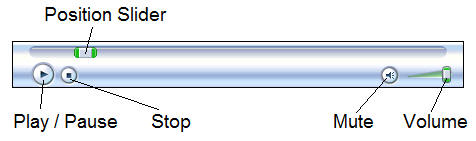
The Video Player itself has some simple buttons to Play, Stop, and Pause the video. There's also a slider you can use to move to a different location in the video, and change the volume level.
IF you are online, you will see the Student Discussion Page for this class and lesson appear to the right side of the course video. If you are not online, you won't see this:
Here you will see any questions that previous students have asked about the material covered in this lesson, as well as other peoples' responses to them (including the instructor's answers). If you scroll all the way to the bottom of this window, you'll also be able to post your own questions.
If you have any questions about the material covered in this class, the best way to get them answered is to post here. If you don't have the ability to watch the lessons while you're online you can still participate in our normal User Forums. If you don't want to see the Student Discussion Page (to save screen space, for example), then click on the little button in the bottom-right corner of the screen and that will close it.
This Video Player screen is designed to stay on top of other windows. You can turn this feature off by unchecking the "Stay On Top" box at the top of the window.
You can force our software to play the videos using Windows Media Player by clicking on the "External" checkbox. The "External" video player will load instead of our "Internal" one. When you close this Video Player window, you'll return to the Main Menu and your list of courses. The Help button in the bottom right corner will bring up the Help menu.
This Help Screen simple has two buttons (right now). The first one will launch your Web browser and bring you to this page. The second one is for diagnostic information. Only click this if instructed to by a 599CD service tech.
The Remove button is used to UNinstall your video courses. You can do this if you wish to save space on your hard drive or clean up your course listing. Click on the course name first, then the Remove button.
In the bottom right corner, the My Account button will bring you to the 599CD web site and load up your personal Account Information.
Here you can check the status of your orders, download your video courses, check the status of any customer service inquiries you may have placed, or even order more courses. In order for the My Account button to work, however, you must have Registered your software with the email address and password you used to place your 599CD order. If you skipped the registration form when you first installed the software, you can get back to it by clicking on the Reg button here. New Features In version 12.70 (December 2012) an "X" button was added to the main menu interface. This will allow you to choose whether or not to use the built-in (internal) video player or the external (X) player to watch videos.
The Internal player has been tested and works fine with Windows 7 and 8 but may not work on older versions of Windows. It uses a Windows Media Player Plugin which should play WMV and MP4 files just fine. If the internal player doesn't work for you, check the X box and your system will play the video files in whatever video player software you have installed.
That's it. If you have any questions, please let us know. Click here for additional WalkThru tutorials, including information on downloading your courses. |
|
| |||