Access Registration Seminar
Protect Your Database with Forced User Registration
Welcome
In this Microsoft Access tutorial you will learn how to protect your Access database so you can give or sell it to others, and they will be required to register their copy of the database with you. This prevents theft and piracy, and protects your intellectual property.
 Resources Resources
Main Seminar Goals
- Discussion of database security concepts
- Explain our registration scheme
- How to create a startup form
- Read and write values to the Windows Registry
- Generating random numbers
- Developing a security key algorithm
- Timing out registrations after a specific time
Topics Covered
The purpose of this seminar is to teach you how to protect your database with forced user registration. If you want to distribute your database (sell or give it away) but you don't want others sharing it, you can use the technique in this seminar to force each user to have to call you to get a registration code unique to their computer.
You will learn how to create a startup form that runs when Access loads your database. You will need to use the concepts taught in the pre-requisite course - the Access Security Seminar - in order to prevent users from bypassing your startup form and getting to your VBA code. Once this form runs, it will check to see if the database is registered on this PC or not. If not, the user will be prompted to enter a registration code that they can only get by calling you.
We will store the user information in the Windows Registry to make it unique for each PC the database is installed on. You will learn how to read and write values to/from the Registry for each specific user. You will also learn how to generate random numbers to use for security keys, and we will develop a specific, custom algorithm for your security scheme. Your database will prompt the user with a key number, they will have to call you, and you will give them the counter key.
You will also learn how to time out the user's registration after a specific period of time, so if you want to lease or rent your database as a monthly or annual subscription, this will force the user to have to call back in to re-register whenever their time is up.
If you want to be able to protect your database from theft or piracy, this is the perfect seminar for you. You will learn everything mentioned above. You will have access to the full database that we build in class with all of these features. If you have any question whether this seminar is right for you, please feel free to contact me.
Pre-Requisites
This course requires the techniques covered in the Access Security Seminar. Otherwise, any user can easily bypass your registration requirements. It is strongly recommended that you have completed my entire Access Beginner and at least the first three (3) lessons of my Expert series.
Version
I am using Access 2013 in this seminar, however the lessons are perfectly valid for all versions of Access from 2007 and up. It's currently 2022 and I just made sure everything works fine with Access 2019 and Office 365.
Enroll Today
Enroll now so that you can watch these lessons, learn with us, post questions, and more.

Questions?
Please feel free to post your questions or comments below. If you are not sure as to whether or not this product will meet your needs, I'd rather help you before you buy it. Remember, all sales are final. Thank you.
Keywords
microsoft access software registration, protection
More InformationTranscript Welcome to the registration seminar brought to you by AccessLearningZone.com. My name is Richard Rost, and I'll be your instructor.
The purpose of this seminar is to teach you how to protect your database with forced user registration. What does that mean? You have a database and you want to distribute it or sell it to other people, but you don't want them giving copies to their friends or putting it online and having a pirate it.
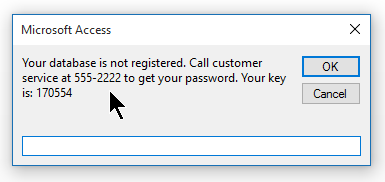
In this seminar, I will teach you how to force the users to register the database with you when they install it. When they open it up, they'll get a prompt that says your database is not registered. It will instruct them to call customer service at your phone number to get a password. It will show them their key, and then give them a key number. They have to call you and get the counter key. They type in the code, and then it registers the database on that machine.
If they try to install it on a different machine, they'll need another registration password. If they don't have it, they'll get a password incorrect - please call for support message.
This seminar does have a definite prerequisite class. The lessons covered today will only work if you've locked down your database using the techniques that I've shown in my Access Security Seminar. You can find the Security Seminar on my website at 599cd.com/XACSEC. That's Access Security.
The reason for this is that I'm going to teach you how to handle the password registration today, but if you don't have your database locked down and secured like I show in the Security Seminar, then anybody who knows any kind of Access whatsoever will be able to bypass the startup form in your database, which will get around the registration requirements and then get in and play with your code and stuff.
Watch the Access Security Seminar first. Then, when you finish that and you've locked down your database, you can use the techniques covered today to require users to register their copy of your database.
I've recorded today's seminar using Microsoft Access 2013. Everything that I cover today should also work in 2010 and 2007. If you're using 2003, I believe most of this will still work, but of course I can't guarantee it.
In lesson one, we're going to begin building our database. We'll have a discussion about exactly how we're going to handle the scheme for user registration. We'll talk about some security topics. We'll build a startup form that automatically loads when the database starts. We'll work with the Form Open event. I will teach you about the Windows registry and how it fits into our security scheme.
In lesson two, we're going to learn how to read and write values to the registry. We're going to learn about the message box and input box commands to display and get information from the user. We'll also learn about the Quit command to shut the database down.
In lesson three, we're going to learn how to generate random numbers, give the user a random number, and have them give us back a counter key that we will then use with a math problem to figure out if the counter key is valid. Of course, you will know what the counter key is supposed to be and they have to get it from you.
In lesson four, we'll learn how to time out the registration. If you sell your database as an annual subscription, you can have it say after a year, two years, a month, or whenever. You can have it time out the registration, forcing them to call again to get a new registration code. We'll talk about the DateAdd function as well. Intro In this seminar, you will learn how to protect your Microsoft Access database by requiring users to register their copy before they can use it. We will talk about the complete process for setting up forced user registration, including designing a startup form, prompting for registration keys, and validating responses over the phone. You will see how to interact with the Windows registry, use message and input boxes, generate and verify random registration codes, and enforce registration timeouts using the DateAdd function. Make sure you have completed my Access Security Seminar first, as this class builds on those security concepts. Quiz Q1. What is the main purpose of the seminar taught by Richard Rost?
A. To design databases from scratch
B. To distribute databases without registration
C. To protect your database with forced user registration
D. To train users how to hack databases
Q2. When a user opens the database for the first time, what will happen?
A. The database will open with no issues
B. The user will be prompted that the database is not registered
C. The user will be locked out forever
D. The database will auto-register online
Q3. What must a user do to register the database after getting the key number?
A. Enter their personal email
B. Install extra software
C. Call customer service to get a counter key
D. Contact Microsoft support
Q4. Why is it important to have already completed the Access Security Seminar before using these registration techniques?
A. It is required to use Microsoft Access 2003
B. The lessons depend on database security measures from the Security Seminar
C. The seminar explains how to build queries
D. It helps users become expert VBA programmers
Q5. What could happen if the database is not locked down using security techniques?
A. Users can never access the database
B. Users will always have to call for registration
C. Anyone with Access knowledge can bypass the startup form and registration
D. The database will crash on startup
Q6. Which versions of Access does the seminar guarantee to work with?
A. Only Access 2007
B. Access 2013, 2010, and 2007
C. Only the latest version of Access
D. All versions before 2003
Q7. In lesson one, which security-related item is discussed?
A. Creating drop-down menus
B. Handling the scheme for user registration and building a startup form
C. Making complex reports
D. Sorting records alphabetically
Q8. What is a key aspect of registration taught in lesson three?
A. Allowing registrations from different machines automatically
B. Generating a random number and requiring a counter key to validate
C. Printing registration forms for physical signatures
D. Saving registration data to a text file
Q9. What is the purpose of timing out registration as taught in lesson four?
A. To allow unlimited access after first use
B. To force users to re-register after a set period, like a year or a month
C. To automatically update database content
D. To restrict access only on weekends
Q10. Which function is discussed in lesson four for handling registration expiry?
A. Sum
B. CountIf
C. DateAdd
D. Match
Answers: 1-C; 2-B; 3-C; 4-B; 5-C; 6-B; 7-B; 8-B; 9-B; 10-C
DISCLAIMER: Quiz questions are AI generated. If you find any that are wrong, don't make sense, or aren't related to the video topic at hand, then please post a comment and let me know. Thanks. Summary Today's video from Access Learning Zone covers how to implement user registration in your Microsoft Access database to help protect your work from unauthorized distribution or piracy. I'm Richard Rost, your instructor for this seminar.
The main goal here is to ensure that every user who installs your database must register it with you directly, rather than being able to simply copy the file and use it elsewhere without permission. This provides a layer of protection, so if someone tries to share your database with others, those new users will be required to go through your registration process.
In this seminar, I show you a system where, upon opening your database, users will see a prompt explaining that the database is not yet registered. The message will instruct them to contact your customer service phone number to obtain a registration password. The prompt displays a unique key specific to that user's computer. The user gives you this key, and in return, you provide a counter key or password that unlocks the database for use on that particular machine. If the same file is copied to another computer, the process must be repeated with a new registration code. Failing to register will simply result in a message stating the password is incorrect and instructing the user to contact support.
It's essential to note that this seminar requires you to have already implemented proper database security as outlined in my Access Security Seminar. Without securing your database first, anyone with basic Access knowledge could bypass your startup form and registration requirements and gain access to your code as well as the database itself. If you haven't seen the Security Seminar yet, I recommend you start there. Once your database is securely locked down, the user registration techniques covered today become much more effective.
The material in this seminar was created using Access 2013, but it should work just as well in Access 2010 and 2007. If you're using 2003, most of the concepts will still apply, but there may be some differences.
Let me walk you through what each lesson covers:
In the first lesson, we'll begin by building our database and explore the overall approach to the registration scheme. We'll talk about some important security considerations and build a startup form that automatically opens whenever the database starts. You'll learn about handling the Form Open event, as well as how the Windows registry plays a role in our security plan.
In the second lesson, I'll show you how to read from and write to the Windows registry. You'll learn how to use message boxes and input boxes to interact with users and gather information. We'll also discuss using the Quit command to exit the database when necessary.
The third lesson focuses on generating random numbers for security purposes. You'll see how to present a unique number to users, have them share it with you, and then provide them with a matching counter key based on a specific calculation. This approach ensures that only you, as the database creator or administrator, can provide the correct code for registration.
In lesson four, we'll cover how to set a time limit on registration, which is useful if you're selling database subscriptions that expire after a certain period. This could be one month, a year, or any interval you choose. After the time runs out, the database will again prompt the user to register, ensuring ongoing control. I'll also introduce the DateAdd function in this context.
You can find a complete video tutorial with step-by-step instructions on everything discussed here on my website at the link below. Live long and prosper, my friends. Topic List Overview of user registration in Access databases
Building a startup form for registration
Using the Form Open event for security
Introduction to the Windows registry for registration
Reading values from the Windows registry
Writing values to the Windows registry
Using message box and input box for user prompts
Implementing the Quit command to close the database
Generating random numbers for registration keys
Creating and validating counter keys using math functions
Timing out registrations for subscription renewals
Using the DateAdd function to manage registration duration Primary Topics Access user registration, startup forms, Windows registry integration, registration key generation, validation process, form events, user input handling, registration timeout, Access security prerequisites
Secondary Topics message/input boxes, subscription model registration, compatibility across Access versions
|




