|
||||||
Access Expert 17Archive Queries, Union Reports, CrosstabsWelcome to Access Expert 17. In this course you will learn how to use action queries to archive old unpaid orders in your Microsoft Access database, including the process of backing up tables, setting up update and append queries, and adding write-off notices. We'll discuss how to combine current and archived orders for reporting using union queries, automate the workflow with button macros, and introduce crosstab queries to summarize and analyze your sales data. Lessons
Resources
Links
Lesson SummaryWelcome! Archive Unpaid Orders & Crosstabs - Welcome to Microsoft Access Expert Level 17. In this course we will work on a project covering action queries by archiving old unpaid orders in our database. We will walk through creating update, append, make-table, and delete queries, backing up necessary tables, and marking archived orders with write-off notices. We will use union queries to combine current and archived orders for reporting purposes and discuss how to work with button macros to automate these actions. Finally, we will introduce crosstab queries, which summarize and analyze data similarly to pivot tables in Excel.
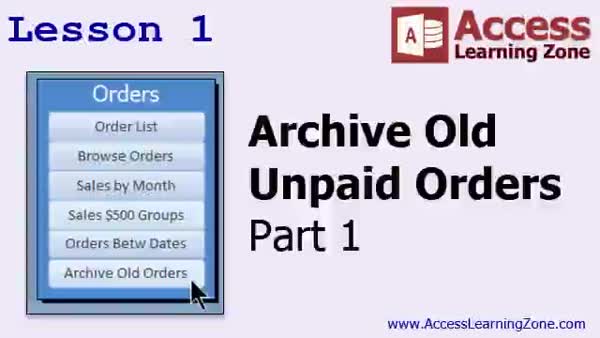
Lesson 1: Archive Unpaid Orders & Add Reviews - In Lesson 1, we will begin creating a system to archive old unpaid orders from the order table. I will show you how to add a "to be archived" field, set up a query to mark orders for archiving based on criteria like unpaid status and age, and add a button to your main menu to run this process. We will also discuss the importance of a manual review process before archiving and look at how to add a shortcut to the main menu using a macro on the quick access toolbar. In the next lesson, we will work on an order list form for reviewing these orders.
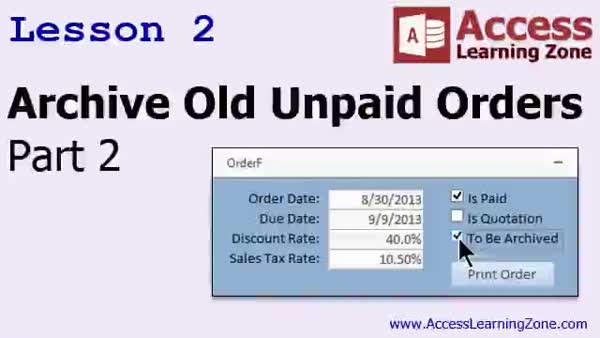
Lesson 2: Archive Old Orders with Append Query - In Lesson 2, we continue working with how to archive old unpaid orders. We will walk through updating the order list form and its source query to display all orders, adding a checkbox to indicate which orders are to be archived, and ensuring that only orders marked as "to be archived" can be listed or processed. I will show you how to set up archive tables, handle the process of appending order details and orders to their respective archive tables, and address issues that arise with append queries. Additional programming concepts and enhancements will be discussed in future lessons.
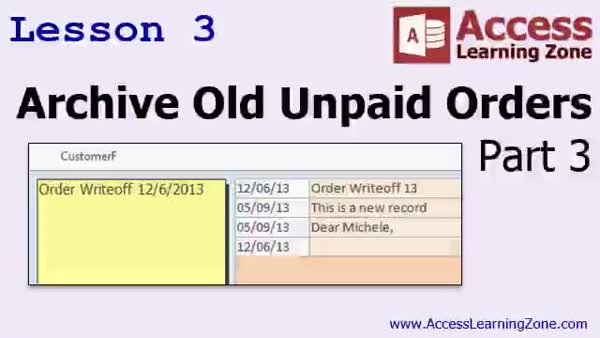
Lesson 3: Archive Unpaid Orders, Update Write-Offs - In Lesson 3, we continue working on archiving old unpaid orders by using make table queries to back up the order, order detail, and customer tables before making any changes. I will walk you through creating update and append queries to add order write-off notices into the customer records, their associated contacts, and directly onto the orders themselves. We will also discuss handling calculated fields, appending notes without overwriting old information, and making sure you do not lose important customer or order history when archiving old unpaid orders.
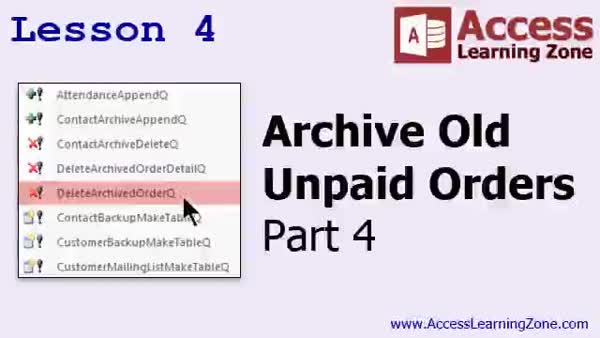
Lesson 4: Archive & Delete Old Unpaid Orders - In Lesson 4, we will finish setting up the process to archive old unpaid orders. I will show you how to create and run delete queries to remove archived orders from the primary order tables, reorganize the button actions to handle backups, updates, appends, and deletions in the proper order, and ensure everything is working correctly. We will also discuss how to view archived and active orders together using a union query, and review the process of cleaning up and verifying your archive old unpaid orders workflow.
Lesson 5: Crosstab Queries: Sales by Month & State - In Lesson 5, we are going to learn about crosstab queries, which are similar to pivot tables in Excel. I will show you how to create a crosstab query in Access to display sales summarized by state and grouped by month and year. We will walk through using the wizard and also building a crosstab query manually, including preparing your data with calculated fields. We will also discuss formatting date fields for grouping and some key points about choosing row and column headings. At the end, I will assign a homework exercise to practice creating your own crosstab queries.
Lesson 6: Action, Archive, & Crosstab Queries - In this course we learned how to use action queries to archive unpaid orders more than a year old, moving them from the order table to an order archive table. We covered selecting and marking these orders with update queries, creating a review form for manual selection, and using append queries for archiving. We also discussed the importance of backing up tables, removing archived orders from the main order table, and adding write-off notices to customer records. We looked at union queries to combine data for reporting, practiced using button macros, and started working with crosstab queries for data summarization.
NavigationKeywordsarchive unpaid orders, action queries, append queries, update queries, delete queries, make table query, archive tables, crosstab queries, union queries, backup tables, write off notices, order review form, button macros, summarize sales data
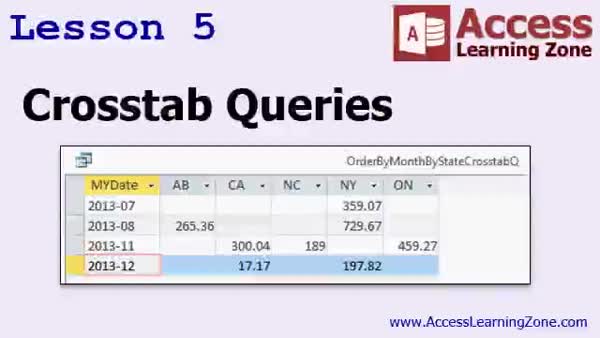
More InformationTranscriptWelcome to Microsoft Access Expert, Level 17, brought to you by AccessLearningZone.com. I am your instructor, Richard Rost. In today's class, we are going to do a project related to action queries. We are going to take all the things we have learned in our classes so far about action queries and put them all together in one project. We are going to be archiving old orders in our database. We are going to take orders that are unpaid, that are more than a year old, and move them to an archive table. We do not want them cluttering up our main order table, but we do not want to lose them completely. So we are just going to move them into a different table. We will begin with creating an update query that will mark all of the orders that the database thinks should be archived. We will create an order list form that will allow us to review all of the orders that are marked to be archived, so we can go down and check off the ones that we do or do not want to archive from that point. That way, the database does most of the work for us, but we can still choose to archive or not. We will make an archive table, and an order backup table will back up the order table first using a make table query. Then we will append the orders that are going to get archived into the archive table, same with the order details. We will also back up the customer table too just to be safe. Then we will delete the orders out of the primary order table since we no longer need them. All of this, of course, will happen with one button click when we are done. Then we will add write off notices to the database so that the customer note field says that there is an order write off. We will also put an order write off notice in the contact records. We will append a contact. That way, if any of the sales reps look at this customer record, they will see, for example, this customer has a write off from December 6th or something. Then we will make a union query to put them back together again temporarily. If you want to put the orders and the archived orders back together in one query, perhaps you want to make a report showing all of the customer's orders, both the current ones and the ones that have been written off. That is what a union query is good for. Of course, we will learn how to do all of this by editing a button macro using some macro commands like OpenQuery, SetWarnings, and CloseWindow. We will learn some new macro commands today. Again, the focus of the advanced series will be on editing and designing your own macros. But for today, I just want to teach you some basics for getting in there and working with some of the button macros that Access creates. By just tweaking those, we can make our databases much more powerful. Then we will begin a brand new concept today called a crosstab query. Now, if you are familiar with Microsoft Excel, crosstab queries are just like pivot tables in Excel. You have big lists of data with multiple different types of fields in them and you can set up a row field and a column field and then what data you want to summarize in the center. For example, you can take a big long list of sales and say break this down by date and by state and show me the sum for each date for each state. That is what the screenshot shows there. Crosstab queries are very powerful and we will see how to use those today. This class follows Access Expert Levels 13 through 16. I strongly recommend you watch all of those classes before today's class. Most of today's class is a project that summarizes a lot of the information we have learned in those previous classes. If you do not take the time to learn about update, append, and delete queries, and so on, you will probably be lost in today's class. We will learn a bunch of new techniques for dealing with these older topics in today's class. I am going to show you a bunch of new tricks and tips. But I strongly recommend you take these background classes before today's class. Today's class was recorded with Access 2013. You should be okay if you are using 2007 or 2010. If you are using Access 2003 or earlier, you want to go to my website and get Access 220 through 223. Those are the courses in which I cover action queries and crosstab queries. My courses are broken up into Beginner, Expert, Advanced, and Developer level classes. Beginner level classes are for novices. You should understand all the topics covered in them by the time you get to the Expert level classes which you are in now. When you finish all the Expert level classes, the Advanced classes will cover event programming and macros, and the Developer classes will cover Visual Basic for Applications. Each group of classes is broken down into multiple levels: Level 1, 2, 3, and so on. In addition to my normal Access classes, I also have seminars designed to teach specific topics. Some of my seminars include building web-based databases, creating forms and reports that look like calendars, securing your database, working with images and attachments, writing work orders and running a service business, tracking accounts payable, learning the SQL programming language, creating loan amortization schedules, and lots more. You can find details on all of these seminars and more on my website at AccessLearningZone.com. If you have questions about the topics covered in today's lessons, please feel free to post them in my student forums. If you are watching this course in the online theater on my website, you should see the student form for each lesson appear in a small window next to the class video. Here you will see all of the questions that other students have asked as well as my responses to them and comments that other students have made. I encourage you to read through these questions and answers as you start each lesson and feel free to join in the discussion. If you are not watching these lessons on my website, you can still visit the student forums later by visiting AccessLearningZone.com/forums. To get the most out of this course, I recommend you sit back, relax, and watch each lesson completely through once without trying to do anything on your computer. Then, replay the lesson from the beginning and follow along with my examples. Actually create the same database that I make in the video, step by step. Do not try to apply what you are learning right now to other projects until you have mastered the sample database from class. If you get stuck or do not understand something, watch the video again from the beginning or tell me what is wrong in the student form and I will do my best to help you. Most importantly, keep an open mind. Access may seem intimidating at first, but once you get the hang of it, you will see that it is really easy to use. Now, I strongly encourage you to build the database that I build in today's class by following along with the videos. However, if you would like to download a sample copy of my finished database file, you can find it on my website at AccessLearningZone.com/databases. Sometimes, if you get stuck, the easiest way to learn is to tear apart someone else's database. One of the ways that I taught myself Access years ago was by tearing apart the Northwind Traders database that comes up in Microsoft Access. You will find there is a sample database for each of my courses on my website. Now, let's take a few minutes and go over exactly what we are going to cover in today's class. In Lesson One, we are going to begin by creating a system to archive old unpaid orders from our order table. In Lesson Two, we are continuing with the archiving of old unpaid orders. In Lesson Three, we are continuing to archive old unpaid orders. In this lesson, we are going to use Append and Update Queries to put an order write off notice in the customer record, the customer's contacts, and write on the order itself. In Lesson Four, we are going to finish up with the archiving of old unpaid orders. We are going to run the delete queries to actually remove those orders from our primary order tables. We are going to make a union query so we can see them together again later if we want to. In Lesson Five, we are going to learn about crosstab queries. A crosstab query is very similar to a pivot table in Microsoft Excel. We will create a crosstab query to show sales by state broken up by date. IntroIn lesson 17 of the Microsoft Access Expert series, we will work through a comprehensive project on action queries, focusing on archiving old unpaid orders by moving them to an archive table to keep your main order table organized. I will show you how to use update, append, and delete queries to mark, review, back up, and archive orders, as well as add write off notices for customers and contacts. We will also cover creating union queries to display both current and archived orders together, and introduce crosstab queries, similar to pivot tables in Microsoft Excel, to summarize sales data. QuizQ1. What is the primary project goal in this class? A. To create new customer records B. To archive old unpaid orders in the database C. To design reports from scratch D. To import data from Excel Q2. Why are old unpaid orders being archived instead of deleted permanently? A. To create space for new orders B. To comply with Access requirements C. To avoid cluttering the main order table but still keep the records D. Because Access limits the number of order records Q3. What type of query is used first to mark orders for archiving? A. Make Table Query B. Append Query C. Update Query D. Delete Query Q4. What is the purpose of the order list form described in the video? A. To generate invoices B. To review and select which marked orders to actually archive C. To assign orders to customers D. To print shipping labels Q5. What is the function of a make table query in this project? A. To delete unnecessary orders B. To back up the order table C. To count order totals D. To update order statuses Q6. After appending orders to the archive table, which action is performed next? A. Importing customer data B. Updating product prices C. Deleting the orders from the main order table D. Sending notifications to customers Q7. Why are write off notices added to the database? A. To inform sales reps about unpaid, written-off orders B. To advertise special offers C. To keep track of order shipping status D. To automatically email customers Q8. What is a union query used for in this lesson? A. To merge two databases permanently B. To temporarily combine orders and archived orders for reporting C. To remove duplicate records D. To update customer information Q9. Which macro commands are mentioned as part of editing a button macro? A. ImportData, ExportSheet, FilterQuery B. OpenQuery, SetWarnings, CloseWindow C. SendMail, PrintForm, AttachFile D. DeleteRecord, SendText, LinkTable Q10. What new concept is introduced in this class? A. Subforms B. Crosstab Queries C. VBA Automation D. Linked Tables Q11. What is a crosstab query compared to in Microsoft Excel? A. Lookup function B. Chart tool C. Pivot table D. Conditional formatting Q12. What is recommended before taking this Expert Level 17 class? A. Watch only the Developer level classes B. Watch Access Expert Levels 13 through 16 C. Skip to the Advanced class D. Only read online documentation Q13. What should you do if you get stuck or do not understand something in the lesson? A. Ignore and move on B. Watch the video again or ask questions in the student forum C. Buy a new textbook D. Start a new database Q14. What is the best way to master the material according to the instructor? A. Memorize the transcript B. Copy the sample database without watching the videos C. Follow along and create the same database step by step D. Focus only on theory, not practice Q15. What is a benefit of downloading the sample database files from the website? A. It teaches you SQL syntax B. You can tear apart the database to see how it works C. It creates a backup of your own data D. It gives you free software Q16. In which lesson will you create a crosstab query to show sales by state and date? A. Lesson One B. Lesson Two C. Lesson Three D. Lesson Five Answers: 1-B; 2-C; 3-C; 4-B; 5-B; 6-C; 7-A; 8-B; 9-B; 10-B; 11-C; 12-B; 13-B; 14-C; 15-B; 16-D DISCLAIMER: Quiz questions are AI generated. If you find any that are wrong, don't make sense, or aren't related to the video topic at hand, then please post a comment and let me know. Thanks. SummaryToday's video from Access Learning Zone covers Level 17 of the Microsoft Access Expert series, where we will focus on action queries with a real-world project. Our main task in this class is setting up a process to archive old orders in your database. The objective is to move unpaid orders that are more than one year old out of the main order table and over to an archive table. This helps keep your live order table tidy while still keeping historical records available for future reference. To start, we will create an update query that identifies which orders should be archived based on our criteria. Next, we will design an order list form that highlights the orders marked for archiving. This form allows you to quickly review and decide which orders should actually be moved, ensuring you have the final say before anything happens. After this, we will set up an archive table specifically for these old orders. It's also important to make a backup of the original order table, so we will create an order backup table using a make table query. Then, we will append the orders designated for archiving into the archive table, along with their detail records. For extra security, we will also back up the customer table. Once everything is backed up and archived, we will use delete queries to remove those orders from the primary order table, since they are no longer needed there. When the system is complete, all of these steps will happen with a single button click. We will also record write off notices in the database. This means updating the customer note field to indicate an order has been written off. Additionally, we will add a note to the contact records for these customers, appending a contact entry so that sales reps immediately see if a customer has a past write off, and when it occurred. To allow you to pull together archived and current orders for review or reporting, we will create a union query. This kind of query is very useful if you want to show all of a customer's orders in one report, both active and archived. You will learn how to perform all of these actions by editing button macros. We will go through the use of macro commands such as OpenQuery, SetWarnings, and CloseWindow, and some new ones as well. The advanced series emphasizes macro design and editing, but today our focus will be on adjusting the built-in button macros created by Access, which is a great way to boost your database functionality quickly. We will move on to discussing crosstab queries, which are similar to pivot tables in Microsoft Excel. Crosstab queries take large datasets with different field types and let you organize results with a row field, a column field, and summarized data in the middle. This is especially useful for things like breaking down sales by date and state, displaying totals for each category. Before you take this class, I highly recommend watching Expert Levels 13 through 16, because this session builds on what was covered there, especially with update, append, and delete queries. While you will learn new techniques and tips today, a solid understanding of those concepts is needed to get the most from this lesson. This session was recorded with Access 2013, but it is also appropriate for Access 2007 or 2010. If you are working with Access 2003 or earlier, check my website for courses Access 220 through 223, which cover action queries and crosstab queries in older versions. My Access courses are grouped into Beginner, Expert, Advanced, and Developer levels. Beginner level is for those just getting started, and you should be comfortable with those topics before reaching the Expert series. The Advanced classes move on to event programming and macros. If you continue to the Developer levels, you will work with Visual Basic for Applications. Each group contains several levels, like Level 1, Level 2, and so on. Beyond the main courses, I offer seminars focused on specific advanced topics, such as building web databases, making calendar-style forms and reports, securing your database, working with images, work order management, accounts payable, understanding SQL, and creating loan amortization schedules. You can find more details about these seminars and all my other courses on AccessLearningZone.com. If you have questions about any lesson, I encourage you to use the student forums. If you are viewing this from the online classroom on my website, the forum window will appear next to the video. You can read questions and answers from other students or submit your own comments and questions. If you are not watching on my site, you can always access the forums later by visiting AccessLearningZone.com/forums. To get the most benefit from this class, I recommend watching each lesson all the way through the first time without doing anything on your computer. After you have seen the full lesson, replay it and follow along with my examples. Build the sample database step by step as shown in the lesson. You should master that database before trying to apply these techniques to your own projects. If you get stuck, watch the video again, or post a question in the student forum and I will do my best to help. It is important to keep an open mind. Access can seem complex at first, but as you practice, you will find it gets easier to use. Although I recommend building the database along with the lesson, you can also download a sample finished database from my website at AccessLearningZone.com/databases. Sometimes, examining and breaking down a working example can be the fastest way to learn. This is actually how I learned Access myself, by exploring the Northwind Traders sample database that comes with the program. Each of my courses has a sample database available online for reference. Let me briefly outline what we will cover in this class: Lesson One establishes the foundation for archiving old unpaid orders from the order table. Lesson Two continues the archiving process for those orders. Lesson Three introduces Append and Update Queries for adding write off notices to customer records, to the customer's contacts, and the order itself. Lesson Four completes the archiving by using delete queries to remove archived orders from the main tables, and demonstrates building a union query to review all orders when necessary. Lesson Five focuses on crosstab queries, showing how to generate summary data, such as breaking down sales by state and date. You can find the complete video tutorial with all of the step-by-step instructions for these topics on my website at the link below. Live long and prosper, my friends. Topic ListArchiving old unpaid orders using action queries Creating an update query to mark orders for archiving Designing a review form to select orders to archive Building an archive table for old orders Backing up the order table with a make table query Appending archived orders and order details Backing up the customer table for safety Deleting archived orders from the main orders table Automating the archiving process with a button macro Editing macros with commands like OpenQuery and SetWarnings Adding write off notices to customer records Appending write off notices to contacts Creating a union query to combine active and archived orders Building a crosstab query similar to Excel pivot tables Showing sales by state and date with a crosstab query Primary Topicsaction queries, archiving old records, update queries, append queries, delete queries, union queries, macro buttons, crosstab queries Secondary Topicsorder backup, customer notifications, report generation, macro editing, Access best practices |
||||||||||||||||||||||
|
| |||
| Keywords: archive unpaid orders, action queries, append queries, update queries, delete queries, make table query, archive tables, crosstab queries, union queries, backup tables, write off notices, order review form, button macros, summarize sales data PermaLink Microsoft Access Expert 17 |