Free Lessons
Courses
Seminars
TechHelp
Fast Tips
Templates
Topic Index
Forum
ABCD
 
Home   Courses   TechHelp   Forums   Help   Contact   Merch   Join   Order   Logon  
 
Back to Access Forum    Comments List
Upload Images   @Reply   Bookmark    Link   Email   Next Unseen 
Creating a Search Button
Lee Shastid 
     
13 months ago
Can anyone tell me how to create or point me in the direction to learn how to add a SEARCH button on my menu form. I want this button to search all of my tables in my home inventory database. Thank you
Alex Hedley  @Reply  
           
13 months ago
Gary James  @Reply  
      
13 months ago
Simply do a Search on the word "search" from the menu bar on the Access home page
Lee Shastid OP  @Reply  
     
13 months ago
Thank you for the help. I actually was able to get it done. The only thing is I must have done something wrong. Now I get a Parameter Value Dialog box when I hit the search button. Any ideas How to fix this?
Lee Shastid OP  @Reply  
     
13 months ago
Guys thank you so much for the help. I am sorry to keep asking for help but its eating my lunch. I found the error causing me to get the parameter dialog box and its no longer doing that. Now no matter what I type in the search box I get all the data from all the fields in the search query. Any ideas?
John Davy  @Reply  
         
13 months ago
Hi Lee, Often when you get a Parameter error it is due to a spelling error. Take a look for that (it may be suble) Show me the code that you are running for the search.  John
John Davy  @Reply  
         
13 months ago
Sorry for my spelling error.  John
John Davy  @Reply  
         
13 months ago
Hi Lee
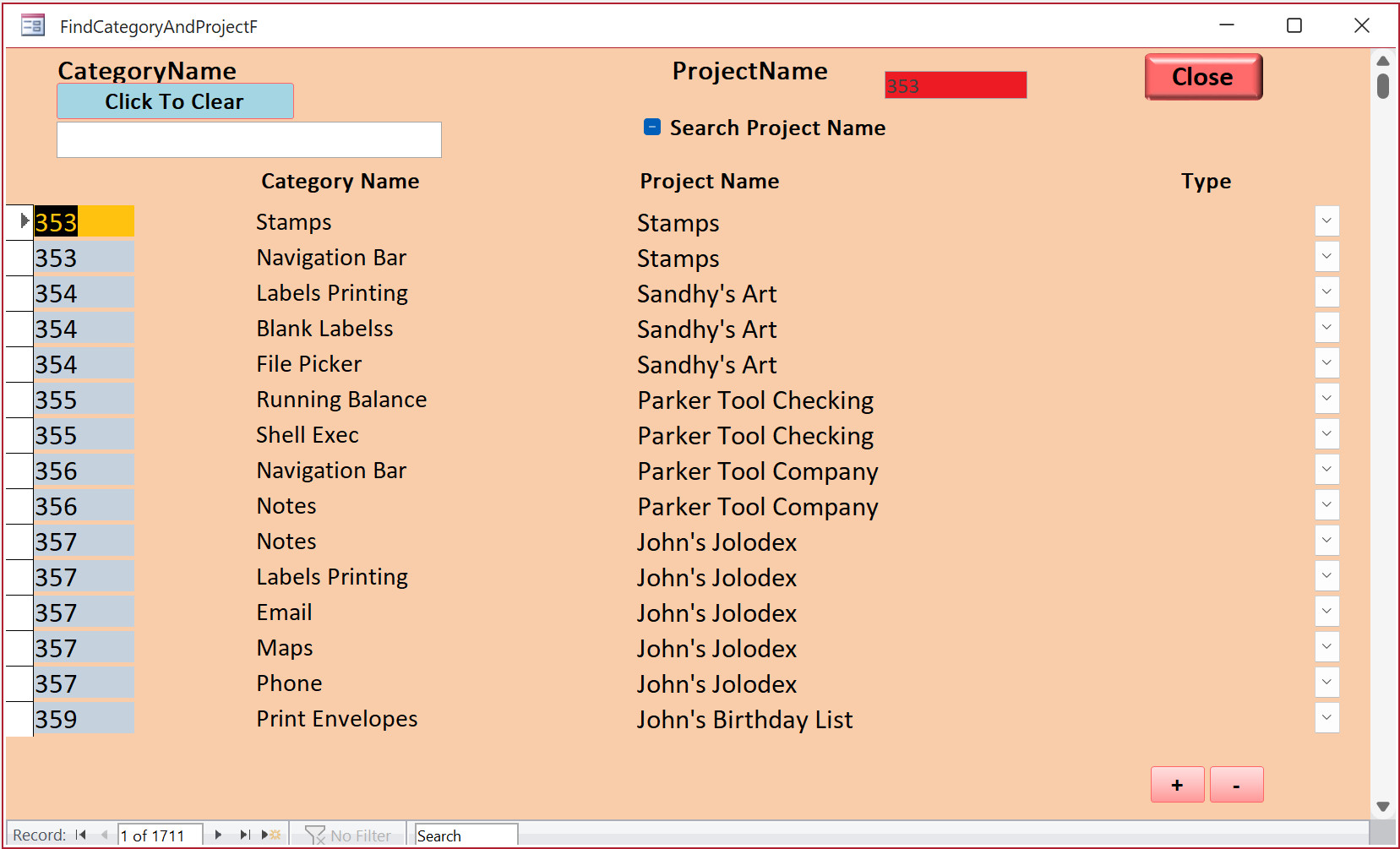
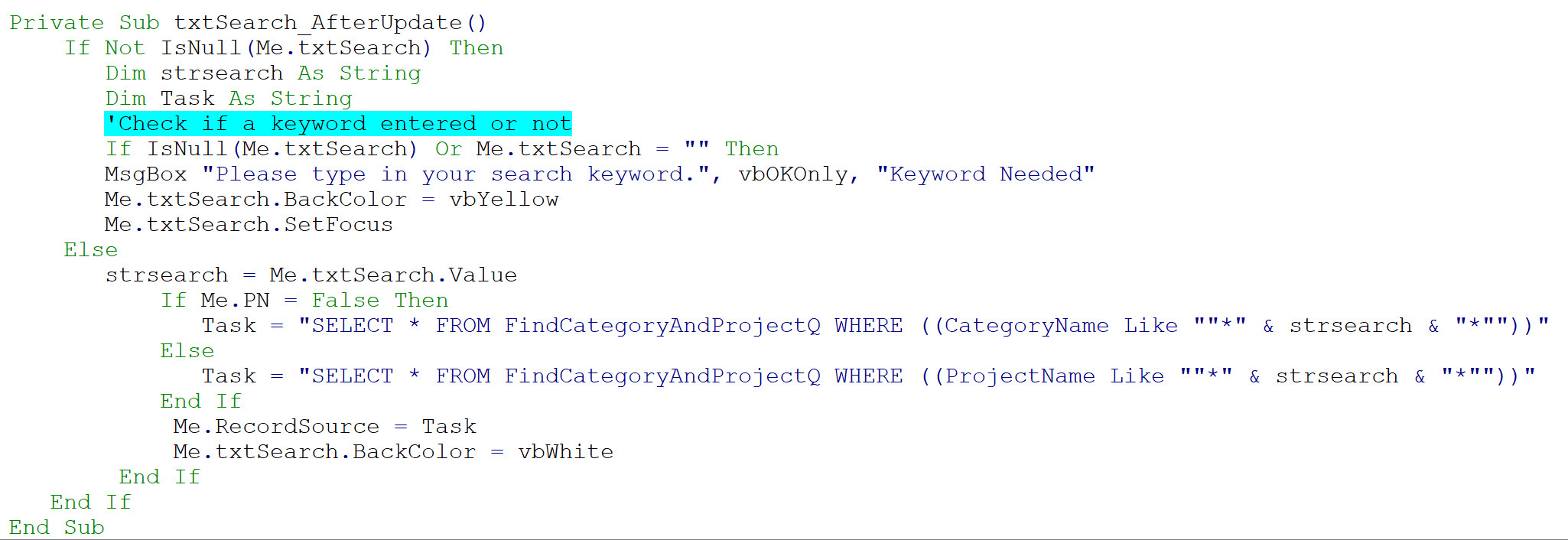
I am uploading 2 screen clips for you. This is a search I use (actually 2 searched) Modify it as you need. If you have questions post them and we will help you.  HTH John
John Davy  @Reply  
         
13 months ago

John Davy  @Reply  
         
13 months ago

Lee Shastid OP  @Reply  
     
13 months ago
John Thank you for responding. I fixed the parameter issue. I didn't have a space in the right place. That fixed the Parameter dialog box from coming up. Now no matter what data I type in the search box I get all of the fields of data. I know I am close. I do not use code, no knowledge of it. Here is what I type in the criteria box for my criteria. I used the same i guess you would say command that Mr. Rost used in his video on Searching Multiple Fields.
LIKE "*" & Forms!Main Menu Form!SearchText & "*"
John Davy  @Reply  
         
13 months ago
Hi Lee

You could put that code in your query then you only need to type the info you want for your search. john
Lee Shastid OP  @Reply  
     
13 months ago
John I am not understanding what you are saying to do in your last reply. I will also preface this as I dont know how to write code as I am new to Access. Just watching videos and trying to learn.
This is what I am typing in my criteria field in my query.

LIKE "*" & Forms!Main Menu Form!SearchText & "*"
Lee Shastid OP  @Reply  
     
13 months ago
Thank you to all that tried to help. I figured it out by accident really. Some reason it wanted a space between the names in the query even though my naming convention did not have a space. Dont make sense to me, but it is working.

This thread is now CLOSED. If you wish to comment, start a NEW discussion in Access Forum.
 

Next Unseen

 
New Feature: Comment Live View


The following is a paid advertisement
Computer Learning Zone is not responsible for any content shown or offers made by these ads.
 

Learn
 
Access - index
Excel - index
Word - index
Windows - index
PowerPoint - index
Photoshop - index
Visual Basic - index
ASP - index
Seminars
More...
Customers
 
Login
My Account
My Courses
Lost Password
Memberships
Student Databases
Change Email
Info
 
Latest News
New Releases
User Forums
Topic Glossary
Tips & Tricks
Search The Site
Code Vault
Collapse Menus
Help
 
Customer Support
Web Site Tour
FAQs
TechHelp
Consulting Services
About
 
Background
Testimonials
Jobs
Affiliate Program
Richard Rost
Free Lessons
Mailing List
PCResale.NET
Order
 
Video Tutorials
Handbooks
Memberships
Learning Connection
Idiot's Guide to Excel
Volume Discounts
Payment Info
Shipping
Terms of Sale
Contact
 
Contact Info
Support Policy
Mailing Address
Phone Number
Fax Number
Course Survey
Email Richard
[email protected]
Blog RSS Feed    YouTube Channel

LinkedIn
Copyright 2026 by Computer Learning Zone, Amicron, and Richard Rost. All Rights Reserved. Current Time: 5/17/2026 8:14:32 AM. PLT: 1s