Free Lessons
Courses
Seminars
TechHelp
Fast Tips
Templates
Topic Index
Forum
ABCD
 
Home   Courses   TechHelp   Forums   Help   Contact   Merch   Join   Order   Logon  
 
Back to Access Forum    Comments List
Upload Images   @Reply   Bookmark    Link   Email   Next Unseen 
Employee Name and Employee Id
Chris Lopez 
      
8 months ago
I have a form that has the employee's name and employee ID #
Is there a way that I can select the employee name in one combo box, and the correct Employee ID populates in the Employee ID # Field automatically?
Kevin Robertson  @Reply  
          
8 months ago
Chris Lopez OP  @Reply  
      
7 months ago
Those seem to require a separate table for the Employee IDs. I already have the IDs in a table; can I do this with the existing table that has the IDs? The IDs are autonumbered in the table as I add new employees.
Donald Blackwell  @Reply  
       
7 months ago
If your combobox includes the employee ID in a hidden column like in most of Richard's video such as the first column is the ID and the second column is the EmployeeName, then, you can set the control source of the text field you want the ID displayed in be the value of the combobox or the value in the first column of the combobox.

Examples:

EmployeeIDField control source =EmployeeCombo
or
EmployeeIDField control source =EmployeeCombo(0)

You'll actually need to have the equals sign in the control source box.
Raymond Spornhauer  @Reply  
          
7 months ago
Chris

I would suggest the following:
- One combo  box to select the Name set up the way Rick always sets up a normal combo box.
- Add a text box (not a combo box) that shows the EmployeeID.  

While you're editing the record, the EmployeeID might not show the updated value until you've completed making changes to the record.  If you need it to update as soon as the Combo box selection is completed then do the following:


Private Sub EmployeeCombo_AfterUpdate()

Me.Refresh

End Sub


Hope this helps.

-Raymond
Chris Lopez OP  @Reply  
      
7 months ago
Im trying to do DLOOKUP to set the employee to match the employee.
=DLookup("EmployeeID","EmployeesT","EmployeeID#="& EmployeeNameCombo), this is what i have
EMPLOYEEST is the table that has the data, EMPLOYEEID is the field in that table that i want to show in the EMPLOYEEID# text box to match the employee in the EMPLOYEENAMECOMBO
the text box shows #Name?
What am i doing wrong?

Thanks
Alex Hedley  @Reply  
           
7 months ago
Remove the #
=DLookup("EmployeeID","EmployeesT","EmployeeID#="& EmployeeNameCombo)

=DLookup("EmployeeID","EmployeesT","EmployeeID="& EmployeeNameCombo)

Or is that actually in your Field name?
Chris Lopez OP  @Reply  
      
7 months ago
That is actually in the field name
Kevin Robertson  @Reply  
          
7 months ago
Field names and object names should be alphanumeric (no special characters).
Field names and object names should not contain spaces.
Field names and object names should start with a letter.
Field names and object names should not be a reserved word.

-----

Why are you looking up EmployeeID?
It should be stored in the Combo Box in the first (hidden) column (Primary Key of EmployeeT)
Chris Lopez OP  @Reply  
      
7 months ago
It is  stored in the hidden colum of employeeT, I want it to show up in the text box on my form, is there another way besides Dlookup to accomplish  this?
Kevin Robertson  @Reply  
          
7 months ago
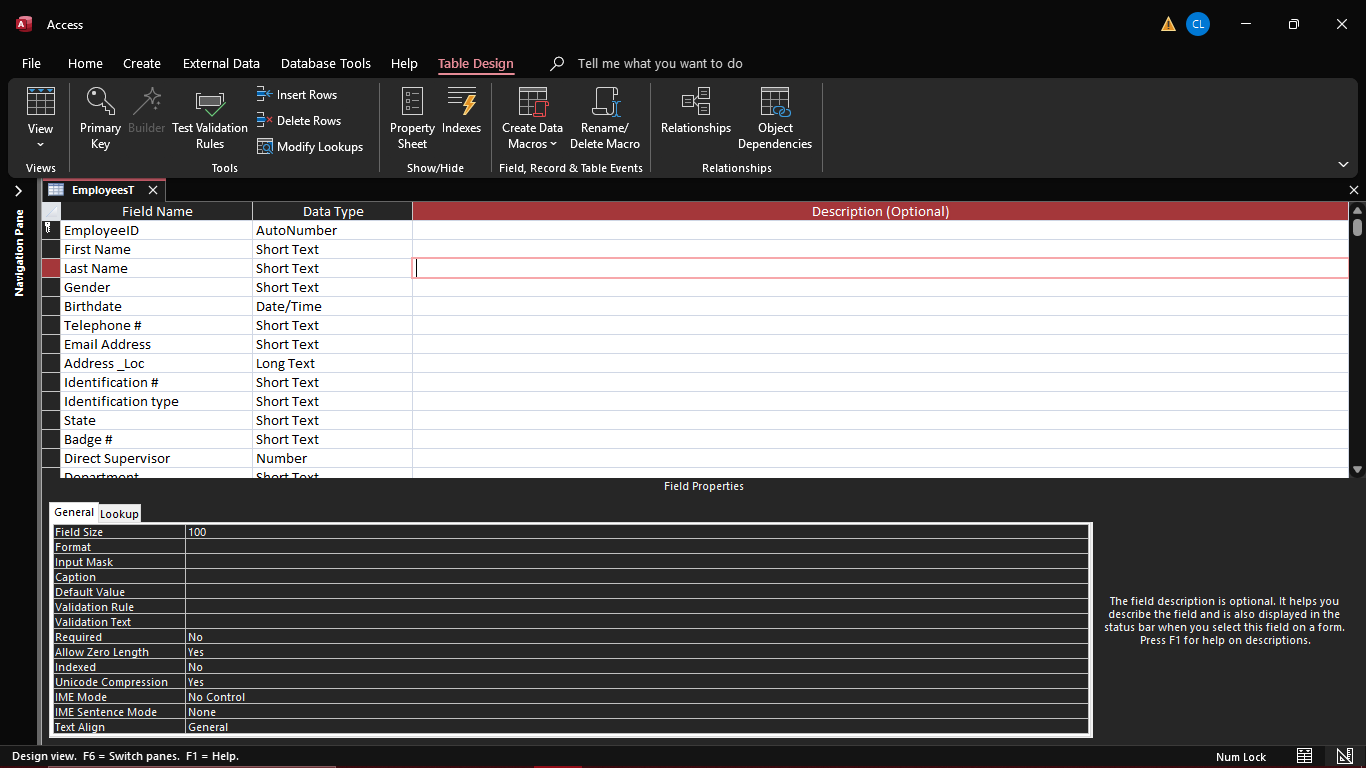
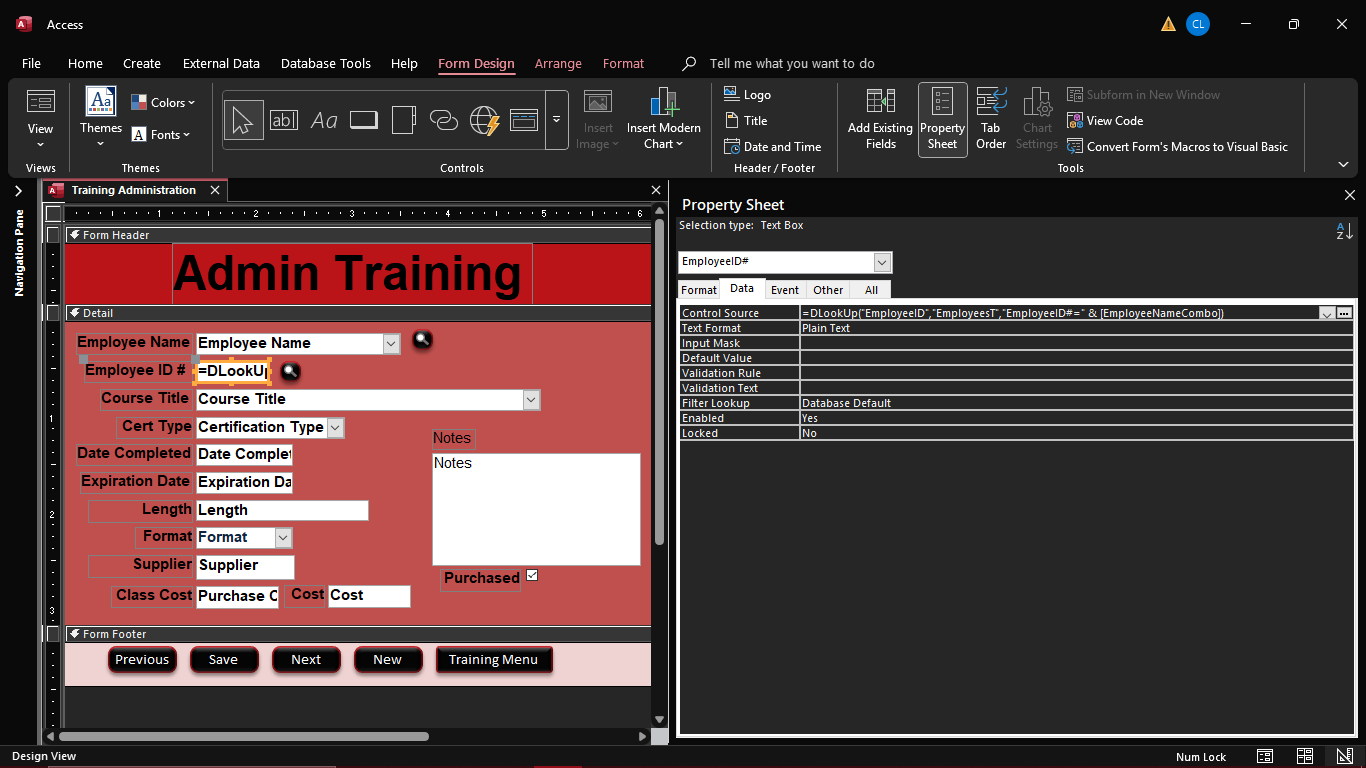
Please post screenshots of your Table and Form in Design View.
Kevin Robertson  @Reply  
          
7 months ago
In the  After Update event of your Combo Box:

    txtEmployeeID = EmployeeNameCombo

or in the Control Source of your Text Box:

    =EmployeeNameCombo
Alex Hedley  @Reply  
           
7 months ago
What's the purpose of this Form?
There might be a better setup.
How are you getting to the Form?
Chris Lopez OP  @Reply  
      
7 months ago
Alex  the purpose is to keep track of employees training, if there  is a better setup, please let me know
Alex Hedley  @Reply  
           
7 months ago
Are you choosing an employee from a list first?
Continuous Forms
Chris Lopez OP  @Reply  
      
7 months ago

Chris Lopez OP  @Reply  
      
7 months ago

Chris Lopez OP  @Reply  
      
7 months ago
Alex I am selecting an employee from a dropdown menu in the form, and the Employee ID # is in a text box
Donald Blackwell  @Reply  
       
7 months ago
Hi Chris, I think some of the confusion is your reference to "hidden column of EmployeeT". Most of us using Richard's naming conventions see that as a reference to a table but what I think you are referring to is a hidden column in the EmployeeNameCombo dropdown.

Your DLookup will throw errors for two reasons:

1) =DLookup("EmployeeID","EmployeesT","EmployeeID#="& EmployeeNameCombo)
     The last part, the where condition needs to lookup the name of the field in the table, not the name of the control in the form. So it should be:
    =DLookup("EmployeeID","EmployeesT","EmployeeID=" & EmployeeNameCombo)
Because, based on the image of your table shown above, the ID field name is EmployeeID

2) The name of your control is invalid. Even though you can "get away with" using special characters such as the # sign in your control name, it will continually cause errors in macros and code. It is OK to have the symbols in the caption that is viewable on the form, but the control name should be the same as the control source (EmployeeID)

That being said, if your combobox is set up with the EmployeeID hidden in the first column as shown in Richard's videos, then you don't need the DLookup at all. Just set the control source of the EmployeeID textbox to =EmployeeNameCombo and it will automatically update when a new employee name is selected.
Chris Lopez OP  @Reply  
      
7 months ago
I scrapped this and followed Richard's Training video series to get better results, but I have a question regarding this still.
I have an employee form, and I'd like to have something similar to this.
Have a button that I can use a button to open a form to assign, say, a client to the employee, and when I complete that task, the assigned client shows in a text box on the form.

Is this possible? If so, how?
Thanks
Donald Blackwell  @Reply  
       
7 months ago
It would be easy enough to do. In your form you open by button, I would have it assign the employee and the client to a Junction Table since, I suspect, 1 employee could have multiple clients. So for instance ExCJuntionT:

ExCIT autonumber
EmployeeID number - type long integer
ClientID type long integer

Then, when you add a client to an employee, it will create a record in the junction table. Then on the original form, I would probably recommend either a continuous subform or a list box rather than a text box that would requery/refresh when the employee/client form closes.

If the only thing that other form is doing is assigning the client to an employee, you could just create a combo box on the original form that only shows clients who aren't assigned to employees and select them from there.

Chris Lopez OP  @Reply  
      
7 months ago
How do i do  ExCJunctionT?
Donald Blackwell  @Reply  
       
7 months ago
Hi Chris, sorry if I jumped ahead of your classes, I still sometimes forget to look at what level other students have completed. Richard will teach Junction tables in Access Expert 1, Access Expert 7,  and Access Expert 8, in discussions about many-to-many relationships.

Even if it's mostly one-to-many (1 employee, many clients), it could potentially turn into a many-to-many situation, for example if an employee leaves and the client gets assigned to another employee. That way you can retain the history through every employee the client has interacted with.

On your form you open with a button from your employee form, you could add a subform based on the junction table that lists all of that employee's clients and any basic information about the client. In the footer of that subform, you could have a combobox that would list clients that need assigned to employees, i.e. active clients that are not in the junction table.

Here are some TechHelp videos/series that also discuss using junction tables

Many-to-Many
Multiple Addresses
Students & Parents
Students & Grades

Chris Lopez OP  @Reply  
      
6 months ago
Donald This is how I have it now. The problem is that it won't display the data in the table. How do I get it to show in the table as well?
Raymond Spornhauer  @Reply  
          
6 months ago
Chris

It sounds like you're having a different issue now than you started with.  If this is true... I would start a new post with pictures so we can see what you're talking about.

-Raymond

This thread is now CLOSED. If you wish to comment, start a NEW discussion in Access Forum.
 

Next Unseen

 
New Feature: Comment Live View


The following is a paid advertisement
Computer Learning Zone is not responsible for any content shown or offers made by these ads.
 

Learn
 
Access - index
Excel - index
Word - index
Windows - index
PowerPoint - index
Photoshop - index
Visual Basic - index
ASP - index
Seminars
More...
Customers
 
Login
My Account
My Courses
Lost Password
Memberships
Student Databases
Change Email
Info
 
Latest News
New Releases
User Forums
Topic Glossary
Tips & Tricks
Search The Site
Code Vault
Collapse Menus
Help
 
Customer Support
Web Site Tour
FAQs
TechHelp
Consulting Services
About
 
Background
Testimonials
Jobs
Affiliate Program
Richard Rost
Free Lessons
Mailing List
PCResale.NET
Order
 
Video Tutorials
Handbooks
Memberships
Learning Connection
Idiot's Guide to Excel
Volume Discounts
Payment Info
Shipping
Terms of Sale
Contact
 
Contact Info
Support Policy
Mailing Address
Phone Number
Fax Number
Course Survey
Email Richard
[email protected]
Blog RSS Feed    YouTube Channel

LinkedIn
Copyright 2026 by Computer Learning Zone, Amicron, and Richard Rost. All Rights Reserved. Current Time: 4/30/2026 10:26:35 AM. PLT: 1s