Free Lessons
Courses
Seminars
TechHelp
Fast Tips
Templates
Topic Index
Forum
ABCD
 
Home   Courses   TechHelp   Forums   Help   Contact   Merch   Join   Order   Logon  
 
Back to Access Forum    Comments List
Upload Images   @Reply   Bookmark    Link   Email   Next Unseen 
Forms Not Showing Correct in Data Box
Chris Lopez 
      
8 months ago
Sorry to keep bothering everyone,
I have an issue with forms. I have a form that I fill out that is from a table. I also have a continuous form that is also attached the the same table to make a list of records as I fill out the form.
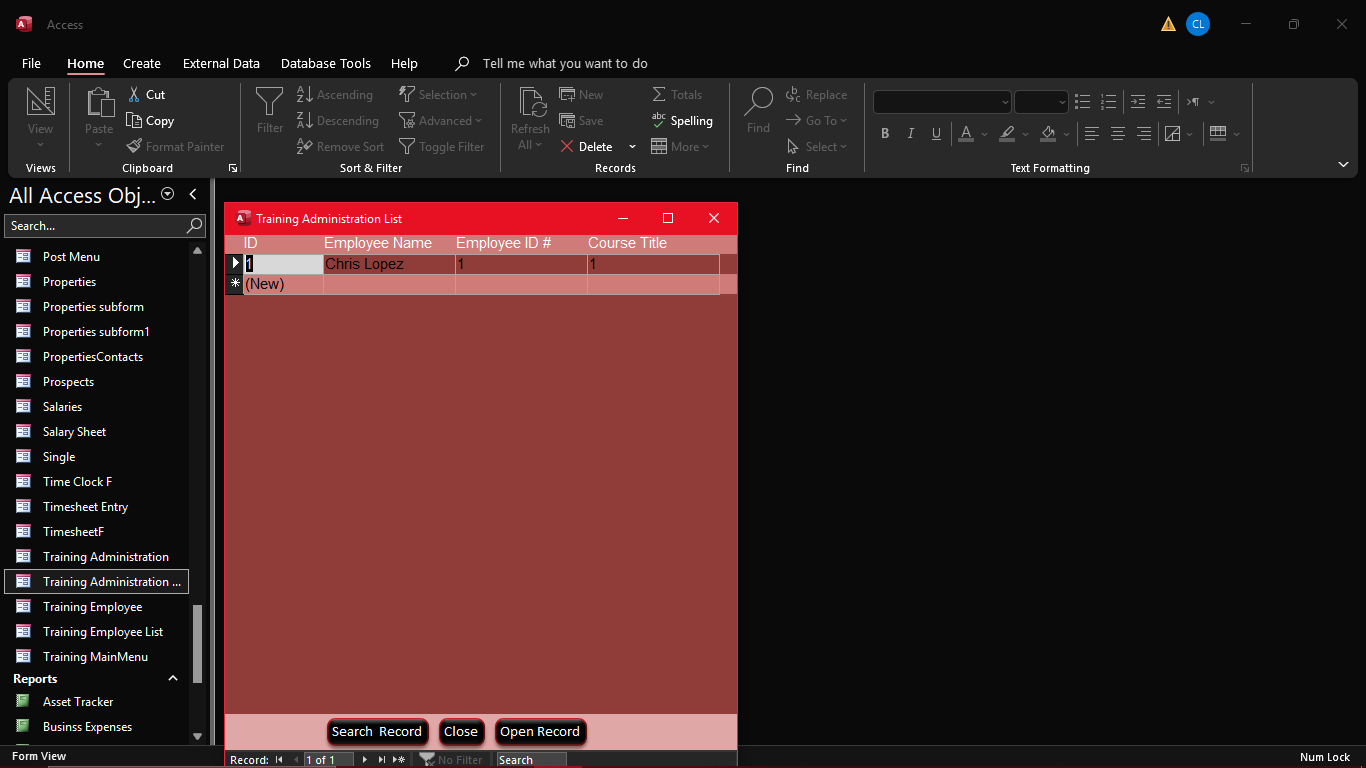
The issue I am having is with the form I fill out. I enter the data from a drop-down menu in some drop-down boxes, but in the "List", it only shows the record ID #, not the data from the drop-down menu.
For example, i have a training form to keep track of employees training, and in the one dropdown box, i have 3 training items and they have an ID of 1,2, and 3, when i fill out the for and select the title of the training session " New Training" it shows in the form that i feel out, but in the list it shows "1" its the first Training in the drop down.
How can I fix this?
Thank you
Kevin Robertson  @Reply  
           
8 months ago
Build a Query and add the main Table and the supporting Table (these are the items in the Combo Box). Bring in the required fields from the main Table and the text field you want to see in your list Form from the supporting table. You should be able to add the related ID field from either Table (but only add it once). Now you can base your list Form off of this Query and display the Short Text field instead of the ID.
Raymond Spornhauer  @Reply  
          
8 months ago
Chris

Can you post a picture so we can see what you're talking about?

It sounds like the record source for your list box is not correct.

-Raymond
Chris Lopez OP  @Reply  
      
8 months ago

Chris Lopez OP  @Reply  
      
8 months ago

Chris Lopez OP  @Reply  
      
8 months ago

Chris Lopez OP  @Reply  
      
8 months ago

Chris Lopez OP  @Reply  
      
8 months ago
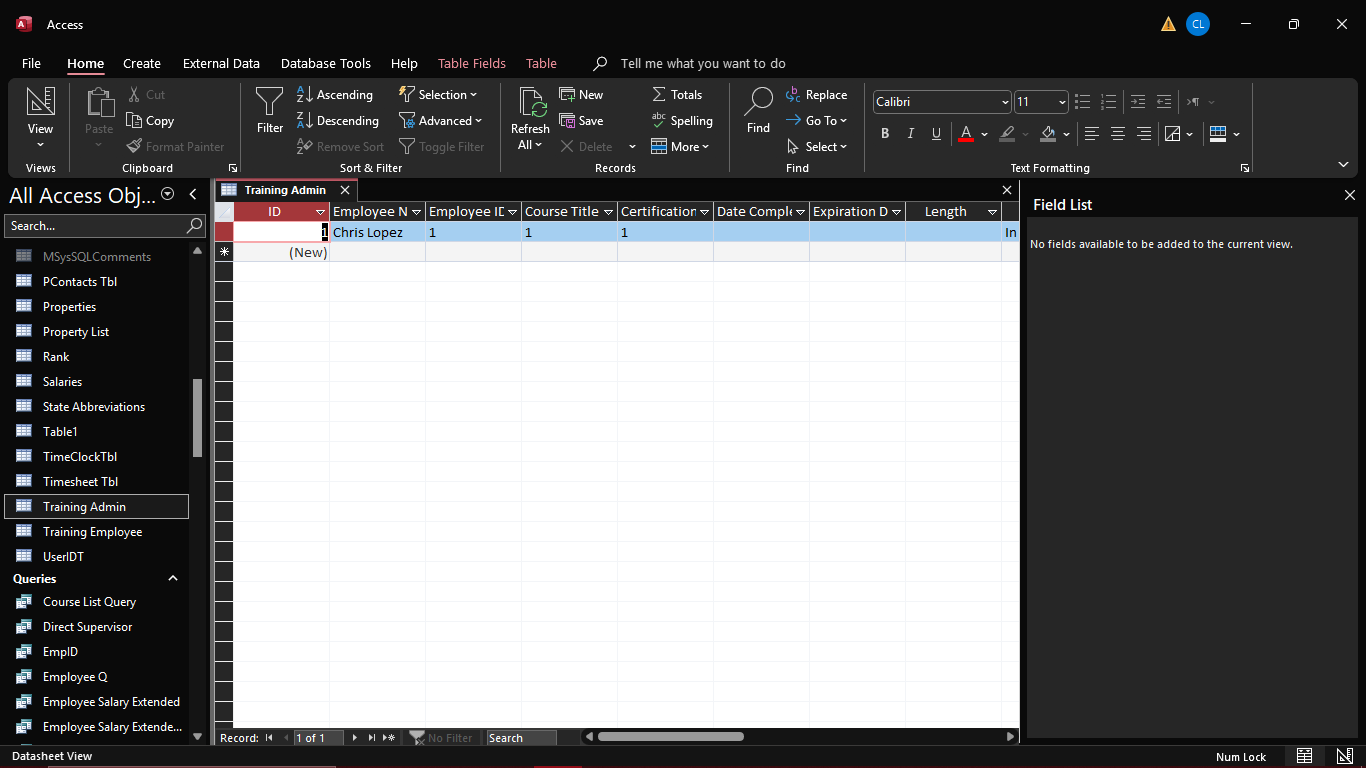
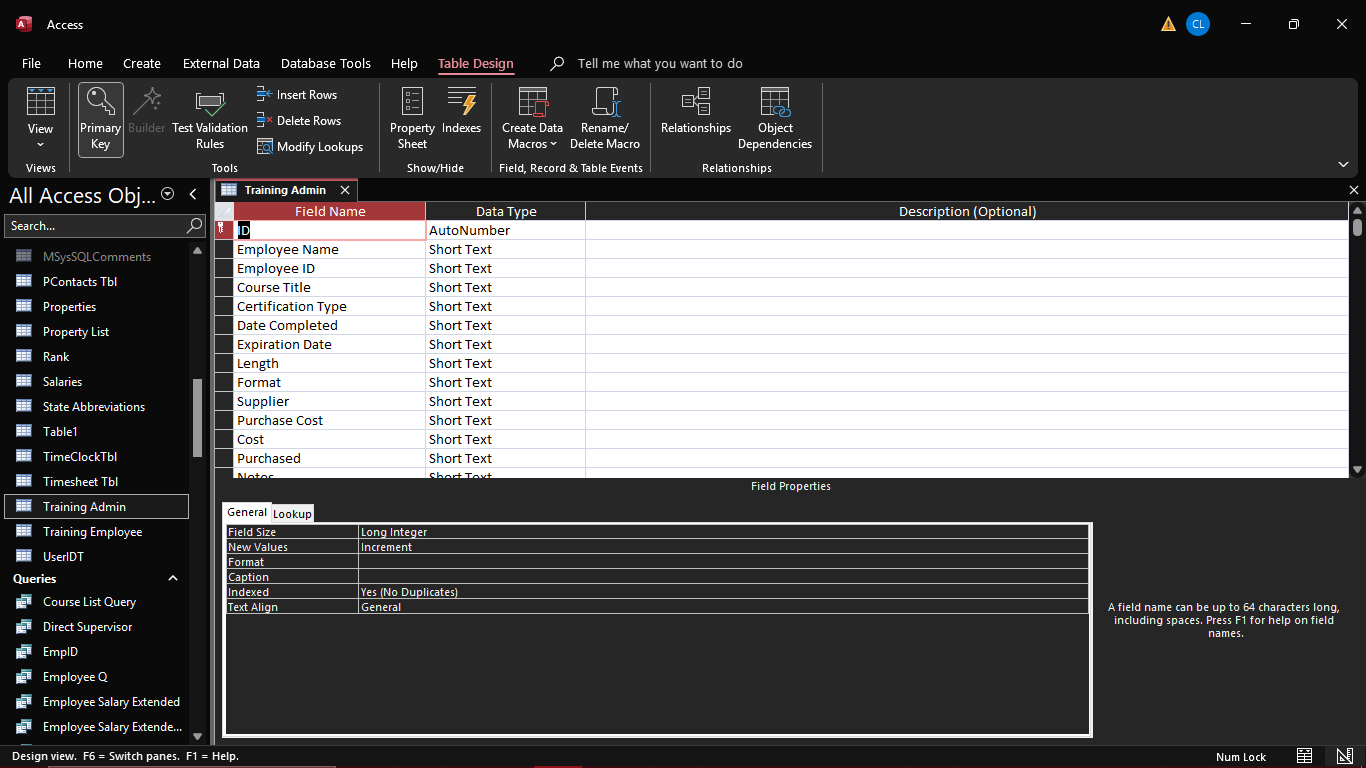
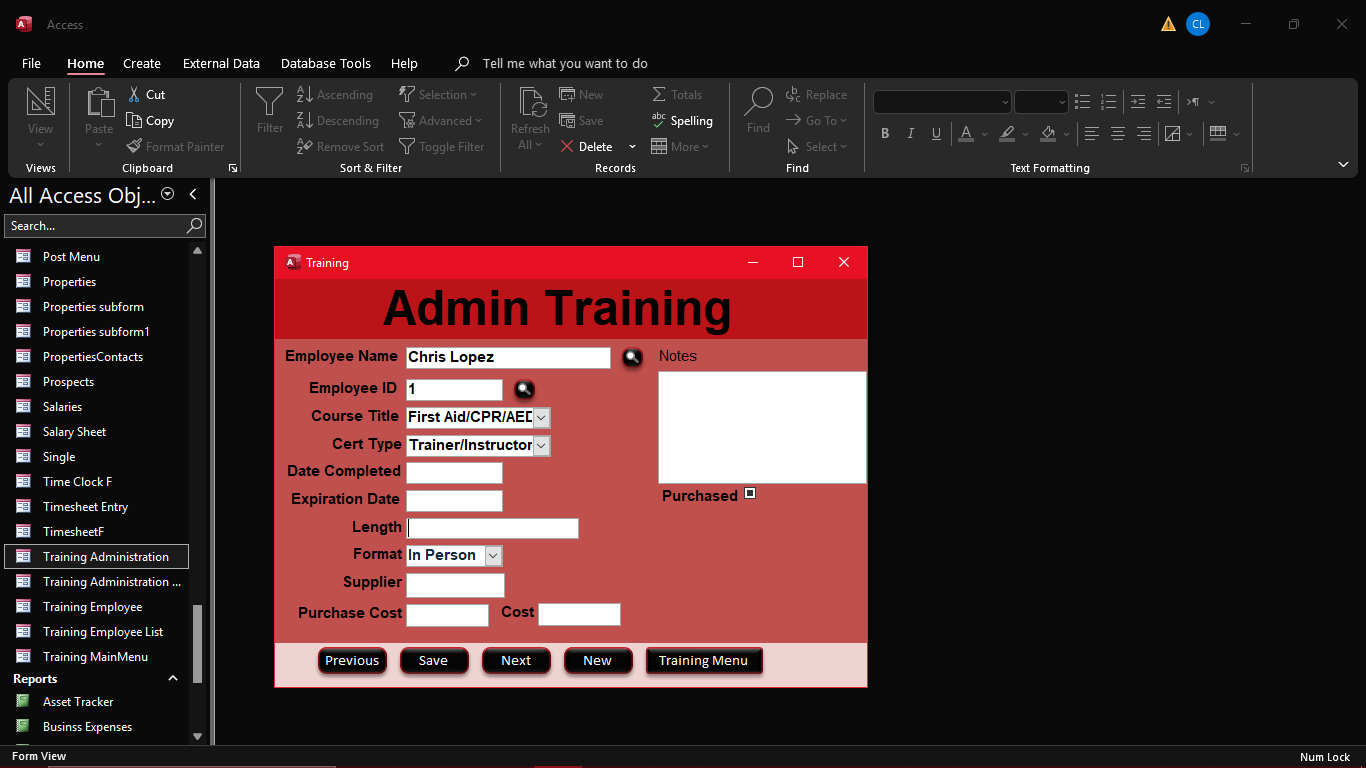
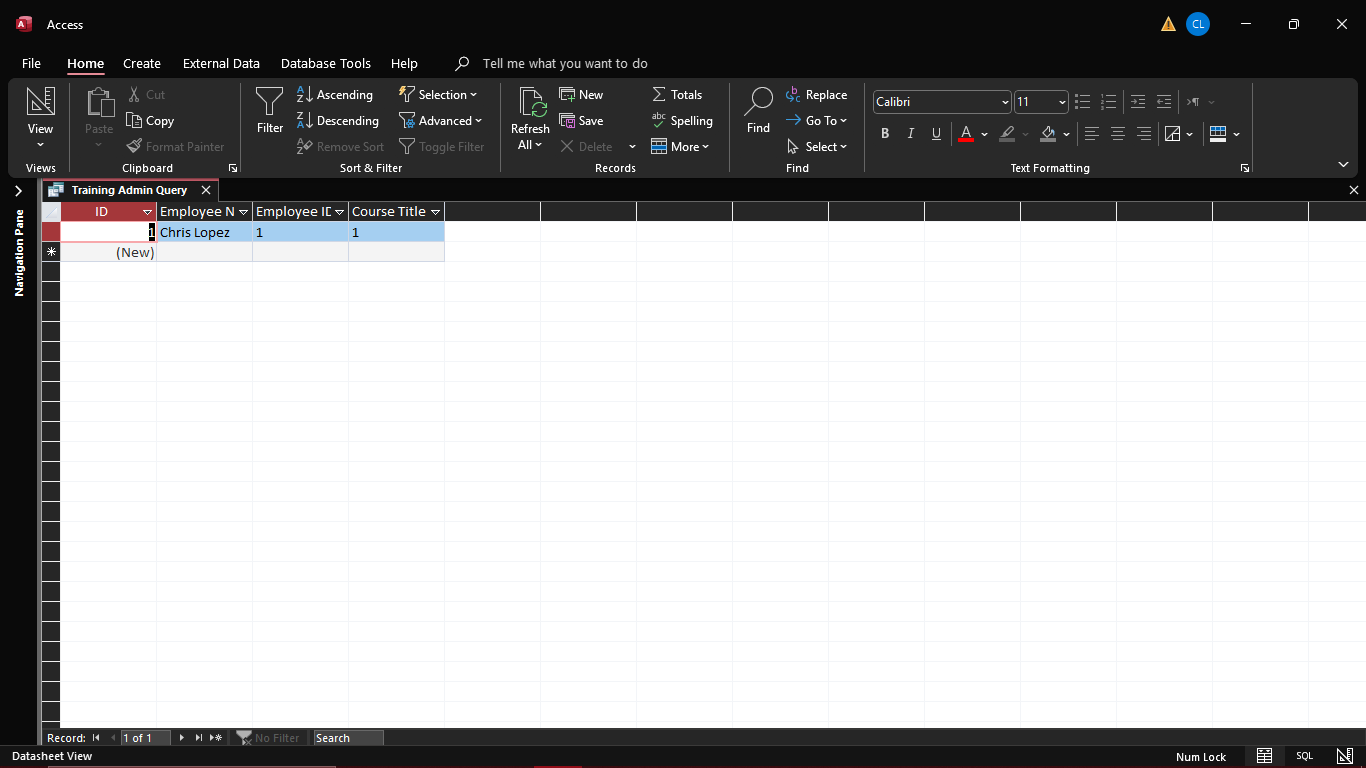
These all pull from the same table
Chris Lopez OP  @Reply  
      
8 months ago

Chris Lopez OP  @Reply  
      
8 months ago
This when i create a Query.
Raymond Spornhauer  @Reply  
          
8 months ago
Your combo box is storing the ID to the table,  which is normally how it's supposed to work.

The course title should be a Number, not short text.

Then on your form, you should remove the field for the course title and put a combo box.  The id will tell the combo box what to display.

Do this for all the foreign keys in your database.

-Raymond
Chris Lopez OP  @Reply  
      
8 months ago
On the form,the course title is a combo box,  so is the certification type. The format shows to correct data, it the continuous  formthsts the problem. The tabe thst is shown is a new table with  out any lookup functions, I thought maybe thst was the issue.
Raymond Spornhauer  @Reply  
          
8 months ago
Then on your form, you should remove the field for the course title and put a combo box.  The id will tell the combo box what to display.
Raymond Spornhauer  @Reply  
          
8 months ago
I would highly recommend watching Ricks video's on relationships.  

You're not setting up for Primary and Foreign Keys the right way, which is  what I was telling you in my message yesterday.  You're going to make it harder for yourself in the future by not setting it up correctly now.

-Raymond
Chris Lopez OP  @Reply  
      
8 months ago
Ok, so I rebuilt the forms, it's showing the correct data, but in the table and the continuous form, it shows the drop-down box and allows the data to be changed. Is there a way to not have the drop-down on the table and the continuous form?
Raymond Spornhauer  @Reply  
          
8 months ago
Chris

In the Details section, Click on the Combo Box, then click on the properties and go to the Data Tab... Change the Locked option to Yes.  Now they won't be able to change it.  You can do this for all fields in the Detail section if you want.

-Raymond
Raymond Spornhauer  @Reply  
          
8 months ago
Donald

Some of the fields in his table should be Foreign keys and should be numbers... he has them set as short text.

His combo boxes have the ID field as the bound field which is storing the ID in the table... (even though his table is short text).  This is why the text boxes are showing numbers.

I was trying to get him to watch Ricks video on relationships (linked above) so he can set up his tables and fields correctly, but I don't think he's understanding that.

-Raymond
Donald Blackwell  @Reply  
       
8 months ago
Raymond Yeah, now that I re-read everything, I see more clearly. I saw the part about removing the drop-down from the table and kinda got stuck on that....
Chris Lopez OP  @Reply  
      
8 months ago
Raymond
Yes, thank you, I did that, and I was able to lock them, thanks
I followed the video as you suggested, and everything is working as needed
Chris Lopez OP  @Reply  
      
8 months ago
I saw in the video that when Richard clicks a record, it automatically opens the record. What video do I watch to do that? Currently, I have a button to click to open it; I'd like to eliminate the button.
Sami Shamma  @Reply  
             
8 months ago
If you already have a button that does that, it's very simple.
Copy the code you have in the button to "on click" event on the field you want to click on to open that record.
Raymond Spornhauer  @Reply  
          
8 months ago
I'd recommend the "On double click" event.

-Raymond
Chris Lopez OP  @Reply  
      
8 months ago
I did it as a macro with the button wizard. How do I get that into VBA Code?
Sami Shamma  @Reply  
             
8 months ago
Chris Lopez OP  @Reply  
      
8 months ago
The Intro to VBA tech video shows how to do that with a list box. I tried that with a Continuous form, it's not working, unless I'm doing something wrong,

This thread is now CLOSED. If you wish to comment, start a NEW discussion in Access Forum.
 

Next Unseen

 
New Feature: Comment Live View


The following is a paid advertisement
Computer Learning Zone is not responsible for any content shown or offers made by these ads.
 

Learn
 
Access - index
Excel - index
Word - index
Windows - index
PowerPoint - index
Photoshop - index
Visual Basic - index
ASP - index
Seminars
More...
Customers
 
Login
My Account
My Courses
Lost Password
Memberships
Student Databases
Change Email
Info
 
Latest News
New Releases
User Forums
Topic Glossary
Tips & Tricks
Search The Site
Code Vault
Collapse Menus
Help
 
Customer Support
Web Site Tour
FAQs
TechHelp
Consulting Services
About
 
Background
Testimonials
Jobs
Affiliate Program
Richard Rost
Free Lessons
Mailing List
PCResale.NET
Order
 
Video Tutorials
Handbooks
Memberships
Learning Connection
Idiot's Guide to Excel
Volume Discounts
Payment Info
Shipping
Terms of Sale
Contact
 
Contact Info
Support Policy
Mailing Address
Phone Number
Fax Number
Course Survey
Email Richard
[email protected]
Blog RSS Feed    YouTube Channel

LinkedIn
Copyright 2026 by Computer Learning Zone, Amicron, and Richard Rost. All Rights Reserved. Current Time: 5/20/2026 5:32:52 PM. PLT: 0s