Free Lessons
Courses
Seminars
TechHelp
Fast Tips
Templates
Topic Index
Forum
ABCD
 
Home   Courses   TechHelp   Forums   Help   Contact   Merch   Join   Order   Logon  
 
Back to Access Forum    Comments List
Upload Images   @Reply   Bookmark    Link   Email   Next Unseen 
Report Textbox Issues
Ariana Sword 

8 months ago
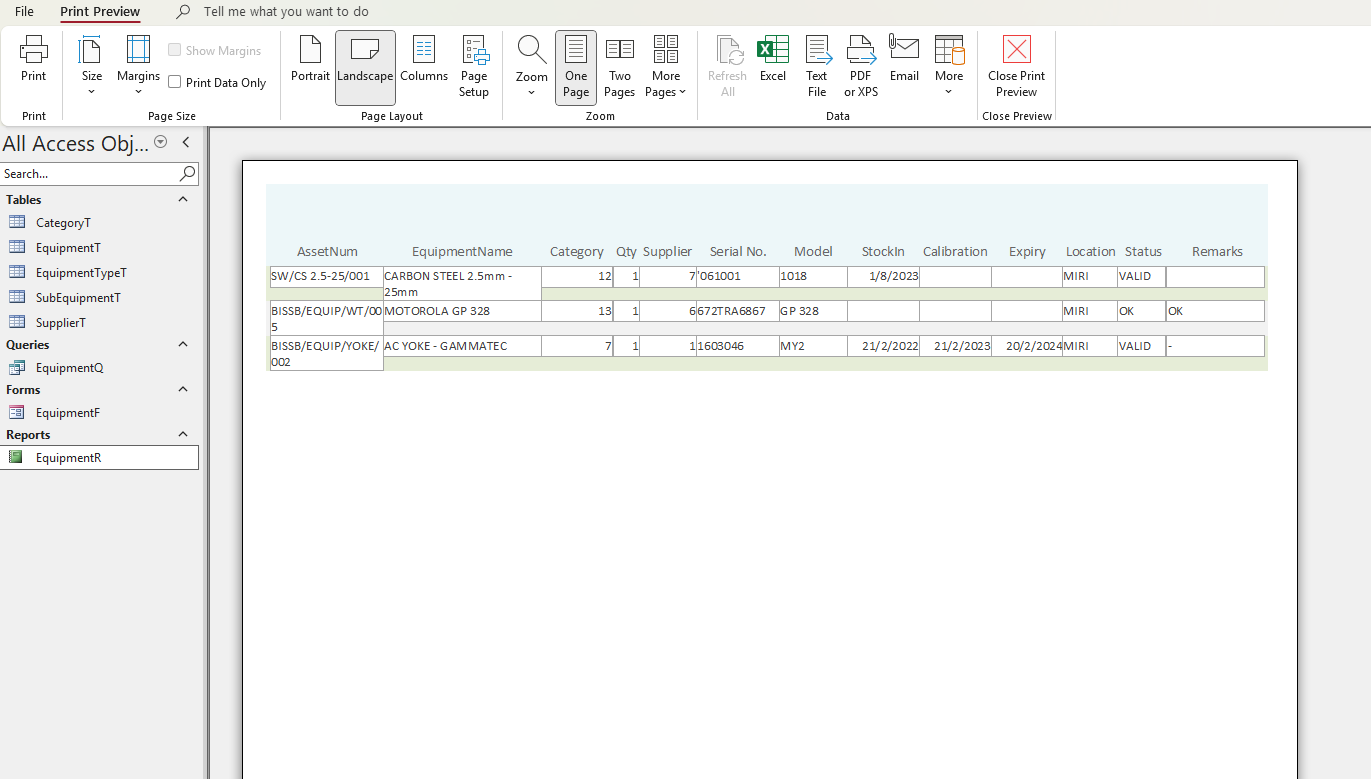
I'm having trouble making all my textboxes in the report expand vertically when one expands (I would like it to look like how a table would in microsoft word). I set them all to can grow/shrink. This leaves the report looking messy in layout/print preview mode. I have a feeling VBA is required to do this but I haven't learned that yet.

I will attach a photo of what the report ends up looking in the discussion for clarity. Thanks in advance for the help! />_<\
Ariana Sword OP  @Reply  

8 months ago

Ariana Sword OP  @Reply  

8 months ago

Raymond Spornhauer  @Reply  
          
8 months ago
Ariana

I'm not aware of a way in Access to get unaffected text boxes to 'grow'.

Depending on the report, I'll generally take 2 approaches:
1. Set the TextBox background to transparent and put a line at the bottom of the details section to delineate each record.
2. Set the minimum TextBox size such that the smallest record is 2 lines and set the Can Shrink property to 'No'.

Hope this helps,

-Raymond
Donald Blackwell  @Reply  
        
8 months ago
The only way I know of to force all fields on a row is unpopular.

You would have to highlight all the fields on that row in design view then, on the arrange tab, add a layout, either stacked or tabbed. Layout will automatically resize everything in a row to same height and everything in a column to the same width.
Richard Rost  @Reply  
          
8 months ago
Donald I've actually had something similar to this on my list for a future video. What I personally prefer to do is just not use a background color and not use borders around the text boxes, and then you can't tell if they grow or not lol.
Donald Blackwell  @Reply  
        
8 months ago
Richard yup, that works unless you're actually looking to have the "table" look wiith all lines vertical and horizontal .

I've had a couple projects that insisted on them and via wasn't an option such as an your previous video for vertical lines and drawing all the lines separately got to be a PITA. That was when I got used to being able to use layout.

I don't use it all the time but now that im comfortable with it it's not too bad....

I still avoid layout view when possible, It messes too many things up.
Richard Rost  @Reply  
          
8 months ago
Have you tried anchoring?
Donald Blackwell  @Reply  
        
8 months ago
I have used anchoring. Works very nice, but on some jobs, they wanted the table look with blank cells between rows on a report that they wanted to ensure showed up for example "this is the data we have for you, please note changes in the block below" kind of thing.

Not something I like but easy enough to do without adding extra lines or text boxes with layout enabled and using gridlines for empty cells .

Like I said, not something I do all the time but a handy tool to have available. But, if you're not used to them, I understand why people don't use them.
Richard Rost  @Reply  
          
8 months ago
Yeah, reports are one of those areas where I haven't covered a lot in my videos because it's not something I do a lot of. I'd say 99% of the work that I do is on the screen. I rarely print stuff out. So I have most of the nuances of forms and VBA and stuff like that in my brain. But when it comes to reports, I actually have to mess with stuff to figure out exactly how something works. I don't think I've ever tried anchoring in a report before. So, couldn't tell you off the top of my head.
Donald Blackwell  @Reply  
        
8 months ago
Richard I owe you an apology.
I was just re-reading this thread and then checked through some notes on some things I've worked on and realized I misspoke.

I have used anchoring, but I can't say that I've fully used it properly. On a couple projects that I used it on my comments on whether I like were basically "inconclusive" because none of that data caused any expansion or contraction during my testing. So it didn't NOT work but I can't say that it worked well either. I haven't gotten any complaints about those reports from the people I created them for.

In three other projects I tried it on, I noted "overlapping" problems. I ultimately switched to layout grids just do to time constraints. That, "Do what you know best" effect.

So, it was premature for me to say "Works very nice". I just didn't want anyone else to try using it based on my comments and it not work well. Anchoring may work great, it may not, but felt that it was important to correct my prior inaccurate statement.

To paraphrase something I've heard, "I can BS with the best of them, but I won't knowingly or intentionally on matters of importance."
Richard Rost  @Reply  
          
8 months ago
So you're guilty of The Confidence Trap? LOL
Richard Rost  @Reply  
          
8 months ago
OK, I'm a big dummy. Anchoring doesn't exist in reports, only in forms. In reports you can't rely on Can Grow or VBA to stretch side-by-side fields together. The trick is to set the text box borders to transparent and then draw your own lines or rectangles around them. That way you can make the boxes look like they expand to the same height without actually changing their properties. I show exactly how to do this in my vertical lines video, so check that out for the step-by-step. It's one of those things I spent days banging my head on until I realized the simple solution was just to draw the lines myself.
Donald Blackwell  @Reply  
        
8 months ago
This is where I tend to fall back to enabling layout - I've actually gotten fairly comfortable using it. It will automatically force the height of all controls (except checkboxes and radio buttons) the the same size in a row or with to a column and then gridline properties make it easy to have table-like boxes, row lines or vertical lines without having extra line controls or having to use VBA.

And, really, the fact I added layout controls to my repertoire is your fault Richard, lol. I hated them every time I tried to use them. I thought to myself, "Why have all these stupid properties in the property dialog that don't do anything except make it harder to move stuff around?", lol. But then, I think it was in Quick Queries # 17, you told us how gridlines could work (even though you acknowledged you didn't care for it), and that spurred my curiosity and I started playing around and got used to both the pros and cons of layout.

In fact those kinds of events are what have allowed me to explore other little used features just because I like knowing "what's under the hood," even if I don't use it.

This thread is now CLOSED. If you wish to comment, start a NEW discussion in Access Forum.
 

Next Unseen

 
New Feature: Comment Live View


The following is a paid advertisement
Computer Learning Zone is not responsible for any content shown or offers made by these ads.
 

Learn
 
Access - index
Excel - index
Word - index
Windows - index
PowerPoint - index
Photoshop - index
Visual Basic - index
ASP - index
Seminars
More...
Customers
 
Login
My Account
My Courses
Lost Password
Memberships
Student Databases
Change Email
Info
 
Latest News
New Releases
User Forums
Topic Glossary
Tips & Tricks
Search The Site
Code Vault
Collapse Menus
Help
 
Customer Support
Web Site Tour
FAQs
TechHelp
Consulting Services
About
 
Background
Testimonials
Jobs
Affiliate Program
Richard Rost
Free Lessons
Mailing List
PCResale.NET
Order
 
Video Tutorials
Handbooks
Memberships
Learning Connection
Idiot's Guide to Excel
Volume Discounts
Payment Info
Shipping
Terms of Sale
Contact
 
Contact Info
Support Policy
Mailing Address
Phone Number
Fax Number
Course Survey
Email Richard
[email protected]
Blog RSS Feed    YouTube Channel

LinkedIn
Copyright 2026 by Computer Learning Zone, Amicron, and Richard Rost. All Rights Reserved. Current Time: 5/7/2026 6:30:04 AM. PLT: 0s