Free Lessons
Courses
Seminars
TechHelp
Fast Tips
Templates
Topic Index
Forum
ABCD
 
Home   Courses   TechHelp   Help   Contact   Merch   Join   Order   Logon   Forums   
 
Back to SQL 1 Seminar Lessons    Comments List
Upload Images   @Reply   Bookmark    Link   Email   Next Unseen 
Like Command in Where Statement Not Working.
Carl Byerley 
        
2 months ago
Going through SQL Seminar Lesson 4.
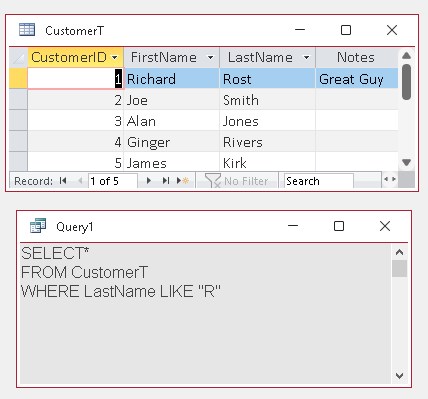
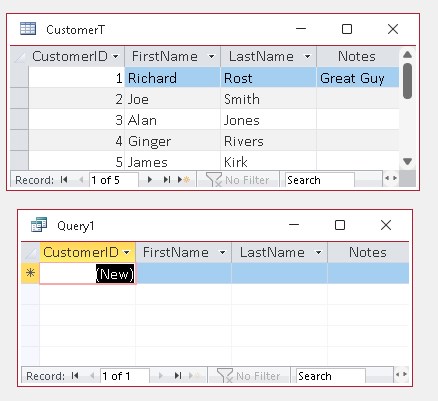
Everything has been working fine until I try to use the LIKE command. Here are screenshots.
Why does it not work?
Carl Byerley OP  @Reply  
        
2 months ago

Carl Byerley OP  @Reply  
        
2 months ago

Carl Byerley OP  @Reply  
        
2 months ago
Here are the Screenshots
Donald Blackwell  @Reply  
       
2 months ago
I would guess that you are missing your wildcard characters... For example:

Last Names starting with "R"SELECT *
FROM CustomerT
WHERE LastName Like "R*"


Last Names ending with "R"SELECT *
FROM CustomerT
WHERE LastName Like "*R"


Last Names containing "R"SELECT *
FROM CustomerT
WHERE LastName Like "*R*"
Kevin Robertson  @Reply  
           
2 months ago
You forgot the wildcard characters.

WHERE Lastname LIKE "*R*"
WHERE Lastname LIKE "*R"
WHERE Lastname LIKE "R*"


Also, you are missing a space after SELECT.
Kevin Robertson  @Reply  
           
2 months ago
Donald Beat me by 30 seconds. LOL
Donald Blackwell  @Reply  
       
2 months ago
Kevin , don't know, probably just a server time zone or caching thing... I usually will refresh the page before submitting a response to verify someone else didn't answer before I submit mine if it took a bit to type. But still sometimes, it will come back with no responses and then as soon as I submit mine, it shows someone else's submitted 5 minutes before
Carl Byerley OP  @Reply  
        
2 months ago
Got it, it was the ANSI 92 setting, found Richards ANSI 89 TechHelp. Thanks all
Carl Byerley OP  @Reply  
        
2 months ago
In Access 2021 it is grayed out and not changeable in Settings
Richard Rost  @Reply  
          
2 months ago
That option is usually grayed out because Access does not have exclusive access to the database. Close the database for everyone else - including any other copy you may have open - then open it with File > Open > Open Exclusive. You should then be able to change the ANSI-92 setting under File > Options > Object Designers > Query Design.

If the database is already using ANSI-92 syntax, use % as the wildcard instead of *:

WHERE LastName Like "%R%"

ANSI-89 uses *, and ANSI-92 uses %.

It's Access v. SQL Server. I hate that they're different, but they are. :/

This thread is now CLOSED. If you wish to comment, start a NEW discussion in SQL 1 Seminar Lessons.
 

Next Unseen


What's This?


The following is a paid advertisement
Computer Learning Zone is not responsible for any content shown or offers made by these ads.
 

Learn
 
Access - index
Excel - index
Word - index
Windows - index
PowerPoint - index
Photoshop - index
Visual Basic - index
ASP - index
Seminars
More...
Customers
 
Login
My Account
My Courses
Lost Password
Memberships
Student Databases
Change Email
Info
 
Latest News
New Releases
User Forums
Topic Glossary
Tips & Tricks
Search The Site
Code Vault
Collapse Menus
Help
 
Customer Support
Web Site Tour
FAQs
TechHelp
Consulting Services
About
 
Background
Testimonials
Jobs
Affiliate Program
Richard Rost
Free Lessons
Mailing List
PCResale.NET
Order
 
Video Tutorials
Handbooks
Memberships
Learning Connection
Idiot's Guide to Excel
Volume Discounts
Payment Info
Shipping
Terms of Sale
Contact
 
Contact Info
Support Policy
Mailing Address
Phone Number
Fax Number
Course Survey
Email Richard
[email protected]
Blog RSS Feed    YouTube Channel

LinkedIn
Copyright 2026 by Computer Learning Zone, Amicron, and Richard Rost. All Rights Reserved. Current Time: 9/6/2026 7:07:10 AM. PLT: 0s