Free Lessons
Courses
Seminars
TechHelp
Fast Tips
Templates
Topic Index
Forum
ABCD
 
Home   Courses   TechHelp   Help   Contact   Merch   Join   Order   Logon   Forums   
 
Back to Access Forum    Comments List
Upload Images   @Reply   Bookmark    Link   Email   Next Unseen 
Auto Sort on Main Menu
Kenneth A Thomas 
       
22 days ago
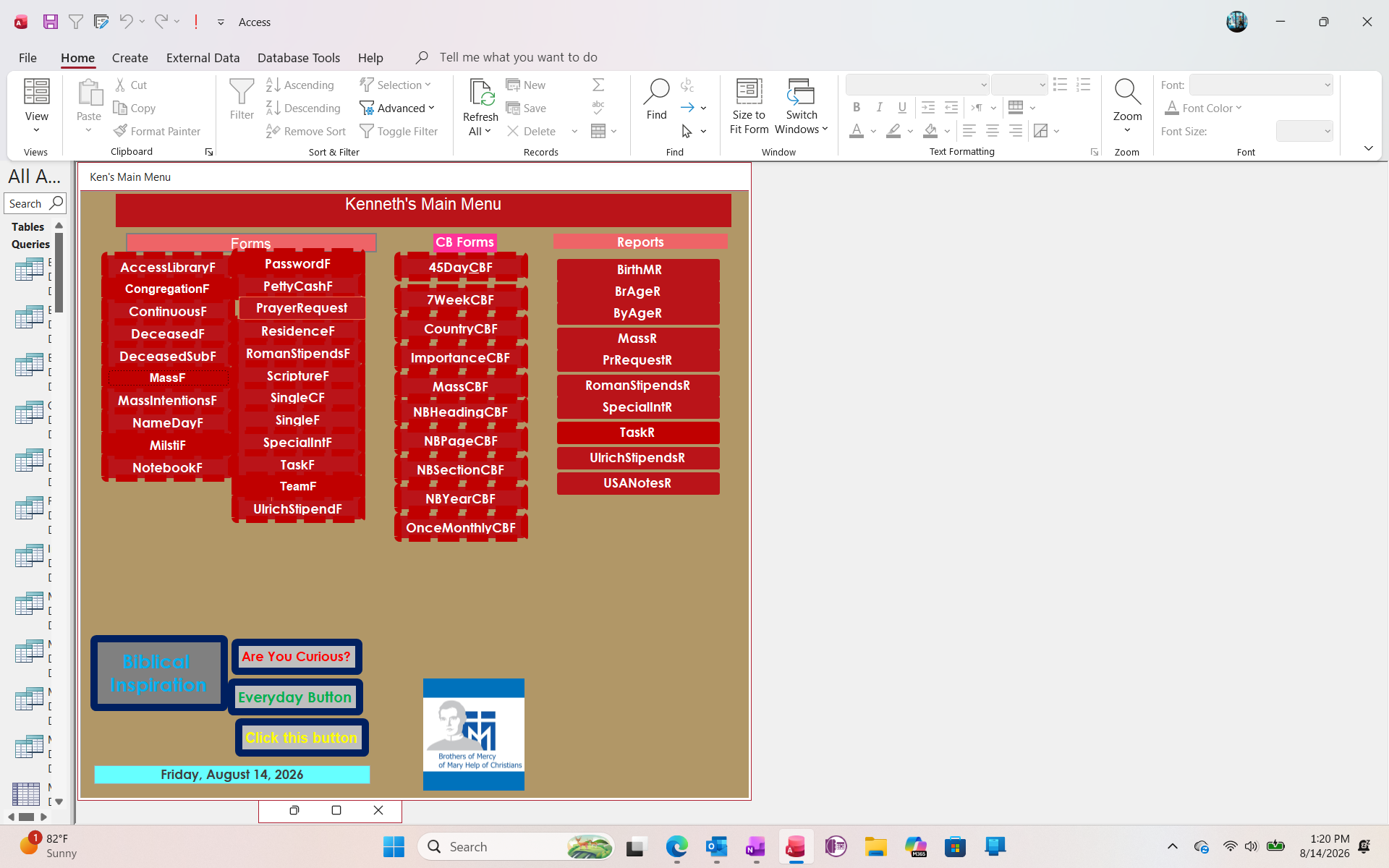
If you check out the attached Screen of the current view of my Main Menu, you will notice that I have my forms listed into 2 groups; Forms (or Standar Forms) and CB Forms (Combo Box Forms) and 1 list for Reports.  Up until now, any time I make and add a new form or report, I have to manually rearrange buttons any time I add a new Form or Report.  Is there a way to program the Main Menu to resort the buttons on command after adding?
Kenneth A Thomas OP  @Reply  
       
22 days ago

Debbie Heaney  @Reply  
     
22 days ago
For me, this is the frustrating part of hanging around online support forms.
I can think of a way but can't explain it well enough for other to follow along.

Richard has a series of videos ( 6 parts ) called "Big Button Forms" starting at https://599cd.com/blog/display-article.asp?ID=3296

With a bit of a redesign on your system this can be adapted to suit your needs.
Your Main Menu would start with three buttons, one for each category of form.
Then separate tables for each Form Type.
Then the buttons would update to suit your selections.

Cascading Comboboxes as a Main Menu is also a possibility, or cascading Listboxes.
Working in much the same manner as the Big Buttons.
Debbie Heaney  @Reply  
     
22 days ago
I have a YouTube link too another video from Richard that might help?
https://www.youtube.com/watch?v=uxMnsrw8-ao
Move Up Down Buttons for Reordering Records in Microsoft Access - Fitness 77.

As you add new buttons to the Main Menu then you can use this technique to quickly rearrange the sort order in the underlying tables.

Kenneth A Thomas OP  @Reply  
       
22 days ago
Thank you, Debbie.  I will have to consider this for when I have time to redesign my Main Menu.  In the meantime, I wleocme any other suggestions or ideas.
Kevin Yip  @Reply  
      
22 days ago
Sorting would be quite unwieldy in this situation because all the X Y positions of every button on the form would have to be changed whenever any change is made.

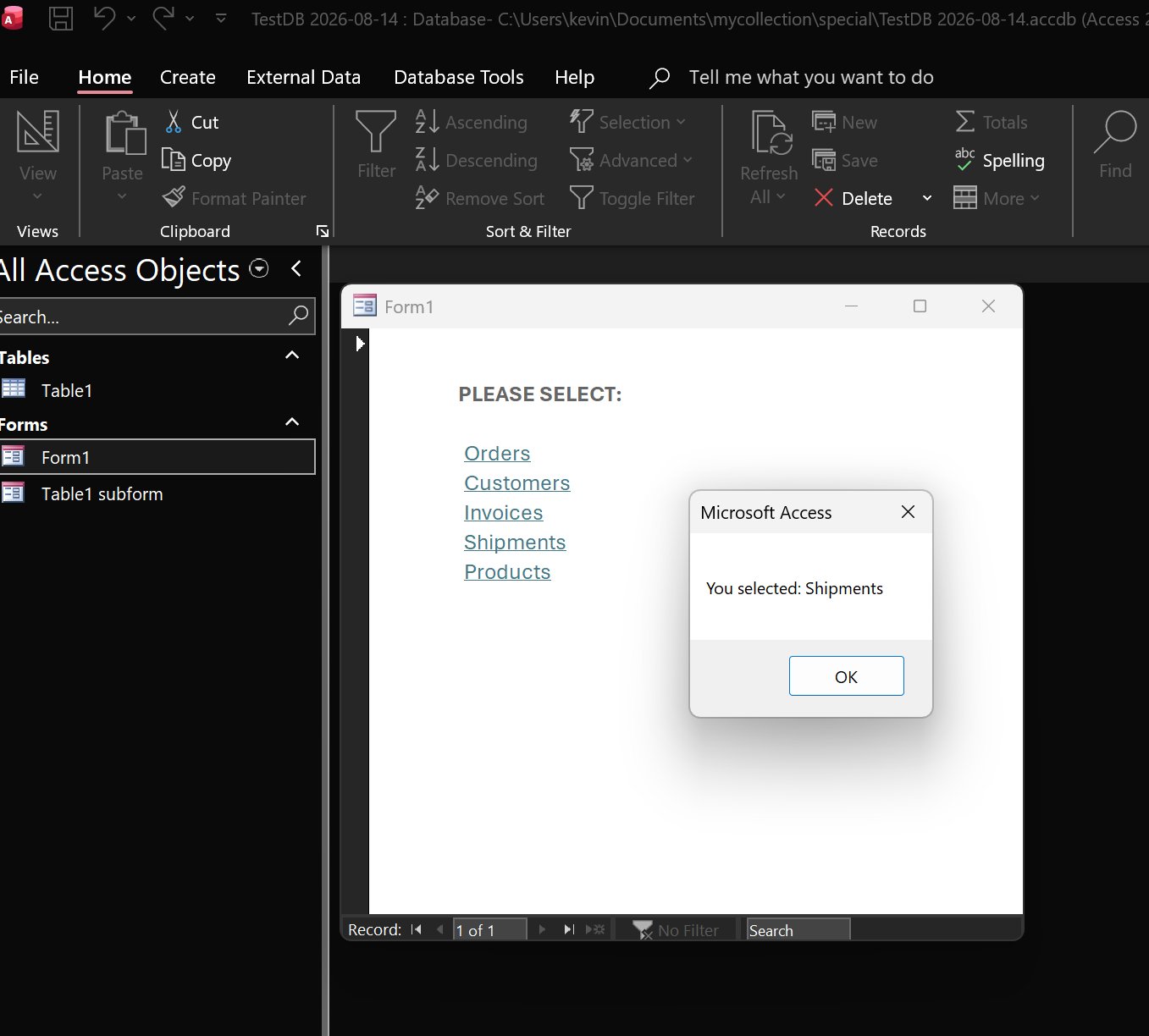
If it doesn't have to be buttons, consider using hyperlink text as menu items.  The picture below is actually a subform with all borders turned off, text retrieved from a table (that can be easily sorted), and text formatted as clickable hyperlinks, which will run the OnClick event to perform the desired action.

A textbox has a property that allows the text to be always shown as a hyperlink.  When the user hovers over the link, the mouse pointer will turn into a finger icon.
Kevin Yip  @Reply  
      
22 days ago

Kenneth A Thomas OP  @Reply  
       
21 days ago
Kevin, were you able to do that without using VBA?  I have only progressed to Expert 15, plus I have too many projects going on to try messing with VBA.
Darrin Harris  @Reply  
     
21 days ago
Hi Kenneth

Yes you can do it with VBA with your buttons
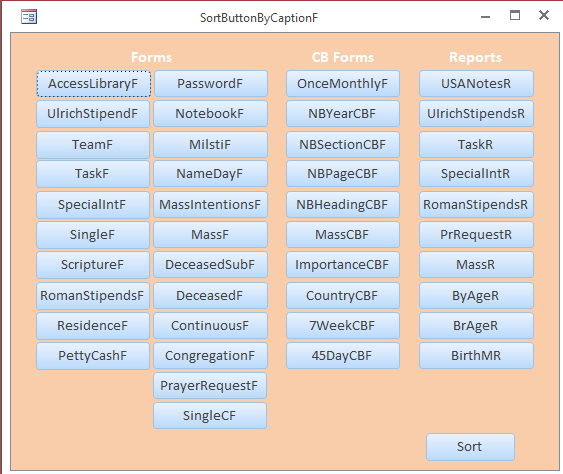
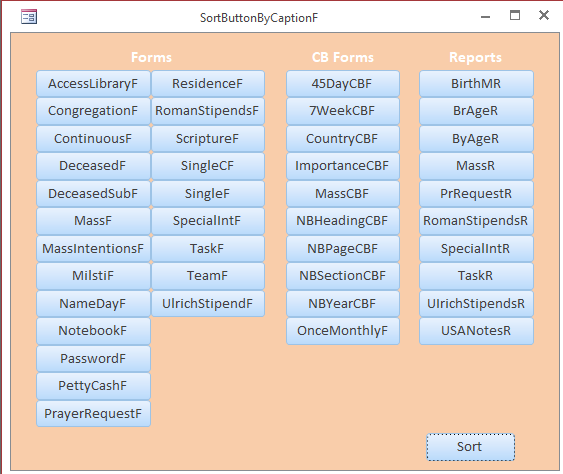
Problem is there is a bit of code to paste here so if you like I'll try put the code into a image?
Darrin Harris  @Reply  
     
21 days ago

Darrin Harris  @Reply  
     
21 days ago

Richard Rost  @Reply  
           
21 days ago
Kevin is right that physically sorting a bunch of command buttons gets unwieldy fast. Every button has a Left and Top position, so inserting one new item means repositioning everything below it.

Probably the easiest solution, especially if you're constantly adding and changing menu items, is to use a list box instead of individual buttons. A list box can be bound to a table or query and automatically sorted whenever you add a new form or report.

You can also make a simple value-list list box with two columns: the form name in the first column and a description in the second. Hide the first column, and the user only sees the friendly description. Then use either a button or the list box's On Dbl Click event to open the selected form. It takes just one line of VBA:

DoCmd.OpenForm ListBoxName

You would need the corresponding OpenReport version for reports, or you could keep separate list boxes for Forms, CB Forms, and Reports as you have now.

Don't let the VBA part scare you. This is about as simple as VBA gets, and I cover it step-by-step in this video:

Main Menu
Darrin Harris  @Reply  
     
21 days ago
Richard I like the Multi-Level Menu myself

The button sort I've done dose multiple columns, you just make room for a new column so you can add more buttons.
Kevin Yip  @Reply  
      
21 days ago
>> Kevin, were you able to do that without using VBA?

Kenneth  The form's appearance (borderless rows, hyperlink text field) and the sort order of the field can all be done on the form's property sheet, hence no VBA required.  But the OnClick event needs to run a macro or a VBA procedure.  A macro can do many actions, but only VBA can do them all.
Kenneth A Thomas OP  @Reply  
       
20 days ago
Well, I designed 1 made 1 List Box that Contains all Forms and Reports, following the VBA sequence from Richard's Main Menu video.  However, that box contains a list of 48 items.  I need to consider breaking into the original 3 lists.
Richard Rost  @Reply  
           
20 days ago
You could definitely break that into your original three categories, but I would take it one step further and use cascading combo boxes or cascading list boxes.

For example, the first list could show your top-level categories: Standard Forms, CB Forms, and Reports. Once you select one, the second list shows only the items in that category. That keeps the main menu clean, and you can add new items to the underlying table without having to redesign the form or move buttons around.

A Tree View Control is another option, but that gets considerably more complicated. For what you're doing, cascading lists or combos are probably the sweet spot.

Also take a look at the menu I built in the Fitness Series. That is a dynamic menu system that works well when you have lots of forms and reports and want to organize them into categories and subcategories.
Dan North  @Reply  
      
19 days ago

Dan North  @Reply  
      
19 days ago
Awhile back Richard posted a series of videos introducing "Helper" tables. I want to say it was the ABCD course. He introduced a technique to use list boxes as easily updatable menu options.  Once built and functioning all that needs to happen is to update MenuT with the new form, report or query.  In my case I added a display order.  Now new forms, reports, or queries take about three minutes to add and display.  Works great and may be what you are looking for Mr. Thomas.
Here is a sample of the code to open the "Stations" (in green) menu options.  The rest are very similar:
Private Sub OpenReportbtn_Click()
    '[20260126-DAN]-Changed from Reports to Stations
    If IsNull(ReportsList) Then Exit Sub
    'Debug.Print ReportsList
    'DoCmd.OpenReport ReportsList, acViewPreview
        
        '[20260127-DAN]-Is Form (F) or Report (R) or Query (Q)
        If Right(ReportsList, 1) = "F" Then ' Open file as a form
            DoCmd.OpenForm ReportsList, acViewNormal
        ElseIf Right(ReportsList, 1) = "R" Then 'open file as a report
            DoCmd.OpenReport ReportsList, acViewPreview
        ElseIf Right(ReportsList, 1) = "Q" Then 'open file as a query
            DoCmd.OpenQuery ReportsList, acViewNormal
        End If    
End Sub
Dan North  @Reply  
      
19 days ago
BTW MenuT contains the following fields:
MenuName,         Short Text, Name of report, form, or query to run
MenuDescription, Short Text, Description of report, form, or query to run
MenuType,          Short Text, Type of file to run a report, Form, query from HelperTypeT 14=Forms, 15=Reports, 16=Statistics, 17=Searches
MenuOrder,         Number, Order to display the menu items
MenuDisplay,       Yes/No, Display this menu item Y/N

Hope it helps sir
Kenneth A Thomas OP  @Reply  
       
17 days ago
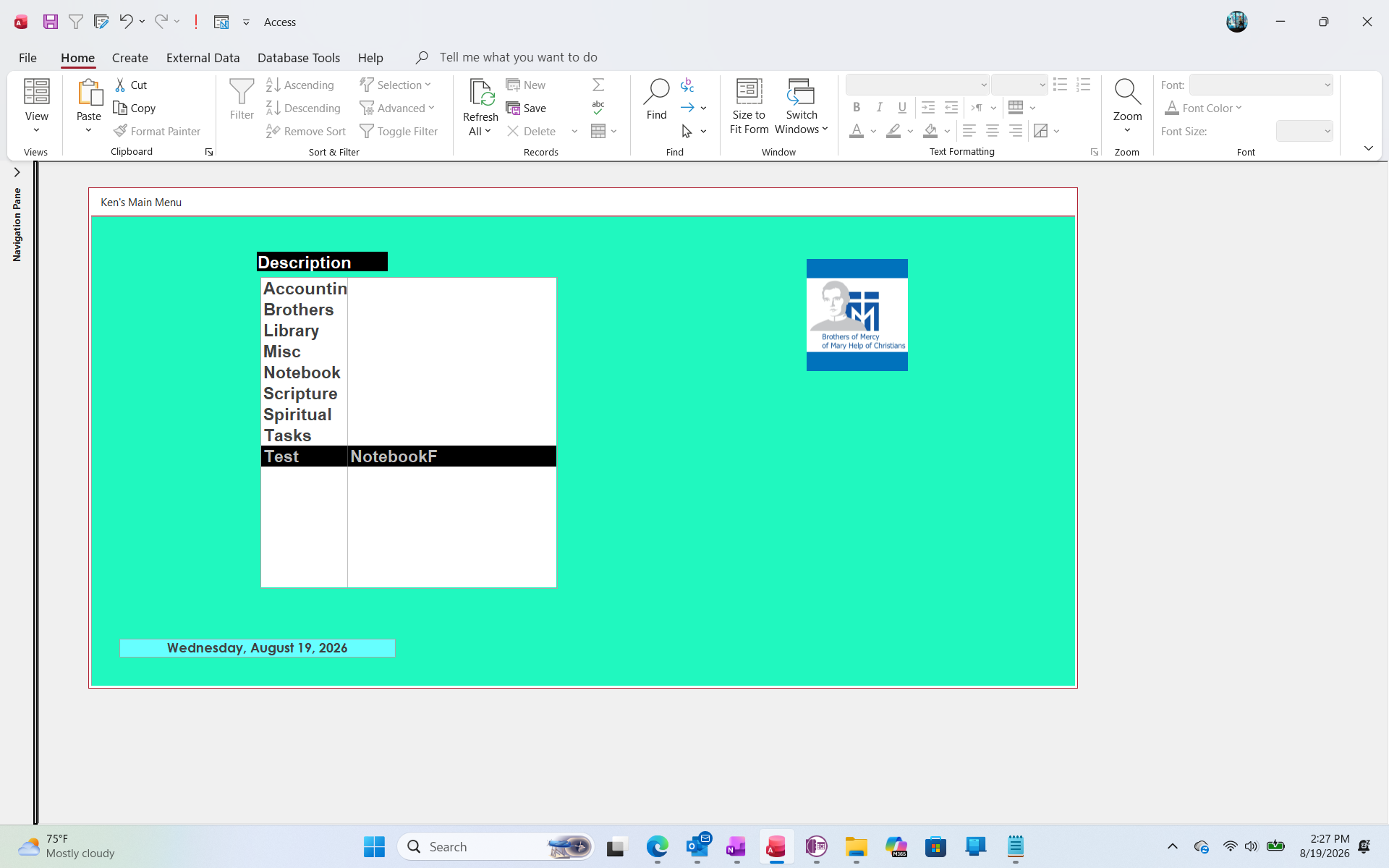
Ok, so I started over with the entire process.  I scrapped my fist MenuT and built a new one, including a record for a Test.

When I click on the Test item, nothing happens.  I am attaching a screenshot of my list, but what other screenshots would you need to see to tell me what is wrong?
Kenneth A Thomas OP  @Reply  
       
17 days ago

Kenneth A Thomas OP  @Reply  
       
17 days ago
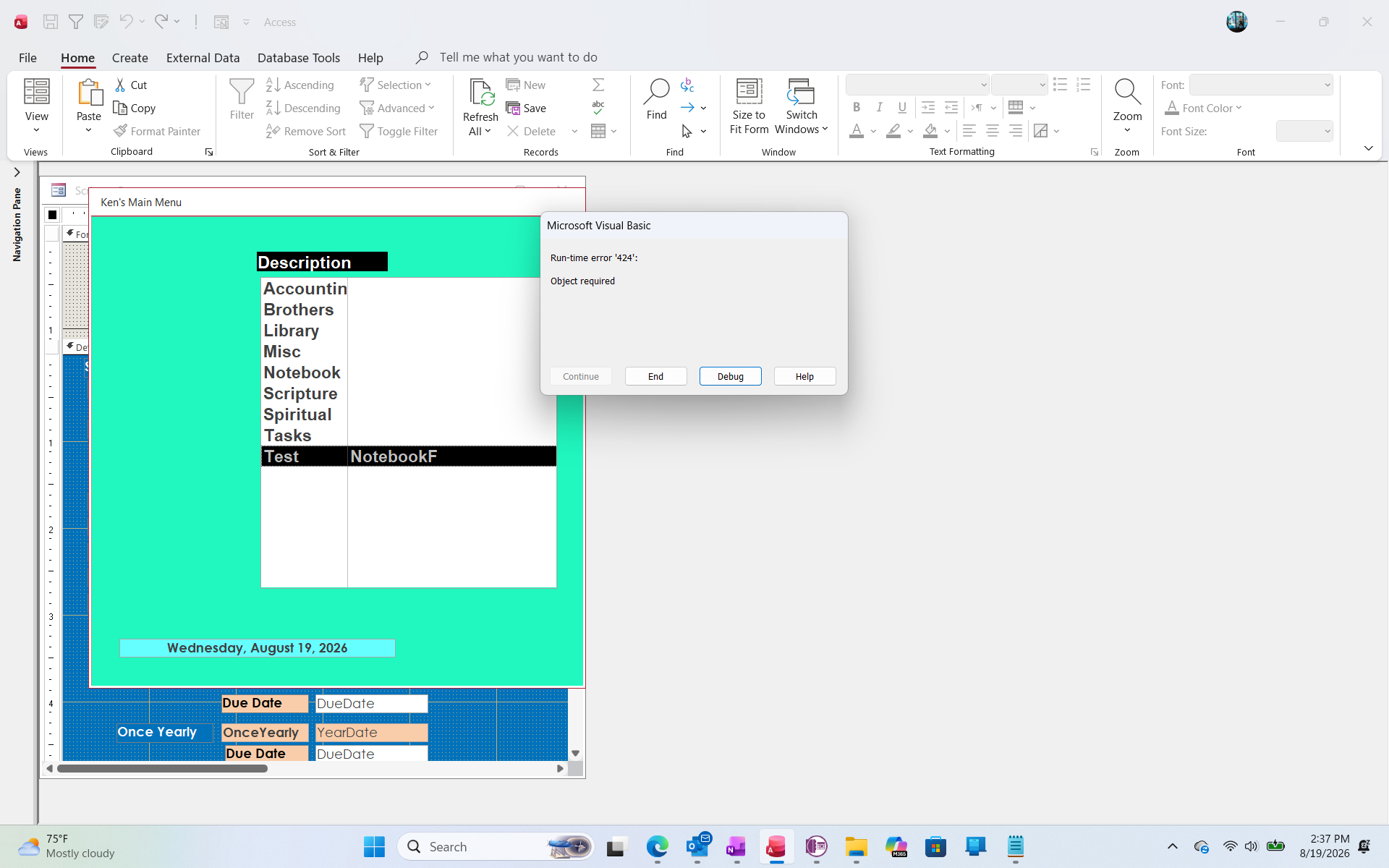
Well, progress.  At least this time when I clicked on the test, an Error Message popped up.  Please see the latest Screen Shot.
Kenneth A Thomas OP  @Reply  
       
17 days ago

Kevin Robertson  @Reply  
           
17 days ago
Please click on Debug and post a screen shot of the code.
We need to see the code before we can offer any help otherwise we will just be guessing.
Kenneth A Thomas OP  @Reply  
       
17 days ago
Kevin, I was thinking about posting these Screen shots on a new thread.  Is that ok, or should I keep adding here?
Kenneth A Thomas OP  @Reply  
       
17 days ago

Kevin Robertson  @Reply  
           
17 days ago
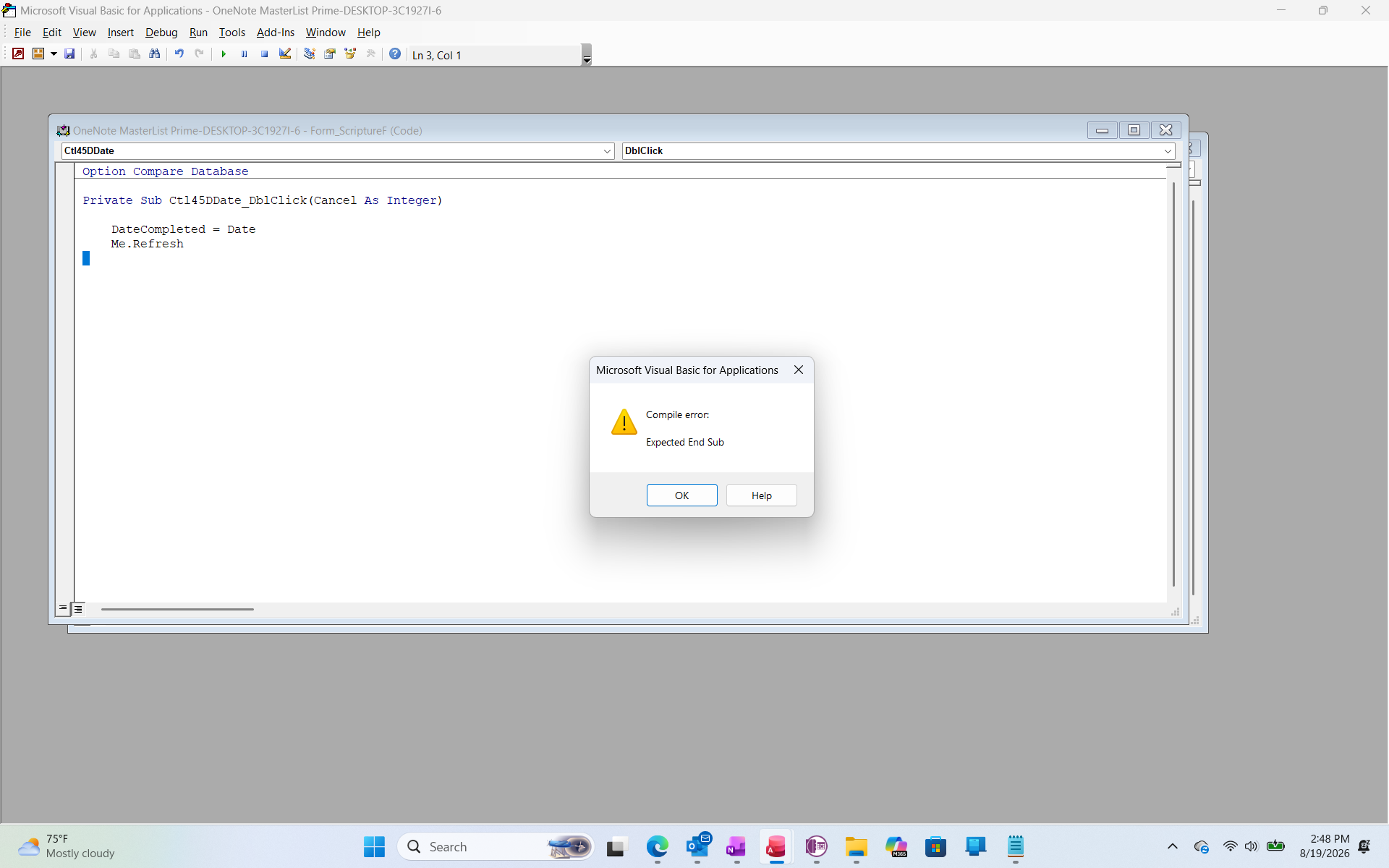
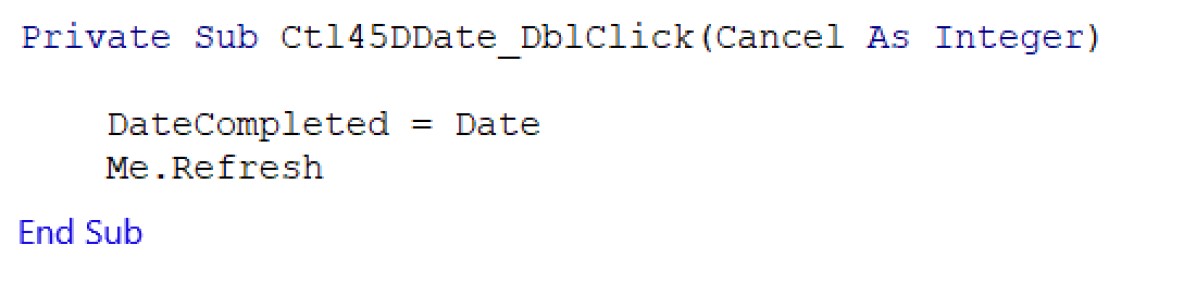
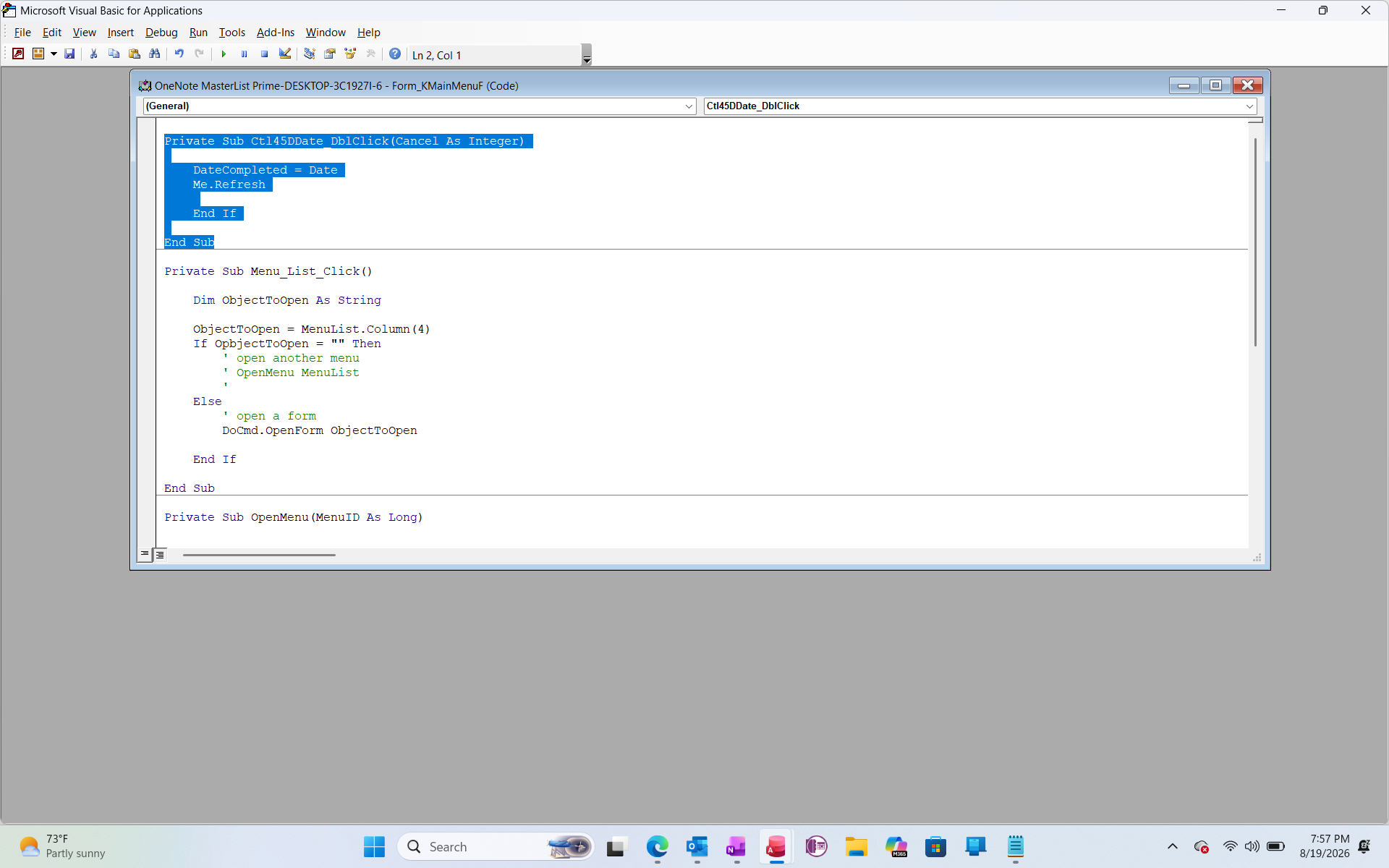
You are missing the End Sub.
Kenneth A Thomas OP  @Reply  
       
17 days ago
Where?
Kevin Robertson  @Reply  
           
17 days ago

Kevin Yip  @Reply  
      
17 days ago
Kenneth  "End Sub" should be put at the very end of a sub.  When you create a new sub by typing "Private Sub", it automatically adds "End Sub" at the end for you, so I don't know why it isn't there already.
Kenneth A Thomas OP  @Reply  
       
17 days ago

Kenneth A Thomas OP  @Reply  
       
17 days ago
The "End Sub was there and that message still shows up.  I think my Access is playing tricks on me.
Kevin Robertson  @Reply  
           
17 days ago
Kenneth Watch this video before going any further with VBA. It will help you a lot.

Intro to VBA
Kenneth A Thomas OP  @Reply  
       
17 days ago
I've watched that video 2 or 3 times, but I will watch it again.
Kenneth A Thomas OP  @Reply  
       
17 days ago
Well, maybe once, but I have watched it and now I just watched it again.
Sandra Truax  @Reply  
         
17 days ago
It looks to me like you need to delete the "End If" line of code.
Richard Rost  @Reply  
           
17 days ago
Yep, Sandra is right. You've got an End If in that Sub that doesn't belong there. Delete the extra End If, leaving only the one that closes your If...ElseIf block.
Kenneth A Thomas OP  @Reply  
       
15 days ago
I'm getting no where fast!
Richard Rost  @Reply  
           
15 days ago
It's okay, Kenneth. I know this stuff can be frustrating. If you're not used to developing with VBA, it's a new skill that you have to learn.

I see from your course list that you're only through Access Expert Level 15, so just give it some time. Keep learning the fundamentals and basics. Little things like a missing End Sub or not knowing where an End If goes are exactly the kinds of things you get through with practice. I wasn't perfect with the stuff myself the first time through. No one is.

Make the mistakes, fix them one at a time, and learn a little bit at a time. We're here to help, but don't get frustrated.
Kenneth A Thomas OP  @Reply  
       
15 days ago
Thank you.  BTW, I jumped ahead and ordered Developer 1, so I can start understanding more VBA.
Richard Rost  @Reply  
           
14 days ago
That's a good move. Developer 1 should help make the VBA pieces start to click, especially the structure of procedures and If blocks. Don't feel like you have to master it all at once, either. Build a little, break a little, fix it, and repeat. That's honestly how most of us learned it.

Once you get through the basics, come back to that MenuT/list box setup. It's a great real-world project for practicing VBA because every improvement gives you something useful in your database.
Kenneth A Thomas OP  @Reply  
       
14 days ago
Sounds good, Richard.  I was just frustrated because I want to automate my Main Menu...I feel so close.
Add a Reply Upload an Image
Next Unseen


What's This?


The following is a paid advertisement
Computer Learning Zone is not responsible for any content shown or offers made by these ads.
 

Learn
 
Access - index
Excel - index
Word - index
Windows - index
PowerPoint - index
Photoshop - index
Visual Basic - index
ASP - index
Seminars
More...
Customers
 
Login
My Account
My Courses
Lost Password
Memberships
Student Databases
Change Email
Info
 
Latest News
New Releases
User Forums
Topic Glossary
Tips & Tricks
Search The Site
Code Vault
Collapse Menus
Help
 
Customer Support
Web Site Tour
FAQs
TechHelp
Consulting Services
About
 
Background
Testimonials
Jobs
Affiliate Program
Richard Rost
Free Lessons
Mailing List
PCResale.NET
Order
 
Video Tutorials
Handbooks
Memberships
Learning Connection
Idiot's Guide to Excel
Volume Discounts
Payment Info
Shipping
Terms of Sale
Contact
 
Contact Info
Support Policy
Mailing Address
Phone Number
Fax Number
Course Survey
Email Richard
[email protected]
Blog RSS Feed    YouTube Channel

LinkedIn
Copyright 2026 by Computer Learning Zone, Amicron, and Richard Rost. All Rights Reserved. Current Time: 9/5/2026 2:22:36 PM. PLT: 0s