Free Lessons
Courses
Seminars
TechHelp
Fast Tips
Templates
Topic Index
Forum
ABCD
 
Home   Courses   TechHelp   Help   Contact   Merch   Join   Order   Logon   Forums   
 
Back to Access Forum    Comments List
Upload Images   @Reply   Bookmark    Link   Email   Next Unseen 
Search Description Field Text
Kenneth A Thomas 
        
4 days ago
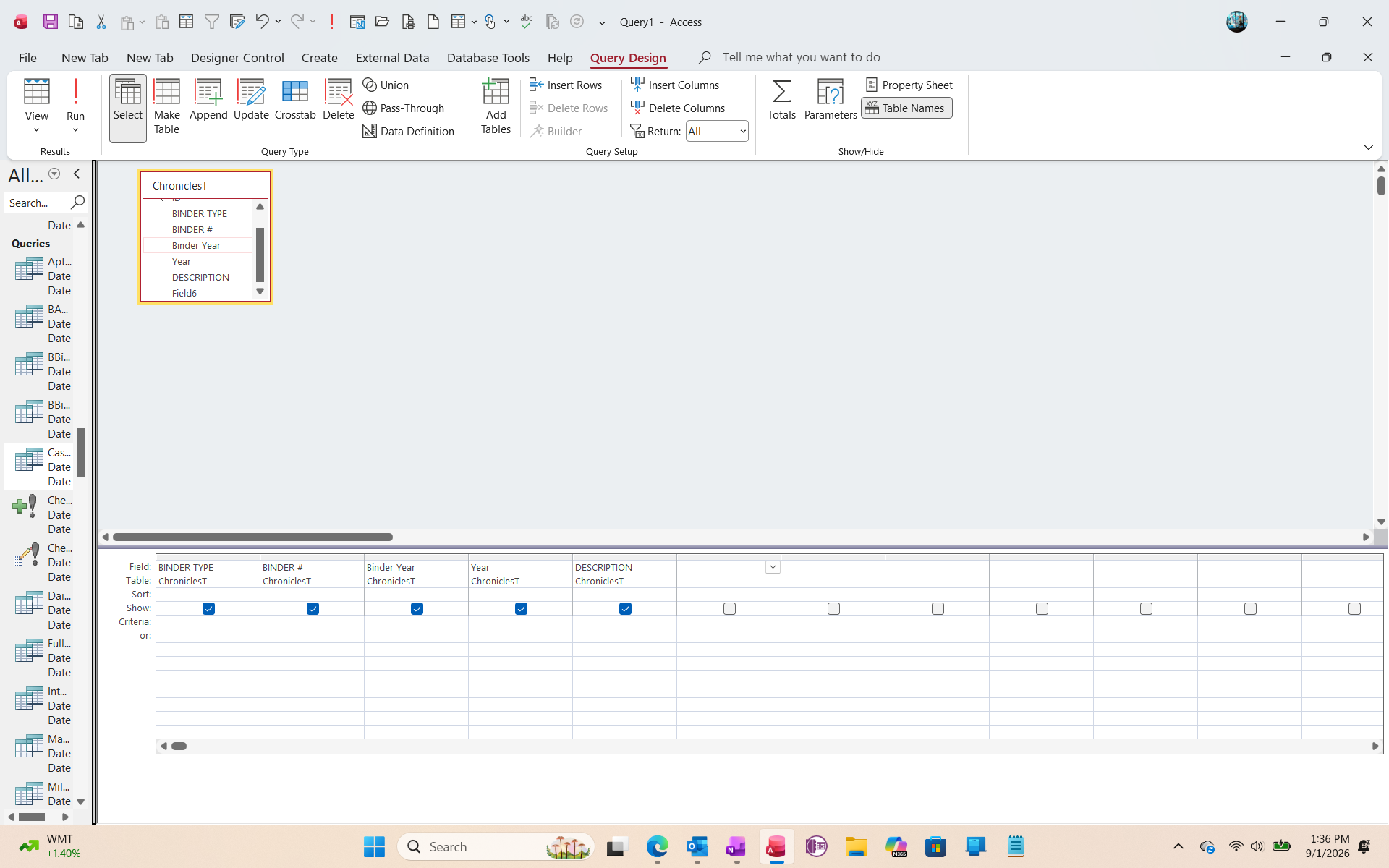
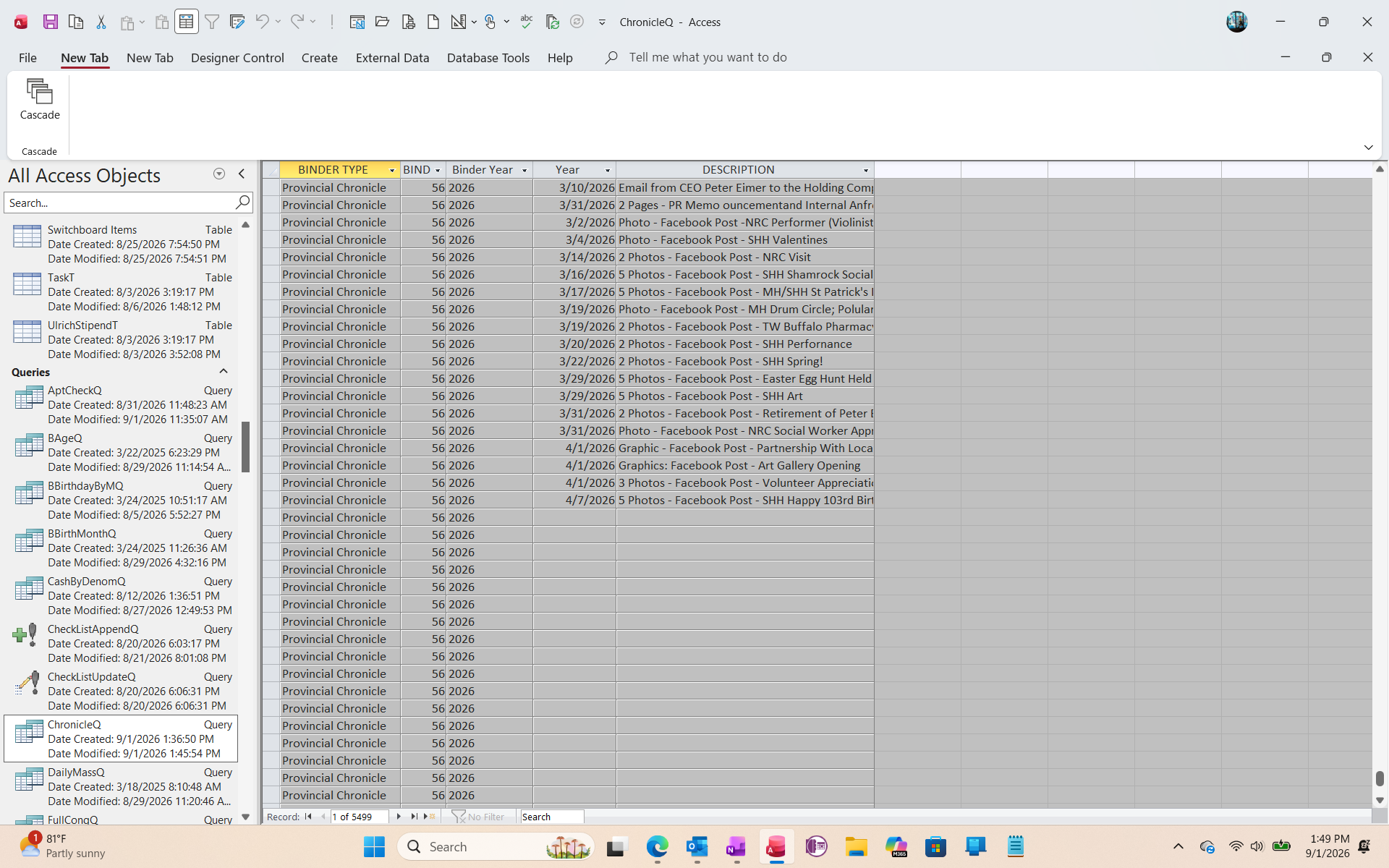
Hello everyone.  I am in charge of the Archives/Chronicles for our healthcare campus.  There are 56 Chronicle Books in the Archives, which run consecutively from 1924 through the current date, with room for expansion.  I have attached 2 screen shots so you can see both the basic "ChronicleQ" design, as well as the results.  I would like to know what changes or additional coding I need make to be able to search in the "Description" field in order to find documents pertaining to specific names or topics.  Any advice?
Kenneth A Thomas OP  @Reply  
        
4 days ago

Kenneth A Thomas OP  @Reply  
        
4 days ago

Kevin Yip  @Reply  
     
4 days ago
To search text within the Description field, you need the InStr() function.  For instance, the SQL below:

     SELECT * FROM ChronicleT WHERE InStr(1, Description, "book") <> 0

will return records where the Description field contains the text "book" somewhere in it.  Words with partial text "book" (e.g. Facebook, books, booked, etc.) will also be included.  It looks for exact matches of the text (spaces and other special characters included), so misspellings will be a problem.
Kenneth A Thomas OP  @Reply  
        
4 days ago
Kevin, do I add that SQL script in the Description field Criteria?
Kenneth A Thomas OP  @Reply  
        
4 days ago
Or is that VBA code in the form?  I don't understand how to apply that SQL.
Kevin Yip  @Reply  
     
4 days ago
On your first picture, under "View" at the top left, click that V-shaped button to open up the SQL screen, where you type the SQL statement (correct my misspelling first).  There are other issues to consider too.  My SQL above only searches for "book."  To allow your users to specify any search words, it takes more work.  One way is to create a "parameter query" that accepts user inputs.  Another is to use VBA code to get user inputs and construct the SQL statement.  I don't know your level, so refer to Richard's courses.  I've never taken any of his courses, so I would defer to Richard and others regarding what courses you need to do all of the above.
Donald Blackwell  @Reply  
       
4 days ago
A couple of the videos Kevin might consider valuable for you are:

Parameter Query
Direct SQL View
Kenneth A Thomas OP  @Reply  
        
4 days ago
I've never used SQL, so I will check out the videos.
Richard Rost  @Reply  
          
3 days ago
You don't need SQL or VBA for a simple search like this. In your query design grid, under the Description field's Criteria row, enter:

Like "*book*"

That will return all records where Description contains the word "book." If you want to find records that don't contain it, add Not:

Not Like "*book*"

The asterisks are wildcards, meaning "anything before or after this text." So Like "*Smith*" finds descriptions containing Smith anywhere in the field.

Later, if you want the user to type in whatever word or name they are looking for, you can turn that into a parameter query. But start with the simple criteria first.
Kenneth A Thomas OP  @Reply  
        
3 days ago
So Richard, I can search a name such as Like "Thomas"?  For that matter, any subject matter, such as Lime "Main St".?
Kevin Yip  @Reply  
     
3 days ago
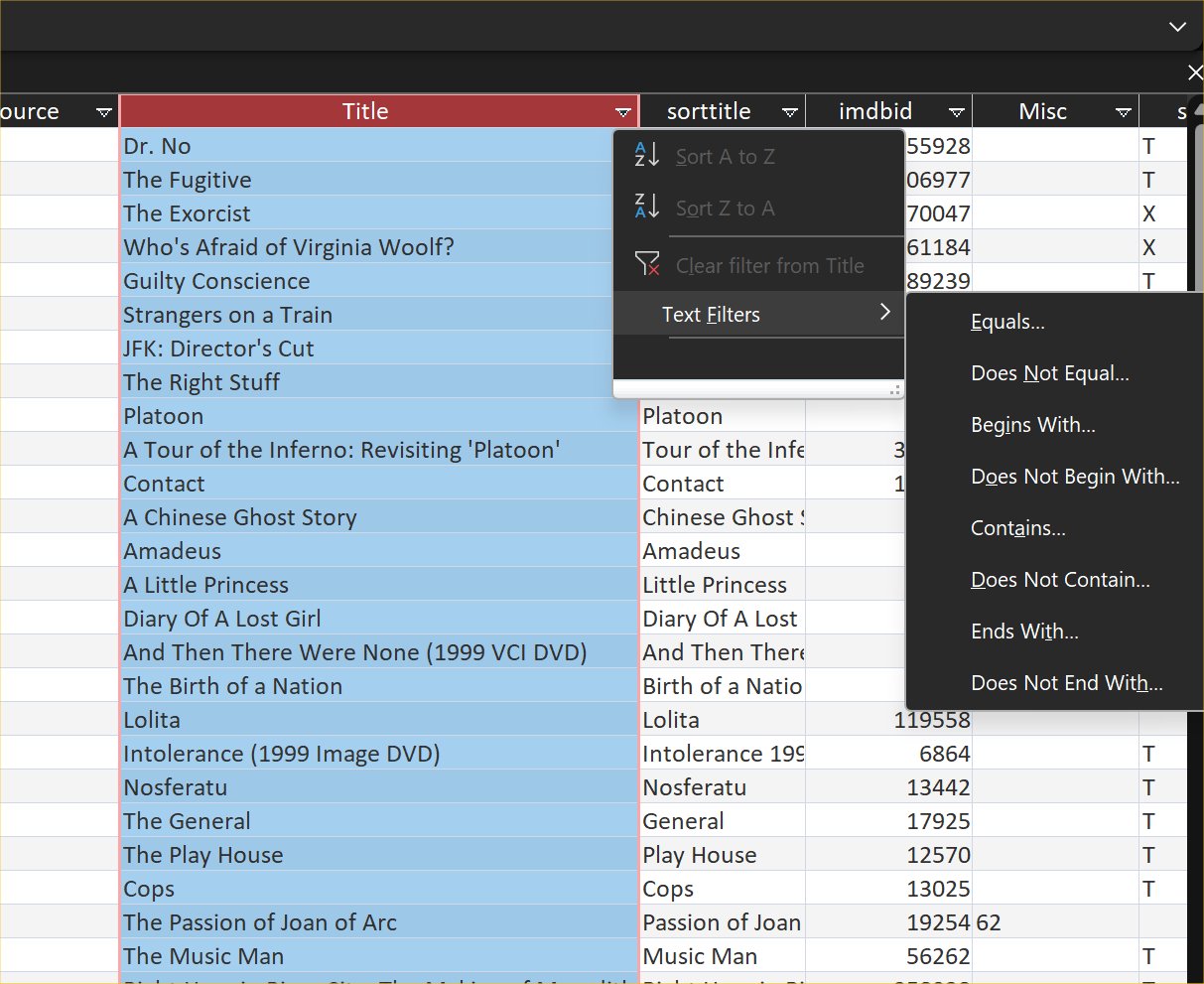
Another simple route is using a text filter on a field in regular query view (pictured below), no need to go into design view.  This works in tables too.
Kevin Yip  @Reply  
     
3 days ago

Kenneth A Thomas OP  @Reply  
        
3 days ago
Thank you all for the great recommendations.
Richard Rost  @Reply  
          
2 days ago
You're very welcome. And yes, for a contains search you need the wildcards:

Like "*Thomas*"

or:

Like "*Main St*"

Be careful not to type "Lime" - it should be Like. Without the asterisks, Like "Thomas" only finds fields that contain exactly Thomas and nothing else. With the asterisks, it finds Thomas anywhere in the Description, such as "Letter from John Thomas" or "Thomas family history."

Kevin's filter suggestion is also handy for quick, one-time searches while you're viewing records. For a saved query that you can run again later, I'd use the criteria in the query design grid.
Kenneth A Thomas OP  @Reply  
        
2 days ago
I like likes and lime juice, but yes to not typing Lime.  My High School typing teacher would be so disappointed.
Add a Reply Upload an Image
Next Unseen


What's This?


The following is a paid advertisement
Computer Learning Zone is not responsible for any content shown or offers made by these ads.
 

Learn
 
Access - index
Excel - index
Word - index
Windows - index
PowerPoint - index
Photoshop - index
Visual Basic - index
ASP - index
Seminars
More...
Customers
 
Login
My Account
My Courses
Lost Password
Memberships
Student Databases
Change Email
Info
 
Latest News
New Releases
User Forums
Topic Glossary
Tips & Tricks
Search The Site
Code Vault
Collapse Menus
Help
 
Customer Support
Web Site Tour
FAQs
TechHelp
Consulting Services
About
 
Background
Testimonials
Jobs
Affiliate Program
Richard Rost
Free Lessons
Mailing List
PCResale.NET
Order
 
Video Tutorials
Handbooks
Memberships
Learning Connection
Idiot's Guide to Excel
Volume Discounts
Payment Info
Shipping
Terms of Sale
Contact
 
Contact Info
Support Policy
Mailing Address
Phone Number
Fax Number
Course Survey
Email Richard
[email protected]
Blog RSS Feed    YouTube Channel

LinkedIn
Copyright 2026 by Computer Learning Zone, Amicron, and Richard Rost. All Rights Reserved. Current Time: 9/5/2026 6:55:46 AM. PLT: 1s