Free Lessons
Courses
Seminars
TechHelp
Fast Tips
Templates
Topic Index
Forum
ABCD
 
Home   Courses   TechHelp   Help   Contact   Merch   Join   Order   Logon   Forums   
 
Back to Access Forum    Comments List
Upload Images   @Reply   Bookmark    Link   Email   Next Unseen 
Bank CSV Income Expense And Search
David Clement 
      
16 days ago
Hello Richard.
I am hoping you can remind me of what you would say is a simple task.
I have built a simple accounts tracking database, but in this case I am using my banks .csv file to provide the data, thinking it would be more precise, which it is.
I only have two questions about doing it this way.
#1-The bank record shows an "amount" column. (0.00) for negative and 0.00 for positive. Not in separate columns.
   I know you have shown how to get totals based on those two amounts. I just don't remember how to do it.
#2-The bank record show a very long "description" in that column.
   Is there a way to search within that column for where the transaction occured? It is listed, but sometimes deep within the description itself.
Richard Rost  @Reply  
          
16 days ago
Hi David. Yep, both are pretty simple to handle in Access.

1. For the Amount field, create a totals query. Add the Amount field twice. Set the Total row for the first one to Sum, and use criteria to separate negatives from positives:

Positive: >0
Negative: <0

You can also use calculated fields if you want both values on the same record in a query:

Income: IIf([Amount] > 0, [Amount], 0)
Expense: IIf([Amount] < 0, -[Amount], 0)

Then use Sum in the Totals row for Income and Expense. I usually make Expense positive in the calculation, because it looks nicer on reports.

2. Yes. Use the Like operator with wildcard characters. For example, to find anything containing "Walmart" anywhere in the Description field, put this in the Criteria row under Description:

Like "*Walmart*"

If you want the user to type what they are looking for into a text box on a form, such as SearchText on AccountF, use:

Like "*" & [Forms]![AccountF]![SearchText] & "*"

That will find the text anywhere in the description, regardless of how much other junk the bank puts before or after it.

Wildcard Search & Like
IIF Function
David Clement OP  @Reply  
      
16 days ago
Thank you. That's what I couldn't remember.
Awhile back, I vaugely remember you saying something to the effect that you going to try to do a video on the "best" way to import your banks .csv file into access. I pretty much have that down now. I am using my banks reference number and no duplicates when setting up my access database. The transaction number is really long, thats why I am using the reference number instead. That way I can use the append to table when adding new data. Works just fine. Not a big deal, I am just curious as to how you would layout your form. I tend to go with the most basic layout when creating forms.
As always, thank you!
David Clement OP  @Reply  
      
16 days ago

Richard Rost  @Reply  
          
16 days ago
Basic is usually best, especially for something like an account register. You want to be able to open the form and immediately see the date, description, amount, and running balance or totals without having to hunt around for anything.

Your approach of using the bank's reference number to prevent duplicates is fine as long as that number is truly unique for each transaction and doesn't get reused. The fact that the bank's transaction number is long isn't really a problem - a Short Text field can hold up to 255 characters - but if the reference number is shorter and reliably unique, it makes a perfectly good unique index.

And yes, your memory is correct. I went back and checked. I actually demonstrated something very similar way back in Access Expert 23, Lesson 2, where I showed how to import PayPal transactions from a CSV file. PayPal provides a unique Transaction ID, so I used that to prevent duplicate transactions from being imported.

The technique I used there is basically what I'd still recommend today. Import the CSV into a temporary import table first. This is often called a staging table. Then use an append query to move the records you want into your real transaction table. The staging table gives you a chance to inspect, clean up, validate, or otherwise process the imported data before it becomes part of your actual account register.

In that old PayPal example, I made the Transaction ID indexed with No Duplicates so that importing overlapping date ranges wouldn't create duplicate transactions. Your bank's reference number can serve exactly the same purpose if it's guaranteed to be unique.

I also mentioned in that lesson that the same basic system could be used for multiple sources - PayPal, banks, credit cards, etc. Each source could have its own staging/import table because CSV formats are usually different, and then everything gets appended into one common transaction table.

I apparently also said I was going to put together a full bank transaction seminar covering all of this in more detail. That part never happened. LOL. So you weren't imagining it.

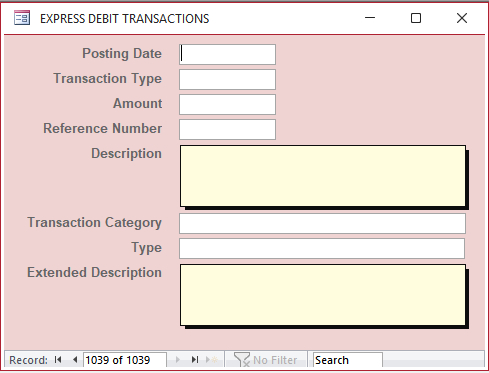
For the form, I'd probably have a main AccountF with a search box and date-range controls at the top, a few totals such as Income, Expenses, and Balance, and then a continuous form or datasheet-style subform underneath showing something simple like:

Date
Description
Category
Amount
Balance

There's nothing wrong with a basic layout. Accounting data is one of those cases where "boring but clear" beats a fancy form every time.

And now that you've reminded me of it, a modern TechHelp video showing a generic bank CSV import using a staging table, unique reference numbers, duplicate prevention, and an append query would probably be a good topic. The old lesson used PayPal specifically, so there's definitely room for an updated generic version.
David Clement OP  @Reply  
      
15 days ago
Hello Richard,
I have watched your Access Expert 23 lesson 2 video. I realize that it is an older video possibly made with an older version of Access. I just have qustion for you. My bank gives me this as the Transaction ID:20250102 827134 3,000 7,119,926 and this as the Reference Number: 3156072016. Both numbers are always different. My question is this about the Transaction ID number, what is up with all the commas? That is why I chose to use the Reference Number in what I have done so far. Maybe you could shed some light on this?
David Clement OP  @Reply  
      
15 days ago

David Clement OP  @Reply  
      
15 days ago
I don't have this view. All I do is Import an Excel file right into Access.
I am I doing it right?
Thank you.
David Clement OP  @Reply  
      
15 days ago
I don't completely understand how else to do this. So I just drop the Data into my form.
Thank you.
David Clement OP  @Reply  
      
15 days ago
I'm sorry, after watching the video again, I noticed you are importing your data as a text file. I treid that, but it doesn't look anything like yours. When I import the .csv file after changing it to a .xlsx file and that seems to work.
You probably would say to do it another way. The query is what I don't understand.

Thank you.
Donald Blackwell  @Reply  
       
15 days ago
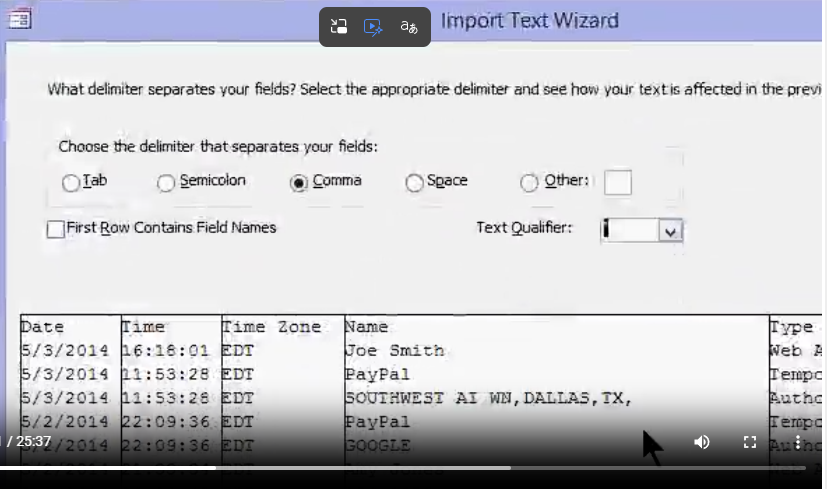
Hi David, the view in your image will show if you import a csv file as a text file. However, if you are importing it as an Excel file, you won't get this screen.

As for the spaces and commas in the TransactionID, that is apparently how your bank does it. It appears to be the datestamp followed possibly by a time stamp and the remaining two numbers only your bank could explain. If the Reference number is truly unique, then I would use that. If you want to be safe possibly store the transaction ID as a short text field.

My bank doesn't give me either so I just have to match up the date/time they received the transaction along with the payor/payee.
Richard Rost  @Reply  
          
15 days ago
Donald is right. Those commas are simply part of whatever format your bank uses for its Transaction ID. I wouldn't try to interpret or break that value apart unless the bank documents exactly what each piece means. Store it as Short Text if you want to keep it, and use the ReferenceNumber as your unique import key if it is always present and genuinely unique.

One important point: don't just rename a .csv file to .xlsx. Changing the extension doesn't convert the file into a real Excel workbook. If your bank gives you an actual .xlsx download, then importing it with the Excel import option is fine. But if it gives you a CSV, import it as a text/CSV file. Access should recognize the commas as delimiters and walk you through the Text Import Wizard.

Sometimes a field such as TransactionID contains commas itself. In a properly formatted CSV, the bank should surround that field with double quotes, like this:

"20250102 827134 3,000 7,119,926"

That tells Access that the commas are part of one field and not column separators. If the bank's CSV is formatted correctly, the import wizard should bring it in as one TransactionID field.

As for the query, think of it as the step between the imported data and your real transaction table. You don't drop the imported data into a form. Import the file into a temporary table first, perhaps BankImportT. Then create an append query that takes records from BankImportT and adds them to your real TransactionT table.

The append query can use the ReferenceNumber to exclude records that were imported previously. That is the whole point of using a staging/import table - you can safely import the bank file, inspect it, and then append only the new transactions.

Your basic layout is still perfectly fine. The form is for viewing and working with your actual transactions. The import table and append query are just the machinery behind the scenes that gets the bank data into that table safely.
David Clement OP  @Reply  
      
15 days ago
I don't change the extension name, I save it as a .xlsx file. Should I not do that?
David Clement OP  @Reply  
      
15 days ago
I am not seeing how to import .csv files. Thats why I've been saving the .csv file as an .xlsx file. Access then sees it, and I can then import it.
David Clement OP  @Reply  
      
15 days ago
I have over 740 records in my Transaction Table with no duplicates. I do an Append to that table and it seems to work. When I started this, I was pretty much just winging it.
Donald Blackwell  @Reply  
       
15 days ago
Access doesn't have a specific "CSV" option. But you can choose:
New Data Source -> From File -> Text File

Then Access will prompt you for your file location and you can choose the CSV file you download from your bank. If you're not making any changes before saving it as an xlsx file, then this could save you a step in your import routine.

Once you've chosen then CSV file from your hard drive, then the screens in Richard's video will usually come up as his.
Add a Reply Upload an Image
Next Unseen


What's This?


The following is a paid advertisement
Computer Learning Zone is not responsible for any content shown or offers made by these ads.
 

Learn
 
Access - index
Excel - index
Word - index
Windows - index
PowerPoint - index
Photoshop - index
Visual Basic - index
ASP - index
Seminars
More...
Customers
 
Login
My Account
My Courses
Lost Password
Memberships
Student Databases
Change Email
Info
 
Latest News
New Releases
User Forums
Topic Glossary
Tips & Tricks
Search The Site
Code Vault
Collapse Menus
Help
 
Customer Support
Web Site Tour
FAQs
TechHelp
Consulting Services
About
 
Background
Testimonials
Jobs
Affiliate Program
Richard Rost
Free Lessons
Mailing List
PCResale.NET
Order
 
Video Tutorials
Handbooks
Memberships
Learning Connection
Idiot's Guide to Excel
Volume Discounts
Payment Info
Shipping
Terms of Sale
Contact
 
Contact Info
Support Policy
Mailing Address
Phone Number
Fax Number
Course Survey
Email Richard
[email protected]
Blog RSS Feed    YouTube Channel

LinkedIn
Copyright 2026 by Computer Learning Zone, Amicron, and Richard Rost. All Rights Reserved. Current Time: 9/21/2026 1:50:34 AM. PLT: 1s